Google App campaigns are Google's ad product for mobile apps. You give Google a few lines of text, some images and videos, a daily budget and a target price, and Google builds the ads itself and shows them across Google Search, Google Play, YouTube, Discover and the Display Network, plus AdMob and other publishers that host app ads. There are three kinds: campaigns for installs, campaigns for engagement (bringing back people who already have the app) and campaigns for pre registration, which are Android only. You bid on a target cost per install (tCPI), a target cost per action (tCPA), a target return on ad spend (tROAS), or let Google maximize conversions. Google's best practices page asks for a daily budget of at least 50 times your target cost per install, so a $2 target means $100 a day. Google publishes no average price, and the independent data below puts a typical install anywhere from under $1 on Android worldwide to more than $5 in the US.
That is the short answer. The rest of this guide is the long one: what changed since these were called Universal App Campaigns, where each ad shows, how the three campaign types differ, every bid strategy and when to use it, the budget rules Google gives, what installs cost in published data, the assets you need and how the asset report rates them, how to set up tracking with Firebase, Google Play or a mobile measurement partner, what is different on iOS, a first campaign step by step with Google's own menu names, the learning period, best practices, common mistakes, when not to run App campaigns at all, and how they compare with Apple Ads, Meta and TikTok. Every rule and number comes from Google's help pages or a named report, linked where it is used. All of them were opened on November 13, 2026.
One thing up front, because it shapes everything below: App campaigns are automated. You do not pick keywords, placements or ad layouts. What you control is the inputs: the app listing people land on, the assets Google mixes into ads, the event you tell it to optimize for, and the money. Most of the work is making those inputs good, and part of that work happens outside Google Ads. An app that has a recognizable brand, a decent rating and a social feed people can check converts better from every ad, which is why consistent posting belongs on the same to do list as the campaign. If that side is empty for your app, Spreadcast can fill it from your Google Play or App Store link, and there is a full section on that near the end. For a wider look at paid channels first, read how to advertise an app.
What Are Google App Campaigns?
A Google App campaign is a single campaign that promotes one app on Android or iOS across Google's properties. Google's overview puts it plainly: unlike most Google Ads campaigns, you do not design individual ads. Google takes your ad text ideas, images, videos and the assets from your store listing, tests combinations of them, and serves the ones that perform best in whatever format each placement needs: a text ad on Search, a card in Google Play, a video on YouTube, a banner or full screen ad in another app.
To start one, Google lists five requirements on the same page: an app published on Google Play or the Apple App Store, a payment method on your Google Ads account, basic app information, uploaded ad assets, and conversion tracking through Google Analytics for Firebase or a mobile measurement partner. The last one is the requirement people skip, and it is the one that decides whether the campaign works. Google's system optimizes toward whatever event you feed it. If it only sees installs, it finds people who install. If it sees purchases, it can look for people who buy.
Inside the Google Ads API, App campaigns are their own channel type, called MULTI_CHANNEL, and the API documentation lists a few limits that also apply in the normal interface: an App campaign cannot use a shared budget, cannot use a portfolio bid strategy, and targets by location and language rather than by keyword. Pre registration campaigns can only track pre registrations. If you are used to Search campaigns, that is the mental shift: there are no keywords to bid on, no search terms report to mine and no ad copy to write line by line.
Universal App Campaigns Became App Campaigns
If you search for "universal app campaign google" or "UAC", you are looking at the old name for the same product. Universal App Campaigns was Google's name for its automated app install ads for years. On February 20, 2019, Search Engine Journal reported that Google was dropping "Universal" and the product would be called App campaigns from then on, with no change to features and nothing for advertisers to do. Agencies still say UAC, and you will see "GAC" for Google App campaigns too. They are the same thing. If a guide talks about UAC, its basic advice may still hold, but check anything specific against Google's current help pages: the bid strategies, the networks and the iOS measurement have all changed since 2019.
What You Control and What Google Controls
This split is the most useful thing to understand before you spend a dollar, because most frustration with App campaigns comes from trying to steer something Google does not let you steer.
| You decide | Google decides |
|---|---|
| Which app, which platform (Android or iOS) and which store listing people land on | Which networks and placements each ad runs on |
| Countries and languages | Which users see the ads, inside your countries |
| Average daily budget | The bid in each auction, within your target |
| Bid strategy, target and the conversion event to optimize for | How text, images and videos are combined into ads |
| Text, image, video and HTML5 assets, up to the slot limits | Which assets get shown most, rated in the asset report |
| Optional audience signals, deep links and custom store listings | When the campaign leaves its learning status |
| Placement exclusion lists at the account level | How spend splits between Search, Play, YouTube and the rest |
Google's network distribution article makes the last row explicit. App campaigns do not favor one network over another; when spend seems to pile up on one, the reason is usually where inventory is available for your app at your bid. If a cheaper network has nothing for your campaign, the system goes after conversions elsewhere. You cannot switch networks off, but you can block specific apps or sites with account level placement exclusion lists, and Google notes that a bid set very low can stop a campaign from serving on all networks.
Where Google App Campaign Ads Show
Google's overview lists five groups of placements, and the network distribution page adds AdMob and the other publishers that host app ads. Here is what each one means in practice.
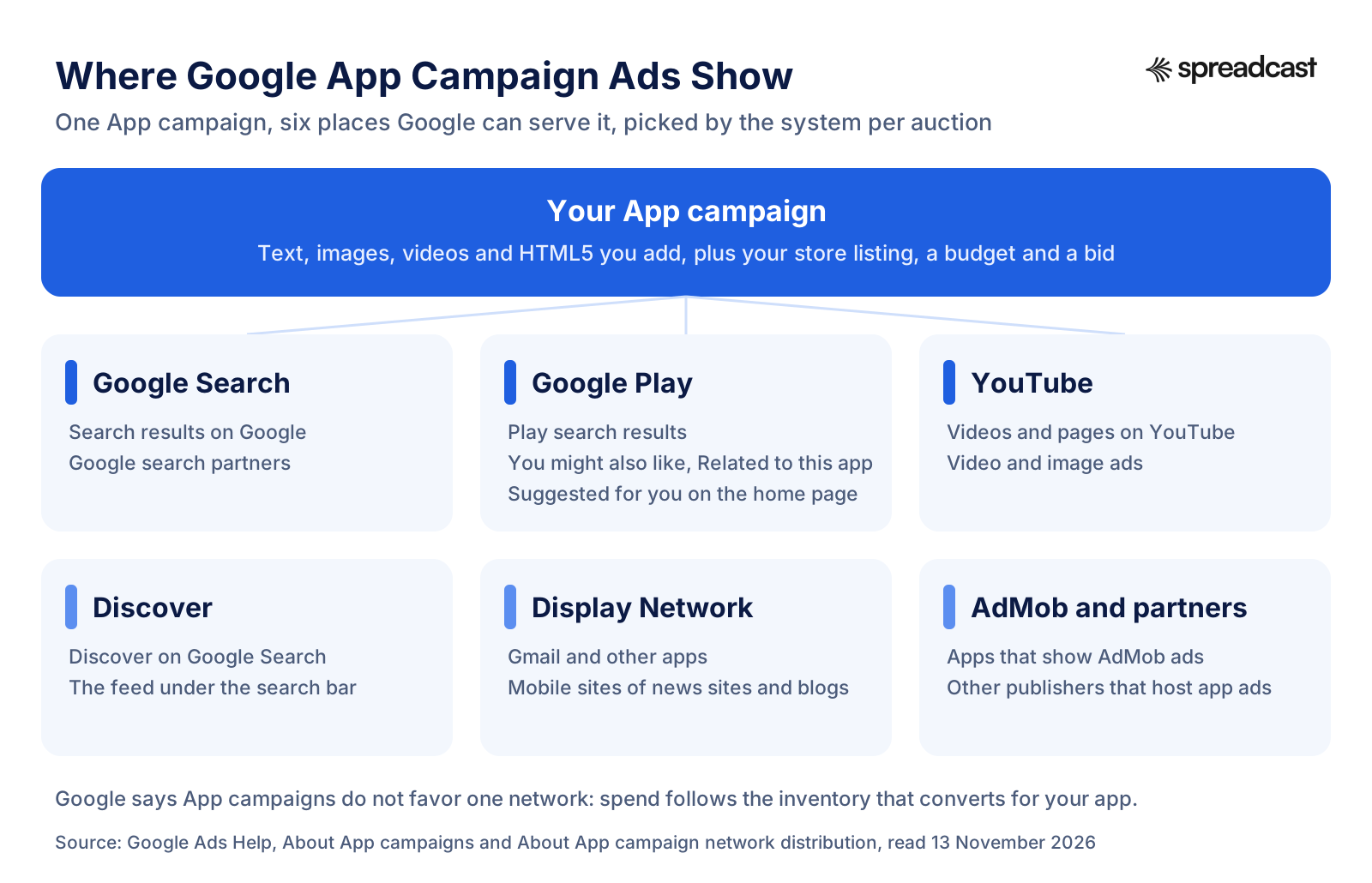
| Placement | Where the ad appears | Who it reaches |
|---|---|---|
| Google Search | Google search results and Google search partners | People searching for something your app does, often on a phone |
| Google Play | Play search results, the You might also like and Related to this app sections, and Suggested for you on the home page | People already in the store, the closest moment to an install |
| YouTube | Relevant pages and content on YouTube, video and image ads | People watching videos, a reach placement that needs good video |
| Discover | Discover on Google Search, the feed of articles in the Google app | People browsing, not searching |
| Google Display Network | Gmail, other apps and the mobile sites of news sites, blogs and other publishers | Huge reach, more casual intent |
| AdMob and other publishers | Ads inside apps that monetize with Google, plus partner publishers | Mobile gamers and app users between sessions |
Google Play
For an Android app, Google Play is the placement closest to the download. An ad in Play search results reaches someone who typed a query into the store, the way an Apple Ads search result does on iOS. The related apps sections, You might also like and Related to this app, reach people comparing apps on another listing. Suggested for you on the home page is a browsing placement. iOS campaigns do not run in Google Play, for the obvious reason, which is one of several reasons the same budget behaves differently on the two platforms. Everything that makes your Play listing convert (icon, screenshots, short description, rating) also lifts these ads, so the work in our Google Play ASO guide is part of your ad strategy whether you think of it that way or not.
Google Search
On Search your app shows as an app ad in Google results, usually on mobile. You never choose the queries. Google matches your app to searches using your listing and your assets, which is why the words in your store listing and your headlines matter. If your Play title and short description say "budget planner", Google has a much easier time showing you for budget searches than if they say something clever.
YouTube
YouTube is where video assets earn their keep. Google's overview lists relevant pages and content on YouTube among the placements, and the pre registration page notes that pre registration ads run there as in stream ads. If you upload no video at all, Google may build one for you from your store listing assets. That auto video is better than nothing and worse than a 15 second clip that shows your app doing its main job, so plan on making at least one.
Display Network, AdMob and Discover
These three are the volume end of the campaign. Display covers Gmail, other apps and mobile websites. AdMob is Google's network of ads inside other apps, and it is one of the places HTML5 playable ads can run. Discover is the article feed in the Google app. People here are not looking for an app, so conversion rates are lower and installs can be cheaper. They are also where low quality traffic tends to hide, which is why the placement exclusion list exists. Check the placement report every couple of weeks and exclude apps that send lots of clicks and no installs.
Can You Choose Placements in a Google App Campaign?
Mostly no. You cannot pick networks one by one. You can limit ad formats when you create the campaign (for example to video ads only, per Google's setup article), you can exclude specific placements at the account level, and you can split campaigns by country tier to spread spend more evenly, which the network distribution page suggests. If you need tight control over exactly where an ad shows, App campaigns are the wrong tool. Apple Ads on iOS, covered in our Apple Search Ads guide, gives you keyword level control in the App Store, and that is the trade off between the two products in one sentence.
The Three Types of Google App Campaigns
Google sorts App campaigns into three subtypes, described on its campaign types page. You pick one when you create the campaign, so it is worth knowing which job each one does.
| Subtype | Job | Platforms | Main requirement | Bid strategies |
|---|---|---|---|---|
| App campaigns for installs (ACi) | Get new people to install, optionally the ones likely to do something after | Android and iOS | An app live on Google Play or the App Store, plus conversion tracking | Target CPI, target CPA, target ROAS, maximize conversions, maximize conversion value |
| App campaigns for engagement (ACe) | Bring back people who already installed and get them to act | Android and iOS | At least 50,000 installs, deep links, an audience list and in app conversion tracking | Target CPA and target ROAS |
| App campaigns for pre registration | Collect pre registrations on Google Play before launch | Android only | An APK on a Play Console release track and pre registration switched on | Target cost per pre registration (tCPpre) |
App Campaigns for Installs
This is the default and the one most readers want. Google's types page says there are no strict requirements to create one beyond setting a sensible price and giving it suitable assets. Inside an install campaign you choose a focus, which Google's bid strategy page lays out: install volume (every user, or users likely to take an in app action after installing), in app actions (people likely to install and then do a specific thing, such as finish onboarding or subscribe) or in app action value (people likely to spend the most, used with target ROAS).
The focus is the real decision. "All users" on install volume gets the most installs for the money and the least selective users. "In app actions" costs more per install but each install is more likely to matter. Google itself recommends that a campaign aimed at users likely to take an action bids at least 20% above an all users campaign, per its setup best practices guide. You can also add optional audience signals, such as a list of your current users or a Firebase audience, to tell the system what a good user looks like. Signals guide the model; they do not limit who sees the ad.
App Campaigns for Engagement
Engagement campaigns go after people who already have your app. Google's engagement overview lists the uses: reaching lapsed users, nudging people who have not bought in a while, reminding someone about a cart they left, and promoting a live event or a sale. Ads can show on Search, YouTube, Google Play and Display Network apps, and a tap opens the app at a deep link instead of the store.
The bar to start is high on purpose. Google's engagement setup page says your app needs at least 50,000 installs, plus deep links (a Universal Link on iOS, an App Link on Android or a custom scheme), an audience list of app users, in app conversion tracking through Firebase or an App Attribution Partner, and a privacy policy that covers re engagement use and meets Google's EU user consent policy. The setup offers ready made objectives: users who have not opened the app in the past 7 days, past purchasers from the last 540 days who have gone quiet, people with no purchase in 540 days, and everyone who used the app in that period.
Bids work differently too. An in app action is usually worth more than an install, so engagement bids are higher. Google's tip on its engagement overview is to base the target on what the action is worth: for a $10 conversion, bid somewhere between $0 and $10, as close to $10 as you can afford. Results also arrive later than install results, because people take longer to buy than to install, so give an engagement campaign longer before you judge it. For a small app, honestly, the 50,000 install line settles the question: you will start with installs, and engagement is a later chapter.
App Campaigns for Pre Registration
Pre registration campaigns sell sign ups for an Android app or game that is not out yet. Per Google's pre registration page, they only show on Android phones and tablets, link to your Google Play listing and run on Google Play, on YouTube as in stream ads, and in other apps and mobile sites on the Display Network. Apps aimed at children cannot use them. Bidding optimizes only for pre registrations, against a target cost per pre registration you set.
The Play side has its own rules, from the Play Console pre registration help. You switch it on under Test and release, then Testing, then Pre registration. A pre registration period lasts at most 90 days, after which you must launch to production. On launch day, every pre registered user gets a push notification from Google Play to install, and eligible devices install the app automatically, except for apps over 2 GB. You can offer one pre registration reward, a free one time product such as an in game item, for the whole campaign, and it cannot be edited or deleted once it is created.
Google's advice on timing is to turn on pre registration at least two weeks before pre launch marketing starts, and that three to six weeks of campaign is enough for most apps, with nine to twelve weeks for a launch you expect to be big. Ads stop in any country where the app becomes installable, while the campaign keeps running elsewhere. One reporting quirk to expect: Google Ads counts a pre registration even if the person later cancels it, while Play Console counts only current ones, so the two numbers will not match. If you are still getting the app through review, our guide on how to publish an app on Google Play covers the release tracks pre registration depends on.
Google App Campaign Bidding: Target CPI, tCPA, tROAS and Maximize Conversions
Every App campaign uses automated bidding. You set a goal and sometimes a target, and Google sets the bid in each auction. Google's bid strategy page lists what each subtype allows.
| Bid strategy | What you set | Optimizes for | Available in | Good first choice when |
|---|---|---|---|---|
| Target cost per install (tCPI) | The average you want to pay per install | Installs at or near your target | Installs | You are new, have no in app event data yet, or want volume |
| Maximize conversions (installs) | Nothing but the budget | As many installs as the budget buys | Installs, with All users and no target | You want to see what the market price is before setting a target |
| Target cost per action (tCPA) | The average you want to pay per in app action | One chosen in app event | Installs and engagement | At least 10 different users a day complete the event |
| Maximize conversions (in app actions) | Nothing but the budget | As many in app actions as possible | Installs, beta for some advertisers | You have the event volume but no reliable target yet |
| Target return on ad spend (tROAS) | Conversion value as a percentage of spend | Revenue from in app actions | Installs and engagement | Your events send purchase values and you know your payback goal |
| Maximize conversion value | Nothing but the budget | As much in app value as possible | Installs, beta for some advertisers | You track values and want spend to follow them |
| Target cost per pre registration (tCPpre) | The average you want to pay per pre registration | Pre registrations | Pre registration only | You are running a pre launch campaign |
Target CPI in Google Ads
Target CPI tells Google the average you want to pay for an install. It is an average, not a cap: some installs will cost more, some less. On an "All users" install campaign the target is actually optional, and Google's bid strategy page notes that bid guidance is only shown in that setup. If you target users likely to take an in app action, Google suggests starting about 20% above your baseline tCPI. For iOS, Google suggests bidding about 1.5 times what you bid on Android, which says a lot about how much harder iOS installs are to buy and to measure. In the first days or weeks, Google's tips page warns, the cost per install may run high while the system learns.
Target CPA (tCPA) for App Campaigns
Target CPA optimizes for one in app action, such as tutorial complete, sign up, trial start or first purchase. Google's advice is to pick a single action: selecting several creates a blended target that mixes events with different values. Its setup guide says the action should be completed by at least 10 different users a day, because the system needs that much data to find more people like them. Once the campaign has history, compare the CPA you actually got with your target, and set the target around 20% above what you observed rather than far below it. On iOS, the same 1.5 times rule applies. For engagement campaigns, Google says to set the target high enough to drive more than 100 conversions.
Choosing the event is a balancing act. A deep event such as a purchase is what you care about, but if only three people a day buy, the system cannot learn from it. A shallow event such as app open happens constantly but tells Google little about value. The usual answer is the deepest event that still clears 10 users a day: for a subscription app that might be trial start rather than paid subscription, for a game it might be finishing level 3 rather than a first purchase.
Target ROAS (tROAS) for App Campaigns
Target ROAS bids for revenue rather than for a count of events. You set a percentage: conversion value divided by ad spend, times 100. A 150% target means you want $1.50 in tracked value for every $1 spent, within your conversion window. Google's bid strategy page suggests basing the first target on what a comparable campaign actually achieved, with the same app, event, lookback window, locations and languages. Your in app events must send a value, and Google's best practices page recommends a conversion window under 30 days that still captures around 90% of your conversions. Bid guidance for install campaigns on target ROAS is Android only for now. iOS campaigns gained target ROAS in 2025, according to PPC Land's report on that release.
Target ROAS is the strategy that matches how a business thinks, and the one that most often disappoints a small app. It needs purchase events with real values, enough of them every day, and patience while it learns. If you have a few purchases a week, start with tCPI or tCPA on a high volume event and come back to tROAS later.
Maximize Conversions
Maximize conversions spends the whole budget to get as many results as possible, with no target. For installs you choose All users and leave the target CPI box unticked; for in app actions or value you leave the target box empty. It is a good way to learn the market price in a new country, because you see what Google can buy at your budget, and a risky way to run a campaign for long, because nothing stops the average cost drifting up. A common pattern is to run maximize conversions for a couple of weeks, look at the cost per install it found, then switch to tCPI near that number.
How to Choose Your First Bid
Start from what a user is worth, not from what you hope an install costs. Say a new user on your Android app brings in $1.20 on average in their first 90 days, from ads and some subscriptions. If you want ads to pay back in that window, an install can cost at most $1.20, and you need room for the installs that never open the app twice. A tCPI of $0.80 to $1.00 is an honest start. If your target is far below what the market charges in your category and country, the campaign will barely spend, the state Google's best practices page calls bid constrained. That is information too: it means this audience costs more than your app currently earns from it.
How Much Do Google App Campaigns Cost?
There are two questions hiding in "google app campaign cost": how much money you need to put in for the campaign to work at all, and what each install will cost once it does. Google answers the first one with explicit rules. It does not answer the second, because the price comes out of an auction and depends on your app, country, category, bid strategy and creative.
Google App Campaign Minimum Budget
Google sets no hard minimum, but its help pages give a recommended daily budget as a multiple of your target. These are the multiples on Google's best practices page, repeated on its setup guide and tips page:
- Install campaigns on target CPI, and pre registration campaigns: a daily budget of at least 50 times the bid.
- Install campaigns on target CPA for an in app action: at least 10 times the bid.
- Engagement campaigns on target CPA: at least 15 times the bid.
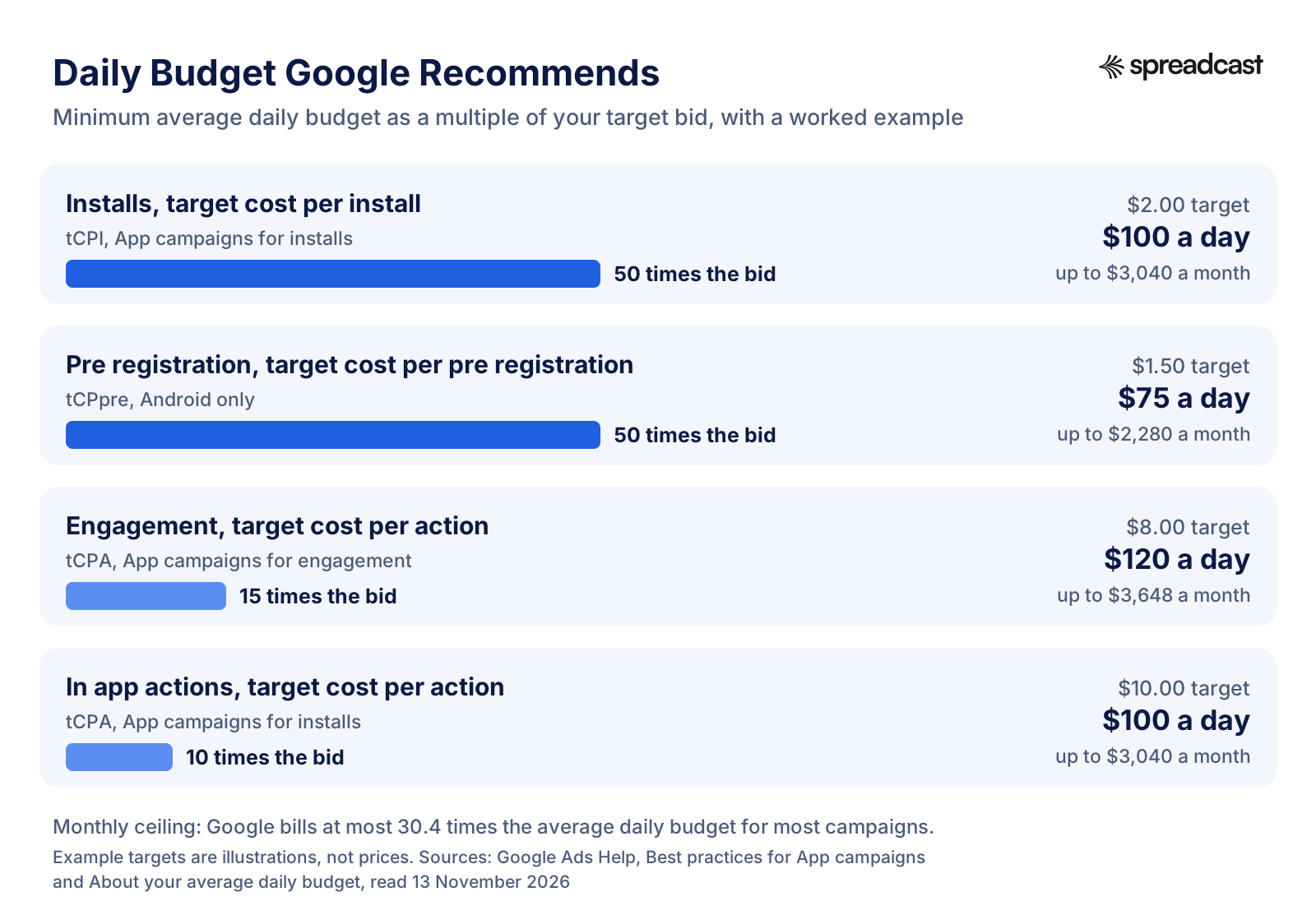
The logic is about data, not about Google wanting more of your money. At 50 times a $2 target, the campaign can buy about 50 installs a day, which is enough for the bidder to see patterns quickly. At 10 times a $10 target for an in app action, it buys about 10 of those actions a day, which matches the 10 users a day Google asks for. Budget below the multiple and the campaign learns slowly or not at all. Google's best practices also tell you to watch for the Limited by budget status and raise budgets on campaigns that show it.
Billing follows the general Google Ads rules on average daily budgets. On any one day a campaign can spend up to twice its average daily budget, and over a month you pay at most 30.4 times the average daily budget for most campaigns. So a $100 average daily budget means up to $200 on a busy day and at most $3,040 in a month. You will not be billed above that ceiling, but you should not be surprised by a $180 day either.
Put those rules together and you get the uncomfortable truth for small apps. A $2 tCPI campaign wants about $3,000 a month. A $1 tCPI campaign in cheaper markets wants about $1,500. You can run below the recommendation, and many people do, but expect a longer learning period and noisier results. If $3,000 a month is out of reach, the honest options are a lower target in cheaper countries, a single country, Maximize conversions on a small budget treated as a price discovery test, or putting the money into organic channels until the app earns enough to fund ads.
Google App Campaign Cost per Install: What the Data Says
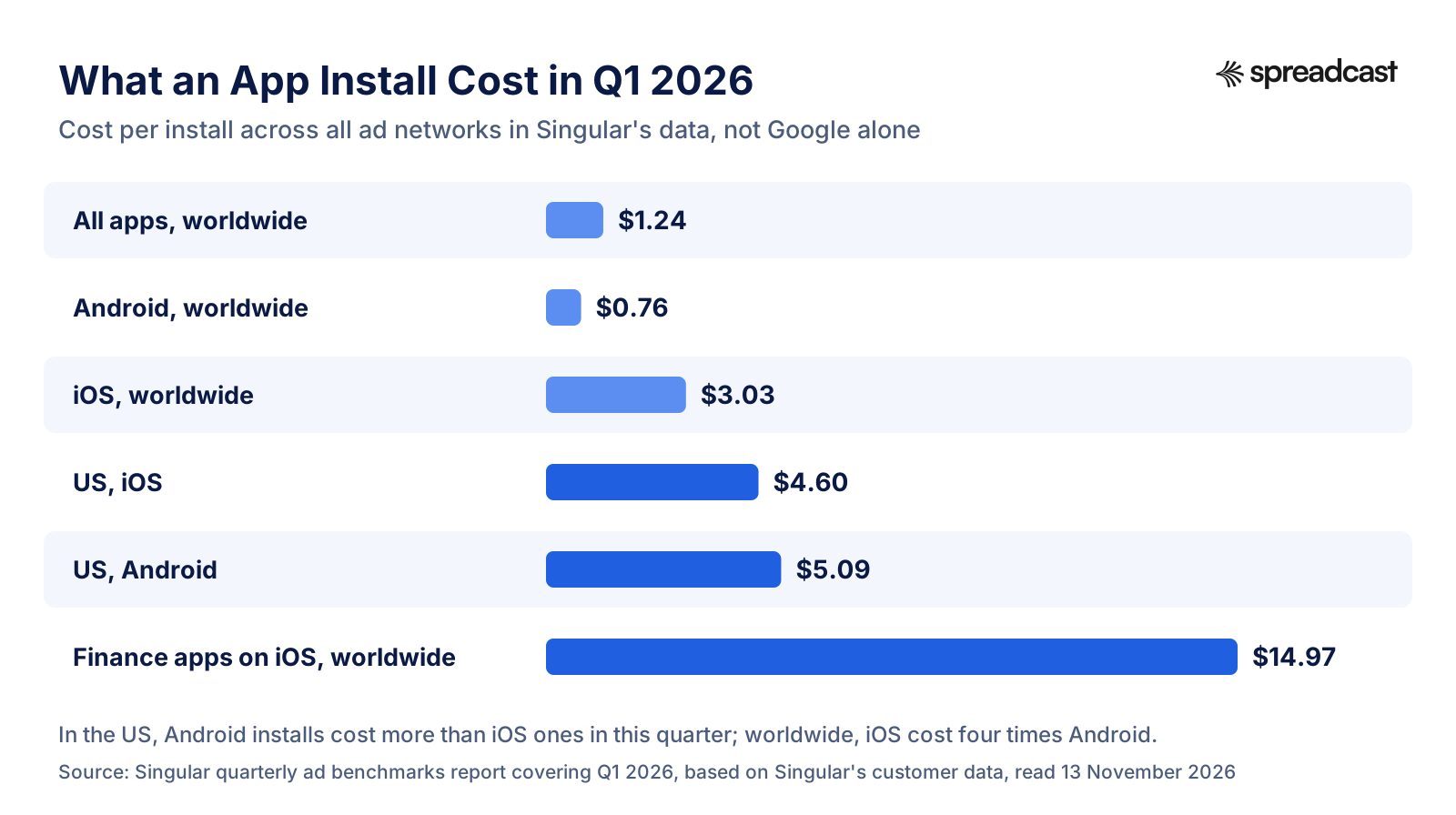
Google publishes no average cost per install for App campaigns, and neither do the help pages above. The best public numbers come from mobile measurement companies that see install costs across many ad networks, including Google. They are not Google only figures, and they say so, but they give you a realistic range. The most recent we found is Singular's quarterly benchmarks report covering the first quarter of 2026, based on Singular's own customer data.
| Segment, Q1 2026 | Cost per install | What Singular reported |
|---|---|---|
| All apps, worldwide | $1.24 | Up 12% from the previous quarter |
| Android, worldwide | $0.76 | Up 15.1% from the previous quarter |
| iOS, worldwide | $3.03 | Down 1.1% from the previous quarter |
| US, iOS | $4.60 | Up 13.8% from $4.04 |
| US, Android | $5.09 | Above US iOS in this quarter |
| Finance apps on iOS | $14.97 | 7.5 times the Android figure for the same category |
| Sports games | $9.93 on iOS, $0.93 on Android | One of the widest platform gaps in the report |
Three things stand out. First, worldwide, an Android install costs about a quarter of an iOS one in this data, which is why Android campaigns aimed at many countries can look so cheap. Second, that gap closes or flips in the US, where Android installs cost more than iOS ones in this quarter. Cheap Android installs are mostly a story about where the installs come from. Third, category matters more than platform: finance installs on iOS cost about five times the iOS average.
Singular's report also says something about Google specifically: in its data, Google leads spend and installs in every vertical. AppsFlyer reaches a similar conclusion from a different angle. Its Performance Index 2025, released December 3, 2025 and based on 16.2 billion installs from more than 39,000 apps across 88 media sources, ranks Google Ads first in Android gaming and first in Android non gaming. On iOS non gaming it puts Google Ads fourth, behind Apple Ads, Meta Ads and TikTok for Business. Read those two together and a pattern shows: on Android, Google is the default paid channel; on iOS it is one strong option among several, and in AppsFlyer's iOS non gaming ranking it comes after three others.
For a deeper table by category and network, our cost per install benchmarks page collects more sources in one place. For games, Liftoff's 2025 casual gaming report adds a useful warning about judging Android by cost alone: average day 30 return on ad spend for casual games was 47% on iOS and 15% on Android in 2024. Cheap installs that earn little can be worse than expensive ones that pay.
Why Cost per Install Is the Wrong Final Number
The install is a means. What you want to know is what a paying user, a retained user or a dollar of revenue costs you. Here is the arithmetic for a made up but ordinary case, so you can swap in your own numbers.
| Step | Example | Your app |
|---|---|---|
| Daily budget | $60 | Your number |
| Cost per install | $1.50 | From your first two weeks |
| Installs a day | 40 | Budget divided by cost per install |
| Share who start a trial | 8% | From your analytics |
| Trials a day | 3.2 | Installs times trial rate |
| Share of trials that pay | 40% | From your store or billing data |
| Paying users a day | 1.28 | Trials times conversion |
| Cost per paying user | About $47 | Budget divided by paying users |
If a paying user is worth $90 over their lifetime, that campaign is healthy. If they are worth $30, it loses money on every subscriber, no matter how good $1.50 an install sounds. That is the whole case for target CPA and target ROAS: they let Google bid toward the step in this table that actually pays the bills. Our LTV to CAC ratio guide shows how to estimate the lifetime value side, and the app retention benchmarks help you sanity check the share of installs that stick.
Google App Campaign Assets: Text, Images, Videos and HTML5
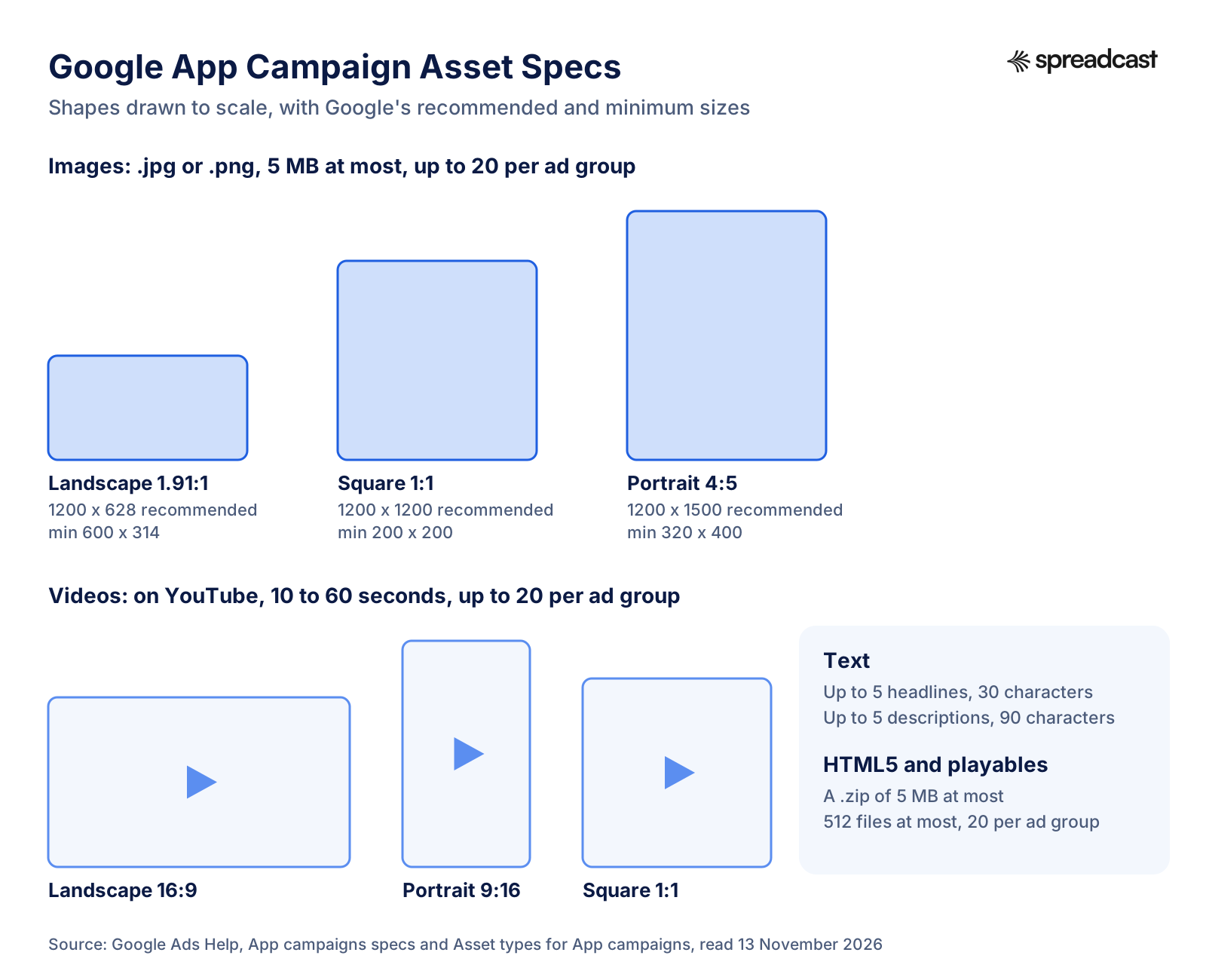
Because you cannot write individual ads, your assets are the creative. Google mixes them into ads for each placement, and its assets article warns that content may be dropped, cropped or modified when it is served. Every line of text has to make sense on its own and next to any other line. Here are the current specs from Google's App campaigns specs page and asset types page.
| Asset | Spec | How many per ad group |
|---|---|---|
| Headlines | 30 characters at most | 1 to 5, 5 recommended |
| Descriptions | 90 characters at most | 1 to 5, 5 recommended |
| Landscape image, 1.91:1 | 1200 x 628 recommended, 600 x 314 minimum | Up to 20 images in all |
| Square image, 1:1 | 1200 x 1200 recommended, 200 x 200 minimum | Up to 20 images in all |
| Portrait image, 4:5 | 1200 x 1500 recommended, 320 x 400 minimum | Up to 20 images in all |
| Image files | .jpg or .png, 5 MB at most | |
| Videos | Hosted on YouTube, landscape 16:9, portrait 9:16 or square 1:1, 10 to 60 seconds | Up to 20 |
| HTML5 and playables | A .zip of 5 MB at most with no more than 512 files, orientation set with a meta tag | Up to 20 |
| Store assets | Pulled from your listing: video, cover photo, screenshots, short description, title, icon, developer name | Automatic |
Search the web for Google App campaign specs and you will find older numbers, some on Google's own pages: the tips page still says to use all four lines of text, and the setup guide says up to 10 text assets. The current specs page says up to 5 headlines and 5 descriptions, and that is the one to trust. Images and videos stay at 20 each, and HTML5 at 20.
Text Assets
Headlines and descriptions are short, so each one should say one thing. A useful set of five headlines covers different reasons to install: the main job ("Track Every Habit Daily"), a proof point ("4.8 Stars From 20k Reviews", if that is true), a feature, an offer and the brand name. Google's tips page adds a small rule worth knowing: use no more than one exclamation mark in your text assets. If your app is new, the App Store description generator can help you draft short benefit lines you can reuse here, and our character counter keeps them inside the limits.
Image Assets
Upload all three shapes. Google cannot serve a portrait slot well with only landscape images, and an ad group with only one shape gives the system less to test. Google's tips page recommends uploading 20 images and 20 videos in a variety of aspect ratios and sizes. In practice, five to eight good images in each shape is a solid start for a small team. What works in images is close to what works in store screenshots: the app's main screen, large and readable, a short line that says the benefit, and your brand colors. The rules for screenshots in our Google Play screenshot sizes guide overlap a lot with ad images, and the same goes for our App Store screenshot examples.
This is also where social posts and ads meet. A well designed 4:5 post that shows a real screen from your app is the same object as a 4:5 portrait ad image. Spreadcast designs posts at 1080 by 1350 pixels, which is 4:5 and well above Google's 320 by 400 minimum for the portrait slot, though below the 1200 by 1500 it recommends. On a paid plan they download as clean full resolution PNG files; Free downloads carry a small Spreadcast mark and are capped at 1080 pixels, so use paid downloads for ads. They are a reasonable source of portrait image assets, not a replacement for landscape and square images or for video.
Video Assets
Video matters more in App campaigns than most people expect, because YouTube and many in app placements are video first. Google's tips page says portrait videos have a 60% higher conversion rate than landscape videos, and its setup guide suggests videos between 10 and 30 seconds in portrait, landscape and square. Videos must be uploaded to YouTube before you can use them. If you have no video, Google may make one from your listing, but a short screen recording with captions usually beats it: open on the most satisfying moment in the app, show the result within three seconds, end on the app icon and name. Our guide to the app preview video covers how to plan one; the same clip, cut to 9:16, works for an App campaign.
HTML5 and Playable Ads
HTML5 assets are small interactive ads, mostly used by games as playables. The asset types page sets the limits: a .zip of 5 MB at most with no more than 512 files, up to 20 per ad group, an orientation meta tag (portrait recommended), UTF8 text and responsive layout, with sound and video allowed. Google provides an HTML5 validator to check a file before upload. PPC Land's coverage of the 2025 release notes that HTML5 playables are billed per engagement rather than per click, and that playables can also appear as end cards after video ads on some AdMob inventory. If you are not a game, skip HTML5 until the other asset types are full; our mobile game marketing guide covers when playables are worth the build.
Ad Strength and the Asset Report
Google rates each ad group's assets with Ad Strength, and its best practices ask for at least Good in every ad group, with at least one approved asset of each type: headline and description text, image and video. Once the campaign runs, the asset report shows how each asset is doing. Per Google's asset reporting page, you find it under All campaigns, then App campaigns, by clicking an ad group, or across campaigns from the Assets menu.
| Rating | What Google means | What to do |
|---|---|---|
| Pending | Google is still processing the asset; it can still serve | Wait |
| Learning | The campaign needs more data before it can rank the asset | Wait, and do not replace it yet |
| Low | One of the lowest performers among assets of its type in this campaign | Replace it with something different, not a near copy |
| Good | Performs well relative to assets of its type | Keep it, add more assets to test against it |
| Best | One of the best performers of its type | Keep it, and make new assets in the same direction |
| Unrated | Too few assets of the type to rank (cross campaign view) | Add more assets of that type |
Two details make the ratings easy to misread. They are relative: a Low image is low compared to your other images in the same campaign, not bad in absolute terms. And they are based on the last 14 days of data, updated daily, so changing the date range in the report does not change the rating column. Replace Low assets in small batches, one or two at a time, so the campaign is never relearning everything at once.
Deep Links and Custom Store Listings
Two more inputs improve what happens after the tap. Deep links send people to a specific screen; Google's setup guide cites its internal data from February 2022 showing more than 2 times higher conversion rates for advertisers who use them. In an install campaign on Android, the App URL you add under Advanced options sets a deferred deep link, the page people land on after installing.
On Android you can also point an install campaign at a custom store listing built for ads. Google's Ads targeted custom store listings page describes this as an open beta for install campaigns promoting Android apps, with inventory limited to the Display Network for now. You create the listing in Play Console under Grow users, then Store presence, then Custom store listings, and set its audience to Google Ads traffic. Play Console allows up to 50 custom store listings. Google notes that the listing's own assets are not shown in the ad automatically, so upload matching images to the ad group, and that only one listing can be linked per ad group. Our Google Play ASO guide explains how to build custom listings that convert.
Google Ads App Install Tracking: Firebase, Google Play and MMPs
Tracking is the part of App campaigns that decides whether everything else works. The bidder only learns from conversions it can see. There are three ways to get them into Google Ads, and many apps use two of them together.
| Source | What it gives Google Ads | Platforms | Cost | Best for |
|---|---|---|---|---|
| Google Play link | Installs from Google Play, in app purchases through Google Play billing, and automatic remarketing lists | Android | Free | Every Android app, as a baseline |
| Google Analytics for Firebase (GA4) | Installs, first opens and any in app event you mark as a conversion, plus audiences | Android and iOS | Free | Most small and medium apps |
| Third party app analytics (an MMP or App Attribution Partner) | Installs and events attributed across all your ad networks, in one place | Android and iOS | Paid, priced by the provider | Apps running several ad networks at once |
Link Google Play and Google Ads
For an Android app, link your Play developer account first. Per Google's linking page: in Google Ads, click the Tools icon, then Data Manager, find Google Play under Featured products, click Link (or the plus button if you already have links), enter the email of the Google Play developer account owner and click Send. The Play account owner then approves the request. Approving and unlinking happen under Data Manager, Connected products, Google Play, Manage and link. You need admin access in Google Ads, and Play developer accounts with more than one owner are not supported, so make sure only one person holds the owner role before you link.
The link gives you two things without touching your app's code: remarketing lists of your app's users, and conversion tracking of purchases made through Google Play billing after an ad click. When you build an Android install campaign, Google also creates a Google Play download event automatically if your account does not have one yet, per the setup article.
Link Firebase or Google Analytics
For in app events, Google Analytics for Firebase is the default. Google's Firebase and Google Ads page says you can import Firebase conversions without adding new code to your app, reuse the events the Firebase SDK already logs, and use Analytics or Firebase audiences in your campaigns. The link itself lives in Google Ads: per the app analytics provider page, click the Admin icon, open the Google Analytics (GA4) and Firebase details under From Google, link the property or project, choose whether to import more data and activate the link.
Then decide which events matter. Google's tips page says to track installs and at least one in app event. A sensible set for a first campaign is first open, the end of onboarding (sign up or tutorial complete), and the event that makes money (trial start, purchase or subscription). Mark them as conversions, import them into Google Ads, and keep the event names stable: renaming an event mid campaign is one of the changes that resets learning.
Google has also been folding this setup into one screen called App Connect, under Tools, App advertising hub, App Connect, per the Firebase page. Google Ads published a walkthrough of it on its own channel in October 2026.
Use a Mobile Measurement Partner
If you also buy installs on Meta, TikTok or other networks, a mobile measurement partner (Google calls them App Attribution Partners) gives you one count across all of them. To connect one, the app analytics provider page says: click the Admin icon, open Linked accounts, find Third party app analytics, click Details, then Create link ID. Pick your provider and platform, look up your app, create the link ID and paste it into your provider's dashboard. The link stays Unverified until data flows. You need one link ID per app. For iOS apps, Google recommends adding Apple's AdSupport framework.
Expect the numbers not to match. Google Ads counts the conversions it attributes to its own ads with its own rules; your measurement partner applies one rule across all networks; Play Console counts every install from every source. Gaps between them are normal. Pick one as the referee for decisions (usually the partner if you have one, otherwise Firebase) and use the others to spot trends.
Conversion Windows and Attribution Sharing
A conversion window is how long after an ad interaction a conversion still counts. Google's conversion window page describes four for install campaigns: click through (30 days in Google's example), engaged view for people who watched at least 10 seconds of a video ad, or all of it if shorter (2 days in the example), view through, fixed at 1 day, and post install for in app actions after the install (90 days in the example). Google's tips page notes that most third party providers default to 30 days. Shorter windows give the bidder faster feedback; longer ones count more of the slow converters. For target ROAS, remember Google's advice to stay under 30 days while still catching around 90% of conversions.
If you run more than one kind of App campaign for the same app, attribution sharing lets install, engagement and pre registration campaigns in the same account share credit for post install conversions. It is on by default. Google's best practices say to keep it on whenever you run installs together with engagement or pre registration.
Google App Campaigns for iOS Apps
App campaigns work for iOS apps, but they work differently, and most of the difference comes from Apple's privacy rules rather than from Google. If you only remember one thing from this section: on iOS, Google sees much less about who installed, so it bids with less information, results arrive later, and you need extra patience and extra setup to get the same quality of optimization.
App Tracking Transparency and the IDFA
Since iOS 14.5, apps must ask permission through the App Tracking Transparency prompt before they track people across other companies' apps and websites or read the device's advertising identifier. Apple's user privacy page defines tracking as linking data from your app with data from other companies' apps, websites or offline properties for targeted advertising or ad measurement, and says that without permission the advertising identifier is all zeros. For every person who declines, Google cannot match an ad click to an install the way it does on Android.
Google's iOS best practices still suggest considering the prompt, with the AdSupport framework, and showing a short explainer screen before it. Every user who allows tracking gives the system one more clear signal. Whether you should show the prompt is a product decision as much as an ad one: it is a system dialog that asks people to be tracked, and some apps see no reason to ask.
SKAdNetwork and AdAttributionKit
For users who do not allow tracking, Apple offers its own privacy preserving attribution. Apple's ad attribution page describes AdAttributionKit as building on SKAdNetwork: Apple sends the ad network a signed postback, usually 24 to 48 hours after someone opens the app, with limited data. Click through installs count within 30 days of a tap, view through installs within 24 hours of a view. Developers can encode up to 64 levels of post install value, and that value is only included when crowd anonymity thresholds are met, so small campaigns get less detail.
In Google Ads, only SKAdNetwork installs appear, in a dedicated SKAdNetwork report, according to Google's iOS measurement page. Delays vary, and Google suggests reviewing those reports over 30 day periods. Your conversion value schema, which says what each of the 64 values means, should include the events you plan to bid on, per the iOS best practices. You can set it up through Google Analytics, your App Attribution Partner or the Google Ads API.
On Device Conversion Measurement
Google's own answer to the gap is on device conversion measurement, or ODM. Its ODM page describes two kinds. One uses first party data your app collects at sign in, such as email addresses or phone numbers, passed through the Google Analytics for Firebase SDK; Google says advertisers using it, where most users log in, saw a median 19% lower cost per action on Google's own inventory. The other uses de identified, temporary event data such as IP addresses and timestamps. It ships in the default Google Analytics for Firebase SDK from version 11.14.0, released in June 2025, and to opt out you leave the GoogleAdsOnDeviceConversion library out of your build. Google says no identifiable information leaves the device in either case. The event data kind is switched off for users in the EEA, the UK and Switzerland.
Google recommends using both where you can. Requirements: iOS 12 or later, a recent Firebase SDK (the iOS best practices page now says version 12.12.1 or later for the most benefit), a linked Google Analytics property, events from the primary property rather than a sub property, and no custom event names starting with the reserved prefixes firebase_, google_ or ga_. If you cannot use Firebase, Google offers a standalone ODM SDK.
Rules That Only Apply on iOS
- Keep to 8 or fewer iOS install campaigns per app. Google's iOS best practices say to consolidate to that number, and that the limit will be removed in the future for apps with ODM event data.
- Bid about 1.5 times your Android target, per Google's bid strategy page.
- Wait the full conversion window before judging results. Google's iOS measurement page says modeled conversions in Google Ads can lag by up to 5 days.
- Google's conversion modeling covers install campaigns only; engagement campaigns do not use it, so their iOS numbers count only what can be observed directly.
- Google Play placements are not available for an iOS app, so a larger share of spend goes to YouTube, Search and Display.
Google Ads has a short official explainer on the three ways to read iOS results (Google's modeled conversions, your measurement partner's reports and SKAdNetwork), and it is worth watching once before you choose which number to trust.

For iOS apps, App campaigns usually sit beside Apple Ads rather than replacing it. Apple Ads reaches people searching inside the App Store and measures through Apple's own attribution; Google reaches people elsewhere. Our Apple Search Ads guide covers that side in the same depth as this one, and the iOS app marketing guide puts both in a full plan.
How to Create an App Campaign in Google Ads, Step by Step
Before you open Google Ads, have these ready. Each one is a reason first campaigns stall.
- The app live on Google Play or the App Store, with a listing you would be happy to send strangers to: clear screenshots, a short description that says what the app does, and ideally a rating above 4.
- A Google Ads account with a payment method and admin access.
- Google Play linked (Android) and Firebase or your measurement partner linked, with installs and at least one in app event coming in.
- Five headlines, five descriptions, images in all three shapes and at least one video uploaded to YouTube.
- A target you can defend: what a user is worth, and the cost per install or per action you can afford because of it.
- A daily budget of at least 50 times your target CPI, or 10 times your target CPA, that you can leave alone for several weeks.
These steps follow Google's setup article for install campaigns, with the menu names as Google writes them on November 13, 2026.
- Open Campaigns. In the Campaigns menu, go to Campaigns, select the plus button and choose New campaign.
- Pick the goal and subtype. Select App promotion as the campaign goal, then App installs as the campaign subtype.
- Choose your app. Pick the platform, Android or iOS, then search for your app by name, package name or publisher and select it. If it does not appear, paste its Google Play or App Store URL. Name the campaign so you can tell it apart later; Google suggests including the operating system, for example "Android US Installs tCPI". Select Continue.
- Set locations and languages. Under Locations, choose the countries, and use Location options to decide how people are targeted. Choose languages that match your ads, because Google Ads does not translate them. Start with one country or a small group with similar costs. Optionally set start and end dates or limit ad formats. Select Next.
- Set budget and bidding. Under Budget, enter your average daily budget. Under Bidding, choose what to focus on (install volume, in app actions or in app action value) and which users to target, select your install event and any in app event from your conversion settings, and enter a target: Target cost per install, Target cost per action or Target return on ad spend. Leave the target empty to use Maximize conversions. Select Next.
- Build the ad group. Under Ad Assets, add headlines, descriptions, images, videos, HTML5 assets and any promotions, using the Ad Strength indicator at the top as a guide. You can add up to 20 each of images, videos and HTML5. Under Advanced Options, add an App URL if you want a deep link. Optionally, under Audience signal, choose Create audience signal and add a list of your current users. Select Next.
- Publish. Review everything, name the ad group and select Publish campaign. The campaign goes through ad review, then enters its learning status.
An engagement campaign follows the same path with three differences, per Google's engagement setup page: choose App engagement as the subtype, pick one of the ready made objectives (or build it yourself), and add an audience of existing users to the ad group, because engagement campaigns only target people who have the app. Engagement ad groups need at least 2 headlines and 1 description, with up to 5 of each recommended, and Google's engagement asset page lists the image sizes and asks for at least 10 second videos. A pre registration campaign uses App pre registration as the subtype and targets only countries where the app is open for pre registration and not yet released.
How to Structure Google App Campaigns
Fewer campaigns usually work better, because each campaign learns from its own conversions. Google's network distribution page suggests consolidating campaigns that target the same app, location and language, so they stop competing with each other, and splitting by country tier only when costs differ a lot. A sensible structure for a small app looks like this:
| Campaign | Bid strategy | Why it exists |
|---|---|---|
| Android, main country, installs | tCPI on All users, or Maximize conversions at first | Volume and price discovery |
| Android, main country, in app action | tCPA on your best event with 10 or more users a day | Better users once the event has volume |
| iOS, main country, installs (if you have an iOS app) | tCPI at about 1.5 times the Android target | Separate because measurement and prices differ |
| Android, cheaper countries (optional) | tCPI at a lower target | Volume without dragging the main market's average |
Inside a campaign, each ad group is a set of assets. One ad group per theme is plenty: one around the main benefit, one around a second use case if your app has a clear one. Splitting assets into many small ad groups spreads the data thin.
The Learning Period: What Happens in the First Weeks
A new campaign starts in a Learning status, and so does one that gets a big change such as a new bid strategy. Google's performance fluctuations page says the campaign leaves that status once it has enough conversions to optimize, and that Smart Bidding keeps learning in the background after that. Google does not give a fixed number of days. What it does give, on several pages, is a number of conversions: About App campaigns says making changes before a campaign reaches 100 conversions can disrupt learning and reduce performance.
That makes the length of learning a function of your budget and target. At 50 installs a day, a tCPI campaign reaches 100 conversions in two days. A tCPA campaign whose event 10 people complete each day needs ten days. A campaign budgeted well below Google's multiples might take a month, and look erratic the whole time.
| During learning, avoid | Why |
|---|---|
| Changing the conversion window or counting options | The bidder's definition of success moves under it |
| Removing or editing your best assets | Ad combinations that worked have to be relearned |
| Moving bids up and down | Google asks for one time changes, not cycles |
| Changing the focus or the targeted event | This is close to starting a new campaign |
| Big location changes | Prices and users differ by country |
| Changing install or in app event settings | Conversions stop matching what the campaign learned |
When you do change something, keep it small. Google's fluctuations page asks for budget changes within a 10 to 20% range, and the tips page warns against moving the budget or the CPI by more than 20%. Set targets close to what the last 30 days actually achieved, and watch competition over a 30 day window rather than day by day. Audience signals take up to two weeks to be fully used, per the audience signals page, and lists need more than 1,000 active users to count. Google also reminds advertisers that it is normal for performance to vary.
A practical rhythm: launch, then look once a day for the first week without touching anything except clear problems (a disapproved asset, a broken deep link, a spend rate far above your budget). In week two, compare cost per install or action with your target. Only after 100 conversions, or two to three weeks for slower campaigns, change the target, and then by 10 to 20% at a time.
Google App Campaign Best Practices
This list pulls together Google's own best practices for App campaigns, its setup guide and its tips page, in the order they matter for a small app.
- Fix tracking before you spend. Turn on auto tagging, link Google Play and Firebase or your measurement partner, and confirm installs and at least one in app event arrive in Google Ads.
- Size the budget to the bid: 50 times tCPI, 10 times tCPA for install campaigns, 15 times for engagement. If the ratio is off, change the budget or the bid, not both.
- Optimize for one in app action, the deepest one that at least 10 different users complete each day.
- Fill every asset slot you can: five headlines, five descriptions, images in all three shapes and videos in portrait, landscape and square. Aim for Ad Strength of Good or better in every ad group.
- Make portrait video a priority. Google reports portrait videos converting 60% better than landscape ones.
- Use deep links, so a tap lands on the screen the ad talked about.
- Keep campaigns few. Consolidate campaigns with the same app, country and language; on iOS stay at 8 or fewer install campaigns per app.
- Do not touch the campaign before 100 conversions, and after that change bids and budgets by 20% at most at a time.
- Read the asset report every two weeks and replace Low assets a couple at a time with genuinely different ideas.
- Watch for Limited by budget and bid constrained campaigns. Raise the budget on the first; raise the target (or lower the ROAS goal) on the second if the economics allow.
- Keep attribution sharing on if you run install campaigns together with engagement or pre registration.
- Look after the app itself. Google lists high crash rates and ANRs on the store among the causes of performance swings.
Common Google App Campaign Mistakes
- Optimizing for installs forever. Install focused campaigns find people who install, not people who pay. Move to an in app action as soon as one has enough volume.
- Picking an event nobody completes. A purchase event with three conversions a day starves the bidder. Pick a higher volume event that predicts purchase.
- Budgeting at a fraction of the recommendation, then deciding App campaigns do not work after a week of noisy data.
- Setting a target far below the market. The campaign barely spends and you learn nothing. Use Maximize conversions for a couple of weeks to see the real price first.
- Changing everything on day three. Bids, budgets, assets and events all reset learning. Patience is a setting.
- Running many overlapping campaigns for the same app and country, so they compete against each other in the same auctions.
- Uploading one shape of image and no video. Many placements cannot show you well, and Google fills gaps with auto generated assets.
- Sending traffic to a weak listing. If your Play listing converts badly from search, it will convert badly from ads, and you pay for every visitor who leaves.
- Judging iOS on day two. Modeled conversions lag up to five days and SKAdNetwork data arrives later still.
- Ignoring placements. If a few apps in the placement report send plenty of clicks and no installs, exclude them at the account level.
- Comparing Google's numbers with Play Console's and assuming one is wrong. They count different things.
When Not to Run Google App Campaigns
App campaigns are the default paid channel for Android, and that makes it easy to start one before it can work. These are the situations where the money usually does more somewhere else first.
- You cannot track an in app event yet. Without one, the campaign can only buy installs, and you cannot tell good installs from bad.
- You cannot afford the budget multiples for several weeks. A campaign at a fifth of the recommended budget rarely finishes learning, and the results tell you more about the budget than about the app.
- A user is worth less than the going install price in your category and country. No bid strategy fixes economics; it only finds the cheapest users at a loss.
- Your listing converts poorly. A rating under 4, screenshots that do not show the app and a vague short description turn every paid visit into a lost one. Work through the Google Play ASO guide and the app store conversion rate benchmarks first.
- The app is unstable. Google names crash rates and ANRs among the causes of performance swings, and a one star review from a paid user costs you organic installs for months.
- You need control over exactly where and next to what your ad appears. App campaigns choose placements for you.
- Your iOS app is your main platform and you have a small budget. On iOS, Apple Ads reaches people searching the App Store with clearer measurement, and is usually the better first test.
None of these are permanent. They are a checklist of what to fix before paying. In the meantime the free channels in how to promote an app for free and the Android specific plan in how to promote an Android app build the installs, ratings and brand searches that make a later campaign cheaper.
Google App Campaigns vs Apple Ads, Meta and TikTok
App makers rarely choose one channel forever, but most should start with one. This table compares the paid options on what matters for a first test, with Spreadcast included as the organic option because it is the one most small teams are missing. Apple Ads details are in our Apple Search Ads guide; Meta and TikTok are covered in full in how to advertise an app.
| Channel | Where people see you | How targeting works | Budget facts from the vendor | Best first use |
|---|---|---|---|---|
| Google App campaigns | Search, Google Play, YouTube, Discover, Display Network, AdMob and partners | Automated: you set the event and target, Google picks users and placements | Daily budget of 50 times tCPI or 10 times tCPA recommended | Android installs at scale, and iOS reach beyond the App Store |
| Spreadcast (organic, not ads) | Your own Instagram, Facebook, LinkedIn, TikTok, YouTube, Pinterest, Threads, Bluesky, Mastodon, Telegram and Discord | Your followers and the networks' own feeds | Free makes 3 AI posts to download; Post Pack $19 once; Pro $29 a month, see pricing | A brand and a feed for ads to land on, every week, without designing posts by hand |
| Apple Ads | App Store search results, Search tab, Today tab and product pages | Keywords you choose, or Apple's automation | Covered in our Apple Search Ads guide | iOS installs from people already searching |
| Meta app ads | Facebook, Instagram and Audience Network | Audiences you define or Meta's automation | Covered in our guide to advertising an app | Reaching people by interest, strong creative tests |
| TikTok app promotion | The TikTok feed | Automated audiences, iOS needs a dedicated campaign | Campaign budget must exceed $50 a day, ad group budget $20 | Apps with a visual hook that works in short video |
The iOS row deserves a note. On iOS every network except Apple depends on SKAdNetwork or AdAttributionKit for users who did not allow tracking. TikTok, for example, requires a dedicated iOS 14.5 campaign with a measurement partner that supports SKAdNetwork, and Google asks you to keep iOS install campaigns to 8 or fewer per app. Apple Ads uses its own attribution. That is one reason the AppsFlyer index puts Apple Ads first on iOS and Google first on Android.
A sensible order for a small team: on Android, start with a Google App campaign; on iOS, start with Apple Ads; add Meta or TikTok once the first channel has a known cost per paying user and you have creative worth testing. Keep the organic side running underneath all of them, because every channel converts better when the person who sees an ad can find a real brand behind it.
A First Month Plan for a Small Android App
Here is a worked plan for a solo developer with an Android habit tracker, available in many countries, with about $1,500 to spend in the first month. The numbers are arithmetic built on Google's rules, not a forecast. Swap in your own. The $1.00 target sits near the $0.76 that Singular reports for an Android install worldwide, so it only fits a campaign that runs across many countries. In the US alone, Singular puts an Android install at $5.09; a $5 target there needs $250 a day under the 50 times rule, about $7,600 a month, and the same $1,520 would buy roughly 300 installs instead of 1,500.
| Item | Setting | Monthly ceiling (daily times 30.4) | Notes |
|---|---|---|---|
| Organic posts (Spreadcast) | Weekly plan of 3 posts plus update and rating posts | $0 on Free (3 posts to download), $29 on Pro | Runs before, during and after the campaign |
| Android installs campaign | tCPI $1.00, All users, many countries | $1,520 at $50 a day | 50 times the target, Google's multiple |
| Assets | 5 headlines, 5 descriptions, 6 images per shape, 3 videos | Your time | Reuse store screenshots and post designs |
| In app action campaign | Not yet | Start once trial start reaches 10 users a day |
| When | What to do |
|---|---|
| Week before | Link Google Play and Firebase, mark first open, onboarding complete and trial start as conversions, check they arrive. Upload videos to YouTube. Fix any listing issues. |
| Week 1 | Launch the installs campaign. Check daily for disapprovals and broken links, change nothing else. Keep posting as usual. |
| Week 2 | Read cost per install against the $1.00 target. If the campaign is Limited by budget and the cost per install is fine, raise the budget by 20%. If it barely spends, raise the target by 10 to 20%. |
| Week 3 | Open the asset report. Replace one or two Low assets with new ideas. Check the placement report and exclude obvious junk apps. |
| Week 4 | Compute cost per trial and cost per paying user from Firebase or your billing data. If trial start clears 10 users a day, plan a tCPA campaign for next month. If cost per paying user is above what a user is worth, cut back and fix the listing or the onboarding first. |
The arithmetic for that month: at $50 a day and $1.00 an install, about 1,500 installs. If 6% start a trial and a third of those pay, that is about 30 paying users, or $50 each. Whether that is good depends on what a subscriber is worth to you. The real output of month one is not the installs; it is your own cost per paying user, which replaces every benchmark in this guide.
A Weekly Routine Once the Campaign Is Stable
- Monday: check spend against budget, cost per install and cost per action against targets, and the Limited by budget and bid constrained statuses.
- Wednesday: look at the asset report and the placement report; queue one new asset if something is rated Low.
- Friday: compare Google's conversions with Firebase or your measurement partner and with Play Console installs, and note new ratings and reviews.
- Every week: post on social at least twice, so people who see an ad and search your name find an active app. This is the step most worth automating, and it is what Spreadcast autopilot does.
- Every month: decide one change, such as a target move, a new country or a new event, and make it in one step.
What Google App Campaigns Need Around Them
A Google App campaign is a machine for putting your app in front of people at a price. It does nothing about what they find when they look closer. Three things decide that, and none of them live in Google Ads.
The first is the listing. The ad is only half the funnel; the store page is the other half, and on Android it is also where Google Play placements and custom store listings point. The Google Play ASO guide, the Google Play screenshot sizes reference and the Android market data in Android vs iOS market share cover that side.
The second is social proof: ratings, reviews and signs that real people use the app. A paid user who sees 4.6 stars and recent reviews installs more readily than one who sees a handful of ratings. Our guide on how to get app reviews applies to Google Play as much as the App Store.
The third is a brand that exists outside the ad. People who see a YouTube ad often search the app's name before installing, or look it up on Instagram or TikTok. If they find a feed that stopped posting a year ago, the ad has to do all the persuading alone. A steady feed of real posts, each update, each milestone, a feature now and then, gives them something to find. The formats that work are in how to promote an app on social media, with network specific guides for Instagram, TikTok and Reddit, and the best time to post for each.
How Spreadcast Puts the Organic Side on Autopilot
Spreadcast is the organic half of this plan, done for you. It does not run ads. It keeps your app's social channels active and on brand, so the people your App campaign reaches find a real, living product when they look it up. Here is what happens when you try it.
- Go to the start page and paste your Google Play link, or your App Store link, or just type your app's name. You can also go straight to a link like /start?app= followed by your listing URL.
- Spreadcast reads your public listing: name, icon, screenshots, rating, reviews and release notes. From those it builds a brand kit with your colors, fonts and your real screenshots. An app that is only on Google Play is drawn in an Android phone frame. An app on both stores is treated as one app, with both links.
- It designs posts from that kit and writes the caption for each network, in your app's voice. You see them before anything goes out.
- You connect your accounts: Instagram, Facebook, LinkedIn, TikTok, YouTube, Pinterest, Threads, Bluesky, Mastodon, Telegram and Discord. Connecting is free on every plan.
- Autopilot then watches your listing every day. When a new version ships, it drafts an update post from your release notes. When your rating passes a milestone, it drafts a rating post with real reviews. Between those moments, a weekly plan adds posts of five kinds: feature spotlights, a review of the week, tips, a problem and its fix, and seasonal posts, at the posting times you choose, from one to 14 posts a week.
- You choose how much to approve. Approve first means every post waits for your yes on the Dashboard. Full autopilot, on a paid plan, schedules them on its own. TikTok posts go to your TikTok drafts by default and are never posted to the feed unattended.
Two parts of that connect directly to an App campaign. The posts use your real screenshots and brand colors, so someone who saw your ad and then your Instagram sees the same app twice. And the designed 4:5 posts, downloaded at full resolution on a paid plan, can serve as portrait image assets in the ad group, which saves a design session when the asset report asks for new images.
What Spreadcast does not do, so there is no confusion: it is not an ad network and does not create or manage Google Ads, Apple Ads, Meta or TikTok campaigns. It is not ASO keyword software and does not rewrite your store listing. It does not buy installs. It is the part of app marketing that is easy to know you should do every week and hard to keep doing.
It is free to try. The Free plan makes 3 AI posts with no card, to download with a small Spreadcast mark. A Post Pack is $19 once for 10 posts that can be published, the 30 Day Pass is $39 once and does not renew, Pro is $29 a month (or $290 a year) for one app with up to 10 social accounts and publishing to all of them, and Studio is $79 a month for 5 apps, 50 accounts and 3 seats. Paid plans can be refunded in full within 7 days. Paste your link at the start page to see your first posts, or compare plans on the pricing page. More on the app maker side is on the page for mobile apps.
How We Checked This Guide
On November 13, 2026 we read 28 articles in Google Ads Help on App campaigns, from the overview and the setup steps to bidding, budgets, assets, the asset report, conversion tracking, iOS measurement and troubleshooting, plus the Google Ads API documentation and two Play Console Help articles on pre registration and custom store listings. Every rule, limit, menu name and multiple in this guide comes from those pages, and where Google's own pages disagree with each other (as they do on the number of text assets) we say so and follow the newest specs page. Apple's attribution and privacy rules come from Apple's developer pages, and TikTok's from TikTok Ads Help, read the same day. Cost figures come from Singular's quarterly report covering Q1 2026, AppsFlyer's Performance Index 2025 and Liftoff's casual gaming report, each opened the same day and named next to every number, because none of them measure Google alone. The iOS changes of 2025 come from PPC Land's report and the rename date from Search Engine Journal. We did not run test campaigns for this guide; the budget plans are worked arithmetic, not measured results. Spreadcast's features and prices were checked against its own product code on the same day.
Frequently Asked Questions
What is a Google App campaign?
A Google Ads campaign type that promotes one Android or iOS app across Google Search, Google Play, YouTube, Discover, the Display Network and AdMob. You supply text, images, videos, a budget and a target, and Google builds the ads and chooses where they run. It used to be called a Universal App Campaign.
What is the recommended minimum budget for a Google App campaign optimizing to a tCPI of $2?
Google recommends a daily budget of at least 50 times the target CPI, so $100 a day for a $2 target, which is at most $3,040 a month. For a target CPA on an in app action the multiple is 10 times, and 15 times for engagement campaigns.
Where do Google App campaign ads show?
On Google Search and search partners, in Google Play search results, related apps sections and the home page, on YouTube, in Discover, across the Display Network (Gmail, apps and mobile sites) and on AdMob and other publishers that host app ads. You cannot pick networks one by one.
What is the difference between App campaigns for installs and App campaigns for engagement?
Install campaigns find new users. Engagement campaigns bring back people who already have the app and need at least 50,000 installs, deep links, an audience list and in app conversion tracking. Pre registration campaigns, a third type, collect sign ups for an Android app before launch.
What are the Google App campaign creative specs?
Up to 5 headlines of 30 characters and 5 descriptions of 90 characters; up to 20 images in 1.91:1 (1200 x 628), 1:1 (1200 x 1200) and 4:5 (1200 x 1500), as .jpg or .png up to 5 MB; up to 20 YouTube videos of 10 to 60 seconds; and up to 20 HTML5 zips of 5 MB.
Why do Google App campaigns perform better with a diverse portfolio of assets?
Because Google builds each ad from your assets to fit the placement. Different shapes and formats let it serve Search, Play, YouTube and in app slots well, while extra distinct options give it more combinations to test, which is why Google asks for every slot to be filled and Ad Strength of at least Good.
How long is the learning period for Google App campaigns?
Google gives no fixed number of days. It asks you not to make changes before the campaign reaches 100 conversions, and to keep later budget changes within 10 to 20%. At 50 installs a day that takes two days; at 10 in app actions a day, about ten.
Where These Facts Come From
Every outside number, rule and price on this page links to the page it was taken from.
- About App campaignsGoogle Ads Help
- About the different types of App campaignsGoogle Ads Help
- Choose a bid strategy for your App campaignGoogle Ads Help
- Best practices for App campaignsGoogle Ads Help
- Best practices guide: set up your App campaignsGoogle Ads Help
- Tips for maximizing your App campaignGoogle Ads Help
- About assets and ads in App campaignsGoogle Ads Help
- Asset types for App campaignsGoogle Ads Help
- App campaigns specs and format requirementsGoogle Ads Help
- About asset reporting for App campaignsGoogle Ads Help
- About App campaign network distributionGoogle Ads Help
- Set up an App campaign for installsGoogle Ads Help
- About App campaigns for pre registrationGoogle Ads Help
- About App Campaigns for engagementGoogle Ads Help
- Create an App campaign for engagementGoogle Ads Help
- Asset requirements for App campaigns for engagementGoogle Ads Help
- About Ads targeted Custom Store ListingsGoogle Ads Help
- About audience signals in App campaigns for installsGoogle Ads Help
- Link Google Play and Google Ads accountsGoogle Ads Help
- Link your Google Ads account to an app analytics providerGoogle Ads Help
- Using Firebase and Google Ads togetherGoogle Ads Help
- About conversion windows for App campaignsGoogle Ads Help
- About attribution sharing for App campaignsGoogle Ads Help
- About on device conversion measurement for iOS App campaignsGoogle Ads Help
- Best practices guide: iOS App campaignsGoogle Ads Help
- Understanding iOS App campaign measurement and reportingGoogle Ads Help
- Troubleshoot performance fluctuations in App campaignsGoogle Ads Help
- About your average daily budgetGoogle Ads Help
- Create an App campaignGoogle Ads API
- Pre registration on Google PlayPlay Console Help
- Create custom store listingsPlay Console Help
- User privacy and data useApple Developer
- Measuring ad performance with AdAttributionKitApple Developer
- About app ads on Facebook, Instagram and Audience NetworkMeta Business Help Center
- BudgetTikTok Ads Help
- How to create an iOS 14.5 dedicated campaignTikTok Ads Help
- Google Ads Universal App Campaigns are now just App campaignsSearch Engine Journal
- Google launches enhanced measurement tools for iOS App campaignsPPC Land
- Performance Index 2025 press releaseAppsFlyer
- Quarterly ad benchmarks report covering Q1 2026Singular
- Highlights from the 2025 casual gaming apps reportLiftoff
- Video: Google Ads App Connect, in app conversions and biddingGoogle Ads on YouTube
- Video: key measurement frameworks for iOS App campaignsGoogle Ads on YouTube
Researched and written by Mark Weizer. Last checked on November 13, 2026.
Keep Reading
- Growth
How to Promote an Android App: The Complete Google Play Playbook for 2026
How to promote an Android app without a big budget: a Google Play listing that converts, testing tracks, pre registration, custom store listings, ratings, Android vitals, a launch week plan, social media, short video, communities, Google App Campaigns, the markets where Android wins, measurement, budgets and a weekly routine.
- Growth
Google Play ASO: How to Rank Your Android App in Google Play Search in 2026
Google Play ASO is how you get an Android app found in Play search: the right words in the title and descriptions, graphics that earn the tap, and the ratings and stability Google rewards. Every rule, limit and threshold here comes from Google's own pages.
- Growth
Apple Search Ads (Apple Ads): How It Works, What It Costs and How to Start
Apple Search Ads, now called Apple Ads, puts your app at the top of App Store search and on the Today tab, Search tab and product pages. This guide covers Basic vs Advanced, what a tap and an install cost in 2026, a first campaign step by step, measurement and a small budget plan.