Schedule Social Media Posts in One Calendar
See every post by hour, day or month, each in the color of its network. Drag a post to another time and it moves.
- Groceries$312
- Rent$1,100
- Coffee$46
- Split with a partner
- Monthly goals
- Bank sync in 40 countries
- Groceries$312
- Rent$1,100
- Coffee$46
- Split with a partner
- Monthly goals
- Bank sync in 40 countries
- Groceries$312
- Rent$1,100
- Coffee$46
- Split with a partner
- Monthly goals
- Bank sync in 40 countries
- Groceries$312
- Rent$1,100
- Coffee$46
- Split with a partner
- Monthly goals
- Bank sync in 40 countries
What a YouTube Scheduler Does, and Whether You Need One
A YouTube scheduler holds a finished video with its title and description and makes it public on your channel at a time you chose, so the video goes live on Thursday at 4 in the afternoon while you are doing something else. YouTube has one built in, and it is free. Third party schedulers do the same job through Google's YouTube Data API, and add what YouTube Studio does not try to do: one calendar for YouTube and your other networks, the same video sent as a Short, a TikTok and a Reel with different words on each, and several channels and brands in one place.
People searching for a YouTube scheduler usually want one of five answers. Can you schedule YouTube videos at all, and on which device. Can you schedule YouTube Shorts, especially from a phone. How far ahead. Whether a scheduled video gets fewer views than one published by hand. And which YouTube scheduling tool is worth paying for, if any. This page answers each one with the source beside the claim: YouTube Help and Google's developer documentation first, then each vendor's own pricing and help pages, then the timing studies with who ran them. All of it was read on November 11, 2026.
We make Spreadcast, so read the comparison with that in mind. Spreadcast is a marketing automation tool that also writes and designs the posts. On YouTube it does not edit or make the video; you bring the file. What it does is the rest of the job: it writes a YouTube title and description in your brand's voice, writes a caption for each other network you tick, checks the post against every network's limits, keeps it on one calendar with your other posts, and uploads it at its time. It is built for app makers, founders and small brands who post the same short video to several networks every week, and it is honest to say up front that a creator who lives in YouTube Studio and needs custom thumbnails and playlists will find YouTube's own scheduler fits better.
If YouTube is one network among several, the general social media scheduler page compares tools across all of them. If you want an AI assistant to do the uploading, the YouTube MCP server page goes deep on the Data API, quotas and Google sign in. This page stays on scheduling YouTube videos and Shorts well, what goes wrong, and what each tool really does on YouTube.
Rain on a tin roof, 45 minutes, then silence. Lumi’s new sleep timer fades out on its own
Can You Schedule YouTube Videos? Yes, Free in YouTube Studio
Yes. YouTube's scheduler is part of the normal upload, and it costs nothing. YouTube's help article on scheduled publishing describes it as scheduling a private video to go public at a specific time. You sign in to YouTube Studio, or use the YouTube app, select Create and Upload videos, choose the file and enter the details, then click the Schedule card and set the date, time and time zone you want. Select Schedule and you are done.
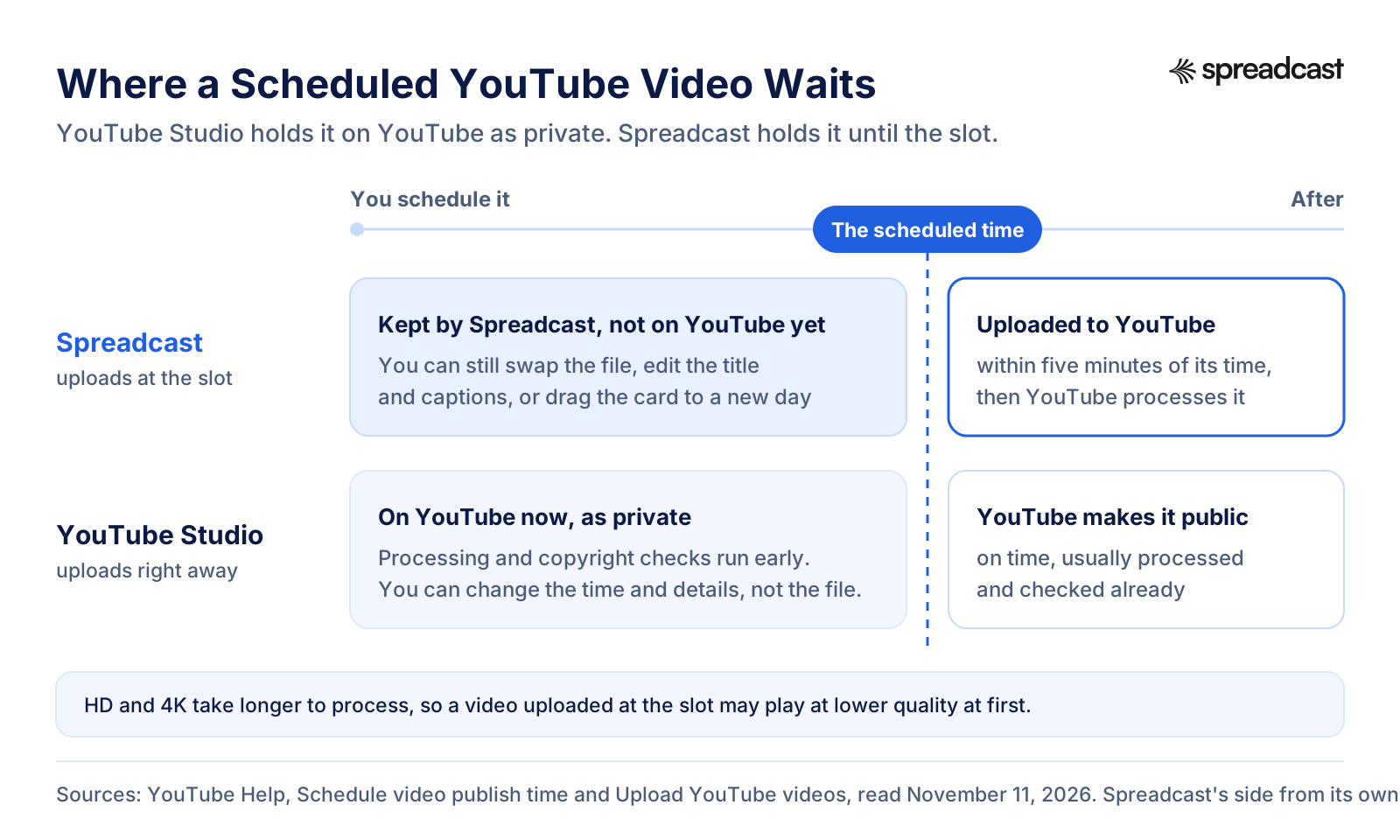
The important word is private. A scheduled video is uploaded to YouTube right away and waits there as private until its time. YouTube's upload help says the same thing from the other side: on the Visibility page, Schedule means your video will be private until that date. That has two good consequences. YouTube processes the file and runs its copyright check well before the video goes out, and the switch to public happens on YouTube's servers, exactly on time, whether or not your computer is on.
It has limits worth knowing before you build a routine on it. Scheduling is one video at a time: the upload page takes up to 15 files at once, but each needs its own details and its own Schedule choice. It schedules YouTube only, so the TikTok, Instagram and LinkedIn versions of the same idea are separate jobs in separate apps. And it gives you no calendar of everything you have queued, only the Content page, where you open a scheduled video to change it.
How far in advance can you schedule a YouTube video? YouTube's scheduling help does not name a maximum, and we found no YouTube page that does. What it does say is what can stop a scheduled video: if your account has a Community Guidelines strike, the video will not publish during the penalty period, stays private for that time, and you have to schedule it again when the freeze ends.
How many YouTube videos can you schedule? We found no YouTube page that caps the number of scheduled videos either. The limit people do run into is on uploads: YouTube's feature access page gives every channel a daily limit for uploading videos and Shorts, with a higher one after verification. A month of videos is easier to schedule over a few sittings than in one.
So for a creator who uploads one or two long videos a week from a laptop, YouTube Studio may be the only YouTube scheduler you need, and the rest of this page will still help you use it better. A separate tool starts to earn its place when the video is also going to other networks, when you post Shorts from your phone, when more than one person or brand is involved, or when writing the words takes longer than cutting the video.
- Groceries$312
- Rent$1,100
- Coffee$46
Every one of them read.
Two people, one budget, zero spreadsheets. The shared goals alone saved us an argument a week.
For Every
Trail
YouTube Studio's Built In Scheduler at a Glance
What YouTube's own scheduler does, with the YouTube page each line comes from. Read on November 11, 2026.
| Question | YouTube's answer | Where YouTube says it |
|---|---|---|
| Where can you schedule | YouTube Studio on a computer, or the YouTube app | Scheduling help, where |
| What happens to the video | It is uploaded now and stays private until the time you set | Upload help, visibility |
| Time zone | You set the date, time and time zone when you schedule | Scheduling help, time zone |
| How far ahead | No maximum is named in YouTube's help | Scheduling help, no limit given |
| Changing the time | Keep the video Private, click Edit Draft and pick a new time under Schedule | Scheduling help, changing the time |
| Publishing early | Set the visibility to Public and it goes out right away | Scheduling help, publishing now |
| Several videos | Up to 15 files in one upload, each with its own details | Upload help, several files |
| What blocks it | A Community Guidelines strike keeps scheduled videos private for the penalty period | Scheduling help, strikes |
| Date under the video | The published date on the watch page follows Pacific time | Scheduling help, published date |
YouTube changes Studio often. If your screen differs from these steps, trust the screen and the current help article.
How to Schedule a YouTube Video in YouTube Studio on a Computer
The steps from YouTube's own help, with what to check at each one. This is also how to schedule YouTube Shorts on desktop: a Short goes through the same upload page.
- 1
Open YouTube Studio and Click Create
Sign in at studio.youtube.com with the Google account that owns the channel. Click Create in the top right corner, then Upload videos, and choose the file. You can pick up to 15 files at once; each gets its own draft.
- 2
Write the Title and Description
YouTube's upload help sets the title at 100 characters and the description at 5,000, and neither may contain invalid characters. Put the words people would search for near the start of the title. Our social media character limits page has YouTube's numbers next to every other network's.
- 3
Pick a Thumbnail and Playlist
Choose one of the frames YouTube suggests or upload your own picture. A custom thumbnail needs a verified channel, per YouTube's thumbnail help, which recommends 3840 x 2160 for videos and 2160 x 3840 for Shorts. The free YouTube thumbnail size tool resizes a picture to fit.
- 4
Answer Made for Kids
YouTube requires an answer for every video, to comply with the Children's Online Privacy Protection Act. YouTube's made for kids guide lists what makes a video made for kids and says getting it wrong can have consequences on YouTube and under the law.
- 5
Open Show More for the Rest
Tags, language, category, comments, whether subscribers get a notification, and the disclosure for altered or synthetic content that seems real all sit under Show More. YouTube's help says tags play a minimal role in discovery, so do not spend long on them.
- 6
Add Checks, Cards and an End Screen
The Checks step looks for copyright problems before the video is public, and runs while the video waits as private, which is one of the quiet advantages of scheduling ahead. An end screen needs a video of 25 seconds or longer.
- 7
Choose Schedule, Set the Time, Click Schedule
On the Visibility page choose Schedule instead of Save or publish, then set the date, the time and the time zone. Tick Set as Premiere if you want a countdown and live chat. Click Schedule. To change it later, open it from the Content page.
Watch the YouTube Studio Upload Page
YouTube's own walkthrough of the upload page on a computer, where the Schedule choice sits at the last step.

How to Schedule a YouTube Video on Mobile, iPhone or Android
YouTube's scheduling help lists the YouTube app next to YouTube Studio, with the same steps: Create, upload the video, enter the details, then the Schedule option with a date, time and time zone. So you can schedule from a phone. If you close the upload before you finish choosing the visibility, YouTube's upload help says the video is saved as private on your Content page, so nothing goes public by accident.
Shorts on mobile are where people get stuck. YouTube's Shorts help describes the phone flow as picking a square or vertical clip, editing it, then entering a title and setting privacy before you tap Upload, and it does not mention scheduling in those steps. So the honest answer to whether you can schedule YouTube Shorts on mobile is: open the visibility screen in the app and look for Schedule. If your app does not show it, upload the Short from YouTube Studio on a computer, where the Schedule card is always on the Visibility page.
A web based YouTube scheduler is the dependable way to schedule from an iPhone or an Android phone, because it does not depend on what the YouTube app shows that month. Spreadcast runs in the phone's browser. You add the video from your camera roll, tick YouTube and any other network, read the title it wrote, and pick the time. The post is kept by Spreadcast and uploaded at its time whether your phone is on or not.
Time zones trip people up in both directions. YouTube Studio asks you for the time zone when you schedule, but the same help article notes that the published date on the watch page follows Pacific time, so a video scheduled for just after midnight in Europe can show the previous day's date under it. If the date matters, for a launch or an anniversary, schedule it for a time when Pacific time is already on that day. Spreadcast shows every time in your own time zone, taken from your device unless you set another one in settings.
“I haven’t slept this well since I was a kid.”
How to Schedule YouTube Shorts, and How YouTube Decides What Is a Short
There is no separate Shorts switch to schedule. YouTube's Shorts help says that to upload a Short from a computer you choose a file of up to 3 minutes with a square or vertical aspect ratio, through the same Create and Upload videos button, and that you can choose up to 15 short videos at a time. A file that fits both conditions is a Short; a wide file, or one longer than 3 minutes, is a regular video. Scheduling a Short is therefore the same seven steps as scheduling any video.
Two details catch people out. First, length is measured after YouTube processes the file. Metricool's YouTube help advises keeping Shorts under 2:59, because YouTube may make a video slightly longer in processing and publish it as a standard video. Second, the old 60 second limit still appears in some tools' help pages, for example Publer's YouTube article, while YouTube's own help now says 3 minutes.
Thumbnails for Shorts work differently too. YouTube's thumbnail help says custom Shorts thumbnails can only be added in YouTube Studio on a computer, for a verified account, at a recommended 9:16. It also notes that a vertical video with a 16:9 custom thumbnail gets an automatic 4:5 thumbnail on the home, explore and subscription pages.
In Spreadcast, the YouTube settings under the post say which one it will be before you schedule: Goes out as a Short, or Goes out as a regular video. When a wide video is short enough to be a Short, a Make It Upright button puts the whole video in an upright frame over a blurred copy of itself, and that upright version then goes to every network in the post. Nothing is cut off. A video longer than 3 minutes stays a regular YouTube video, and the editor says so.
Can you bulk schedule YouTube Shorts? In YouTube Studio you can upload 15 at once and give each its own time. Several schedulers sell bulk upload from a spreadsheet; RecurPost's YouTube page mentions a CSV upload, for example. Spreadcast has no spreadsheet import: each Short is one post on the calendar, which is slower for a backlog of 200 clips and fine for three to five a week.
Rain on a tin roof, 45 minutes, then silence. Lumi’s new sleep timer fades out on its own
YouTube Schedule vs Premiere: Which One to Pick
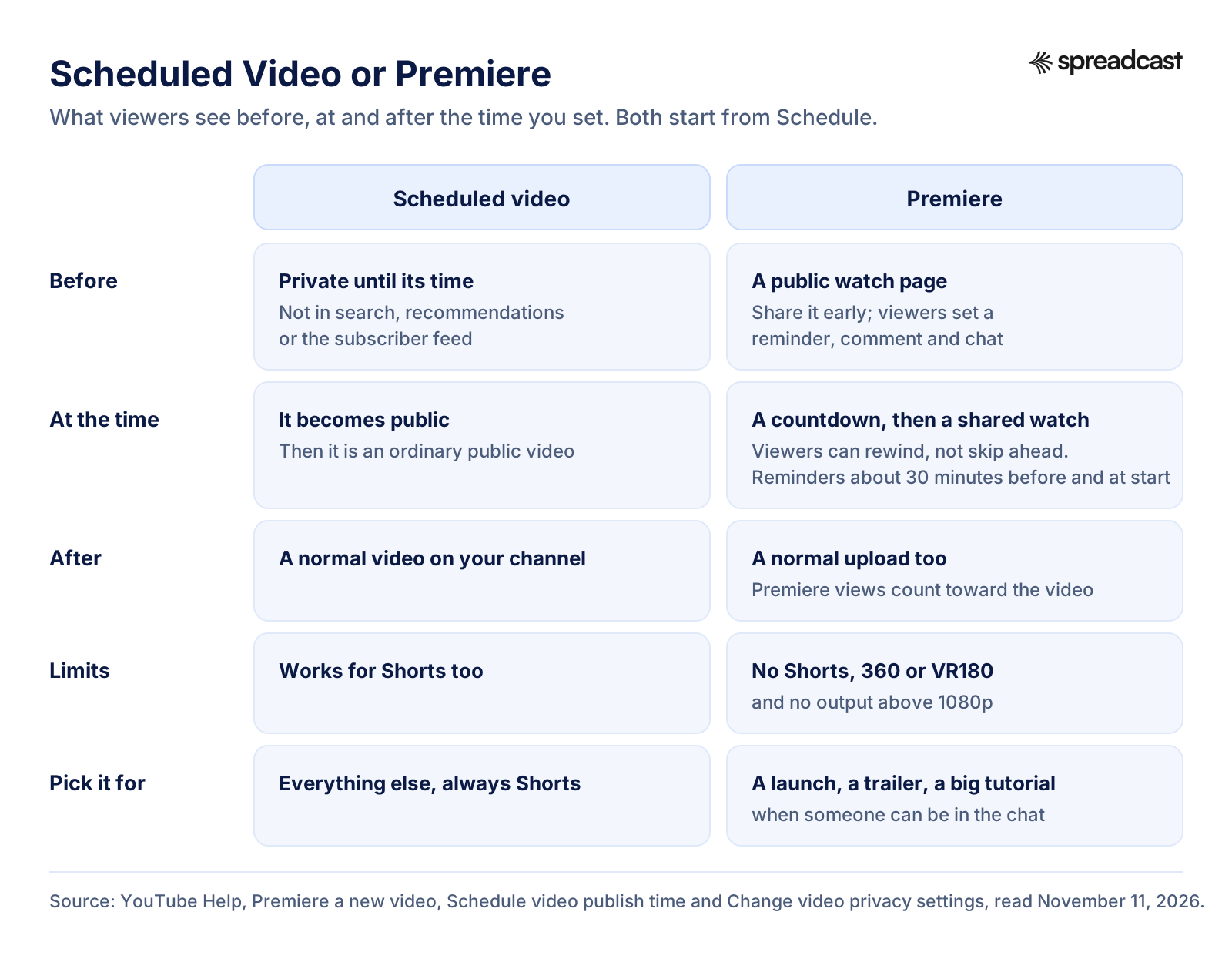
A scheduled video and a Premiere both go public at a time you set. The difference is what viewers see before and during. YouTube's Premieres help says a Premiere creates a public watch page in advance, which you can share, where people can set a reminder, leave a comment and chat before it starts. At the set time a countdown runs, and viewers then watch the video together in real time; they can rewind but cannot skip ahead of what has been shown. Viewers who set a reminder get a notification about 30 minutes before and another when it starts. Afterwards it stays on the channel as a normal upload, and the Premiere's views count toward the video.
To schedule one, choose Schedule on the Visibility page, enter the date and time and tick Set as Premiere. The same help lists the limits: Shorts are not supported, and neither are 360 or VR180 videos or an output above 1080p. An account with a Community Guidelines strike cannot premiere during the penalty, the same rule as for scheduled videos.
So pick a Premiere when the moment is the point: a launch video, a trailer, a big tutorial you want to answer questions on live in the chat. Pick a plain scheduled upload for everything else, and always for Shorts. If you are a small team, a Premiere also means someone should be in the chat at that time, which is a reason not to premiere every video.
Spreadcast does not create Premieres; if you want one, set it up in YouTube Studio and use Spreadcast for the posts on your other networks that point people to the watch page.
A real 5 star review from the App Store, shown big on the cover.
Scheduled Video and Premiere, Before and After the Time
The same Schedule card, two very different experiences for viewers. Here is what each one shows at every stage.
How YouTube Premieres Work
YouTube's own five minute guide to Premieres, the scheduled release with a countdown and a live chat.

YouTube Change Scheduled Video: Time, Details or Publish Now
Because a video scheduled in YouTube Studio already sits on YouTube as private, you change it in YouTube Studio. YouTube's help gives the steps: open the Content page, select the video, click Edit on Visibility, and to change the time make sure the visibility is Private, click Edit Draft and choose the new time under Schedule. To publish it now instead, set the visibility to Public and select Publish. Title, description, thumbnail and the other details are edited on the same video page like any upload.
To cancel a scheduled video, set it back to Private without a schedule, or delete it. YouTube's help pages we read describe no way to swap the video file itself on a scheduled upload, so if the edit is in the video, the usual route is to delete the scheduled one and upload the new file with the same details.
In a third party scheduler the order is reversed. The video is not on YouTube until its time, so you can still change the title, rewrite the description, replace the file or move the slot right up to the minute it is sent. In Spreadcast you open the post from the calendar to edit it, or drag the card to another day. Once it has been uploaded, changes happen in YouTube Studio like any other video.
What Happens to a Scheduled YouTube Video Before Its Time
The difference between the two routes is where the video sits while it waits, and that decides what you can still change.
Why People Use a YouTube Scheduler App Instead of YouTube Studio
YouTube Studio's scheduler is free and reliable, so the fair question is what a paid YouTube scheduling tool buys. From what the vendors document, the answers fall into five groups.
One video, several networks. A vertical video made once is also a TikTok, an Instagram Reel, a Facebook video and a Pinterest video pin, and a scheduler sends it to all of them from one place with a caption written for each. Our cross posting page covers what each network expects from the same video, and the sibling pages go deeper on the TikTok scheduler, the Instagram scheduler and the Pinterest scheduler.
Several channels and brands. Agencies, app studios and anyone with two channels want them on one calendar. Most schedulers ask you to connect as the channel's owner: Buffer's YouTube help says you must be logged into Google as the owner and cannot connect a channel where you are only a Manager, and Publer's help says the same. Spreadcast keeps each brand's channels and accounts apart, explained on managing multiple social media accounts.
A team that approves. When someone other than the editor has to say yes, a scheduler can hold the video as a draft until they do. Spreadcast's version is on our social media approval page.
Posting from a phone. YouTube's app works, but a browser scheduler shows the same calendar on a phone and a laptop, and the post goes out from the server, not the device.
The words. One 40 second video going out everywhere needs a YouTube title and description, a TikTok caption, an Instagram caption and a LinkedIn post, each written for its network. Many schedulers now include an AI assistant you prompt post by post; Buffer's pricing page lists one on every plan. Spreadcast writes the whole set at once from the video itself and your brand voice, then checks each one against its network's limits. If writing is what keeps your channel quiet, our article on why your scheduler is not why your feed is empty argues that point at length.
How to Schedule YouTube Videos With Spreadcast
The whole path in a web browser on a computer or a phone. You connect the channel once; after that every video is one editor and one calendar.
- 1
Connect Your YouTube Channel
In Accounts, choose YouTube and sign in with Google, using the account that holds the channel. Spreadcast asks Google for two permissions: uploading videos, and read only access to your channel, which it uses to see which channel you connected and to read your videos' numbers. If the upload permission is unticked on Google's page, or the Google account has no channel yet, Spreadcast says so instead of failing later. You can connect several channels; each counts toward your plan's social accounts.
- 2
Add Your Video
Open Create and choose Upload My Own, then add the MP4 or MOV file, up to 100 MB and 15 minutes for YouTube. YouTube takes video only, so it joins the post's networks when a video is added and leaves when the video is removed. If you also want a designed picture post for the networks that take pictures, Generate a Post makes one in your brand.
- 3
Tick YouTube and the Other Networks
Choose every account the video should go to. Each network gets its own text, and the preview shows the video the way that network will show it: upright like a Short, or in the wide player with bars around it.
- 4
Read the Title and Description It Wrote
Spreadcast writes a caption for each network from the video and your brand voice, and gives YouTube a title when the title field is empty. Edit any of them. If you leave the YouTube title empty, the first line of your text becomes the title, cut to YouTube's 100 characters.
- 5
Check Short or Regular Video
Under YouTube Settings the editor tells you whether the video goes out as a Short or as a regular video. A wide video of 3 minutes or less can be made upright with one button, so it becomes a Short and fills the screen on the other vertical networks too.
- 6
Pick the Time or Drag It
The editor starts at a time about half an hour from now, with quick picks, or you choose any day and time. Before anything is scheduled, Spreadcast checks the post against each network's rules: a video is there, the title and description fit, the video is not longer than 15 minutes. Scheduled posts sit on a calendar with week, month and list views, and you drag a card to move it.
- 7
It Uploads at the Slot
Spreadcast's publisher runs every five minutes. Within five minutes of the post's time it uploads the video to YouTube in parts, with the visibility set to public, and saves the link. YouTube then processes it, which takes longer for a large file, before it shows on your channel. Open your first upload in YouTube Studio to see how it landed. If YouTube refuses an upload, the calendar marks the post as failed, and opening it shows the reason in plain words with a Try Again button.
What Spreadcast Sends to YouTube, Field by Field
Every field YouTube's upload page offers, next to what Spreadcast sets today. The field names come from the Data API videos resource; Spreadcast's values come from its YouTube publishing code, read November 11, 2026.
| YouTube field | What Spreadcast sends | If you need something else |
|---|---|---|
| Title | Your title, or the first line of your text, up to 100 characters | Edit it in YouTube Settings before it goes out |
| Description | Your YouTube text, up to 5,000 bytes, with angle brackets swapped for lookalike characters YouTube accepts | Write it in the YouTube tab of the post |
| Visibility | Public is asked for, at the time you picked | For unlisted or private, schedule in YouTube Studio |
| Made for kids | Not made for kids, on every upload | For a channel made for kids, use YouTube Studio |
| Category | People and Blogs | Change it in YouTube Studio after it is live |
| Subscriber notification | Left at YouTube's default, which the API reference says is on | Untick it in YouTube Studio for a quiet upload |
| Thumbnail | None sent; YouTube picks a frame | Upload a custom thumbnail in YouTube Studio |
| Tags, playlist, Premiere | Not set | Add them in YouTube Studio |
| Short or regular video | Decided by YouTube from the file: upright or square and 3 minutes or less is a Short | Make It Upright in the editor turns a short wide video into a Short |
Spreadcast uploads through YouTube's own Data API with your Google sign in; no posting service sits between your channel and YouTube. YouTube decides the final visibility: Google's videos resource notes that some uploads may be private because of the creator's account settings, so check your first upload in YouTube Studio.
Settings to Decide Before Any Scheduled YouTube Video Goes Out
Whichever YouTube scheduler you use, these are the settings that are hard to fix once a video is public. From YouTube Help and the Data API references, read November 11, 2026.
Public, Unlisted or Private
YouTube's privacy help explains the three. Public videos show on your channel, in search, recommendations and the subscriber feed. Unlisted videos play for anyone with the link but show nowhere else, and private ones only for you and people you invite. A scheduled video is private until its time and then public.
Made for Kids or Not
YouTube requires an answer on every upload. Its guide says a video is made for kids when children are the main audience, or when its characters, songs, games or stories show an intent to reach them, and suggests legal advice if you are unsure. A tool that answers for you, as Spreadcast does with not made for kids, only suits channels where that is true.
The Title Is the Search Box
The title takes 100 characters and the description 5,000 bytes, per the videos resource, and neither may contain angle brackets. Put the searched words first. Write it for YouTube rather than pasting the TikTok caption, because YouTube is a search engine as much as a feed.
Verification Unlocks Length and Thumbnails
YouTube's feature access page puts videos longer than 15 minutes and custom thumbnails behind phone verification, and gives verified channels higher daily limits. The long video help says verification is done at youtube.com/verify, by text or voice call, and that a long video uploaded before verifying has to be uploaded again.
Subscribers Get Notified by Default
The videos.insert reference says subscribers are notified of a new upload by default, and suggests a channel uploading many videos might turn that off. In YouTube Studio the choice sits under License and distribution. Notifying for every Short can wear out the bell for your main videos.
Altered or Synthetic Content
YouTube's upload help says you are required to tell YouTube if your content is altered or synthetic and seems real. If an AI tool made realistic people or places in your video, set it in Studio before or right after it goes live.
Strikes Freeze the Schedule
A Community Guidelines strike stops scheduled videos and Premieres from publishing during the penalty period, per YouTube's scheduling help. They stay private and have to be scheduled again. Check the channel's status before a launch week.
Creators Aged 13 to 17 Default to Private
YouTube's upload and privacy help both say the default privacy for creators aged 13 to 17 is private, and public for 18 and over. If a scheduled video lands as private for no clear reason, check whose account it is.
Best YouTube Scheduler Apps Compared: Spreadcast, YouTube Studio, Buffer, Metricool
Eight ways to schedule YouTube videos, with prices and YouTube features read on each vendor's own page on November 11, 2026. Spreadcast comes first because it writes the YouTube title and description and a caption for every other network from the same video, then schedules all of it. Then YouTube's own scheduler, the tools with a free plan, and the paid only tools from the cheapest up.
- 1
Spreadcast
Scheduling from a $19 Post Pack or Pro at $29 a month; Free does not publishBest when one video goes to YouTube and several other networks, with the words written for you
Spreadcast takes your video, writes the YouTube title and description and a separate caption for each other network, checks it against every network's limits, and uploads it to YouTube at its time as a Short or a regular video. It tells you which one before you schedule and can make a short wide video upright.
It publishes to Instagram, Facebook, LinkedIn, TikTok, YouTube, Pinterest, Threads, Bluesky, Mastodon, Telegram and Discord from one calendar, and reads YouTube views, likes and comments per video once a day, with subscribers counted as followers. For an App Store app it also turns new versions and rating milestones into designed picture posts for the networks that take pictures.
Pro is $29 a month for 1 app or brand and 10 social accounts, with captions, designs, checks, publishing and analytics included. The Post Pack is $19 once for 10 posts published, your own videos included. Claude and ChatGPT can schedule YouTube videos through the Spreadcast MCP server.
Pros
- Writes the YouTube title and description
- Same video to 10 other networks, each with its own caption
- Short or regular video shown before you schedule
- One calendar for every network
Cons
- No custom thumbnail, playlist or Premiere
- Always sent as public, not made for kids
- Videos up to 15 minutes and 100 MB
- 2
YouTube Studio
FreeBest free YouTube scheduler for long videos on one channel
YouTube's own scheduler on the upload page, on a computer or in the YouTube app. Per YouTube's help it uploads the video now as private and makes it public at the date, time and time zone you set, and you can change the time or publish early from the Content page.
Every YouTube setting is there, including custom thumbnails, playlists, Premieres, chapters and end screens. It schedules YouTube and nothing else, one video at a time.
Pros
- Free
- Every YouTube setting
- Premieres
- Processing and checks done before release
Cons
- YouTube only
- No calendar across networks
- Each video scheduled by hand
- 3
Buffer
Free for 3 channels, then $5 per channel a monthBest free YouTube Shorts scheduler for up to three channels
Buffer's pricing page lists a free plan for up to 3 channels with 10 scheduled posts per channel, and Essentials at $5 a channel a month, or $60 a year per channel, with a 14 day trial. For YouTube it lists automatic publishing, reminder notifications, basic analytics and comment replies.
Buffer's YouTube help says it supports YouTube Shorts only, not long videos: one video per post, up to 3 minutes, square or 9:16, up to 10 GB. It does not support custom thumbnails or YouTube's sound library, and users who have not verified their email see a limit of 10 posts in 24 hours. Our best Buffer alternatives compares it further.
Pros
- Free plan with YouTube
- Reminder option for Shorts that need a sound
- Comment replies
- AI Assistant on every plan
Cons
- Shorts only, no long videos
- No custom thumbnails
- No YouTube sounds on automatic posts
- 4
Metricool
Free for 1 brand, then from $20 a month billed annuallyBest free plan for one brand that wants every YouTube field
Metricool's pricing page lists a free plan for 1 brand with up to 20 scheduled posts a month, YouTube included, and Starter from $20 a month billed annually, or $25 monthly, for 5 brands.
Metricool's YouTube help lists privacy, playlists, made for kids, category, tags and thumbnails, with MP4 or MOV files up to 500 MB, and caps YouTube at 10 posts every 24 hours on free plans and 20 on paid ones. It notes that subscriber notifications can only be set at upload. See our best Metricool alternatives.
Pros
- YouTube on the free plan
- Playlists, privacy and made for kids
- Strong analytics
Cons
- 20 posts a month on free
- 500 MB file limit
- 10 YouTube posts a day on free
- 5
Publer
Free for 3 accounts, then from $5 a monthBest cheap scheduler for long YouTube videos
Publer's plans article lists a free plan for up to 3 social accounts, excluding X, with 10 scheduled posts at a time per account and 25 drafts, and Professional from $5 a month for one account, 20% off yearly, with every tenth account free.
Publer's YouTube help says videos can be up to 12 hours long and 1 GB, with public, private or unlisted, an option to hide a video after a set time, and custom thumbnails once the channel is verified. It also says videos published through third party apps are not monetized by default, so monetization has to be switched on in YouTube Studio for each one. Our best Publer alternatives lists other options.
Pros
- Very low starting price
- Long videos up to 12 hours
- Hide after a set time
Cons
- Free plan keeps 24 hours of history
- Shorts described as 60 seconds in its help
- 6
RecurPost
From $9 a month, 14 day trialBest for bulk uploads and evergreen libraries
RecurPost's pricing page lists Starter at $9 a month for 2 social accounts, Personal at $25 for 5 and Agency at $79 for 20, with a 14 day trial and no card. It says there is no permanent free plan.
RecurPost's YouTube page lists public, private or unlisted, custom thumbnails for phone verified channels, playlists, the made for kids flag and bulk scheduling by CSV, and says the file decides the format: a vertical clip of up to three minutes goes out as a Short.
Pros
- Low entry price
- CSV bulk upload
- Playlists and thumbnails
Cons
- No free plan
- Two accounts on Starter
- 7
SocialBee
From $24 a month billed annuallyBest for content categories across many networks
SocialBee's pricing page lists Bootstrap at $29 a month, or $24 billed annually, for 5 social profiles, with a 14 day trial and no card. It lists YouTube channels for direct posting, custom video thumbnails, and YouTube comments in its engagement module.
Its idea is sorting posts into categories that repeat on a weekly plan, which suits brands mixing tips, promotions and evergreen videos. Our best SocialBee alternatives has more.
Pros
- Content categories
- Custom video thumbnails
Cons
- No free plan
- Five profiles on the first plan
- 8
Hootsuite
From $99 a month billed annually, per userBest for a team that moderates YouTube comments together
Hootsuite's plans page lists Standard at $99 per user a month on annual billing with 10 social accounts, and a 14 day trial with daily posting limits. Hootsuite's YouTube page says you can schedule videos alongside your other networks, moderate comments, and track subscriber growth, views and average view duration.
Hootsuite earns its price with shared streams and reports for a team. For one person scheduling YouTube videos it is the most expensive option here. See our best Hootsuite alternatives.
Pros
- Comment moderation in streams
- Average view duration in reports
Cons
- Priced per user
- No free plan
YouTube Scheduler Prices Side by Side
The lowest plan that publishes to YouTube for each tool, from the pages linked above, in US dollars, on November 11, 2026.
| Tool | Lowest plan that posts to YouTube | What it covers | Free plan or trial |
|---|---|---|---|
| Spreadcast | Post Pack $19 once, or Pro $29 a month | Pro: 10 social accounts on any networks, titles and captions written for each, one calendar | Free plan makes posts to download, no publishing |
| YouTube Studio | Free | One channel, every YouTube setting | Free |
| Buffer | $5 per channel a month | YouTube Shorts only, unlimited scheduled posts per channel | Free for 3 channels |
| Publer | From $5 a month | Professional, starting at 1 account | Free for 3 accounts |
| RecurPost | $9 a month | Starter, 2 social accounts | 14 day trial |
| Metricool | $20 a month billed annually | Starter, up to 5 brands | Free for 1 brand, 20 posts a month |
| SocialBee | $24 a month billed annually | Bootstrap, 5 social profiles | 14 day trial |
| Hootsuite | $99 a month billed annually, per user | Standard, 10 social accounts | 14 day trial |
Prices exclude tax. Spreadcast's yearly billing gives 2 months free, and Pro and Studio come with a full refund within 7 days.
Does Scheduling YouTube Videos Affect Views?
This is the question autocomplete suggests most after can you schedule YouTube videos, in every form: do scheduled YouTube videos get less views, is scheduling YouTube Shorts bad, does it hurt the algorithm. Here is what the sources say.
The closest thing to an official answer comes from YouTube's Creator Liaison. Search Engine Journal reported in November 2025 that he said the recommendation system is largely based on audience behavior, and that a video only has that data once it is actually public, not unlisted and not private. In the same answer he said waiting 24 to 48 hours before publishing is no different than waiting seconds, weeks or months. Read together, the point is that what YouTube learns about a video starts when viewers can see it. A scheduled video is private until its time and then an ordinary public video.
What YouTube says about privacy supports that. YouTube's privacy help says a private video does not show in search, recommendations or the subscriber feed, and a public one does. Nothing in YouTube Help or the Data API reference treats a scheduled video differently from one made public by hand once it is public, and we know of no study showing a penalty. The real differences are practical. A video scheduled well ahead in Studio has usually finished processing and its checks before it goes out. A video uploaded by a third party tool at the slot is processed after: YouTube's upload help says a video can be published once standard definition processing is complete and that HD and 4K take longer, so for the first minutes it may play at lower quality.
What does cause a scheduled video to show few or no views is usually concrete. It went out at a time your viewers were asleep. It went out as private or unlisted by mistake. The channel had a strike, so it stayed private. Or the analytics have not caught up yet. The time is the one you control, and it is where the studies below help.
Our view, as people who build a scheduler: the reach of a YouTube video depends on the title, the thumbnail and the first seconds, and timing helps at the edges. Schedule against your own audience's hours, make sure every setting is right before the slot, and judge results over a month of uploads, not one. Spreadcast reads views, likes and comments for the YouTube videos it published, once a day, next to your other networks; our social media analytics page says exactly what it reads per network.
Best Time to Post on YouTube: Two Large Studies Compared
Both studies split long videos from Shorts, and both say your own audience report beats any average. Start from one, then move toward your viewers' hours.
| Study | Data | Long videos | Shorts |
|---|---|---|---|
| Buffer, July 2026 | About 1.8 million videos, median engagement by hour and day, local time | Sunday 10 a.m. best, then Sunday 9 a.m. and Friday noon; Thursday weakest | Friday 4 p.m., 6 p.m. and 7 p.m. best; Tuesday and Monday weakest |
| vidIQ, updated June 2026 | 40.2 million US long uploads and 80.3 million US Shorts, 30 day views against each channel's average day | Sunday about 3.5% above average, Wednesday about 2.2% below; no universal best hour, 2 to 4 p.m. Eastern as a default for a US audience | Friday evening first, Tuesday and Wednesday evenings second |
Buffer adds that Shorts keep resurfacing for days, so their publish time matters less than a long video's. vidIQ suggests not posting a long video and a Short in the same four hour window.
Find Your Own Best Time and Schedule Against It
The best time to post on YouTube for your channel is in YouTube Studio. YouTube's help on the Audience tab describes a report called When your viewers are on YouTube, which shows when your viewers were online across YouTube in the last 28 days, and suggests using it to plan when to schedule a Premiere or a live stream. Open Analytics, then Audience, and read the darkest hours. Buffer's study suggests publishing a long video one to two hours before that peak, so it has some views and comments when most of your viewers arrive.
A simple routine that works with any YouTube scheduler. Pick two slots for long videos and two or three for Shorts from the report. Schedule a month across them. Then compare first week views by slot, not by single video, and move the weakest slot. Repeat each month. Moving a slot in a scheduler is dragging a card, not staying up late.
How often matters as much as when. For a small brand or an app maker, one long video a month and two or three Shorts a week that you can keep up for a quarter is a better plan than a burst of daily Shorts for one week. A scheduler is what makes the steady version cheap: an afternoon of filming and an hour of scheduling covers the month, which our guide to a month of social content in one afternoon walks through. The free social media content calendar is a good way to lay the month out first.
And how far ahead to schedule? Far enough that a busy week does not break the run, near enough to react to news. Two to four weeks suits most channels. A video scheduled in YouTube Studio months out is fine too, as long as you remember it is there when your plans change.
- Groceries$312
- Rent$1,100
- Coffee$46
YouTube Schedule Upload Not Working: What to Check
The common reasons a scheduled YouTube video does not go out, goes out wrong, or cannot be uploaded at all, in the order worth checking.
It Stayed Private at Its Time
Check the channel for a Community Guidelines strike first: YouTube's help says scheduled videos stay private for the penalty period and must be scheduled again. Then check the account holder's age, since creators aged 13 to 17 default to private.
The Daily Upload Limit Was Reached
YouTube's feature access page says uploads have a daily limit, lower for channels without verification. If you hit it with advanced access, you wait 24 hours. Spreadcast shows YouTube's refusal in words: this channel has reached the number of videos YouTube lets it upload today.
The Video Is Over 15 Minutes
By default YouTube takes videos up to 15 minutes; longer needs a verified account, per YouTube's long video help. Verify, then upload again. Spreadcast checks the 15 minute line before scheduling and never sends anything longer.
It Went Out as a Regular Video, Not a Short
The file was wide, or a little over 3 minutes after processing. Export upright at 9:16 and keep it under 2:59. In Spreadcast the YouTube settings say Short or regular video before you schedule.
The Date Under the Video Looks Wrong
The published date on the watch page follows Pacific time, per YouTube's scheduling help. A video scheduled early in the morning in Europe or Asia can show yesterday's date. The time it went public was still right.
The Scheduler Lost Its Connection
If the access you gave a tool is removed from your Google account, or stops working, the tool can no longer upload. Spreadcast then says YouTube signed this account out. Reconnect YouTube in Accounts; the post stays on the calendar with a Try Again button.
The Tool's Daily Allowance Ran Out
Every app that uploads shares a daily allowance from Google. Google's quota page gives a new project 100 video uploads a day. If a hosted tool hits its limit, the upload waits; Spreadcast says it has used up what YouTube lets it upload today and that the post can go out tomorrow. The YouTube MCP server page explains the quota in detail.
No Channel on That Google Account
A Google account that never opened YouTube has no channel to upload to. Create the channel on YouTube first, then connect it. Spreadcast checks this when you connect and tells you instead of failing at the first post.
YouTube Upload Limits That Matter When Scheduling
What YouTube accepts, and where Spreadcast's own editor sets a lower line. If a scheduled upload fails, it is usually one of these.
| Limit | What YouTube takes | Spreadcast's editor | Where YouTube says it |
|---|---|---|---|
| Video length | 15 minutes by default; up to 12 hours once verified | Up to 15 minutes | Upload videos longer than 15 minutes |
| File size | Up to 256 GB | Up to 100 MB, MP4 or MOV | videos.insert reference |
| Short | Up to 3 minutes, square or vertical | Shown as Short or regular video, Make It Upright for short wide videos | Upload YouTube Shorts |
| Title | 100 characters, no angle brackets | 100 characters, checked as you type | Videos resource, title |
| Description | 5,000 bytes, no angle brackets | 5,000, angle brackets swapped for lookalikes | Videos resource, description |
| Files in one upload | Up to 15 in YouTube Studio | One video per post | Upload YouTube videos |
| Custom thumbnail | Verified channels; 3840 x 2160 for videos, 2160 x 3840 for Shorts | Not sent; set it in Studio | Add custom thumbnails |
| Daily uploads | A daily limit, higher after verification | YouTube's refusal shown in words | Feature access |
| Scheduled publish through the API | Only for a private video that has never been published | Spreadcast keeps the post and uploads at its time instead | Videos resource, publishAt |
YouTube's upload help asks you not to add black bars to the sides of a vertical video, because YouTube fits vertical, square and wide videos to the screen itself. Our social media image sizes page lists sizes for every network, and the YouTube banner size tool covers the channel art.
Can You Schedule YouTube Community Posts?
Yes, in YouTube itself. YouTube's help on creating a post has a Schedule a post section: select Create and Create post, write the text or add an image, video, poll or quiz, click the down arrow next to Post, select Schedule Post, and choose a date, time and time zone. An image post can carry up to 10 images. YouTube also limits how many posts a channel can create in 24 hours, and says to try again after a day if you see a limit reached message.
Third party tools mostly cannot do it. Buffer's YouTube help says YouTube Community posting is not available through Buffer, and Spreadcast does not post to the Posts tab either. So for a channel that uses posts, the practical setup is videos and Shorts in your scheduler and the posts tab scheduled in YouTube.
Schedule the Same Video to YouTube Shorts, TikTok and Instagram Reels
An upright video under 3 minutes is a YouTube Short, and with small changes a TikTok, an Instagram Reel, a Facebook video and a Pinterest video pin. In Spreadcast you tick each network under Post To, and each gets its own text from the same idea: a searchable title and a fuller description on YouTube, a short caption with a few hashtags on TikTok and Instagram, a title and link on the pin. The check before scheduling covers each network's own rules, so a 12 minute video is flagged for TikTok's 10 minute limit and still goes to YouTube.
One habit helps: upload the original file, not one downloaded from another app with its watermark, so every network gets a clean copy.
The other halves have their own pages: the TikTok scheduler covers feed or drafts and who can see each post, the Instagram scheduler covers Reels with a cover and music, and the Telegram scheduler covers channel posts. If your app needs a store video as well, our app preview video guide covers Apple's rules for that.
Schedule YouTube Videos From Claude or ChatGPT
If you already plan in an AI assistant, you can skip the dashboard. Through Spreadcast's MCP server, Claude or ChatGPT can take a public link to your video, write the YouTube title and description and the captions for your other networks, and put the post on your calendar: "a Short for Thursday at 5 p.m. about the new widget, and the same video on TikTok". Posts arrive as drafts unless you let the connection publish. The full setup, and what Google allows any uploader to do, is on our YouTube MCP server page.
Two guides go further: how to schedule social media posts with Claude and with ChatGPT.
What Spreadcast Does Not Do on YouTube
Worth knowing before you connect your channel, with what to do instead.
It Does Not Make the Video
Spreadcast designs picture posts and carousels, but YouTube takes only video, so on YouTube it is the writer and the scheduler. Cut the video in CapCut, your phone's editor or Final Cut, then hand Spreadcast the file. Autopilot's picture posts skip YouTube for the same reason.
No Thumbnail, Playlist or Tags
YouTube picks a frame as the thumbnail. Add a custom thumbnail, a playlist, tags or an end screen in YouTube Studio after the video is up, or schedule that video in Studio from the start.
Always Sent as Public, Never Made for Kids
Every upload is sent as public, not made for kids, in the People and Blogs category. There is no choice for unlisted or private. For unlisted or private videos, or a channel made for kids, use YouTube Studio's own scheduler.
Up to 15 Minutes and 100 MB
That covers Shorts and most explainers. A longer or larger video, even on a verified channel, belongs in YouTube Studio.
Uploaded at the Slot, Not Before
Spreadcast uploads when the time comes, so YouTube processes the video after that and it shows once processing is done. For a launch that must be live at an exact minute, schedule it or premiere it in YouTube Studio.
No Watch Time or Comment Replies
For YouTube, Spreadcast reads views, likes and comments per video and the channel's subscribers and video count, once a day. Watch time, retention and click rate stay in YouTube Studio, and comments are answered there too.
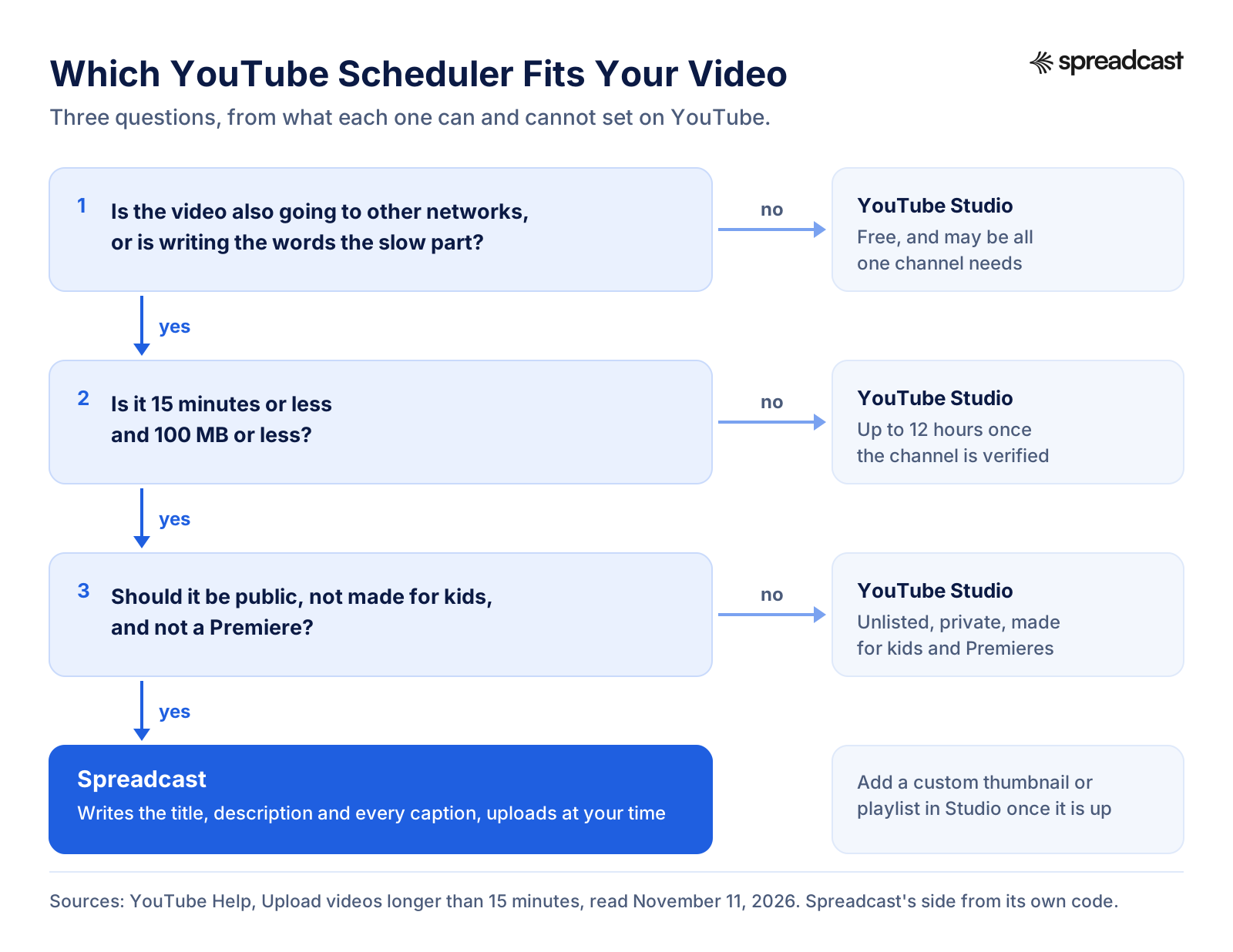
YouTube Studio or a Scheduler App: Which Fits Your Video
Three questions settle it for most videos. A no to any of them means YouTube Studio is the better place for that one.
What Spreadcast Costs for YouTube Scheduling
What changes between plans is whether Spreadcast publishes, and how many brands and accounts it covers. Full details on the pricing page.
| Plan | Price | What you get for YouTube |
|---|---|---|
| Free | $0, no card | 3 posts made for you, to download and post yourself. No scheduling, and the designed posts are pictures, which YouTube does not take |
| Post Pack | $19 once, never expires | 10 posts published, your own videos included, to YouTube and every other account you connect |
| 30 Day Pass | $39 once, nothing renews | Everything in Pro for 30 days |
| Pro | $29 a month | 1 app or brand, 10 social accounts, titles and captions written for each network, calendar, analytics, Claude and ChatGPT |
| Studio | $79 a month | Up to 5 apps or brands and 50 social accounts, each with its own channels, and 3 seats |
Yearly billing gives 2 months free. Cancel anytime; Pro and Studio come with a full refund within 7 days.
How We Checked This
On November 11, 2026 we read YouTube Help's articles on scheduled publishing, uploading videos, uploading Shorts, videos longer than 15 minutes, privacy settings, Premieres, the Audience tab, feature access, made for kids, custom thumbnails and creating posts; Google's YouTube Data API reference for the videos resource and videos.insert, and its quota calculator. The two videos are from the YouTube Creators channel and are linked from those help articles. Where YouTube's help is silent, as on how far ahead you can schedule, we say so rather than guess.
Every competitor price and YouTube feature comes from that vendor's own pricing page or help article, read the same day. The timing numbers come from the Buffer and vidIQ studies, and the Creator Liaison's comments from Search Engine Journal's report, each linked where it is used. We ran no reach tests of our own and quote no results we did not read.
Spreadcast's behavior on YouTube was checked in its code the same day: what the editor asks, what is sent to YouTube and when, which errors are shown, and which YouTube numbers are read back. If something here changes, the features overview is updated with it.
Frequently Asked Questions
Can you schedule YouTube videos?
Yes, for free. In YouTube Studio or the YouTube app, choose Schedule on the Visibility step and set the date, time and time zone. The video is uploaded as private and goes public at that time. Third party schedulers such as Spreadcast also schedule YouTube videos, alongside your other networks.
How far in advance can you schedule a YouTube video?
YouTube's scheduling help does not name a maximum. A video scheduled in YouTube Studio stays private until its date. In a third party scheduler the tool keeps the video and uploads it at its time, so you can plan weeks out and still change it until then.
Can you schedule YouTube Shorts on mobile?
YouTube's scheduling help lists the YouTube app, so look for Schedule on the visibility screen when you upload. YouTube's Shorts help for phones does not mention it, so if it is missing, schedule the Short from YouTube Studio on a computer or from a web based scheduler in your phone's browser.
Does scheduling YouTube videos affect views?
Nothing YouTube has published treats a scheduled video differently once it is public. YouTube's Creator Liaison has said the recommendation system learns from viewers' behavior, which starts when a video is public. Publishing time still matters, so schedule for when your viewers are online.
Is there a free YouTube scheduler?
YouTube Studio's own scheduler is free. Buffer's free plan schedules YouTube Shorts on up to 3 channels, Metricool's covers 1 brand with 20 posts a month, and Publer's covers 3 accounts. Spreadcast's free plan makes posts to download but does not publish.
Can you change a scheduled YouTube video?
Yes. In YouTube Studio open Content, select the video, keep it Private, click Edit Draft and choose a new time, or set it to Public to publish now. Title and description can be edited like any upload. In a third party tool you edit the post there until it is sent.
What is the difference between a scheduled YouTube video and a Premiere?
A scheduled video simply goes public at its time. A Premiere creates a public watch page in advance with reminders and chat, then plays the video with a countdown so viewers watch together. Shorts cannot be premiered.
Can Spreadcast add a custom thumbnail or playlist on YouTube?
No. Spreadcast sends the title and description and lets YouTube pick a frame. Add a custom thumbnail, playlist or tags in YouTube Studio after the upload, or schedule that video in YouTube Studio.
Where These Facts Come From
Every outside number, rule and price on this page links to the page it was taken from.
- Schedule video publish timeYouTube Help
- Upload YouTube videosYouTube Help
- Upload YouTube ShortsYouTube Help
- Upload videos longer than 15 minutesYouTube Help
- Change video privacy settingsYouTube Help
- Premiere a new videoYouTube Help
- Understand your YouTube audienceYouTube Help
- Learn about feature access for YouTube creatorsYouTube Help
- Determining if your content is made for kidsYouTube Help
- Add custom thumbnails on YouTubeYouTube Help
- Create a postYouTube Help
- YouTube Data API, videos resourceGoogle for Developers
- YouTube Data API, videos.insertGoogle for Developers
- YouTube Data API, quota calculatorGoogle for Developers
- How to upload videos with YouTube Studio on desktopYouTube Creators
- YouTube PremieresYouTube Creators
- YouTube debunks the 24 to 48 hour upload delay recommendationSearch Engine Journal
- Best time to post on YouTubeBuffer
- Best time to post on YouTube, what 40 million videos showvidIQ
- Buffer pricingBuffer
- Using YouTube Shorts with BufferBuffer Help Center
- Metricool pricingMetricool
- Schedule and publish on YouTubeMetricool Help
- What are Publer's plans and pricingPubler Help
- Managing YouTube accounts in PublerPubler Help
- RecurPost pricingRecurPost
- YouTube schedulerRecurPost
- SocialBee pricingSocialBee
- Hootsuite plansHootsuite
- YouTube management with HootsuiteHootsuite
Researched and written by Mark Weizer. Last checked on November 11, 2026.