How to Make App Store Screenshots in Five Minutes
Paste your App Store link into the generator above and click Get Screenshots, or drop your own screenshots onto it. Each screen becomes one App Store slide: a short headline and your screenshot inside an iPhone frame, on a background you choose. Edit the headlines, pick Text on Top or Text at Bottom, and click Download All Screenshots. You get one ZIP with every slide at 1320 x 2868 pixels, numbered in order and ready for App Store Connect.
That is the whole job of this App Store screenshot generator. It is not a design app with a hundred panels. It makes the kind of screenshot set most iPhone apps on the store already use, a benefit line above a framed screen, and it makes it at the exact pixel size Apple accepts. You do not need Figma, a template file or a designer, and you never create an account.
The size matters more than people expect. App Store Connect accepts a fixed list of pixel sizes, not a range, and refuses files with transparency. The default export, 1320 x 2868, is one of the accepted portrait sizes for the iPhone display group Apple calls Dynamic Island, large display, according to Apple's screenshot specifications. The same page says that if your interface looks the same across devices, you only provide the highest required resolution and App Store Connect scales it down for smaller iPhones.
Spreadcast built this tool next to its iPhone mockup generator because both draw the same iPhone. Spreadcast uses that frame every day in the social posts it designs for app makers when they ship a new version. The screenshot generator is free on its own. Under the result you will find a card that hands your App Store link to Spreadcast, if you also want each update posted for you.
Key Takeaways
Free, No Watermark, No Account
Every slide downloads at full size with nothing stamped on it. Files you drop in stay in your browser and are never uploaded.
Your App Store Link Does the Setup
Paste a link and up to 10 iPhone screenshots load in store order, with headline drafts taken from short feature lines in your own App Store description.
Three iPhone Sizes, One Click
1320 x 2868 for the 6.9 inch group by default, plus 1284 x 2778 and 1206 x 2622. Every iPhone Size saves all three in one ZIP, one folder each.
JPG on Purpose
Apple's specifications say screenshots cannot include alpha channels or transparency. A JPG has no alpha channel, so uploads do not bounce for that reason.
Apple Reviews the Words Too
Screenshots are metadata. More than half of each set must show the app in use, and prices or terms do not belong on them.
Order Beats Decoration
The first one to three screenshots can appear in search results. Put the main job of the app first and one benefit on each slide after it.
How to Use the Free App Store Screenshot Generator
Six steps on this page. Nothing to install, nothing to sign up for, and you can stop after any of them.
- Step 1
Load Your Screenshots
Paste your App Store link, or type your app's name, and click Get Screenshots. Up to 10 iPhone screenshots load from Apple's public listing in the order they appear on the store. For an app that is not live yet, drop up to 10 PNG, JPG or WebP files onto the box instead.
- Step 2
Write a Headline for Each Slide
Click a slide and edit its headline in the text box. From a link, the headlines start as short feature lines from your App Store description, and the first slide starts with your app's name. Rewrite them: they are drafts, not final copy.
- Step 3
Pick Text on Top or Text at Bottom
Text on Top is the layout most store listings use. Text at Bottom keeps the top of your screen in view first, which suits apps whose best content sits high on the screen.
- Step 4
Choose a Background and Frame Color
App Color builds a gradient from the main color of your app icon, when you loaded from a link. White, Dark, Sky, Sunset and Your Color are always there. The headline switches between white and dark on its own so it stays readable. The frame comes in Black, Silver, Blue, Orange and Green.
- Step 5
Pick the Size
Leave it on 6.9 inch, 1320 x 2868, unless you know you need another one. Choose 6.5 inch for 1284 x 2778 or 6.3 inch for 1206 x 2622.
- Step 6
Download
Download All Screenshots saves one ZIP of every slide at the chosen size. Every iPhone Size in One ZIP saves all three sizes in their own folders. You can also save just the slide you are looking at.
App Store Screenshot Sizes This Generator Exports
All three sizes are portrait and all three are on Apple's list. Display groups and the fallback rules come from Apple's screenshot specifications, read on October 28, 2026. Apple's page does not label the modern groups in inches; the inch names are the ones most tools and templates use.
| Size in the tool | Pixels | Apple's display group | When you need it |
|---|---|---|---|
| 6.9 inch (default) | 1320 x 2868 | iPhone with Dynamic Island, large display | The set to upload first. App Store Connect scales it for smaller iPhones when your interface looks the same on them. |
| 6.5 inch | 1284 x 2778 | iPhone with Face ID, large display | Required only when you upload nothing for the Dynamic Island large display. Handy if a template or a team member asks for the 6.5 inch set by name. |
| 6.3 inch | 1206 x 2622 | iPhone with Dynamic Island, medium display | Apple's summary of required sizes names this group. If you skip it, Apple uses scaled screenshots from the Face ID large display. |
One design covers all three. The shapes are close enough that the generator lays each slide out again at each size instead of stretching it. Our App Store screenshot sizes guide lists every other accepted size, including iPad, Mac and Apple Watch.
Start From Your App Store Link: Screenshots and Headline Drafts Load for You
Most screenshot makers start with an empty canvas and a request to upload files. Here you can start with the listing you already have. Paste a link such as apps.apple.com/us/app/yourapp/id123456789 and the generator reads your public App Store listing, the same page anyone can open. It loads up to 10 iPhone screenshots in store order, your app's name and icon, and your description.
The headline drafts come from that description. Many apps already write their features as short lines, often with a bullet in front, such as Track every habit in one tap. The generator picks lines of three words or more that are short enough to read on a slide, skips anything that looks like a link, a price or subscription terms, and puts them on the slides in order. The first slide gets your app's name when nothing better fits. You then edit every headline yourself, which you should do: a description line is written to be read in a paragraph, a screenshot headline is written to be read in a second.
The icon gives you the App Color background. The generator finds the main color of your icon and turns it into a gradient from a deeper shade at the top to the color itself at the bottom, so the set matches your brand without you typing a color code. If your icon is black, white or grey, App Color falls back to the average of its pixels, and Your Color lets you set anything else.
Why load screenshots that are already on the store? Because the most common reason to open a screenshot generator is a redesign of an existing set. You keep the screens, change the words, the layout and the background, and upload a new set with your next version. For a brand new app, drop the files from your simulator or device instead. Either way, the headline you write is the part that matters most.
Why the Generator Saves JPG Instead of PNG
Apple's screenshot specifications accept .jpeg, .jpg and .png files, and add one line that catches many developers: images cannot include alpha channels or transparencies. A PNG saved by a browser canvas carries an alpha channel even when every pixel is solid. Upload one and App Store Connect may refuse it with an error that does not say why.
A JPG has no alpha channel at all, so the generator exports JPG at high quality. The difference in sharpness at 1320 x 2868 is not visible on a phone screen. If you ever need to check a file before you upload it, the free App Store screenshot size checker reads its pixel size and tells you which display group it matches.
App Store Screenshot Requirements to Check Before You Export
The rules below decide whether a set uploads and whether it passes review. Count, format and size are from Apple's screenshot specifications; the content rules are from the App Review Guidelines, section 2.3 and Apple's guideline 2.3.3 help page.
| Rule | What Apple says | How the generator handles it |
|---|---|---|
| Number of screenshots | At least 1 and up to 10 per device size. | Up to 10 slides per set, the same limit. |
| File type | .jpeg, .jpg or .png, with no alpha channel or transparency. | Every export is a JPG with a solid background. |
| Pixel size | Exact sizes from Apple's list, portrait or landscape. | 1320 x 2868, 1284 x 2778 or 1206 x 2622, portrait only. |
| App in use | More than half of the screenshots for each device must show the app in use. With 3 screenshots, at least 2; with 4, at least 3. | Every slide puts a real screen of your app in the frame. Do not upload a set of text only slides. |
| Prices and terms | Guideline 2.3.7 says screenshots should not include prices, terms or descriptions that are not specific to the metadata type. | Headline drafts skip description lines that mention prices or subscriptions. Keep it that way when you edit. |
| Age rating | Guideline 2.3.8 asks screenshots to fit a 4+ rating even if the app is rated higher. | Your choice of screens. Pick calm ones for a game with violence. |
| Real people's data | Guideline 2.3.9 asks for fictional account information instead of a real person's data. | Capture from a demo account before you load the files. |
| Other platforms | Guideline 2.3.10 says not to show names, icons or imagery of other mobile platforms. | The generator only draws an iPhone. Remove Android screens or badges from the captures. |
| Up to date | Section 2.3 asks you to keep screenshots up to date with new versions. | Load your link again after a redesign and download a fresh set. |
The App Store rejection reasons guide covers what happens when metadata fails review and how to reply in App Store Connect.
How Many Screenshots for the App Store Do You Need?
The rule is one at minimum and 10 at most for each device size, per Apple's screenshot specifications. One screenshot is enough to submit an app. It is rarely enough to sell one.
Apple's page on creating your product page says that depending on their orientation, the first one to three screenshots appear in search results when no app preview is available. For a portrait iPhone set that means three slides do most of the work for people who never open your page. Treat three as the practical minimum and make each of them strong enough to stand alone.
Beyond three, add a slide only when it shows a feature or benefit that the first three do not. Stop adding when a new slide would repeat an earlier one. Ten slides of the same screen with different words read as padding, and people who scroll that far are already interested. The generator handles any number from one to ten, so the set can grow as the app does.
Keep the review rule in mind as you add slides. Apple's guideline 2.3.3 page evaluates the set for each device and approves it only if more than half of the screenshots show the app in use. A text only intro slide, a slide of press quotes or a slide of awards counts against that half. The remaining screenshots may use marketing material, the page says, as long as the majority still show the app.
App Store Screenshot Order: What to Put in Each Slot
Apple's asset best practices ask you to lead with your strongest features and sequence them so they tell a cohesive story that reflects how someone would use the app. This is one way to turn that into an order.
- Step 1
Slot 1: What the App Does
The main screen with real looking content and a headline that names the outcome, such as Split Any Bill in Seconds. Someone who has never heard of your app should understand it from this slide alone.
- Step 2
Slot 2: The Feature People Search For
The one feature that brought most people to the search in the first place. If your subtitle names it, show it here.
- Step 3
Slot 3: The Reason to Pick You
What you do that similar apps do not, or do worse. This is the last slide many people see in search, so make it count.
- Step 4
Slots 4 to 6: One Benefit Each
Secondary features, each on its own slide with its own headline. Order them the way a new user would meet them.
- Step 5
Slots 7 to 10: Depth and Trust
Widgets, Dark Mode, Apple Watch support, sync across devices, privacy. People who scroll this far are deciding, not discovering.
- Step 6
Then Reorder in App Store Connect
The order you upload is not final. Apple's upload help says you can sort the order in the product page section and reorder the display sequence in Media Manager.
What to Write on App Store Screenshots
The words on a screenshot are its headline, sometimes called the caption. Apple's asset best practices put it in one line: if you use text, use a short phrase that enhances your visual rather than describes it. A headline that says Settings Screen above the settings screen adds nothing. A headline that says Your Data Never Leaves Your Phone above the same screen gives a reason to care.
Short means short. On a phone, a screenshot in search results is a fraction of the size you design it at, so a headline of three to six words in a large weight reads where a full sentence turns into grey lines. The generator draws the headline as big as it can and shrinks it in small steps only when it needs more than three lines, which is a hint to cut words, not to accept small type.
Lead with a verb or an outcome. Track, Plan, Save, Learn, Split, Find. Then the object: Track Every Habit, Plan Meals for the Week. Numbers help when they are true and checkable, such as a count of recipes or languages you really offer. Leave out claims you cannot back up, because Apple's best practices warn against claims that cannot be verified and against adding awards your app has not received.
Use the words your customers use. If people search for budget planner, a headline that says Budget Planner That Adds Itself Up reads like the answer to their search. Keep the same words you used in your name and subtitle, which you can fit with the App Store character counter, and in the opening lines of your description, which the App Store description generator drafts from your listing. One message across title, subtitle and screenshots converts better than three different ones.
Write headlines in Title Case or sentence case, and pick one for the whole set. Apple's best practices ask for a similar visual style across all assets, including fonts, message and tone, so the slides look like one story when someone swipes through them.
App Store Screenshot Headline Examples by App Type
Sample headlines we wrote for this page to show the pattern: verb or outcome first, three to six words, one idea each. They are not taken from real listings; for real ones, see our App Store screenshot examples.
Habit Tracker
Track Every Habit in One Tap. See Your Streaks at a Glance. Reminders That Fit Your Day. Your Progress on the Home Screen.
Budget App
Know Where Your Money Goes. Split Bills With Friends. Set a Budget in a Minute. Your Data Stays on Your Phone.
Language Learning
Learn Spanish in Five Minutes a Day. Practice Real Conversations. Lessons That Adapt to You. Review Words Before You Forget Them.
Photo Editor
Fix Any Photo in One Tap. Remove Objects Cleanly. Presets Made for Portraits. Export in Full Resolution.
Fitness App
Workouts That Fit Your Schedule. Follow Along With Video. See Every Personal Best. Works With Apple Watch.
Game
Build Your Own Kingdom. Play Offline Anywhere. New Levels Every Season. Challenge Friends in Real Time.
App Store Screenshot Design: Layout, Background and Frame
Most strong screenshot sets share a structure. A headline at the top in a large weight, a device below it showing one real screen, and a background that stays the same or changes in small steps across the set. The generator builds exactly that structure, then gives you the three choices that change how it reads: where the text goes, what sits behind it, and the frame color.
Text on Top is the safe default. People read top to bottom, so the promise comes first and the proof second. Text at Bottom puts the screen first, which works when the top of your interface is the most striking part, such as a map, a photo grid or a game scene. Pick one for the whole set; switching between slides makes the set feel unplanned.
Backgrounds do more than decorate. A white background looks clean and close to Apple's own marketing, and it suits apps with colorful interfaces. Dark makes bright screens and Dark Mode screens glow. Sky and Sunset are soft gradients that work for almost any app. App Color ties the set to your icon, so people who see the icon in search and then the screenshots feel they are looking at one brand. The headline color follows the background automatically, white on dark and deep ink on light, so the words stay readable on every option.
Show Dark Mode if you support it. Apple's product page guidance suggests including at least one screenshot that shows the Dark Mode experience. An easy way is a Dark background on that one slide, or a Dark set with one light slide, both of which the generator can do: change the background, download the slide on its own, and put it in the ZIP.
Keep the frame consistent. The generator picks an iPhone with a Dynamic Island for modern tall screenshots and an iPhone with a home button for older 16:9 ones, based on the shape of each file, so mixed captures still fit. Choose one frame color for the whole set. For the reasoning behind frames, and when to leave them off, see the section on frames below and the iPhone mockup generator page.
Which Background to Pick for Your App Store Screenshots
Every background option in the generator, what it looks like and the kind of app it suits. These are design suggestions from our own work, not rules from Apple.
| Background | What you get | Good for | Watch out for |
|---|---|---|---|
| App Color | A gradient from a deeper shade of your icon's main color to the color itself | Apps with a strong brand color in the icon; sets that should match the icon in search | Only when loaded from an App Store link. Icons with no vivid color give a muted result |
| White | Plain white with dark headlines | Colorful interfaces, health, finance and productivity apps | White screens can blend into it; Dark or a color separates them |
| Dark | Near black with white headlines | Dark Mode screens, photo, video and music apps, games | Very dark screens lose their edges; the frame color helps |
| Sky | A soft blue gradient | Calm, friendly apps: wellness, education, weather | Blue interfaces can look washed out on it |
| Sunset | A warm gradient | Social, food, travel and lifestyle apps | Busy or red heavy screens can clash |
| Your Color | Any color from the picker | Brands with a fixed color code | Mid tones can sit near the point where the headline color switches; check every slide |
App Store Screenshot Best Practices From Apple's Own Guidance
Apple publishes its screenshot advice across several pages. These are the points that change how a set looks, with the page each comes from. The App Store marketing guidelines explained cover Apple's separate rules for ads and badges.
Show the App, Not Just Promises
Apple's asset best practices say to depict the app in use and to avoid using a whole asset for accolades or calls to action.
One Main Benefit per Slide
Creating your product page suggests focusing each screenshot after the first on a main benefit or feature, so the set conveys your app's full value.
Keep the Focal Point Central
The asset best practices ask you to design with a safe area in mind and keep the focal point in the center of the composition, so nothing important is clipped.
No Prices, URLs or Copyright Symbols
The same page asks you to leave out specific pricing, discounts, website URLs and copyright symbols so the screenshots stay relevant worldwide and do not go out of date.
No Apple Awards You Add Yourself
Apple asks you not to include its recognitions, such as Editor's Choice or App of the Day, and to avoid claims that cannot be verified.
Localize the Words
Apple's product page guidance asks you to localize screenshots for each market you sell in. A new localization starts with your primary language screenshots until you replace them.
Five Design Mistakes in App Store Screenshot Sets
None of these breaks a rule. Each one makes a set easier to scroll past, and each takes a minute to fix in the generator.
Headlines That Describe the Screen
Home Screen, Settings, Profile. The reader can see that. Say what the screen does for them instead.
Tiny Type
A headline set for a laptop screen disappears in search results. If it needs more than two lines at full size, cut words.
The Login Screen First
The first slot is the most valuable space on the page. A sign in screen or an empty state wastes it, and Apple's guideline 2.3.3 page lists login and splash screens among things not to rely on.
A Different Style on Every Slide
Five backgrounds, three fonts and two frame colors read as five different apps. Pick once and use Download All.
Old Screens After a Redesign
People notice when the app they open does not match the store. Load your link after each release and check that the set still matches.
Video: Apple on Getting Your Product Page Ready
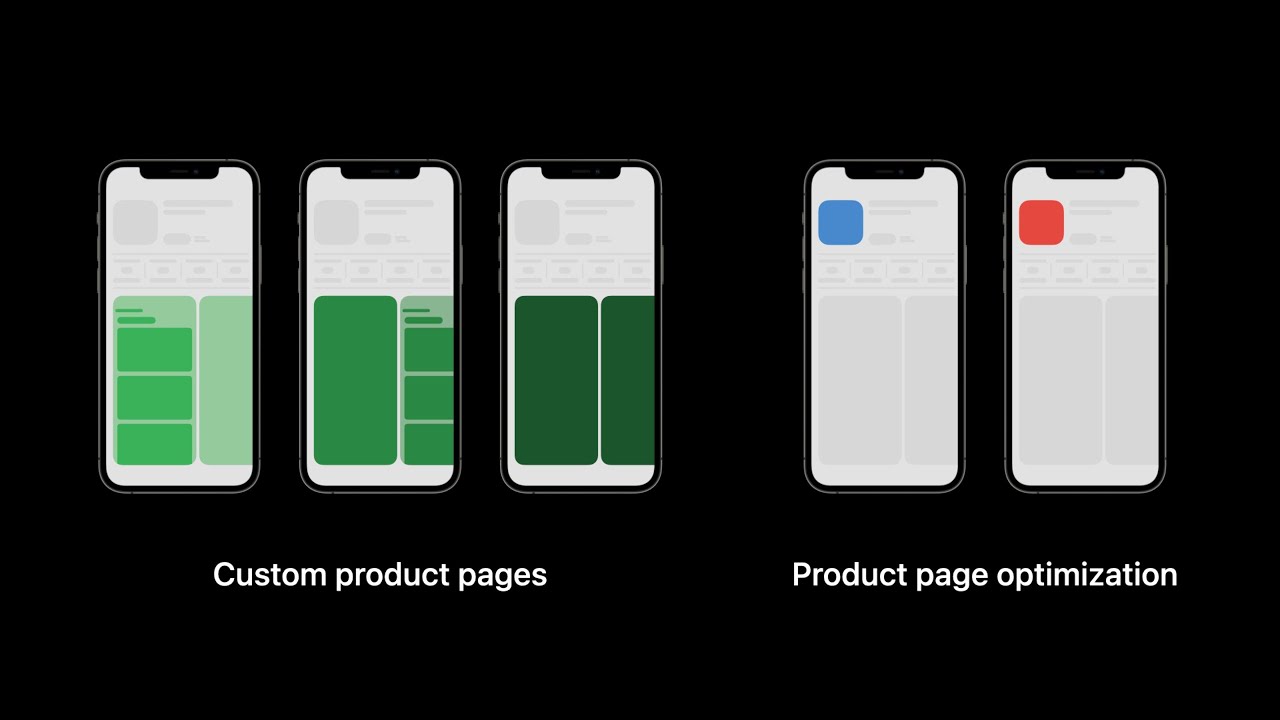
Apple's WWDC21 session on preparing product page assets, including the screenshots you will test and the custom product pages you can build from them. It runs about eight minutes.
How to Upload Screenshots to App Store Connect
Once the ZIP is on your computer, unzip it and follow these steps. They are summarized from Apple's help page on uploading app previews and screenshots, read on October 28, 2026.
- Step 1
Open the App Version
In App Store Connect, go to Apps, select your app, and in the sidebar select the version under iOS that you are preparing.
- Step 2
Pick the Language
If you localize, choose the language from the pop up menu at the top right. Each language has its own screenshots.
- Step 3
Open Previews and Screenshots
Under Product Page Information, open the App Previews and Screenshots tab and select the iPhone tab. View All Sizes in Media Manager shows every display size.
- Step 4
Drag the Files In
Click Upload or drag the JPGs into the well. The files are numbered, so they land in the order you designed them. You can change the order afterwards in the same section or in Media Manager.
- Step 5
Check the Preview
Apple's asset best practices point to the Preview tool in App Store Connect, which shows how your assets look before they go live.
- Step 6
Submit for Review
Screenshots go to App Review with the version. Apple's help page lists the statuses in which you can change them, including Prepare for Submission, Rejected and Metadata Rejected.
App Store Connect Screenshots Not Uploading: What to Check
When App Store Connect will not take a screenshot, the cause is almost always one of four things, and you can check them in this order.
First, the pixel size. A file that is a few pixels off, or was exported at 2x by mistake, matches no size on Apple's list. Drop it into the App Store screenshot size checker, which reads the real pixel size and names the display group it fits. Files from this generator are exactly 1320 x 2868, 1284 x 2778 or 1206 x 2622.
Second, transparency. Apple's specifications rule out alpha channels. A PNG exported from a design tool often has one even when nothing is see through. Save it as JPG, or use the JPGs from this generator.
Third, the slot. A 1206 x 2622 file belongs in the Dynamic Island medium display, not the large one. Put each file under the display size it was made for, which Media Manager lists.
Fourth, the version status. If the version is already waiting for review or live, the screenshots are locked until you create a new version or the status changes. Apple's upload help names the statuses in which uploads work. If App Store Connect says uploads are still in progress, give each file time to finish processing, reload the page, and check that every slot shows an image before you submit.
Test Two Screenshot Sets With Product Page Optimization
You do not have to guess which headline or background works better. Apple's product page optimization page lets you test up to three alternate versions of your product page against the original, with different icons, screenshots and app previews. A test runs for up to 90 days or until you stop it, and you choose what share of traffic sees a treatment.
That makes a screenshot generator more useful than it first seems. Make one set with Text on Top on White and one with Text at Bottom on App Color, or keep the design and change only the first headline. Upload the second set as a treatment and let real visitors decide. Apple's page notes that new metadata in a treatment must be approved by App Review first, and that tests without alternate icons can be submitted without a new app version.
Results show impressions, conversion rate, percent improvement and a confidence level for each treatment, and Apple recommends waiting for at least 90 percent confidence before you apply one. The page includes two case studies from Apple: Simply Piano saw a 3 percent conversion rate increase from one treatment over a 12 day test, and Peak Brain Training saw 8 percent from three treatments over 44 days. For what conversion rates look like across categories, see our App Store conversion rate guide.
Change one thing per test. If the second set has new headlines, a new order and a new background, a better result tells you nothing about which change caused it. Start with the first slide, because it shows in search and on the page.
Video: Setting Up a Screenshot Test in App Store Connect
Apple's walkthrough of product page optimization: how to set up a test in App Store Connect, how to test screenshots and app previews, and how to read the results.

Custom Product Pages: A Screenshot Set for Each Audience
A second use for extra sets is custom product pages. Apple's custom product pages page says you can publish up to 70 additional versions of your product page for iPhone and iPad, each with its own screenshots, promotional text or app previews, and each reachable through its own URL. You can also assign keywords to a custom page so it appears in search for those keywords instead of your default page.
The common pattern is one page per audience or campaign. A fitness app might send people from a yoga ad to a page whose screenshots lead with yoga, and people from a running ad to one that leads with runs. With the generator that is a matter of loading the same screenshots, reordering, rewriting the headlines and downloading again. Apple says the metadata on custom pages is reviewed, and can be submitted independent of an app update.
If you send traffic to custom pages from social posts or ads, tag the links so you can see which page brought installs. The App Store campaign link generator builds those links.
Localized App Store Screenshots, One Language at a Time
Apple's localization help says that when you add a language, its screenshots default to those of your primary language. So a French shopper sees your English headlines over a French listing until you upload a French set. For apps with real traffic in a few countries, translating the headlines is one of the cheapest improvements available.
The generator works in one language per set. Write the headlines in the second language, download, and upload the ZIP under that language in App Store Connect. Repeat for the next one. If your interface itself is localized, capture the screens in that language too, so the headline and the screen match. Tools with automatic translation across dozens of languages exist and are listed in the comparison below; for two or three languages, doing it by hand is quick and you control every word.
Best App Store Screenshot Generators Compared
Each tool was opened on October 28, 2026, and every fact comes from its own page: WaveSpeed, AppLaunchpad's generator and home page, AppScreens pricing, Screenshots.pro, Previewed, fastlane frameit and Canva's template search. Spreadcast is first because it builds the whole set from your App Store link, free at full size with no account and no watermark, and because it is the one tool here that keeps working after the upload by posting each new version for you.
| Tool | Price | Account | What it covers | Stands out for |
|---|---|---|---|---|
| Spreadcast | Free, every slide and size | None | iPhone portrait at 1320 x 2868, 1284 x 2778 and 1206 x 2622, up to 10 slides, JPG | App Store link import with headline drafts from your description, App Color background from your icon, one ZIP of every size, and update posts made for you on the paid plans |
| WaveSpeed | Free, no watermark | None, per its page | Up to 10 per set; iPhone 6.9 and 6.5 inch, iPad 13 inch, Google Play phone and tablet, plus social sizes; PNG without transparency | iPhone, Android, iPad and browser frames, five fonts, a subheading on each slide, everything drawn in the browser |
| AppLaunchpad | Free to start, per its page | Log in to use templates | iPhone, iPad and Android sizes, PNG or JPG | Claims 1000+ prebuilt templates and multi language support |
| AppScreens | Free for one app; Pro $99 a year, Scale $180 a year | Saved projects, counted per plan | Free: 1 project, up to 5 screens, default language only. Paid: 80+ locales | One click upload to App Store Connect and Google Play Console on paid plans, panoramic backgrounds |
| Screenshots.pro | Basic $0; Standard $19 and Extended $49 a month | Not stated on its home page | 23 devices including iPhone, iPad and Pixel | Automatic translation of screenshots and a REST API |
| Previewed | Lite free; Plus $9.99 once; Pro $19 a month | Registration offered | Free 2D exports at 720p under a Creative Commons attribution license | 3D scenes and video exports on paid plans |
| fastlane frameit | Free and open source | None | Device frames for iPhone, iPad, Mac and some Android devices, run from the command line | Titles above or under the frame from a Framefile.json, built for automated pipelines |
| Canva | Depends on your Canva plan | Not stated on the search page | General design editor | Its template search for app store screenshot is titled 20,000+ templates; most results we saw were social posts and presentations |
Vendors change plans often, so check each page before you rely on a limit. Nothing here is sponsored. AppScreens shows its paid prices billed yearly ($8.25 and $15 a month); Previewed's Pro is billed $228 a year.
When Another App Store Screenshot Tool Is the Better Pick
This generator does one set of things well: iPhone, portrait, one headline per slide, at the three iPhone sizes App Store Connect asks about most. It is honest to say where it stops.
It does not make iPad, Mac, Apple Watch or Apple TV screenshots, and it does not do landscape. If your app runs on iPad, you still need a set at 2064 x 2752 or 2048 x 2732 for the 13 inch display, and WaveSpeed, AppLaunchpad and AppScreens all list iPad sizes. It does not make Google Play screenshots either; a current iPhone screenshot is too tall for Google's ratio limit, so Android needs its own layout, as the screenshot sizes guide explains.
It does not translate headlines into many languages at once, draw panoramic backgrounds that run across several slides, or upload straight to App Store Connect. AppScreens covers all three on its paid plans, and Screenshots.pro translates automatically. It does not make app preview videos; our app preview video guide covers how those are made and what Apple allows. And it has one layout rather than a template library, which is a feature for a fast set and a limit if you want something unusual.
If you run screenshots through a build pipeline, fastlane's snapshot and frameit tools capture and frame them from the command line for free, and you can keep this page for quick redesigns and tests.
App Store Screenshot Generator AI: What Is Automated Here
Many searches now ask for an AI App Store screenshot generator. This tool uses no AI model to draw or write anything. Your screens are your real captures, the frame is drawn in code, and the headline drafts are lines you already wrote in your App Store description, picked out by simple rules. That is deliberate: Apple's guideline 2.3.3 page warns against screenshots that misrepresent the interface, and a generated picture of an app is not a screenshot of it.
Where AI helps is with the words. If you want options for a headline, ask any assistant for ten three to six word phrases for the feature on that slide, then pick the one a customer would say. Keep it true to the app. The App Store description generator and the release notes generator do the same kind of drafting for your other store text.
App Store Screenshot Template in Figma or Canva vs a Generator
An App Store screenshot template is a design file with the frames, text boxes and backgrounds already in place. In Figma, most are drawn in points and reach the upload size at 3x, so a 440 x 956 frame exports at 1320 x 2868. Our screenshot sizes guide lists the frame and export scale for every size. A template gives you full control over type and layout, at the cost of placing each screenshot by hand and exporting each size.
Canva is the other common route. When we opened Canva's template search for app store screenshot on October 28, 2026, the page was titled as having more than 20,000 templates, but most results on the first screen were Instagram posts, stories and app presentations rather than slides sized for App Store Connect. Check the canvas size of any template against Apple's list before you design on it.
A generator sits between the two. You give up custom fonts and freeform layout, and you get a finished, correctly sized set in minutes. Many teams use both: a generator for the first set and for tests, a Figma template once the product and the message have settled.
Do App Store Screenshots Need an iPhone Frame?
No. A frame is a design choice, not a requirement. Plenty of apps upload bare screens with a headline above, and some fill the whole slide with the interface. Apple's screenshot rules are about what the image shows and its size, not about frames.
Frames help in two ways. They tell a shopper at a glance that this is a phone app, and they give the screen a clear edge on any background, which matters on White and Dark. They cost a little screen size, because the frame and the headline take room the interface would otherwise use. The generator sizes the phone to about 72 percent of the slide height when there is a headline, which keeps the screen large enough to read.
Apple's marketing guidelines ask marketing materials to use Apple provided product bezels, or generic devices without details unique to Apple products, and to place copy beside a device rather than on top of it. The guidelines page does not say whether those rules cover screenshots on your own product page, and many approved listings use drawn frames. If you want the strictest reading, keep headlines off the phone, which the generator always does, and read our plain English summary of the marketing guidelines.
After the Store: Turn Each New Version Into a Social Post
A screenshot set gets your app seen by people who are already in the App Store. Most people who would like your app are not searching for it today. They find apps in their feeds, which is why an update that only reaches the store reaches only the people who were already looking.
Spreadcast covers that half. Paste your App Store link once at the start page. Spreadcast keeps your icon, screenshots and colors as your brand and checks your listing every day. When a new version goes live, it designs an update post with your own screenshot in the same iPhone frame you see above, a headline with the version, and two or three points from your release notes. When you pass a rating milestone, it designs a thank you post with your rating. It writes a caption for each network and publishes to Instagram, TikTok, LinkedIn, Facebook, Threads, Pinterest, Bluesky, Mastodon, Telegram and Discord, plus YouTube for video posts, after your one tap approval or on full autopilot.
The free plan designs 3 posts for you to download. Pro is $29 a month and includes the designs with no mark, captions for every network and publishing to all of them, with no per channel fee. Everything is on the features page and the plans. For the wider plan around a release, read our guide to App Store optimization and the app launch checklist.
Free App Store Screenshot Generator vs Spreadcast
The generator is the free tool for the store. Spreadcast is what takes the same screens to the people who are not on the store yet.
| Task | Free screenshot generator | Spreadcast |
|---|---|---|
| Screens in an iPhone frame | Yes, for your App Store set | Yes, in every update post, from your listing |
| Headlines | Drafts from your description, you edit them | Written from your release notes for each new version |
| Notices a new version | No | Yes, checks your listing every day |
| Rating milestones | No | Yes, a thank you post with your rating |
| Caption for each network | No | Yes |
| Publishing | You upload to App Store Connect yourself | Instagram, TikTok, LinkedIn, Facebook, Threads, Pinterest, Bluesky, Mastodon, Telegram and Discord, plus YouTube for video posts |
| Price | Free | Free to start; Pro at $29 a month includes design, captions and publishing to every network |
Reuse Your App Store Screenshots on Social Media
The slides you make here are portrait 1320 x 2868, which is too tall for most feeds. For social posts, use the same screens in the iPhone mockup generator, which exports Instagram Post, Square, Story and Pinterest Pin sizes from the same App Store link. The social media image sizes guide lists what each network expects.
The best moment to post a screen is the day it changes. A new version with a visible feature is news for a day, and our app update announcement examples show how other apps word it. For a launch, the product launch post generator designs the first post, and our guide on how to get app downloads covers the channels around it.
Privacy: What Happens to Your Screenshots
Files you drop in are opened by your browser and drawn on a canvas on your own computer. They are not uploaded to Spreadcast or anywhere else, and they are gone when you close the tab. That matters for apps that are not released yet.
When you paste an App Store link, Spreadcast's server reads the public listing, the same information anyone can see on the App Store, and your browser loads the screenshot images from Apple's image server. Nothing is stored and no account is created. Downloads are built in your browser too, including the ZIP.
Who Uses a Free App Store Screenshot Maker
Indie Developers
One person shipping an app needs a store set without opening a design tool. See how indie developers use Spreadcast after launch.
App Startups
Fast tests of the first slide before a launch or a funding round. More on Spreadcast for startups.
Studios and Agencies
A quick set for each client app, each in its own color. Spreadcast keeps each app's brand separate.
Mobile App Marketers
Treatment sets for product page tests and custom product pages. See Spreadcast for mobile apps.
AI App Builders
Weekly releases mean screens change often. See Spreadcast for AI apps.
Anyone Fixing a Rejection
A metadata rejection over screenshots needs a new set fast. Make it here, upload, and reply in App Store Connect.
Frequently Asked Questions
Is this App Store screenshot generator really free?
Yes. Every slide, size, background and frame color is free, the downloads are full size, there is no watermark and you do not need an account. Spreadcast pays for it with its posting product, not with limits on the tool.
What size does it export?
1320 x 2868 pixels by default, the 6.9 inch size for the iPhone Dynamic Island large display. You can also choose 1284 x 2778 (6.5 inch) or 1206 x 2622 (6.3 inch), or download all three in one ZIP. All exports are portrait JPGs.
Can I make App Store screenshots from my App Store link?
Yes. Paste the link or type your app's name and up to 10 iPhone screenshots load in store order, with headline drafts from short feature lines in your App Store description. Edit each headline before you download.
Are my screenshots uploaded anywhere?
No. Files you drop in are drawn in your browser and never leave your computer. Only an App Store link is sent to our server, to read the public listing.
Why JPG and not PNG?
Apple's specifications say screenshots cannot include alpha channels or transparency, and PNGs saved by a browser carry an alpha channel. A JPG has none, so it uploads without that problem.
How many screenshots should I upload to the App Store?
Apple allows 1 to 10 per device size. The first one to three can show in search results, so make at least three strong ones, and add more only for features the first three do not show.
Does it make iPad or Google Play screenshots?
No. It makes iPhone screenshots in portrait. iPad, Mac, Apple Watch, landscape and Google Play sets need other sizes and layouts; our App Store screenshot sizes guide lists them.
Can it translate my screenshots into other languages?
Not automatically. Write the headlines in the second language, download again and upload that set under the language in App Store Connect. Tools such as AppScreens and Screenshots.pro translate automatically on their own plans.
Can I use these screenshots for a product page test?
Yes. Make a second set with a different first headline or background and add it as a treatment in App Store Connect's product page optimization. App Review approves treatment metadata before the test starts.
Where These Facts Come From
Every outside number, rule and price on this page links to the page it was taken from.
- Screenshot specificationsApple Developer, App Store Connect Help
- Upload app previews and screenshotsApple Developer, App Store Connect Help
- Localize app informationApple Developer, App Store Connect Help
- Guideline 2.3.3: show your app in use with screenshotsApple Developer, App Review
- App Review Guidelines, section 2.3 Accurate MetadataApple Developer
- Creating your product pageApple Developer
- App Store asset best practices and resourcesApple Developer
- Product page optimizationApple Developer
- Custom product pagesApple Developer
- Marketing Resources and Identity GuidelinesApple Developer
- App Store screenshot generatorWaveSpeed
- App Store screenshot generatorAppLaunchpad
- AppLaunchpad home pageAppLaunchpad
- AppScreens pricingAppScreens
- Screenshots.pro plans and featuresScreenshots.pro
- Previewed plansPreviewed
- frameit actionfastlane docs
- App store screenshot template searchCanva
- WWDC21: Get ready to optimize your App Store product pageApple Developer on YouTube
- Get started with product page optimizationApple Developer on YouTube
Researched and written by Spreadcast. Last checked on October 28, 2026.