Google Play ASO (app store optimization for Google Play) is the work of getting your Android app shown, and installed, when people search the Play Store. It differs from App Store optimization in one big way: Google Play has no hidden keyword field. Search reads your app name (30 characters), your short description (80 characters) and your full description (4,000 characters), the limits Google lists on its store listing setup page. Google then ranks apps on a combination of ratings, reviews, downloads and other factors, and it says outright that crash and freeze rates above its thresholds make an app less discoverable. So Play ASO has three parts: words that match what people type, graphics that turn a search result into a tap, and an app that is stable and well rated enough for Google to want to show it.
That is the short version. The rest of this guide is the long one: how Play search differs from the App Store, the metadata rules that can get a listing rejected, every listing field with its limit, keyword research step by step, a worked example of a title, short description and full description, graphics, store listing experiments, custom store listings, ratings, Android vitals, localization, promotional content, how to measure all of it in Play Console, a checklist and the mistakes we see most. Every Google rule links to the Google page it comes from. All of them were opened on November 13, 2026.
This page is about Google Play only. If you also ship on iOS, the App Store optimization guide covers Apple's fields, its keyword field and its ranking signals, and most of your research will carry over. If your app is not live yet, start with how to publish an app on Google Play and come back once you have a listing to work on.
What Is Google Play ASO?
Google Play ASO is everything you do to your Play Store listing, and to the app behind it, so that more people find it in Play search and a bigger share of them install it. Some of it is copywriting: choosing the words people actually type and putting them in the fields Google reads. Some of it is design: the icon, the feature graphic and the screenshots that decide whether a person taps your result or the one below it. And some of it is product work, because on Google Play the app's own quality is part of the ranking. A great listing for an app that crashes on half the phones that install it will still slide.
It is worth the effort because Android is where most phones are. In October 2026, Android ran on 72.36% of mobile devices worldwide and iOS on 27.61%, according to StatCounter's mobile OS share. The split by country is much less even than that, and our page on Android vs iOS market share breaks it down. If your audience lives in India, Brazil or Indonesia, your Play listing is probably the most important page your app has. Google's own 2019 note on app quality and discovery put Play's audience at more than 2 billion monthly users in over 190 countries at the time.
Google Play ASO vs Google Play SEO
People search for both "google play aso" and "google play seo" and mean the same thing. The SEO name fits Play better than it fits the App Store, though. Google's search help page tells developers to apply SEO best practices to the description, and Play search reads full sentences the way web search does. There is no box of comma separated keywords to fill in. The difference from web SEO is the size of the playing field: you get three short text fields instead of a whole page, and behavior signals (installs, ratings, uninstalls, crashes) weigh much more than links. Nobody links to an app listing the way they link to an article.
One more term you will see: "android aso". It is the same practice. Android apps can also be sold through other stores, such as the Samsung Galaxy Store or the Amazon Appstore, but when people say Android ASO they almost always mean Google Play, and so does this guide.
How Google Play Search Differs From the App Store
If you have done ASO on iOS, unlearn three habits before you touch your Play listing. First, Apple gives you a hidden keyword field: per Apple's search page, "Keywords are limited to 100 characters total", separated by commas, and nobody sees them. Google Play has nothing like it. Every word that helps you rank on Play is a word a visitor can read. Second, Apple names text relevance in the title, subtitle, keywords and primary category, and says promotional text does not affect ranking. Google Play has no subtitle, and Google tells you to write the description with SEO in mind. Third, Google is much more open about using app quality as a signal.
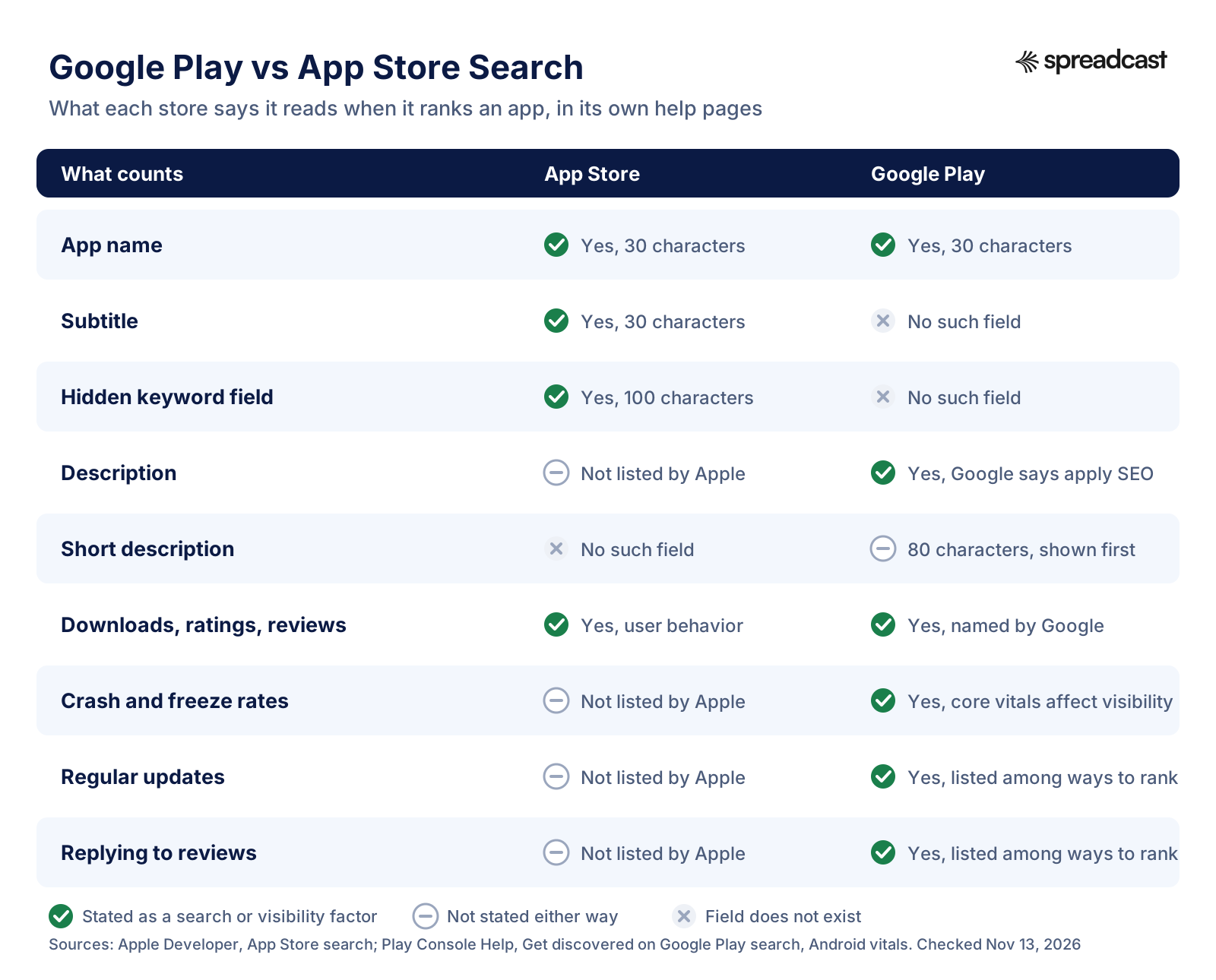
Google's search page lists what it means by a good experience: build something lasting, maintain and improve the app through regular updates, encourage ratings and comments, and give customer service by replying to users and fixing their problems. Google's page on visibility issues adds that Play search takes into account app titles, developer names and app descriptions, and that results change with the device, the location and the mobile carrier. Two people typing the same words can see different lists. That matters when you check your ranking from your own phone: what you see is one sample, not the truth.
| Signal | App Store | Google Play |
|---|---|---|
| App name | 30 characters, indexed | 30 characters, indexed |
| Subtitle | 30 characters, indexed | Does not exist |
| Hidden keyword field | 100 characters, indexed | Does not exist |
| Short text under the name | Promotional text, not used for ranking per Apple | Short description, 80 characters, part of the listing text |
| Long description | Apple does not list it as a search factor | 4,000 characters; Google says to write it with SEO practices |
| Developer name | Not named by Apple | Named by Google as a search input |
| Ratings, reviews, downloads | User behavior factors | Ranking factors, weights not published |
| Technical quality | Not named by Apple | Core vitals affect visibility |
| Where you test listings | Product page optimization | Store listing experiments |
| Listings for different audiences | Custom product pages | Custom store listings, up to 50 |
The practical result: on iOS you can keep the description written purely for people, because the keywords live elsewhere. On Google Play the description has to do both jobs at once. It must read well, because Google's policy punishes keyword lists, and it must contain the phrases you want to rank for, because there is nowhere else to put them. Most of this guide is about doing both well.
Google Play's Metadata Policy: What Gets a Listing Rejected
Before you write a word, read the rules, because Play rejects listings that break them and repeated violations can hurt the whole developer account. The rules got stricter on April 29, 2021, when Google pre announced on the Android Developers Blog that it would limit app titles to 30 characters, ban keywords that imply store performance or promotion in the icon, title and developer name, and remove misleading graphics from icons. The same post introduced quality guidelines for feature graphics, screenshots, videos and short descriptions, and warned that assets that miss them "may be ineligible for promotion and recommendation" on surfaces like Apps and Games home.
Today those rules live in Google's Metadata policy. For the app title, icon and developer name it does not allow:
- Emojis, emoticons or repeated special characters.
- ALL CAPS, unless your brand is written that way.
- Misleading symbols in the icon, such as a new message dot when there is no message, or a download symbol on an app that has nothing to do with downloads.
- Text or images that suggest store performance or rank, such as "App of the year", "#1", "Best of Play" or "Popular", or award icons.
- Price or promotional text, such as "10% off", "$50 cash back" or "free for limited time only".
- References to Google Play programs, such as "Editor's choice" or "New", or anything that suggests a relationship with one.
For the short and full description, the policy bans metadata that is misleading, improperly formatted, non descriptive, irrelevant, excessive or inappropriate. Three examples it calls out are worth memorizing. It does not allow "unattributed or anonymous user testimonials" in the description, so a line like "Best app ever! (a happy user)" is out. It tells you not to use "repetitive keywords or deceptive claims like 'best game ever'". And it bans using special characters or all caps to manipulate search ranking. Google's store listing best practices page adds that words like "Free" and "No Ads" promote deals and don't belong in app titles or developer names.
There is a separate policy for ratings. Google's ratings, reviews and installs policy says plainly that developers "must not attempt to manipulate the placement of any apps on Google Play", and gives examples: asking users to rate the app while offering an incentive, submitting ratings while posing as users, and encouraging reviews that promote something else. No rewards for ratings, no deceptive pop ups, no automated installs. If a growth tactic you read about involves any of those, skip it. The account is worth more than the bump.
| Field | Not allowed (examples from Google) | Allowed instead |
|---|---|---|
| App name | "#1 Budget App FREE", emojis, ALL CAPS, "No Ads" | "Leafnote: Plant Care Reminder" (example) |
| Developer name | "Top Rated Apps Studio", "Free Games Inc" style promo words | Your real company or studio name |
| Icon | Fake notification dots, "Sale" badges, award ribbons | Your logo or app symbol, nothing else |
| Short description | Emojis, line breaks, "Download now!", "Best app 2026" | One plain sentence about what the app does |
| Full description | Keyword lists, anonymous testimonials, "best game ever" | Readable paragraphs that name features and use cases |
| Screenshots and feature graphic | "Editor's choice", store badges, prices, misleading UI | Real app screens with short captions |
Every Google Play Store Listing Field and Its Limit
Here is every field on a Play listing, with the limit Google publishes. The text limits come from Google's store listing setup page, which also notes that they apply to full width and half width characters alike, so a Japanese or Chinese title gets the same 30. The graphic specs come from the preview assets page, and categories and tags from the category page.
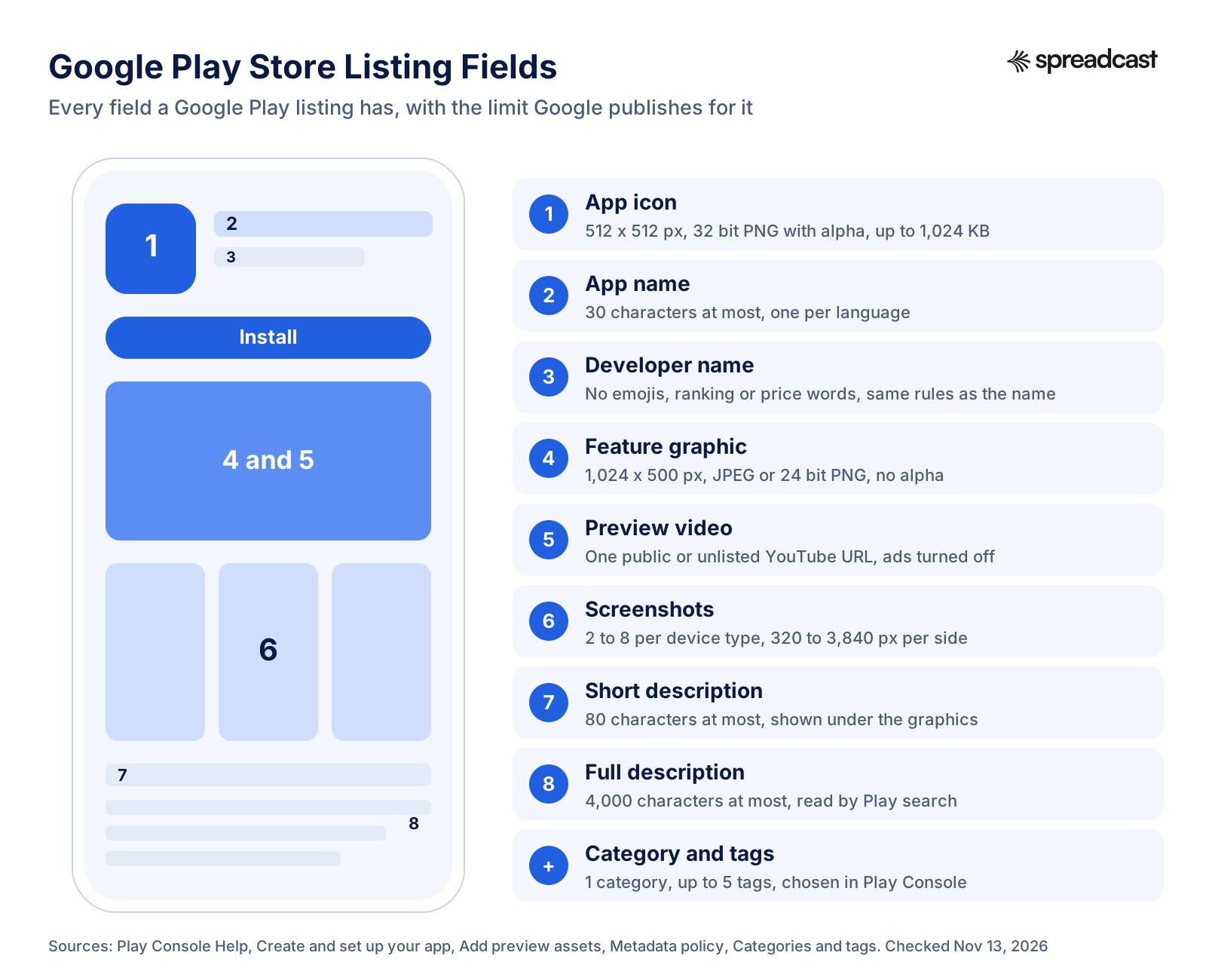
| Field | Limit or spec | Read by search? | Notes |
|---|---|---|---|
| App name | 30 characters | Yes | One per language; no emojis, caps or promo words |
| Short description | 80 characters | Yes, as listing text | No emojis, symbols, line breaks or calls to action |
| Full description | 4,000 characters | Yes | Google says to write it with SEO practices, without keyword stuffing |
| Developer name | Set on the developer account | Yes, per Google | Same rules as the title; shared by all your apps |
| App icon | 512 x 512 px, 32 bit PNG with alpha, up to 1,024 KB | No (shapes the tap) | No badges or text about rank, price or category |
| Feature graphic | 1,024 x 500 px, JPEG or 24 bit PNG, no alpha | No | Keep key elements central; avoid pure white, black or dark grey |
| Screenshots | 2 to 8 per device type; 320 to 3,840 px per side; long side at most twice the short side | No (alt text is for accessibility) | 4 or more at 1080 px or larger to be eligible for promotion |
| Preview video | One YouTube URL, public or unlisted, ads off | No | First 30 seconds autoplay |
| Category | 1 of 32 app or 17 game categories | Helps discovery | Changes can take up to 24 hours to show |
| Tags | Up to 5 | Helps discovery | Change only after real changes to the app |
| Contact details | Email required; phone and website optional | No | Google recommends adding a website |
You can check the text fields while you write with our App Store character counter, which counts Google Play's fields too. Graphic sizes for every device type, including tablets, Chromebooks and Wear OS, are in Google Play screenshot sizes, and the app icon size checker tests a 512 pixel Play icon before you upload it.
Category and Tags
Google Play has 32 app categories and 17 game categories, and you can add up to five tags, according to the category and tags help page. Google says categories and tags "help users to search for and discover the most relevant apps in Google Play". Pick the category your best competitors use unless you have a clear reason not to: a meditation app filed under Productivity competes with to do lists for the same shelf space. Choose tags that describe what the app is, not what you wish it ranked for, and leave them alone unless the app changes a lot. Google also has accessibility tags for apps that work with screen readers or other assistive technology, which are worth adding if they apply.
Developer Name and Package Name
Your developer name appears under the app name on every listing you publish, and Google names it as something search takes into account. That makes a descriptive studio name slightly useful and a misleading one risky: the Metadata policy applies to it just like the title. The package name (com.example.app) is fixed forever once you publish, and Google does not say it is a ranking signal, so don't lose sleep over it. Pick something readable and move on.
Google Play Keyword Research Step by Step
Keyword research for Google Play is simpler than for the App Store in one way: you are choosing phrases to use in sentences, not single words to cram into a box, so you think in phrases from the start. It is harder in another way: Google shares no search volume for Play, and Play Console only shows you terms people already found you with. Here is the process we would follow for a new listing, using free sources first and paid tools only where they save real time.
Step 1: Write Down How Users Describe the Problem
Start before any tool. Write ten ways a person would describe what your app does, in their words, not yours. A budgeting app's team calls it "envelope based zero sum budgeting"; its users type "budget planner", "expense tracker" or "money manager". Read your support emails, your Play reviews and the reviews of your competitors for the phrases people use. The words in one star reviews are especially useful, because angry people describe exactly what they wanted.
Step 2: Mine Google Play Search Autocomplete
Open the Play Store app on an Android phone and start typing each phrase from step 1, one letter at a time. The suggestions are what other people typed often enough for Google to suggest. Write them all down, including the ones that seem odd. Then try the alphabet trick: "budget a", "budget b", "budget c" and so on. Do it signed out or in a private browser profile on the web store as well, since your own history can tilt the suggestions. Autocomplete gives you no numbers, but it tells you which phrasings are common and which are not, and that alone kills a lot of guesses.
Step 3: Read the Top Competitor Listings Line by Line
Search each strong phrase and open the top five results. For each one, copy the title, the short description and the first two paragraphs of the full description into a sheet. Patterns show up fast. If every top budgeting app has "budget" and "expense tracker" in its title or short description, that is what Play currently connects to the query. If one phrase appears in none of them but shows up in autocomplete, that is a gap you might own. Note their screenshots too, since you will be competing for the same tap.
Step 4: Check What Already Brings You Visitors
If your app is live, Play Console already has keyword data. In the store listing reports, the search term dimension shows the term a user searched for before reaching your listing, with low volume terms grouped as "Other". These are the only real Play search numbers you will ever get from Google, so look at them before you buy a tool. A term that brings visitors with a good click through rate deserves a place higher in your description; a term that brings visitors who don't install may mean your listing promises something you don't deliver.
Step 5: Use a Paid Tool for Volume and Difficulty (Optional)
ASO tools estimate search volume and how hard a phrase is to rank for, from their own panels and models. AppTweak, for instance, says in its Play Store keyword research guide that Google Play "scans and analyzes the app's title, short description and long description" for relevance, and suggests building a list that mixes high volume phrases with long tail ones. These estimates are useful for ranking ideas against each other. They are not counts, and different tools will disagree. If you are a solo developer with one app, a trial of one tool during your big listing rewrite is usually enough.
Step 6: Build a Keyword Map for Your Listing
End with a short map: one primary phrase for the title, two or three for the short description, and eight to fifteen supporting phrases for the full description, each tied to a feature that justifies it. Drop any phrase you can't honestly support with a feature. Ranking for "habit tracker" when your app is a water reminder just brings visitors who leave, and Google watches what visitors do next.
| Source | Cost | What it tells you | Limits |
|---|---|---|---|
| Play Store autocomplete | Free | Which phrasings people type often | No volumes; varies by country and history |
| Competitor listings | Free | Which phrases Play rewards for a query today | Slow by hand; shows the result, not why |
| Play and app reviews | Free | The words users use for features and problems | Biased to strong opinions |
| Play Console search terms | Free | Real terms that brought visitors to your listing | Only for a live app; small terms grouped as Other |
| Paid ASO tools | From about $15 to $79 a month at entry level | Estimated volume, difficulty, rank tracking | Estimates differ between tools |
Google Play ASO Tools and What They Cost
People search for "google play aso tool" and "play store optimization tools" expecting a winner. There isn't one that fits everyone, and a lot of small apps do fine without any. Here is what the common choices cost, taken from each vendor's own pricing page on November 13, 2026, plus where Spreadcast fits, since it works on the traffic side rather than the keyword side.
| Tool | What it does for a Play app | Entry price (from its own page) | Free option |
|---|---|---|---|
| Spreadcast | Not a keyword tool: turns your Play listing into branded social posts that send people to it | Post Pack $19 once, 30 Day Pass $39 once, Pro $29 a month | 3 AI posts to download |
| AppTweak | Keyword research, Google Play volume history, rank tracking | Essential from $79 a month, or $949 billed yearly | 7 day trial |
| App Radar | Keyword research and tracking for Google Play and the App Store, Play Console integration | Essentials €69 a month, or €58 a month billed yearly | 7 day trial, card required |
| MobileAction | ASO intelligence; check that your plan covers Google Play data | Lite $15 a month, Basic $69, Pro $239 (billed monthly) | 7 day trial on Basic and Pro |
| Sensor Tower | Market and keyword intelligence for larger teams | Not published; quoted per customer | None listed |
Prices change and plans get renamed, so check each page before you pay. App Radar's own FAQ says its prices were last updated in February 2024 and that it bills in euros or dollars depending on where you are. Sensor Tower prices on request. If you only need one thing from a paid tool, it is usually rank tracking for your ten main phrases over a few months, which tells you whether your rewrite worked. Autocomplete and Play Console cover most of the rest for free.
How to Write a Google Play App Title
The app name is the strongest text you have and the shortest: 30 characters, per the Metadata policy. Google's search page asks for a title that is unique and easy to access, avoids generic terms, makes clear what the app does and stays focused, because long titles may be shortened on some devices. It also warns against subtle misspellings of common words, since people correct them when they search.
The common pattern that works within those rules is your brand name, a colon and a short descriptor that holds your primary phrase. "Brand: what it does". The brand part builds recognition and is what people search for once they know you. The descriptor carries the phrase new users type. If your brand already says what the app does (think "Calorie Counter"), you can spend all 30 characters on a natural phrase, but most indie brand names don't.
Worked Example: Writing a Title for a Plant Care App
To make this concrete, here is a made up example. Leafnote is not a real app; it is a fictional plant care app we use to show the process. It sends watering reminders, gives light advice per plant and identifies plants from a photo. After the keyword research above, say the map looks like this: primary phrase "plant care", secondary phrases "watering reminder" and "plant identifier", supporting phrases such as "houseplant care", "plant watering schedule" and "repotting".
| Title option | Characters | Verdict |
|---|---|---|
| Best Plant App FREE #1 Plant Care | 33 | Breaks the policy three ways (rank claim, price word, caps) and is over 30 |
| Leafnote | 8 | Allowed, but wastes 22 characters and tells a new visitor nothing |
| Plant Care Reminder & Plant ID | 30 | Keyword heavy, no brand; generic titles are what Google asks you to avoid |
| Leafnote: Watering Reminder | 27 | Fine, but leads with a secondary phrase |
| Leafnote: Plant Care Reminder | 29 | Brand plus the primary phrase in natural words; our pick |
The pick keeps the brand first, holds the primary phrase "plant care" in plain words, and reads like a name rather than a list. "Reminder" also nods to the watering reminder phrase. It would not get every phrase into the title, and it shouldn't try. The short and full descriptions carry the rest.
How to Write a Google Play Short Description
The short description is the 80 character line people see first when they open your listing, and it is the closest thing Google Play has to a subtitle. Google's best practices page says it should give "a summary of your app's biggest benefits" and that you shouldn't repeat it in the full description. The preview assets page adds the formatting rules: periods only if there are several sentences, no emojis, symbols, line breaks or repeated punctuation, and no calls to action or performance claims. So no "Download now!" and no "Top rated plant app".
Vendors disagree about how much the short description counts for ranking. AppTweak's keyword guide treats it as one of the three indexed text fields and advises putting your main keywords in it "naturally without making the copy awkward". Google does not publish weights for any field. Our view: the short description is valuable either way, because it is what a visitor reads right after tapping your result. Write it for that visitor first, and put two of your strongest phrases in it if they fit in a real sentence.
| Short description option for Leafnote (example) | Characters | Verdict |
|---|---|---|
| 🌿 BEST plant care app!!! Download now 🌿 | 39 | Emojis, caps, repeated punctuation and a call to action; all against Google's guidance |
| Plant care, plant watering, plant ID, houseplants, garden, plant app | 68 | A keyword list; Google asks for everyday language |
| Never forget to water: reminders, light tips and a plant ID camera | 66 | Good for people, but misses the phrase "plant identifier" |
| Watering reminders, light tips and a plant identifier for healthy houseplants | 77 | Plain sentence, names three features and two phrases from the map; our pick |
Write five versions, read them on a phone screen and pick the one that would make you tap install if you had a dying fern. Then test it, because store listing experiments can test descriptions in localized experiments, which the testing section below explains.
How to Write the Full Description for Google Play Search
The full description is where Google Play ASO differs most from iOS. You have 4,000 characters, Google tells you to apply SEO best practices to them, and its search page asks you to keep the most important text in the top half of the page, where users don't have to scroll. At the same time the best practices page says to describe the app "using everyday language, not a list of keywords" and to avoid excessive length, detail, improper formatting and repeated words. It even gives a bad example, a line that strings together car racing, car driving, race cars, car races and so on.
How often should a phrase appear? Google doesn't say. AppTweak suggests repeating important keywords three to five times naturally, and warns that overstuffing hurts conversion. Treat that as a vendor's rule of thumb, not a Google number. What we can say with confidence: each phrase from your map should appear where it is true, in a sentence that would make sense to someone who never heard of ASO. If a sentence only exists to hold a keyword, a reader will notice, and so may a policy reviewer.
A Structure That Works for Most Apps
- An opening of two or three sentences that says what the app does and for whom, with the primary phrase in the first sentence. Google says users may only read the first few sentences.
- A short list of the main features, each line starting with the feature in plain words. On a phone, a short list reads better than a wall of text.
- A section per main use case, each two to four sentences long, using a supporting phrase where it fits.
- What makes the app different: offline use, privacy, no account needed, a real person answering support, whatever is true.
- Pricing in plain terms if the app has a subscription. Saying it up front cuts refund requests and angry reviews.
- A closing line with your support email or website. No "Download now", which Google discourages.
Worked Example: Opening of Leafnote's Full Description
Here is how the first part of the fictional Leafnote description could read. "Leafnote is a plant care app for people who love houseplants but forget to water them. Add a plant, and Leafnote builds a watering schedule from its type, pot size and the light in your room, then sends a watering reminder when it is due. Not sure what you bought? Point the plant identifier at a leaf and Leafnote names it and sets up its care plan." Then a feature list: watering reminders per plant, light advice for each room, a plant identifier camera, repotting and fertilizing reminders, and a care log with photos.
Count what that opening does. The primary phrase "plant care" is in the first sentence. "Watering schedule", "watering reminder" and "plant identifier" each appear once, attached to a real feature. "Houseplants" appears naturally. Nobody reading it would guess it was written with a keyword map, and that is the goal. The rest of the 4,000 characters would cover use cases (a new plant parent, someone with thirty plants, someone going on holiday), what is free and what the subscription adds, and how to reach support.
If you are stuck on a blank page, our App Store description generator gives you a first draft to edit, and the screenshot examples page shows how strong apps split the message between text and images. Whatever you start from, read the final version out loud. Repeated phrases jump out when you hear them.
Google Play Graphics: Icon, Feature Graphic, Screenshots and Video
Text gets you into the results; graphics decide whether you get the tap. Google's search page says icons, images and screenshots help apps stand out in search results, categories and featured lists, and its best practices ask for similar or complementary elements, styles and color themes across all your listing graphics, minimal text, and important elements kept toward the center. Full specs for each device type are in our guide to Google Play screenshot sizes; here is what matters for ASO.
App Icon
The icon is 512 x 512 pixels, a 32 bit PNG with alpha, up to 1,024 KB, per the preview assets page, and it may not carry badges or text that suggest rank, price or category. In search results it is the largest image next to your name, so it carries most of the first impression. Test it small: shrink it to the size Play shows in a results list and look at it next to your top three competitors. If you can't tell what it is at that size, simplify. The icon is also one of the assets store listing experiments can test, and it is often the one with the biggest effect.
Feature Graphic
The feature graphic is 1,024 x 500 pixels, a JPEG or 24 bit PNG without alpha. Google asks you to keep key elements near the center and away from cutoff zones, to avoid pure white, black or dark grey backgrounds that blend into Play's own background, and to leave out device images, third party trademarks and store badges. When you add a preview video, the feature graphic becomes its cover. Keep text on it short or leave it out, because Google's preview asset guidance discourages superlatives, sales language and calls to action on graphics.
Screenshots
You need at least 2 screenshots to publish and can upload up to 8 per device type, each between 320 and 3,840 pixels per side, with the long side at most twice the short side. The number that matters for visibility is a different one: to be eligible for promotion, Google asks apps for at least 4 screenshots at a minimum of 1080 pixels, in 9:16 portrait (1080 x 1920 or larger) or 16:9 landscape. Games need at least 3 in 16:9 or 9:16. Google also wants real footage of the app, a clean status bar, and taglines that cover no more than 20% of a screenshot. Give each screenshot unique alt text of 140 characters or less that says what it shows, which the search page recommends too.
Order matters more than count. Most visitors only see the first two or three without scrolling, so the first screenshot should show the main benefit, not a sign in screen. If you have screenshots for the App Store already, you will need Android versions anyway: an iPhone frame on a Play listing looks wrong to Android users. Our screenshot examples and App Store conversion rate benchmarks show what moves the tap through rate on both stores.
Preview Video
The preview video is a single YouTube URL, public or unlisted, with ads turned off, not age restricted and embeddable. Only the first 30 seconds autoplay, so Google asks you to show the real app within the first 10 seconds and to make at least 80% of the video real use. Portrait or landscape both work, without black bars. Our page on app preview videos covers scripting and editing for both stores. Apps and games that meet Google's Premium growth tools thresholds can also connect a YouTube playlist so more videos show on the listing, per the YouTube integration page, but that is out of reach for most small apps.
Google Play Store Listing Experiments: How to A/B Test Your Listing
Store listing experiments are Google Play's built in A/B tests, and they are free. You set up a variant of your listing in Play Console, Google shows it to a share of visitors, and it tells you which version got more installs. For a small app this is the most useful ASO feature Google offers, because it replaces opinions with data from your own visitors.
Per Google's experiments help page, you can run one default graphics experiment at a time, which tests the icon, feature graphic and screenshots in your default language, or up to five localized experiments, which can also test the short and full description in up to five languages. Each experiment tests up to 2 variants against the current listing, with the variant traffic split equally. The setup page lists three target metrics: unique user install clicks, unique user open clicks and unique user pre registration clicks. Experiments stop on their own after 6 months, and Google recommends testing changes to one asset at a time.
Two settings decide how long a test takes. The minimum detectable effect is the smallest difference Google will call a win; anything smaller is reported as a draw. The confidence level is how sure the result has to be. Google says its defaults give results in the shortest time with reasonable accuracy, and the setup screen estimates how many installs and days you will need. If you get a few dozen installs a day, start with the defaults and test big differences, like a different first screenshot, rather than a slightly different shade of green. Small apps can't detect small effects.

What to Test First
- The first screenshot, since it is seen by almost every visitor and often carries the most weight.
- The icon, which also changes how your app looks in search results and on the home screen.
- The short description, in a localized experiment for your biggest language.
- The order of screenshots, for example benefit first against feature first.
- The feature graphic, once the others are settled.
Keep a simple log: what you changed, why, the dates, the result and whether you applied it. After a year that log is worth more than any ASO blog post, because it is about your users. One warning from experience: a test that wins on install clicks can still lose on retention if the new screenshot promises something the app doesn't do. Check your day 1 and day 7 retention after you apply a winner, using benchmarks like those in our app retention benchmarks.
Google Play Custom Store Listings
Custom store listings let you show a different version of your listing to different visitors. Google's custom listings page allows up to 50 per app, each with its own app name, icon, descriptions and graphics; contact details, privacy policy and category stay shared. Your normal listing remains the default for everyone you don't target.
The targeting options are what make them useful for ASO and for marketing:
- Country or region, for markets where a different message or screenshot works better. Each country can belong to only one custom listing at a time.
- Search keywords, so people who searched a specific Play term can see a listing written for that term.
- A unique URL, for traffic you send yourself: a social campaign, a newsletter, a partner.
- Google Ads campaign traffic, so an ad's promise matches the listing it lands on.
- Pre registration users, churned users (who uninstalled) and lapsed users (no launch in 28 days), plus buyer states and custom audiences.
Custom listings are not translated automatically, so you pick a default language for each and add translations yourself. The search keyword option deserves special attention. If Play Console shows that one search term brings a large, distinct group of visitors (say "plant identifier" for the fictional Leafnote), a custom listing whose first screenshot shows the identifier will usually convert those visitors better than a general listing that leads with watering reminders.

Targeting by URL is the link between ASO and everything you do outside the store. A listing for visitors from Instagram can lead with the same picture they just saw in your post; one for a newsletter can lead with the feature the email talked about. When the listing continues the story the visitor already started, fewer of them bounce. If you post with Spreadcast, the posts already use your listing's own screenshots and colors, so the visitor sees the same app twice.
Ratings and Reviews as Google Play Ranking Factors
Ratings and reviews are named on Google's search page as ranking factors, next to downloads. They also decide the tap: a 3.6 next to a 4.6 in the results list loses most of the time. Since August 2019 the rating people see has been weighted toward recent ratings rather than a lifetime average, as Google announced in its 2019 post on quality and discovery. The ratings help page confirms it is "weighted towards more recent ratings". That is good news for apps with a bad past: fix the problems, and the number recovers faster than it would under a lifetime average.
A few details from the same help page are useful in practice. New ratings and reviews are generally held for about 24 hours before they go public, so Google can check them for abuse. The total rating only appears after an app has at least five ratings. Users can change their rating at any time, including after you reply, and Play Console has an Updated Ratings view that compares people who got a reply with people who didn't.
Reply to Reviews
Replying is one of the actions Google lists for better visibility, and it works on the rating itself. In the same 2019 post, Google wrote that after developers reply, users increase their rating by +0.7 stars on average. Each review gets one public reply, which you can edit, and the user gets a notification. Answer the one and two star reviews first, especially the ones that describe a bug you have fixed: tell them the version with the fix. Keep replies short, specific and human. A copied "Thanks for your feedback!" under every review reads as nobody listening.
Ask for Ratings the Way Google Allows
The In App Reviews API lets people rate your app without leaving it. Google's guidelines are specific: trigger it after a user has used enough of the app to give useful feedback, don't prompt too often, and don't ask any questions before or while showing the card, including "Do you like the app?". Google enforces a quota on how often a user sees the dialog and does not publish the value, so it also advises against a button that triggers the flow, since a user over the quota would tap and see nothing. Good moments are right after a success: a finished workout, a goal reached, the tenth plant watered on time.
Do not filter. Asking "Do you like the app?" and sending only happy users to the review dialog is exactly the kind of question Google's guidelines rule out, and offering anything in return for a rating breaks the ratings policy. The same 2019 post noted that 42% of users who leave a one star review mention stability or bugs, which points at the honest way to raise a rating: fix what breaks. More on review strategy, for both stores, is in our guide on how to get App Store reviews.
Android Vitals: Crash Rate and ANR Thresholds That Affect Visibility
This is the part of Google Play ASO that has no App Store equivalent. Android vitals is Play Console's record of how your app behaves on real devices, collected from users who allow it. Google's Android vitals page says the core vitals "affect your app's visibility on Google Play", and the Play Console help page puts it bluntly: "If your app exceeds a bad behavior threshold, it's likely to be less discoverable on Google Play." On top of that, Google says that in some cases a warning may be shown on your store listing to set users' expectations. Few things hurt a listing's conversion like a warning that the app may not work on the visitor's phone.
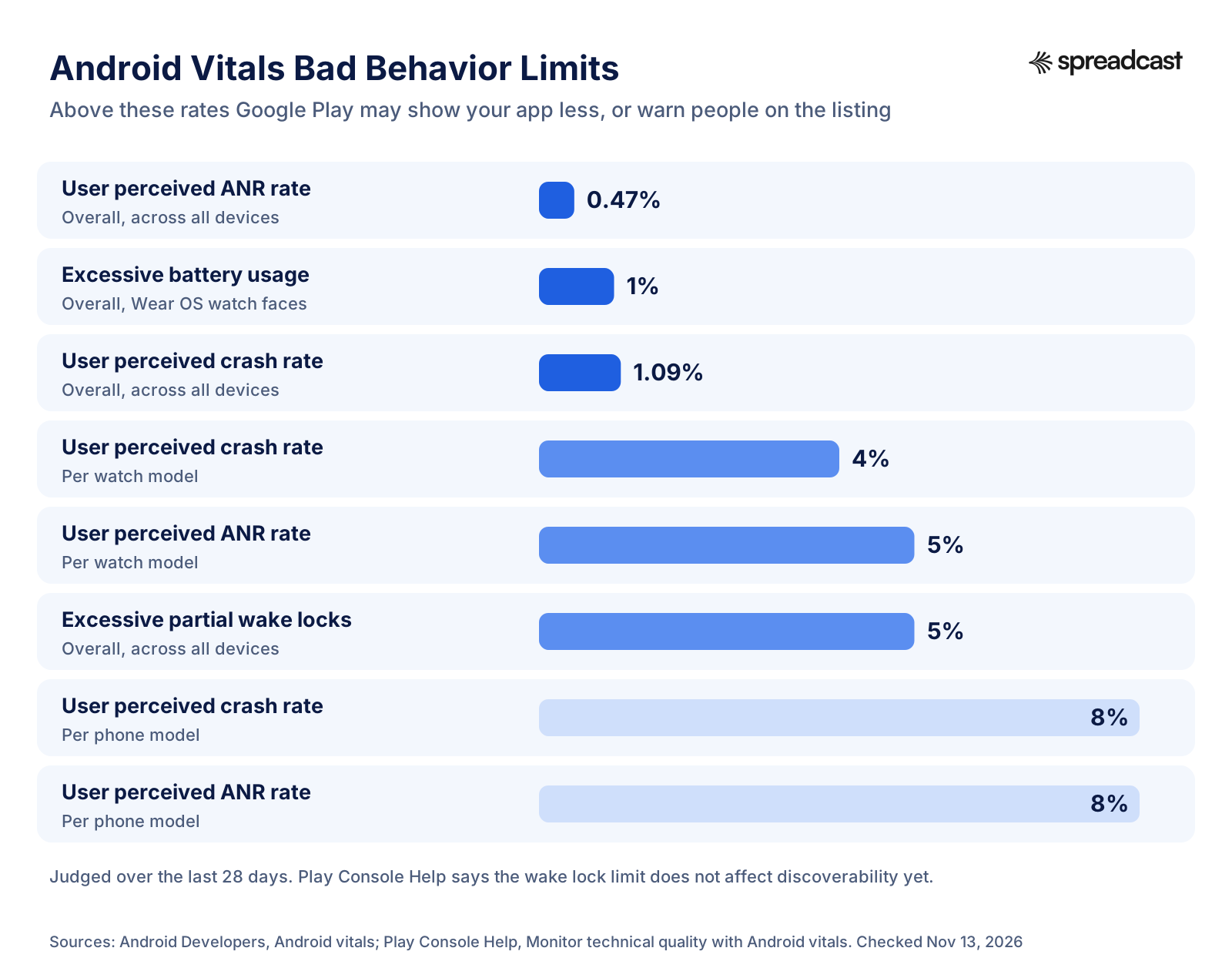
Two definitions make the chart readable. A user perceived crash is a crash the user likely noticed, and the user perceived crash rate is the share of daily users who had at least one. An ANR (Application Not Responding) is the freeze where Android offers to close the app; the user perceived ANR rate is the share of daily active users who saw one they likely noticed. Google's overall thresholds are 1.09% for crashes and 0.47% for ANRs, across all devices. The per phone model thresholds are 8% for both. Google measures over the last 28 days and checks daily. One caveat: the Play Console help page marks the wake lock metric as beta and says it doesn't currently affect discoverability, so crashes and ANRs are where the real risk sits today.
| Core vital | Overall threshold | Per phone model | Per watch model |
|---|---|---|---|
| User perceived crash rate | 1.09% | 8% | 4% |
| User perceived ANR rate | 0.47% | 8% | 5% |
| Excessive battery usage (watch faces) | 1% | None | 1% |
| Excessive partial wake locks | 5% | None | None |
The per device threshold is easy to miss and important for small apps. If your app crashes for 10% of users on one popular budget phone, Google can steer users of that phone away from your app even if your overall rate looks fine. Google's November 2022 post on technical quality introduced these per phone thresholds and said store listing warnings would start on November 30, 2022. The featuring guide adds that Google will not promote a title to users on phones or tablets where it exceeds the bad behavior threshold.
Vitals keep growing. Google's Android vitals page now also lists memory usage and bitmap memory usage as core vitals, with thresholds by device RAM and app state, and says apps over the memory or code optimization thresholds may see a store visibility impact starting from February 2027. If you haven't opened the memory section of Android vitals yet, put it on your list for the next release.
How to Stay Under the Thresholds
- Open Android vitals in Play Console every week, not just after a bad review. Set up email alerts for issues.
- Watch the emerging issues flag. Google says it flags crash and ANR problems that have affected devices for more than 7 days, which gives you about 21 days before they count fully in the 28 day window.
- Fix the biggest crash and ANR clusters first, then the ones on specific devices.
- Use staged rollouts for releases so a bad build reaches a small share of users first.
- If a device you can't support keeps failing, consider excluding it rather than letting it drag your listing down.
Don't panic if your crash tool shows different numbers. Google explains that vitals counts issues per daily active user while tools like Crashlytics count per session, and it gives an example: a user who plays three times in a day and crashes once is a 100% crash rate in vitals and 33% in Crashlytics. Vitals also includes crashes that happen before your SDK starts. For Play visibility, the vitals number is the one that counts.
Localization for Google Play ASO
If you don't add a translation, Google shows users an automatic translation of your listing in most languages, according to the translation help page. Machine translation is better than nothing, but Google's search page says a professional translation of the description "can lead to better search results and discoverability for worldwide users", and you can order human translations from outside vendors inside Play Console. Graphics fall back to your default language if you don't add localized ones, which means English text in screenshots shown to Brazilian visitors.
Localization is more than translation, and it is where Play ASO pays back best for small teams, because many local markets have fewer well optimized competitors. Redo keyword research in each language: people in Spain don't type the Spanish translation of your English keywords, they type their own phrases. Check autocomplete in that language, read local competitors, and write the title and short description from that research. Google's best practices say to provide separate screenshots and videos for each language when they contain text, and remind you that the Metadata policy applies to every translation.
Pick languages by data, not by habit. Play Console shows where your installs and visitors already come from. A market that already sends visitors with a decent conversion rate, but sees an English or machine translated listing, is the cheapest win you have. Countries where Android dominates, which our Android vs iOS market share page lists, deserve a look even if you only launched in English.
Promotional Content (LiveOps) and Google Play Featuring
Promotional content, which Google renamed from LiveOps in November 2022, lets you show time limited content on Google Play: offers, events and major updates. Per Google's promotional content page, it can appear on the Apps or Games tab, the Events tab (games only, in selected countries), search results and your store listing. There are three types: offers (discounts, value adds, free rewards, subscription trials), time limited events (real time events, competitions, special one off events) and major updates (new features, new content, pre registration announcements). Google warns that misclassified content may get limited visibility.
The rules on the create promotional content page are strict about timing. Events can last up to four weeks, major updates run a fixed 28 days, and pre registration announcements one week. You can submit up to 60 days before the start, approval can take up to four days, and events that request featuring must be submitted at least 14 days before they start. The content must match what is really happening in the app at the time.
Access is the catch. Promotional content is open to all games, but apps only get it if they meet Google's Premium growth tools eligibility criteria. The baseline thresholds are high: for example at least 1.6 million monthly active users, measured daily over the previous three months, together with at least 1.6 million active installs, or at least $40,000 a month in consumer spend in each of the previous three months. Most indie apps aren't there yet. If yours is a game, though, promotional content is one of the few ways to get shown on Play outside search without paying, and worth using for every real update. Our mobile game marketing guide covers how to plan those beats.
Can You Get Featured on Google Play?
Google does not take self nominations. Its visibility help page says so directly and adds that top performing apps can be featured by the Google Play team on a number of promoted lists. The featuring guide says discovery needs good quality and featuring needs great quality, judged on four pillars: core value, user experience, technical quality, and privacy and security. It also says regular updates help discoverability. Translated into ASO terms: a clean vitals record, a strong rating, localized listings and assets that meet Google's quality guidelines are what put you in the pool. Apart from promotional content, where an eligible event can ask for featuring if it is submitted 14 days ahead, there is no form to fill in.
Paid placement is a separate road. Google App campaigns can show your app in Google Play search results, related apps sections and the Play home page, per the Google Ads help page on App campaigns, and they build ads partly from your store listing assets. Better listing assets therefore help both organic and paid installs. If you are weighing paid channels, how to advertise an app compares them, and our cost per install benchmarks show what an install tends to cost. For the paid side in full, read our guide to Google App campaigns, and for everything outside the store, how to promote an Android app.
How to Measure Google Play ASO in Play Console
You can't improve what you can't see, and Play Console shows more than most developers look at. The store listing reports, described on the acquisition help page, count store listing visitors (users who visited your listing and didn't already have the app) and store listing acquisitions (users who visited and installed). In 2026 Google moved the main metric from acquisitions to clicks: the help pages say that from mid 2026 the primary store listing metrics are based on unique clicks, and click through rate, the share of visitors who tapped Install, Open or Pre register, replaces the old conversion rate.
Traffic is split by source, and the definitions matter. On the user base help page, Google defines Google Play search traffic in the store listing reports as visitors who searched Google Play for your app's name or a closely associated brand. Visitors who browsed Google Play, including autocomplete suggestions and category searches, count as Google Play explore. Ads and referrals is a third group. So don't read Google Play search as "all my keyword traffic": generic searches can land in explore. The search term dimension is the place to see the exact terms.
| Report or metric | Where in Play Console | What it tells you about ASO |
|---|---|---|
| Store listing visitors | Grow users, store listing performance | How many people your listing reaches; rises when you rank for more terms |
| Click through rate (was conversion rate) | Store listing performance | How well your listing turns visits into install taps; the number experiments move |
| Search term | Store listing performance, breakdown by search term | The real terms people searched before visiting; your best keyword data |
| Traffic source | Store listing performance | Search, explore, ads and referrals; shows how much comes from outside the store |
| Peer benchmarks | Store listing performance | Your click through rate against peers' median and 25th and 75th percentiles over 28 days |
| UTM source and campaign | Store listing performance | Visitors from your own links, such as social posts and newsletters |
| Android vitals | Monitor and improve, Android vitals | Crash and ANR rates against the bad behavior thresholds |
| Ratings and reviews | Monitor and improve, Ratings and reviews | Rating trend, review topics and the effect of your replies |
A simple routine: once a week, check vitals and new reviews. Once a month, export the store listing report, look at the top 20 search terms by visitors, note their click through rates and compare with last month. Terms with many visitors and a low rate point at a listing that promises the wrong thing for that search. Terms that grew after a description change suggest the change worked. Don't change several fields at once, or you won't know which change did it.
For traffic you send yourself, add UTM parameters to your Play links (the referrer parameter on the Play URL), and they show up as UTM source and campaign rows in the same reports. Inside your app, the Play Install Referrer API returns the referrer URL, the click time and the install time, so you can connect an install to the post or email it came from. Those two pieces together answer the question every developer asks about social media: did that post bring installs?
The Google Play ASO Process, Week by Week
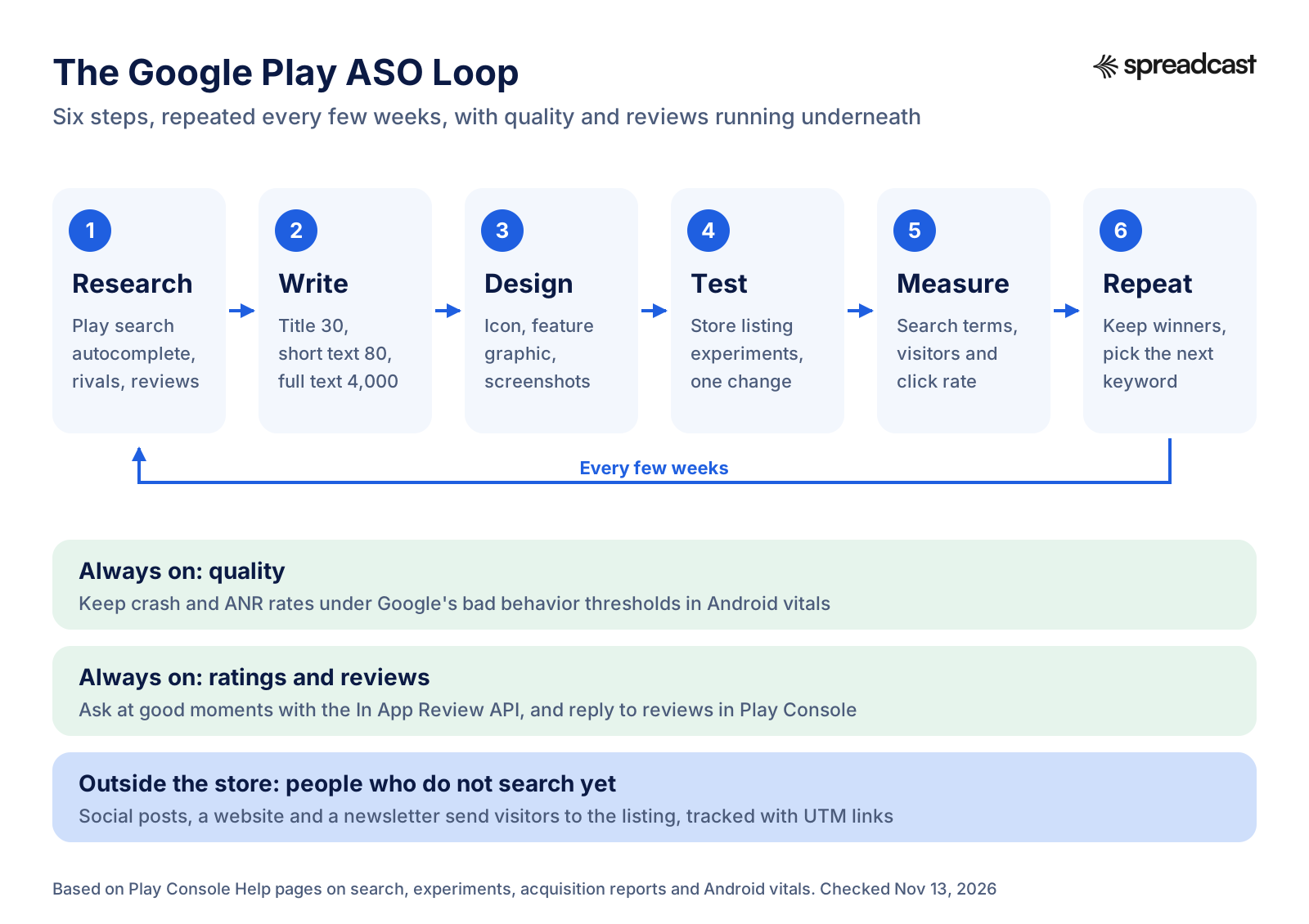
ASO is not a one time project. Search results change as new apps arrive, Google changes its reports, and your app changes with every release. Here is a cadence that fits a solo developer or a small team without eating the week.
| When | What to do |
|---|---|
| Week 1 | Keyword research from autocomplete, competitors, reviews and Play Console search terms. Build the keyword map. |
| Week 2 | Rewrite the title, short description and full description. Check them against the Metadata policy. Publish. |
| Weeks 3 and 4 | Redesign the first three screenshots around the main benefit. Start a default graphics experiment on the first screenshot. |
| Month 2 | Apply the winner. Start a localized experiment on the short description in your main language. Reply to every review of 3 stars or less. |
| Month 3 | Compare search terms and click through rate with month 1. Localize the listing for your top non English market. |
| Every release | Check vitals before and after a staged rollout. Update screenshots if the UI changed. Write release notes people want to read. |
| Every quarter | Redo the competitor read. Review the keyword map. Test the icon if you haven't yet. |
Release notes are a small piece of the listing people often skip. Google Play shows them as What's new, and a good one gives a returning visitor a reason to update and a new one a sign that the app is alive. Our release notes examples include Android ones, and the app launch checklist covers what to prepare before a big release. The same notes are also the start of an update post for your followers, which Spreadcast drafts on its own when Play shows a new version.
Google Play ASO Checklist
Use this list before each listing update. Every line comes from a Google rule or recommendation linked above, except where it says otherwise.
| Area | Check | Done when |
|---|---|---|
| Title | Brand plus the primary phrase in natural words | 30 characters or fewer, no emojis, caps, rank or price words |
| Short description | Biggest benefit in one plain sentence | 80 characters or fewer, no emojis, line breaks or calls to action |
| Full description | Primary phrase in the first sentence, supporting phrases where true | Reads naturally out loud; no keyword lists or anonymous testimonials |
| Developer name | Real studio or company name | No promo words; same rules as the title |
| Category and tags | Category matches top competitors; up to 5 accurate tags | Accessibility tags added if they apply |
| Icon | Readable at results list size | 512 x 512 PNG, no badges or text |
| Feature graphic | Central, simple, on brand | 1,024 x 500, no store badges, not plain white or black |
| Screenshots | First one shows the main benefit | At least 4 at 1080 px or more for apps; captions under 20% of the image; alt text written |
| Video | Real app in the first 10 seconds | Public or unlisted YouTube, ads off, embeddable |
| Experiments | One running test at all times | One asset per test; results logged |
| Custom listings | A listing per big audience or campaign URL | Translated by hand where needed |
| Ratings | In App Reviews API at a success moment | No questions before the prompt, no incentives |
| Reviews | Replies to low ratings | Every 1 to 3 star review answered within a week (our rule of thumb) |
| Vitals | Crash rate under 1.09%, ANR rate under 0.47% | No phone model over 8%; memory section reviewed |
| Localization | Top markets translated by people | Keyword research redone per language; localized screenshots |
| Measurement | Monthly search term export | Click through rate compared with last month and with peers |
| Outside traffic | UTM tagged links on every post and email | UTM rows visible in store listing reports |
Common Google Play ASO Mistakes
Most Play listings we look at fail in the same few ways. None of them needs a tool to fix.
- Copying the iOS listing. The App Store keyword field has no Play equivalent, so the phrases you hid there never reach Play search unless you write them into the descriptions.
- Keyword stuffing the full description. It breaks the Metadata policy, reads badly and puts off the visitors you worked to attract.
- A title over the limit or full of promo words. "Free", "No Ads", "#1" and emojis are not allowed in the title or developer name.
- Using the short description for a slogan. "Your life, simplified" tells nobody what the app does and holds no searchable phrase.
- iPhone screenshots on an Android listing. Visitors notice, and it suggests the Android app is an afterthought.
- Fewer than four phone screenshots at 1080 pixels or more, which makes an app ineligible for promotion on Play's big surfaces.
- Ignoring Android vitals until a store listing warning appears. By then the 28 day window already holds a month of bad data.
- Asking for reviews with a filter question or a reward. Both break Google's rules and can cost far more than they earn.
- Changing everything at once, then not knowing which change helped or hurt.
- Treating ASO as the only channel. Search only reaches people who already know what they are looking for.
That last mistake is the one this whole site is about, so the next section covers it properly. For the broader plan beyond the store, how to market an app and how to get app downloads go through every channel.
Where Spreadcast Fits for Google Play Apps
Spreadcast does the social half of this for app makers. You paste your Google Play link at the start page, and Spreadcast reads your public listing: name, icon, screenshots, rating, reviews and release notes. From those it builds a brand kit with your colors, fonts and real screenshots, then designs posts and writes a caption for each network. An app that is only on Google Play is drawn in an Android phone frame, and an app on both stores is treated as one app, so you don't run two separate setups.
After that it keeps watching the listing. When Play shows a new version, it drafts an update post; when the rating passes a milestone, a rating post. On top of those it makes a weekly plan of posts (features, reviews, tips, problems the app solves, seasonal moments) at the posting times you choose. Posts go out to Instagram, Facebook, LinkedIn, Threads, Pinterest, Bluesky, Mastodon, Telegram, Discord and YouTube, either after your one tap approval or on full autopilot. TikTok posts go to your TikTok drafts or wait for your choice, never straight to the feed. That is the auto posting part.
What it does not do: Spreadcast is not an ASO tool. It doesn't research keywords, rewrite your Play listing, run store listing experiments or track rankings. It keeps your app in front of people who aren't searching yet and sends them to the listing you optimized with this guide. The free plan makes 3 AI posts to download. A Post Pack is $19 once for 10 posts, the 30 Day Pass is $39 once and does not renew, and Pro is $29 a month with publishing to all your networks. Details are on the pricing page and the page for mobile apps.
How We Checked This Guide
On November 13, 2026 we read the Google Play Console Help pages on search and discovery, the Metadata policy, store listing setup, preview assets, store listing best practices, categories and tags, custom store listings, store listing experiments, translation, promotional content, ratings and reviews, the ratings policy, acquisition reports and Android vitals, plus Google's Play business guides on featuring and Premium growth tools, the Android Developers pages on vitals, in app reviews and the Install Referrer, and three posts on the Android Developers Blog from 2019, 2021 and 2022. Every Google rule, limit and threshold in this guide comes from those pages, with the date Google gives where it gives one.
Market share comes from StatCounter. Tool prices come from each vendor's own pricing page, opened the same day; where a page was unclear (for example whether a plan covers Google Play), we say so. AppTweak's keyword advice is quoted as a vendor's opinion, not as Google's. Where Google's own pages disagree with each other, as with the exact month of the 2026 change to click based reports, we used the wording both share. Leafnote is a made up app used only to show the process. We did not run store listing experiments for this guide, and we give no ranking or install numbers that we couldn't trace to a published source.
Frequently Asked Questions
What is Google Play ASO?
Google Play ASO is app store optimization for the Play Store: choosing the words in your app name, short description and full description so your Android app shows up in Play search, designing graphics that earn the tap, and keeping ratings and stability high enough that Google wants to show the app.
Does Google Play have a keyword field?
No. Unlike Apple's 100 character keyword field, Google Play has no hidden keywords. Search reads your visible text: the app name (30 characters), short description (80) and full description (4,000). Google tells developers to write the description with SEO in mind but bans keyword stuffing.
How long can a Google Play short description be?
80 characters. Google asks for a plain summary of the app's main benefit, with no emojis, symbols, line breaks or calls to action, and periods only if there is more than one sentence.
What are the Google Play ranking factors?
Google says apps are ranked on a combination of ratings, reviews, downloads and other factors, with the weights kept private. Search also reads the app title, developer name and descriptions, and Google says crash and ANR rates above its bad behavior thresholds make an app less discoverable.
How do I A/B test my Google Play listing?
Use store listing experiments in Play Console. You can run one default graphics experiment (icon, feature graphic, screenshots) or up to five localized experiments that can also test descriptions, each with up to 2 variants against your current listing.
Does crash rate affect Google Play ranking?
Yes. Google says an app above a bad behavior threshold is likely to be less discoverable and may get a warning on its listing. The overall thresholds are a 1.09% user perceived crash rate and a 0.47% user perceived ANR rate, and 8% for either on a single phone model.
What is the best Google Play ASO tool?
It depends on budget. Play Store autocomplete and Play Console search terms are free and often enough for one app. Paid tools such as AppTweak, App Radar and MobileAction add volume estimates and rank tracking; entry prices on their own pages ranged from about $15 to $79 a month in November 2026.
Where These Facts Come From
Every outside number, rule and price on this page links to the page it was taken from.
- Get discovered on Google Play searchGoogle Play Console Help
- Metadata policyGoogle Play Console Help
- Create and set up your appGoogle Play Console Help
- Add preview assets to showcase your appGoogle Play Console Help
- Best practices for your store listingGoogle Play Console Help
- Monitor technical quality with Android vitalsGoogle Play Console Help
- Create custom store listings to target specific user segmentsGoogle Play Console Help
- Run store listing experimentsGoogle Play Console Help
- Set up a store listing experimentGoogle Play Console Help
- Choose a category and tags for your appGoogle Play Console Help
- Translate and localize your appGoogle Play Console Help
- Understand promotional contentGoogle Play Console Help
- Create promotional contentGoogle Play Console Help
- App visibility and discovery issuesGoogle Play Console Help
- Understand and grow your app's user baseGoogle Play Console Help
- Measure your app's acquisition and retentionGoogle Play Console Help
- View and analyze your app's ratings and reviewsGoogle Play Console Help
- User ratings, reviews and installs policyGoogle Play Console Help
- Showcase your app with YouTube videos on Google PlayGoogle Play Console Help
- Premium growth toolsGoogle Play
- Getting featured on Google PlayGoogle Play
- Android vitalsAndroid Developers
- Google Play In App Reviews APIAndroid Developers
- Google Play Install ReferrerAndroid Developers
- Updated guidance to improve your app quality and discovery on Google PlayAndroid Developers Blog
- Improved app quality and discovery on Google PlayAndroid Developers Blog
- Raising the bar on technical quality on Google PlayAndroid Developers Blog
- Supporting and rewarding great apps and games on Google PlayAndroid Developers Blog
- About App campaignsGoogle Ads Help
- App Store searchApple Developer
- Mobile operating system market share worldwideStatCounter
- Google Play store keyword research guideAppTweak
- AppTweak pricingAppTweak
- App Radar pricingApp Radar
- MobileAction pricingMobileAction
- Sensor Tower pricingSensor Tower
- Maximize app discoverability with store listing experimentsAndroid Developers
- Target by URL in custom store listingsAndroid Developers
Researched and written by Mark Weizer. Last checked on November 13, 2026.
Keep Reading
- Growth
How to Promote an Android App: The Complete Google Play Playbook for 2026
How to promote an Android app without a big budget: a Google Play listing that converts, testing tracks, pre registration, custom store listings, ratings, Android vitals, a launch week plan, social media, short video, communities, Google App Campaigns, the markets where Android wins, measurement, budgets and a weekly routine.
- Growth
Google App Campaigns: How They Work, What They Cost and How to Set One Up (2026)
Google App campaigns show your app on Search, Google Play, YouTube, Discover and other apps from one campaign. This guide covers the three campaign types, bidding, budget rules, assets, tracking, iOS limits and a first campaign step by step.
- Growth
Apple Search Ads (Apple Ads): How It Works, What It Costs and How to Start
Apple Search Ads, now called Apple Ads, puts your app at the top of App Store search and on the Today tab, Search tab and product pages. This guide covers Basic vs Advanced, what a tap and an install cost in 2026, a first campaign step by step, measurement and a small budget plan.