What the Buffer MCP Server Is
The Buffer MCP server is a remote server, run by Buffer at the address mcp.buffer.com/mcp, that lets an AI assistant work inside your Buffer account. Once it is connected you can ask Claude or ChatGPT, in ordinary sentences, what is in your queue this week, to turn a few notes into a LinkedIn post and put it on Thursday, or to move a post to another day. Buffer's MCP page describes the result as drafting, scheduling and checking your upcoming posts from the tool you already have open, without switching tabs.
Buffer announced the server in a changelog entry titled Talk to Your Agent via MCP in June 2026. At launch it named Claude, ChatGPT and Perplexity. The list has grown since: Buffer's help article on connecting AI assistants now gives setup steps for Claude, ChatGPT, Cursor, Zapier, n8n, Notion, Perplexity, Manus, Antigravity, Grok and Raycast, and says Claude Code, Codex and any other client that speaks the protocol can connect as well.
MCP is short for Model Context Protocol. The official MCP introduction describes it as an open standard for linking AI applications to outside systems, so one server works in many assistants instead of needing a plugin for each. For a social media tool, that means the assistant does the talking and the tool does the publishing. Buffer's server is a door into Buffer: it can do the things you would otherwise open Buffer to do, using the channels, queue and posting schedule you set up there.
It moves words into a queue and reads the queue back well. It adds no design studio and no source of news, which the sections below come back to. For Buffer the scheduler, see our Buffer comparison for app founders.
Buffer's Own Walkthrough of Buffer and Claude
A short video from Buffer's channel showing the server in daily use. It is Buffer's own material, so treat it as the vendor's demo.

Buffer MCP Tools: What Each One Does
Buffer's MCP developer guide documents every tool the server exposes. Here they are grouped by job, in plain words, with the tool name for anyone who wants to check the guide. A few rules apply to all of them: IDs are 24 character strings, times carry a time zone offset, and lists come back 20 items at a time with up to 100 per page.
Account: Who You Are and Which Organizations You Belong To
The get_account tool returns your email, name, time zone and the current local time, plus each organization you are in with its plan limits and member count. With several organizations, the assistant should ask which one you mean.
Channels: The Accounts You Connected in Buffer
The list_channels tool shows every connected social account with its name, network, type and connection status. The get_channel tool goes deeper on one channel: its posting schedule, posting goals, queue status, time zone, link shortening settings and details that only one network has, such as Pinterest boards, a Mastodon server address or Instagram reminder settings.
Reading Posts: The Queue, Drafts, Sent Posts and Errors
The list_posts tool filters posts by channel, tag, date and status, where the statuses are draft, needs approval, scheduled, sending, sent and error. The get_post tool reads one post in full, including notes, assets and the failure message on a post that errored. Both can include per post numbers.
Creating a Post: Queue, Now, Next or a Set Time
The create_post tool puts one post on one channel. You choose whether Buffer publishes it for you or sends you a reminder to post it by hand, and whether it joins the queue (the default), goes out now, goes to the front of the queue or waits for a set time. It can also save the post as a draft instead. One call covers one channel.
Editing a Post Without Losing What You Did Not Touch
The edit_post tool changes an existing post. Anything you leave out stays as it was, including the media and the time slot. Anything you do send replaces the stored value whole, so a partial media list or thread wipes the rest. The delete_post tool removes a post for good, with no undo.
Post Numbers Across a Date Range
The get_aggregated_post_metrics tool adds up results for many posts at once over a window of up to 365 days. It always returns the post count, reactions and comments. Reach, impressions and engagement rate appear only when every channel in the filter supports them. Buffer refreshes these numbers once a day, so they can trail the network by up to a day.
Ideas: Notes for Posts You Have Not Written Yet
Three tools cover Buffer's ideas board: list_ideas, list_idea_groups for the board's columns, and create_idea. An idea can carry a title, text, tags, target networks, a target date and media such as an image, a GIF, a link or a document. The guide says video is not supported on ideas through the public API, and creating an idea never schedules anything.
Post Templates With Placeholders
Five tools list, read, create, update and delete post templates. A template body can hold placeholders in double curly braces for the assistant to fill in. Templates are public (curated by Buffer), internal (shared with your organization) or private (yours alone).
Advanced Tools for Anything Else in the API
When no named tool fits, introspect_schema returns Buffer's whole GraphQL schema, execute_query runs a read only query and execute_mutation runs a change. Each of the last two carries a short plain summary that your client shows in its approval prompt. One ready prompt, review_weekly_posts, groups the week's scheduled posts by channel.
Which Networks the Buffer Social Media MCP Server Posts To
The create_post tool in Buffer's MCP guide names twelve destinations and the minimum each one needs. The third column comes from the channel table in Buffer's machine readable pricing file, which says which account types Buffer can publish to automatically and which get a reminder for you to post by hand.
| Network | What a post needs at minimum | Automatic publishing or a reminder |
|---|---|---|
| An image or a video | Automatic for business and creator accounts. Personal profiles get a reminder only | |
| TikTok | An image or a video | Business profiles, automatic or by reminder |
| Text, with an optional link preview | Automatic for pages. Groups get a reminder only | |
| Text, with images, a video, a document or a link preview | Automatic for pages and profiles | |
| An image and the board to pin to | Automatic for business and personal accounts | |
| YouTube | A video, a title and a category | Shorts, automatic or by reminder |
| X | Text, which can be a thread | Automatic for free and premium profiles |
| Threads | Text, which can be a thread | Automatic |
| Bluesky | Text, which can be a thread | Automatic |
| Mastodon | Text, which can be a thread | Automatic |
| Google Business Profile | Listed by the tool, minimum not stated | Automatic |
| Start Page | Listed by the tool, minimum not stated | Automatic |
Buffer's site also lists Substack as a channel on Buffer's pricing page, but the create_post tool does not name it, so check before you plan Substack posts through an assistant. Instagram and TikTok are the two that need media.
Drafts, the Queue and Approvals in the Buffer MCP
Two of Buffer's pages describe what happens to a post your assistant creates, and they read slightly differently. Buffer's MCP page says posts land in your Buffer queue as drafts or scheduled posts, so you can look at everything before it goes live. Buffer's developer guide is more precise: the create tool can publish immediately, the delete tool cannot be undone, and you should leave your client's approval prompts switched on because that prompt is the last chance to catch a misread request.
Both are true once you know the defaults. If the assistant does not ask for a draft, a new post joins the queue and Buffer publishes it at the next open slot in your posting schedule, without another click from you. If the assistant chooses the share now mode, the post goes out at once. A draft only happens when the assistant sets the save as draft option, which it will do if you ask for one. So the safe habit is to say draft in the request, for example: save this as a Buffer draft, do not schedule it.
Approvals are a separate matter. Buffer's post statuses include needs approval, and the list tool can filter by it, so an assistant can show you what is waiting. Approval workflows themselves are a Team plan feature, per Buffer's pricing, and the MCP tool list has no tool named for approving a post. Moving a draft into the queue is an edit, made with the same tools as any other change, under the same approval prompt in your client.
Reminders are the third path. Every create call says whether Buffer should publish automatically or send you a notification to post by hand. Reminders are how Buffer handles account types it cannot publish to directly, such as Instagram personal profiles and Facebook groups, so an assistant can still put those posts on your calendar.
Is the Buffer MCP Server Free? Buffer MCP Pricing by Plan
Yes. Buffer's MCP page says MCP access is included on every plan, Free too, and there is no separate MCP fee. What changes by plan is how many channels you can connect, how many posts can wait in the queue and how many requests the server may make for you. Prices come from Buffer's pricing page and the request limits from Buffer's API limits guide.
| Plan | Price | Posts and people | Requests for MCP and the API |
|---|---|---|---|
| Free | $0 for up to 3 channels | 10 scheduled posts per channel at a time, 1 user, unlimited drafts | 100 per 15 minutes, 250 per day, 3,000 per 30 days, 1 key |
| Essentials | $6 per channel a month, or $5 billed yearly, for the first 10 channels | Unlimited scheduled posts under a fair use cap of 5,000 per channel, 1 user | 100 per 15 minutes, 250 per day, 7,500 per 30 days, 3 keys |
| Team | $12 per channel a month, or $10 billed yearly, for the first 10 channels | Everything in Essentials, unlimited team members, approval workflows and access levels | 100 per 15 minutes, 500 per day, 15,000 per 30 days, 5 keys |
| More channels | Channels 11 to 25 cost $4 each on both paid plans, and the rate keeps falling after that | Same as the plan you are on | Same as the plan you are on |
The per channel rates and volume tiers are in Buffer's machine readable pricing file, which says prices were last updated in November 2025. Paid plans come with a 14 day trial. When you upgrade from Free, the three channels you had for free are billed too.
What the Request Limits Mean for a Real Session
Buffer's MCP guide says calls through the server count against the same limits as any other use of the API, per client, across a rolling 15 minute, 24 hour and 30 day window. They are counted per request, not per conversation. Asking the assistant to list your channels, read the week's posts and then edit one of them spends several requests from the same budget. Buffer's help article adds that personal keys and connected assistants share one usage meter.
Here is a worked example with round numbers. Alex plans a week of posts on the Free plan with three channels. The assistant reads the account (1 request), lists the channels (1), lists the posts already queued (1), then creates five posts on each of the three channels (15). That is 18 requests, well inside the 100 allowed in 15 minutes and the 250 allowed in a day. The 3,000 a month on Free averages about 100 a day: plenty for one person, tight for an agency.
The bigger limit on Free is not requests. It is the 10 posts that can wait in each channel's queue at one time. An assistant that tries to schedule a month of daily posts on one Free channel will stop at ten. Each time a post publishes, a slot opens again.
Every successful response carries the quota left in each window, so a well behaved assistant can pace itself instead of hitting the wall.
How to Connect the Buffer MCP Server to Claude
These steps follow Buffer's Claude guide, read on October 16, 2026, with plan details from Anthropic's guide to custom connectors. You sign in with Buffer, so no API key is needed in Claude.
- Step 1
Open Connectors in Claude
In Claude on the web or in the desktop app, open Customize and then Connectors. Buffer's guide has you search the connector list for Buffer and select it, because Buffer is listed there by name. If you prefer to add it by address, choose Add custom connector and paste mcp.buffer.com/mcp, starting with https.
- Step 2
Connect and Approve Access in Buffer
Click Connect. A Buffer window opens. Sign in if you are asked to and approve the access Buffer shows you. You are sent back to Claude with Buffer listed as connected.
- Step 3
Switch Buffer On in a Chat
Connectors can be turned on or off for each conversation. Start a chat, open the connector menu from the plus button and make sure Buffer is on. Start with a request that only reads, such as listing tomorrow's posts.
- Step 4
Approve Each Write Tool When Claude Asks
The first time Claude wants to create, edit or delete a post it asks before it runs the tool. Read what it is about to do and allow it. Anthropic's guide suggests keeping always allow for tools you trust, and Buffer's guide asks you to keep the prompt on for the tools that write, since a post can go out at once.
- Step 5
Or Add It to Claude Code With One Command
In a terminal, run claude mcp add --transport http buffer followed by the server address. Then start Claude Code, type /mcp, pick Buffer and sign in in your browser. Buffer's guide gives the same two steps.
- Step 6
Check Your Claude Plan
Anthropic's guide says custom connectors work on every Claude plan, with Free limited to one. On Team and Enterprise an Owner adds the connector and each member connects with their own login.
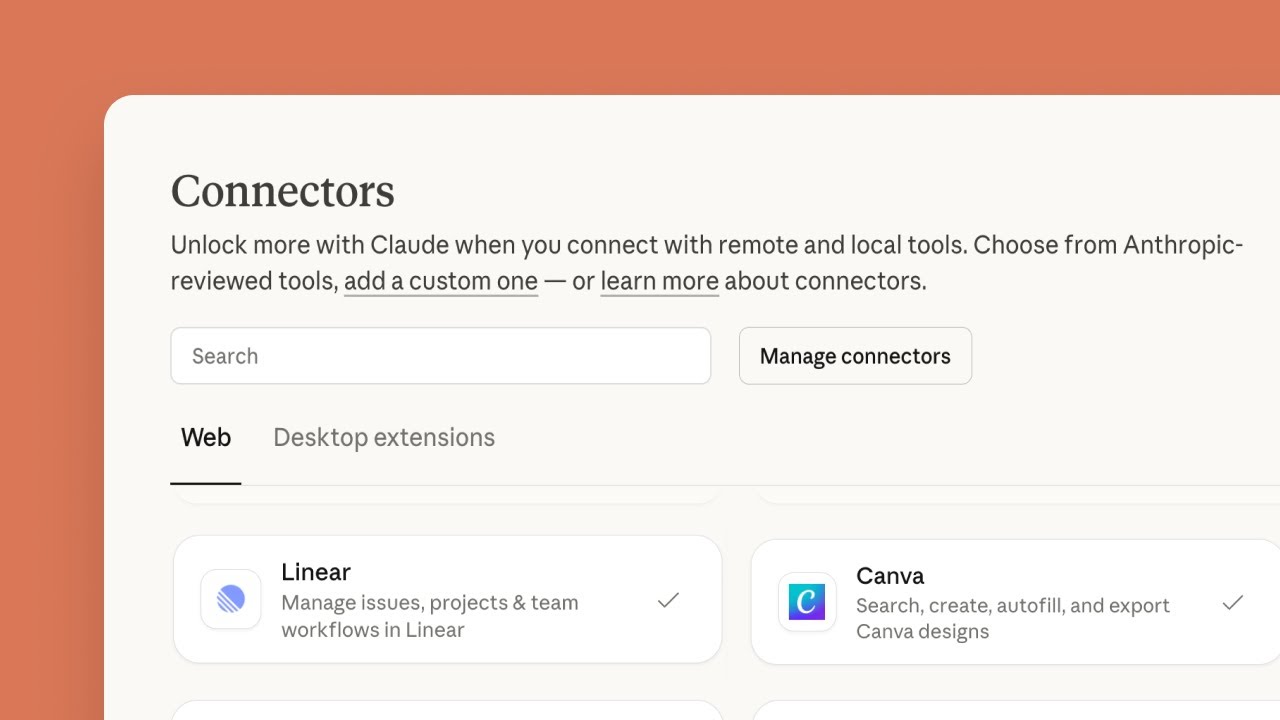
How Connectors Work in Claude
A neutral explainer from Anthropic for anyone who has never added a connector before. The steps apply to Buffer, Spreadcast or any other remote server.
How to Connect the Buffer MCP Server to ChatGPT
Buffer's steps come from Buffer's ChatGPT guide. Menu names in ChatGPT change often, and OpenAI's help article on custom MCP servers is the place to check the current ones and the plan rules.
- Step 1
Check That Your ChatGPT Plan Can Write
OpenAI's article lists full MCP support, including actions that change data, for Business, Enterprise and Edu workspaces on the web. On Business only admins and owners can add a custom server. It says Pro users can connect custom servers with read and fetch permissions only, which can read your queue but not create a post. Free and Plus are not listed.
- Step 2
Turn On Developer Mode or Open Plugins
Buffer's guide has you open Settings, find the apps or connectors section and switch on Developer mode under Advanced settings. OpenAI's current article describes the same job as adding a custom MCP server from Plugins on the web. Either way you end up at a form for a new server.
- Step 3
Fill In the Server Details
Name it Buffer, paste mcp.buffer.com/mcp starting with https as the server address and choose OAuth as the authentication. Read ChatGPT's warning about custom servers and confirm.
- Step 4
Sign In to Buffer and Approve
Click Create. A Buffer sign in window may open. Approve the access and you are back in ChatGPT with Buffer listed.
- Step 5
Use It in a Chat
Start a new chat and pick Buffer for the message, then ask for something simple, such as showing all scheduled Buffer posts for this week. ChatGPT may ask you to confirm before an action that writes, depending on the action.
Buffer MCP in Claude, ChatGPT, Cursor and Other Assistants
How each assistant connects, from Buffer's help article, Buffer's Cursor guide and the assistants' own help pages. Most use OAuth, a sign in with an approve button and no key to copy.
| Assistant | How it connects | What to know |
|---|---|---|
| Claude | OAuth, from the connector list or as a custom connector | Works on every Claude plan. Free allows one custom connector |
| Claude Code | OAuth through the /mcp command, or a key in a header | One command adds the server |
| ChatGPT | OAuth, as a custom server on the web | Writing posts needs Business, Enterprise or Edu. Pro is read and fetch only |
| Codex | OAuth, added with one codex mcp add command | A browser window handles the sign in |
| Cursor | OAuth, by adding the server in Tools and MCPs settings | No key needed |
| Perplexity, Grok, Notion, Zapier | OAuth | Grok connects from grok.com. Notion connects to a custom agent, not Notion's built in chat |
| Raycast | OAuth | Needs Raycast Pro, because its MCP feature runs through Raycast AI |
| n8n and unlisted clients | A personal Buffer API key as a Bearer header | Make the key in Settings, API, and give it only the permissions it needs |
Every connection, key or OAuth, shows in Buffer under Settings, API, in the Active Integrations list, and removing it there cuts access at once.
Security Notes From Buffer's Own Guide
Buffer is direct about what a connection reaches, and it is worth reading before you connect. Buffer's MCP guide says a connection acts with the same reach over your content that you have. Buffer's authentication guide adds that a key reaches every organization and channel in your account, with no way to open one workspace to an assistant while keeping another closed. If you run a personal brand and a client in the same login, the assistant can see and change both.
Keys are more flexible than they were. Buffer's guide to creating an API key lets you choose what each key may do: read posts, write posts, read and write ideas, read and update account details, and read post analytics. All of them are ticked by default. You can untick everything except reading posts to make a key that can look but never publish, and you pick an expiry of 7, 30, 60 or 90 days or a year. API access needs a verified email address.
Treat a key like a password. Clients often keep it in a plain text settings file, so keep it out of anything you share or commit, and give each tool its own key so removing one breaks nothing else.
Buffer also warns about lookalikes. Its guide says the only official address is mcp.buffer.com/mcp, and that a one click install found on a third party list deserves a careful read before you trust it with your account. If a connector asks for your key on a site that is not Buffer's, stop there.
Why Is Buffer Not Posting to Instagram?
When a post your assistant created sits in Buffer and never reaches Instagram, it was often never set to go out on its own. Buffer's article on automatic Instagram posting says automatic publishing works only for professional accounts, meaning Business or Creator, and only for posts that meet Instagram's rules. Anything else is scheduled as a notification: Buffer sends it to the Buffer app on your phone and you finish posting it in Instagram yourself. If no phone is linked to your Buffer account, that notification has nowhere to go and the post fails.
Buffer lists what quietly turns a post into a notification: the Enable Notifications by default setting in the Instagram channel, an image outside a ratio of 4:5 to 1.91:1, a video outside 4:5 to 16:9, a Reel shorter than 3 seconds or longer than 15 minutes, and features such as music, product tags, or links and text on Stories. Even a ratio of 0.799 against a minimum of 0.8 is enough. Since the create tool takes a choice between automatic publishing and a reminder, ask for automatic in your request, then look for the Notify label on the post in your queue.
When the post did try and failed, Buffer's Instagram error library explains the message. The common ones are lost authorization, fixed by reconnecting Instagram through Facebook with every permission ticked and refreshing the channel; an account switched back to personal; Instagram's cap of 25 posts in 24 hours; images over 8 MB; and Instagram's spam filter, which Buffer suggests getting past by rewording the caption, using fewer hashtags and removing links. Your assistant can read the failure message with the get_post tool, so you can ask it why a post errored without opening Buffer.
TikTok has the same two paths. Buffer's TikTok guide describes automatic publishing and Notify Me, and says Buffer falls back to Notify Me for content TikTok will not take automatically, such as a video over the length limit. The guide also lists 5 hashtags per post and 25 posts per 24 hours, and says TikTok scheduling is only on Buffer's current plans, not legacy ones. Check those first when Buffer is not posting to TikTok.
How to Connect Buffer and Canva, With or Without an Assistant
Inside Buffer, Canva is a built in integration. Buffer's Canva guide has you open the composer, pick your channels, choose Canva from the integrations menu, sign in, make or pick a design and click Return to Buffer. A design made for several networks at once comes out square at 1080 by 1080. The same guide lists the limits: web only, not in Buffer's mobile apps, PNG files only, one image at a time, no resizing and no access to your Canva Brand Kit. For an animated design, export an MP4 from Canva and upload it to Buffer by hand.
With an assistant, you connect both servers in one chat: Canva's connector makes and exports the design, and Buffer's server puts it in the queue. There is one trap. Buffer's API takes no file uploads. Buffer's media hosting guide says you pass a public link, that Buffer fetches the file when the post goes out, which for a queued post can be days later, and that signed links which expire often work when the post is created and then fail on the day. Canva's export links are that kind of link: Canva's export tool page says they expire and should not be stored.
So for anything that is not going out right away, put the Canva export somewhere stable first, such as your own site or a storage bucket with public links, and give Buffer that address. Or use a publisher that keeps its own copy: Spreadcast's upload tool copies a Canva export into its own storage the moment you add it, and our Canva MCP server guide shows that handoff step by step.
What the Buffer MCP Server Cannot Do
It does not design the post picture. No tool in Buffer's MCP guide makes an image, a carousel or a video. The create tool attaches media you already have, by link, and Instagram and TikTok refuse a post without it. So the picture comes from you, from a design tool such as Canva, or from whatever your assistant can make on its own. Buffer's AI Assistant inside the Buffer composer is a writing tool: it suggests ideas, rewrites, shortens and adapts text for each network, and the product page describes no image design.
It does not know what is happening in your business. The server reads what is already in Buffer: channels, posts, ideas and templates. It has no feed of your product news, your releases or your reviews. Every post starts from what you type into the chat, or from what your assistant can find elsewhere.
It has no tools for comments or messages. Buffer's app has a community inbox for replies, but the MCP tool list does not include it, so an assistant cannot read or answer comments through the server.
It does not check a post before saving it. The create tool validates on save, with no separate dry run.
It has no tool named for approving a draft, and its numbers are daily: post metrics refresh once a day, and reach and impressions show only when every channel in the request supports them.
How to Create a Buffer API Key for n8n, Make or Claude Code
Claude, ChatGPT and Cursor sign in without a key. n8n, scripts, the Buffer command line tool and clients Buffer has no ready setup for need a personal key. These steps follow Buffer's API key guide, read on October 16, 2026. Buffer's API overview notes that the key is for Buffer's current GraphQL API, which is not the older legacy API.
- Step 1
Verify Your Email First
API access needs a verified email address. If Buffer has not verified yours, resend the email from your account settings before you look for the API page.
- Step 2
Open Settings, API
Click your profile icon in the lower left of the Buffer web dashboard, choose API and stay on the Personal Access tab.
- Step 3
Create and Name the Key
Under Keys, click New Key and give it a name that says where it will live, such as n8n workflow, so you can tell your keys apart later.
- Step 4
Untick What the Tool Does Not Need
All permissions start ticked, and at least one must stay. For a reporting workflow, keep only reading posts, so the key can never publish. Then pick an expiry from 7 days to a year.
- Step 5
Copy It Once and Paste It in the Tool
Click Generate API Key, then Copy key. The dialog shows only the last four characters, but the button copies the whole key. In n8n or another MCP client, send it as a Bearer authorization header. Making a replacement key revokes the old one at once, so update every tool that used it.
Buffer MCP on GitHub, the Buffer CLI and the Old API
Search GitHub for a Buffer MCP server and you will find community projects next to Buffer's own. Buffer's official server is hosted by Buffer, so there is nothing to install or clone: you add the address and sign in. If a project's code calls api.bufferapp.com, it is built on the legacy REST API, which Buffer's migration guide helps developers move away from, toward the GraphQL API at api.buffer.com.
For terminal work, Buffer has its own tool. Buffer's CLI guide describes a command line app installed from npm that needs Node.js 18 or later, reads your personal key and returns JSON from every command. It ships skill files for Claude Code and Codex, and one command installs the skill, so Claude Code can schedule Buffer posts through the CLI without the MCP server. Both count against the same request limits on your plan.
The official code Buffer keeps on GitHub is its sample apps repository, meant for developers who build apps that other people connect to Buffer. A server that asks for your Buffer password, rather than a key or a Buffer sign in, is not Buffer's.
Buffer AI Assistant vs the Buffer MCP Server
The two get confused because both involve AI, but they sit on opposite sides. The Buffer AI Assistant is built into Buffer. You open the composer, type a prompt and it drafts or reworks the text of a post: ideas, a rewrite, a shorter or longer version, a different tone, a version for another network. Buffer's pricing page lists it on every plan with unlimited use.
The MCP server is the reverse direction. Your own assistant, Claude or ChatGPT, does the thinking in its own window and uses the server to reach into Buffer. You use the model you already pay for, and Buffer is where the result lands.
Neither one makes the image. If writing is your bottleneck, either will help. If the bottleneck is the picture, or knowing what to post about in the first place, you need something else in the chain. Buffer's own post on posting from Claude, written by a Buffer content creator, shows the typical setup: the ideas, screenshots and Canva files are gathered by hand, and Claude shapes them and sends them to the queue.
Spreadcast: A Buffer MCP Alternative for App Makers
Spreadcast is a social media tool for people who make apps on the App Store, and it runs its own MCP server at spreadcast.app/api/mcp. Where Buffer's server moves posts you wrote into a queue, Spreadcast's server makes the post. The assistant reads your app's brand kit and designs the picture in your colors, fonts and logo, with a real screenshot of your app in an iPhone frame. It can design a carousel of 3 to 8 slides at 1080 by 1350. It writes a caption for each network, checks the post against each network's rules and saves it as a draft.
It also knows what is worth posting. Spreadcast watches your App Store listing and finds moments: a new version with what changed, taken from your release notes, or a rating milestone worth a thank you. The assistant starts from those, so you are not inventing topics in the chat.
Drafts are the default by design. When you connect Claude or ChatGPT you sign in with Spreadcast, and the consent screen asks one question with two answers: Make Drafts or Make and Publish. Make Drafts is picked for you. With it, the assistant can design, write and save but cannot schedule or publish, however the request is worded. Approving a draft is its own step.
Spreadcast publishes to Instagram, TikTok, LinkedIn, Facebook, Threads, Pinterest, Bluesky, Telegram and Discord, and YouTube and Mastodon connect too. The Free plan includes the MCP server and saves drafts. Pro, at $29 a month for one app, adds scheduling and publishing to every network you connect, with the design and the captions included in that price. Studio, at $79 a month, covers 5 apps, each with its own brand, and 3 seats. The full tool list and setup are on our social media MCP server page, and the MCP overview gives the short version.
Spreadcast MCP vs Buffer MCP: Feature by Feature
Buffer facts come from Buffer's MCP guide, Buffer's MCP page and Buffer's pricing, read on October 16, 2026. We make Spreadcast, so the rows start with the work of making a post, which is where the two servers differ most.
| Buffer MCP | Spreadcast | |
|---|---|---|
| The post picture | No design tool. You attach an image or video you already have, by link. Instagram and TikTok need one. | Designs it in your app's brand: your colors, fonts and logo, a headline and a real screenshot of your app in an iPhone frame, in 12 kinds, plus carousels of 3 to 8 slides. |
| What to post about | Your prompt, your saved ideas and your post templates. | Moments from your App Store listing: a new version with what changed, or a rating worth a thank you, with suggested words. |
| Captions per network | Your assistant writes the text. One post per channel per call. | Writes one caption per network in your brand's voice, with fitting hashtags, inside each limit, and a title for Pinterest and YouTube. |
| What a new post becomes | A queued post by default, which publishes at the next slot. A draft only when the assistant asks for one, and the create tool can also publish at once. | A draft, always, unless you chose Make and Publish when you connected. |
| Approving | No approve tool. Approval workflows are on the Team plan, and a draft is moved to the queue by editing it. | A separate step. A drafts only connection can never approve, schedule or publish. |
| Checking before saving | The post is checked when it is saved. No separate check. | A dry run puts the post through every network check without saving anything. |
| Networks | Instagram, Facebook, X, LinkedIn, Pinterest, YouTube, Google Business, Mastodon, TikTok, Threads, Bluesky and Start Page. | Instagram, TikTok, LinkedIn, Facebook, Threads, Pinterest, Bluesky, Telegram and Discord, plus YouTube and Mastodon. |
| Analytics | Totals and averages across posts for up to 365 days, refreshed daily, plus per post numbers. | Totals per network, top posts, your own best hours and weekdays, follower changes and your app's ratings. |
| How you connect | OAuth in Claude, ChatGPT, Cursor and most other clients. A personal key for n8n and unlisted tools. | Sign in with Spreadcast in Claude and ChatGPT. A key or sign in for Claude Code and Cursor. |
| What a connection can reach | Your whole Buffer account, every organization and channel. Keys can be limited by permission and set to expire. | Your Spreadcast account, with drafts or publishing chosen on the consent screen. Remove it in Settings, AI Assistants. |
| Price to post to 5 networks | $30 a month on Essentials billed monthly (5 channels at $6), for publishing only. Free covers 3 channels. | $29 a month on Pro for one app, with the design, captions and publishing included. Free saves drafts. |
One Release, Two Servers: Version 3.2 of Streakly
An example with an invented habit tracker called Streakly, posting to Instagram, LinkedIn and Bluesky from Claude. It shows the mechanics of each server, not a customer result.
| Step | With the Buffer MCP server | With the Spreadcast MCP server |
|---|---|---|
| Knowing there is news | You remember that version 3.2 shipped and tell Claude what changed. | Spreadcast has already found version 3.2 on the App Store listing, with the release notes. Claude lists it as a moment. |
| The picture | You open a design tool, build an image around a screenshot, export it and upload it somewhere Claude can link to. | Claude designs a new version post and a 5 slide carousel in Streakly's green and cream, with real screenshots in an iPhone frame. Previews show in the chat. |
| The words | Claude writes from your notes. It makes one create call per channel, three in all. | Claude writes a caption for each of the three networks from the release notes, in the brand's voice. |
| Before saving | You ask for drafts so nothing joins the queue yet. | Claude runs the dry run, which passes, and saves drafts, the only thing a Make Drafts connection can do. |
| Going live | You open Buffer, look at the drafts and move them into the queue, or ask Claude to edit them into it. | You open the Spreadcast Dashboard, look through the slides, change a word and approve. On Pro, Spreadcast publishes at the time you picked. |
For wording you can borrow on release day, see our app update announcement examples.
When the Buffer MCP Server Is the Better Pick
Buffer's server is a good one, and for many people it is the right one. Pick it in these cases, or run both side by side.
You Already Make Your Own Pictures and Videos
If the media exists, Buffer's server is a fast way to get it scheduled from a chat. You do not need a tool that designs, and Buffer's Free plan costs nothing for 3 channels.
You Need X, Google Business Profile or Start Page
Buffer's create tool posts to all three. Spreadcast does not post to X or Google Business Profile, and it has no link in bio page.
Your Posts Are About More Than an App
Hiring news, event photos, opinions, blog links. Buffer publishes anything you write. Spreadcast is built around an app on the App Store and its listing.
You Manage Many Brands
Buffer's per channel rate falls after the tenth channel, and the Team plan adds approval workflows and access levels for each team member. For an agency with dozens of accounts that model fits well.
Your App Is Only on Google Play
Spreadcast reads App Store listings. An app that is only on Android has no listing for it to watch, so a general scheduler like Buffer is the better choice today.
How to Switch From the Buffer MCP Server to Spreadcast, or Run Both
You do not have to choose one. Many app teams keep Buffer for posts they write by hand and let Spreadcast make the app posts. These steps cover both setups.
- Step 1
Decide What Each Tool Owns
Let Spreadcast handle what comes from the app (versions, ratings, features) and keep Buffer for the rest. Each publishes only its own calendar, so glance at both weekly to avoid two posts in one hour.
- Step 2
Add Your App to Spreadcast
Paste your App Store link on the start page. Spreadcast reads the public listing and needs no code and no developer account access. Then connect your social accounts.
- Step 3
Add Spreadcast as a Connector
In Claude, open Customize, Connectors, Add custom connector and paste the Spreadcast address from Settings, AI Assistants. In ChatGPT, add it as a custom server on a plan that allows writing. Sign in with Spreadcast and keep Make Drafts. On Claude Free, remember the limit of one custom connector.
- Step 4
Keep or Remove the Buffer Connection
To leave Buffer, remove the connection under Settings, API, Active Integrations, delete keys you made for assistants and remove the connector in Claude or ChatGPT.
- Step 5
Ask for Your First Designed Post
Try: draft posts from my app's news. The assistant lists the moments Spreadcast found, designs a post for each and saves drafts. Approve them in Spreadcast. Our guide to scheduling social media posts with Claude walks through a full session.
Other Social Media MCP Servers to Compare
Buffer and Spreadcast are two of about ten tools with a social media MCP server today. Metricool, Postiz and Hootsuite are among the others. Our roundup of the best social media MCP servers puts all of them side by side, with free plans, sign in methods and what each can and cannot do.
For Buffer itself, see the Buffer alternatives roundup, the Buffer vs Hootsuite comparison and the guide to scheduling social media posts with ChatGPT.
Frequently Asked Questions
Is the Buffer MCP server free?
Yes. Buffer's MCP page says MCP access is included on every plan, including Free. The Free plan covers 3 channels, 10 scheduled posts per channel at a time and 3,000 requests per 30 days. Paid plans start at $6 per channel a month on Essentials. Your Claude or ChatGPT plan is separate.
What is the Buffer MCP server address?
The only official address is mcp.buffer.com/mcp, starting with https. In Claude, ChatGPT and Cursor you sign in with Buffer over OAuth. Other clients send a personal Buffer API key as a Bearer header.
Does the Buffer MCP work with ChatGPT?
Yes, as a custom server with OAuth on the web. OpenAI's help article lists actions that change data, such as creating a post, on Business, Enterprise and Edu workspaces, and read and fetch only on Pro. Free and Plus are not listed.
Does the Buffer MCP work with Claude?
Yes. Buffer is in Claude's connector list, so you can search for it under Customize, Connectors and click Connect, or add it by address as a custom connector. Claude Code adds it with one command. Claude's Free plan allows one custom connector.
Can the Buffer MCP server design images for my posts?
No. Its tools attach media you already have by link, and Instagram and TikTok need an image or a video. Buffer's AI Assistant writes text only. Spreadcast's MCP server designs post pictures and carousels in your app's brand with real screenshots, if you make an app.
Will my assistant publish through Buffer without asking?
It can, if you allow the tool. A new post joins the queue by default and publishes at the next slot, and the create tool can also publish at once. Ask for a draft in your request and keep your client's approval prompt on for tools that write, as Buffer's guide recommends.
What is the difference between the Buffer AI Assistant and the Buffer MCP?
The AI Assistant lives inside Buffer's composer and helps write and rework post text, free on every plan. The MCP server lets an outside assistant such as Claude or ChatGPT read and change your Buffer posts from its own chat.
What is a good Buffer MCP alternative for app makers?
Spreadcast. Its MCP server finds moments on your App Store listing, designs the post and carousel in your app's brand, writes a caption per network and saves drafts by default. Free saves drafts, and Pro at $29 a month adds scheduling and publishing with the design included.
Prices, plans and features change. This comparison describes each product as its own site described it on the date shown under Sources. Check the vendor's site before you decide. Product names are trademarks of their owners.
Where These Facts Come From
Every outside number, rule and price on this page links to the page it was taken from.
- Buffer MCP, plans and how it worksBuffer
- Buffer MCP developer guide with every toolBuffer Developers
- Connect Buffer to Claude and Claude CodeBuffer Developers
- Connect Buffer to ChatGPT and CodexBuffer Developers
- Connect Buffer to CursorBuffer Developers
- Buffer API rate limits by planBuffer Developers
- Buffer API authentication, key scope and OAuthBuffer Developers
- Buffer pricing and plansBuffer
- Buffer machine readable pricing with channel table and volume tiersBuffer
- Talk to your agent via MCP, changelog entryBuffer
- Connecting Buffer to automation tools and AI assistantsBuffer Help Center
- How to create your Buffer API key, with permissions and expiryBuffer Help Center
- How to post on social media from ClaudeBuffer
- Buffer AI Assistant product pageBuffer
- How I use Buffer with Claude, videoBuffer
- Why aren't my Instagram posts sending automatically?Buffer Help Center
- Instagram error libraryBuffer Help Center
- Using TikTok with BufferBuffer Help Center
- Using Canva with BufferBuffer Help Center
- Hosting media for postsBuffer Developers
- What is Buffer's API?Buffer Help Center
- Migrating from the REST APIBuffer Developers
- Buffer CLIBuffer Developers
- Buffer sample appsBuffer on GitHub
- Canva MCP export design toolCanva Developers
- Get started with custom connectors using remote MCPAnthropic Help Center
- Getting started with connectors in Claude, videoAnthropic
- Connecting custom MCP servers in ChatGPTOpenAI Help Center
- What is the Model Context ProtocolModel Context Protocol
Researched and written by Spreadcast. Last checked on October 16, 2026.