To schedule social media posts with Claude, you connect Claude to a social media tool that already holds your Instagram, LinkedIn or Facebook logins. The connection is called a connector, and it works through the Model Context Protocol (MCP), an open standard for letting an assistant use another app's functions. Once it is connected, you ask Claude in plain words to plan a week of posts, and it saves them as drafts or schedules them in that tool. With the right tool, Claude also creates the content itself: a caption written for each network, and the post picture or carousel that goes with it.
This guide covers the whole route for someone starting from zero: what Claude can and cannot do by itself, which Claude plans allow connectors, the exact clicks to add one on the web, the desktop app and the phone, what the approval prompts mean, and the rules Instagram puts on any tool that publishes for you. It then shows how to create the content, not only schedule it: which tools can make visuals through Claude and how to review a picture before it goes out. It ends with prompts you can copy, a setup for Claude Code, the things that go wrong, and which social media tools offer a Claude connector today. Every plan detail and menu name was checked on its source page on October 15, 2026.
Can Claude Post to Social Media?
Not on its own. In a plain chat Claude writes text: captions, long posts, a content calendar, replies you can paste. It has no login to your social accounts, so it cannot press publish on Instagram or LinkedIn. To act anywhere outside the chat, Claude needs a connector, and a connector is only as capable as the server behind it.
So the honest answer to can Claude post to social media is: yes, through a social media tool that offers an MCP server. The tool is connected to your networks. Claude is connected to the tool. When you ask for a post, Claude calls one of the tool's functions, such as create a post or list the calendar, and the tool does the publishing at the time you set. Anthropic's guide to custom connectors puts the reach plainly: Claude can only access what you have granted the server permission to reach, and the tools on that server can read, create, modify or delete data and act on your behalf.
| Task | Claude in a plain chat | Claude with a social media connector |
|---|---|---|
| Write captions for each network | Yes | Yes, and it can read the tool's rules for each network |
| Plan a week or a month of posts | Yes, as a list you copy | Yes, as drafts on the tool's calendar |
| Schedule a post for a time | No | Yes, if the tool and your plan allow scheduling |
| Publish now | No | Yes, if you granted publishing access |
| Read how past posts did | Only if you paste the numbers | Yes, if the tool exposes analytics |
| Make the post picture or carousel | No, Claude works in text, so the picture comes from a tool or from you | Yes, when the tool designs or generates visuals through its server. Otherwise Claude attaches a file you bring |
That last row is where social media tools differ most, so it is worth knowing before you pick one. Some servers only schedule what you bring. Some generate images or video from a prompt, some fill templates, and some design the post in your own brand. Claude writes and plans well with any of them, but whether it can also hand you a finished picture depends on the tool you connect. The section on creating content below compares them.
How Claude Connectors for Social Media Work
A connector is a link between Claude and a remote MCP server, which is a web address run by the other company. The server publishes a list of tools, each with a name, a short description and the fields it needs. Claude reads that list and decides which tool to call based on what you asked. The MCP specification for tools calls this model controlled: the model discovers and invokes tools by itself, which is exactly why the same page says there should always be a human in the loop with the ability to deny a tool call.
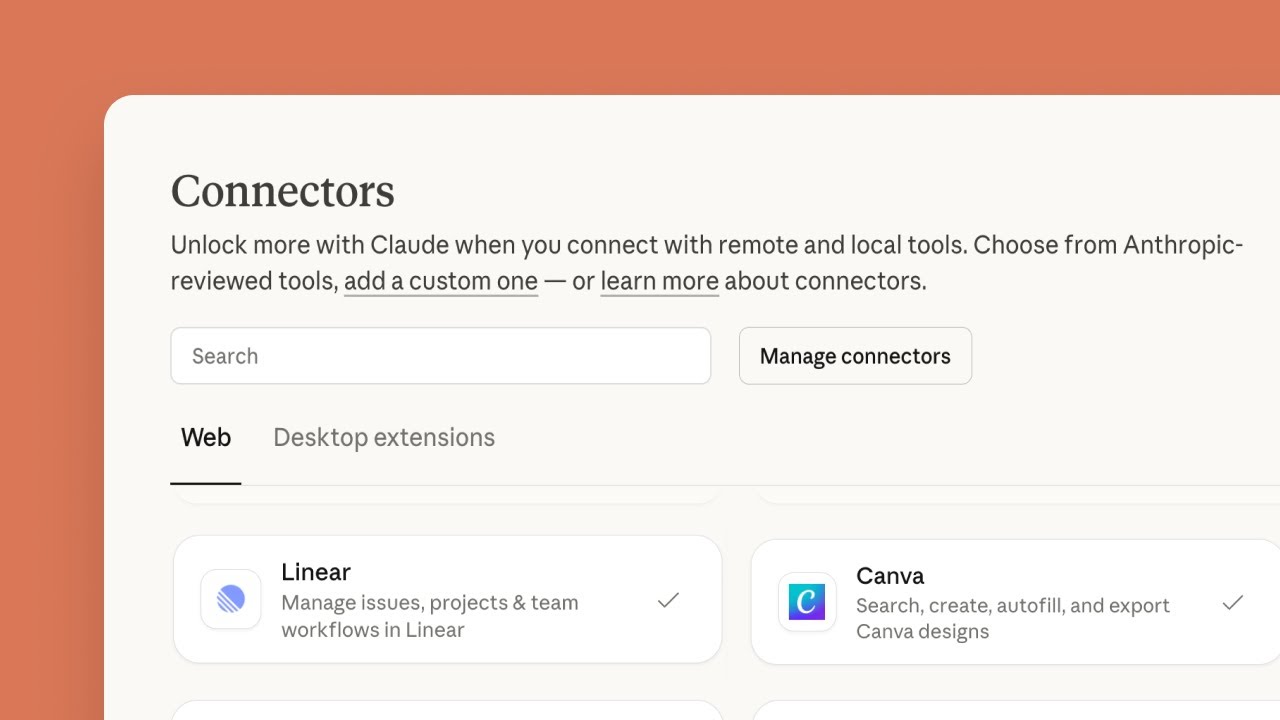
Three facts about how Claude makes that connection matter for social media work.
- It connects from Anthropic's cloud. Anthropic's guide says Claude reaches your remote MCP server from Anthropic's infrastructure and not from your device, so a server on a private network will not connect. Every social media tool in this guide runs its server on the open internet, so this rarely matters.
- Sign in happens on the tool's own page. Most social media connectors use OAuth: Claude sends you to the tool's login screen, you approve, and Claude receives a token. Anthropic's guide says Claude never sees your password this way, and you can revoke access in Claude's settings or in the tool's own security settings.
- Some servers take a key instead. A server can ask for a fixed credential, such as an API key sent in a request header. Claude stores it encrypted, but on Team and Enterprise plans everyone who uses that connector shares the same key, so Anthropic recommends a key with limited access.
A social media connector usually exposes a dozen or more tools. The common ones are: read the account and the connected networks, list posts on the calendar, create a post, edit or reschedule it, delete it, and read results. Some add idea boards, templates, brand details, image generation or workflows. The tool list is what decides how far Claude for social media can go, so read it before you connect.
Which Claude Plans Allow Custom Connectors
Custom connectors are on every Claude plan, including Free. The limit on Free is the number: Anthropic's guide says Free users are limited to one custom connector. That is enough to connect one social media tool, but not a social media tool and a design tool side by side. The prices below come from Claude's pricing page, and scheduled tasks are covered further down.
| Claude plan | Price | Custom connectors | Claude Code | Scheduled tasks |
|---|---|---|---|---|
| Free | $0 | One | Not included | Not included |
| Pro | $20 a month, or $17 a month billed yearly | Yes | Included | Included |
| Max | From $100 a month | Yes | Included | Included |
| Team | From $25 a seat a month, or $20 billed yearly | Yes, added by an Owner or Primary Owner | Included | Included |
| Enterprise | $20 a seat a month with a 20 seat minimum, plus usage | Yes, added by Owners or roles with the right access | Included | Included |
On the phone, the picture is slightly different. Anthropic's page on using connectors says connectors work in Claude, Claude Desktop and the Claude mobile apps for iOS and Android, and that a service connected on the web or desktop is available the next time you log in on the phone. It also says installing connectors on mobile is in beta, and that the web and desktop apps remain the main path for custom connectors. The practical route: add the connector once on a computer, then use it from your phone.
How to Connect Claude to a Social Media Tool, Step by Step
Before you open Claude, set up the social media tool. Create the account, connect Instagram, LinkedIn or whatever you post to, and find the tool's MCP server address. It is usually on a page called integrations, developers or AI assistants, and it looks like a normal web address ending in mcp. Copy it.
On the Web or the Desktop App (Free, Pro and Max)
These steps follow Anthropic's guide to custom connectors as of October 2026. The web app at claude.ai and the desktop app use the same menus.
- Open Customize, then Connectors.
- Click the + Add button, then Add custom connector.
- Type a name. This is the label you will see in the connector list, so use the tool's name.
- Paste the server address and click Continue.
- Claude detects how the server signs in. Check the settings it found and click Continue.
- Under Authentication, choose Sign in now, Sign in when needed or No sign in. For a social media tool, Sign in now is the clearest, because you confirm the right account straight away.
- Under OAuth client, keep the recommended option, Use Claude's published identity, unless the tool's own instructions say otherwise.
- If the tool gave you an API key in place of a login, add it under Request headers, usually as Authorization with the value Bearer followed by the key.
- Click Add. If you chose Sign in now, a window opens on the tool's own site. Log in, check which account and which permissions you are granting, and approve.
To change a connector later you remove it and add it again; Anthropic's guide says there is no edit in place. Removal is under Customize, Connectors, through the three dots beside the connector.
On a Team or Enterprise Plan
On Team, only Owners and Primary Owners can add a custom connector. They go to Organization settings, then Connectors, click Add, hover over Custom and choose Web, then fill in the same name, address and sign in settings. Members then open Customize, Connectors, find the connector and click Connect to sign in with their own account. Each person connects separately, so Claude only reaches what that person can reach in the social media tool. A shared API key is the exception: everyone gets the same access.
Turn the Connector On in a Chat
A connector you added is not always switched on in every chat. Click the + button at the lower left of the message box (or type a slash), hover over Connectors and toggle on the tool you want. Anthropic's connectors page describes this switch per conversation. Turning off connectors you do not need keeps Claude from calling the wrong one.
On the Claude Mobile App
Add the connector on the web or the desktop app first. Then open the Claude app on iOS or Android, log in with the same account, and the connector is there. From then on you can ask for a post while you are away from your desk, read the draft on the phone and approve it. Because installing connectors on the phone is still in beta, treat the computer as the place for setup and the phone as the place for quick checks.
A first test that costs nothing: ask Claude which accounts and networks the connector can see. If the answer lists the wrong workspace or a client's account, stop and fix the sign in before you create a single post.
Permissions and the Approval Prompts Claude Shows
Claude asks before it uses a connector's tools. When it wants to call one, it asks for your approval in the chat, and you allow it or decline. Anthropic's guide warns that you should choose Allow always only for servers and tools you trust to run without you watching. For a tool that publishes to your public profile, that is a high bar.
You can also set the rule ahead of time. Anthropic's connectors page says that under Customize, Connectors you can select a connector and see its Tool permissions, and for each tool or group choose Always allow, Needs approval or Blocked. On Team and Enterprise plans an Owner sets these for the whole organization and members cannot override them. A sensible setting for a social media connector looks like this.
| Kind of tool | Examples | Suggested setting |
|---|---|---|
| Reading | List accounts, list posts, read analytics, read the brand details | Always allow, so research does not stall on prompts |
| Drafting | Create a draft, edit a draft, check a post against the rules | Needs approval at first, Always allow once you trust the results |
| Scheduling and publishing | Schedule a post, publish now, approve a draft | Needs approval, always |
| Removing | Delete a post, delete a template | Needs approval, or Blocked if you never delete from chat |
One feature skips the prompts. Anthropic's guide says that during Advanced research, Claude calls connector tools without further approval, and it advises turning off any tool that can write to an outside app before you run research. If you ask Claude to research competitors' posts with your social media connector switched on, switch off its write tools first.
The other half of permissions lives in the social media tool. Many tools ask what Claude may do at the moment you sign in. Ocoya, for example, lists separate scopes for writing posts and for publishing them, so you can grant drafts and scheduling without immediate publishing, per Ocoya's MCP guide. The MCP security best practices explain why this matters: a broad grant widens the damage if a token leaks, and the document recommends starting with the smallest set of permissions and asking for more only when a task needs them. When a sign in screen offers a choice, pick the narrowest one that does the job.
How to Post to Instagram From Claude
Instagram is the network people most want to automate and the one with the strictest rules, and those rules apply to every tool, Claude connector or not. Meta's guide to Instagram content publishing is written for professional accounts. In practice that means a Business or Creator account. Before you connect anything, check the account type in the Instagram app, because a tool can only publish where Meta's API allows it.
What Meta's guide says a tool can and cannot do, as of October 2026:
- Formats: single images, videos, Reels, carousels of up to 10 images or videos, and Stories.
- Volume: 100 posts published through the API in a moving 24 hour period, with a carousel counting as one post.
- Images: JPEG is the only image format supported, and carousel images are cropped to match the first one.
- Not supported: shopping tags and filters.
- Page Publishing Authorization: if the professional account is linked to a Facebook Page that requires it, nothing can be published until that authorization is complete.
To connect Claude to Instagram, then, the order is: switch the Instagram account to a professional account in the Instagram app, connect it to a social media tool that publishes through Meta's official API, and connect that tool to Claude. Claude talks to the tool, and the tool talks to Instagram, so the tool in the middle is the part you choose.
A prompt that respects those limits: Using my social media connector, check which Instagram account is connected and confirm it is a business account. Then draft a carousel of 5 slides for Thursday at 9 a.m. from the notes below, with a caption under 150 words and 3 hashtags. Save it as a draft. Do not schedule or publish. Show me the caption and the slide text first.
If Claude reports that a post failed on Instagram, the cause is almost always one of the items above: a personal account, an image in a format the API refuses, a carousel with more than 10 items, or a Page waiting on authorization. Ask Claude to read the error from the tool, and fix it in the tool or in Instagram, not by retrying the same post.
How to Create Social Media Content With Claude, Not Only Schedule It
Scheduling is the last step and the smallest one. Most of the work in social media is making the post: the words that fit each network and the picture that makes someone stop scrolling. Claude can do much of that in the same conversation where it schedules, as long as the tool you connect gives it a way to make pictures. This section applies whichever tool you choose.
The Text: Captions Written for Each Network
One message pasted everywhere reads like a bot on most networks. A LinkedIn post can run long and open with a point of view. An Instagram caption sits under a picture, and only its first line shows before the cut. A Pinterest pin needs a title and a description that reads like a search. A Bluesky post has to make its point in a few lines. Claude is good at writing one version for each, and a connector makes those versions fit, because several social media servers hand Claude each network's posting rules. Postiz, for example, lists a tool for reading posting rules on its MCP page, so Claude can check length and required fields before it saves.
- Give Claude the facts. Paste the release notes, the customer quote or the price, and tell it to use only what you pasted. A caption that invents a feature is worse than no caption.
- Ask for one version per network, each written the way that network reads, not one text shortened four times.
- Ask for the first line on its own. On most networks it is the only part people see before they decide to read on.
- Ask Claude to state the length and the number of hashtags for each caption, so you can see it stayed inside each limit.
- Keep a few past posts you liked in a Claude project and point to them, so new captions sound like you and not like a template.
The Pictures: Which Social Media Tools Can Make Visuals Through MCP
In a plain chat Claude works in text, so a finished post picture has to come from a tool. Four kinds of server can make one, and they produce very different results. Each line below is based on the vendor's own page, checked on October 15, 2026.
- Spreadcast designs posts and carousels in your app's brand. Through its MCP server, Claude can design a post picture, a carousel of 3 to 8 slides or an App Store moment post with your app's colors, fonts and logo and real screenshots of the app in an iPhone frame, then schedule and publish it after you approve.
- Postiz generates images and video. Postiz's MCP page lists tools that generate AI images and videos for posts, next to its scheduling tools.
- Blotato fills templates. Blotato's tool reference lists tools to browse its visual templates (videos, carousels, quote cards and infographics) and to generate an image, carousel or video from one, and it can publish or schedule the post too.
- Canva designs but does not publish. Canva's MCP tool list includes tools to generate a design, create a design from a brand template, generate an image and export a design, and it lists no tool for posting to a social network. You export the design and post it with another tool.
The difference between them is where the look comes from. A generated image is new each time and only resembles your brand if the prompt describes it well. A template gives you a steady layout that you fill with words. A design built from a brand kit starts from your own colors, fonts, logo and screenshots, so a post looks like it came from the same company as the last one. Most of the scheduling tools in the comparison further down do not make pictures at all: Claude attaches media you already have.
One plan detail matters here. Anthropic's guide limits Claude Free to one custom connector, so on Free you cannot connect a design tool and a separate scheduler side by side. A tool that both makes the picture and publishes it fits in that one slot. On Pro and above you can connect both kinds.
How to Review Pictures Before They Go Out
A typo in a caption is easy to fix on most networks. A typo inside a picture usually means deleting the post and posting it again, and losing whatever likes it had. So look at every picture before you approve it, the way it will appear on the network.
- Look at the picture itself, not Claude's description of it. Ask Claude to show the preview in the chat, or open the draft in the social media tool.
- Read every word on the picture. Check that names, prices, dates and version numbers match the caption and the facts you gave.
- Check the screenshots. They should come from the current version of your app, not an old build or a screen that no longer exists.
- Check the shape for each network. Meta's publishing guide says carousel images are cropped to match the first one, so a mixed set of sizes can lose its edges on Instagram.
- Go through a carousel in order. The cover should make sense alone, each slide should follow the last, and the last slide should say what to do next.
- Check the rights to anything you did not make yourself: photos, people, logos of other companies and quoted reviews.
- Approve the picture and the caption together, in the tool's calendar, so you see the post as one piece.
Prompts That Create Content, Not Only Schedule It
These prompts assume the connected tool can make visuals. With a tool that only schedules, Claude will write the captions and ask you for the picture. Each one asks to see the result before anything is saved.
- Design a carousel about the three ways people use our app to plan their week: a cover, one slide for each way with a real screenshot, and a last slide that sends people to the App Store. Show me every slide before you save anything.
- Make the post for our new version. Read what changed in the release notes, design the picture with the app's screenshot, write a caption for Instagram, LinkedIn and Bluesky, and save it all as one draft for Tuesday at 10 a.m.
- Turn this App Store review into a testimonial post: (paste review). Use the reviewer's words exactly as written, then write a short caption that thanks them.
- Design a stat post about this number from our own results: (paste number and where it comes from). Do not round it or add any other numbers.
- List every word that appears on the picture you just made, then tell me if any of it differs from the caption or from my notes.
The last prompt is a cheap check that catches most picture mistakes before you even open the preview. Run it on every carousel.
Prompts That Work for Scheduling Posts With Claude
The quality of what Claude schedules depends on the facts you give it. A connector lets Claude read your calendar and accounts, but it does not know what you shipped this week, which customer said something kind or which date is fixed. Put those facts in the prompt, or keep them in a Claude project with your product details and five posts you liked, and refer to it. We wrote the prompts below for this guide. Each assumes a social media connector is switched on in the chat, and each asks for drafts, so nothing goes out until you say so.
Plan a Week of Posts
- Look at my calendar in the social media tool for next week and tell me which days already have a post. Then suggest one post for each empty weekday, based on these notes: (paste notes). For each, give the network, the day, the time and the caption. Wait for my yes before creating anything.
- Create drafts for the five posts we agreed. LinkedIn on Monday and Wednesday at 8 a.m., Instagram on Tuesday and Thursday at 6 p.m., Facebook on Friday at noon. Use my account's time zone. Save as drafts only and list what you saved with each post's date.
- Before you save anything, check each draft against the tool's rules for that network: length, number of images, required fields. Tell me what would fail.
Asking for the plan first and the drafts second gives you two places to say no. It also catches a common slip, a post scheduled in the wrong time zone, because Claude has to state each time back to you.
Announce a Launch
- We launch version 2.0 on Tuesday. Here is what changed: (paste release notes). Write one launch post for each connected network, each in the style that network reads best. Lead with the change that saves people the most time. Do not claim anything that is not in the notes.
- Plan a launch week: a teaser on Monday, the announcement on Tuesday at 10 a.m., a short how to on Thursday and a thank you on Friday. Save all four as drafts and show me the full list with networks and times.
- Find any post already scheduled for launch week that would clash with the announcement, and suggest moving it. Do not move anything until I confirm.
Tie launch posts to the real event. If the date slips, ask Claude to list every draft that mentions the launch and reschedule them together, then read the new times back to you.
Repurpose a Blog Post
- Here is my blog post: (paste text or link). Pull out the three most useful points. Turn each into a LinkedIn post under 150 words that ends with a question, and one Instagram caption for a carousel that summarizes all three. Save them as drafts spread over the next two weeks.
- Write a short Bluesky post and a Pinterest pin description for the same article, each linking to it. For Pinterest, include a title. Keep each inside the limits the tool reports for that network.
- Read the drafts you just made and mark any sentence that repeats another draft word for word. Rewrite those so no two posts share a sentence.
Repurposing is where Claude for social media saves the most time, because the facts are already written. The risk is sameness: five posts that all open the same way read like a bot. The third prompt is there for that reason.
Check Analytics and Adjust
- Using the analytics in my social media tool, show me the five posts with the highest engagement in the last 30 days, with the network, date, time and format of each. What do they have in common?
- Compare the hours and weekdays when my posts did best over the last 60 days with the times on next week's calendar. Suggest new times only where the difference is clear, and explain the numbers.
- List any post from the last two weeks that failed or is still waiting for approval, with the reason the tool gives.
Analytics answers are only as good as the history in the tool. On a new account, or one that posted rarely, ask Claude to say how many posts each conclusion rests on, and ignore conclusions drawn from three or four posts.
Fix and Reschedule
- Move Thursday's Instagram post to Friday at the same time and show me the calendar for both days afterwards.
- The price in Wednesday's LinkedIn draft is wrong. It is $12, not $10. Correct it and show me the full new caption.
- Pause publishing for the next 24 hours: list every post scheduled in that window and change each back to a draft. Confirm each one.
The last prompt is your emergency brake. If something bad happens in the news or your product has an outage, a cheerful scheduled post looks careless. Whether Claude can turn scheduled posts back into drafts depends on the tool's functions, so test it on a quiet day, not during the incident.
How to Keep a Human Approval Step
Claude can be wrong in ways that look confident: a feature that does not exist, a date off by a week, a hashtag that means something else. The fix is not to avoid automation but to keep one moment where a person reads the post before it goes out. There are three places to build that moment, and the safest setups use all three.
- In the social media tool. Choose a connection that saves drafts and cannot publish, if the tool offers one, or a sign in scope without publishing. Then approve drafts in the tool's own calendar, where you see the post the way it will look.
- In Claude. Set scheduling, publishing and deleting tools to Needs approval, and never click Allow always on them. Read the approval prompt each time: which account, which network, what time, what text, and whether the call publishes now or only saves.
- In the prompt. Tell Claude to save drafts only and to show you the full list before anything is scheduled. Claude follows this well, but it is the weakest of the three layers, because a prompt is a request and not a lock.
The MCP specification backs this up. Its tools page says applications should present confirmation prompts so that a human is in the loop, and that clients should show tool inputs to the user before calling the server. Buffer's documentation makes the same point from the vendor side: it says to leave the approval prompts on, because that prompt is your last chance to catch a misread instruction.
Scheduled tasks change the picture. On paid plans, Claude can run a prompt every hour, day, week or weekday. Anthropic's page on scheduled tasks says these tasks run remotely even when your computer is asleep, use the connectors you set up, and have an approval mode you set when you create one manually. A weekly task that drafts next week's posts is a good use of it. A weekly task that publishes without you reading anything is not. Keep scheduled tasks on the drafting side, and keep the approving in a moment when you are present.

Claude Code Social Media Setup for Developers
Claude Code, Anthropic's coding assistant for the terminal, uses the same MCP servers. For a developer this opens a useful pattern: Claude reads the commit history or the changelog in your repository and drafts the release post straight into your social media tool. Claude's pricing page lists Claude Code on Pro and above, not on Free.
The Claude Code MCP documentation gives the command to add a remote server: claude mcp add --transport http followed by a name and the server address. If the server takes a key, add --header "Authorization: Bearer" with your key after the word Bearer. Buffer's Claude page shows the real case: claude mcp add --transport http buffer and then its address, mcp.buffer.com/mcp, with https at the start.
- Run the add command in the folder of the project where you want the connector. By default it is saved for that project only, on your machine.
- Add --scope user to make it available in every project, or --scope project to write it to a .mcp.json file your team shares through version control. Claude Code asks for approval before using servers from a shared .mcp.json file.
- If the server signs in with OAuth, start Claude Code and type /mcp, pick the server and follow the browser steps. The documentation says tokens are stored securely and refreshed automatically, and Clear authentication in the same menu revokes access.
- Check it with claude mcp list, which shows each server and whether it is healthy. claude mcp get shows one server and claude mcp remove deletes it, along with its stored sign in.
In its default mode Claude Code asks before it runs an MCP tool, and you can write permission rules in advance. The Claude Code permissions documentation names MCP tools as mcp__ plus the server name plus the tool name, so a rule for mcp__buffer matches every Buffer tool and a rule for mcp__buffer__delete_post matches only that one. A deny rule on the delete and publish tools, with drafting left on ask, is a reasonable setup for a release workflow.
A prompt for the terminal: Read the commits since the last tag and the CHANGELOG entry for this release. Write a short post for LinkedIn and one for Bluesky about the two changes users will notice. Save both as drafts in my social media tool for tomorrow at 10 a.m. Do not publish. Print both drafts here when you are done.
Two limits from the same documentation are worth knowing. Claude Code warns when a tool's output passes 10,000 tokens and cuts it at 25,000 by default, which a long list of posts or a big analytics report can reach; the MAX_MCP_OUTPUT_TOKENS setting raises the cap. And the documentation warns that servers which fetch outside content can expose you to prompt injection, which leads to the next section.
What Can Go Wrong
Prompt Injection
Prompt injection is text that Claude reads inside a tool's result, a web page or a comment, written to look like an instruction. Anthropic's guide warns that malicious MCP servers may include hidden instructions that try to make Claude perform unintended actions, and asks you to watch tool inputs and outputs. In social media work, the risky inputs are anything other people wrote: comments, mentions, a competitor's post, a blog you asked Claude to summarize. If a summarizing task suddenly wants to call a publishing tool, decline and look at why. The approval prompt is what catches this, which is the strongest reason to keep it on for write tools.
The Wrong Account or Brand
Agencies and founders with two products hit this one. Buffer's MCP documentation says its connection covers your whole account and that a key cannot be limited to one organization, so it reaches every workspace you can access. Ocoya takes the other approach and asks you to pick which brands the connection may use during sign in. Whatever the tool, start each session by asking Claude which account, brand and networks it sees, and name the brand in every prompt that creates a post.
Rate Limits and Failed Posts
Limits sit at three levels. The MCP tools specification says servers must rate limit tool calls. Social media tools set their own quotas: Buffer's documentation describes rolling windows of 15 minutes, 24 hours and 30 days that depend on your plan, and a Too Many Requests error that says how many seconds to wait. And the networks cap what any tool can publish, such as Instagram's 100 posts in 24 hours. If Claude reports a limit, do not ask it to retry in a loop. Ask it to tell you when the quota resets, and spread the remaining posts over the following days.
Too Much Access
A token that can publish and delete is worth more to an attacker than one that can only draft. The MCP security best practices list the risks of broad grants: a stolen token reaches unrelated tools, revoking it breaks every workflow at once, and people learn to click through consent screens that ask for everything. Grant drafts first. Add publishing later, if at all, and review the connection list in both Claude and the social media tool every month.
A Tool That Changes
Anthropic's guide notes that developers can change a tool's behavior without notice. A tool that saved drafts last month may publish by default after an update, or gain a new delete function. This is another reason not to grant Allow always to write tools, and to reread a vendor's MCP page when you see a tool name you do not recognize in an approval prompt.
Connections That Lapse
There are two logins in the chain: Claude to the social media tool, and the tool to each network. Either can expire. When a post fails with an authorization error, check the network connection in the social media tool first, because that is the one networks reset most often. Then check the connector in Claude's Customize, Connectors page.
Which Social Media Tools Have a Claude Connector
These are the social media tools with an MCP server you can add to Claude, checked on each vendor's own page on October 15, 2026. The table compares the things that matter for creating and scheduling from Claude: how you sign in, what Claude can do, whether the tool can make the pictures, and what stands between Claude and a published post. Our full comparison of the best social media MCP servers goes deeper on each.
| Tool | How you sign in | What Claude can do | Can it make visuals? | Control before publishing | Plan notes |
|---|---|---|---|---|---|
| Spreadcast | Sign in with Spreadcast in Claude, or a key for Claude Code | Design posts and carousels, write captions per network in the brand's voice, check rules, schedule, approve, read results, draft from App Store moments | Yes. Designs post pictures, carousels and App Store moment posts in the app's brand, with real screenshots in an iPhone frame | Drafts only by default. Publishing is a separate choice on the consent screen | Free saves drafts. Pro at $29 a month adds scheduling and publishing to every connected network |
| Postiz | API key in the address or as a bearer header, per Postiz's MCP docs | Schedule, draft or publish now, generate images and video, clip video | Yes. Generates AI images and videos for posts | No separate publishing permission described on its MCP page | Not stated on its MCP page |
| Blotato | Custom connector with OAuth, or an API key in a header for Claude Code, per Blotato's setup guide | Publish or schedule posts, calendar, analytics, comments and messages, automations, visuals | Yes. Generates images, carousels and videos from its visual templates, per its tool reference | Its create post tool publishes or schedules. No drafts only mode described | Its setup guide says API and MCP access is not included in the free trial |
| Buffer | Connect and sign in to Buffer in Claude, per Buffer's Claude page. An API key for other clients | Posts, ideas, post templates, post metrics, plus raw queries on its API | No tool for it in its tool list. Posts use media you already have | Its post tool can publish immediately, and Buffer says to leave approval prompts on | Buffer's Claude page offers a free account. Rate limits depend on plan |
| Metricool | Custom connector in Claude | Analytics, best time to post, view, create and edit scheduled posts, send posts for review | Not stated. Its help article says Canva files are not available through MCP | Posts can be created for review | Works on every Metricool plan including Free, per Metricool's help article. Free schedules up to 20 posts a month |
| Planoly | Planoly listing in Claude's connector directory, or a custom connector, per Planoly's setup guide | Workspaces, media library, edit and schedule drafts, Instagram analytics | Not stated. It reads media already in your Planoly library, including Canva exports | Tools that create, change or delete are marked as destructive so Claude asks first | Planoly says a paid Claude plan is required. Some tools need a paid Planoly plan |
| Ocoya | OAuth only, with brand selection at sign in | Posts, AI posts and campaigns, calendar, hashtag libraries, workflows | Not stated. Its tool list describes AI drafts that can reference its Studio templates | Separate scopes for writing and for publishing now | Not stated on its MCP pages |
Buffer is the most familiar name here, and its setup in Claude is short: open Customize, Connectors, add a custom connector named Buffer with the address from its page, click Connect and approve in Buffer. Its developer documentation is the most candid of the group about risk: the create tool can publish at once, the delete tool cannot be undone, and one connection covers the whole account. Use it with approval prompts on and a clear instruction to save drafts.
Metricool suits people who want analytics in the same conversation as the calendar. Its help article lists metrics, best times to post and post creation, and it is explicit about what is not available through MCP, including the inbox, comments and ad campaign management. It also notes that connecting MCP does not raise plan limits, and that Claude Code needs a Claude Pro or Max subscription.
Postiz is the open source option, and the one here that generates images and video from a prompt and clips long videos as tools. Its MCP page says comments cannot be read or answered through MCP. The server takes an API key, which for Claude means adding it as a request header, so treat that key like a password.
Blotato has the longest tool list of the group, and its visuals come from templates: Claude picks a template, fills it with a prompt or inputs, and waits for the finished image, carousel or video before attaching it to a post. Its setup guide has you add a custom connector with its address and approve in the browser, and for Claude Code it gives claude mcp add --transport http blotato with its address, then /mcp. The same tool list includes sending direct messages and posting comments, so set those tools to Needs approval along with publishing.
Canva is not in the table because it does not publish, but it pairs with any of these tools. Its MCP server makes and exports designs, and its tool list marks creating a design from a brand template as Pro and above. On Claude Free, remember the one connector limit: Canva and a scheduler together need a paid Claude plan.
Planoly is built around Instagram planning and offers the simplest start: its guide sends you to its listing in Claude's connector directory, where you click Connect and sign in. For Claude Code, its guide gives claude mcp add --transport http planoly with its address, then /mcp and Authenticate. Planoly's own guide says the connection requires a paid plan for Claude, ChatGPT or Gemini.
Ocoya has the most granular sign in. Ocoya's Claude guide has you add a custom connector with its address and complete the Ocoya approval on first use, and the scopes let you allow drafting and scheduling without allowing immediate publishing. It also exposes its workflows, so Claude can switch an automation on or run it.
Creating and Scheduling Posts for Your App With Spreadcast
Spreadcast, the tool we make, creates social media content for apps and publishes it, and its social media MCP server lets Claude do both from one conversation. Claude finds a moment worth posting about in your App Store listing, designs the picture or carousel in your app's brand (its colors, fonts and logo, with real screenshots of the app in an iPhone frame), writes a caption for each network, and saves it all as a draft you approve. It works with Claude on the web, the desktop and mobile apps, and with Claude Code.
What Claude can design there:
- A designed post picture in 11 kinds: feature, launch, announcement, testimonial with a real App Store review, comparison, problem and solution, stat, quote, brand statement, tutorial and list, each with a headline written for the post.
- A carousel of 3 to 8 slides in one look: a cover, screens of the app, and a last slide that sends people to the app.
- A moment post: the picture for a new version, with what changed and the app's screenshot, or for a rating worth thanking people for. It is the same design the Spreadcast Dashboard shows.
The pictures are drawn by the same design code as the Spreadcast app, so they come out exactly as they would if you made them there. They take seconds, show up in the chat as previews you can review before saving, are saved to your Spreadcast library at 1080 by 1350, and are ready to attach to a post.
To connect it, use the address spreadcast.app/api/mcp with https at the start. It is also shown with a Copy button in Spreadcast under Settings, AI Assistants.
- In Claude, add a custom connector named Spreadcast with that address.
- Click Connect. Claude opens Sign in with Spreadcast. Log in, choose Make Drafts or Make and Publish, and click Allow Access. There is no key to copy.
- In a chat, ask Claude what it can see. It reads your plan, the connected networks, the apps on your account and whether it may publish.
For Claude Code, Settings, AI Assistants makes a key and gives you the full claude mcp add line to paste, with the header already filled in. Claude Code can also sign in without a key. Every connection is listed on that same Settings page, and removing one stops it at once.
The difference from the other servers above is the default. A new connection saves drafts, and nothing goes out until you approve it in Spreadcast, on the Dashboard or the calendar. Approving is its own tool, so Claude can prepare everything and you give the final yes, and Claude is told to show you the post, the networks and the time and ask before approving or publishing anything. Publishing access is a separate choice you make on the consent screen.
Besides designing, Claude can do the rest of the job there, across 21 tools and two ready prompts (Draft posts from my app's news, and Plan a week of posts):
- List moments from your App Store listing: a new version with what changed, taken from the release notes, and a rating worth thanking people for, each with suggested words.
- Read your app's brand kit (name, description, audience, website, colors, fonts, logo) and write a post in the brand's voice from a few notes. It never invents facts, numbers or quotes.
- Write a caption for each network the post goes to, the way that network reads, with fitting hashtags and inside its limit. It looks at the attached pictures while writing, and Pinterest and YouTube get a title.
- Attach a picture or video you already have from a public link, for example a Canva export, next to the pictures it designs.
- Check a post against every network's rules without saving it, then create it, change it, reschedule it, approve it or retry it if it failed.
- Show how posts did over recent days: totals per network, top posts, your best hours and weekdays, follower changes and your app's ratings.
Spreadcast publishes to Instagram, Facebook, LinkedIn, Pinterest, TikTok, YouTube, Bluesky, Telegram, Discord and Mastodon. The MCP server, designing included, works on every plan: the Free plan saves drafts for one app, Pro at $29 a month adds scheduling and publishing to every connected network, and Studio at $79 a month covers 5 apps and 3 seats.
Two limits, so you plan around them. Spreadcast does not edit video through the MCP server: Claude can attach a video you bring by link, and the cutting happens in your video editor. And there are no comment or direct message tools, so replies stay in each network's app.
Claude or ChatGPT for Scheduling Posts
ChatGPT reaches the same MCP servers, but the menus, the plan rules and the approval screens are different. If your team already lives in ChatGPT, our guide to scheduling social media posts with ChatGPT walks through that side. Most social media tools in the table above document both, so you can switch assistants without switching tools.
If you are still deciding whether an assistant belongs in your posting at all, how to automate social media posts compares it with free schedulers, feed automation and workflow tools such as Zapier, Make and n8n. A connector is the right choice when making the posts is the bottleneck: the words, the pictures or both. When the posts are already written and designed, a plain scheduler is simpler.
A Checklist Before Your First Scheduled Post
- The Instagram account is a Business or Creator account, and any Page authorization Meta asks for is done.
- The social media tool shows each network as connected, with no reconnect warning.
- The connector is added in Claude, signed in to the right account, and switched on in this chat.
- Reading tools are set to Always allow, and scheduling, publishing and deleting tools to Needs approval.
- Claude has answered which accounts and networks it can see, and the answer is right.
- Your prompt names the brand, the networks, the dates, the time zone and the word draft.
- You looked at every picture and every carousel slide, read each word on it, and checked the screenshots are current.
- You read every draft in the tool's calendar before approving it.
- You know how to turn scheduled posts back into drafts if you need to stop everything.
Run through it once and the next week takes a single conversation: ask for the plan, let Claude make the captions and pictures, correct them, save the drafts, read them, approve. Claude does the making and the clicking, and the decision stays with you.