App Store Screenshot Sizes: The Short Answer
Apple asks for at least one screenshot and accepts up to 10 per device size, as .jpeg, .jpg or .png files with no transparency. Those limits come from Apple's screenshot specifications in App Store Connect Help, which is the page every number below was copied from on October 11, 2026.
For an iPhone app, the size most teams export is 1320 x 2868 pixels in portrait (2868 x 1320 in landscape). That is the top accepted size for the large Dynamic Island iPhones, and App Store Connect scales it down for smaller phones. Apple's summary of required sizes also names the Dynamic Island medium display, so keep a 1206 x 2622 export of the same design ready. For an iPad app, export 2064 x 2752 pixels in portrait for the 13 inch display. The older iPhone and smaller iPad sizes are optional, because Apple fills them with a scaled copy.
Sizes are exact. Apple publishes a list of accepted pixel sizes for each display, not a range, so set the canvas to one of the listed sizes before you design. The tables below include every accepted size, so you can match whatever your simulator, device or design file produces. To make a finished iPhone set at 1320 x 2868, 1284 x 2778 or 1206 x 2622 with a headline on each slide, use the free App Store screenshot generator.
App Store Screenshot Size Requirements at a Glance
These are the rules that apply to every Apple platform. They answer the two questions developers ask most: how many screenshots are required for the App Store, and which sizes App Store Connect insists on.
| Rule | What Apple says |
|---|---|
| Minimum number | At least 1 screenshot for each required device size, per Apple's screenshot specifications. |
| Maximum number | 10 screenshots per device size, for each language you localize. |
| File formats | .jpeg, .jpg or .png. |
| Transparency | Not allowed. Images cannot include alpha channels or transparencies, so flatten a PNG before you export it. |
| Required for iPhone apps | Apple's list of required device sizes names the iPhone with Dynamic Island (medium display). The size table on the same page marks the Face ID large display as required when you upload nothing for the Dynamic Island large display. See the note under the iPhone table. |
| Required for iPad apps | At least one screenshot for the 13 inch iPad display, only if your app runs on iPad. |
| Required for other platforms | Mac, Apple Watch, Apple TV and Apple Vision Pro apps each need screenshots in that platform's own size. |
| Scaling | If your interface looks the same across device sizes, you upload the highest required resolution and App Store Connect scales it down for smaller devices. |
| Localization | Screenshots can differ per language. When you add a language, its screenshots default to those of your primary language until you replace them, according to Apple's page on localizing app information. |
| When you can change them | You upload screenshots while a version has a status such as Prepare for Submission or Rejected, then submit them for review, as described in Apple's guide to managing App Store assets. |
Checked against Apple's App Store Connect Help on October 11, 2026.
iPhone Screenshot Sizes in Pixels, by Display Group
Apple groups iPhones by design (Dynamic Island, Face ID, Home Button) and by display size, and its page does not label the modern iPhone groups in inches. Sizes below are portrait, width first. For landscape, swap the two numbers. All of this comes from Apple's screenshot specifications.
| Display group | Devices Apple lists | Accepted portrait sizes | Required or scaled |
|---|---|---|---|
| iPhone Duo | iPhone Duo | 1398 x 2034 (outer display) and 2007 x 2853 (inner display) | Not required yet. Apple says these become required in April 2027 for any app built with the iOS 27.1 SDK or later. |
| iPhone with Dynamic Island, large display | iPhone Air, iPhone 18 Pro Max, 17 Pro Max, 16 Pro Max, 16 Plus, 15 Pro Max, 15 Plus, 14 Pro Max | 1320 x 2868, 1290 x 2796 or 1260 x 2736 | The size to upload first. If you skip it, Apple uses scaled screenshots from the Face ID large display. |
| iPhone with Face ID, large display | iPhone 14 Plus, 13 Pro Max, 12 Pro Max, 11 Pro Max, 11, XS Max, XR | 1284 x 2778 or 1242 x 2688 | Required if your app runs on iPhone and you upload nothing for the Dynamic Island large display. Otherwise scaled from that group. |
| iPhone with Dynamic Island, medium display | iPhone 18 Pro, 17 Pro, 17, 16 Pro, 16, 15 Pro, 15, 14 Pro | 1206 x 2622 or 1179 x 2556 | Named in Apple's list of required device sizes. The table row says a missing set is filled with scaled Face ID large display screenshots. |
| iPhone with Face ID, medium display | iPhone 17e, 16e, 14, 13 Pro, 13, 13 mini, 12 Pro, 12, 12 mini, 11 Pro, XS, X | 1170 x 2532, 1125 x 2436 or 1080 x 2340 | Optional. Scaled from the Dynamic Island medium display. |
| iPhone with Home Button, large display | iPhone 8 Plus, 7 Plus, 6S Plus, 6 Plus | 1242 x 2208 | Optional. Scaled from the Face ID medium display. |
| iPhone with Home Button, medium display | iPhone SE (3rd and 2nd generation), 8, 7, 6S, 6 | 750 x 1334 | Optional. Scaled from the Home Button large display. |
| iPhone with Home Button, 4 inch display | iPhone SE (1st generation), 5S, 5C, 5 | 640 x 1136 with the status bar, 640 x 1096 without. Landscape is 1136 x 640 with the status bar, 1136 x 600 without. | Optional. Scaled from the Home Button medium display. |
| iPhone with Home Button, 3.5 inch display | iPhone 4S, 4 | 640 x 960 with the status bar, 640 x 920 without. Landscape is 960 x 640 with the status bar, 960 x 600 without. | Optional. Scaled from the 4 inch display. |
Apple's page states the iPhone requirement in two ways as of October 11, 2026: the summary at the top names the Dynamic Island medium display, while the size table marks the Face ID large display as the fallback requirement. One design covers both readings, because 1320 x 2868 and 1206 x 2622 have almost the same shape (about 0.46 wide for every 1 tall). Export both and App Store Connect has nothing left to ask for.
Which Display Group Is the 6.9 Inch or 6.5 Inch Screenshot Size?
Older guides, design templates and many screenshot tools still label sizes in inches. Apple's own tech specs show which pixel size belongs to which screen, so you can translate.
| Common label | Example iPhone | Screenshot size in pixels | Apple's display group |
|---|---|---|---|
| 6.9 inch | iPhone 16 Pro Max | 1320 x 2868 | Dynamic Island, large display |
| 6.7 inch | iPhone 15 Pro Max | 1290 x 2796 | Dynamic Island, large display |
| 6.5 inch | iPhone 11 Pro Max | 1242 x 2688 | Face ID, large display |
| 6.3 inch | iPhone 16 Pro | 1206 x 2622 | Dynamic Island, medium display |
| 5.5 inch | iPhone 8 Plus | 1242 x 2208 | Home Button, large display |
Screen sizes are from the linked Apple Support tech specs pages, checked October 11, 2026. The 5.5 inch screenshot size is larger than the physical screen of the iPhone 8 Plus (1920 x 1080), because Apple asks for the rendered size.
iOS Simulator Screenshot Size for Each Current iPhone
A screenshot taken in Xcode comes out at the size of the device you ran. Apple's Xcode guide to capturing screenshots says Device Hub captures at the full resolution of the simulated or physical device, whatever the resolution of your Mac's display, and saves the file to the Desktop. So the iOS simulator screenshot size is simply the screen resolution in Apple's tech specs, turned to portrait. This table matches each current iPhone to the display group its captures upload under.
| iPhone you run | Screen in Apple's tech specs | Screenshot size in portrait | Display group in App Store Connect |
|---|---|---|---|
| iPhone 18 Pro Max or iPhone 17 Pro Max | 6.9 inch, 2868 by 1320 pixels | 1320 x 2868 | Dynamic Island, large display |
| iPhone Air | 6.5 inch, 2736 by 1260 pixels | 1260 x 2736 | Dynamic Island, large display |
| iPhone 18 Pro, iPhone 17 Pro or iPhone 17 | 6.3 inch, 2622 by 1206 pixels | 1206 x 2622 | Dynamic Island, medium display |
| iPhone 17e | 6.1 inch, 2532 by 1170 pixels | 1170 x 2532 | Face ID, medium display, which is optional |
Watch the inch labels. The iPhone Air has a 6.5 inch screen, yet its 1260 x 2736 capture belongs to the Dynamic Island large display, while a template labelled 6.5 inch almost always means 1242 x 2688 for the Face ID large display. Go by the pixels, not the inches. To cover both sizes Apple names, run one large phone (a Pro Max or the Air) and one medium phone (iPhone 17, 17 Pro or 18 Pro). Screens were read on Apple Support on October 17, 2026.
App Store Screenshot Sizes for Figma: Frame Size and Export Scale
Most App Store screenshot templates for Figma are drawn in points and reach the upload size through the export scale. Figma's page on export formats and settings explains that a Scale value written with an x is a multiplier. Build the frame at a third of the iPhone pixel size, or half the iPad and Mac size, and export at 3x or 2x. The division is ours, and every row lands exactly on a size in Apple's list.
| Upload size in pixels | Display group | Figma frame | Export scale |
|---|---|---|---|
| 1320 x 2868 | iPhone with Dynamic Island, large display | 440 x 956 | 3x |
| 1290 x 2796 | iPhone with Dynamic Island, large display | 430 x 932 | 3x |
| 1260 x 2736 | iPhone with Dynamic Island, large display | 420 x 912 | 3x |
| 1284 x 2778 | iPhone with Face ID, large display | 428 x 926 | 3x |
| 1242 x 2688 | iPhone with Face ID, large display | 414 x 896 | 3x |
| 1206 x 2622 | iPhone with Dynamic Island, medium display | 402 x 874 | 3x |
| 1179 x 2556 | iPhone with Dynamic Island, medium display | 393 x 852 | 3x |
| 2064 x 2752 | iPad, 13 inch display | 1032 x 1376 | 2x |
| 2048 x 2732 | iPad, 13 inch or 12.9 inch display | 1024 x 1366 | 2x |
| 2880 x 1800 | Mac | 1440 x 900 | 2x |
Export JPG from Figma rather than PNG. The same Figma page says its PNG exports always carry an alpha value, and Apple refuses alpha channels. The App Store screenshot size checker reads the exported files and names the display group each one matches, and its page covers the same export from Sketch.
App Store Screenshot Size Converter: Turning One Size Into Another
People look for an App Store screenshot size converter when one finished set needs a second size. First check that you need it: App Store Connect makes the scaled copies for every optional size itself, from the set you upload. Converting by hand pays off for the two sizes Apple names as required, or when you want your own file in a slot. The figures below are our arithmetic on Apple's accepted sizes, starting from a 1320 x 2868 master.
| Target size | Scale the master to | Then crop | Result |
|---|---|---|---|
| 1290 x 2796 | 1290 wide, which gives 1290 x 2803 | 7 pixels of height | Accepted. Take the pixels from the top or bottom margin, not from the interface. |
| 1260 x 2736 | 1260 wide, which gives 1260 x 2738 | 2 pixels of height | Accepted. |
| 1284 x 2778 | 1284 wide, which gives 1284 x 2790 | 12 pixels of height | Accepted for the Face ID large display. |
| 1242 x 2688 | 1242 wide, which gives about 1242 x 2699 | 10 or 11 pixels of height, depending on rounding | Accepted for the Face ID large display. |
| 1206 x 2622 | 2622 tall, which gives 1207 x 2622 | 1 pixel of width | Accepted for the Dynamic Island medium display. |
| 1179 x 2556 | 1179 wide, which gives 1179 x 2562 | 6 pixels of height | Accepted. |
| 1242 x 2208, or any iPad size | No scale works | A crop would cut the interface | A different shape. Home Button phones are 16:9 and iPads are 3:4, so each needs its own layout. |
| 1080 x 1920 for Google Play | No scale works | A crop would cut the interface | Also 16:9. Lay it out again, as the Google Play section below explains. |
Scaling down keeps text sharp, while scaling a 1206 x 2622 capture up to 1320 x 2868 softens thin lines, so always start from the largest size you have. Any editor that resizes with the proportions locked and crops to typed numbers does the job, Preview on a Mac included. Check the result before you upload, because one pixel off fails.
App Store Screenshot Sizes for iPad
An app that runs on iPad needs one set for the 13 inch display. Apple scales that set down for every smaller iPad. Sizes are portrait, from Apple's screenshot specifications. Swap the numbers for landscape.
| Display | Devices Apple lists | Accepted portrait sizes | Required or scaled |
|---|---|---|---|
| 13 inch | iPad Pro (M5, M4), iPad Pro (6th, 5th, 4th, 3rd and 1st generation), iPad Air (M4, M3, M2) | 2064 x 2752 or 2048 x 2732 | Required if your app runs on iPad. |
| 12.9 inch | iPad Pro (2nd generation) | 2048 x 2732 | Optional. Scaled from the 13 inch display. |
| 11 inch | iPad Pro (M5, M4), iPad Pro (4th to 1st generation), iPad Air (M4, M3, M2), iPad Air (5th and 4th generation), iPad (A16), iPad (10th generation), iPad mini (A17 Pro), iPad mini (6th generation) | 1488 x 2266, 1668 x 2420, 1668 x 2388 or 1640 x 2360 | Optional. Scaled from the 13 inch display. |
| 10.5 inch | iPad Pro, iPad Air (3rd generation), iPad (9th, 8th and 7th generation) | 1668 x 2224 | Optional. Scaled from the 12.9 inch display. |
| 9.7 inch | iPad Pro, iPad Air, iPad Air 2, iPad, iPad 2, iPad (6th to 3rd generation), iPad mini (5th generation), iPad mini 4, 3 and 2 | 1536 x 2048 or 768 x 1024 with the status bar, 1536 x 2008 or 768 x 1004 without | Optional. Scaled from the 10.5 inch display. |
iPad screenshots are 3 wide for every 4 tall, a different shape from iPhone screenshots, so an iPhone design cannot be resized into one without cropping or a new layout. One exception to swapping the numbers: the 9.7 inch sizes without the status bar are listed in landscape as 2048 x 1496 and 1024 x 748.
Mac, Apple Watch, Apple TV and Apple Vision Pro Screenshot Sizes
Each of these platforms needs its own screenshots if your app ships there. The sizes are from Apple's screenshot specifications.
| Platform | Accepted sizes in pixels | Notes |
|---|---|---|
| Mac | 1280 x 800, 1440 x 900, 2560 x 1600 or 2880 x 1800 | Required for Mac apps. All four sizes are 16:10. |
| Apple TV | 1920 x 1080 or 3840 x 2160 | Required for Apple TV apps. |
| Apple Vision Pro | 3840 x 2160 | Required for Apple Vision Pro apps. |
| Apple Watch | 422 x 514 (Ultra 4, Ultra 3), 410 x 502 (Ultra 2, Ultra), 416 x 496 (Series 12, 11, 10), 396 x 484 (Series 9, 8, 7), 368 x 448 (Series 6, 5, 4, SE 3, SE 2, SE) or 312 x 390 (Series 3, 2, 1) | Required for Apple Watch apps. Pick one size and use the same one in every localization. |
App Preview Dimensions and Video Rules
App previews are the short videos that play on your product page. You can upload up to three per device size and language, each 15 to 30 seconds long and no larger than 500 MB, according to Apple's app preview specifications. Apple accepts a short list of standard video resolutions, which are different from the screenshot sizes.
| Device | Accepted portrait resolution | Accepted landscape resolution |
|---|---|---|
| iPhone Duo and every iPhone with Face ID or Dynamic Island | 886 x 1920 | 1920 x 886 |
| iPhone with Home Button, large display | 1080 x 1920 | 1920 x 1080 |
| iPhone with Home Button, medium display | 750 x 1334 | 1334 x 750 |
| iPhone with Home Button, 4 inch display | 1080 x 1920 | 1920 x 1080 |
| iPhone with Home Button, 3.5 inch display | App previews are not supported | App previews are not supported |
| iPad 13 inch, 11 inch and 10.5 inch | 1200 x 1600 | 1600 x 1200 |
| iPad 12.9 inch (iPad Pro 2nd generation) | 1200 x 1600 or 900 x 1200 | 1600 x 1200 or 1200 x 900 |
| iPad 9.7 inch | 900 x 1200 | 1200 x 900 |
| Mac | Landscape only | 1920 x 1080 |
| Apple TV | Landscape only | 1920 x 1080 |
| Apple Vision Pro | Landscape only | 3840 x 2160 |
Other rules from the same page: files are .mov, .m4v or .mp4 in H.264 (target 10 to 12 Mbps) or .mov in ProRes 422 HQ, at no more than 30 frames per second, with stereo audio. Previews always appear before screenshots, and processing can run up to 24 hours after upload. Apple offers app previews for iOS, macOS, tvOS and visionOS apps, and not for iMessage apps. How to record, edit and plan one is in our app preview video guide.
Product Page Header and Search Results Asset Sizes
Apple now offers a second kind of image. Creative assets are optional images or videos for the top of your product page and for your search result, shown on iOS 27 and iPadOS 27 or later. Unlike screenshots they do not have to show the app in use, as Apple's guide to managing App Store assets explains. The sizes are in Apple's creative assets specifications.
| Placement | Aspect ratio | Image size in pixels | Formats |
|---|---|---|---|
| Product page header | 21:9 | 3840 x 1646 | .jpeg, .jpg or .png |
| Product page header | 16:9 | 5244 x 2950 | .png |
| Search results | 3:2 | From 1920 x 1280 up to 3840 x 2560 | .jpeg, .jpg or .png |
| Search results | 16:9 | 5244 x 2950 | .png |
Video versions of both placements run 5 to 30 seconds at 30 or 60 frames per second, as .mov, .m4v or .mp4. Like screenshots, these images cannot have transparency.
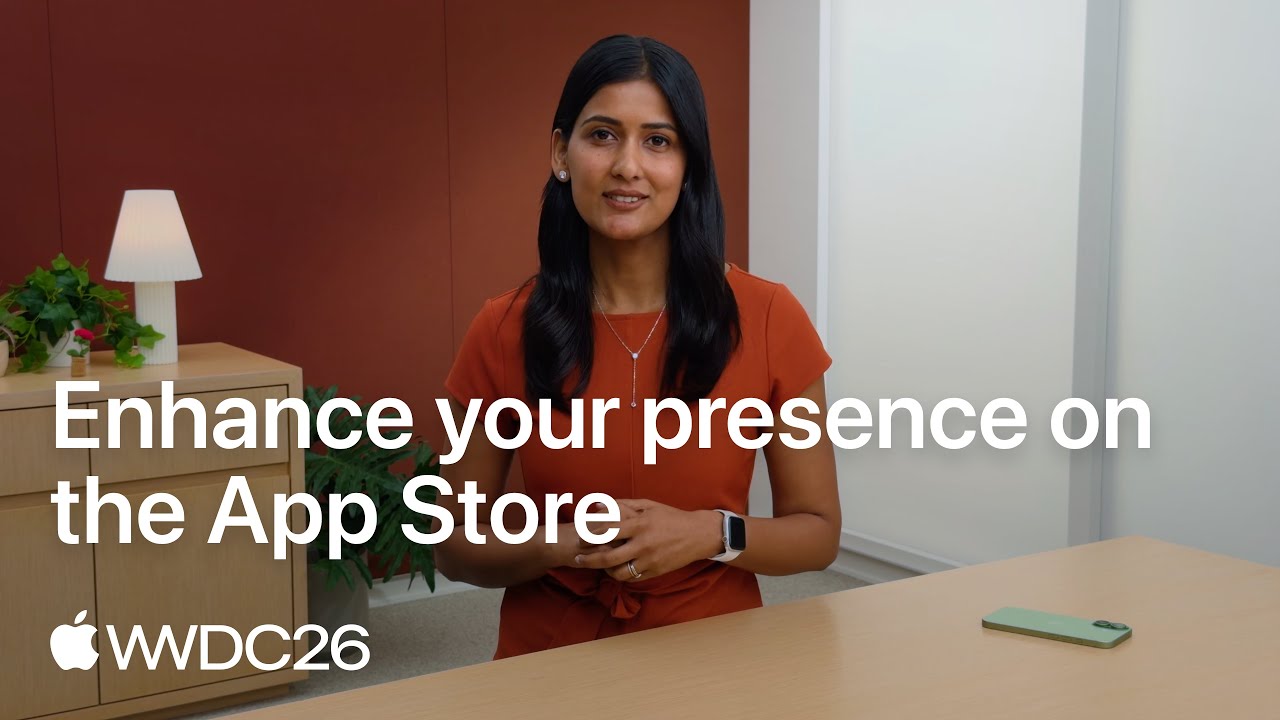
Video: How Apple's New Product Page and Search Assets Work
Apple's WWDC26 session on the App Store walks through the new image and video placements, the Asset Library and the tool that previews a product page before it goes live.
App Store Connect In App Purchase Screenshot Size
Every In App Purchase and subscription you submit carries one more screenshot, which only App Review sees. Apple's reference for In App Purchase information describes it as a screenshot that clearly shows the item or service being offered, used for review only and never shown on the App Store. On size, the same page says only that it must meet any of the screenshot specifications your app supports, and that once uploaded it can be updated but not removed.
Developers report that this slot is pickier than that wording suggests. In a forum thread from July 2025, a developer quotes the wrong format and wrong dimensions messages for a 1290 x 2796 file, which is an accepted size for product page screenshots. In a thread from January 2026, a developer who had tried the documented sizes reports that the upload went through after resizing the image to 640 x 920 pixels. That is the portrait size Apple lists for the iPhone 3.5 inch display without the status bar.
So start with a capture of the purchase screen at your main upload size, such as 1320 x 2868. If App Store Connect refuses it, export the same screen at 640 x 920 and try again. Forum posts are reports from developers rather than statements by Apple, and the behavior can change between App Store Connect releases. The review screenshot only has to show the offer clearly, so captions and device frames add nothing here.
Google Play Store Screenshot Sizes and Feature Graphic
Google Play works with ranges and aspect ratios instead of exact device sizes. You can add up to 8 screenshots for each device type, and you need at least 2 across device types to publish. Everything below is from Google's Play Console Help page on preview assets, checked October 11, 2026.
| Asset | Size and format | How many | Notes |
|---|---|---|---|
| Phone screenshots | JPEG or 24 bit PNG with no alpha. Each side between 320 and 3,840 pixels, and the long side no more than twice the short side. | At least 2 across device types to publish, up to 8. | To be eligible for the large recommendation formats, apps need at least 4 screenshots at 1080 x 1920 (9:16 portrait) or 1920 x 1080 (16:9 landscape) or larger. Games need at least 3. |
| Tablet (7 inch and 10 inch) and Chromebook screenshots | Between 1,080 and 7,680 pixels, 16:9 for landscape or 9:16 for portrait. | Google asks for a minimum of 4, up to 8. | Leave out added text that is not part of the app. Google warns it can be cut off on some screen sizes. |
| Feature graphic | 1024 x 500, JPEG or 24 bit PNG with no alpha. | 1, required to publish. | Keep the logo and headline near the center. The edges can be cut off or covered. |
| App icon | 512 x 512, 32 bit PNG with alpha, at most 1024 KB. | 1, required to publish. | No badges or text that suggest ranking or price. |
| Wear OS screenshots | 1:1 aspect ratio, at least 384 x 384. | At least 1. | Show only the app interface. No device frames, added text or transparent backgrounds. |
| Android TV | TV banner of 1280 x 720, JPEG or 24 bit PNG with no alpha. | At least 1 TV screenshot plus the banner. | TV screenshots only appear on Android TV devices. |
| Android XR screenshots | 8:5 aspect ratio. 3840 x 2400 recommended, 1920 x 1200 minimum. PNG or JPEG up to 8 MB each. | 4 to 8. | Applies only to apps for Android XR headsets. |
| Android Automotive OS screenshots | 800 x 1280 portrait and 1024 x 768 landscape. | At least 2 of each, if you provide them. | Must show the generic system interface, not one car model. |
| Preview video | A YouTube URL. The video must be public or unlisted, embeddable, not age restricted and with ads turned off. | 1. | Only the first 30 seconds can autoplay. |
One thing to watch: an iPhone screenshot at 1320 x 2868 is about 2.17 times taller than it is wide, which breaks Google's rule that the long side is at most twice the short side. Export a separate 1080 x 1920 set for Google Play.
App Store Screenshot Guidelines: What Apple Rejects
The size is only half of the app store screenshot requirements. Screenshots are metadata, so App Review checks them against section 2.3 (Accurate Metadata) of Apple's App Review Guidelines. These are the rules that cause rejections.
Screens That Do Not Show the App in Use
Guideline 2.3.3 says screenshots should show the app in use, not only title art, a login page or a splash screen. Text and image overlays are allowed, so a caption above a real screen is fine. A set of pure marketing slides with no interface is the risky case.
Prices, Discounts and Terms
Guideline 2.3.7 says screenshots and previews should not include prices or terms. Apple's asset best practices add that you should leave out specific pricing, discounts, website URLs and copyright symbols, so the image stays true in every country.
Other Platforms in the Picture
Guideline 2.3.10 tells you not to include names, icons or imagery of other mobile platforms or alternative app marketplaces. An Android phone frame or a Google Play badge in an App Store screenshot is the classic way to trip this.
Content Above a 4+ Rating
Guideline 2.3.8 requires icons, screenshots and previews to fit a 4+ age rating even when the app itself is rated higher. For a game with violence, choose frames without gore or a weapon pointed at a character.
Real People's Data and Borrowed Material
Guideline 2.3.9 makes you responsible for the rights to everything in your screenshots and asks you to show fictional account information instead of a real person's data. Replace real names, emails, photos and messages before you capture.
Hidden Purchases and Unearned Awards
Guideline 2.3.2 says screenshots must make clear when a featured item, level or subscription costs extra. Apple's best practices also tell you to avoid claims that cannot be verified, and not to add Apple recognitions such as Editor's Choice or App of the Day yourself.
Which Screenshots Show in Search Results, and How to Use the First Three
Most people meet your app in search before they see the product page. Apple's product page guidance says the first one to three screenshots appear in search results, depending on their orientation, when no app preview is available. Apple's App Store search page puts the limit at up to three screenshots or app previews, depending on the platform and orientation.
- Step 1
Check What Takes the Slot Before Your Screenshots
App previews are always shown before screenshots. If you set a search results creative asset, that appears instead, and Apple's asset best practices say that without one your in app events, app previews and screenshots are used. People who already downloaded your app see an in app event card in place of screenshots while an event is running.
- Step 2
Put the Main Job of the App in Screenshot One
The first image has to explain what the app does to someone who has never heard of it. Show the main screen with real looking content and one short caption that names the outcome, such as "Split any bill in two taps". Save settings, onboarding and sign in screens for later or leave them out.
- Step 3
Make Screenshots Two and Three Stand Alone
Each of the next two should cover one feature or benefit and make sense without the others. Apple's advice is to lead with your strongest features and order them the way someone would use the app. A panorama that only works when three images sit side by side is a gamble, because you do not control how many are shown.
- Step 4
Keep Captions Short and Readable at Thumbnail Size
A search result shows your screenshot far smaller than you designed it. Use one phrase per image, set large, in the center area. Apple recommends a short phrase that adds to the visual instead of describing it, with the focal point kept in the center so nothing is clipped.
- Step 5
Preview the Result, Then Localize
App Store Connect has a Preview tool that shows your product page and search result on iPhone and iPad before anything goes live, described in Apple's guide to managing App Store assets. Once the first three work in your main language, translate the captions for each language you support.
Common App Store Screenshot Mistakes
Exporting at Almost the Right Size
A canvas of 1290 x 2800, or a capture from a device whose resolution is not on Apple's list, does not match any accepted size. Start the design file at a size from the tables above, and check that the export did not apply a 2x or 0.5x scale.
Leaving Transparency in a PNG
Rounded device corners on a transparent background look fine in a design tool, but Apple states that screenshots cannot include alpha channels or transparencies. Flatten the image onto a solid background or export it as JPEG.
Reusing iPhone Art for iPad or Google Play
iPhone screenshots are much taller than iPad screenshots, and taller than Google Play allows. Stretching one into the other distorts the interface, which Google's guidelines list among the things to avoid. Plan three layouts: iPhone, iPad and a 9:16 set for Google Play.
Showing an Old Version of the App
Section 2.3 of the App Review Guidelines asks you to keep metadata up to date with new versions. After a redesign, old screenshots mislead buyers and invite a metadata rejection. Recapture them in the same release, and say what changed in your app release notes.
Uploading One Language Everywhere
A new localization starts with your primary language screenshots. If the captions are in English, a French shopper sees English text over a French listing. Translate the captions at least for your largest markets.
Capturing Every Size by Hand
Screenshots for several devices and languages add up fast. The fastlane screenshots guide describes a snapshot tool that captures screenshots in multiple languages across simulators, and a deliver command that uploads them, so a release does not depend on someone pressing buttons in a simulator.
Reuse Your Store Screenshots in Social Posts With Spreadcast
Good screenshots do a second job after the store. They are the most honest picture of your app you own, which makes them the right image for an update announcement or a feature post. To put them in an iPhone frame for a post, a deck or your website, use the free iPhone mockup generator, which loads them straight from your App Store link.
Spreadcast is built on that idea. You paste your App Store link at the start page, and it reads the public listing every day: the icon, the screenshots, the release notes, the reviews. When a new version appears, it designs an app update post around the app's own screenshot and publishes it to the networks you connected, or waits for your approval first. It works with App Store listings today. Google Play is not supported yet.
Store sizes and social sizes are different, so check social media image sizes if you build posts by hand, and read Apple's App Store marketing guidelines explained before you put a device frame or a badge in an ad. For the wider plan, see how to market an app, the app launch checklist and these app update announcement examples.
Frequently Asked Questions
What size should App Store screenshots be in 2026?
For iPhone, 1320 x 2868 pixels in portrait is the largest accepted size for the Dynamic Island large display, and Apple scales it down for smaller phones. For iPad, use 2064 x 2752 pixels. Both come from Apple's screenshot specifications, checked October 11, 2026. Apple's summary of required sizes also names the Dynamic Island medium display, which is 1206 x 2622 pixels.
How many screenshots are required for the App Store?
One. Apple requires at least one screenshot for each required device size and lets you upload up to 10 per device size and language. One is enough to submit, but up to three can appear in search results, so three strong screenshots is the practical minimum.
What are the App Store Connect required screenshot sizes?
For an iPhone app, a set for the large display (1320 x 2868, 1290 x 2796 or 1260 x 2736 for Dynamic Island phones, or 1284 x 2778 or 1242 x 2688 for Face ID phones) and, by Apple's summary list, the Dynamic Island medium display (1206 x 2622 or 1179 x 2556). For an iPad app, the 13 inch display (2064 x 2752 or 2048 x 2732). Mac, Apple Watch, Apple TV and Apple Vision Pro apps need their own sizes.
Do I still need 6.5 inch or 5.5 inch screenshots?
The 6.5 inch size (1242 x 2688, part of Apple's Face ID large display group) is only required when you upload nothing for the Dynamic Island large display. The 5.5 inch size (1242 x 2208, the Home Button large display) is optional. Apple fills it with a scaled copy of your Face ID medium display screenshots.
What format do App Store screenshots need to be?
JPEG or PNG (.jpeg, .jpg or .png), with no alpha channel or transparency. Apple's screenshot page does not list a color space or a file size limit, so if an upload fails, check the pixel size and transparency first.
What is the Play Store screenshot size in pixels?
Google Play accepts JPEG or 24 bit PNG screenshots with each side between 320 and 3,840 pixels, where the long side is at most twice the short side. For the best placement, upload at least four at 1080 x 1920 (portrait) or 1920 x 1080 (landscape). The feature graphic is 1024 x 500. See Google's Play Console Help page on preview assets.
Can I use the same screenshots for the App Store and Google Play?
You can reuse the design, but not the files. A current iPhone screenshot is about 2.17 times taller than it is wide, and Google Play caps the ratio at 2 to 1. Apple also rejects imagery of other platforms, so remove any iPhone frame for Google Play and any Android frame for the App Store.
Why are my App Store screenshots not updating?
Screenshots on your product page are uploaded to an app version and submitted for review with it, so the store keeps showing the old set until that version is approved and released. Check the language as well: each localization keeps its own set, and a scaled size changes only when the set it is scaled from changes. Apple's steps are in its guide to managing App Store assets.
What size is an iOS simulator screenshot?
The full resolution of the device you ran, according to Apple's Xcode guide. An iPhone 17 Pro Max or 18 Pro Max simulator gives 1320 x 2868, an iPhone Air gives 1260 x 2736, and an iPhone 17, 17 Pro or 18 Pro gives 1206 x 2622. All three are accepted sizes, so a simulator capture uploads without resizing.
Is there an App Store screenshot size converter?
You rarely need one, because App Store Connect scales your highest resolution set down for smaller devices. To make your own file for another iPhone size, scale the master by width and crop a few pixels of margin, as the converter table above shows. iPad, Home Button iPhone and Google Play sizes are a different shape and need their own layout.
What size should an In App Purchase review screenshot be?
Apple's reference says it can be any screenshot size your app supports, and that it is seen only by App Review. Developers on Apple's forums report refusals of standard sizes in this slot and success with 640 x 920 pixels, so keep that size ready if the first upload fails.
Where These Facts Come From
Every outside number, rule and price on this page links to the page it was taken from.
- Screenshot specificationsApple Developer, App Store Connect Help
- App preview specificationsApple Developer, App Store Connect Help
- Manage your App Store assetsApple Developer, App Store Connect Help
- Creative assets specificationsApple Developer, App Store Connect Help
- Localize app informationApple Developer, App Store Connect Help
- App Review Guidelines, section 2.3 Accurate MetadataApple Developer
- App Store asset best practices and resourcesApple Developer
- Creating your product pageApple Developer
- App Store searchApple Developer
- Add preview assets to showcase your appGoogle Play Console Help
- fastlane screenshots guide for iOSfastlane docs
- iPhone 16 Pro Max tech specsApple Support
- iPhone 16 Pro tech specsApple Support
- iPhone 15 Pro Max tech specsApple Support
- iPhone 11 Pro Max technical specificationsApple Support
- iPhone 8 Plus technical specificationsApple Support
- iPhone 18 Pro Max tech specsApple Support
- iPhone 18 Pro tech specsApple Support
- iPhone 17 Pro Max tech specsApple Support
- iPhone 17 Pro tech specsApple Support
- iPhone 17 tech specsApple Support
- iPhone Air tech specsApple Support
- iPhone 17e tech specsApple Support
- Capturing screenshots and videos from devicesApple Developer Documentation, Xcode
- Export formats and settings for static designsFigma Help Center
- In App Purchase information, App Review screenshotApple Developer, App Store Connect Help
- Forum thread on an In App Purchase review screenshot refused at 1290 x 2796Apple Developer Forums
- Forum thread on a subscription review screenshot accepted at 640 x 920Apple Developer Forums
- Video: Enhance your presence on the App Store, WWDC26Apple Developer
Researched and written by Spreadcast. Last checked on October 17, 2026.