To publish an app on Google Play you need a Google Play developer account, which costs a one time $25. You choose a personal or an organization account, verify your identity, create the app in Play Console, fill in the store listing and the App content declarations, upload an Android App Bundle that targets Android 16 (API level 36), and send it for review. If you open a personal account today, there is one more gate: Google requires a closed test with at least 12 testers who stay opted in for 14 days in a row, then a short application for production access, which Google says usually takes seven days or less to review. Plan on three to four weeks from sign up to a public listing on a new personal account, and less on an organization account.
That is the whole job in one paragraph. The rest of this guide goes through each step in the order Play Console asks for it, with the exact limits, the forms, the review times Google publishes, the reasons apps get rejected, what Google takes from each sale after the 2026 fee changes, and a checklist you can work down on launch week. Every rule here comes from Google's Play Console Help center or the Android Developers site, and each one links to the page it came from. All of them were opened on November 13, 2026.
A word on why this is worth the paperwork. Android ran on 72.36% of the mobile devices StatCounter measured worldwide in October 2026, against 27.61% for iOS. If your app only lives on the App Store, most of the world's phones cannot install it. Our page on Android vs iOS market share breaks that split down by country, which matters because the US looks very different from India or Brazil.
How to Publish an App on Google Play: The Steps in Order
Here is the full path for a new developer, start to finish. Organization accounts skip steps 3 and 7, and personal accounts made before November 13, 2023 skip step 7 as well.
- Create a Google Play developer account with a Google Account, accept the Developer Distribution Agreement and pay the $25 registration fee (Get started with Play Console).
- Choose a personal or organization account and verify your identity: a government ID for everyone, plus a DUNS number and an official organization document for organizations (Verify your developer identity).
- Personal accounts: verify that you have a real Android device using the Play Console mobile app (Device verification).
- Create the app in Play Console: name, package name, default language, app or game, free or paid, and a contact email (Create and set up your app).
- Fill in the store listing: name, short and full description, icon, feature graphic and screenshots (Add preview assets).
- Complete the App content page: privacy policy, ads, sign in details, target audience, content rating and the Data safety form (Prepare your app for review).
- Personal accounts made after November 13, 2023: run a closed test with 12 testers for 14 continuous days, then apply for production access (Testing requirements).
- Build a signed Android App Bundle that meets the target API level, create a production release, pick your countries and roll it out (Prepare and roll out a release).
- Wait for review, then watch your first users, reviews and crash reports, and start telling people the app exists.
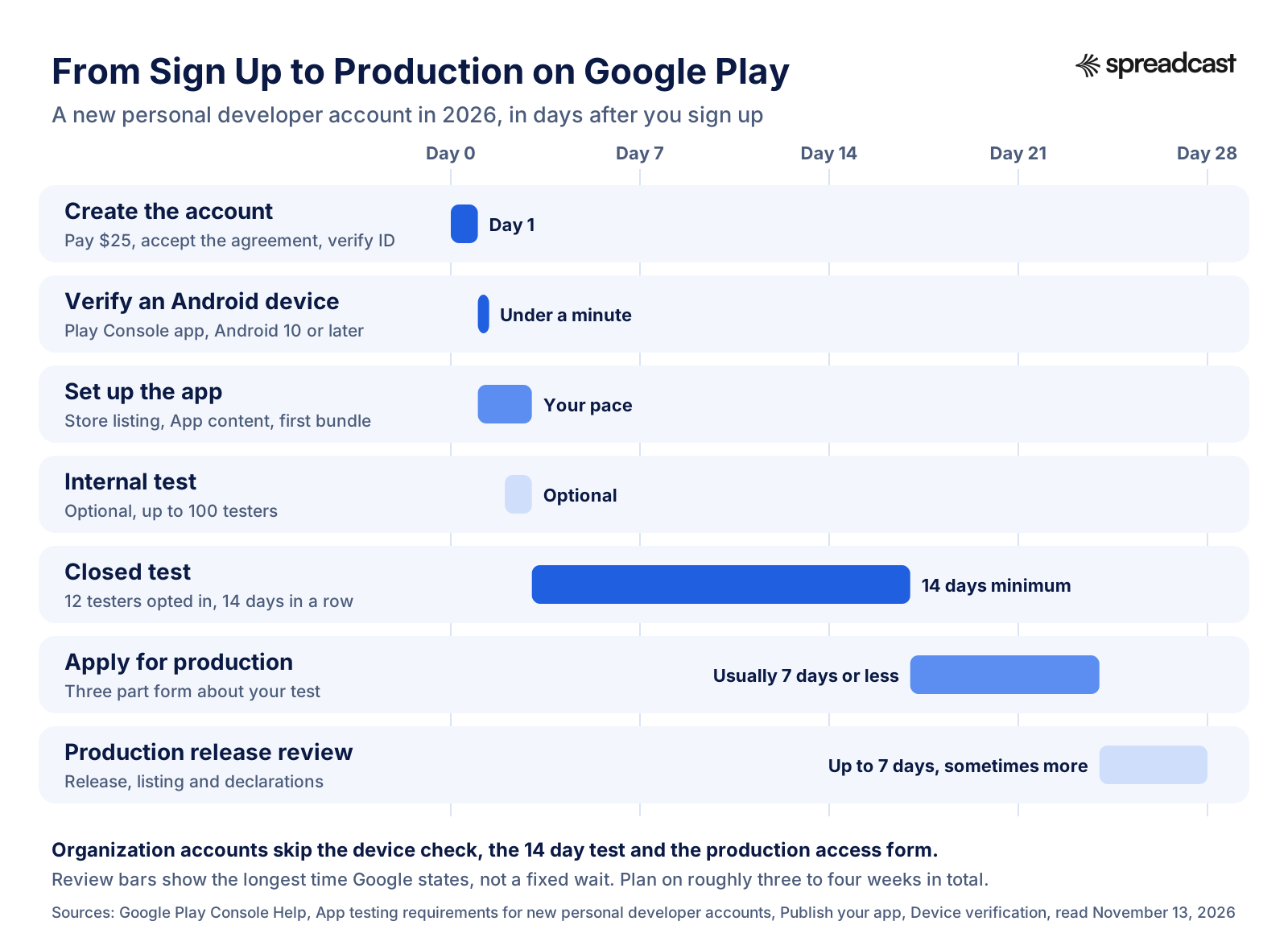
The order matters more than it looks. You can start an internal test before the store listing is done, but a closed test only opens once app setup is complete, and the 14 day clock only starts when your testers opt in. So the fastest route is to get the listing and the App content forms finished in the first few days, start the closed test the moment it unlocks, and use the two weeks of testing to polish screenshots and fix what testers find. People who build the whole app first and only then open Play Console tend to lose two weeks they did not plan for.
How Much Does a Google Play Developer Account Cost?
A Google Play developer account costs US$25, paid once. There is no yearly renewal. Google's Get started page lists the cards it takes: Mastercard, Visa, American Express, Discover (US only) and Visa Electron (outside the US only). Google Play does not accept prepaid cards, and card acceptance varies by location, so if your card is declined, try a regular credit or debit card issued in your own name before anything else.
You have to be at least 18 and have an active Google Account. During sign up you accept the Google Play Developer Distribution Agreement, then pay the fee, then choose the account type. One detail is easy to miss and costs real money: Google may ask for a valid government ID and a credit card, both under your legal name, and if it decides that information is invalid, the registration fee is not refunded. Use your real name on the payments profile from the first minute. A nickname or a card in a partner's name is the most common way people lose the $25 and have to start over.
For comparison, Apple charges 99 USD per membership year for the Apple Developer Program, so over three years Google's account costs $25 against Apple's $297. Our guide to the Apple Developer Program covers Apple's side, including fee waivers and the organization rules, if you are shipping to both stores.
There is a second $25 you may read about in 2026 and should not confuse with this one. Google's new Android Developer Console, built for developers who distribute apps only outside Google Play, charges a $25 fee for a full distribution account, which Google describes as similar to Play's registration fee. If you publish on Google Play, your Play Console account covers you and you do not need the second console.
Personal vs Organization Developer Account
Google offers two account types, and the choice page is short and plain. Choose a personal account if it is for personal use, for example if you are a student, hobbyist or amateur developer. Personal accounts can still earn money on Google Play, invite other people into the account and manage apps. Choose an organization account if you are setting it up for a business or organization, which Google describes as commercial, industrial, professional or governmental activity. Both types have the same core features and can monetize through a payments profile.
Some apps force the decision. Google says you must use an organization account if you provide any of these:
- Financial products and services, including banking, loans, stock trading, investment funds, cryptocurrency software wallets and cryptocurrency exchanges.
- Health apps, such as medical apps and human subjects research apps.
- Apps approved to use the VpnService class.
- Government apps, including apps developed by or for a government agency.
For everyone else the choice is about what you want to show the world and how fast you want to launch. A solo developer with a habit tracker can open a personal account in an evening, but then has to run the 14 day closed test. A small studio with a registered company can skip the test but needs a DUNS number first, and getting one can take weeks. If you already have a company, the organization route is usually faster overall and looks more trustworthy on the listing. If you do not, do not register a company just to dodge the test.
What You Need to Sign Up for Each Account Type
| Requirement | Personal account | Organization account |
|---|---|---|
| Registration fee | $25 once | $25 once |
| DUNS number | Not needed | Required (free from Dun & Bradstreet, can take up to 30 days) |
| Identity documents | Official government ID | Government ID and an official organization document |
| Website | Optional, recommended | Required and verified for new organization accounts since February 2024 |
| Developer email shown on Google Play | Yes, verified | Yes, verified |
| Developer phone shown on Google Play | No (except personal accounts in Korea) | Yes, verified |
| Address shown on Google Play | Only your country, unless you monetize | Full legal address |
| Android device verification | Required | Not required |
| 12 testers for 14 days | Required for accounts made after November 13, 2023 | Not required |
The table pulls from three Google pages: required information, identity verification and testing requirements. The display rules deserve a second look before you pick. On a personal account, Google shows your legal name, your country and your developer email on Google Play, and your full address only if you monetize. On an organization account it shows the legal name, legal address, developer email and developer phone. If you plan to sell anything from a personal account, your home address will end up on a public page, which is a good reason to consider an organization account or a separate business address once money is involved.
How to Get a DUNS Number for Google Play
A DUNS number is a free nine digit company identifier from Dun & Bradstreet, and Google uses it to verify that your organization exists. Google is blunt about this: you cannot create an organization developer account without one, and applying can take up to 30 days. Google also warns, twice, that applying through Dun & Bradstreet is completely free, and that some third party services try to charge high fees for it. Look your company up on Dun & Bradstreet's own site first; many registered companies already have a number. Government agencies without one can contact Play Console support during registration instead.
Google Play Developer Account Verification
Verification is the part of sign up that most often stalls, so it helps to know every check in advance. Google's identity verification page lists them. Your legal name and address come from the Google Payments profile you link, and the payments profile type has to match the account type. If the profile is not already verified, a personal account uploads an official government identity document; an organization uploads a DUNS number, a government ID and an official organization document.
- Developer email: everyone verifies it with a 6 digit code sent by email, and it is shown on Google Play.
- Developer phone: organizations must verify one, by text or voice call, and it is shown on Google Play. Phone verification only opens after identity verification, website verification (organizations) and device verification (personal accounts) are done.
- Contact email and phone: private details Google uses to reach you. These are verified too and never shown to users.
- Website: required and verified for organization accounts created since February 2024, optional for everyone else.
Android Device Verification for Personal Accounts
Since early 2024, new personal accounts must prove they have access to a real Android phone before they can publish. Google's device verification page says you sign in to Play Console on the web as the account owner, find the task called "Verify that you have access to an Android mobile device" on the Home page, scan the QR code, open the Play Console mobile app on the phone and tap Verify. Any non rooted physical Android device running Android 10 or later works, it should take less than a minute, and you can use the same phone to verify more than one account. The phone number of that device is not collected. If you build with an emulator and do not own an Android phone, borrow one for five minutes; there is no way around this step on a personal account.
Android Developer Verification in 2026: What Changes for Google Play Developers
You may have seen headlines about Android requiring every developer to be verified. That is a separate program from Play's account checks above, and for most Play developers it needs no new action. On its developer verification page, Google says protections began on September 30, 2026 for users installing apps from participating stores on certified Android devices in Brazil, Indonesia, Singapore and Thailand, and that verification will expand globally for all apps on certified devices in 2027.
According to Google's June 2026 update, the first phase covers seven stores, including Google Play, Samsung's Galaxy Store and Xiaomi's GetApps. Unregistered apps can still be installed through Android Debug Bridge or the new advanced flow for power users. For Play developers, the Play Console guide says your existing verified identity meets the requirement, 99% of apps on Play were registered automatically, and when you create a new app, Play Console registers the package name and links it to your account. If another developer already uses that package name, Play Console asks you to choose a different one.
Two practical consequences for a new app. First, check the Home page in Play Console for any registration task, because a July 2026 update to Google's announcement told developers to register remaining apps by September 30, 2026 to avoid global removal from Google Play. Second, use Play App Signing. Google's verification FAQ says apps that use Play App Signing are claimed automatically, and that if you lose your own signing key you will not be able to register your packages. Students and hobbyists who do not want to show an ID can use a free limited distribution account in the Android Developer Console, which shares apps with up to 20 devices, but that is for testing and personal use, not for a Play launch.
The Google Play 12 Testers 14 Days Requirement
This is the rule that surprises people most. Google's testing requirements page says personal developer accounts created after November 13, 2023 must run a closed test with a minimum of 12 testers who have been opted in continuously for at least 14 days. Until you meet it, the Production page and Pre registration stay disabled in Play Console. Once you meet it, you apply for production access from the Dashboard.
The number used to be 20. Google's current page does not say when that changed, and we did not find an announcement from Google, so the date here is our own reading of the Internet Archive: an archived copy of the page from December 10, 2024 still asks for a minimum of 20 testers, and a copy from December 13, 2024 asks for 12. So the change landed in those few days, and a tutorial or forum post that tells you 20 was written before mid December 2024. The 14 days did not change.
Read the word continuously literally. Google's FAQ on the same page says testers who opt in, test for fewer than 14 days and then opt out do not count. If a tester opts out and back in, their 14 days start again. At the moment you apply, at least 12 people must be opted in and must have been opted in for each of the preceding 14 days. A practical buffer: recruit 15 to 20 people, because someone will leave the Google Group, switch phones or uninstall halfway through.
It does not apply to everyone. Organization accounts are not covered, and Google's create and set up page says the requirement does not apply to personal accounts created before November 13, 2023. If you bought into Play years ago, you publish the old way.
How to Get 12 Testers for a Google Play Closed Test
Google's own advice is the boring kind that works: friends, family, colleagues and classmates first, then communities where your future users already are, and social media followers. Its example is a fitness app recruiting from local clubs and online groups. It also asks for testers who look like your real audience, because the production access form asks whether testers used the app the way real users would.
- Use a Google Group as the tester list. Closed tests accept email lists of up to 2,000 testers each or Google Groups with no size limit, and a group lets people join themselves from one link. They must join the group before they can opt in to the test.
- Send each tester two links: the opt in link from Play Console and the Play Store link to install. Closed test apps do not show in Play search, so without the store link people get stuck.
- Tell them, in writing, to stay opted in for at least 14 days. Google asks you to say this explicitly.
- Give them something to do. Two or three tasks a week (create an account, try the export, break the onboarding) produce the engagement Google asks about and the feedback you need for the form.
- Collect feedback in one place: Play's private feedback, an email address or a chat group. You must summarize it when you apply.
- Ship at least one update during the test that fixes something testers reported. The form asks what you changed because of the test, and a real answer is much easier to write.
Reddit and Discord are full of tester exchange groups where developers install each other's apps to reach 12. They can get the numbers, but they rarely produce the engagement Google's form asks about, because strangers swapping installs do not use your app the way your audience would. Google says it may ask you to keep testing if it sees fewer than 12 opted in testers or insufficient tester engagement. Ten real people who care about your app plus a few friends is a better test than 30 strangers who never open it.
Recruiting testers is also your first marketing. A short post saying what the app does, who it is for and how to join the test reaches the same people who will download it at launch, so write it the way you would write the launch post. The guide on how to promote an app on social media covers where those posts work best for app makers, and promoting an app for free lists the communities that welcome beta invites.
What to Write in the Production Access Application
When the 14 days are up, you open the Dashboard, click Apply for production and fill in a form with three sections. None of the answers is shown publicly, and Google says the middle section does not affect your app's visibility or eligibility for programs.
| Section | What Google asks | What a good answer includes |
|---|---|---|
| About your closed test | How easy it was to recruit testers, whether they used all features, whether their usage matched expected real use, and a summary of feedback and how you collected it | Where testers came from, the features they used, one or two concrete bugs or confusions they reported, the channel you used |
| About your app or game | Your target audience, the value your app gives (for games, what makes it unique), and an estimated install range for the first year | A specific audience ("freelance designers who invoice monthly"), one sentence of value, an honest install range |
| About your production readiness | What you changed based on the closed test, and how you decided the app is ready | The fixes you shipped during the test, the crash and ANR state, the pre launch report results |
Write it like a short report to a colleague, not like marketing copy. Vague answers such as "testers liked the app" are the ones that come back with a request to keep testing. If a tester found a crash on Android 12 and you fixed it in version 1.0.3, say exactly that. Save as you go: Google warns that clicking Discard or leaving the page before Next or Apply loses your answers.
How Long the Production Access Review Takes
Google says the review of a production access application usually takes seven days or less, but can occasionally take longer, and the account owner gets an email when it is done. If it is approved, the Production page and the Open testing page unlock. If Google wants more testing, the usual reasons it gives are fewer than 12 opted in testers or not enough engagement, and the fix is to keep the closed test running, act on more feedback and apply again. Google also adds a warning worth repeating: review is not a troubleshooting step. Sending a non compliant app and expecting reviewers to find the problems leads to rejections, delays and longer appeals.
Internal vs Closed vs Open Testing on Google Play
Play Console has three testing tracks before production, and they are not just bigger and smaller versions of the same thing. Google's testing tracks page and its requirements page describe what each one is for.
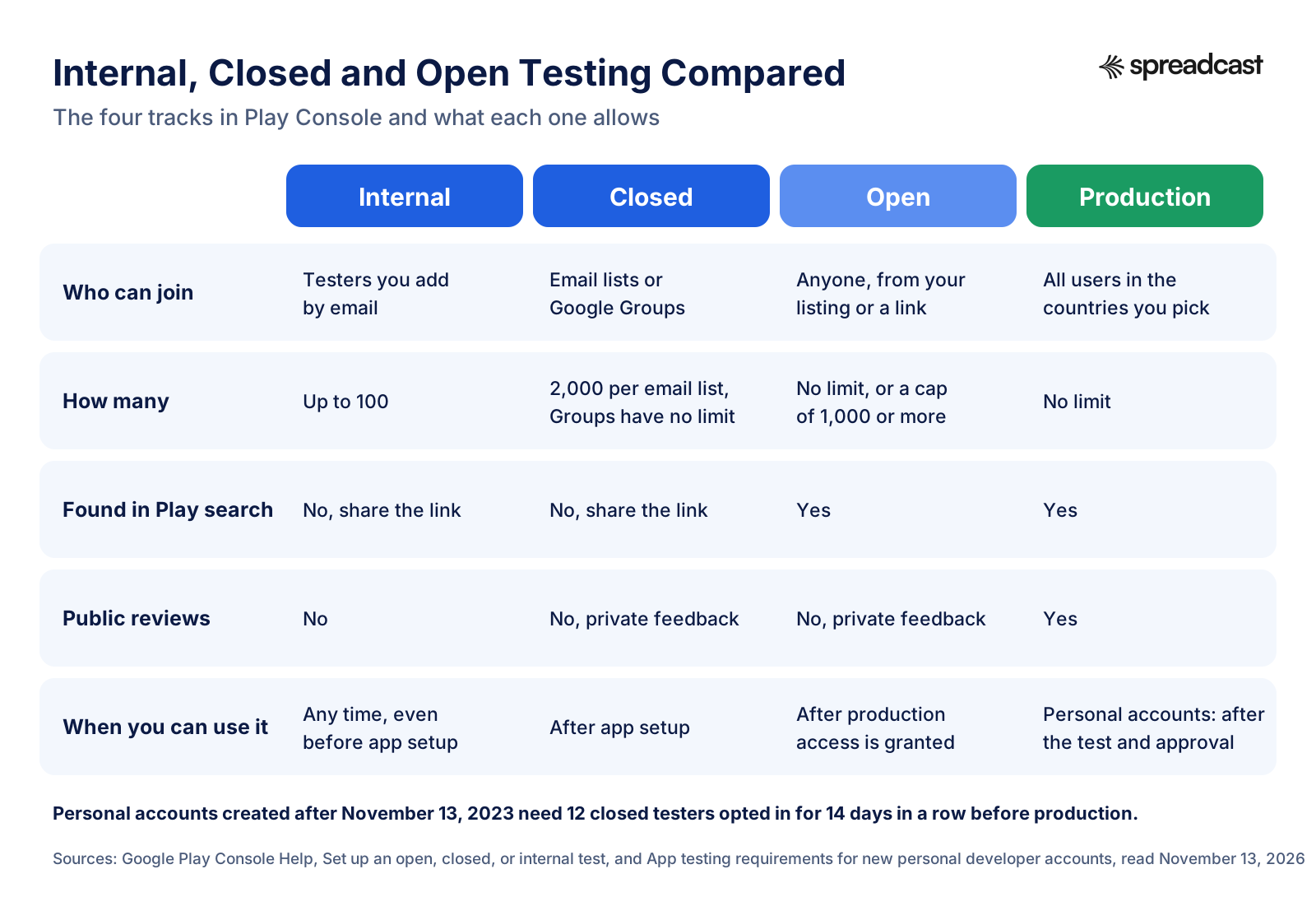
| Detail | Internal testing | Closed testing | Open testing |
|---|---|---|---|
| Purpose (Google's words) | Distribute builds to a small group of trusted testers for early feedback | Share the app with users you control, fix issues and check policy compliance before launch | Surface a test version on Google Play so anyone can join and send private feedback |
| Testers | Up to 100 per app, added by email | Email lists of up to 2,000 each (200 lists per account, 50 per track) or Google Groups with no size limit | Unlimited, or a limit you set of at least 1,000 |
| When it opens | Any time, even before app setup is finished | After app setup is complete | After you gain production access (personal accounts) |
| Found in Play search | No, share the link | No, share the link | Yes |
| Policy and security review | Might not go through standard review | Standard review | Standard review |
| Paid apps | Testers install for free | Testers must buy | Testers must buy |
| Counts toward 12 testers | No | Yes | No |
Internal testing is the quick one. Google says builds normally reach testers within seconds of being added, it works before the store listing is done, and internal testing tracks are exempt from the Data safety section. Use it from day one for yourself and a couple of friends, on real phones, to catch the crash on launch before strangers see it.
Closed testing is what most people mean by a beta, and it is the only track the production access rule counts. You can create extra closed tracks with their own names if you want to test two versions with two groups. Open testing is a public beta: it shows on Google Play, and for an app that has never been in production, people can find the test by searching Play. For a first launch on a personal account you will usually go straight from closed testing to production, and keep open testing for later, bigger experiments.
Testers in closed and open tests cannot leave public reviews for test versions; they send private feedback through Google Play instead, and that feedback does not affect your public rating. Before your app's first review, testers see a temporary name for it on Google Play, which you can find in the app summary on the Dashboard. If a tester says the name looks wrong, that is why.
Preparing the Release: App Bundle, Target API Level, Signing and Size
Before Play Console accepts your first upload, the build itself has to meet four technical rules. None of them is hard on a fresh project in a current version of Android Studio, but each one has stopped a launch at the last minute for someone using an old template.
Upload an Android App Bundle, Not an APK
Since August 2021, new apps must publish with the Android App Bundle, the .aab file. You build and sign one bundle, and Google Play generates and serves APKs optimized for each device configuration, so a user only downloads the code and resources their phone needs. In Android Studio this is Build, then Generate Signed App Bundle. Frameworks such as Flutter and React Native have their own commands that produce the same .aab. Apps created before August 2021 can still upload APKs, which is why some old guides still talk about them.
Target API Level Requirement for 2026
Since August 31, 2026, Google's target API level page says new apps and app updates must target Android 16 (API level 36) or higher to be submitted to Google Play. The exceptions are Wear OS and Android Automotive OS apps, which must target Android 15 (API level 35), and Android TV and Android XR apps, which must target Android 14 (API level 34). Developers could request an extension to November 1, 2026, a date that has now passed. In practice: set targetSdk to 36 in your build file before you build the release.
The target is not the same as the minimum. Targeting API 36 tells Android your app was tested against Android 16 behavior; your minSdk can stay lower so older phones can still install it. Existing apps have a looser rule: they must target Android 15 (API level 35) or higher to stay available to new users on newer Android versions. Apps that fall behind are only shown to devices running the same or an older Android version. The Android Developers migration guide lists the behavior changes for each version if your app has been sitting on an old target.
Play App Signing and Your Upload Key
Every Android app must be signed. With Play App Signing, Google keeps the app signing key on its own key management infrastructure and signs the APKs it delivers to users. You keep a separate upload key, which must be an RSA key of 2048 bits or more, and you sign each bundle with it before uploading. If you lose or leak the upload key, Google can reset it. If you manage your own app signing key and lose it, it cannot be reset, which means you can never ship an update to that app again.
When you create a new app in 2026, Google's page says it is enrolled automatically in quantum ready hybrid signing with Google generated keys: devices on Android 17 or later check a signature that combines a classical RSA key with a post quantum key, while older devices check the classical signature. You accept the Play App Signing terms when you create the app. Advanced developers can switch to their own key before the first release goes to open testing or production, but for a new solo app the default is the right choice, and it also covers the Android developer verification requirement automatically.
Back up the upload keystore and its passwords somewhere that is not your laptop. A reset is possible, but it goes through Play Console support and takes time you will not have on the day a crash fix needs to ship.
Package Name and Version Code
Your package name (com.yourstudio.appname) is chosen when you create the app, and Google's setup page says package names are unique and permanent: they cannot be deleted or reused. Pick it as if you will keep it for ten years, because you will. Every bundle also carries a versionCode, which must go up with each update and cannot exceed 2,100,000,000. Many teams use a simple scheme such as 10203 for version 1.2.3 so the number always rises and tells them which build is which.
Google Play App Size Limits
Size limits rarely bite a first app, but it is good to know where they are. Google's size limits page measures everything as compressed download size and sets these maximums for app bundles:
| Part of the app | Compressed download limit |
|---|---|
| Base module | 500 MB |
| Each feature module | 500 MB |
| Each asset pack | 1.5 GB |
| All modules plus install time asset packs | 4 GB |
| Asset packs delivered on demand or fast follow | 30 GB |
| Total for an app on Google Play | 34 GB |
| Legacy APK (apps still publishing APKs) | 100 MB |
Two softer limits matter more for downloads. Above 200 MB, users on mobile data see a dialog warning them about the size before installing. And Play Console's App size page shows how many of your active users have less than 2 GB of free storage, which is a hint about whether size is costing you installs. Small apps convert better, and a game that ships its levels as asset packs can keep the first download light.
Create the App in Play Console
With the account verified, click Create app. Google's create and set up page lists what the first screen asks: the app name as it should appear on Google Play (you can change it later), a default language, whether it is an app or a game (also changeable), whether it is free or paid, and a contact email for users. You then acknowledge the Developer Program Policies and US export laws and accept the Play App Signing terms. You also enter the package name here, and that one is permanent, so pick it with the care described above.
After that, the app's Dashboard turns into a checklist of tasks: set up your store listing, complete the App content declarations, set up testing and then release. It is a good guide. Do the tasks in its order and you will not miss a required field.
Google Play Store Listing Requirements
The store listing is the page people see before they install, and it is shared across all tracks, including your closed test. Testers see the same listing your future users will, which is one more reason to finish it early.
App Name, Short Description and Full Description Limits
| Field | Limit | Notes from Google |
|---|---|---|
| App name | 30 characters | One localized name per language |
| Short description | 80 characters | The first text users see on your detail page; required |
| Full description | 4,000 characters | Expandable from the short description |
| Release notes (What's new) | 500 characters per language | Written per release, not on the listing page |
The setup page gives the first three limits and warns that repetitive or irrelevant keywords in the name or descriptions can lead to app suspension. The preview assets page adds rules for the short description that catch a lot of first time listings: no emojis, no special character sequences, no capital letters for emphasis, no calls to action like "download now" or "try now", and no words that suggest ranking, awards or price, such as "Best", "#1", "Top", "New", "Discount", "Sale" or "Million Downloads". It also says unnecessary keywords will not improve ranking and only make the experience worse.
Write the short description as one plain sentence about what the app does and for whom: "Track shared expenses with roommates and settle up in one tap" works; "BEST expense app!!! Download now" breaks four rules at once. Our App Store character counter counts Google Play's name, short description and full description fields as you type. How to choose the words that help people find you in Play search is its own subject, covered in our guide to Google Play ASO.
App Icon, Feature Graphic and Screenshots
| Asset | Required | Specification |
|---|---|---|
| App icon | Yes | 512 by 512 px, 32 bit PNG with alpha, up to 1,024 KB |
| Feature graphic | Yes | 1024 by 500 px, JPEG or 24 bit PNG with no alpha |
| Screenshots | At least 2 across device types | JPEG or 24 bit PNG, no alpha, each side 320 to 3,840 px, the long side at most twice the short side, up to 8 per device type |
| Screenshots for recommendation formats | Recommended | Apps: at least 4, at least 1080 px, 9:16 portrait (1080 by 1920 minimum) or 16:9 landscape; games: at least 3 |
| Preview video | Optional | One YouTube URL, not a playlist or channel, no timecode parameters |
All of this is on Google's preview assets page. The icon on the listing is a higher resolution version of your launcher icon, not a replacement for it, and it must not carry badges or text that suggest ranking or price. You can check an icon file against Google's size before uploading with our app icon size checker, which reads both stores' rules.
The feature graphic is the image people forget. It is required, it is the cover image of your preview video, and Play shows it in large format collections. Google asks for vivid colors (avoid pure white, black or dark gray, which blend into the Play background), the important content kept toward the center so it is not cut off, and branding that extends your icon rather than repeating it. Do not put the words Free, Best or New on it.
For screenshots, Google wants the real in app experience in the first three, captions only where needed and taking no more than 20% of the image, no fingers tapping the screen, no Google Play badge, and a clean status bar with full battery, Wi Fi and signal icons. Google also lists device imagery among the elements to avoid. For every size, aspect ratio and device type in one place, see our reference on Google Play screenshot sizes. If you are making iPhone screenshots for the App Store at the same time, our screenshot generator builds framed images from your listing.
Category, Contact Details and Translations
You also choose a category and tags, and add contact details. A support email is required; a website and phone number are optional, and Google recommends a website. If you do not translate your listing, Google Play shows an automated Google Translate version or your default language, with a note that the text was translated automatically. That is fine for a first launch. Add your own translations for the two or three biggest markets in your Play Console statistics once you have real data.
Once the listing is finished, you already have most of what a launch announcement needs: the one sentence pitch from the short description, the screenshots and the icon. The guide on how to market an app explains how that same material becomes your first posts, and if you would rather not design them by hand, Spreadcast can turn the live Play listing into branded posts once the app is public, which the last part of this guide covers.
The App Content Page: Privacy Policy, Ratings, Data Safety and Ads
In Play Console, the App content page (under Policy and programs) holds the declarations Google needs before it will publish anything. Google's review preparation page lists them, and the Needs attention tab shows which ones are still open. Here they are one by one.
Privacy Policy
Every app needs a privacy policy, linked from the store listing and inside the app, even if it collects no personal data and does not target children. Google lists four requirements that, when missed, delay review: the policy is on an active public URL with a valid SSL certificate; it is reachable worldwide without geoblocking or a login; it is a normal web page, not a PDF or download; and it applies to your app specifically, explaining what data it collects, how it is used and with whom it is shared. A generic policy for your company's website does not count. A short page that honestly says "this app stores your notes on your device and sends nothing to us" does.
Ads Declaration
You declare whether the app contains ads, including banners, interstitials, native ads and house ads that promote your other apps. Answering yes adds a "Contains ads" label to your listing. A simple More Apps section in a menu that does not interfere with the app is not counted as ads. Google says it may verify this at any time, and misrepresenting ads in your app is a policy violation that can get the app suspended. In app purchase offers are not ads for this purpose.
App Access and Sign In Details
If any part of the app sits behind a login, a membership, a location check or other authentication, you must give reviewers a way in. You can add up to five sets of instructions, and an extra field for anything unusual, like one time passwords or two factor login. This is one of the most common reasons first submissions bounce: the reviewer cannot get past the sign in screen, so the app looks broken. Create a dedicated review account with sample data in it, and check the login works on a fresh install the day you submit.
Target Audience and Content
You declare which age groups the app is designed for. Google's target audience page is strict here: only select several age groups if the app is truly designed for each of them, not because you want it available to everyone. Any app with children in its target audience must follow the Families Policy requirements, including using only Families Self Certified Ads SDKs to serve ads. Google also notes that if your app targets anyone under 21, you have to consider whether they count as children under local law. For most productivity, finance or business apps, an adults only audience is the honest answer and the simpler one.
Content Rating Questionnaire (IARC)
Every app on Google Play needs a content rating from the International Age Rating Coalition (IARC). Per Google's content ratings policy, you fill in a questionnaire about violence, sexual content, language, gambling, user interaction and similar topics, and the app receives ratings from several regional authorities based on your answers. Unrated apps may be removed. Answer honestly: misrepresenting content can lead to removal or suspension, ads inside the app must not be significantly more mature than the app itself, and if you later add content that changes your answers (say, a chat feature), you must submit the questionnaire again. If you disagree with a rating, you appeal directly to the rating authority through the link in your certificate email.
Data Safety Form
The Data safety form is the longest of the declarations and the one most worth doing carefully. Every app published on Google Play must complete it, including apps only on closed or open testing tracks. Apps that collect no user data still fill it in and still need a privacy policy. You declare which data types the app collects or shares, why, whether collection is optional, and your security practices such as encryption in transit and whether users can request deletion. Google shows the result on your listing.
The trap is third party code. Google says you must include data collected by SDKs in your app (analytics, crash reporting, ads, login), and that you alone are responsible for an accurate form. If Google finds a mismatch between what the app does and what you declared, it may take enforcement action. Before you fill it in, list every SDK in your build and read each provider's own Data safety guidance; many publish one, and Google's SDK Index links to several.
Sensitive Permissions and Other Declarations
Depending on what the app does, the App content page may ask for more. If it requests high risk permissions such as SMS or Call Log, you complete a Permissions Declaration Form and need Google's approval; these are evaluated when you add the app bundle to a release. Do not request a permission you do not use. It adds a form, a possible rejection and a line in the Data safety section for no benefit.
How Long Does Google Play Review Take?
There are two different reviews on a new personal account, and people mix them up. The first is the production access application after the closed test, which Google says usually takes seven days or less. The second is the review of the release itself, which every app goes through, on every account type.
For the release, Google's publishing page says this: for certain developer accounts, Google takes more time to review apps thoroughly, which may mean review times of up to seven days or longer in exceptional cases. Its managed publishing page names one group that is subject to extended review times: apps submitted by new developer accounts. Google does not publish a typical review time for established accounts. Updates to existing apps on standard publishing are processed and published as soon as possible. The managed publishing page puts a range on it: processing can take a few hours or up to seven days, or longer in exceptional cases, depending on the review time your app is subject to, and Google recommends a buffer of at least a week between submitting and going live.
| Review | Who goes through it | What Google says about timing |
|---|---|---|
| Production access application | Personal accounts created after November 13, 2023, once | Usually seven days or less, occasionally longer |
| First release of a new app | Every new app | A few hours up to seven days, longer in exceptional cases; apps from new developer accounts can get extended reviews |
| Updates to a live app | Every update that needs review | Processed and published as soon as possible; some apps get extended reviews of up to seven days or longer |
| Content rating, listing and App content changes | Any change that needs review | Reviewed with the update they are sent in |
Why do new accounts wait longer? Google does not spell out its reasons account by account, but the context is clear from its own numbers. In 2025, Google says it prevented over 1.75 million policy violating apps from being published and banned more than 80,000 developer accounts that tried to publish harmful apps. A brand new account has no history, so it gets a closer look. The practical answer is to submit early and use managed publishing, described below, so the review finishes on Google's schedule and the app goes live on yours.
If you are also shipping on iOS, the App Store works differently: Apple reviews every build, and its timing has its own patterns, which our page on App Store review time tracks. Budget a week of review for both stores before any launch date you announce publicly.
Use the Pre Launch Report Before You Submit
Play Console runs a free automated test on your app: the pre launch report. When you upload a bundle, and when you save a production release, Google installs it on a set of real Android devices in its test lab, launches it and crawls it for several minutes by typing, tapping and swiping, then reports stability, compatibility, performance and accessibility issues. Reports run automatically when there is capacity in Google's device lab. If your app has a sign in screen, give the crawler test credentials (or support Sign in with Google), otherwise it will only ever see your login page. Read the report before you apply for production access. A crash the crawler found on one of Google's test devices is exactly the kind of crash a reviewer will find.
Managed Publishing: Choose When an Approved Update Goes Live
By default, approved changes go live automatically. With managed publishing turned on, Google reviews your changes as usual, but they wait in a Ready to publish section until you press the button. Google suggests it for coordinating a launch event or ad campaign with a release, and for apps subject to extended review times. It only works once the app is already available, not for the very first publish, so Google recommends running the launch version through a closed testing track first. The Publishing overview page also lets you send only some changes for review and save others for later.
Common Google Play Rejection Reasons
Google reviews against the Developer Program Policies and the Developer Distribution Agreement, and the policy center is long. In practice, first submissions from small developers bounce for a short list of reasons, most of them avoidable in an afternoon. Here they are, each tied to the Google rule behind it.
| Reason | The Google rule | How to avoid it |
|---|---|---|
| Reviewer cannot log in | Apps restricted by login must give working sign in details on the App content page | A dedicated review account with sample data, tested on a fresh install |
| App crashes, freezes or does not load | Broken Functionality: apps that crash, force close, freeze or do not respond are not allowed | Internal and closed tests on real devices, plus the pre launch report |
| Too little content or function | Limited Functionality and Content: static apps such as text only or PDF apps, single wallpaper apps, apps with no function | Ship a real feature set; a website wrapped in a WebView with nothing app specific is a risk |
| Listing text or images break the metadata rules | Metadata policy: no misleading, irrelevant or excessive keywords, no emojis or ALL CAPS in title, icon or developer name, no ranking or price claims, no anonymous testimonials | Plain title within 30 characters, factual descriptions, no "#1" or "Free" on graphics |
| Data safety form does not match the app | You must declare all collection and sharing, including by SDKs; mismatches can lead to enforcement | List every SDK and read its own Data safety guidance before filling the form |
| Missing or unusable privacy policy | Public, worldwide, not a PDF, specific to the app, linked in the listing and in the app | A real web page about this app, reachable without login |
| Ads not declared | Misrepresenting ads can lead to suspension | Answer the ads question honestly, including house ads |
| Wrong audience or rating | Target audience and content rating must reflect the app; children in the audience trigger the Families Policy | Pick age groups the app was truly built for; retake the questionnaire when content changes |
The functionality rules come from Google's Functionality, Content, and User Experience policy, and the listing rules from its Metadata policy. The metadata rules are worth reading once in full, because they also cover the developer name, icon and screenshots, and they ban unattributed or anonymous user testimonials in descriptions, a common habit copied from websites. For the iOS equivalents of these mistakes, our list of App Store rejection reasons covers Apple's side.
Rejection, Removal and Suspension Are Not the Same
Google's enforcement page and its page on removed apps separate the outcomes, and the difference matters for your account.
| Outcome | What happens to the app | Effect on your account |
|---|---|---|
| Rejection | The new app or update is not published; for an update, the previous version stays live | None |
| Removal | The app and its earlier versions leave Google Play until you submit a compliant update; users, statistics and ratings come back when you do | None at first, but multiple removals can lead to suspension |
| Suspension | The app leaves Google Play and you lose its users, statistics and ratings; the old bundle cannot be used again | Counts as a strike; multiple strikes can end in account termination |
| Limited visibility | The app stays on Google Play but is harder to discover; a direct link still works | None |
| Limited regions | The app is only available in some regions | None |
| Warning | No change yet, but the app is removed after the number of days in the warning email | None |
A rejection on a first submission is normal and costs nothing but time. Repeated rejections of the same problem are different: Google lists repeated app rejections or removals among the causes of suspension, and repeated or serious violations, such as malware or fraud, lead to termination of the account and related accounts. Never resubmit the same build hoping for a different reviewer.
How to Fix a Rejection and Resubmit
Google's removed apps page describes the fix: read the policy named in the email and your Play Console inbox, check the rest of the app against the other policies too (Google says its notices may not list every violation), fix the app, then upload the compliant bundle to every track where the old one is live, including internal, closed and open tests, and deactivate the non compliant bundles. That last step trips people up. If an old violating bundle is still active on an internal track, the resubmission fails. For problems that live in the App content page, such as missing sign in details, you can fix the declaration and click Send for review on the Publishing overview page without waiting for support.
How to Appeal a Google Play Rejection
If you believe Google got it wrong, you can appeal. Google allows one appeal per removal, suspension or other enforcement action, and reinstates apps when it finds an error was made. It currently answers appeals only in Chinese, English, Japanese and Korean, even though removal emails may arrive in your app's default language. Keep it factual: which policy was cited, why the app complies, and what evidence shows it, such as a screenshot of the in app privacy policy link or the exact sign in steps. Google warns that abusive messages to support can make you ineligible for email support.

Your First Production Release
Once production access is granted (or right away on an organization account), go to Test and release, then Production, and create a release. Google's release page walks through it: add the app bundle, give the release a name that only you see ("1.0.0" is fine), write release notes, then review. If the page shows an Errors summary, fix those first; warnings can be published but are worth reading. Choose the countries and regions where the app will be available, then click Start rollout to production. On a first release there is no rollout percentage, so the app goes to all Google Play users in the countries you selected once the review passes.
Google's Publish your app page explains the statuses you will see afterwards. The app shows as Draft until it is published (or if the first submission is rejected, as App rejected), then Production once it is live. An update in review shows as In review, a rejected one as Update rejected. If something in your settings needs review but has not been sent, it sits under Changes not yet sent for review, and nothing happens until you click Send for review. More than one first launch has been delayed by a developer waiting for a review that was never submitted.
Pre Registration: Build a List Before Launch
If you want a launch day spike instead of a quiet release, Google Play has pre registration. Users can tap Pre register on your listing in the countries you choose and get notified when the app launches. A campaign can last at most 90 days per country, after which you must launch to production, and you can offer a one time reward to people who pre register. On new personal accounts, pre registration is one of the features that stays disabled until you meet the testing requirement, so it works best when you finish the closed test well before your planned launch date.
Updates, Staged Rollouts and What's New Text
Updates use the same release flow, with one extra control: a rollout percentage. With a staged rollout, an update first reaches only a percentage of your users, chosen at random, and you raise it over time. Staged rollouts work for updates only, not for the first publish. The percentage never rises by itself; you update it in Manage rollout. If crash reports or reviews look bad, you can halt the rollout: no new users get the version, and those who already have it keep it. You can resume later, or ship a fixed bundle as a new release.
- Start small. A low percentage on day one, raised in steps while crash rates and reviews hold, gives you time to halt before most users get a bad build. Google sets no schedule, so the steps are yours to choose.
- Users in a staged rollout are not told they are in one, and they can leave public reviews on the new version, so watch ratings closely during the rollout.
- You can limit a production staged rollout to some countries, but once it starts you cannot remove a country.
- Google recommends updating the store listing after the rollout reaches 100% if the update changes what the listing shows.
- You cannot create a new release while another is still staged; roll the old one to 100% or discard it first.
Google Play Release Notes Character Limit
The What's new text you write for each release can be up to 500 Unicode characters per language. Google adds a content rule: use release notes to tell users about recent changes, not for promotion or to ask users to do something. So "Rate us 5 stars!" does not belong there; "Export to CSV now includes tags, and the widget no longer freezes on Android 15" does. You enter notes for each language between language tags, and you can copy notes from a previous release to edit them. For examples of notes that people actually read, see our app release notes examples, or draft one quickly with the release notes generator.
Each update is also news worth telling your followers about, and most developers skip it because writing a post for every release feels like a chore. Our page of app update announcement examples shows how short those posts can be. Spreadcast watches a connected app's store listing and drafts an update post when a new version shows up, which is one way to stop that chore from piling up.
How Much Does It Cost to Publish an App on Google Play?
The only fixed cost is the $25 registration fee. Publishing a free app with no in app purchases costs nothing beyond it, and Google's service fees page says 97% of developers distribute their apps at no charge. Google's fee only applies when you sell something: a paid app, an in app purchase or a subscription. In 2026 that fee is in the middle of a change, so the rate depends on where your buyer is.
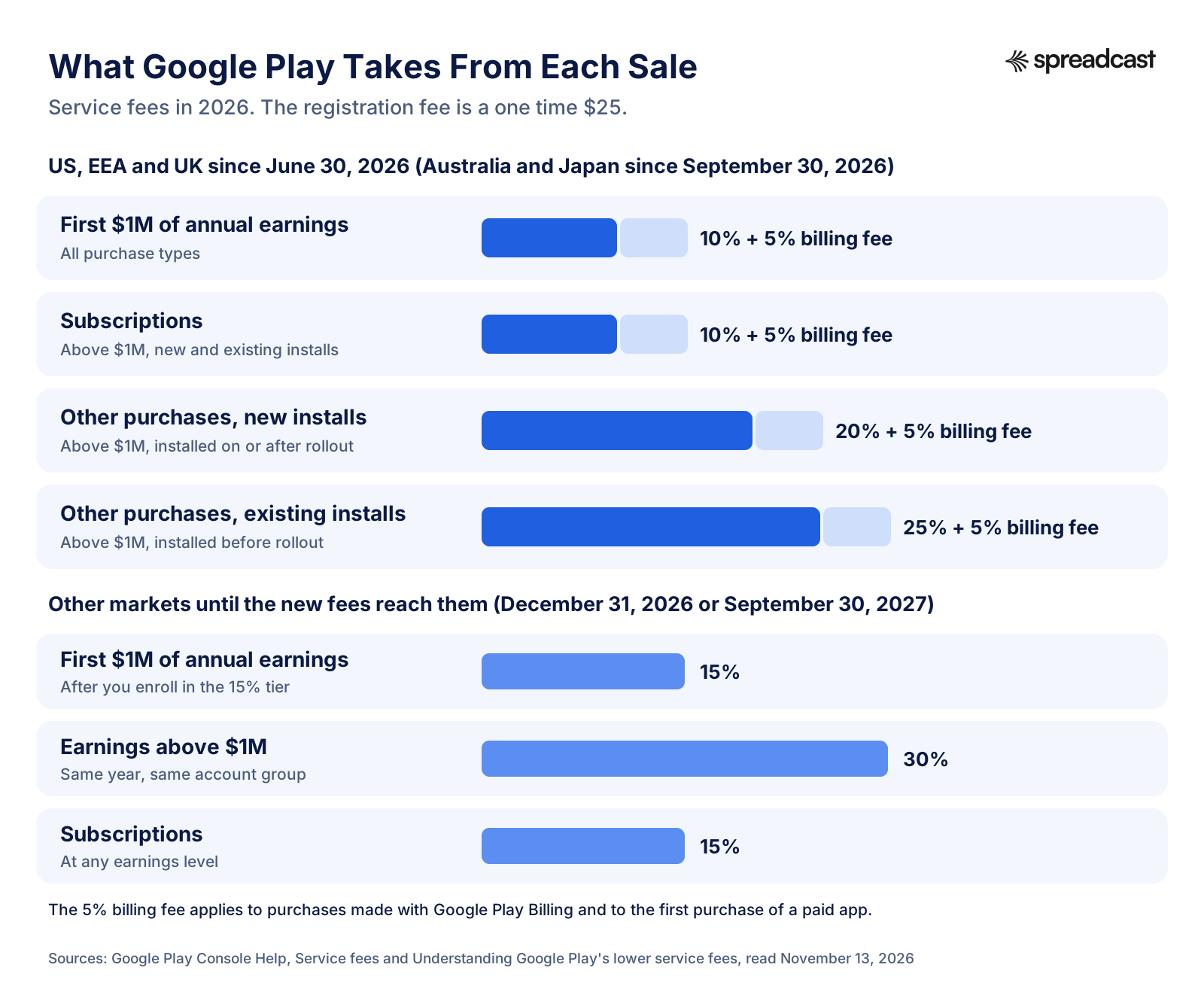
Here is how it works. On March 4, 2026, Google announced a new fee model, which its lower service fees page says rolls out region by region: June 30, 2026 for the EEA, UK and US, September 30, 2026 for Australia and Japan, December 31, 2026 for South Korea, Turkey and South Africa, and September 30, 2027 for the rest of the world. In the regions where it is live, the service fee is 10% on the first $1M of annual earnings, plus a 5% billing fee when the purchase goes through Google Play Billing (or is the first purchase of a paid app). Above $1M, subscriptions stay at 10%, other purchases cost 20% for users who installed after the rollout date and 25% for those who installed before it. Joining Google's new Apps Experience Program or the Games Level Up program lowers those last two rates.
Everywhere else, until the new model arrives, the old rates apply: 15% on the first $1M a developer earns each year, 30% above it, and 15% on auto renewing subscriptions at any level. The 15% rate on the first million is not automatic. Google's 15% tier page says you enroll by creating an account group in Play Console, naming any associated developer accounts, then clicking Review and enroll. Do it before your first sale. It takes a few minutes, and Google links the first $1M rate in the new model to the same enrollment page.
| Cost | Amount | When you pay it |
|---|---|---|
| Google Play developer account | $25 | Once, at sign up |
| DUNS number (organizations) | Free from Dun & Bradstreet | Before sign up |
| Free app with no purchases | No service fee | Never |
| Sales in the US, EEA, UK (since June 30, 2026), Australia and Japan (since September 30, 2026) | 10% on the first $1M a year, plus 5% billing fee on Google Play Billing purchases | Deducted from each sale |
| Sales elsewhere (until the new model reaches them) | 15% on the first $1M a year after enrollment, 30% above; subscriptions 15% | Deducted from each sale |
| Apple Developer Program, if you also ship on iOS | $99 | Every membership year |
Real launch costs are usually elsewhere: a test phone if you do not own an Android device, a domain and hosting for the privacy policy and support page, design time for the icon, feature graphic and screenshots, and whatever you spend telling people the app exists. Those last two are where most of the money goes, and where small teams most often run out of time.
Google Play Publishing Checklist
Work down this table in order. Each line is something Play Console checks, with the place you do it. It is the same list as the figure below, with the detail you need on the day.
| Step | Where in Play Console | Done when |
|---|---|---|
| Pay $25 and accept the Distribution Agreement | Sign up page | Payment confirmed, no prepaid card |
| Choose personal or organization | Sign up page | Matches your payments profile type |
| Verify identity, email and phone | Home page tasks | No pending verification tasks |
| Verify an Android device (personal) | Home page, Play Console mobile app | Task gone from Home |
| Create the app and choose the package name | All apps, Create app | Package name final |
| Store listing text | Grow users, Store presence, Store listings | Name 30, short description 80, full description 4,000 characters or fewer |
| Store listing graphics | Same page, Graphics | Icon 512 by 512, feature graphic 1024 by 500, at least 2 screenshots (4 recommended) |
| Privacy policy, ads, sign in details | Policy and programs, App content | All three actioned |
| Target audience and content rating | App content | Rating received, audience matches the app |
| Data safety form | App content | Every SDK's data included |
| Internal test on real devices | Test and release, Testing, Internal testing | No crash on launch, pre launch report read |
| Closed test, 12 testers for 14 days (personal) | Testing, Closed testing | 12 or more opted in for 14 straight days |
| Apply for production (personal) | Dashboard, Apply for production | Approval email received |
| Release bundle | Test and release, Production | Signed .aab targeting API level 36, release notes written |
| Countries and send for review | Production, Publishing overview | Status shows In review, then Production |
| Enroll in the 15% tier if you sell | Associated developer accounts | Enrollment shown at the bottom of the page |
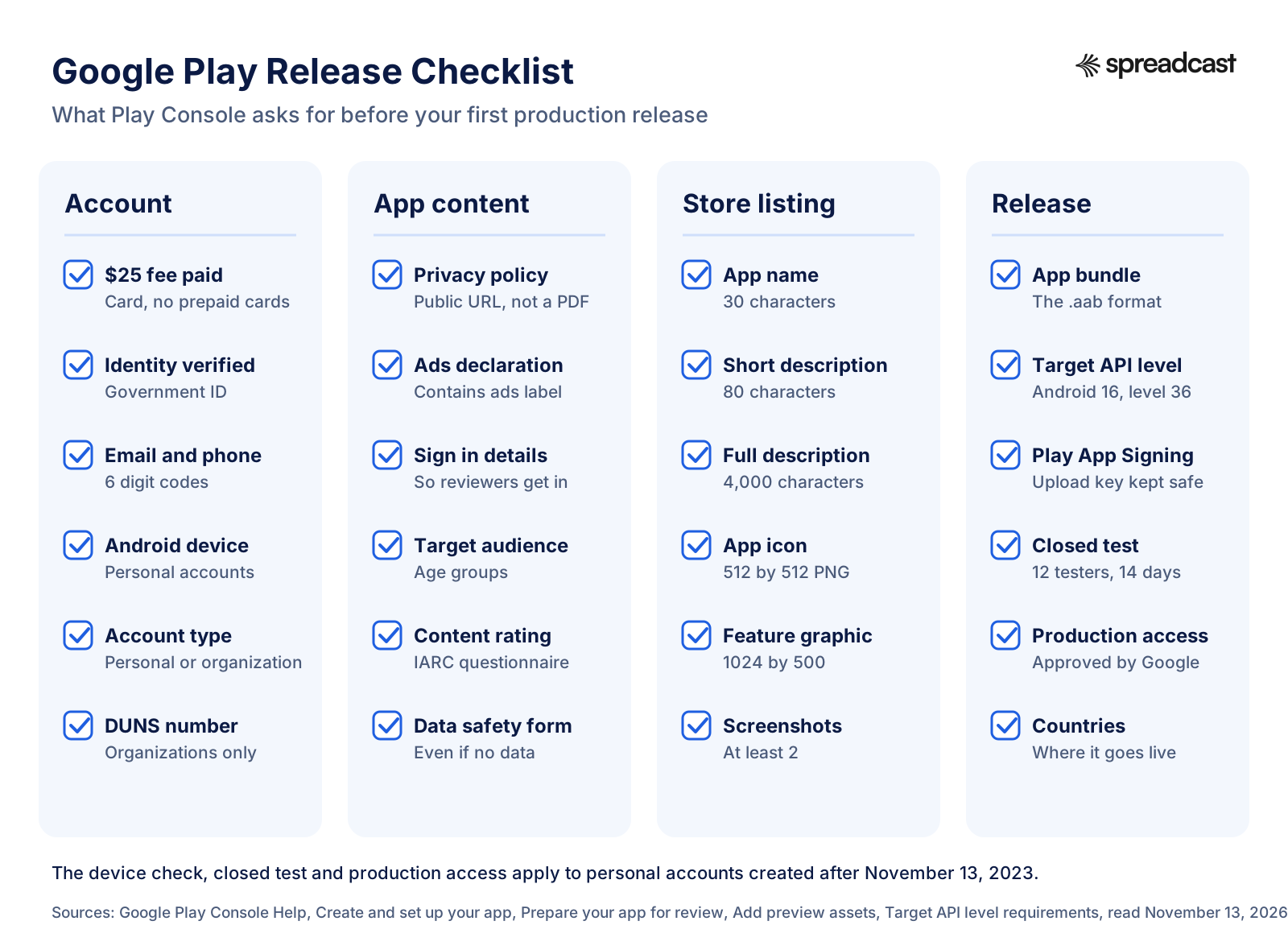
For the marketing side of launch week (the landing page, the press list, the posts you schedule for launch day), our app launch checklist picks up where this one ends.
What to Do After Your App Is Live on Google Play
Going live is the start of a different job. Nobody searches for an app they have never heard of, and a new listing with no ratings ranks below established ones for almost every search. The first weeks decide whether the app gets a second wave of installs, and four things matter most.
- Work on discovery in Play search. The words you chose in a hurry for the listing are worth a second look once Play Console shows which searches bring people in. Our guide to Google Play ASO goes through keywords, the description, graphics and store listing experiments.
- Announce the launch where your users already are: your own social accounts, communities you joined while recruiting testers, and the 12 testers themselves, who now have a public listing to share. See app launch announcement examples for posts that worked, by format and network.
- Ask for ratings at the right moment. Early ratings move both conversion and ranking. The playbook in how to get app store reviews applies to Google Play too: ask after a moment of success, never on first launch.
- Watch retention, not just installs. Play Console's statistics and Android vitals pages show installs, uninstalls and crashes. Compare your day 1, day 7 and day 30 numbers with our app retention benchmarks before spending on ads.
A Google Play badge on your website and a QR code on printed material make the listing one tap away. Our QR code generator makes one from a store link, and the guide on how to get app downloads covers the channels beyond the store. If you are planning the whole marketing side for an Android app, start with how to market an app and the page for mobile app makers. Once the app is live, how to promote an Android app is the plan for the first months.
Publishing on Google Play vs the App Store
If you ship on both stores, the two processes rhyme but differ in the places that cost you time. A quick comparison of the parts covered in this guide:
| Topic | Google Play | Apple App Store |
|---|---|---|
| Developer account | $25 once | $99 per membership year |
| Release review | A few hours to seven days, longer for some new accounts | See our App Store review time page |
| Staged rollout | Any percentage, raised by hand, can be halted | Phased release of an update over 7 days |
| Release notes | 500 characters per language | What's New, up to 4,000 characters |
The Apple column comes from Apple's own pages: the enrollment page for the fee, the phased release page for the 7 day rollout and the platform version information for the What's New limit. The full detail is in our guides to the Apple Developer Program and App Store review time. The biggest practical difference is the one this guide spends most time on: a new personal Google Play account cannot ship to the public without the 14 day closed test, so start the Android track earlier than the iOS one.
How Spreadcast Helps Once Your App Is on Google Play
Publishing is the part Google controls. Getting people to the listing is the part you control, and for most solo developers it is the part that never gets enough time, because every post means opening a design tool, finding the right screenshot, writing a caption for each network and remembering to do it again next week.
Spreadcast does that work from the store listing you just finished. On the day the app goes live, paste the Google Play link into Spreadcast. It reads the listing, builds a brand kit from it (your colors, fonts and the real screenshots you uploaded to Google Play), then designs and writes launch posts in that brand. An app that is only on Google Play is drawn in an Android phone frame; an app on both stores is treated as one app. You approve the posts and Spreadcast publishes them to Instagram, Facebook, LinkedIn, TikTok, YouTube, Pinterest, Threads, Bluesky, Mastodon, Telegram and Discord. TikTok posts go to your TikTok drafts by default rather than straight to the feed.
- Launch posts from the listing: the pitch, the screenshots and the icon you already prepared for Play, turned into posts sized for each network.
- Update posts: autopilot watches the listing and drafts a post when a new version appears, using your release notes. For a large app whose Play listing shows "Varies with device", the version is read from the notes (or from the app's App Store listing, if it is on both stores); if neither gives one, no update post is made.
- Rating milestones: when your rating crosses a milestone, Spreadcast drafts a post about it.
- A weekly plan: feature, review, tips, problem and season posts at your posting times, so the account does not go quiet between releases.
You can try it free: the free plan designs 3 AI posts that you download and post yourself. Publishing from Spreadcast starts with a one time Post Pack ($19 for 10 posts) or a 30 Day Pass ($39) for a launch month, or Pro at $29 a month; details are on the pricing page. If you mainly want posts to go out on a schedule, the page on auto posting to social media explains how approval and autopilot work.
How We Checked This Guide
On November 13, 2026 we read the Google Play Console Help articles on getting started, account types, required information, identity and device verification, app testing requirements, testing tracks, app setup, target API levels, Play App Signing, size limits, preview assets, review preparation, target audience, content ratings, Data safety, publishing status, managed publishing, releases, staged rollouts, pre launch reports, pre registration, enforcement, removed apps, the Metadata and Functionality policies, and the two service fee pages. We also read Android Developers documentation on developer verification, target SDK and app bundles, Google's June 2026 developer verification post and its 2025 Play safety report. Google does not date the change from 20 to 12 testers; we dated it ourselves from archived copies of Google's testing page in the Internet Archive, which show 20 on December 10, 2024 and 12 on December 13, 2024. Market share is StatCounter's October 2026 figure. We did not publish a test app for this guide; review times are Google's stated figures, not our own measurements, and the timeline figure is arithmetic on those figures. Rules change often, so check the linked Google page before you act on any number.
Frequently Asked Questions
How much does it cost to publish an app on Google Play?
A one time $25 registration fee for the Google Play developer account, with no yearly renewal. Publishing free apps costs nothing more. If you sell, Google keeps a service fee per sale: in the US, EEA and UK since June 30, 2026, and in Australia and Japan since September 30, 2026, it is 10% on the first $1M a year plus a 5% billing fee on Google Play Billing purchases; in most other countries it is still 15% on the first $1M after you enroll and 30% above it.
What is the Google Play 12 testers 14 days requirement?
Personal developer accounts created after November 13, 2023 must run a closed test with at least 12 testers who stay opted in for 14 days in a row before they can apply for production access. It was 20 testers until December 2024, going by archived copies of Google's page. Organization accounts and older personal accounts are exempt.
How do I get 12 testers for Google Play closed testing?
Start with friends, family and colleagues, then communities where your future users are, and your social media followers. Use a Google Group so people join from one link, send both the opt in link and the store link, ask them to stay opted in for 14 days, and recruit 15 to 20 so a few dropouts do not reset your count.
What is the difference between closed testing and internal testing?
Internal testing is for up to 100 testers you add by email, works before your store listing is finished, and might skip standard policy review. Closed testing opens after app setup, takes email lists of up to 2,000 testers or Google Groups of any size, and is the only track that counts toward the 12 tester requirement.
How long does Google Play review take?
Google says the production access application usually takes seven days or less. For releases, processing can take a few hours or up to seven days, or longer in exceptional cases, and apps from new developer accounts can get extended reviews. Google recommends leaving at least a week between submitting and your launch date.
Should I choose a personal or organization Google Play developer account?
Choose personal if you are a student, hobbyist or solo developer without a company; you will need the 14 day closed test. Choose organization if you have a business, which needs a free DUNS number and a verified website but skips the test. Finance, health, VPN and government apps must use an organization account.
What are the most common Google Play rejection reasons?
Reviewers who cannot sign in, apps that crash or do too little, listing text or graphics that break the Metadata policy, a Data safety form that does not match what the app and its SDKs collect, a missing privacy policy and undeclared ads. A rejection does not hurt your account; repeated rejections and suspensions do.
Can I appeal a Google Play rejection?
Yes. You can file one appeal per removal, suspension or other enforcement action, and Google reinstates apps when it finds an error. Appeals are answered in Chinese, English, Japanese and Korean. If you agree with the finding, fixing the app and resubmitting on every track is faster than appealing.
Where These Facts Come From
Every outside number, rule and price on this page links to the page it was taken from.
- Get started with Play ConsolePlay Console Help
- Choose a developer account typePlay Console Help
- Required information to create a Play Console developer accountPlay Console Help
- Verify your developer identity informationPlay Console Help
- Device verification requirements for new developer accountsPlay Console Help
- App testing requirements for new personal developer accountsPlay Console Help
- Set up an open, closed, or internal testPlay Console Help
- Create and set up your appPlay Console Help
- Target API level requirements for Google Play appsPlay Console Help
- Use Play App SigningPlay Console Help
- Optimize your app's size and stay within Google Play app size limitsPlay Console Help
- Add preview assets to showcase your appPlay Console Help
- Prepare your app for reviewPlay Console Help
- Manage target audience and app content settingsPlay Console Help
- Content ratings policyPlay Console Help
- Provide information for Google Play's Data safety sectionPlay Console Help
- Publish your appPlay Console Help
- Control when app changes are reviewed and publishedPlay Console Help
- Prepare and roll out a releasePlay Console Help
- Release app updates with staged rolloutsPlay Console Help
- Use a pre launch report to identify issuesPlay Console Help
- Build awareness for your apps with pre registrationPlay Console Help
- My app has been removed from Google PlayPlay Console Help
- Enforcement processPlay Console Help
- Metadata policyPlay Console Help
- Functionality, Content, and User Experience policyPlay Console Help
- Service feesPlay Console Help
- Understanding Google Play's lower service feesPlay Console Help
- Enrolling in the 15% service fee tierPlay Console Help
- Android developer verificationAndroid Developers
- Android developer verification FAQAndroid Developers
- Register on Google Play Console for developer verificationAndroid Developers
- Android developer verification: building a safer ecosystem togetherAndroid Developers Blog
- Meet Google Play's target API level requirementAndroid Developers
- About Android App BundlesAndroid Developers
- How Google Play and Android app ecosystems stayed safe in 2025Google
- Testing requirements page as of December 10, 2024 (20 testers)Internet Archive
- Testing requirements page as of December 13, 2024 (12 testers)Internet Archive
- Mobile operating system market share worldwideStatCounter
- Enrolling in the Apple Developer ProgramApple Developer
- Release a version update in phasesApple Developer
- Platform version informationApple Developer
- Video: Data safety form walkthroughAndroid Developers on YouTube
- Video: how to handle a policy violation on Google PlayAndroid Developers on YouTube
Researched and written by Mark Weizer. Last checked on November 13, 2026.
Keep Reading
- Playbooks
Canva Marketing Strategy: How Templates and SEO Grew 265 Million Monthly Users
Canva's marketing strategy from its newsroom, its founders and its own sitemaps: freemium and word of mouth, 39,603 template pages built for search, 100 languages, free plans for schools, Canva Create and the TV campaigns. Then how to run the same playbook for your own app.
- Playbooks
Uber Marketing Strategy: How a Two Sided App Won 215 Million Monthly Users
Uber's marketing strategy, taken apart from its own filings: the city by city launch playbook, ice cream and kittens, referrals on both sides, the 2018 brand reset, safety, Uber One, the Uber Eats Super Bowl ads, the ads business, what it spends and how it makes money. Then how to run the copyable parts for your own app.
- Playbooks
Monopoly Go Marketing Strategy: The Budget, the Ads and What It Bought
How much Monopoly Go spent on marketing, who said it and when, and what the money bought: localized ads, a celebrity TV campaign, friend invites, sticker trading, live ops seasons and crossovers. Then how a small studio can keep its own channels as busy as a big launch.