Schedule LinkedIn Posts on One Calendar
Every LinkedIn post sits next to the rest of your week, in the color of its network. Drag a post to another day and it moves.
- Groceries$312
- Rent$1,100
- Coffee$46
- Split with a partner
- Monthly goals
- Bank sync in 40 countries
- Groceries$312
- Rent$1,100
- Coffee$46
- Split with a partner
- Monthly goals
- Bank sync in 40 countries
- Groceries$312
- Rent$1,100
- Coffee$46
- Split with a partner
- Monthly goals
- Bank sync in 40 countries
- Groceries$312
- Rent$1,100
- Coffee$46
- Split with a partner
- Monthly goals
- Bank sync in 40 countries
What a LinkedIn Scheduler Does, and When You Need One
A LinkedIn scheduler holds a finished post, the text with a picture, several pictures or a video, and publishes it at the time you picked. LinkedIn has one built into its own post box, and it costs nothing. Outside scheduling tools work another way: you sign in to LinkedIn through them once, the tool keeps your post on its own servers, and at the chosen minute it publishes the post through LinkedIn's official API. Most of what follows on this page comes from that difference: what each kind of scheduler can post, whose name it can post under, and what tends to go wrong.
LinkedIn is worth planning for. LinkedIn's About page counts more than 1.4 billion members, and Pew Research's social media fact sheet found that 31% of US adults use it, a share that rises to about half of college graduates. Those are the people who read about a new product, a hire, a launch or a lesson learned on their lunch break. A post that lands on a Tuesday afternoon finds them; the same post at 11 at night on a Saturday mostly does not.
We make Spreadcast, so weigh the comparisons here with that in mind. Spreadcast is a marketing automation tool that also makes the posts. It designs the pictures in your brand, writes a caption for LinkedIn and for each other network you tick, checks every version against that network's limits, then schedules it. LinkedIn is one of the 11 networks it publishes to. It is strongest for App Store and Google Play apps, where it also turns a new version or a rating milestone into a post, but anyone can bring their own pictures or video and schedule them the same way.
This page covers both routes. First, how to schedule posts on LinkedIn itself, on a computer and on a phone, for a personal profile and for a company page, with every step linked to LinkedIn's own help pages. Then what LinkedIn lets an outside tool do through its API, how Spreadcast schedules LinkedIn posts, and how the main LinkedIn scheduling tools compare on what they post and what they cost. Every outside fact was read on November 15, 2026, with the source linked next to it.
- Groceries$312
- Rent$1,100
- Coffee$46
Every one of them read.
Two people, one budget, zero spreadsheets. The shared goals alone saved us an argument a week.
For Every
Trail
Can You Schedule Posts on LinkedIn? Yes, and It Is Free
Yes. LinkedIn added scheduling to its own post box, and its help article on scheduling posts walks through it for the website and the app. You write the post as usual, click the clock icon next to the Post button, and choose a date and time. A personal post can be scheduled from at least 10 minutes ahead to at most 3 months ahead, and the time you pick is converted from your device's time zone, so a post set for 9 in the morning goes out at 9 in the morning where you are when you set it.
LinkedIn's own scheduler handles most kinds of post. The same article names events and jobs as the two things a member cannot schedule, so text, pictures, a video or a document go through the same clock icon. LinkedIn's guide to posting adds that a post can carry up to 3,000 characters, and that you can save a post as a draft and come back to it before you schedule or publish it.
Company pages have their own rules, which we cover in a section below: a slightly longer minimum lead time, only some admin roles, and a longer list of post types that cannot be scheduled. Neither version costs anything: the clock icon sits in the ordinary post box, and LinkedIn's help for it names no paid plan.
So if you post to one LinkedIn profile a few times a week, you write each post yourself, and LinkedIn is the only place it goes, the built in scheduler is often all you need. A LinkedIn scheduling tool starts to pay off when the post has to be made as well as timed, when you post to several accounts, when the same news also belongs on Instagram, Facebook, Threads or Bluesky, or when a colleague has to approve the post before it goes anywhere.
“I haven’t slept this well since I was a kid.”
LinkedIn's Built In Scheduler at a Glance
What LinkedIn's own scheduler does for a personal profile and for a company page, with the LinkedIn help page each line comes from. Read on November 15, 2026.
| Question | LinkedIn's answer | Where LinkedIn says it |
|---|---|---|
| How you schedule | Write the post, click the clock icon, pick a date and time, then Schedule | Schedule posts |
| Earliest time, personal profile | 10 minutes from now | Schedule posts |
| Earliest time, company page | 1 hour from now | Schedule a Page post |
| Furthest ahead | 3 months, for profiles and pages | Schedule posts, Schedule a Page post |
| Cannot be scheduled, profile | Events and jobs | Schedule posts |
| Cannot be scheduled, page | Events, multiple photos, reshares, polls, jobs and service posts | Scheduled posts for Pages |
| Who can schedule for a page | Super admins and content admins | Schedule a Page post |
| Where scheduled posts live | Clock icon, then View all scheduled posts | Schedule posts |
| Text length | Up to 3,000 characters | Post and share updates |
| Price | Free; the help article names no paid plan | Schedule posts |
LinkedIn moves its buttons around between the website, the iPhone app and the Android app. If a menu looks different on yours, the feature works the same way.
How to Schedule a Post on LinkedIn on a Computer
These steps follow LinkedIn's help article on scheduling posts, read on November 15, 2026. They work in any browser, on a Mac or a PC.
Start a post from the box at the top of your LinkedIn home feed. Write the text and add what goes with it: a picture, several pictures, a video or a document. Then, instead of clicking Post, click the small clock icon in the lower right corner of the box. LinkedIn opens a date and time picker. Pick the day, then either choose a time from the list, which runs in half hour steps, or type an exact time such as 9:10. Click Next, check the post once more, and click Schedule.
The post now waits in your scheduled list rather than in the feed. If you open the post box again, a small number on the clock icon shows how many posts you have waiting. That number is the quickest check that a post really was scheduled and not left as a draft.
One habit worth keeping: schedule from the account you mean to post as. If you also manage a company page, the post box on your home feed posts as you. A page post is started from the page's admin view, which the next sections cover.
How to Schedule a LinkedIn Post on Mobile
On a phone the order is the same, only the clock icon moves. Per LinkedIn's scheduling help, tap Post in the app's navigation bar, write the post and add any media, then tap the clock icon in the upper right corner of the screen. Pick a date and a time, tap Next, and tap Schedule.
To see what is waiting on your phone, tap Post again, tap the clock icon and choose View all. The list shows each scheduled post with its date and time, and from there you can open one to change it or delete it.
Scheduling on mobile is handy for a post you write on the train, and less handy for anything with pictures you made on a computer. If your pictures live on a laptop, schedule there, or use a tool that keeps the pictures, the text and the time in one place you can reach from either.
“I haven’t slept this well since I was a kid.”
LinkedIn's Built In Scheduler, Step by Step
If you would rather watch than read, this short walkthrough by a LinkedIn profile coach covers the same steps on screen.

How to Schedule Posts on a LinkedIn Company Page
Company pages schedule from the page's admin view, not from your own home feed. LinkedIn's help article on scheduling a Page post puts it in four moves on a computer: open the admin view of the page, choose Page posts in the left menu, click Start a post, then use the clock icon in the lower right of the box. On the app, open the admin view, tap Dashboard in the upper left, then Page posts, then Post, and the scheduling icon sits in the upper right.
Only some admins can do it. Per the same article and LinkedIn's list of Page admin roles, super admins and content admins can create and schedule page posts, while an analyst sees only the numbers. A page post can be scheduled from 1 hour ahead, where a personal post needs only 10 minutes, and up to 3 months ahead.
The bigger difference is what can be scheduled at all. LinkedIn's article on scheduled posts for Pages says a page cannot schedule events, multiple photos, reshares, polls, jobs or service posts. So a company page can schedule a single picture, a video, a document or text, but a post with three product shots has to be published by hand, at the time you want it to appear.
Two more rules from the same article help a team. Every admin can see, edit, reschedule and delete the posts that other admins scheduled, so a page's queue is shared. And if an admin who scheduled posts is removed, those posts move to the admin who removed them rather than disappearing. One thing a scheduled page post cannot do is be promoted as an ad: the article says a post can be boosted in Campaign Manager only after it is published.
How to See, Edit or Reschedule Scheduled LinkedIn Posts
LinkedIn keeps scheduled posts in one list. On a computer, start a post, click the clock icon and choose View all scheduled posts. LinkedIn's scheduling help says the Scheduled posts page shows a preview of each post with its time, a delete icon, and a More menu with two choices: Modify schedule to pick a new time, and Edit post to change the words or the media.
If you are still writing the post and change your mind about scheduling it, you do not need to delete anything. Click Edit next to the date and time shown in the post box, then Clear time, and the post goes back to being an ordinary post you can publish now or save.
For a company page, the same list is shared by every admin who can post. LinkedIn's article on scheduled posts for Pages says you can view, edit, reschedule and delete posts scheduled by other Page admins, which is useful and also worth knowing: two admins can quietly change each other's posts.
What the list does not show is anything outside LinkedIn. A post scheduled in an outside tool waits in that tool, not in LinkedIn's scheduled list, because tools publish through the API at the time rather than handing the post to LinkedIn's queue. If a post you scheduled elsewhere is missing from LinkedIn's list, that is expected.
- Groceries$312
- Rent$1,100
- Coffee$46
Every one of them read.
Two people, one budget, zero spreadsheets. The shared goals alone saved us an argument a week.
For Every
Trail
Where LinkedIn's Built In Scheduler Stops
LinkedIn's scheduler is built around one post, one account and one network at a time. That is exactly right for a quick post and limiting for a content plan. These are the gaps people run into once LinkedIn becomes a steady part of their marketing.
No calendar. The scheduled list is a list. There is no week or month view, so a gap on Thursday, or three posts bunched into one afternoon, is easy to miss. It also shows one account at a time: your own profile and the company page you run are two separate lists.
No making of the post. The scheduler publishes what you already have. The picture, the slides of a carousel, the first line that has to earn the click on more: all of that has to exist before you click the clock icon.
LinkedIn only. A post scheduled in LinkedIn stays in LinkedIn. If the same launch also belongs on Instagram, Facebook, Threads, Bluesky or a Telegram channel, each one is a separate job in a separate app, with its own caption to write.
No approval step for a person outside the page. A content admin can schedule straight into the live queue. There is no draft that a founder, a client or a manager approves before it is queued, unless that person is also an admin and checks the list.
Company pages lose some post types. As LinkedIn's Pages article lists, a page cannot schedule polls, several photos, reshares, events, jobs or service posts.
None of this is a flaw in LinkedIn. It is the line between a posting feature and a planning tool, and it is where every LinkedIn scheduling tool, Spreadcast included, tries to earn its price.
LinkedIn's Own Scheduler Compared With Spreadcast
Both publish while you are busy with something else. The difference is what happens before the post is scheduled and how many places it goes. LinkedIn's column comes from its help pages linked above; Spreadcast's from its code.
| LinkedIn's own scheduler | Spreadcast | |
|---|---|---|
| Where the post waits | In LinkedIn's scheduled list for that account | On Spreadcast's calendar, published through LinkedIn's API at the time |
| How far ahead | 10 minutes to 3 months for a profile, 1 hour to 3 months for a page | Any future time you pick |
| How exact the time is | The time you set | Within minutes; the publisher runs every five minutes |
| Where one post goes | One LinkedIn account | Your LinkedIn profile and every other network you tick |
| Seeing the plan | A list per account | Week, month and list views across every account |
| Making the post | You bring the words and pictures | Designs the pictures in your brand and writes the caption |
| Several pictures | Yes on a profile; not on a page | Up to 9 pictures as one multi image post |
| Documents and polls | Documents yes; polls not on a page | No |
| Company pages | Yes, for super and content admins | No, personal profiles only |
| Someone approves it first | No step for that | Drafts to approve, or Full Autopilot |
| Price | Free | From a $19 Post Pack, or Pro at $29 a month |
Profile or Company Page: Why LinkedIn Scheduler Tools Differ
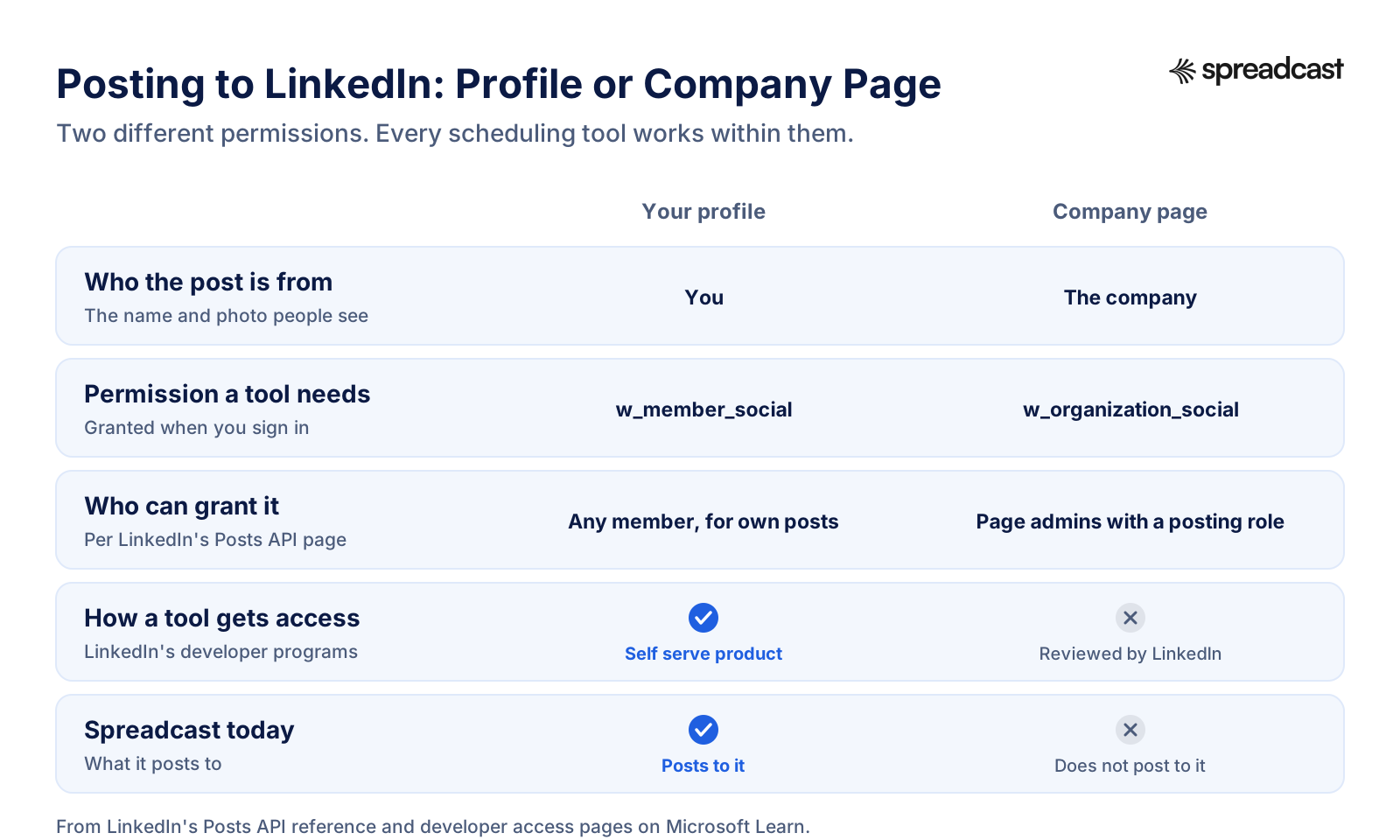
The first question to ask any LinkedIn scheduling tool is whose name the post goes out under. LinkedIn treats posting as yourself and posting as a company page as two different permissions, granted through two different programs, and that one split explains most of the differences between tools.
Posting as yourself uses a permission called w_member_social. LinkedIn's developer page for Share on LinkedIn describes it as the permission needed to create a post on behalf of the member who signed in, and a developer adds that product to an app from the Products tab of LinkedIn's developer portal. When you connect a tool this way, you sign in on LinkedIn's own screen, approve the request, and the tool can post to your profile and nowhere else.
Posting as a company page uses w_organization_social. Per LinkedIn's Posts API reference, it works only for a member who holds the administrator, content admin or sponsored content poster role on that page. And per LinkedIn's page on increasing access, it comes with the Community Management API, which a developer applies for separately and LinkedIn reviews, starting on a limited development tier before it can be used in production.
That is why some tools post to profiles only, some to pages only, and the large suites do both. It is also why a new or small tool may promise company pages on a roadmap and not yet deliver them. When you compare LinkedIn scheduler tools, check their help pages for the words company page or LinkedIn Page, and check whether your plan covers both your profile and the page as separate accounts.
Spreadcast posts to personal profiles. It signs in through LinkedIn's official sign in with three permissions, openid and profile to know who you are and w_member_social to post for you, and every post goes out from the profile you connected. It does not post to company pages today. For many founders that is where they post anyway: on their own profile, under their own name, to the people who already know them.
Posting to a LinkedIn Profile or a Company Page
Two permissions, two programs. Every LinkedIn scheduling tool works within them.
What LinkedIn's API Lets a Scheduling Tool Post
Every outside LinkedIn scheduler, Spreadcast included, publishes through LinkedIn's Posts API. These are the limits it works within, from LinkedIn's developer pages on Microsoft Learn, read November 15, 2026.
| Post type | What the API allows | Where LinkedIn says it |
|---|---|---|
| Text | Hashtags and mentions are written into the text itself | Posts API, mentions and hashtags |
| One picture | JPG, GIF or PNG, under 36,152,320 pixels | Images API |
| Several pictures | 2 to 20 pictures in one organic post | MultiImage API |
| Document | PDF, PowerPoint or Word, up to 100 MB and 300 pages | Documents API |
| Video | 3 seconds to 30 minutes, 75 KB to 500 MB, MP4 | Videos API |
| Poll | A question up to 140 characters, 2 to 4 options, open 1, 3, 7 or 14 days | Polls API |
| Swipeable carousel | Sponsored only; organic carousel is not supported | Posts API, content types |
| Scheduled state | None; a post is created as published | Posts API, lifecycle state |
The video figures above are the API's; LinkedIn's app takes videos up to 5 GB and 15 minutes from members, per its video help. A tool can only ever post what the API offers, which is why a scheduler may support fewer post types than LinkedIn's own post box.
Why Outside Tools Publish at the Time Instead of Queueing It
One line in LinkedIn's Posts API reference explains how every LinkedIn scheduler works under the hood: when a post is created through the API, published is the only state it accepts. There is no way for a tool to hand LinkedIn a post and a future time. So a LinkedIn scheduler keeps the post on its own servers, with the pictures and the time, and calls the API at the minute the post is due.
That has three practical effects. Posts from a tool do not appear in LinkedIn's scheduled list; they live in the tool until they go out. You edit, move or delete them in the tool, right up to the minute they are sent. And the tool's own timing decides how close to the minute a post lands. Spreadcast's publisher runs every five minutes, so a LinkedIn post goes out within minutes of its slot.
The same reference explains a second common surprise. The Posts API does not fetch a web page to build a link preview card: a tool that wants the card with a picture and a title has to supply them itself. A link pasted into the text still works as a link, but a post made through the API will not always show the card you see when you paste the same link into LinkedIn by hand. LinkedIn's help on sharing links describes the hand made version, where the preview appears a few seconds after you paste the address.
And it explains why swipeable PDF carousels are a special case. The API's own carousel is for sponsored posts only. What people call a LinkedIn carousel in their feed is a document post, a PDF whose pages people swipe through, which LinkedIn's document help allows up to 100 MB and 300 pages. A tool that posts documents can schedule those; a tool that posts pictures, Spreadcast included, publishes slides as a multi image post instead.
Using Spreadcast to Schedule LinkedIn Posts
The whole path, in a web browser on a computer or a phone. You connect LinkedIn once; after that every post is one editor and one calendar.
- 1
Connect Your LinkedIn Profile
In Accounts, press Connect next to LinkedIn. LinkedIn opens its own sign in and asks you to allow Spreadcast to know who you are and to post for you. Sign in with the profile your posts should come from and allow it. Spreadcast never sees your LinkedIn password.
- 2
Make the Post or Upload Your Own
Open Create. Generate a Post designs pictures in your brand from a sentence, a single picture or a carousel of slides; Upload My Own takes your own pictures or a video. A LinkedIn post can also be text only. If you have an App Store or Google Play app, the designs use your real screens, icon, colors and fonts.
- 3
Tick LinkedIn and Read the Caption
Spreadcast writes a separate caption for LinkedIn: a first line that says one specific thing, the point in two or three short paragraphs, a closing question and a few hashtags, under 1,300 characters. Edit it freely; LinkedIn takes up to 3,000. The preview shows the post the way the feed shows it, with long text folded behind more.
- 4
Let the Check Run
Before anything is scheduled, Spreadcast checks the post against LinkedIn's limits: the text fits, there are no more than 9 pictures, and a video is no longer than 10 minutes. A problem is named in plain words with what to change. Fix it, or schedule the post without LinkedIn so the other networks still go out.
- 5
Pick the Time or Drag It
Pick a day and time, or a quick pick such as this evening or tomorrow morning. Times are in your device's time zone, and the editor names the zone next to the time. Scheduled posts sit on a calendar with week, month and list views, and you can drag a card to another day to move it.
- 6
It Goes Out Within Minutes of Its Time
Spreadcast's publisher runs every five minutes, so the post reaches your profile within minutes of its slot. If LinkedIn refuses it, the calendar marks the post as failed with LinkedIn's reason, the post itself has a Try Again button, and the other networks are not held back.
What Happens When Spreadcast Publishes Your LinkedIn Post
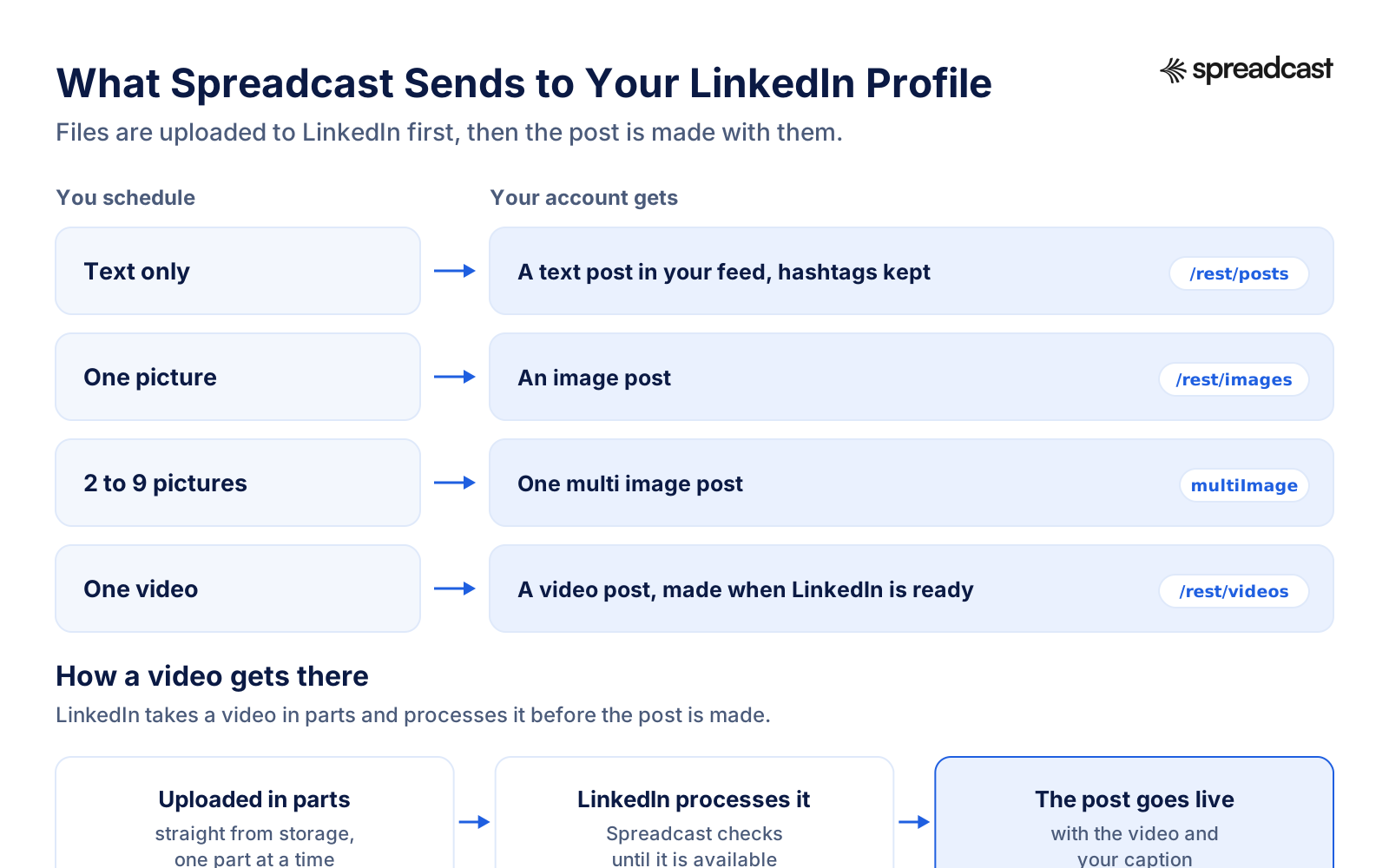
Knowing what a scheduler sends helps when something looks different in the feed than it did in the editor. Spreadcast talks to LinkedIn directly through its versioned REST API, with no service in between, and each kind of post goes out the way LinkedIn's API expects it.
Text only goes out as a plain post in your feed. One picture is uploaded to LinkedIn first and then attached to the post. Two to nine pictures are each uploaded, then published together as one multi image post, which is how a Spreadcast carousel appears on LinkedIn: the slides side by side in a grid that opens into a gallery. A video is uploaded in parts, straight from storage, and LinkedIn processes it before the post can be made.
Video takes the most care. LinkedIn has to finish processing a video before a post can use it. Spreadcast checks every few seconds for up to about 40 seconds, and if LinkedIn needs longer, the post is carried to the next run and made as soon as the video is ready, without uploading it a second time. If LinkedIn reports that it could not process the video, the calendar says so plainly.
Two small things are handled for you. LinkedIn's post text uses a format in which some characters, such as brackets, at signs and underscores, have special meanings, and a stray one can cut the post short. Spreadcast escapes them so the whole text arrives, while hashtags stay hashtags. And each picture carries alt text taken from the start of the caption, so a screen reader has something to read.
Each post is published to your feed as public, the same as clicking Post with the audience set to anyone. Every connected profile is one social account in Spreadcast, and the post goes to the profile you connected.
How Each Kind of LinkedIn Post Goes Out
Text, one picture, several pictures and a video each take a different path through LinkedIn's API.
LinkedIn Post Specs Spreadcast Checks Before Scheduling
What LinkedIn allows, and what Spreadcast's editor checks for LinkedIn. If a scheduled post fails, it is usually one of these.
| Spec | What LinkedIn allows | Spreadcast for LinkedIn |
|---|---|---|
| Text | Up to 3,000 characters | Up to 3,000, counted as you type; captions written under 1,300 |
| Pictures in one post | Up to 20 in the app, 2 to 20 through the API | Up to 9 |
| Picture size | Up to 5 MB each when shared in the app | Uploaded to LinkedIn before the post is made |
| Picture formats | JPG, PNG and GIF through the API; WEBP also in the app | The pictures Spreadcast designs, or your own |
| Video | Up to 15 minutes in the app, 30 minutes through the API | Up to 10 minutes |
| Documents and PDF carousels | Up to 100 MB and 300 pages | Not offered; slides go out as a multi image post |
| Polls | 2 to 4 options, open 1 to 14 days | Not offered |
| Hashtags | Allowed in the text | Kept as links; captions carry about 3 |
From LinkedIn's photo help, media file types, video help and the API pages above, read November 15, 2026. Our social media character limits and image sizes pages list every network side by side.
Writing a LinkedIn Post People Click to Read
A scheduled post still has to be worth reading when it lands. LinkedIn shows the first few lines of a post in the feed and folds the rest behind a more link, so the first line carries the whole post. A vague opener such as "Exciting news!" spends that line on nothing; a specific one such as "We cut onboarding from seven screens to three" earns the click.
This is the shape Spreadcast asks for when it writes a LinkedIn caption: one specific statement as the first line, not a question and not a general truth about the industry; the point in two or three short paragraphs or a short list; then one question that invites a reply. Blank lines between the parts make the post easy to read on a phone. A handful of relevant hashtags, about three, go at the end.
Hold back on links in the first lines. A link in the text works, but the first lines are better spent on why someone should care. If the link is the point, say what is behind it before you paste it, and remember the preview card is not guaranteed when a tool posts it.
Pictures help a post stop the scroll. Spreadcast designs them in your brand: your colors, fonts and logo, and for an App Store or Google Play app your real screens in a phone frame. If writing is the hard part, our free LinkedIn post generator drafts a post from a sentence, and the social media caption generator writes versions for several networks at once.
Shared budgets are here. Invite your partner, plan the month together and split anything in two taps. Link in bio. #budgeting #moneytips #couples
No more arguing over who paid for groceries. Shared budgets are live in Ledgerly. #moneytok #budgeting
Ledgerly 3.0 is out. Couples told us the hardest part of budgeting was talking about it, so shared budgets let two people plan one month together and split any expense. What would you add next?
Shared budgets just shipped. Two people, one month, zero spreadsheets.
Ledgerly 3.0 adds shared budgets: plan the month with your partner and split anything. On the App Store now.
How to Choose a LinkedIn Scheduling Tool
Most LinkedIn scheduling tools look alike on their landing pages. These are the questions that separate them once you connect a real account, and where to find the answer.
Profile, Page or Both
The most important question. Some tools post to personal profiles, some to company pages, the big suites to both. Look for the words company page in the tool's LinkedIn help, and check whether each one counts as a separate account on your plan. Spreadcast posts to profiles.
Which Post Types
Text and pictures are universal. Documents, polls, several pictures and video are not. If PDF carousels are your main format, make sure the tool posts documents, since LinkedIn's Posts API has no organic carousel of its own.
Who Makes the Post
Most schedulers publish what you bring. If writing the post or designing its pictures is the slow part of your week, look for a tool that makes them, in your brand and from facts you give it, and lets you edit before anything is scheduled.
Who Approves It
A LinkedIn post carries your name or your company's. If more than one person writes, look for drafts that a founder or a client approves before the post is scheduled, rather than a shared queue anyone can change.
What It Does When Something Fails
Expired sign ins and refused files happen to every tool. Check that the tool tells you which post failed, why, in plain words, and gives you a way to send it again without posting it twice.
Where the Numbers Come From
LinkedIn shares post analytics with outside tools only through a reviewed program. A tool that shows LinkedIn numbers has that access; many do not, and you will read results in LinkedIn instead.
Price per Account
Some tools price per channel, so your profile and your company page cost twice; others price by brand or by plan with a set number of accounts. Count every account on every network before you compare.
Best LinkedIn Scheduler Tools Compared: Spreadcast, Buffer, Publer, Taplio
Ten ways to schedule LinkedIn posts, with prices and LinkedIn features read on each vendor's own page on November 15, 2026. Spreadcast comes first because it is the only one here that turns your product's real news, such as a new app version, into a LinkedIn post with pictures in your brand and a caption, then schedules it with the same post on other networks. Then LinkedIn's own scheduler, the tools with a free plan, the LinkedIn specialists, and the large suites.
- 1
Spreadcast
Free for 3 posts to download; scheduling from a $19 Post Pack or Pro at $29 a monthBest when you want the LinkedIn post written and designed for you, then scheduled
Spreadcast designs the pictures, writes a caption for LinkedIn and every other network you tick, checks each against that network's limits, then publishes to your LinkedIn profile at its time. Slides go out as a multi image post of up to 9 pictures, and video up to 10 minutes.
It publishes to Instagram, Facebook, LinkedIn, TikTok, YouTube, Pinterest, Threads, Bluesky, Mastodon, Telegram and Discord from one calendar. For an App Store or Google Play app it also reads your listing every day and turns a new version or a rating milestone into a post, next to a weekly plan of posts at your posting times, approved by you or sent on Full Autopilot.
Pro is $29 a month, or $290 a year, for 1 app or brand and 10 social accounts, with design, captions, checks, publishing and analytics included; your LinkedIn profile counts as one account. Ten accounts on a per channel tool cost more than that before anything is designed. Claude and ChatGPT can schedule LinkedIn posts through the Spreadcast MCP server.
Pros
- Writes the caption and designs the pictures
- Posts made from your app's real news
- Approve first or Full Autopilot
- Same post to 10 other networks
Cons
- Personal profiles only, not company pages
- No documents, polls or first comment
- Free plan does not publish
- 2
Best free LinkedIn scheduler for one account and posts you write yourself
Built into LinkedIn's post box on the website and the app. LinkedIn's help allows a profile post from 10 minutes to 3 months ahead, and its Pages help a page post from 1 hour to 3 months ahead.
Nothing has to be connected and every post type LinkedIn offers is there, apart from events and jobs, and for pages the types listed in its scheduled posts article. There is no calendar, no other network and no help making the post.
Pros
- Free
- Documents and every post type
- Company pages for admins
Cons
- One account at a time
- LinkedIn only
- Pages cannot schedule polls or several photos
- 3
Buffer
Free for 3 channels, then $5 a channel a month billed yearlyBest cheap scheduler for profiles and pages, priced per channel
Buffer's pricing page lists a free plan of 3 channels with 10 scheduled posts per channel, and Essentials at $5 a channel a month billed yearly. Buffer's LinkedIn help covers profiles and pages, one PDF per post as a document, up to 20 images, video, and a first comment on paid plans.
The same help says Buffer does not create LinkedIn polls. Because the price is per channel, a LinkedIn profile, a company page and eight other accounts come to $50 a month billed yearly. Our Buffer review and best Buffer alternatives go further.
Pros
- Profiles and pages
- PDF documents
- Free plan
Cons
- No polls
- Price grows with every channel
- You make every post
- 4
Publer
Free for 3 accounts, then from $5 a monthBest low price for LinkedIn polls and PDFs
Publer's plans article lists a free plan of 3 accounts with 10 scheduled posts at a time each, and Professional from $5 a month for one account. Publer's LinkedIn page says it schedules to profiles and pages, including LinkedIn PDFs, polls and a first comment.
See our best Publer alternatives for how it compares across networks.
Pros
- Polls, PDFs and first comment
- Profiles and pages
- Very low entry price
Cons
- Priced per account
- You make every post
- 5
Metricool
From $20 a month billed yearly, or $25 monthlyBest when you want LinkedIn analytics beside the scheduler
Metricool's pricing page lists Starter at $20 a month billed yearly or $25 monthly, and its free plan covers every network except LinkedIn and X. Metricool's LinkedIn help covers documents up to 100 MB and 300 pages, polls, up to 20 images, video from 3 seconds to 15 minutes and a first comment.
Our Metricool review and best Metricool alternatives cover the rest.
Pros
- Polls, documents and first comment
- Strong analytics
Cons
- LinkedIn not on the free plan
- You make every post
- 6
Later
From $18.75 a month billed yearlyBest if Instagram is your main network and LinkedIn comes second
Later's pricing page lists Starter at $18.75 a month billed yearly, for one social set of 8 profiles and 30 posts per profile a month. Later's LinkedIn scheduler page covers profiles and company pages, and says video goes to company pages only.
See best Later alternatives for the wider field.
Pros
- Visual calendar
- Profiles and pages
Cons
- Video to company pages only
- 30 posts per profile a month on Starter
- 7
Taplio
From $39 a monthBest LinkedIn only tool for growing a personal brand
Taplio's pricing page lists Starter at $39 a month with a 7 day trial and a 30 day money back promise. Its LinkedIn post scheduler page says it schedules to a profile and a company page from one queue, with documents and carousels.
Taplio is built around LinkedIn alone, with writing help and idea feeds for one network; anything for Instagram or Facebook needs a second tool.
Pros
- Built for LinkedIn
- Profile and page in one queue
Cons
- LinkedIn only
- No free plan
- 8
Supergrow
$39 a month, or $31 a month billed yearlyBest for LinkedIn PDF carousels made with AI
Supergrow's pricing page lists Pro at $39 a month, or $31 billed yearly, for one account. Its carousel maker page says carousels publish to LinkedIn as native multi page documents, and the pricing page lists an automatic first comment.
Like Taplio, it is a LinkedIn tool first; other networks are not its focus.
Pros
- PDF carousels made for you
- Auto first comment
Cons
- LinkedIn focused
- One account on Pro
- 9
Hootsuite
From $99 a user a month billed yearlyBest for larger teams that need a full social suite
Hootsuite's plans page lists Standard from $99 a user a month billed yearly, for 10 social accounts, with a 14 day trial and no free plan. Hootsuite's LinkedIn help covers several images, a GIF, video, a single PDF and a first comment, and says LinkedIn's API does not let it publish polls.
Our Hootsuite review and best Hootsuite alternatives compare it in depth.
Pros
- Profiles and pages
- First comment and PDFs
- Inbox and listening
Cons
- No polls
- $99 per user
- No free plan
- 10
Sprout Social
From $79 a seat a month billed yearly, $99 monthlyBest for agencies and brands reporting to clients
Sprout Social's pricing page lists Essentials at $79 a seat a month billed yearly or $99 monthly, for up to 5 profiles, with a 30 day trial. Sprout's LinkedIn page covers publishing and reporting for LinkedIn pages.
See best Sprout Social alternatives for cheaper options.
Pros
- Detailed reports
- Team workflows
Cons
- Priced per seat
- 5 profiles on the first plan
LinkedIn Scheduling Tool Prices Side by Side
The lowest plan that publishes to LinkedIn for each tool, from the pages linked above, on November 15, 2026. Prices in US dollars before tax.
| Tool | Lowest plan that posts to LinkedIn | What it covers | Free plan or trial |
|---|---|---|---|
| Spreadcast | Post Pack $19 once, or Pro $29 a month | Pro: 10 social accounts, posts written and designed for each network, LinkedIn and 10 other networks | Free plan with 3 posts to download, no publishing |
| LinkedIn's own scheduler | Free | One account at a time, every post type except events and jobs | Free |
| Buffer | $5 a channel a month billed yearly | Essentials, priced per channel | Free for 3 channels |
| Publer | From $5 a month | Professional, starting at 1 account | Free for 3 accounts |
| Metricool | $20 a month yearly, $25 monthly | Starter, 5 brands | Free plan, LinkedIn not included |
| Later | $18.75 a month billed yearly | Starter, 8 profiles, 30 posts per profile a month | 14 day trial |
| Taplio | $39 a month | Starter, LinkedIn only | 7 day trial |
| Supergrow | $39 a month, $31 billed yearly | Pro, 1 account | 7 day trial |
| Hootsuite | $99 a user a month billed yearly | Standard, 10 social accounts | 14 day trial |
| Sprout Social | $79 a seat a month yearly, $99 monthly | Essentials, up to 5 profiles | 30 day trial |
Spreadcast's yearly billing gives 2 months free, and Pro and Studio come with a full refund within 7 days. Vendors change prices often, so check the linked page before you buy.
LinkedIn Carousels and Multi Image Posts
Swipeable slides are a common format on LinkedIn, and the word carousel means two different things there. The organic carousel most people mean is a document post: you upload a PDF, and LinkedIn shows its pages one at a time for readers to swipe. The other is a multi image post, several pictures shown together in a grid that opens into a gallery.
LinkedIn's help lists only events and jobs as things a member cannot schedule, so both can go through the clock icon on a personal profile. A company page can schedule a document but not several pictures, per LinkedIn's Pages article. Through the API, documents and multi image posts are separate types: the Documents API takes a PDF, PowerPoint or Word file up to 100 MB and 300 pages, and the MultiImage API takes 2 to 20 pictures.
Spreadcast makes carousels as slides: a cover, screens of your product and a last slide that sends people to it, in one look and in your brand. On LinkedIn, it publishes them as a multi image post of up to 9 pictures. It does not turn them into a PDF document post. If the document format is what you want, download the slides from Spreadcast, put them into a PDF and post it from LinkedIn's own box.
For sizes, page counts and file formats in more detail, our LinkedIn carousel size guide covers both formats, and LinkedIn carousel examples shows what tends to work. The same slides can also go out as an Instagram carousel or a TikTok slideshow from the same post.
Best Time to Schedule LinkedIn Posts
LinkedIn publishes no best time to post, and the studies that try disagree on the hour while agreeing on the shape of the week. Three recent ones, each counting engagement in the audience's local time, are worth reading side by side.
Sprout Social's 2026 study, published March 31, 2026 and based on about 2 billion engagements across 307,000 profiles, found the best windows on Tuesday from 11 in the morning to 5 in the afternoon, Wednesday from 11 to 4, and Thursday at 11 and from 1 to 5, with weekends the weakest. Buffer's study of 4.8 million posts, published September 9, 2026, puts Wednesday at 4 in the afternoon on top and finds a strong weekday window from 3 to 8 in the evening. Hootsuite's guide, published November 19, 2025, points to the morning on Tuesday and Wednesday.
Read together, they say: post Tuesday to Thursday, avoid the weekend, and test the hour, because morning, midday and late afternoon each win in one study. Your own audience is the better source. Pick two or three weekday slots, schedule a month of posts across them, compare by slot rather than by single post, then move the weakest slot and repeat. A scheduler makes that cheap, because moving a slot is dragging cards on a calendar.
Timing across time zones is the other half. LinkedIn's scheduler converts the time you pick from your device's time zone, and so does Spreadcast. Each post is saved as an exact moment, so it does not shift if you travel after scheduling it. If your readers sit in another zone than you, work out their hour in your own time before you pick it. Our guide to the best time to post on social media covers the other networks the same way.
- Groceries$312
- Rent$1,100
- Coffee$46
Does Scheduling LinkedIn Posts Hurt Their Reach?
It is one of the most asked questions about LinkedIn scheduling tools, and the honest answer is that LinkedIn has never said a post made through its official API reaches fewer people than one made by hand. What LinkedIn does say, in its guide to posting, is that when it sees excessive posting that signals inauthentic behavior or an automation tool, it may limit the visibility of those posts, and that it may limit how many posts a member or a page can make in a period.
Read carefully, the trigger it names is excessive posting, not the use of a scheduler as such. A stream of generic posts, the same text pasted to many places, or a burst of posts in one hour can look automated whether a person or a tool sent them. A specific, well written post scheduled for Tuesday at 11 looks like what it is: a person who planned ahead.
So the practical rules are the ones you would follow anyway. Write each post for LinkedIn rather than pasting your Instagram caption, which is why Spreadcast writes a separate caption per network. Space posts out rather than firing several at once. Reply to the comments yourself in the first hour or two, since a scheduler can publish but cannot have the conversation. And use a tool that posts through LinkedIn's official API rather than one that drives a browser with your password: LinkedIn's page on prohibited software rules out tools that automate activity on the site.
Scheduling LinkedIn Posts as a Team or for a Founder
A lot of LinkedIn posting is done on someone else's behalf: a marketer writing for the founder, an assistant for an executive, an agency for a client. LinkedIn's own scheduler has no room for that on a personal profile. A post can only be scheduled by the person signed in, so either the founder schedules it, or someone else holds their password, which is a poor idea for an account with their name on it.
Company pages share the work more easily. LinkedIn's article on scheduled posts for Pages lets Page admins see, edit, reschedule and delete the posts other admins scheduled, so a team works from one queue. What it does not give is a step where one person approves another's post before it is scheduled.
Spreadcast covers the profile case. The founder connects their own LinkedIn profile once, through LinkedIn's sign in, and never shares a password. On Studio, three people share one account, each with their own sign in, and up to five brands keep their own accounts apart. A teammate can write the post and save it as a draft without a time, and the founder opens it, reads it and schedules it. Spreadcast does not lock that step for posts a person writes, since any teammate can schedule, so agree on it as a habit. The posts Spreadcast makes itself are different: on approve first, each one waits on the Dashboard until someone taps Approve.
Whoever writes, keep the voice the profile's owner would use. A ghostwritten post that sounds nothing like the person whose name is on it is easy to spot in the comments. Spreadcast writes captions in the voice picked on the brand kit, plain, friendly or playful, and every caption can be rewritten before it is scheduled. More on the workflow is on our social media approval page.
A real 5 star review from the App Store, shown big on the cover.
A LinkedIn Scheduler for Founders and App Makers
LinkedIn is where a founder's work shows: the release that took three months, the feature customers asked for, the rating milestone, the hire. Those posts do well when they are specific and regular, and they are the first thing to slip when the product needs you.
This is where Spreadcast differs from the other LinkedIn schedulers on this page. For an App Store or Google Play app, it reads your listing every day. When a new version appears, it turns the release notes into a post with pictures made from your real screens, writes a LinkedIn caption and one for each other network, and either schedules it or waits for your Approve. A new rating milestone works the same way. A weekly plan fills the days between with posts about a feature, a review, tips or a problem the app solves, at the posting times you set.
You still decide what goes out. Each post can be edited before it is scheduled, the LinkedIn caption can be rewritten in your own words, and anything can be moved on the calendar. If release notes are your weak spot, the free app release notes generator helps write them, and our guide on how to promote an app on social media covers where LinkedIn fits next to the other networks. Which network suits your app compares LinkedIn with Instagram and Pinterest directly.
Without an app, nothing here is lost: you upload your own pictures or a video, or let Spreadcast design them from a sentence, and it writes the LinkedIn caption and schedules it with the rest. The posts made from app news are simply not there.
LinkedIn Auto Posting Versus Scheduling
"LinkedIn auto post" covers two different things. One is a tool that copies content in from somewhere else, such as a blog feed, and posts it the moment it appears, with nobody reading it first. The other is a scheduler with automation on top: it decides what to post and when, and still lets a person read it before it goes out.
The first kind is risky on LinkedIn in particular, because every post carries your name and lands in front of colleagues, clients and future employers. A post can be edited or deleted afterwards, but the people who saw it in the first hour already saw it.
Spreadcast is the second kind, and you choose how much runs on its own. On approve first, each new post waits as a draft on your Dashboard, and one tap on Approve schedules it for its day. On Full Autopilot, Spreadcast schedules the posts itself and they go to LinkedIn at their times with the other networks. Most people start with approve first, read what Spreadcast writes for a few weeks, then decide.
More on the two modes is on our auto post to social media page, and on approving posts as a team on social media approval. For the wider picture, how to automate social media posts compares the approaches across networks.
A real 5 star review from the App Store, shown big on the cover.
How to Read the Results of Scheduled LinkedIn Posts
LinkedIn keeps its numbers inside LinkedIn. For a personal profile, LinkedIn's analytics help gathers post and audience numbers, profile viewers and profile appearances in one Analytics section on your profile. Its guide to post analytics lists what each post shows: its impressions, how it was discovered inside and outside your network, the social engagement and link engagement it earned, the profile activity it led to, and who the viewers were.
For a company page, LinkedIn's Page analytics help splits the numbers into content, followers, visitors, page appearances and competitors, and says every page admin role can see them, including the analyst role that cannot post.
Outside tools see less than you might expect. LinkedIn shares post analytics with tools only through a reviewed program, so many schedulers show no LinkedIn numbers at all, and Spreadcast is one of them today: it does not read LinkedIn reach, reactions or follower counts. Read those in LinkedIn, and use Spreadcast's analytics for the networks it can measure, side by side on one page.
A simple monthly habit makes up for it. Export or note your top five LinkedIn posts by reach each month, look at their first lines and their formats, and write the next month's posts in that shape. Our social media analytics page explains what Spreadcast reads on each network and where the numbers stop, and the engagement rate calculator turns LinkedIn's raw numbers into one figure you can compare.
When a Scheduled LinkedIn Post Does Not Go Out
The usual reasons a post from a LinkedIn scheduler does not appear, or appears wrong, in the order worth checking.
The Sign In Expired
LinkedIn issues every sign in for 60 days and offers automatic renewal only to a limited set of partners, per its OAuth guide. When a sign in runs out, posts to that profile fail until you connect again. Spreadcast's Accounts page checks each account and marks one that is signed out; connect LinkedIn again and press Try Again on the post.
The Video Was Still Processing
LinkedIn has to finish processing a video before a post can use it. Spreadcast waits, then carries the post to the next run if it needs longer, so a video post can land several minutes after its slot. If LinkedIn could not process the file at all, export it again as an MP4 and replace it.
Too Many Pictures or Too Long a Video
Spreadcast checks LinkedIn's limits before scheduling: 9 pictures, a 10 minute video, 3,000 characters. A post over them is stopped in the editor with what to change, rather than failing at the minute it is due.
The Link Has No Preview Card
LinkedIn's API does not fetch a page to build a link preview, so a link in a scheduled post may arrive without the card. The link still works. Add a designed picture to the post instead, or post that one by hand.
It Went Out a Few Minutes Late
A tool publishes at its own run. Spreadcast's runs every five minutes, so a post can land a few minutes after its slot. For a post that must go out at an exact minute, use LinkedIn's own scheduler.
It Is Not in LinkedIn's Scheduled List
That is expected. The API cannot put a post into LinkedIn's own queue, so posts from any outside scheduler wait in that tool until they are published. Look for them on the tool's calendar.
Post the Same News to LinkedIn and Every Other Network
For most people LinkedIn is one place the news goes, not the only one. In Spreadcast you tick each network under Post To, and each gets its own caption from the same idea: a considered post for LinkedIn, a few lines with hashtags for Instagram, a short line for Threads or Bluesky, a channel post for Telegram. The check before scheduling covers each network's own rules, so a picture count that works for LinkedIn but not for Bluesky is flagged for Bluesky only.
The other networks have their own scheduler pages. The Facebook post scheduler covers Pages, photos and video. The Instagram scheduler covers Reels, carousels and framing. The TikTok scheduler covers feed or drafts. The YouTube scheduler, Pinterest scheduler and Telegram scheduler cover theirs, and the general social media scheduler page compares tools across all of them.
If you run several brands or apps, each LinkedIn profile is its own account in Spreadcast, and on Studio each brand keeps its own accounts, colors and voice. Our manage multiple social media accounts page explains how they stay apart, and cross posting covers what each network expects from the same post.
Scheduling LinkedIn Posts From Claude or ChatGPT
If you already plan in an AI assistant, you can schedule from the chat. Through Spreadcast's MCP server, Claude or ChatGPT can make a post, write the LinkedIn caption and put it on your calendar: "a LinkedIn post for Tuesday at 11 about the new export feature, with the release screenshot". Posts arrive as drafts unless you let the connection publish, and every post passes the same LinkedIn check as in the editor.
What an assistant can and cannot do on LinkedIn is laid out on our LinkedIn MCP server page. Two guides go further: how to schedule social media posts with Claude and with ChatGPT.
What Spreadcast Does Not Do on LinkedIn
Worth knowing before you connect, with what to do instead.
Personal Profiles, Not Company Pages
Spreadcast posts to the LinkedIn profile you connect. It does not post to company pages today. For a page, use LinkedIn's own scheduler from the page's admin view, or a tool whose LinkedIn help names company pages.
No Documents or Polls
Slides go out as a multi image post, not as a PDF document, and Spreadcast does not create polls. Both are a few clicks in LinkedIn's own post box, and both can be scheduled there for a profile.
No First Comment or Mentions
Spreadcast does not add a first comment, and an at sign in the text stays plain text rather than tagging a person or a page. Add the comment or the tag on LinkedIn once the post is live.
No LinkedIn Numbers
LinkedIn shares analytics with outside tools only after a review, so Spreadcast does not show LinkedIn reach, reactions or followers. Read them in LinkedIn's own analytics.
Up to 9 Pictures, 10 Minute Videos
LinkedIn allows more in its app. For a post with more pictures or a longer video, publish that one from LinkedIn directly.
Strongest With an App
The designs come from your brand and, for App Store and Google Play apps, your real screens and release notes. Without an app you upload your own pictures or let Spreadcast design them from a sentence. The free plan makes posts to download and does not publish.
What Spreadcast Costs for LinkedIn Scheduling
Every plan designs the posts. What changes is whether Spreadcast publishes them and how many brands and accounts it covers. Full details are on the pricing page.
| Plan | Price | What you get for LinkedIn |
|---|---|---|
| Free | $0, no card | 3 posts made for you, to download with a small Spreadcast mark and post yourself. No scheduling |
| Post Pack | $19 once, never expires | 10 posts designed and published, $1.90 a post, to your LinkedIn profile and any other network you connect |
| 30 Day Pass | $39 once, nothing renews | Everything in Pro for 30 days |
| Pro | $29 a month, or $290 a year | 1 app or brand, 10 social accounts, posts designed and captioned for each network, calendar, autopilot or one tap approval, Claude and ChatGPT |
| Studio | $79 a month, or $790 a year | Up to 5 apps or brands and 50 social accounts, each brand with its own accounts, and 3 seats |
Each LinkedIn profile counts as one social account. Yearly billing gives 2 months free. Pro and Studio come with a full refund within 7 days.
How We Checked This
On November 15, 2026 we read LinkedIn's help articles on scheduling posts for members and for pages, scheduled page posts, posting and sharing, photos, documents, media file types, video, page admin roles, links and analytics, and on Microsoft Learn LinkedIn's developer pages for the Posts, Images, MultiImage, Documents, Videos and Polls APIs, Share on LinkedIn, increasing access and OAuth. Where LinkedIn's rules differ between a profile and a page, such as the earliest time a post can be scheduled, we give both and say which page says which.
Every competitor price and LinkedIn feature comes from that vendor's own pricing page, help article or LinkedIn page, read the same day, and we say whose page it is in the text. We ran no tests of other tools and quote no results we did not read. The best time figures are each study's own, linked to the study.
Spreadcast's behavior on LinkedIn was checked in its code the same day: how a profile is connected and which permissions are asked for, what is sent to LinkedIn for each kind of post, the limits the editor checks, and which numbers are read back. If something here goes out of date, the features overview is updated with each change.
Frequently Asked Questions
Can you schedule posts on LinkedIn for free?
Yes. LinkedIn's own scheduler is free for personal profiles and company pages: write the post, click the clock icon, pick a date and time and click Schedule. A profile post can be scheduled 10 minutes to 3 months ahead, a page post 1 hour to 3 months ahead.
How do I see my scheduled posts on LinkedIn?
Start a post, click the clock icon and choose View all scheduled posts. On the app, tap Post, the clock icon, then View all. From that list you can change the time, edit the post or delete it.
What can't you schedule on LinkedIn?
On a personal profile, events and jobs. On a company page, events, several photos in one post, reshares, polls, jobs and service posts, per LinkedIn's help for Pages.
Can Spreadcast post to a LinkedIn company page?
No. Spreadcast posts to personal LinkedIn profiles through LinkedIn's member posting permission. For a company page, use LinkedIn's own scheduler from the page's admin view.
Do scheduled LinkedIn posts get less reach?
LinkedIn has not said that posts made through its official API reach fewer people. It does say it may limit the visibility of posts when it sees excessive posting that signals inauthentic behavior or an automation tool, so write each post for LinkedIn, space posts out and reply to comments yourself.
Can I schedule a LinkedIn carousel?
Yes. A PDF document post can be scheduled in LinkedIn's own post box. Spreadcast publishes carousel slides as a multi image post of up to 9 pictures rather than as a PDF document.
Where These Facts Come From
Every outside number, rule and price on this page links to the page it was taken from.
- Schedule postsLinkedIn Help
- Post and share updatesLinkedIn Help
- Schedule a LinkedIn Page postLinkedIn Help
- Scheduled posts for LinkedIn PagesLinkedIn Help
- Share photos on LinkedInLinkedIn Help
- Upload and share documentsLinkedIn Help
- Media file types supported on LinkedInLinkedIn Help
- Video sharing troubleshootingLinkedIn Help
- LinkedIn Page admin rolesLinkedIn Help
- Share articles or linksLinkedIn Help
- Analytics and tools on LinkedInLinkedIn Help
- View post analytics for your contentLinkedIn Help
- LinkedIn Page analyticsLinkedIn Help
- Prohibited software and extensionsLinkedIn Help
- About LinkedInLinkedIn
- Posts APIMicrosoft Learn
- Share on LinkedInMicrosoft Learn
- Increasing accessMicrosoft Learn
- MultiImage APIMicrosoft Learn
- Documents APIMicrosoft Learn
- Videos APIMicrosoft Learn
- Images APIMicrosoft Learn
- Poll APIMicrosoft Learn
- Authorization code flowMicrosoft Learn
- Social media fact sheetPew Research Center
- Best times to post on LinkedInSprout Social
- Best time to post on LinkedInBuffer
- Best time to post on LinkedInHootsuite
- Buffer pricingBuffer
- Using LinkedIn with BufferBuffer Help Center
- What are Publer's plans and pricingPubler Help
- LinkedIn integrationPubler
- Metricool pricingMetricool
- Schedule and publish on LinkedInMetricool Help
- Later pricingLater
- LinkedIn schedulerLater
- Taplio pricingTaplio
- LinkedIn post schedulerTaplio
- Supergrow pricingSupergrow
- LinkedIn carousel makerSupergrow
- Hootsuite plansHootsuite
- Create a LinkedIn postHootsuite Help
- Sprout Social pricingSprout Social
- LinkedIn managementSprout Social
- Schedule LinkedIn posts, a tutorialCindy Dodd on YouTube
Researched and written by Mark Weizer. Last checked on November 15, 2026.