How to Make an iPhone Mockup in Under a Minute
To make an iPhone mockup, paste your App Store link into the generator above, or drop your screenshots onto it. Each screenshot appears inside an iPhone frame right away. Pick a size, a frame color and a background, then click Download Mockup. The file is a full size PNG with no watermark, and you never make an account.
An iPhone mockup is a picture of your app's screen shown inside a drawing of an iPhone. App makers use mockups on landing pages, in pitch decks, in launch posts on Instagram and LinkedIn, in press kits and in App Store screenshots, because a bare screenshot looks like a cropped rectangle while a phone around it tells people at a glance that this is an app they can download.
This free iPhone mockup generator does one job well: it puts app screenshots into a clean, front facing iPhone at a resolution you can print. It draws the phone in code instead of stretching a small picture, so a 2400 pixel tall export is as sharp as the screen preview. Your files are read in your browser and never uploaded. Screenshots loaded from an App Store link come straight from Apple's public image server at full size.
Spreadcast built the generator because it draws the same iPhone frame into thousands of social media posts for app makers. Spreadcast checks your App Store listing every day, turns each new version into a designed post with your own screenshot in this frame, writes a caption for each network and publishes it for you. The mockup tool is the free part. The posting is the part Spreadcast does every time you ship.
Key Takeaways
Free, With No Catch
Full size downloads, no watermark, no account and no limit on how many mockups you make. Dropped files never leave your browser.
Your App Store Link Works
Paste a link and every iPhone screenshot from your listing loads at full resolution, up to 10 at once. No other free generator we tested does this.
Seven Sizes Ready to Post
A transparent phone PNG 2400 pixels tall, an Instagram post at 1080 x 1350, a square, a story at 1080 x 1920, a Pinterest Pin, an App Store screenshot at 1320 x 2868 and a row of up to five phones.
The Right Frame for Each Screen
Modern screenshots get an iPhone with a Dynamic Island, older 16:9 ones an iPhone with a home button, and there is a plain phone for marketing that follows Apple's guidelines.
Apple Has Rules for Ads
When you show an iPhone in marketing, Apple's guidelines ask for its official bezels or a generic phone. The plain phone option exists for exactly that case.
Posted for You, Every Update
Spreadcast puts your screenshot in this same iPhone every time you ship a new version, writes the caption and publishes it to eight networks.
How to Use the Free iPhone Mockup Generator
Five steps, all on this page. Nothing to install, nothing to sign up for.
- Step 1
Add Your Screenshots
Paste your App Store link and click Get Screenshots, or drop up to 10 PNG or JPG screenshots onto the box. You can also type your app's name instead of a link.
- Step 2
Pick a Size
Phone Only for a transparent PNG you can place anywhere, Instagram Post, Square, Story or Pinterest Pin for social media, App Store for a store screenshot, or All in a Row for a launch image.
- Step 3
Choose the iPhone
Leave it on Fits My Screenshot and the generator picks the frame from the shape of your screen, or choose Dynamic Island, Home Button or Plain Phone yourself.
- Step 4
Set Color, Background and Shadow
Five frame colors, a transparent, white, sky, sunset or custom background, and a soft shadow you can switch off.
- Step 5
Download
Download Mockup saves the picture you see. Download All saves one file per screenshot with the same settings, named after your app.
iPhone Mockup Sizes: What Each Download Is For
Every size below comes out of the generator at the stated pixel size. The social sizes follow Instagram's image resolution help and Instagram's publishing reference for developers; the App Store size follows Apple's screenshot specifications.
| Size in the tool | Pixels | File | Best for |
|---|---|---|---|
| Phone Only | About 1480 x 2690, the phone 2400 tall | PNG, transparent by default | Websites, pitch decks, Figma, Keynote, press kits, anywhere you place the phone on your own background |
| Instagram Post | 1080 x 1350 (4:5) | PNG | Instagram, Facebook and LinkedIn feed posts, the tallest shape Instagram's publishing reference accepts |
| Square | 1080 x 1080 (1:1) | PNG | Any feed, profile grids, Product Hunt galleries |
| Story | 1080 x 1920 (9:16) | PNG | Instagram and Facebook Stories, Reels covers, TikTok photo posts, YouTube Shorts thumbnails |
| Pinterest Pin | 1000 x 1500 (2:3) | PNG | Pinterest, where the Standard Pin is a 2:3 portrait |
| App Store | 1320 x 2868 | JPG, never transparent | App Store screenshots for the iPhone 6.9 inch display group |
| All in a Row | Up to 5 phones side by side, 1600 tall | PNG | Landing page heroes, launch announcements, release notes images, investor updates |
Why the App Store size is a JPG: Apple's specifications say screenshots cannot include alpha channels or transparencies, and a PNG saved by a browser always carries an alpha channel even when nothing in it is see through. A JPG has none.
Get Every Screenshot From Your App Store Link
Most mockup generators make you find your screenshots, download them, and upload them again. Here you paste your App Store link, such as apps.apple.com/us/app/yourapp/id123456789, and the generator reads your public listing and loads up to 10 iPhone screenshots in the order they appear on the store. You can also type the app's name, and it uses the first matching app.
The screenshots arrive at full size. Apple's public lookup returns small 392 pixel wide previews, but the same image server returns the original file when asked for a larger size, so the generator asks for 1290 pixel wide screens. A mockup made from your link is as sharp as one made from the files on your computer.
The country in the link matters. A link with /de/ in it loads the screenshots from the German storefront, which is where you find localized screenshots if you made them. A link with no country uses the United States store. To make mockups of each language, paste the link once per storefront and download each set.
Two limits are worth knowing. Google Play links do not work yet, so drop Android screenshots in as files. And an app with no iPhone screenshots on its listing, such as an iPad only app, loads its iPad screenshots instead, which look stretched in a phone frame. For those, upload the screens you want.
The same link does something else on Spreadcast. Paste it into Spreadcast's start page and Spreadcast reads the listing the same way, keeps your icon, screenshots and colors as your brand, and drafts your first post from your latest version. The card under the generator hands your link over with one click, so you see that post without typing anything again.
Which iPhone Frame Fits Your Screenshot
The generator picks a frame from the shape of each screenshot. Device groups and pixel sizes come from Apple's screenshot specifications; Apple introduced the Dynamic Island with iPhone 14 Pro on September 7, 2022.
| Frame in the tool | Screens it fits | Typical screenshot sizes | Picked automatically when |
|---|---|---|---|
| Dynamic Island | iPhone 14 Pro and later Pro models, iPhone 15 and later, iPhone Air, and Face ID iPhones without the island | 1206 x 2622, 1320 x 2868, 1290 x 2796, 1260 x 2736, 1242 x 2688, 1170 x 2532 | The screenshot is more than about 1.9 times as tall as it is wide |
| Home Button | iPhone 8, 8 Plus, SE (2nd and 3rd generation) and older 16:9 iPhones | 1242 x 2208, 750 x 1334 | The screenshot is close to 16:9 |
| Plain Phone | Any screenshot, in a generic phone with no island and no buttons | Any | Never automatic. Choose it for ads and marketing under Apple's guidelines |
Face ID iPhones without a Dynamic Island, such as iPhone 14 and iPhone 17e, have a notch. Their screenshots fit the Dynamic Island frame closely, and the island sits over the area where the notch would be.
iPhone 17 Pro, 17 Pro Max and 18 Pro Mockups: Which Frame to Use
People search for a mockup of their exact phone: iPhone 17 Pro mockup, iPhone 17 Pro Max mockup PNG, iPhone 18 Pro mockup. For a screenshot mockup, the model matters less than the screen shape. The modern iPhones all share the same tall screen with a Dynamic Island and rounded corners, so one well drawn frame fits all of them.
The screen sizes back that up. Apple's tech specs for iPhone 17, iPhone 17 Pro and iPhone 18 Pro give a 2622 by 1206 pixel display, and the iPhone 17 Pro Max and iPhone 18 Pro Max a 2868 by 1320 pixel display. That is the same 0.46 width to height shape, which is what the Dynamic Island frame in the generator is drawn for. A screenshot from any of these phones, or from the matching Xcode simulator, fills the frame with no cropping.
What the generator does not do is copy a model's exact camera bump, finish names or band thickness. Its five colors are close to the finishes people ask for, black, silver, blue, orange and green, without claiming to be Apple's paint. If you need the official image of a specific model, Apple publishes product bezels for current iPhones, covered in the guidelines section below.
Take screenshots on the device or in the simulator at full resolution. Apple's Xcode guide to capturing screenshots covers both a connected device and the simulator, and either way you get a file at the phone's native pixel size, which is what you want before you put it in a frame.
Transparent iPhone Mockup PNG: How to Get One and Where to Use It
Searches for iPhone mockup PNG transparent and iPhone frame PNG transparent usually come from people who want to place a phone on their own background. Choose Phone Only and Transparent, and the download is a PNG of the phone and its shadow with nothing behind it. The checkerboard behind the preview shows which parts are see through.
A transparent mockup is the most flexible file you can make. Drop it onto a landing page section with your brand color, into a Figma frame next to your headline, onto a Keynote or Google Slides title slide, or into a Canva design. Because the phone is drawn at 2400 pixels tall, it stays sharp when you scale it down for a retina screen or print it in a press kit.
Switch the shadow off if you want to add your own, or if the phone sits on a dark background where a shadow would vanish anyway. Keep the shadow on for light backgrounds: it lifts the phone off the page the way product photos do.
Two places do not want transparency. App Store Connect refuses screenshots with transparency, which is why the App Store size always has a background. And a social post needs a background of its own, so use one of the social sizes instead of Phone Only when you post.
The Best iPhone Mockup Size for Websites, Decks and Product Hunt
For a website, download Phone Only with a transparent background and display it at about half its pixel width. A phone shown 400 pixels wide on a page looks sharp on high density screens when the file is 800 pixels wide or more, and the Phone Only file is about 1,480. Save a copy as WebP or a compressed PNG for the page itself; keep the full file for print.
For a slide deck, the same transparent file sits on any slide background. Use one phone per slide with a single line beside it, or All in a Row on a closing slide that shows the whole app at once. Keynote, Google Slides and PowerPoint all keep the transparency of a PNG.
For Product Hunt and similar launch sites, the gallery images are the first thing visitors scroll. A row of three to five phones makes a strong first image, followed by single phones that each show one feature with a headline. Use the same background color as your launch post so the launch looks like one campaign everywhere it appears.
For press kits, include the transparent phones and the plain screenshots both, so editors can lay them out their own way, plus your app icon at full size. The free app icon size checker makes the 1024 pixel icon.
iPhone Mockups and Apple's Marketing Guidelines
Apple's Marketing Resources and Identity Guidelines govern how you show Apple products when you market an app on the App Store. They are stricter than most mockup sites suggest. These rows summarize the product image rules, which we read on Apple's page; our plain English guide covers the rest.
| Topic | What Apple asks for | How to do it with this tool |
|---|---|---|
| Which device image | Use the Apple provided bezel for the latest device your app supports, not a render from a mockup site, a 3D model or any simulation of an Apple product. | For ads, download Apple's bezels, or choose Plain Phone here. |
| Drawn devices | If you need an illustration, draw a generic device without details unique to Apple products, such as the sensor housing or volume controls. | Plain Phone has no island, no camera and no buttons. |
| Effects | Do not add reflections, shadows or highlights to Apple's product images, or tilt, crop or animate them. | Switch Shadow Off for strict use. |
| Text on the device | Place promotional copy beside the device, never on top of it. | Put your headline in the space above or beside the phone in your design. |
| Screen content | Show your app as it runs on the latest operating system, with fictional account data and a full status bar, not a blank screen or the Home Screen. | Use a clean screenshot from a demo account. |
| Size | Keep the device at least 200 pixels tall on screen. | Every size here is far above that. |
The guidelines apply to marketing for apps on the App Store under Apple's marketing artwork license. Many teams use stylized iPhone mockups in social posts and decks; for paid ads and store marketing, the Apple bezel or the plain phone is the safe choice.
Can You Use an iPhone Mockup as an App Store Screenshot?
Yes, and many top apps do: a framed screen with a short headline above it is one of the most common App Store screenshot designs. Apple's rule is about content, not frames. Its guideline 2.3.3 help page says screenshots should show the app in use, not just title art, a login page or a splash screen, and that more than half of the screenshots for each device must show the app in use. A phone around a real screen of your app meets that.
Size and format are where uploads fail. App Store Connect accepts .jpeg, .jpg or .png at specific pixel sizes, with no transparency. The App Store size in this generator is 1320 x 2868, one of the accepted sizes for the 6.9 inch iPhone display group, and it downloads as a JPG with no alpha channel. Our App Store screenshot sizes guide lists every other size, and the free screenshot size checker tells you whether a file will be accepted before you upload it.
Leave room for words. A mockup on its own tells people what the app looks like but not why they want it. Place a four to six word headline above the phone, one benefit per screenshot, in your own font. Lead with your strongest screen. For ideas, see the App Store screenshot examples we collected from real listings.
How to Make a Set of App Store Screenshots With iPhone Mockups
A full set takes about half an hour with this generator and a design tool for the headlines.
- Step 1
Pick Five to Ten Screens
Apple allows up to 10 screenshots for each device size, according to its screenshot specifications. Choose the screens that show what your app does, in the order you would demo them.
- Step 2
Capture Them at Full Size
Use the largest iPhone you can, or its simulator. A 1320 x 2868 capture from a 6.9 inch iPhone is accepted as is, and App Store Connect scales it down for smaller iPhones.
- Step 3
Make the Mockups
Load every screen, choose App Store, one frame color and one background, and click Download All. Every file comes out the same way, named in order.
- Step 4
Add a Headline to Each
In Figma, Canva or Keynote, put a short headline above the phone on each image: one benefit, four to six words, in your app's font. Or let the free App Store screenshot generator add the headlines and export the whole set in one ZIP.
- Step 5
Check the Sizes
Run the finished files through the screenshot size checker to confirm App Store Connect will accept them.
- Step 6
Upload and Reuse
Upload them in App Store Connect, one set per language if you localize. Then make the same screens as Instagram Posts and announce the release.
Video: Apple on the Images Around Your App Store Product Page
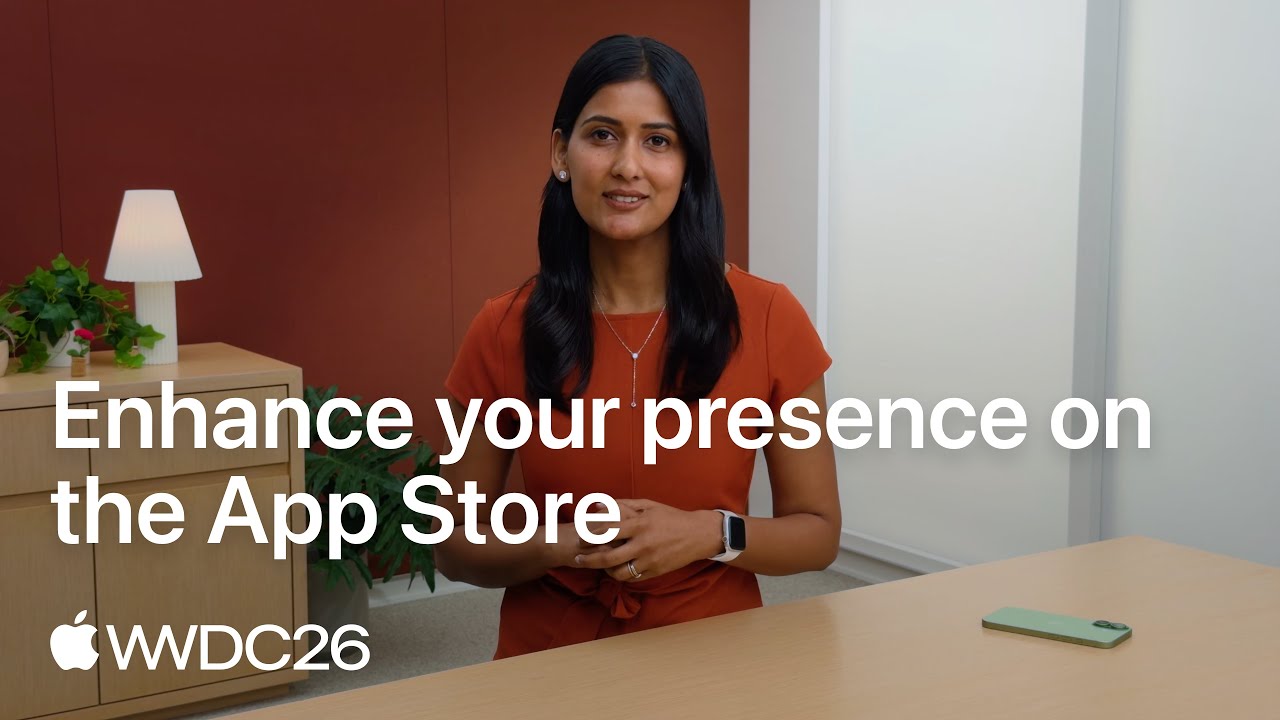
Apple's WWDC26 session on the App Store's new visual placements: product page headers, search result assets, the new Asset Library and the preview tool. Watch it to see where your screenshots and mockups now appear beyond the screenshot carousel.
Instagram Post in an iPhone Mockup: Sizes That Fit Every Feed
For a feed post, choose Instagram Post. It makes a 1080 x 1350 picture, the 4:5 portrait shape. Instagram's own help page says the app keeps photos between 1.91:1 and 3:4 at up to 1080 pixels wide, while the publishing reference for developers, which scheduling tools use, stops at 4:5. A 4:5 post fits both, and it takes more of the screen than a square.
Use Story for anything full screen: Stories, Reels covers and TikTok photo posts all use the 9:16 shape at 1080 x 1920. For a carousel, make one Instagram Post per screenshot with Download All and post them together; Instagram allows up to 20 photos and videos in one post. Keep the same frame color and background on every slide so the carousel reads as one story.
What makes a mockup post work on social media is the same thing that makes any post work: one clear message. Show the one screen that proves the update, put the version number or the feature name in the caption, and post it the day the update goes live, not a week later. That last part is where most app makers fall behind, which is the gap Spreadcast fills.
Spreadcast's update posts are built from the same pieces as this generator: your own screenshot in an iPhone frame, at 1080 x 1350, in your colors. The difference is that Spreadcast notices the new version on the App Store, adds the headline and two or three points from your release notes, writes a caption for each network, and publishes it, without you opening anything.
How to Announce an App Update With an iPhone Mockup
The update post is the one most app makers mean to make and never do. This is the version that takes ten minutes. Spreadcast does all of it for you automatically.
- Step 1
Capture the Screen That Changed
One screenshot of the new feature or the redesigned screen, from the version that just went live.
- Step 2
Frame It
Load it here, pick Instagram Post or Square, use your brand background and download.
- Step 3
Write a Headline With the Version
Version 2.4 Is Here, or the feature name, on the image or as the first line of the caption.
- Step 4
List Two or Three Changes
Take them from your release notes and phrase each as something a user notices, not as a code change. Our app release notes examples show the difference.
- Step 5
Post It the Day the Update Goes Live
On every network you use, with a caption written for each one and your App Store link. A post a week later reads as old news.
- Step 6
Or Let Spreadcast Do It
Paste your App Store link on the start page. Spreadcast notices the next version, designs this post, writes the captions and publishes it.
iPhone Mockup Sizes for Every Social Network
Which size to pick for each network, with what each network's own page says. Full tables for every placement are in our social media image sizes guide, checked on October 17, 2026.
| Network | Size to pick | Pixels | What the network says |
|---|---|---|---|
| Instagram feed | Instagram Post | 1080 x 1350 | 4:5 is the tallest shape the Instagram publishing reference accepts, so scheduled posts keep it whole. |
| Instagram and Facebook Stories | Story | 1080 x 1920 | 9:16. Meta's ads guide for Instagram Stories asks for 1440 x 2560, the same shape. |
| Facebook feed | Instagram Post | 1080 x 1350 | 4:5 is the shape Meta's ads guide recommends for a single image in Feed. |
| Instagram Post or Square | 1080 x 1350 or 1080 x 1080 | 4:5 is the tallest shape LinkedIn shows whole, and its photo post requirements recommend 1080 pixels wide. | |
| Pinterest Pin | 1000 x 1500 | The Standard Pin in Pinterest's product specs is 2:3, PNG or JPEG. | |
| TikTok photo post | Story | 1080 x 1920 | Full screen 9:16, and the photo post reference allows up to 35 photos in one post. |
| Threads and Bluesky | Instagram Post | 1080 x 1350 | 4:5 sits well in both feeds. Our image sizes guide covers their limits. |
| Telegram | Any | Any | The Bot API takes photos whose width and height add up to no more than 10,000 pixels, so every size here fits. |
One rule covers most of it: make an Instagram Post for feeds and a Story for anything full screen.
Free iPhone Mockup Generators Compared
Each tool was opened on October 19, 2026, and the facts come from its own site. Spreadcast is first because it is the only one that loads your screenshots from an App Store link and exports an App Store ready size, free on every size with no account and no watermark. Prices for the others are in each vendor's own words: iMockup Pro, Previewed, MockUPhone, AppLaunchpad and Canva.
| Tool | Free plan | Account | Limits on free | Stands out for |
|---|---|---|---|---|
| Spreadcast | Free, every size and frame | None | None: full size, no watermark | App Store link import, transparent PNG, App Store size as JPG, plain phone for Apple's guidelines, and posting every update for you on the paid plans |
| iMockup Pro | Basic plan at $0 | Not needed for the generator | 3D angles on paid plans ($9 or $19 per three months) | Many devices, clay and realistic styles, exports up to 4K |
| Previewed | Lite plan, free forever | Free registration available | 2D exports at 720p under a Creative Commons attribution license | 3D scenes and video on Plus ($9.99 one time) or Pro ($19 a month) |
| MockUPhone | Free | Not stated on its home page | Not stated on its home page | Simple wrapping of screenshots in phones, tablets and TVs |
| AppLaunchpad | Free and premium templates | Sign up through Get Started for Free | Premium templates and newer devices not all free | 500 plus iPhone mockups and full App Store screenshot templates |
| Canva | Mockups inside Canva | Its iPhone mockup page asked us to log in first | Depends on your Canva plan | Placing a mockup inside a larger Canva design |
Vendors change plans often. Check each site before you rely on a limit. Nothing here is sponsored.
Mockup, Wireframe or Prototype? What People Mean by an App Mockup
The words get mixed up, so it helps to separate them. A device mockup, the kind this generator makes, is a finished screenshot shown inside a picture of a phone, used for marketing. A design mockup is a detailed, static design of a screen before it is built, usually made in Figma. A wireframe is a rough sketch of a screen's layout without colors or real content. A prototype is a clickable version of the design that lets people tap through the screens.
Searches like app mockup generator and how to make an app mockup mean different things depending on the stage. Before you build, you want a design tool and a prototype, which is where Figma and Apple's UI Kit come in. After you build, you want device mockups of the real app for the store, the website and social media, which is what this page is for.
AI tools now generate screen designs from a prompt. Those are design mockups of an app that does not exist yet. For marketing, show the real app: Apple's guidelines ask for the app as it runs, and people who download it expect to see the screens they were shown.
When Another Mockup Tool Is the Better Pick
This generator makes flat, front facing iPhone mockups, which cover most app marketing. It does not make a phone held in a hand, a phone on a desk in a photo, 3D angles, or animated video mockups. If you need those, iMockup Pro has 3D angles on its paid plans, Previewed renders 3D scenes and video on its paid plans, and Canva places mockups inside photo scenes. For a full set of App Store screenshots with designed backgrounds and headlines, a dedicated screenshot designer such as AppLaunchpad gives you more templates.
Android phones are not drawn here yet. Android screenshots look fine in the Plain Phone frame, which has no Apple details, but if you want a specific Pixel or Galaxy model, MockUPhone offers those devices.
For a launch, most app makers end up using two kinds of tool: one to make the screenshots and images, and one to get those images in front of people. Spreadcast covers the second part, and makes the update images for you as part of it.
How to Make an iPhone Mockup in Figma
Figma is where most app designers make mockups by hand. Apple publishes official design files on its Design Resources page: the iOS 27 and iPadOS 27 UI Kit for Figma and Sketch, and product bezels for iPhone Duo, iPhone 18, iPhone 17 and iPhone 16 as Photoshop and PNG files. The page reminds you to review Apple's marketing guidelines when you use the bezels in marketing.
The manual way works like this. Import Apple's bezel PNG into Figma. Draw a rectangle the size of the screen area, fill it with your screenshot as an image fill, round its corners to match the glass, and place it under the bezel. Group the two, and you have a reusable mockup you can duplicate for each screen. Export at 2x or 3x for sharp results.
The faster way is to make the phone here and import the transparent PNG into Figma as a single image. You lose the ability to swap the screenshot inside Figma, but you skip the masking and alignment, and the result is the same picture. Many teams do both: a Figma component for the screenshots they redesign often, and quick PNGs from a generator for social posts and decks.
Video: Adding a Phone Mockup in Figma
A 37 second look at putting a design into a phone mockup in Figma, for when you want an editable version of the frame inside your design file.

How to Make an iPhone Mockup in Canva or Photoshop
Canva has its own mockup feature, but when we opened Canva's iPhone mockup page on October 19, 2026, it asked us to log in or sign up before showing anything. If you already use Canva, its mockups live inside your account. If you would rather not make one, make the phone here as a transparent PNG, then upload it to Canva as an image and build the rest of the design around it.
In Photoshop, Apple's product bezels are the starting point. Open the bezel file, place your screenshot on a layer under the bezel, scale it to the screen area and mask it to the glass. Apple ships the bezels as Photoshop and PNG files. This route gives you the official device image, at the cost of doing the fitting by hand for each screen.
Whichever tool you use, start from a full resolution screenshot. Upscaling a small screenshot to fit a large mockup is the most common reason mockups look soft. The App Store link import above avoids that by asking Apple for the full size files.
Tips for iPhone Mockups That Look Professional
Use Real Screens
Show your app as it runs today, on the current iOS version. Apple's guidelines ask for exactly that, and people notice an old interface.
Fill It With Believable Data
Use a demo account with fictional names and realistic content. Empty states and lorem ipsum make an app look unfinished.
Keep the Status Bar Clean
Full signal, full wifi and full battery, as Apple asks in its marketing guidelines.
One Message per Image
Pick the one screen that proves the feature. A phone showing everything shows nothing.
Match Your Brand
Use your own background color and keep the frame color the same across every image in a set.
Leave Space for Words
In a post or store screenshot, put a short headline beside or above the phone, never on top of it.
Common iPhone Mockup Mistakes and How to Avoid Them
A Blurry Screen
Upscaling a small screenshot to fill a big frame. Start from the full size capture, or let the App Store link import fetch the full files.
The Wrong Shape
A 16:9 screenshot squeezed into a Dynamic Island phone leaves the top and bottom cropped. Fits My Screenshot picks the right frame for you.
A Mixed Set
Different frame colors, backgrounds or sizes across the screenshots of one set. Pick once and use Download All.
Text on the Phone
Headlines laid over the screen hide the app and break Apple's guidelines. Put text beside or above the phone.
Old Screens
A mockup of last year's design next to a post about this year's update. Refresh your mockups whenever the interface changes.
A Cluttered Status Bar
Low battery, no signal, a notification banner. Capture from a clean demo device or the simulator.
iPhone Mockup Ideas for Every App Moment
The moments that deserve a mockup are the moments worth posting about. Spreadcast designs a post for each of them from your App Store listing.
New Version
The screen that shows what changed, with the version number in the headline. Our app update announcement examples show how others word it.
Launch Day
Your three best screens in a row, the app icon and the store badge. The product launch post generator designs it in your brand.
A Great Review
A real five star review quoted next to the screen it praises. The testimonial graphic generator makes the quote post.
Rating Milestone
Your rating and the number of ratings, with a thank you. A milestone is social proof people believe.
Feature Tip
A small feature many users miss, shown in the phone with one line of how to find it.
Before and After
Two phones side by side, the old screen and the redesigned one. All in a Row makes the image.
Who Uses a Free iPhone Mockup Generator
Indie Developers
One person shipping an app needs launch images without opening a design tool. See how indie developers use Spreadcast after launch.
App Startups
Pitch decks, investor updates and the landing page all need the same clean phone. More on Spreadcast for startups.
Studios and Agencies
Several client apps, each with its own colors. Spreadcast keeps each app's brand separate.
Mobile App Marketers
A steady stream of update posts and ads. See Spreadcast for mobile apps.
SaaS Teams With an iOS App
The companion app deserves its own posts. More on SaaS apps.
AI App Builders
Fast release cycles mean a new screen every week. See Spreadcast for AI apps.
What a Spreadcast Update Post Looks Like
Every update post Spreadcast designs is built around the iPhone on this page. At the top sits your logo. Under it, a small New Update tag and a headline such as Version 2.4 Is Here. Then two or three short points taken from your release notes, each one a thing a user will notice, such as Offline Mode or Faster Sync. Beside them stands your own screenshot in the iPhone frame. The background, the type and the accents come from your app's colors and fonts.
Spreadcast writes the words in the language of your release notes, so a Spanish listing gets a Spanish post. If your notes only say bug fixes, there is no update post, because there is nothing a user would notice. And a version older than two weeks is never announced as new, so switching Spreadcast on never posts stale news.
Under the picture, each network gets its own caption with a link to your App Store page, and Spreadcast counts the taps on that link so you can see which posts send people to the store. Rating milestones get their own design: your rating in large type, five stars and the number of ratings.
From Mockup to Published Post: What Spreadcast Adds
A mockup is the start of a post, not the post. You still need a headline, a caption written for each network, a time to post and someone to press publish on Instagram, TikTok, LinkedIn, Facebook, Threads, Pinterest, Bluesky, Mastodon, Telegram and Discord, plus YouTube for video posts. That is the work most app makers skip, and why their last post is from launch week.
Spreadcast does the rest for you. Paste your App Store link once. Spreadcast keeps your icon, screenshots and colors as your brand, checks your listing every day, and when a new version goes live it designs the update post with your own screenshot in the iPhone you see above, plus the headline and two or three points from your release notes. A new rating milestone becomes a thank you post. Spreadcast writes a caption for each network and either waits for your one tap approval or publishes at nine in the morning your time on full autopilot.
You can also ask for a post whenever you want one: a carousel of 3 to 8 slides with real screens of your app, a quote post from a real five star review, or your own pictures and video. Everything is listed on the features page. Spreadcast is free to start: the free plan designs 3 posts for you to download. Pro is $29 a month and includes the clean designs, captions for every network and publishing to all of them, with no per channel fee. See the plans, or paste your link on the start page to see your first post drafted from your own listing.
Free iPhone Mockup Generator vs Spreadcast Autopilot
The generator is a free tool you use when you need an image. Spreadcast is the system that turns those images into posts on a schedule. Most app makers use the first and need the second.
| Task | Free mockup generator | Spreadcast |
|---|---|---|
| Screenshot in an iPhone frame | Yes, you make each one | Yes, made for you from your App Store listing |
| Notices a new version | No | Yes, checks your listing every day |
| Headline and release note points | No | Yes, in the language of your release notes |
| Caption for each network | No | Yes, one written for each feed |
| Publishing | You post it yourself | Instagram, TikTok, LinkedIn, Facebook, Threads, Pinterest, Bluesky, Mastodon, Telegram and Discord, plus YouTube for video posts |
| Approval | Not needed | One tap, or full autopilot |
| Results | None | Interactions, new followers and taps on your App Store link |
| Price | Free | Free to start; Pro at $29 a month includes design, captions and publishing to every network |
How the Generator Draws a Sharp iPhone at Any Size
Most free mockup sites place your screenshot behind a fixed picture of a phone. If that picture is 600 pixels wide, every mockup is soft once you scale it up, and the frame's color is whatever the picture was. This generator draws the phone in code each time, from rounded shapes and gradients measured to a modern iPhone's proportions, so the frame is crisp at 1,000 pixels or 3,000.
The screen area was measured from the glass of a real iPhone outline, at a width to height ratio of about 0.46, which is the shape of every Dynamic Island iPhone screen. Your screenshot is laid into that area with its top edge aligned, tucked slightly under the bezel so no seam of background shows down the sides, and clipped to the rounded corners of the glass. The bezel, the colored band, the side buttons and the Dynamic Island are drawn on top.
The preview you see and the file you download come from the same drawing at the same size. The page only shrinks the canvas to fit your screen. So what you approve is exactly what you get, pixel for pixel, with nothing redrawn on export.
Spreadcast draws the iPhone in its social posts the same way, which is why a post it publishes for your update looks like the mockups you make here.
Privacy: What Happens to Your Screenshots
Files you drop into the generator are opened by your browser and drawn on a canvas on your own computer. They are not uploaded to Spreadcast or anywhere else, and they are gone when you close the tab. That matters for screenshots of apps that are not released yet.
When you paste an App Store link, Spreadcast's server asks Apple's public lookup for the listing, the same information anyone can see on the App Store, and your browser then loads the screenshot images directly from Apple's image server. Nothing is stored, and no account is created. The links are rate limited to keep the tool free for everyone.
Other free tools covered on this page work the same way in principle: they put your screenshot into a device. Check each one's privacy policy if you are mocking up an app under embargo.
Frequently Asked Questions
Is this iPhone mockup generator really free?
Yes. Every size, frame and color is free, the downloads are full size, there is no watermark and you do not need an account. Spreadcast pays for it with the paid plans of its posting product, not with limits on the tool.
Do I need to sign up to download a mockup?
No. Paste a link or drop your screenshots, then click Download Mockup. There is no email, no account and no login.
Are my screenshots uploaded anywhere?
No. Files you drop in are drawn in your browser and never leave your computer. Only an App Store link is sent to our server, to look up the public listing.
How do I make an iPhone mockup with a transparent background?
Choose Phone Only as the size and Transparent as the background, then download. The PNG contains the phone and its soft shadow with nothing behind it. Switch the shadow off for a phone with no shadow at all.
Which iPhone models does the mockup fit?
The Dynamic Island frame fits screenshots from iPhone 14 Pro and later, including iPhone 17, 17 Pro, 17 Pro Max, 18 Pro and iPhone Air, plus Face ID iPhones. The Home Button frame fits 16:9 screenshots from iPhone 8 and SE. The plain phone fits anything.
Can I use an iPhone mockup as an App Store screenshot?
Yes, as long as the screen shows your app in use. Choose the App Store size, which downloads a 1320 x 2868 JPG with no transparency, accepted for the 6.9 inch iPhone display group.
Can I use iPhone mockups in ads?
Apple's marketing guidelines ask apps on the App Store to use Apple's official product bezels, or a generic device with no Apple specific details, and no added shadows. Choose Plain Phone with the shadow off, or download Apple's bezels from its Design Resources page.
Can I get all my App Store screenshots at once?
Yes. Paste your App Store link and up to 10 iPhone screenshots load at full size. Download All then saves one mockup per screenshot with the same settings.
Does it work with Google Play or Android screenshots?
Google Play links do not work yet. Android screenshots dropped in as files work, and look best in the Plain Phone frame, which has no Apple details.
Can it make a hand holding an iPhone or a video mockup?
No. It makes flat, front facing mockups. For hand held photos, 3D angles or video, use a tool such as iMockup Pro, Previewed or Canva.
How do I turn my mockups into social media posts automatically?
Paste your App Store link into Spreadcast. It checks your listing every day, designs a post with your screenshot in this iPhone frame whenever you ship a new version, writes a caption for each network and publishes it for you.
Where These Facts Come From
Every outside number, rule and price on this page links to the page it was taken from.
- Marketing Resources and Identity GuidelinesApple Developer
- Apple Design Resources: product bezelsApple Developer
- Apple Design ResourcesApple Developer
- Screenshot specificationsApple Developer
- Guideline 2.3.3: show your app in use with screenshotsApple Developer
- Capturing screenshots and videos from devicesApple Developer
- iPhone 17 tech specsApple Support
- iPhone 17 Pro tech specsApple Support
- iPhone 17 Pro Max tech specsApple Support
- iPhone 18 Pro tech specsApple Support
- iPhone 18 Pro Max tech specsApple Support
- Apple debuts iPhone 14 Pro and iPhone 14 Pro Max, September 7, 2022Apple Newsroom
- Image resolution of photos you share on InstagramInstagram Help Center
- Share multiple photos or videos in one postInstagram Help Center
- Instagram Graph API: IG User Media referenceMeta for Developers
- Ads guide: image specs for FeedMeta
- Ads guide: Instagram Stories image specsMeta
- Photo post requirementsLinkedIn Help
- Pinterest product specsPinterest Business
- Content Posting API: photo post referenceTikTok for Developers
- Telegram Bot APITelegram
- iMockup Pro device mockup generatoriMockup Pro
- Previewed mockup generator and plansPreviewed
- MockUPhone device mockupsMockUPhone
- iPhone mockup generatorAppLaunchpad
- iPhone mockupsCanva
- WWDC26: Enhance your presence on the App StoreApple Developer on YouTube
- Easily add mockups in FigmaGodwin John on YouTube
Researched and written by Spreadcast. Last checked on October 19, 2026.