How to Use the App Store Description Generator Above
The tool at the top of this page turns a short account of your app into the four text fields of an App Store listing. It needs no account and takes a few seconds.
- Step 1
Type the App's Name
The App Name box takes up to 60 characters. The generator uses the name inside the description and keeps the words of the name out of the keyword field. It does not write, change or suggest a name.
- Step 2
Say What the App Does
This box is required and it is the only thing the generator knows about your app. Write a sentence or a few short points, at least 20 characters and at most 1,500. A count beside the box shows how much you have used.
- Step 3
Add Who It Is For if You Like
The audience box is optional and takes up to 200 characters. A line such as weekend hikers and trail runners gives the opening of the description someone to speak to.
- Step 4
Pick a Tone: Plain or Friendly
Plain is matter of fact. Friendly is warmer, as if the people who make the app were talking. The facts should be the same in both, which is one more thing to check in the result.
- Step 5
Press Write My App Store Description
After a few seconds four texts come back: a Subtitle, Promotional Text, a Description and Keywords. The keywords arrive in lowercase, separated by commas with no spaces, with no keyword listed twice.
- Step 6
Read the Count Beside Each Result, Then Copy
Each result shows its length against Apple's limit: 30 characters for the subtitle, 170 for promotional text, 4,000 for the description and 100 bytes for keywords. Each has its own Copy button, so you can move the fields into App Store Connect one at a time.
- Step 7
Check Every Line Against Your App
The texts are written by AI from what you typed. A line under the results says so and asks you to check every line against your app before you publish. Take that literally: the generator has never seen the app.
- Step 8
Know the Limits of the Free Tool
To keep it free there is a limit of 6 runs in 10 minutes for each visitor. What you write is sent to our server so the text can be written, and it is not stored.
What an App Store Description Generator Is, and What This One Leaves to You
An App Store description generator is a tool that drafts the text of an App Store product page from a short account of the app. This one takes three things from you, the name, what the app does and who it is for, and returns four fields ready for App Store Connect: a subtitle, promotional text, a description and a keyword field, each held inside the limit Apple sets for it.
People look for the same tool under several names: app description generator, AI app description generator, App Store keywords generator, ASO description tool. Whatever the name, the writing here is done by AI on our server, and it works from what you typed and nothing else. It does not look up your app, read an existing listing, check what competing apps wrote or research how often a keyword is searched.
Six jobs stay with you. The generator does not write the app name. It does not write the short description or full description for Google Play. It returns one language for each run and does not translate a listing you already have. It gives no score, search volume or difficulty for any keyword. It cannot promise a ranking, and no tool honestly can. And it has no connection to App Store Connect, so nothing is submitted for you.
Treat the result as a first draft from a writer who has never opened your app. The draft saves you the blank page and the counting. The judgment about what is true, what is current and what your users would search for is still yours, and the rest of this page is there to help with it.
The Four Fields the Generator Writes: Limits, Placement and Search
Every row was read on Apple's own pages on October 13, 2026: the App Store Connect references for app information and platform version information, the guidance on creating your product page and the page on App Store search.
| Field | Limit | Where it shows | Does search read it? | When you can change it |
|---|---|---|---|---|
| Subtitle | 30 characters | Below your app's name throughout the App Store | Yes. Apple lists matches for the title, subtitle, keywords and primary category as text relevance | When you submit a new version |
| Promotional text | 170 characters | Above the description, on devices running iOS 11 or later | No. Apple states that promotional text does not affect search ranking | At any time, with no new version |
| Description | 4,000 characters of plain text | On the product page. Apple adds that it is used for web search engine results once the app is released | Apple does not name it among the text relevance matches, and tells you not to add unnecessary keywords to it | When you submit a new version |
| Keywords | 100 bytes in the reference, 100 characters in Apple's search and product page guidance | Apple names no place where a shopper sees it. It exists for search | Yes. Apple says keywords help determine where your app appears in results | Apple's pages describe no way to change it between versions, so set it with each version |
Apple's pages do not fully agree with each other. The keyword limit is given in bytes on one page and characters on two, and the discovery page lists text relevance as title, keywords and primary category with no mention of the subtitle, while the help page on viewing and editing app information says an app is searchable by app name, subtitle, keywords and company name. The generator counts keywords in bytes, the stricter reading. The full tables for every field, including the app name and What's New, are on the App Store character counter, and how the fields work together is covered in the guide to App Store optimization.
App Store Listing Requirements: Which Fields Are Required
The generator writes four fields, and a listing needs more before Apple accepts a submission. This table collects what Apple marks as required in its references for platform version information and app information and in its table of required, localizable and editable properties, all read on October 17, 2026.
| Field | Required? | Limit or rule |
|---|---|---|
| App name | Required | At least 2 and no more than 30 characters, localizable |
| Subtitle | Optional | Up to 30 characters, localizable |
| Description | Required | Up to 4,000 characters of plain text, localizable |
| Keywords | Required | Up to 100 bytes, each keyword longer than two characters, localizable |
| Promotional text | Optional | Up to 170 characters, editable at any time |
| Screenshots | Required | Per Apple's screenshot specifications, localizable |
| App previews | Optional | Up to three per localization for each device size |
| Support URL | Required | Must lead to real contact information, localizable |
| Marketing URL | Optional | A page with more information about the app |
| Copyright | Required | The year the rights were obtained and the owner's name |
| What's New in this Version | Required for updates only | Up to 4,000 characters, localizable |
| Privacy Policy URL | Required | Localizable |
| Primary category | Required | A secondary category is optional |
| Age rating | Required | Set through the questionnaire in App Store Connect |
| App Review information | Required | Contact details and notes, with notes up to 4,000 bytes |
The age rating has its own guide in App Store age ratings, and screenshot dimensions are in App Store screenshot sizes. Apple's What's New page for the App Store adds that apps and games submitted from April 2027 will need screenshots for iPhone Duo, and that images and videos can now be uploaded ahead of time to a new Asset Library in App Store Connect.
App Store Description Formatting: Line Breaks, Bullets, Bold Text and Markdown
The description field takes plain text and line breaks, and nothing else. Apple's version information reference says HTML is not supported, and it mentions no other markup. So the answer to whether an App Store description supports Markdown is no: asterisks, underscores and pound signs have no special meaning in the field, and a reader would see them as typed.
That leaves three tools for structure. A line break ends a line where you choose. An empty line between two parts reads as a paragraph break. And a bullet character at the start of a line stands in for a list, which is how the template above builds its feature lines. There are no headings, no bold and no italics.
Some listings imitate bold with special Unicode letters that look heavier than normal text. They are different characters from ordinary letters, not formatting, so they change what the words are, not how they look. We leave them out of every draft. If one line has to stand out, make it the first sentence, which Apple calls the most important one because it shows before a visitor taps to read more.
You can now check the result before you submit. Apple's What's New page describes a product page preview in App Store Connect that shows how your screenshots, creative assets and other metadata will appear on the product page and in search results, in Dark Mode and on different devices and orientations. Open it after you paste the description and look at where the first lines break.
How the App Description Generator Builds Each Field
This is what the generator is instructed to write and what our server does to the text before you see it. Knowing the recipe tells you where the draft will be strong and where it needs you.
| Field | What the AI is asked for | What happens before you see it |
|---|---|---|
| Subtitle | What the app does for the user, in plain words, with no full stop at the end | If the text runs past 30 characters it is cut back to the last whole word that fits |
| Promotional text | One or two sentences on what is worth knowing about the app right now | If it runs past 170 characters it is cut back to a whole word |
| Description | About 900 to 1,800 characters: a two sentence opening on what the app does and for whom, then four to six lines that each start with a bullet and name one thing from your input, then a closing sentence | Kept as plain text with line breaks, and held under 4,000 characters |
| Keywords | 10 to 18 words or short phrases a person would type to find this kind of app, with no names of other apps or companies | Made lowercase. Keywords of two characters or fewer, repeats and any keyword that is a word of your app name are removed. Keywords are then dropped from the end until the list fits in 100 bytes |
Four rules apply to all of it. The AI is told to use only what your input says and never to invent a feature, a number, an award or a price. It is told to avoid superlatives and ranking claims such as best or number one. It is told to leave out calls to rate or review and any mention of other platforms. And it is told to write in the language you wrote in. A description of 900 to 1,800 characters leaves more than half of Apple's 4,000 free, which is room for the parts you must add yourself, such as subscription terms.
How to Write an App Store Description by Hand
The generator follows the shape Apple recommends. Apple's product page guidance describes the ideal description as a concise, informative paragraph followed by a short list of main features. These steps build that by hand, so you can judge a draft or write without one.
- Step 1
Write a First Sentence That Stands Alone
Apple calls the first sentence the most important one, because it is what people can read without tapping to see more. Say what the app does and for whom, in words a stranger would use. Apple gives no number of lines or characters for that preview, and the guides that quote one disagree with each other, so do not write to a count. Write so that the first sentence carries the whole pitch and the next two lines still make sense if they are cut anywhere.
- Step 2
Finish the Opening Paragraph in One More Sentence
Use the second sentence for the thing that sets the app apart or for how it works in one breath. Two sentences are enough. A visitor who taps to read more wants the list, and a long opening only delays it.
- Step 3
List Four to Six Features, Most Important First
The description is plain text with line breaks, and Apple's version information reference says HTML is not supported. There is no bold and no real list, so a bullet character at the start of a line does that work. Give each line one feature and what the person can do with it. Guideline 4.5.6 of the App Review Guidelines allows Unicode characters that render as Apple emoji in app metadata, so a symbol at the start of a line is permitted, though a plain bullet reads more calmly.
- Step 4
Use the Words Your Audience Uses
Apple's guidance is to communicate in the tone of your brand and in terminology your audience will understand. If your users say budget, do not write financial planning. The same guidance says not to add unnecessary keywords to the description to improve search results, so write each word for the reader.
- Step 5
Put Proof at the End, and Only Real Proof
If you mention an accolade, Apple recommends the end of the description or the promotional text. Name the award and its year, or the publication that wrote about you. If you have nothing yet, skip the part. An empty claim such as loved by users everywhere costs trust and adds nothing a reader can check.
- Step 6
Say What Costs Money, Without the Price
Guideline 2.3.2 asks that your description clearly indicate whether featured items, levels or subscriptions require additional purchases. Apple's product page guidance also asks you to avoid specific prices in the description, because pricing is already shown on the product page and a number typed into the text may be wrong in other regions. So name what is paid and leave the figure out.
- Step 7
Close in One Plain Sentence
End with who makes the app or where to send questions. Apple shows a support link on the product page for people who have downloaded the app, so the closing line does not need to carry a web address.
- Step 8
Read It Against the Current Build
Section 2.3 of the App Review Guidelines asks that all metadata, the description included, accurately reflect the app's core experience, and reminds you to keep it up to date with new versions. Open the build and tick off each line.
How to Write the App Store Subtitle, Promotional Text and Keywords
The three short fields do different jobs, and most weak listings come from treating them alike. The rules below are from Apple's product page guidance, its search page and the App Review Guidelines, last updated on October 16, 2026.
Subtitle: One Concrete Phrase About What the App Does
Apple describes the subtitle as a concise phrase that summarizes the app, and suggests using it to explain the value of the app in more detail than the name can. Its advice is to highlight features or typical uses and to avoid generic lines of the world's best app kind. With 30 characters you have room for about four words, so pick the use that matters most.
Subtitle: No Prices, No Other Apps, No Claims You Cannot Prove
Guideline 2.3.7 says subtitles must follow the standard metadata rules and should not include inappropriate content, reference other apps or make unverifiable product claims. The same guideline says metadata such as names and subtitles should not include prices, terms or descriptions that are not specific to that type of metadata.
Subtitle: Spend Its Words on Search
The subtitle is one of the fields Apple lists for text relevance. Apple's search guidance says not to repeat in the keyword field any word already in your app name, subtitle or category. So a word placed in the subtitle is a word you can leave out of the 100 bytes.
Promotional Text: What Is New or Timely
Apple suggests using promotional text for the latest news about your app, such as limited time sales or upcoming features. It is the one text you can change at any time without a new version. Apple's version information reference puts it this way: the field lets you inform visitors of current app features without an updated submission.
Promotional Text: Never a List of Keywords
Apple's search page says promotional text does not affect search ranking and should not be used to display keywords. It sits above the description, so it is the first running text a visitor reads. Give it a full sentence a person can act on.
Keywords: Commas, No Spaces, No Repeats
Apple's guidance is to separate keywords with commas and no spaces, with a space allowed inside a phrase of two words. It lists what wastes the field: plurals of words you already included, generic terms such as app or game, names of categories, filler words and special characters. The reference adds that each keyword must be longer than two characters.
Keywords: Only Words That Describe Your App
The reference says names of other apps or companies are not allowed. Apple's product page guidance calls improper use of keywords a common reason for App Store rejections and names four kinds: unauthorized trademarked terms and celebrity names, terms not relevant to the app, competing app names, and offensive terms. Guideline 2.3.7 adds that Apple may modify inappropriate keywords at any time.
App Store Promotional Text vs Description: What Goes Where
The two fields sit next to each other on the product page and are easy to confuse. The difference that matters is how often each can change.
| Question | Promotional text | Description |
|---|---|---|
| Length | Up to 170 characters | Up to 4,000 characters |
| Position | At the top, above the description | Below the promotional text, with the first sentence visible before a tap |
| How often it can change | At any time | With each new version you submit |
| Read by App Store search | No, according to Apple | Not named by Apple as a search field |
| What belongs in it | News: a feature that just shipped, a sale with an end date, an event this week, an award | What stays true for months: what the app does, its main features, who it suits, what costs money |
| What does not belong | A list of search terms, or a sentence that repeats the first line of the description | Anything with a date on it, since you cannot remove it until the next release |
| Can it vary by page | Yes. Apple says custom product pages can have different promotional text | No. Apple's help page on custom product pages lists screenshots, previews, promotional text and keywords as what each custom page can change, and the description is not among them |
| Does the generator write it | Yes, one or two sentences | Yes, an opening, a feature list and a closing sentence |
The generator can only write timely promotional text if your input says what is timely. Add a line such as new in this version: offline maps, or it will summarize the app in general terms, which the description already does.
App Store Promotional Text Examples for an Update, a Sale, an Event and an Award
Promotional text is the 170 characters above the description that you can change at any time without a new version, and Apple suggests it for news such as limited time sales or upcoming features. These six were written by hand for Streakly, an invented habit tracker, and each count was measured for this page. The last column says when each one should come down.
| Occasion | Example promotional text | Characters | Replace it when |
|---|---|---|---|
| A feature that just shipped | New in this version: share a habit with a friend and keep one streak together. You both see each check in the moment it happens. | 128 of 170 | The next version ships, or after about a month |
| A sale with an end date | Streakly Plus is 40% off for the first year until Sunday. Unlock unlimited habits, streak history and backup across your devices. | 129 of 170 | Sunday night, the moment the offer ends |
| A seasonal moment | The January reset starts Monday: pick three habits, tick them off for 21 days, and see how far your streaks go by the end of the month. | 135 of 170 | The month is over |
| An in app event | Join this week's Morning Routine event in the app. Build a 7 day streak before Sunday and unlock a new set of habit icons. | 122 of 170 | The event ends |
| An award, with place and date | Named an App of the Day in Canada in June 2026. Thank you to everyone who checks in with Streakly each morning. | 111 of 170 | The claim is a year old |
| Between news, the core value | Track any habit in one tap and watch your streak grow. No ads, and your data stays on your device unless you turn on sync. | 122 of 170 | You have news again |
None of the six repeats the first line of the description, and none is a list of keywords, since Apple says promotional text does not affect search ranking. A percentage off is a way to describe a sale without a price figure that would be wrong in other regions. Custom product pages can each carry their own promotional text, per Apple's help page, so a page built for one feature can lead with news about that feature.
An App Store Description Template You Can Copy
Fill in the brackets. The first three parts and the closing sentence are the parts the generator drafts. The others need facts only you have.
| Part | What goes in it | Line to fill in |
|---|---|---|
| Opening sentence | What the app does and for whom. It has to make sense by itself | [App name] [does the main thing] for [the people it is for]. |
| Second sentence | What sets the app apart, or how it works in one breath | [Do the main action], and [what you get from it]. |
| Feature list, four to six lines | One feature on each line, the most important first, each starting with a bullet character | • [Feature]: [what you can do with it] |
| Typical uses, if the list does not make them obvious | Two or three situations in which people open the app | Use [app name] to [first use], [second use] or [third use]. |
| Proof, only if it is real | An award with its year or a press mention with the name of the publication | [Award or mention], [year or publication]. |
| What costs money | Which features need a purchase or a subscription, named without a price figure | [App name] is free to download. [Feature] and [feature] are part of [subscription name], an auto renewing subscription. |
| Terms and privacy, for apps with subscriptions | Links to your Terms of Use and Privacy Policy | Terms of Use: [link]. Privacy Policy: [link]. |
| Closing sentence | Who makes the app or where to send questions | [App name] is made by [who]. Questions go to [support address]. |
Keep each line break. The field is plain text, so blank lines between the parts are the only structure a reader gets.
App Description Examples: A Hiking Tracker, a Budget Planner and a Meal Planner
These examples were written by hand for this page to show the shape of a finished set of fields. They are not output from the generator, whose wording differs from run to run. The apps are invented and any likeness to a real app is accidental. Every count was measured for this page: subtitles in characters, promotional text in characters, keywords in bytes.
| App and field | Example text | Count |
|---|---|---|
| Trailmark, a hiking tracker: what was typed | Name: Trailmark. What it does: logs every hike with GPS, works offline with saved trail maps (new in this version), shows distance, climb and pace, syncs with Apple Watch. Who it is for: weekend hikers and trail runners. | Your input |
| Trailmark: subtitle | Hike Tracker With Offline Maps | 30 of 30 characters |
| Trailmark: promotional text | New: save any trail map before you leave and follow it with no signal. Distance, climb and pace stay on screen the whole way, and every hike syncs with your Apple Watch. | 169 of 170 characters |
| Trailmark: first lines of the description | Trailmark records every hike with GPS and keeps the map working when your phone has no signal. It is made for weekend hikers and trail runners who want their distance, climb and pace on one screen. | 197 characters |
| Trailmark: keyword field | hiking,trail,gps,route,walk,outdoor,trek,backpacking,elevation,mountain,camping,summit,pace,climb | 97 of 100 bytes, 14 keywords |
| Ledgerleaf, a budget planner: what was typed | Name: Ledgerleaf. What it does: track spending by category, set a monthly budget with a running total, add an expense in two taps, export to CSV, no bank login because everything is typed in by hand. Who it is for: people who want a simple budget without linking a bank. | Your input |
| Ledgerleaf: subtitle | Simple Monthly Budget Planner | 29 of 30 characters |
| Ledgerleaf: promotional text | Set a monthly budget, add each expense in two taps and see what is left at a glance. There is no bank login: you type in what you spend. | 136 of 170 characters |
| Ledgerleaf: first lines of the description | Ledgerleaf is a budget planner for people who want to know where their money goes without linking a bank account. Set a monthly budget, add each expense in two taps, and the running total shows what is left. | 207 characters |
| Ledgerleaf: keyword field | expense,spending,money,tracker,saving,bills,cash,income,household,manual entry,csv export,allowance | 99 of 100 bytes, 12 keywords |
| Supper Sorted, a meal planner: what was typed | Name: Supper Sorted. What it does: plan dinners for the week, build one shopping list from the recipes you pick, 400 recipes that each take under 40 minutes, filters for vegetarian, gluten free and dairy free. Who it is for: busy households. | Your input |
| Supper Sorted: subtitle | Weekly Meal Plans in Minutes | 28 of 30 characters |
| Supper Sorted: promotional text | Pick this week's dinners from 400 recipes that each cook in under 40 minutes. One shopping list builds itself from what you chose. | 130 of 170 characters |
| Supper Sorted: first lines of the description | Supper Sorted plans a week of dinners and writes the shopping list for you. Pick from 400 recipes that each take under 40 minutes, and filter for vegetarian, gluten free or dairy free. | 184 characters |
| Supper Sorted: keyword field | dinner,recipe,shopping list,grocery,cooking,vegetarian,gluten free,dairy,menu,family,planner,prep | 97 of 100 bytes, 12 keywords |
Look at what the keyword fields leave out. Trailmark's list has no tracker, offline or maps, because the subtitle already holds them. Ledgerleaf's has no budget or planner. None of the three lists contains the word app or the name of a store category, and no keyword has a space after its comma.
App Store Description Examples: A Vocabulary App, an Invoicing App and a Sleep Sounds App
Three more invented apps, written by hand to the same limits. Notice how each promotional text is a sentence a shopper can picture, built from numbers that were in the input.
| App and field | Example text | Count |
|---|---|---|
| Wordfern, a vocabulary app: what was typed | Name: Wordfern. What it does: teaches Spanish vocabulary with flashcards, spaced repetition decides when each card returns, 3,000 words grouped by topic, audio by native speakers, a 10 minute daily session, works offline. Who it is for: adult beginners. | Your input |
| Wordfern: subtitle | Learn Spanish Words Daily | 25 of 30 characters |
| Wordfern: promotional text | Ten minutes a day, 3,000 Spanish words. Spaced repetition brings each card back when it is due, with audio recorded by native speakers. | 135 of 170 characters |
| Wordfern: first lines of the description | Wordfern teaches Spanish vocabulary in a 10 minute session each day. It is built for adult beginners: 3,000 words grouped by topic, each with audio recorded by native speakers. | 176 characters |
| Wordfern: keyword field | vocabulary,flashcard,language,espanol,beginner,spaced repetition,audio,offline,study,memorize,phrase | 100 of 100 bytes, 11 keywords |
| Invoice Wren, an invoicing app: what was typed | Name: Invoice Wren. What it does: creates and sends invoices as PDF, saves clients and items, tracks paid, unpaid and overdue, sends payment reminders by email, supports 30 currencies, monthly income report. Who it is for: freelancers and sole traders. | Your input |
| Invoice Wren: subtitle | PDF Billing for Freelancers | 27 of 30 characters |
| Invoice Wren: promotional text | Create a PDF invoice from saved clients and items, send it, and let email reminders follow up on the late ones. Paid, unpaid and overdue sit on one screen. | 155 of 170 characters |
| Invoice Wren: first lines of the description | Invoice Wren creates PDF invoices and keeps track of who has paid. It is made for freelancers and sole traders: save your clients and items once, then send an invoice in any of 30 currencies. | 191 characters |
| Invoice Wren: keyword field | invoicing,client,payment,reminder,overdue,unpaid,self employed,sole trader,income report,currency | 97 of 100 bytes, 10 keywords |
| Quietloop, a sleep sounds app: what was typed | Name: Quietloop. What it does: 40 looping sounds such as rain, a fan, brown noise and the ocean, mix up to 4 sounds and save the mix, sleep timer with fade out, plays in the background and offline. Who it is for: light sleepers and people who work in loud places. | Your input |
| Quietloop: subtitle | Sleep Sounds and White Noise | 28 of 30 characters |
| Quietloop: promotional text | Mix rain, a fan, brown noise and the ocean into a sound of your own. Set the sleep timer and the sound fades out when it ends. | 126 of 170 characters |
| Quietloop: first lines of the description | Quietloop plays looping sounds that cover the noise around you, for light sleepers and for people who work in loud places. Choose from 40 sounds, mix up to 4 at once and save the mix. | 183 characters |
| Quietloop: keyword field | rain,fan,brown,ocean,relax,focus,timer,calm,ambient,nap,bedtime,soothing,mixer,background,offline | 97 of 100 bytes, 15 keywords |
Quietloop's description says the sounds cover noise. It does not say they improve sleep or treat anything. A health claim the app cannot back up is the kind of line section 2.3 of the App Review Guidelines exists for, and it is easy for a warm sentence to drift into one.
App Store Description Examples: A Puzzle Game, a Pet Care Log and a Document Scanner
The last three, again invented and written by hand. The game shows how a line about purchases fits into the opening.
| App and field | Example text | Count |
|---|---|---|
| Blockhop, a puzzle game: what was typed | Name: Blockhop. What it does: block puzzle on a 9 by 9 grid, 600 levels plus a daily puzzle, no time limit, plays offline, one hand in portrait, free with ads and one purchase removes them. Who it is for: people who want a calm puzzle for short breaks. | Your input |
| Blockhop: subtitle | Calm Block Puzzle, 600 Levels | 29 of 30 characters |
| Blockhop: promotional text | A new daily puzzle is waiting, on top of 600 levels with no timer. Play with one hand, offline, for as long as your break lasts. | 128 of 170 characters |
| Blockhop: first lines of the description | Blockhop is a block puzzle on a 9 by 9 grid with no clock running. It has 600 levels and a new puzzle every day, for anyone who wants a calm game in a short break. Blockhop is free with ads, and a single purchase removes them. | 226 characters |
| Blockhop: keyword field | brain,logic,grid,daily,offline,relaxing,simple,one hand,no timer,tile,shape,fit,teaser,mind,break | 97 of 100 bytes, 15 keywords |
| Pawlog, a pet care log: what was typed | Name: Pawlog. What it does: logs feeding, walks, weight and medication for each pet, reminders for vaccines and vet visits, share a pet with family members, for dogs and cats. Who it is for: households that share the care of a pet. | Your input |
| Pawlog: subtitle | Pet Care Log and Reminders | 26 of 30 characters |
| Pawlog: promotional text | Add a vaccine date once and everyone who shares the pet gets the reminder. Feeding, walks, weight and medication sit in one log. | 128 of 170 characters |
| Pawlog: first lines of the description | Pawlog keeps one record of each pet's feeding, walks, weight and medication, shared by everyone in the household. It reminds you about vaccines and vet visits, for dogs and cats. | 178 characters |
| Pawlog: keyword field | dog,cat,vet,vaccine,feeding,walk,weight,medication,puppy,kitten,family,shared,tracker,animal,diary | 98 of 100 bytes, 15 keywords |
| Scanfold, a document scanner: what was typed | Name: Scanfold. What it does: scans paper with the camera, finds the edges and straightens the page, saves as PDF or JPG, text recognition in 12 languages makes scans searchable, sign with your finger, scans stay on the device unless you share them. Who it is for: people who handle paperwork at home. | Your input |
| Scanfold: subtitle | Scan and Sign Documents as PDF | 30 of 30 characters |
| Scanfold: promotional text | Point the camera at a page and get a straight, searchable PDF. Sign it with your finger and send it on. Scans stay on your device unless you share them. | 152 of 170 characters |
| Scanfold: first lines of the description | Scanfold turns paper into PDF with your phone's camera. It finds the edges of the page, straightens it and reads the text in 12 languages, so you can search inside every scan. | 175 characters |
| Scanfold: keyword field | scanner,ocr,paper,receipt,contract,signature,jpg,camera,searchable,form,paperwork,letter,page,text | 98 of 100 bytes, 14 keywords |
Blockhop's keyword list leaves out the word game, which Apple calls too generic to earn its space, and the word puzzle, which is already in the subtitle. Dog, cat and vet in Pawlog's list are three characters each, just over Apple's minimum of more than two.
What to Give the AI App Description Generator to Get a Better Draft
The generator can only rearrange what you hand it. The first six rows are inputs that improve the draft. The last six make it worse or put something into the listing that should not be there.
| What you type | Example | What it does to the draft |
|---|---|---|
| One feature on each line, as something the user does | save a trail map and follow it with no signal | Each line can become one bullet of the description |
| Numbers you can stand behind | 400 recipes, each under 40 minutes | The AI is told never to invent a number, so the only figures in the draft are yours |
| What is new right now | new in this version: offline maps | Gives the promotional text something current to say |
| The words your users say | hike, trail and climb if that is how they talk | The subtitle and keywords are drawn from your wording |
| A specific audience | freelancers and sole traders | The opening sentence can say who the app is for |
| What costs money, with no figure | free with ads, one purchase removes them | The description can say it, as guideline 2.3.2 expects |
| Adjectives with no fact behind them | powerful, beautiful, easy | The AI is told to avoid superlatives, so these give it nothing to write from |
| A comparison with a well known app | like a famous competitor but simpler | The name can leak into the description. Apple does not allow other apps' names in keywords, and guideline 2.3.7 says subtitles should not reference other apps |
| Prices | 4.99 a month | Apple advises against specific prices in the description, and the generator does not know your regional pricing |
| Features that have not shipped | coming soon: shared lists | The AI cannot tell planned from built and will describe both as present |
| Other platforms | also on Android and the web | The AI is told to leave them out, and guideline 2.3.10 bars names of other mobile platforms from metadata. Delete the line to be sure |
| Secrets and personal data | test account passwords, customer names | Nothing you type is stored, but none of it belongs in a public listing |
If you paste an old description as your input, the generator rewrites what is there, mistakes included. A fresh list of features gives a cleaner result than 1,500 characters of old copy.
Before and After: Rewriting a Weak App Store Listing
The app is invented: a habit tracker called Dayline. Every field in the before column fits its limit, which is the point. A listing can pass every count and still waste its space or break a rule.
| Field | Before | What is wrong | After |
|---|---|---|---|
| Subtitle | The #1 Best Habit Tracker App! (30 characters) | A ranking claim nobody can verify, which guideline 2.3.7 rules out for subtitles, plus the word app, which says nothing | Build Habits, Keep a Streak (27 characters) |
| Promotional text | habit tracker, habits, goals, routine, streak, daily planner, productivity, self improvement (92 characters) | A keyword list in a field search does not read. A visitor learns nothing from it | New in this version: a widget that shows today's habits on your Home Screen, and a separate reminder time for each habit. (121 characters) |
| First lines of the description | Welcome to Dayline! We are a passionate team and we worked hard to bring you the ultimate experience. Get it now for only $2.99. Also available on Android. | The first sentence says nothing about the app. A price that may be wrong in other regions. Another platform named, against guideline 2.3.10 | Dayline tracks the habits you want to keep and shows your streak for each one. Add a habit, pick the days it applies to, and tick it off in one tap. |
| Keyword field | habit, habits, tracker, dayline, app, free, best, goals (55 bytes) | Spaces after commas, a plural of a word already there, the app's own name, three generic words, and 45 bytes left unused | routine,goal,daily,reminder,checklist,planner,widget,progress,motivation,journal,self care,morning (98 bytes) |
The rewritten keyword field has no habit and no streak, because the new subtitle carries both. That frees the whole field for twelve keywords the listing did not have before.
App Store Description Mistakes and Rejection Reasons to Check For
Each card names a rule from the App Review Guidelines or from Apple's guidance. An AI draft can break any of them if the input invites it.
Describing Something the App Does Not Do
Section 2.3 asks for metadata that accurately reflects the app's core experience. Guideline 2.3.1 goes further: marketing an app in a misleading way, such as promoting content or services it does not offer, is grounds for removal from the App Store.
Names of Other Apps, Companies or Trademarks in the Keywords
Apple's version information reference says names of other apps or companies are not allowed, and the product page guidance lists competing app names among the improper uses of keywords that commonly lead to rejection. Guideline 2.3.7 tells developers not to pack metadata with trademarked terms, popular app names, pricing information or other irrelevant phrases, and guideline 5.2.1 bars using protected third party material such as trademarks without permission. A keyword that does not describe your app is a risk even when it fits.
Naming Android or Another Store
Guideline 2.3.10 says not to include names, icons or imagery of other mobile platforms or alternative app marketplaces in your metadata unless there is specific, approved interactive functionality. A line such as also on Android does not qualify.
Saying an App Is for Kids Outside the Kids Category
Guideline 2.3.8 reserves terms such as For Kids and For Children in app metadata for the Kids Category. If you type for kids into the audience box, the draft may repeat it, so check where your app is categorized first.
Hiding What Requires a Purchase
Guideline 2.3.2 expects the description, screenshots and previews to make clear whether featured items, levels or subscriptions need additional purchases. The generator only knows about purchases if your input mentions them.
Leaving Last Year's Listing in Place
Section 2.3 asks you to keep metadata up to date with new versions. A description that still lists a feature you removed is inaccurate metadata, even though it was true once. Reread it at every release, and write the What's New text with the app release notes generator.
Using All 4,000 Characters Because They Are There
Apple's ideal is a concise paragraph and a short list, and it calls the first sentence the most important one. Add length beyond that only for facts a buyer needs, such as what a subscription includes.
App Store Description for an App With Subscriptions: What Apple Asks For
If your app sells an auto renewing subscription, the listing carries extra duties, and the generator covers none of them unless you type them in. Four Apple documents apply, all read on October 13, 2026.
Guideline 2.3.2 of the App Review Guidelines asks that the description clearly indicate whether featured items or subscriptions require additional purchases. Guideline 3.1.2(c) says that before asking a customer to subscribe you should clearly describe what the user will get for the price, and points to Schedule 2 of the Apple Developer Program License Agreement.
Section 3.8(b) of that schedule, in the license agreement, requires you to disclose clearly and conspicuously the title of the subscription, its length and its price, and says links to your Privacy Policy and Terms of Use must be accessible within the app. Apple's page on subscriptions lists what the sign up screen must show, including the full renewal price, and then adds one sentence about the listing: your app and App Store metadata must include links to your Terms of Use and Privacy Policy.
App Store Connect has a field for the privacy policy address, and Apple's app information reference says Apple provides a standard license agreement that applies unless you supply a custom one. The pages cited here do not say which field the Terms of Use link belongs in. A line near the end of the description with both links is a simple way to make them visible in the listing itself.
The price itself is the awkward part. The schedule wants the price disclosed, and the product page guidance asks you to keep specific prices out of the description because they vary by region. The two fit together once you see where each applies: the price goes on the sign up screen inside the app, where it can be localized, and the description names the subscription, its length and what it includes with no figure.
Checking AI Written App Store Copy Before You Publish
Text written by a model reads smoothly whether or not it is true. The United States standards institute NIST lists this as a risk of generative AI in its Generative AI Profile, published in July 2024, under the name confabulation: content that is stated with confidence and is wrong.
The generator on this page is told to use only your input and never to invent a feature, a number, an award or a price. That instruction lowers the risk. It does not remove it. A model can misread a terse line, turn syncs with Apple Watch into a full watch app, or promote a detail into a promise.
Apple's rules make no allowance for who or what wrote the text. Section 2.3 holds the developer to metadata that accurately reflects the app, and guideline 2.3.1 names misleading marketing as grounds for removal. If a draft says something your app does not do, the listing is yours and so is the problem.
A workable check takes five minutes. Read each sentence of the draft and point to the screen in your app that makes it true. Delete any sentence you cannot point to. Then look for words the draft added that your input did not contain, above all numbers, the word every and the word all. Last, read the keyword list for any name of a company or product.
The same check applies to the model's sense of your audience. If the opening says the app is for professionals and you built it for students, change it. The generator took its picture of your users from one optional line.
App Store Keywords Generator: What the Tool Cannot Know About Search
The keyword list you get back is a set of words a person might plausibly type to find an app like yours. It is a guess made from your description of the app. The generator has no data on how often any word is searched, how many apps compete for it or where your app ranks today.
Apple publishes that kind of signal in one place open to every developer. The Apple Ads guidance on keywords says the keyword suggestion tool in an Apple Ads account displays keyword popularity based on App Store searches. Apple's product page guidance describes the trade you are making: popular, functional terms may bring a lot of traffic and are highly competitive, while less common terms bring less traffic and are easier to rank for.
The generator also checks less than Apple asks. Our server removes repeats, keywords of two characters or fewer and keywords that are a word of your app name. It does not remove a keyword that repeats a word in the subtitle, a plural of a word already in the list, or the name of your category, all of which Apple's search page says to leave out. That pass is yours. The quickest way to do it is to paste the name, the subtitle and the keywords into the App Store character counter, which marks any keyword that is already a word in the name or subtitle.
Apple now also derives tags from your listing. Apple's help page on app tags says tags are applied to an app by default, based on the metadata you provide in App Store Connect in United States English, together with artificial intelligence and human curation, and that you can deselect the ones you do not want. Tags are shown to users in the United States only for now. It is one more reason to make every field accurate: your metadata is being read to decide what your app is.
After the listing is live, the numbers that tell you whether the words work are in App Analytics. Apple's search page suggests monitoring impressions, conversion rate and downloads there, filtered by source. What to do with those numbers is covered in how to get app downloads.
App Store Description Checklist Before You Submit
Run through this list with the draft in one window and the app in another.
| Check | How to check it | Where the rule comes from |
|---|---|---|
| Every sentence is true in the current build | Point to the screen that proves each one | App Review Guidelines, section 2.3 |
| The first sentence says what the app does and for whom | Read it alone, as a stranger would | Apple's product page guidance |
| Subtitle is 30 characters or fewer and makes no claim you cannot prove | Read the count beside the result | Apple's app information reference and guideline 2.3.7 |
| Promotional text holds news and no keyword list | Ask whether it will still be true in three months. If so, it belongs in the description | Apple's search page |
| No price figure in the subtitle or description | Search the text for a currency sign | Guideline 2.3.7 and Apple's product page guidance |
| No other app, company or mobile platform is named | Read the description and the keywords for names | Apple's version information reference and guideline 2.3.10 |
| Keywords repeat no word from the name, subtitle or category | Paste all three into the character counter | Apple's search page |
| Keywords have no spaces after commas, no plurals of included words, and fit in 100 bytes | Read the byte count beside the result | Apple's search page and version information reference |
| Paid features are named as paid | Compare the feature list with your in app purchases | Guideline 2.3.2 |
| Subscription apps link their Terms of Use and Privacy Policy | Look for both links in the listing | Apple's page on subscriptions |
| Each language has its own description and keywords | Open every language in App Store Connect | Apple's page on localizing app information |
The full list of steps around a first submission, from screenshots to review notes, is in the app launch checklist.
Google Play Description Fields, Which This Generator Does Not Write
This section is here because people search for a Google Play description generator and land on this page. The tool above writes App Store fields only. It does not write a Google Play title, short description or full description, and its output should not be pasted into Play Console unchanged.
Google Play's listing has three text fields, according to Google's help page on creating and setting up your app: an app name of up to 30 characters, a short description of up to 80 and a full description of up to 4,000. There is no subtitle, no promotional text and no keyword field.
That changes the writing. Google's page on getting discovered on Google Play search tells developers to use search best practices in the description while staying clear of keyword spam, so the words people search for have to appear naturally in the text itself. Google's best practices for a store listing say users may only read the first few sentences, and that the short description should not be repeated in the full description.
Google's rules are also stricter in places. Its metadata policy does not allow unattributed or anonymous user testimonials in a description, and the best practices page says a listing should not include text about store performance or ranking, or price and promotional information.
If you publish on both stores, the description the generator drafts is a reasonable starting point for the full description on Google Play, once you have reread it against those rules and removed anything that only applies to Apple devices. The 30 character subtitle has to grow into an 80 character sentence by hand. The keyword field does not carry over at all. The Google Play tab of the character counter linked above counts all three fields.
Writing the Listing in Other Languages After You Generate It
The generator is told to write in the language you write in, so a description of your app typed in German should come back as German fields. It returns one language for each run. It does not translate a finished listing, and it does not adapt keywords to what people in another country search for.
That second part matters more than it sounds. Apple's page on localizing app information says that when you add a language, its properties default to those of the primary language, except for the description and the keywords. Those two start empty and have to be written for each language. The same page says people can search with your localized keywords in every country or region where the App Store supports that language.
Count again after translating. A subtitle that fits in English often runs long in German or French, and the keyword field is measured in bytes in Apple's reference, so accented letters and other scripts use the 100 faster than plain English does. The byte tables are in the character counter linked above.
What the Rest of the Product Page Needs Besides Text
The four fields are one part of a listing. These free tools and guides cover the parts around them.
Screenshots
Apple's search page says your app name, subtitle and up to three screenshots or app previews can display in search results, so the pictures are often seen before the description. Check your files with the App Store screenshot size checker, and see what works in these App Store screenshot examples.
The App Icon
The app icon size checker tests an icon against the App Store and Google Play rules and resizes it.
What's New in Each Version
The description stays put between releases. The What's New text changes every time, and there are 20 finished ones in these app release notes examples.
Links You Can Measure
Before you share the listing anywhere, build a tagged link with the App Store campaign link generator, so App Analytics can tell you which post or page sent each download.
The Plan Around the Listing
A good product page converts the visitors you send to it. Sending them is a separate job, laid out in how to market an app.
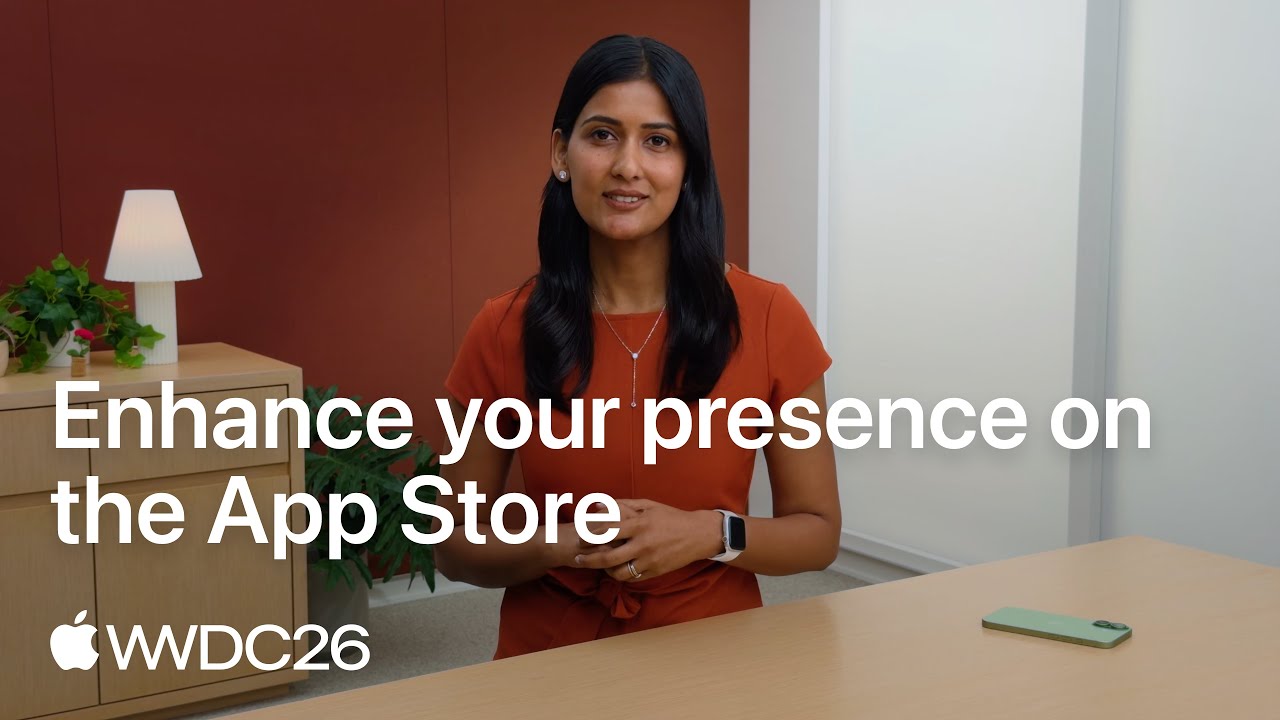
Video: Apple on the New Images and Videos Around Your Product Page
Apple's WWDC26 session shows the new places your images and videos appear, on the product page header, in search results and in Apple Ads, plus the Asset Library and the product page preview tool mentioned above.
Once the Listing Is Live, Spreadcast Turns Each Update and Review Into a Post
The generator on this page is a free tool from Spreadcast, and it works without the product. The product starts where the listing ends.
You paste your App Store link once at the start page. Spreadcast then reads your public App Store listing every day, with no SDK and no access to your developer account. Each new version, each new 5 star review and each rating milestone becomes a designed post built from your icon, your screenshots and your colors, published to 11 networks: Instagram, TikTok, LinkedIn, Facebook, Threads, Pinterest, Bluesky, Mastodon, Telegram and Discord, plus YouTube for video posts. A post that quotes a reviewer's words waits for your approval first.
The text you write here feeds that directly, because the posts are made from the listing. The Free plan drafts every post for 1 app to download, and Pro publishes them for you at $29 a month, as shown on the pricing page. It works with App Store listings today.
Frequently Asked Questions
Is the App Store description generator free?
Yes. It is free and needs no account. To keep it free there is a limit of 6 runs in 10 minutes for each visitor, and what you write is not stored.
Does the generator look up my app or research keywords?
No. It writes from what you type and nothing else. It does not read your listing, check competing apps or know how often a keyword is searched, so treat the keyword list as suggestions to verify.
What is the App Store description character limit?
The description is limited to 4,000 characters of plain text, according to Apple's platform version information reference. The subtitle is limited to 30 characters, promotional text to 170 and the keyword field to 100 bytes.
What is promotional text in the App Store?
It is a text of up to 170 characters that appears above the description. You can change it at any time without submitting a new version, and Apple says it does not affect search ranking. Use it for news such as a feature that just shipped.
Does the App Store description affect search ranking?
Apple does not list it. Apple's App Store search page names the title, subtitle, keywords and primary category as the text that search matches, and its product page guidance says not to add unnecessary keywords to the description. The description is there to persuade the person who has already found you.
Can this tool write a Google Play description?
No. It writes the four App Store fields only. Google Play uses an app name of 30 characters, a short description of 80 and a full description of 4,000, with no keyword field, and the page above explains how to adapt the draft by hand.
Can I publish an AI written App Store description as it is?
Read it against your app first. Apple's App Review Guidelines hold you to accurate metadata whoever wrote the text, and a model can state something with confidence that your app does not do. Delete any sentence you cannot point to in the app.
Does the App Store description support Markdown or bold text?
No. Apple's reference describes the field as plain text with line breaks and says HTML is not supported. Use line breaks, empty lines and a bullet character for structure, and put the most important point in the first sentence.
Which App Store listing fields are required?
Apple marks the app name, description, keywords, screenshots, support URL, copyright, privacy policy URL, primary category, age rating and App Review information as required, and What's New for updates. The subtitle, promotional text, app previews and marketing URL are optional, per Apple's references.
Does the generator write in other languages?
It is told to answer in the language you write in, and it returns one language for each run. It does not translate an existing listing or adapt keywords to another market.
Where These Facts Come From
Every outside number, rule and price on this page links to the page it was taken from.
- Platform version information reference: promotional text, description and keywordsApple Developer, App Store Connect Help
- App information reference: name, subtitle and license agreementApple Developer, App Store Connect Help
- View and edit app informationApple Developer, App Store Connect Help
- Manage app tagsApple Developer, App Store Connect Help
- Localize app informationApple Developer, App Store Connect Help
- Creating your product pageApple Developer
- App Store searchApple Developer
- Discovery on the App Store and Mac App StoreApple Developer
- App Review Guidelines, sections 2.3, 3.1.2, 4.5.6 and 5.2.1Apple Developer
- Auto renewable subscriptionsApple Developer
- Apple Developer Program License Agreement, Schedule 2Apple Developer
- Keyword best practicesApple Ads
- Required, localizable, and editable propertiesApple Developer, App Store Connect Help
- Configure multiple product page versionsApple Developer, App Store Connect Help
- What's new in App Store: creative assets, Asset Library and product page previewApple Developer
- Video: the 2026 creative assets and product page previewApple Developer
- Create and set up your appGoogle Play Console Help
- Best practices for your store listingGoogle Play Console Help
- Metadata policyGoogle Play Console Help
- Get discovered on Google Play searchGoogle Play Console Help
- Artificial Intelligence Risk Management Framework: Generative Artificial Intelligence Profile, NIST AI 600 1National Institute of Standards and Technology
Researched and written by Spreadcast. Last checked on October 17, 2026.