Yes, you can schedule posts on Threads, and you don't need another app to do it. The Threads scheduler lives inside the composer: write the post, tap the three dot menu, tap Schedule, pick a date and time, and tap Schedule again. Meta's own @threads account announced it on January 23, 2025, in a post it had scheduled itself. The post then waits in your drafts folder until it goes live.
That covers the easy case: one account, one post, written on your phone. This guide covers everything around it. How to schedule Threads posts in the app and on desktop. Where scheduled posts hide once you've made them. How to edit or move one. What to do when the Schedule option is missing or a post never goes out. The limits that trip up schedulers, from the character count to the API rules every outside tool works within. And when it's worth paying for a scheduler instead.
Threads is big enough now to deserve a plan. When Meta reported its results in July 2026, Mark Zuckerberg said Threads has 500 million monthly active users, according to the Associated Press. For the full growth history, see our Threads statistics. A feed that size rewards showing up regularly, and scheduling is how most people manage that without living in the app.
Our view after comparing the options: the built in scheduler is good enough if you post text to one Threads account and nowhere else. It stops being enough the day you want the same news on Instagram and Bluesky too, need a designed picture with each post, or want to see a week of posts on a calendar. Those are the jobs scheduling tools exist for, and we cover the main ones, prices included, further down.
Can You Schedule Posts on Threads?
You can, on any account, for free. It took Threads a while to get there. Meta first promised scheduling in August 2024, in the same newsroom post that launched drafts and Insights. The post said you'd be able to schedule several posts a day and several days in advance, and that testing would begin soon. In December 2024 the @threads account told people in the test to use the three dot menu in the composer. A month later the feature reached everyone. Social Media Today reported the full rollout on the same day as the official post.
If you searched "can you schedule threads" and found older articles saying no, that's why. Plenty of guides were written in 2023 and 2024, when Threads had no scheduler of its own. They are out of date. The native feature has been live for nearly two years now.
| Date | What changed | Source |
|---|---|---|
| August 15, 2024 | Meta adds drafts (up to 100 saved) and Insights, and says scheduling will start testing soon | Meta newsroom |
| December 17, 2024 | Scheduling starts as a test with some accounts, from the composer's three dot menu | @threads |
| January 23, 2025 | Scheduling reaches all users. Scheduled posts sit in the drafts folder | @threads, TechCrunch |
| February 10, 2025 | Meta's @creators account repeats the news for creators and brands | @creators |
| August 26, 2025 | Meta says you can change a scheduled post's publish time from drafts | @threads |
| February 2, 2026 | Drafts move behind an icon at the top right of the composer | @threads |
What the Native Threads Scheduler Can and Cannot Do
Here is what you get from the scheduler inside the Threads app, based on Meta's own posts and the launch coverage. We list the gaps too, because they decide whether you'll need anything else.
- It schedules a new post from the composer, at a date and time you choose.
- It lets you schedule several posts on the same day. Meta said so in its August 2024 announcement.
- It keeps every scheduled post in your drafts folder with a time stamp, where you can edit it, delete it or change when it goes out.
- It does not schedule replies. AlternativeTo's launch report says so outright, and none of Meta's posts describe a way to do it.
- It does not show a calendar view. You see a list in drafts, not a week laid out by day.
- It does not publish to Instagram, Bluesky or any other network at the same time. Each app gets its own copy, posted by hand.
- It does not design anything. If the post needs a picture, you make it somewhere else and attach it.
- It works for one account at a time. Switch accounts and you're looking at a different drafts folder.
How We Researched This
We checked every claim in this guide on October 28, 2026. The native steps come from Meta's own words: the official @threads and @creators accounts, Meta's newsroom, and launch coverage in TechCrunch and Social Media Today. Meta's Threads Help Center would only open after we accepted tracking cookies, so we didn't rely on it, and we say where that leaves a gap. API limits come from Meta's Threads developer documentation. Prices come from each vendor's own pricing page on the same day.
- The Threads app we refer to is version 453.0 on the App Store, updated on October 26, 2026, and the same app on Google Play.
- Where Meta hasn't published something, such as how far ahead you can schedule, we say so instead of guessing.
- Prices are in US dollars before tax. Several vendors bill per channel, per seat or per social set, so we quote the unit next to every number.
- We make Spreadcast, one of the tools compared below. Its row is based on what its code does with Threads today, and you should read it with the same doubt you'd bring to any vendor.
Is Threads Worth Scheduling For in 2026?
For most brands, yes, because the audience is now large and it comes with almost no setup. The same AP report that gave Threads 500 million monthly users put Instagram at 2 billion daily users, and a Threads account starts from your Instagram login. If you already post on Instagram, adding Threads costs you a few extra captions a week, not a new audience built from zero.
The format also suits people without a video team. A Threads post can be two sentences and a screenshot. Compare that with a Reel or a TikTok, where every post needs filming and editing. For a founder or a small team, Threads is one of the cheapest places to show up every day, which makes it one of the best places to put a scheduler to work.
One caveat for anyone who wants their words found later. TechCrunch noted that text attachments aren't indexed by search engines and aren't shared to the wider social web. If a post matters for search, keep its key words in the 500 character body, and use the attachment for the detail.
How to Schedule Threads Posts in the App
This is the native way, and it costs nothing. The steps below match the official @threads post and what TechCrunch described at launch. The video under the steps walks through the same screens on a phone.
- Open Threads and tap the plus button to start a new post.
- Write your post. Add pictures, a video, a link or a topic tag the way you normally would.
- Tap the three dot menu near the top of the composer.
- Tap Schedule.
- Pick a date and a time. Check the time zone shown on the screen before you go on.
- Tap Schedule again to confirm. The composer closes and the post moves to your drafts.

Two small things catch people out on the first try. The Schedule option only appears for a new post, so it won't show if you started from a reply box. And until you make the second Schedule tap, nothing is scheduled. Back out early and the post is at best kept as an ordinary draft with no time, which never publishes. Open drafts after scheduling and check the post carries a time stamp.
Choosing the Date and Time
Like most apps, the picker works in your phone's local time. That's fine while you're at home, but it matters when you travel or when your audience lives somewhere else. If you're in Berlin writing for readers in New York, a post set for 9:00 goes out at 9:00 Berlin time, which is 3:00 in the morning in New York. Do the conversion yourself before you tap Schedule, or set a reminder to check the time zone line under the picker every time.
Pick times that are easy to remember. Many people schedule at round hours, which is fine, but if you post several times a day, spacing them three or four hours apart keeps each one from burying the last in your followers' feeds. Later in this guide there's a chart of the hours that tended to do best in one large study.
Scheduling Several Posts a Day
Meta's August 2024 announcement promised "multiple posts a day" and "multiple days in advance", and that's how the feature works. There's no queue setting and no posting slots like a scheduling tool has. You schedule each post one by one, and each takes about a minute once it's written. Writing a week of posts in one sitting and then scheduling them one after another is the most efficient way to use it.
How Far Ahead Can You Schedule?
Meta hasn't said, in any post we could find. At launch, AlternativeTo reported that you can schedule up to 75 days in advance. We couldn't confirm that figure with Meta, so treat it as a ceiling that may change. In practice it rarely matters: most people schedule a week or two ahead, because posts written months early go stale. If the picker won't let you choose a date, you've hit whatever the current limit is.
How to Schedule Threads Posts on Desktop
Threads also runs in a browser at threads.com, and many people write longer posts there because a keyboard is faster. You open the composer from the box at the top of your feed or the plus button in the side menu, then look for the same three dot menu inside it.
Here's the gap we mentioned. Meta's official posts describe scheduling "on the composer" without naming a device, and the launch coverage only describes the phone. We couldn't confirm in Meta's own help pages that every account sees Schedule on the web. So try it on threads.com first. If the option is there, it works the same way, and the post appears in the same drafts folder you see on your phone. If it's missing, write the post on the web, save it as a draft, then open the draft on your phone and schedule it there.
For a full desktop workflow, with a calendar and several accounts, you need a tool that publishes through the Threads API. Hootsuite says that Threads support is included in every Hootsuite plan, and Buffer and Later both list Threads on their pricing pages. We compare them later. Some people also expect Meta Business Suite to cover Threads because it plans Facebook and Instagram. We found no Meta page confirming Threads as a Business Suite destination, so we don't count on it here.
How to See Scheduled Posts on Threads
Scheduled posts don't have their own screen. They live in drafts, next to everything you've saved but not posted, each with a time stamp showing when it will go out. Meta said so again in August 2025: scheduled posts live in your drafts folder, along with a time stamp. Since early 2026, drafts sit behind an icon at the top right of the composer, which is why so many people search for how to see scheduled posts on Threads.
- Tap the plus button as if you were writing a new post.
- Tap the drafts icon at the top right of the composer.
- Look for posts with a date and time under them. Those are scheduled. Posts without a time are ordinary drafts.
- Tap a scheduled post to open it, or use its menu to edit or delete it.

Drafts fill up fast if you use them as a notebook. Meta's launch post said you can keep up to 100 drafts, as long as you want. Scheduled posts sit in that same list, so a folder crowded with old ideas makes them harder to spot. Once a month, delete the drafts you're never going to post. It takes two minutes and makes your queue readable again.
There's also no shared view. If two people run the account, each sees the drafts on the device and login they're using, and nobody gets a calendar of the week. Teams that need to see the queue together usually move to a tool for that reason alone.
How to Edit a Scheduled Post on Threads
You can change anything about a scheduled post until it goes live: the words, the media, the time, or whether it goes out at all. Start from drafts as described above.
- To change the text or media, open the scheduled post from drafts, make your edits, and confirm the schedule again so it keeps its time.
- To change the time, open the post's menu in drafts and pick a new date or hour. Meta confirmed you can change scheduled publish times there.
- To cancel it, delete the scheduled post from drafts. If you want to keep the words, copy them first, because a deleted draft is gone.
- To post it straight away, the simplest way is to copy the text, delete the scheduled version, and publish a fresh post from the composer.
Once a scheduled post goes live, it's an ordinary post, and the usual rules apply. Don't count on fixing mistakes after it's out. Read the scheduled version once more the evening before, when you can still change everything, including whether it goes out at all.
What to Schedule on Threads (and What to Post Live)
Not everything belongs in the queue. Threads is a conversation network first, and the posts that do well tend to sound like a person talking, not a press release that went out at 9:00 sharp. A useful split: schedule the posts you'd write the same way whether it's Monday or Thursday, and post live the ones that depend on what's happening that day.
| Schedule it | Post it live |
|---|---|
| A lesson you learned building your product, written as a short story | Your reaction to news in your field, while people are still talking about it |
| A product update or a new feature, with a screenshot | Replies to people who mention you or ask a question |
| A question to your followers that works any day of the week | Anything about an outage, a bug or a price change, where tone matters |
| A tip, a number or a short how to | Jokes about the moment, trends and memes |
| Event reminders and launch countdowns | Live updates during a launch or event |
For an app maker, the scheduled half usually writes itself from the product. Say Alex runs a habit tracker. On Monday Alex schedules a post about the streak freeze that shipped last week, with the new screen attached. On Wednesday, a question: "what's the one habit you've kept longest?" On Friday, a number from the release notes, such as how many people turned on the new widget. Replies to all three happen live, in the first hour after each post goes out.
If you're short of ideas, our list of post ideas for an app has 52 of them, grouped by what they do. And app update announcement examples shows how real teams turn a version into a post people read.
Scheduling Threads Posts With Pictures, Carousels and Video
Threads looks like a text network, and most posts are text, which is exactly why a good picture stands out. The scheduler handles media the same way as text: attach it in the composer, then schedule. A few rules keep media posts from failing or looking wrong when they go out.
- Pictures: Meta's API takes JPEG and PNG up to 8 MB, between 320 and 1440 pixels wide. This matters most when a tool posts for you, because a WebP or HEIC file may fail.
- Carousels: between 2 and 20 items, pictures or videos, counted as one post. Keep a carousel to one idea per slide, so people swipe for the next point rather than scroll past.
- Video: up to five minutes and 1 GB, MOV or MP4, with 9:16 recommended. A video takes longer for Threads to process, so schedule it a little before the hour you care about rather than to the minute.
- Screenshots: put them in a device frame or on a branded background instead of posting a raw capture. A bare screenshot reads as a bug report in a fast feed.
- Links: a text post shows a preview card for its first link, and Meta's API calls that a link attachment. Posts with pictures don't get the card, so put the link in the text and keep it short.
If making the picture is the slow part, you're not alone. Our guide to why an app feed looks like a slideshow shows the difference a designed post makes, and the free iPhone mockup generator puts a screenshot in a frame without an account.
Threads Schedule Posts Not Working? Fixes That Work
Most scheduling problems on Threads come from one of five causes. Here they are in the order we'd check them, with the fix for each. If you use an outside tool, skip to the last one, because those failures have different causes and clear error messages.
The Schedule Option Is Missing
First, update the app. Threads ships new versions often, and the one on the App Store was updated two days before we checked. An old version may not show features that newer ones do. Second, make sure you're starting a new post and not a reply, since replies have no Schedule option. If both are fine and Schedule still isn't there, try the web composer, and if that fails too, your account may be in a group that hasn't received the current layout yet. Meta rolls features out in waves, as it did with the December 2024 test.
A Scheduled Post Stayed in Drafts
Open drafts and look at the post. If it has no time stamp, it was never scheduled: the composer was closed before the second Schedule tap, so it saved as a plain draft. Open it and schedule it again. If it does have a time stamp and the time has passed, the post failed to publish. Copy the text, delete the stuck draft, and post again by hand. Then check whether anything about the post is unusual, such as a very large video, many links, or a picture in an unusual format. Those are the usual reasons a post fails on any platform.
The Post Went Out at the Wrong Time
This is almost always a time zone mix up. The scheduler uses your phone's clock, so check that your phone sets its time zone automatically. On Android the setting is under Clock, then Settings, then Change date and time, where Google's help page shows the Automatic time zone switch. On an iPhone it's under Settings, General, Date and Time, Set Automatically. If you travelled between scheduling and posting, a post can land at the right clock time in the wrong city.
You Can't Schedule a Reply or a Thread Chain
That's not a bug. The native scheduler only handles new posts, and scheduled replies aren't supported. If your post is a numbered series, schedule the first post, then add the rest as replies by hand when it goes live. Or write it as one post with a text attachment, which Meta added in September 2025 and which holds up to 10,000 characters. Outside tools can publish replies through the API, but each reply is its own post with its own limits.
The Post Went Out but Got Almost No Views
Scheduling worked; the timing or the post didn't. Check two things. First, the hour: a post that went out late in the evening is up against the slot that scored lowest every day in Buffer's study. Second, the first hour: if nobody, you included, replied early, the post had nothing to keep it moving. Try the same kind of post at a morning hour next week, and stay around to answer. If the second try does no better, the topic is the problem, not the clock.
A Third Party Tool Failed to Post
Scheduling tools publish through the Threads API, which works in steps: the tool creates a container, Threads fetches the media from a public link, and the tool publishes once Threads says the container is ready. Each step can fail for its own reason, and a good tool shows you which. These are the failures Meta documents, and what to do about each.
| What you see | What it means | What to do |
|---|---|---|
| Expired, or asked to reconnect Threads | The tool's sign in token ran out. Long lived Threads tokens last 60 days and must be refreshed before they expire | Reconnect Threads in the tool. A well built tool refreshes the token for you |
| Container EXPIRED | The post was prepared but not published within 24 hours | Schedule it again. The tool should prepare the post close to its time, not days ahead |
| FAILED_DOWNLOADING_VIDEO or an image error | Threads couldn't fetch the file. Media must be on a publicly reachable link when the post goes out | Upload the file again inside the tool rather than linking it from a private drive |
| INVALID_DURATION or INVALID_ASPEC_RATIO | The video breaks a media rule: longer than 5 minutes, larger than 1 GB, or an extreme shape | Trim or re export the video, ideally at 9:16 |
| THREADS_API__LINK_LIMIT_EXCEEDED | The post has more than 5 links, which fails since December 22, 2025 | Cut links down to five or fewer |
| A limit or quota error | The account hit 250 posts in 24 hours through the API | Wait for the window to roll over, and check that a tool isn't posting duplicates |
If none of these match, sign out of the tool's Threads connection, sign back in, and send a plain text test post. If text works and media fails, the problem is the file. If nothing works, the connection is broken, and the tool's support team will need the exact error text.
Threads Character Limit and Other Limits That Affect Scheduling
The Threads character limit is 500 characters per post. That's the number in Meta's developer documentation, and it's the same number TechCrunch gave when it reported the 10,000 character text attachments that arrived in September 2025. A text attachment is a longer block of text hung under a normal post, shown in a grey box that readers expand. It's useful for a long announcement or changelog, but it can't be added to a post with pictures or a poll.
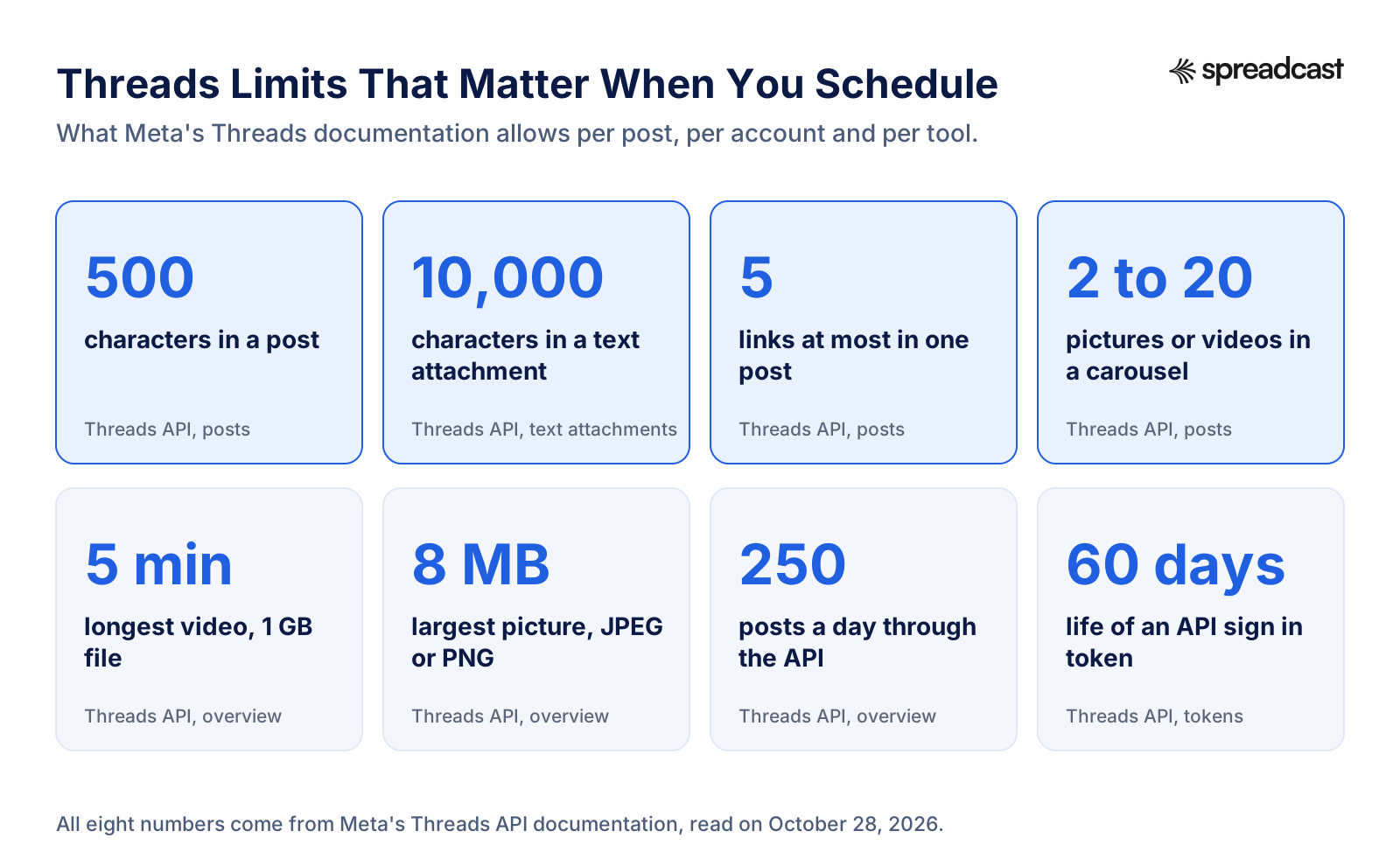
Most of these limits never come up if you post from the app, because the composer simply won't let you break them. They matter when you schedule through a tool, because the tool prepares the post earlier and Threads only checks it at publishing time. A caption written for Instagram, where captions run much longer, will fail on Threads if the tool sends it unchanged. So will a carousel of 25 pictures, or a video longer than five minutes.
| Limit | Number | Why it matters when you schedule |
|---|---|---|
| Characters in a post | 500 (Threads API) | A caption written for another network can be too long. Emojis count by their size in bytes in the API |
| Characters in a text attachment | 10,000 (Threads API) | Only on text posts, never alongside pictures or a poll |
| Links per post | 5 at most (Threads API) | A sixth link makes the post fail outright |
| Topic tags | 1 per post (Threads API) | Only the first tag counts, so pick the one that matters |
| Carousel items | 2 to 20 (Threads API) | A carousel counts as one post against the daily limit |
| Pictures | JPEG or PNG, up to 8 MB, 320 to 1440 wide (Threads API) | WebP or HEIC files need converting first |
| Video | Up to 5 minutes and 1 GB, MOV or MP4 (Threads API) | 9:16 is the recommended shape |
| Posts through the API | 250 per 24 hours, replies 1,000 (Threads API) | Generous for one brand. Only bulk tools get near it |
If you also post the same idea to Instagram, LinkedIn, Bluesky and Telegram, each has its own ceiling. Our social media character limits page puts them side by side, and the social media image sizes guide covers picture shapes for every network.
Best Time to Schedule Threads Posts
Scheduling only helps if the time is a good one. The largest public study we found is Buffer's analysis of 2.5 million Threads posts, which measured median engagement (likes, replies and reposts) by hour and day. Its answer: weekday mornings between 6 and 11 a.m. do best, Thursday at 9 a.m. is the single strongest slot, and evenings from 6 to 11 p.m. lag every day of the week. Saturday is the weakest day overall.
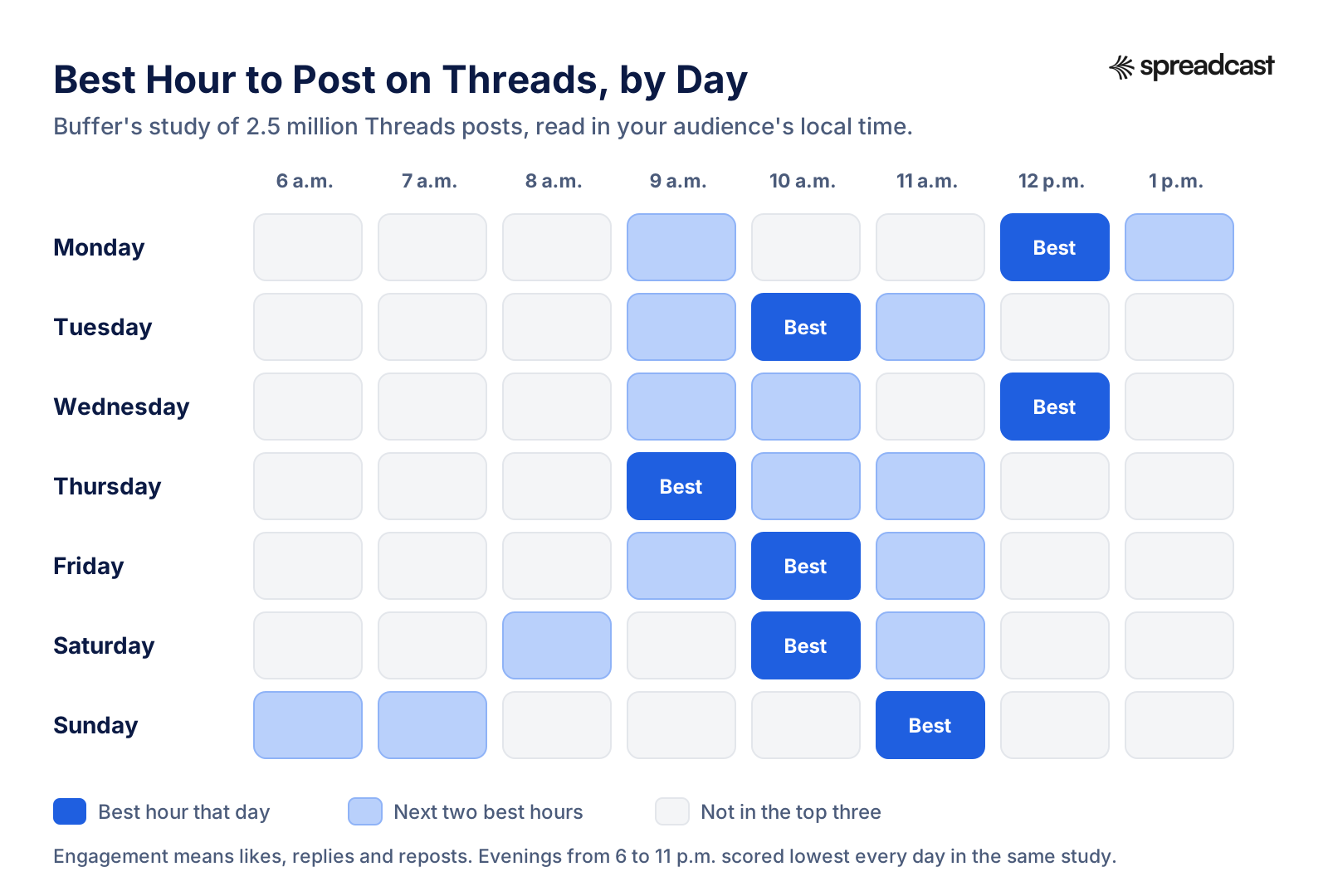
Read the chart as a starting point, not a rule. Buffer sells scheduling, its users skew toward brands and creators who post on a plan, and its numbers are medians across very different accounts. Your audience may be awake at other hours. A local bakery and a developer tool with users on three continents won't peak at the same time.
The better answer is your own data. Threads Insights shows views, likes, replies, reposts and quotes for each post, and the API exposes the same numbers to tools, along with follower demographics once you have 100 followers. Schedule the same kind of post at two different hours for three or four weeks, then compare. Our engagement rate calculator turns those raw counts into a rate you can compare across posts, and the social media KPIs guide explains which numbers deserve your attention.
Does Scheduling Hurt Reach on Threads?
Meta has never said that scheduled posts are ranked differently, and we found nothing in its announcements or its developer documentation suggesting it. A scheduled post goes out as an ordinary post, and so does one published through the API by a tool. What does affect a post is what happens after it goes live: whether people reply, repost and quote it. That's why the time you pick, and whether you're there to answer the first replies, matter more than how the post was published.
Schedule Threads Posts Free: What You Actually Get
If your goal is to schedule Threads posts free, the app itself is the best free option, because it has no cap on how many posts you schedule and no account limits beyond your own. The free plans of scheduling tools add a calendar and other networks, but they cap you quickly. Here's what each free option includes, as of October 28, 2026.
| Free option | What it includes for Threads | The catch |
|---|---|---|
| Threads app | Unlimited scheduling of new posts, drafts list, Insights | One account, no calendar, no other networks, no designed pictures |
| Spreadcast Free | Builds a brand kit for one app and designs 3 posts for you to download | No publishing on Free. You download the posts and post them yourself, or upgrade to schedule |
| Buffer Free | Up to 3 channels with 10 scheduled posts per channel, and Threads is a supported channel | Ten posts in the queue at once. A slot opens when a post goes out |
| Metricool Free | One brand, up to 20 posts a month, and one Threads account | Twenty posts across all networks, not per network |
Free is the right choice if Threads is a side channel and your posts are mostly text. The moment you post daily across several networks, the time you spend copying, resizing and rescheduling costs more than a paid plan. Our guide on how to automate social media posts lays out six levels of automation, from free to fully hands off, if you want to see the whole range.
Native Threads Scheduler vs a Scheduling Tool
Put side by side, the two routes split cleanly. The native scheduler wins on price and simplicity. A tool wins as soon as there's more than one account, network or person involved.
| Question | Threads app scheduler | Scheduling tool |
|---|---|---|
| Cost | Free | Free plans with caps, then per channel, per seat or per set pricing |
| Where you schedule | The composer's three dot menu, mainly on the phone | A web dashboard, usually with a calendar |
| Where scheduled posts appear | Your drafts folder, with a time stamp | The tool's queue or calendar |
| Other networks at the same time | No | Yes, depending on the plan |
| Scheduled replies | No | Some tools, through the API's reply limit of 1,000 a day |
| Team approval | No | On team plans |
| Designs the picture | No | Most tools no. Spreadcast designs it for you |
| Analytics | Threads Insights for that account | Reports across all your networks |
| Login to keep alive | Your own Threads login | The tool's token, which lasts 60 days unless refreshed |
When a Threads Scheduler Tool Is Worth Paying For
The native scheduler handles timing. A paid Threads scheduler is worth it when the timing is the easy part and everything around it is eating your week. These are the signs we'd look for.
- You post the same news to Instagram, Bluesky or LinkedIn as well, and you're tired of writing it four times.
- Your posts need pictures, and making each one in a design tool takes longer than writing the post.
- More than one person writes or approves posts, and you need to see the queue together.
- You manage several brands or apps, each with its own Threads account.
- You want to plan a month at a time on a calendar instead of scrolling a drafts list.
- You want reports that compare Threads with your other networks in one place.
If the second sign is yours, a plain scheduler won't fix it, because it only publishes what you've already made. That's the job Spreadcast was built for. It designs each post in your brand, writes a caption for each network inside its limits (500 characters for Threads), and publishes on schedule. For App Store apps it goes further: it watches your listing and drafts a post when a new version ships or the app hits a ratings milestone. You can start free and see three posts made for your brand before you pay anything.
If you're unsure whether the tool is the problem at all, read why your scheduler isn't why your feed is empty. For most small accounts, the hard part isn't the clock. It's having something worth posting every day, in a shape that looks good.
Best Threads Scheduler Tools Compared
Every tool below publishes to Threads through Meta's official API. They differ in what they do before publishing, how they bill, and who they're built for. Prices are from each vendor's own page on October 28, 2026.
| Tool | What it does for Threads | Starting price | Best for |
|---|---|---|---|
| Spreadcast | Designs the post in your brand, writes a caption for each network and publishes to Threads with Instagram, Bluesky and eight more networks at once | Free for 3 posts to download. Pro is $29 a month and includes design, captions and publishing to 10 social accounts with no post cap | App makers and small brands who need the posts made, not only scheduled |
| Buffer | Schedules and auto publishes Threads posts from a queue, with basic analytics | $5 per channel a month, billed yearly, on Essentials | Solo creators who write their own posts |
| Hootsuite | Schedules Threads with other networks, with reporting and plans built for teams | From $99 per user a month, billed yearly, with 10 social accounts on Standard | Marketing teams at larger companies |
| Later | Scheduling and planning, with Threads in every plan | $18.75 a month, billed yearly, for one social set of 8 profiles and 30 posts per profile a month | Brands that plan around Instagram first |
| Metricool | Scheduling and analytics, with Threads on every plan including Free | Starter from $20 a month on yearly billing, for up to 5 brands | People who care most about reports |
| Sprout Social | Full suite for teams, with an inbox and reporting. Lists Threads among its networks | $79 per seat a month, billed yearly, with 5 social profiles on Essentials | Companies with a dedicated social team |
Spreadcast
Spreadcast designs the post and publishes it for you, which is the step the other tools leave with you. Connect any Threads account through Meta's own sign in; there's no business account or Facebook Page to set up. It publishes text posts, single pictures, carousels of up to 10 pictures, and video, converts pictures into a format Threads accepts, and refreshes the Threads connection before Meta's 60 day token runs out so scheduled posts don't fail on a forgotten login. It reads your Threads follower count for its analytics. It doesn't schedule replies or topic tags today.
Buffer
Buffer is the simplest paid upgrade from the native scheduler. You write posts into a queue, and Buffer publishes them at the slots you've set. Its pricing page lists Threads with automatic publishing, basic analytics and community engagement. Billing is per channel, so Threads, Instagram and Bluesky count as three. Our Buffer alternatives roundup covers what else is out there at that price.
Hootsuite
Hootsuite is built for teams, and its price shows it. Its plans page starts Standard at $99 per user a month billed yearly, with a 14 day free trial. For one person posting to Threads, that's a lot of tool. For a company where three people draft and a manager signs off, the team features and reports earn their keep. See Buffer vs Hootsuite for a closer look at the two.
Later, Metricool and Sprout Social
Later caps posts per profile on its Starter plan, which matters if Threads is where you post most often. Metricool is the most generous free plan for Threads, and its strength is analytics, which our Metricool review goes into. Sprout Social is an enterprise suite priced per seat. If you're weighing the field more widely, our list of the best social media automation tools sorts them by what they automate, not only by price.
How Third Party Threads Schedulers Work
Knowing how outside tools talk to Threads explains most of their quirks. They all use the Threads API, which Meta opened in 2024 and describes on its developer site. The tool has to be a registered Meta app with the Threads use case, and it needs your permission through Meta's sign in window before it can post. Until Meta approves the app in review, only accounts added as testers can connect it.
Publishing then happens in two steps, as Meta's posts documentation lays out. First the tool creates a container holding your text and the links to your media. Threads downloads the media and processes it, which Meta says takes about 30 seconds on average and can take longer for video. Then the tool publishes the container. If nobody publishes it within 24 hours, the container expires. That's why good tools prepare a post shortly before its time, not when you hit Schedule.
There is no scheduling inside the API itself. Meta has no field for "publish this at 9 a.m.". Every tool keeps your post on its own servers and sends it at the right moment, which is why a tool's reliability depends on how often it checks its queue and how it handles a slow video. Meta's overview even tells developers to watch the posting limit closely if their app lets people schedule posts for later.
You can build this yourself if you enjoy that kind of thing. Our n8n social media automation guide shows workflows that post on a timer, and the Threads MCP server page compares the community servers that let an AI assistant post through your own Meta app. Expect to handle token refreshes every 60 days and media hosting on your own. The API also covers things the app's scheduler doesn't, such as replies, which have their own limit of 1,000 a day, and choosing who can reply: everyone, accounts you follow, followers only, or only people you mention.
One safety check before you connect any tool: it should send you to Meta's own sign in window and ask for permissions there. A tool that asks for your Threads or Instagram password in its own form isn't using the official API, and handing over that password puts the whole account at risk, Instagram included. The official route never needs your password, and you can remove a tool's access from your Threads settings at any time.
Scheduling Threads Posts From Claude or ChatGPT
A newer way to schedule Threads posts is to ask an AI assistant. With a Model Context Protocol (MCP) connection, Claude or ChatGPT can do more than draft text: it can create the post, attach a picture and schedule it for a time you name. The Threads MCP server guide explains the options in detail, from community servers you run yourself to hosted ones.
The self hosted route needs a Meta developer app, a Threads use case, testers or App Review, and token handling. That's a weekend for a developer and a wall for everyone else. Spreadcast's MCP server skips it: you sign in with OAuth from Claude or ChatGPT, and the assistant can design posts and carousels in your brand, write captions, then create, schedule and approve posts on the networks you've connected in Spreadcast, Threads included. You say "schedule a Threads post about Tuesday's update for 9 a.m.", review the draft, and approve it.
For step by step walkthroughs, see how to schedule social media posts with Claude and the matching guide for ChatGPT. Both work the same way for Threads as for the other networks.
Scheduling Threads Alongside Instagram, Bluesky and Telegram
Few people post only on Threads. The common pattern is Threads plus Instagram, since they share a login, and a growing number add Bluesky and a Telegram channel. Scheduling the same idea to all of them sounds like copy and paste, but each network wants something slightly different.
- Threads: 500 characters, conversational, one topic tag. A picture helps a post stand out in a text heavy feed.
- Instagram: the picture comes first, and the caption can run longer and carry more hashtags. Needs a picture or video every time.
- Bluesky: 300 characters and a crowd that dislikes marketing tone. Our guide on how to schedule Bluesky posts covers its own scheduling options.
- Telegram: a channel post can be long and formatted, and lands as a notification. See how to schedule Telegram channel posts.
So the honest workflow is one idea, written four ways, with one picture resized for each. By hand that's four apps and four schedules. With most schedulers it's one screen, but you still write four captions and resize the picture yourself. Spreadcast writes a caption for each network within its limit and designs one picture that it fits to each network's shape, so one approval covers all four. If you post to these networks every day, that's the difference between a chore and a routine you can keep up. For audience sizes on each, see our Bluesky statistics alongside the Threads numbers.
Scheduling Threads for a Team or Several Accounts
The native scheduler is personal. It schedules from whichever account is logged in on that phone, and drafts belong to that account. If you run a personal account and a brand account, you switch between them and schedule from each one separately, then switch again to check each drafts folder.
That works for two accounts. It gets messy with more, and it breaks down when more than one person writes. Nobody can see the whole week, two people can schedule the same news, and there's no step where a second person reads a post before it goes out. If your company cares about what goes out under its name, that missing review step is the strongest reason to use a tool.
What to look for in a team setup: a shared calendar, drafts that stay drafts until someone approves them, and a clear record of who scheduled what. Spreadcast's Studio plan covers 5 apps and 50 accounts, each with its own brand kit, so posts for one app never pick up another's colors. Larger teams with an inbox to run should look at Hootsuite or Sprout Social, or our roundup of Hootsuite alternatives for cheaper options.
A Weekly Threads Scheduling Routine That Takes One Hour
Consistency beats volume on Threads, as it does everywhere. Buffer's Threads study notes that posting daily or more tends to go with stronger growth, but a daily habit only lasts if it's cheap. This is the routine we'd suggest for one account posting once or twice a day, using nothing but the app.
- Monday, 20 minutes: list seven things worth saying this week. A product change, a lesson, a question for your followers, a number you learned, a reply to a common complaint.
- Monday, 25 minutes: write all seven posts in the Notes app or on threads.com. Keep each under 400 characters, so you have room to edit later.
- Monday, 10 minutes: schedule them in the app, one per day, at the hours your Insights or the chart above suggest.
- Daily, 5 minutes: when each post goes live, answer the first replies. On a network built on conversation, replying early keeps the post going.
- Friday, 5 minutes: open Insights, note which post did best, and write next week's list with that in mind.
If you want to plan a month in one sitting, our guide to batching a month of social content in one afternoon shows how, and the social media content calendar gives you a template to fill. For the captions themselves, the social media caption generator writes drafts within each network's limit.
Mistakes to Avoid When You Schedule Threads Posts
Scheduling saves time, but it also lets posts go out while you're not watching. These are the most common mistakes, and each has an easy fix.
- Scheduling and walking away. The first hour after a post goes live is when replies come in. If you won't be around, schedule it for when you will be.
- Leaving posts in the queue during bad news. When something serious happens in your field or the world, a cheerful scheduled post reads badly. Check your drafts on days like that and move what needs moving.
- Pasting Instagram captions. A caption with ten hashtags looks out of place on Threads, and only the first topic tag counts anyway. Rewrite for the network.
- Scheduling the same post twice. If you use the app and a tool, or two people schedule, the same news can go out twice. Pick one place where scheduled posts live.
- Too many links. More than 5 links in a post now fails outright through the API. One link is plenty for most posts.
- Forgetting the time zone. Write the audience's time zone at the top of your planning doc, and convert before you tap Schedule.
- Never checking what worked. Scheduling without looking at Insights means repeating the same weak post forever. Ten minutes a week is enough.
Threads Scheduling Checklist
Run through this before you schedule a week of Threads posts. It takes a minute and catches most of the problems in this guide.
- The app is up to date, and you can see Schedule in the composer's three dot menu.
- Each post is under 500 characters, with at most one topic tag and no more than five links.
- Pictures are JPEG or PNG, and any video is under five minutes.
- Times are set in your audience's time zone, spaced a few hours apart.
- Every scheduled post shows a time stamp in drafts.
- Someone will be around to reply in the first hour after each post.
- If a tool posts for you, its Threads connection is active and was refreshed within the last 60 days.
Where Spreadcast Fits
Here's the before and after, concretely. Before: you notice your app shipped an update, open a design tool, make a picture with the new screen, export it, write a Threads post, schedule it in the Threads app, then open Instagram and Bluesky and do it twice more with different captions. That's easily half an hour for one piece of news, and it's the reason most small accounts go quiet.
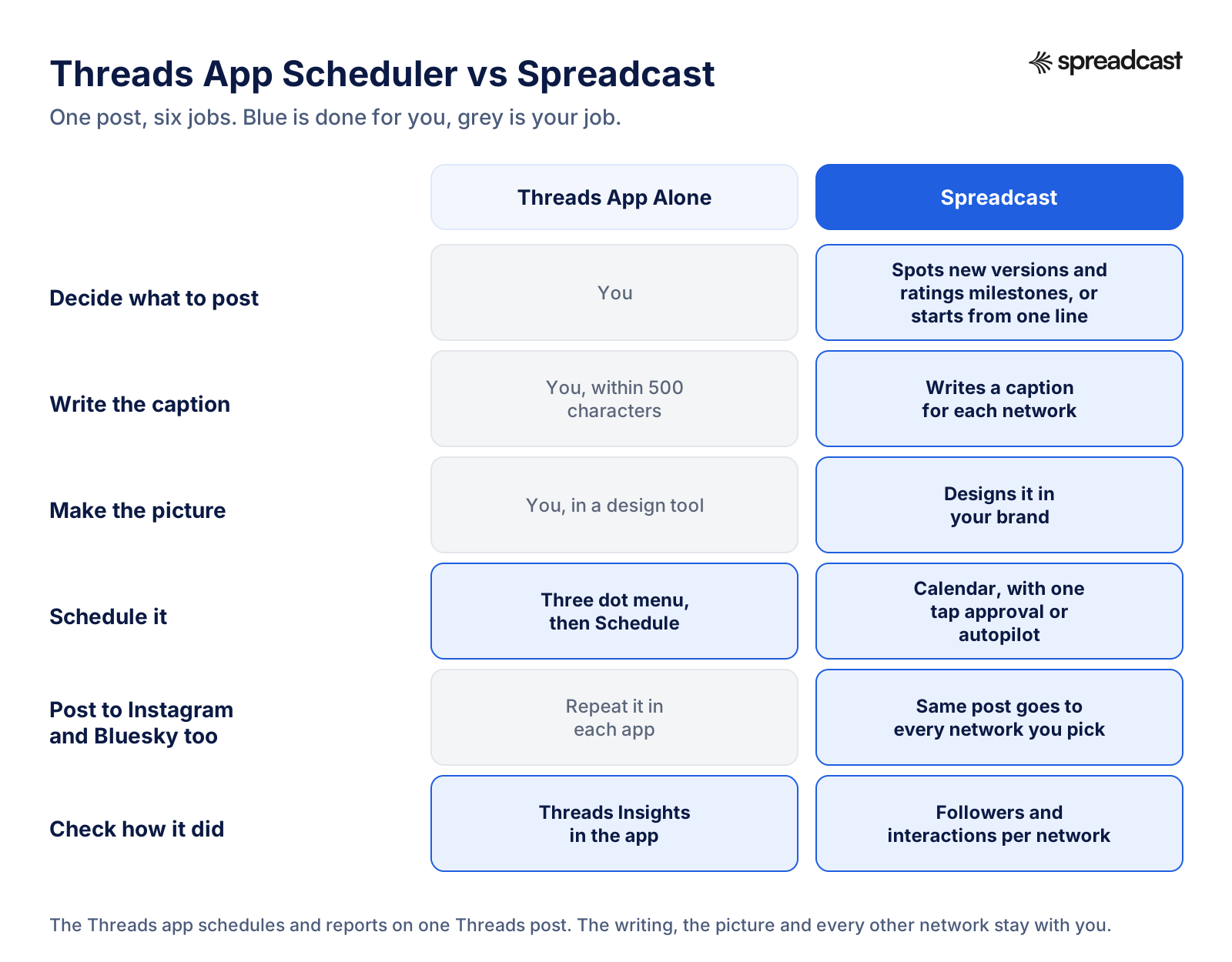
After: Spreadcast reads your App Store listing every day. When a new version goes live, it designs a post in your brand, with your colors and a real screenshot in an iPhone frame, writes a caption for each network, and schedules it. On full autopilot it publishes by itself; otherwise you approve with one tap. For anything else, you type one line in Create, such as "a tip about offline mode", and get the same finished post. Businesses without an app can start from a website or a short description of the brand.
For Threads specifically, here's what it handles under the hood. It connects any Threads account through Meta's sign in, with no business account or Facebook Page needed. It publishes text, single pictures, carousels of up to 10 pictures, and video. When a picture isn't a JPEG or PNG, or is over 8 MB, it makes a JPEG copy no wider than the 1440 pixels Threads shows, so the file doesn't fail at publishing time. It refreshes the Threads token before it expires. If a video is still processing at Meta, it waits and finishes on the next run rather than uploading twice. And it reads your Threads follower count into one analytics view with your other networks.
How to Schedule a Week of Threads Posts in Spreadcast
- Paste your App Store link at the start page, or a website or a short description if you don't have an app. Spreadcast builds your brand kit from it.
- Connect Threads in Accounts through Meta's sign in, plus any other networks you post to.
- In Create, type one line per post, such as "our new streak freeze" or "a tip about widgets", or pick one of the twelve post types for apps.
- Check the designed picture and the caption for each network, and change anything you like.
- Pick a day and time on the calendar for each post, then approve them. Spreadcast publishes each one on time.
- A week later, open Analytics to see followers and interactions for each network, with likes, comments and views per post.
New versions and ratings milestones don't need any of this. On autopilot, those posts appear on their own and go out after one tap, or with no tap at all if you turn approval off.
On price: Free gives you one app and 3 designed posts to download, so you can judge the quality first. Pro is $29 a month, or $290 a year, and includes the design, the captions and publishing to 10 social accounts across any mix of networks, with autopilot and posting from Claude or ChatGPT. Studio is $79 a month for 5 apps and 50 accounts, each with its own brand. If you'd rather not subscribe, a Post Pack is $19 once for 10 posts designed and published, and a 30 Day Pass is $39 once for everything in Pro for a month. Paid plans come with a 7 day full refund. Details are on the pricing page.
Spreadcast isn't the right tool for everyone. If you write text posts for one Threads account and nothing else, the app's own scheduler is free and enough. If you run a large team with an inbox to manage, a suite like Hootsuite or Sprout Social does more. Spreadcast fits the middle: one person or a small team with an app or a brand to promote, several networks, and no designer. Read how to promote an app on social media for the wider plan, or start with your App Store link and see your first three posts.
Frequently Asked Questions
Can you schedule posts on Threads?
Yes. Since January 2025 every Threads account can schedule posts from the composer. Write the post, tap the three dot menu, tap Schedule, choose a date and time, and tap Schedule again. The post waits in your drafts folder until it publishes.
How do I see my scheduled posts on Threads?
Scheduled posts live in your drafts. Tap the plus button to open the composer, then tap the drafts icon at the top right. Posts with a date and time under them are scheduled; the others are ordinary drafts.
How do I edit a scheduled post on Threads?
Open drafts, tap the scheduled post, and change the text or media, then confirm the schedule again. To change only the time, use the post's menu in drafts and pick a new date or hour. To cancel it, delete it from drafts.
Why can't I schedule posts on Threads?
Update the app first, since older versions may not show the option. Make sure you're writing a new post rather than a reply, because replies can't be scheduled. If Schedule is still missing, try the composer on threads.com, or wait a few days, since Meta rolls out layout changes in waves.
Can you schedule Threads posts on desktop?
Try the three dot menu in the composer at threads.com first. If Schedule doesn't appear for your account, save the post as a draft on the web and schedule it from the phone app, or use a scheduling tool that publishes through the Threads API.
Can you schedule Threads posts for free?
Yes. The scheduler in the Threads app is free and has no cap. Buffer's free plan schedules up to 10 posts per channel at a time on up to 3 channels, and Metricool's free plan allows 20 posts a month with one Threads account.
What is the Threads character limit?
A Threads post holds up to 500 characters. Since September 2025 you can also add a text attachment of up to 10,000 characters to a text post. A post can carry at most 5 links and one topic tag.
Can you schedule replies or a thread chain on Threads?
Not with the native scheduler, which only schedules new posts. Schedule the first post and add the replies by hand when it goes live, or put the longer text in a text attachment on a single post.
What is the best Threads scheduler?
For text posts on one account, the free scheduler inside the Threads app. For a queue across several networks, Buffer is the simplest. If you also need each post designed and captioned for every network, Spreadcast makes the post and publishes it from $29 a month.
Where These Facts Come From
Every outside number, rule and price on this page links to the page it was taken from.
- New Threads features for creators and businessesMeta Newsroom
- Scheduling test announcement, December 2024Threads (@threads)
- Scheduling launch announcement, January 2025Threads (@threads)
- You can now schedule your postsThreads (@creators)
- Scheduled posts live in your drafts folderThreads (@threads)
- Drafts icon at the top right of the composerThreads (@threads)
- Threads API overview: rate limits and media specificationsMeta for Developers
- Threads API: posts, links and topic tagsMeta for Developers
- Threads API: text attachmentsMeta for Developers
- Threads API: troubleshooting and container statusMeta for Developers
- Threads API: long lived access tokensMeta for Developers
- Threads API: get startedMeta for Developers
- Threads API: insightsMeta for Developers
- Threads API: reply managementMeta for Developers
- Threads rolls out a post scheduler and a markup featureTechCrunch
- Threads adds text attachments of up to 10,000 charactersTechCrunch
- Threads rolls out post scheduling to app usersSocial Media Today
- Threads introduces post scheduling and enhanced post metricsAlternativeTo
- Meta second quarter 2026 results, Threads usersAssociated Press via NY1
- Threads app listingApple App Store
- Threads app listingGoogle Play
- Set the time, date and time zoneAndroid Help
- Buffer pricingBuffer
- The best time to post on ThreadsBuffer
- Hootsuite plansHootsuite
- Threads analytics, scheduling and listeningHootsuite
- Later pricingLater
- Metricool pricingMetricool
- Sprout Social pricingSprout Social
- How to schedule a Threads post in advanceGuide Cast
- Where scheduled posts are on ThreadsMokha Guide
Researched and written by Spreadcast. Last checked on October 28, 2026.
Keep Reading
- Playbooks
Founder Led Marketing: Strategy and Examples for Small Startups
What founder led marketing is, seven real founders who did it with small budgets, and a weekly system for LinkedIn, Threads, Instagram, TikTok and Bluesky that fits beside building the product.
- Playbooks
How to Schedule Bluesky Posts: Free and Paid Ways in 2026
Bluesky still has no schedule button, so every scheduled post goes out through a third party tool. Here is how that works, which free and paid schedulers support Bluesky, and the limits your posts have to fit.
- Playbooks
How to Schedule Posts in a Telegram Channel (Phone, Desktop and Bots)
Every way to schedule a post in a Telegram channel, checked against Telegram's own docs in October 2026: the hold Send menu on iPhone and Android, Telegram Desktop, repeating posts, groups, bots, n8n and Zapier, and schedulers that post to Telegram and Instagram from one calendar.