What Gemini for Social Media Can Do in 2026
Gemini is good at the words and the thinking behind a social account: ideas, first drafts, one post rewritten for five networks, a month of topics, a read of a spreadsheet of results. A good Gemini social media post prompt gets you most of the way to a caption you would actually publish. What Gemini does not do on its own is the last mile. It has no login to Instagram, LinkedIn or TikTok, it does not know your brand unless you tell it, and an image it draws is a picture of what your product might look like, not your product.
The last mile is where 2026 changed things. Google now lets US users of the Gemini web app connect a custom app through an MCP server, and its command line tools have connected to MCP servers for a while. MCP, the Model Context Protocol, is the standard way a tool describes itself to an assistant. A posting tool that runs an MCP server can give Gemini a short list of things it may do, such as save a draft, schedule a post or read last week's reach, and Gemini calls them during a chat. That is how Gemini goes from writing a caption to putting a post on a calendar.
Two other changes matter if you read an older guide. Gems, the custom versions of Gemini that most social media setups are built on, are turning into skills: from November 17, 2026 they become read only on personal accounts. And Gemini CLI, the terminal tool most MCP tutorials use, stopped serving free and Google One users on June 18, 2026, when Google moved them to Antigravity CLI. Both are covered below with the dates from Google's own pages.
So this page runs in the order you would set things up. First the prompts, because they are useful on any plan. Then a social media manager Gem or skill so you stop pasting the same brief into every chat. Then the honest list of what Gemini can and cannot do for Instagram and the other networks. Last, the connection: how to give Gemini a posting tool through the Gemini app, Gemini CLI, Antigravity CLI or Gemini Enterprise, with Spreadcast as the worked example.
How We Researched This
On October 28, 2026 we read every Google page this guide cites: the Gemini Apps Help articles on Gems, skills, custom apps, Connected Apps, scheduled actions, Tasks, image generation, usage limits and privacy, the US plans page on gemini.google, the Gemini CLI documentation and its GitHub page, the Google Developers Blog post on the move to Antigravity CLI, the Antigravity MCP documentation, the Gemini Enterprise documentation on custom MCP servers and the Gemini API pages on tools and pricing. Where two Google pages disagree, we say so and name both.
For posting rules we read Meta's Instagram content publishing guide. For other tools that connect to Gemini we read Hootsuite's and Metricool's own MCP pages and nothing else about them. For Spreadcast we used our own MCP server documentation, which lists every tool the server offers and how API keys and sign in work.
Two limits on what you are reading. Google changes Gemini often, and several features here roll out gradually by country, age and account type, so what you see in your account may lag or lead this page. And we did not have every Google plan to click through, so plan details come from Google's pages rather than from screenshots of each tier. If Google's page says something different when you read it, trust Google's page.
What Each Gemini Plan Includes for Social Media
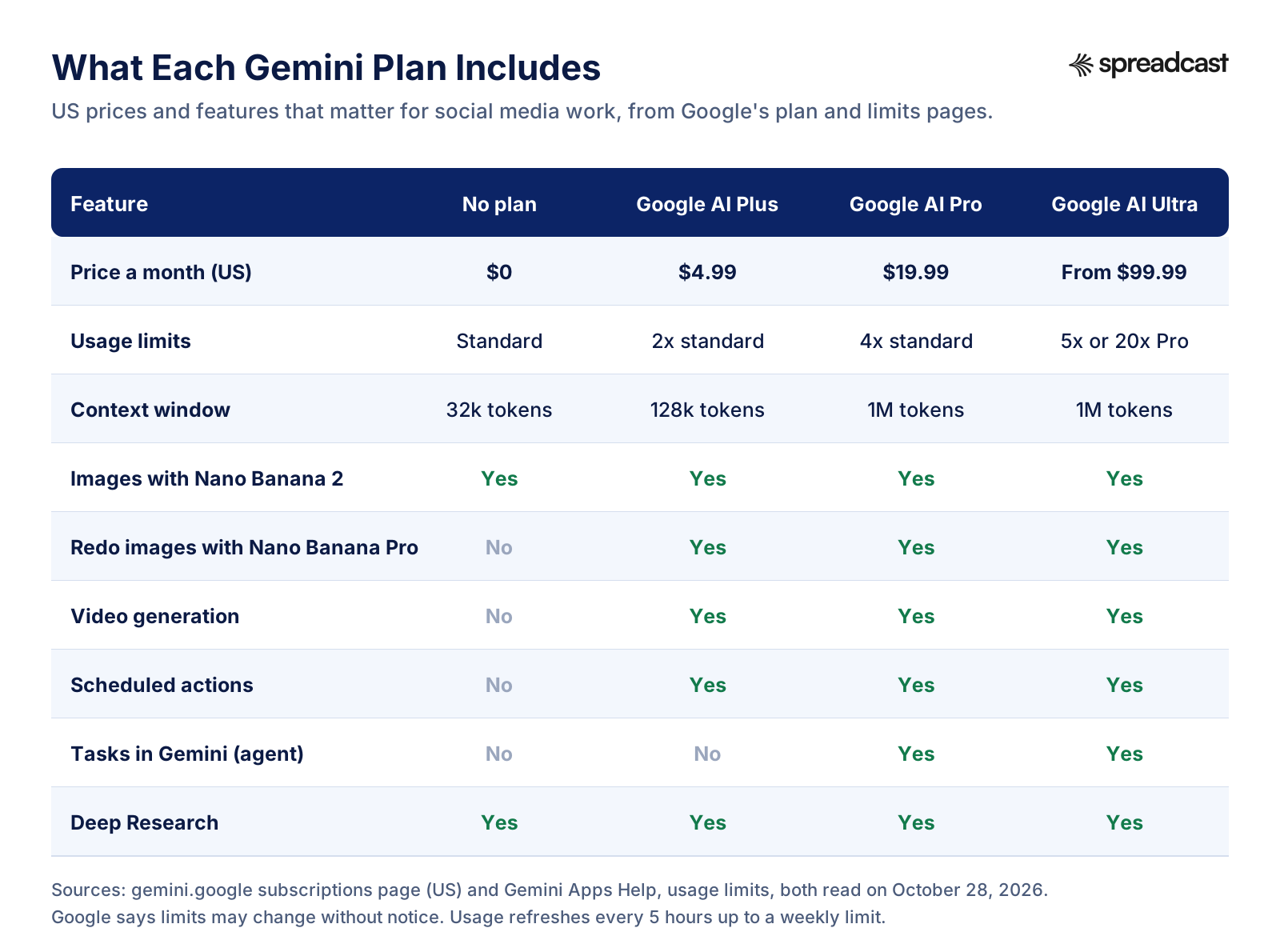
Most social media work fits the free plan. The paid plans add longer context, video, scheduled actions and the Tasks agent.
Which Gemini Plan You Need for Social Media
For writing captions, planning and making a few images, no plan is needed. Google's US plans page lists the free tier at $0 with image generation and editing, Deep Research, Canvas and Gems. Google AI Plus is $4.99 a month, Google AI Pro is $19.99 and Google AI Ultra starts at $99.99, with a $199.99 tier that the page describes as 20 times the usage of AI Pro.
What you get for the money is mostly room. Google's usage limits article puts the free context window at 32k tokens, Plus at 128k and Pro and Ultra at 1 million. Context is how much Gemini can hold in mind at once. A brand brief, ten past posts and a week of release notes fit in 32k comfortably. A year of analytics exports or a long product document does not. The same article sets usage relative to a standard baseline, twice that on Plus and four times on Pro, and says usage refreshes every 5 hours up to a weekly limit.
Two features on that table matter for a posting routine. Scheduled actions, which run a prompt at a set time, are marked for the paid plans and not for the free one. Tasks, Google's background agent, needs Pro or Ultra. Video generation is also paid only. If your plan is to have Gemini prepare next week's posts every Monday on its own, budget for at least Google AI Plus.
A plan does not change what Gemini can post. No Gemini plan logs into a social network. Posting always runs through a tool you connect, and that tool has its own plan and its own rules.
What Gemini Does Well for Social Media on Its Own
These work in a normal chat on any plan. None of them posts anything.
Drafts Captions From Your Notes
Paste release notes, a customer email or three bullet points and ask for a caption. Gemini is quick at first drafts and at making long text short. It does not know your audience or what worked last month unless you say so, so put both in the prompt or in a skill.
Rewrites One Post for Each Network
A LinkedIn post, a Threads post and an Instagram caption about the same feature should not read the same. Name each network and its length and Gemini handles the rewrite well, because tone and length are text problems. Check the limits yourself in the social media character limits guide.
Makes and Edits Images
The Gemini app draws images with Nano Banana 2 and edits images you upload. Google's image help page says it renders text with more accurate spelling than before, which helps for quote cards and simple announcements.
Researches a Topic or a Competitor
Deep Research, available on every plan, browses and writes a report with sources. Use it to see what competitors posted about a launch or what questions people ask about your category, then turn the report into post ideas. Read the sources it cites before you repeat a number.
Plans a Month of Topics
Ask for content pillars and then a table with date, network, topic and format. This is planning, not scheduling: the table stays in the chat until you or a connected tool puts it on a calendar. Our social media content calendar guide has a template to paste it into.
Reads a Results Export
Upload a CSV of post results from a network or your scheduler and ask which posts did best by format, weekday or topic. The answer is only as fresh as the export, so put the date in the file name. For the formulas, see the engagement rate calculator, and for which numbers to track, the social media KPIs guide.
Summarizes YouTube Videos
YouTube is one of the Google apps Gemini connects to, per Google's Connected Apps page. Paste a video link and ask for the five points worth a carousel, or the questions viewers asked in it.
Drafts Replies to Comments You Paste
Gemini cannot read your comments by itself. Paste a batch and it drafts answers in your voice for you to post by hand. Keep anything about bugs, refunds or angry customers for yourself.
How to Write a Gemini Social Media Post Prompt
Google's advice for Gem instructions is a good frame for any prompt. Its tips page splits instructions into four parts: a persona that tells Gemini what role to play, a task that says what to create, context with as much background as you can give, and a format that spells out the structure you want. A social media prompt that covers all four rarely needs a second try.
In practice, the persona is short: "You write social posts for a habit tracker app called Streakly." The task names one post and one network: "Write a LinkedIn post announcing the new streak freeze feature." The context is where most prompts are thin. Give the audience, the one fact the post is about, a sentence on why it matters to the reader, and the words you never use. The format sets the length, the structure and what to return: "Under 150 words. First line under 12 words. No hashtags. Return three versions."
Two additions make the difference for social media. First, hand Gemini the facts and forbid it to add any: "Use only the numbers in my notes. If a number is missing, leave it out." Models fill gaps with plausible numbers, and a made up statistic in a post is worse than no statistic. Second, ask for options, not an answer. Three versions with different first lines let you pick, and picking is faster than editing.
Here is a full Gemini social media post prompt you can adapt: "You write social posts for Streakly, a habit tracker for people building a morning routine. Write an Instagram caption about version 4.0, which adds a streak freeze for sick days so a missed day does not reset the streak. Audience: people who have quit habit apps before because one bad day wiped their progress. Tone: plain and warm, no exclamation marks, no emoji in the first line. Use only the facts in this prompt. Format: a first line under 10 words that names the problem, two short paragraphs, a last line telling people to update the app, then 5 hashtags on their own line. Give me three versions with different first lines."
Notice what is not in it: no request to be engaging or viral, no adjectives about quality. Those words do nothing. A specific audience and a specific fact do almost all the work. The Claude prompts for social media page uses the same structure for a different assistant, and the prompts there work in Gemini with the name changed.
Gemini Social Media Post Prompts to Copy
Each prompt assumes a short brand brief is already in the chat or in a skill. Replace the parts in brackets.
Product Launch Post
"Write a launch post for [product] on [network]. What it does in one sentence: [sentence]. Who it is for: [audience]. The one thing that is different: [fact]. First line under 10 words, no hype words, end with where to get it. Three versions."
App Update or New Feature
"Here are the release notes for version [x]: [paste]. Pick the one change a user would notice first and write a post about it for [network]. Say what the user can now do, not what we built. Skip bug fixes unless one was a common complaint."
Instagram Caption
"Write an Instagram caption for a picture of [what is in the picture]. First line under 10 words that makes sense before the cut. Then two short paragraphs. Then one line with what to do next. Then 5 hashtags a person would actually search, on their own line."
LinkedIn Post
"Turn this into a LinkedIn post from me, the founder: [notes]. Open with the problem in one line, then what we learned, then the change we made. Short paragraphs, no bullet lists, no hashtags, under 200 words. Do not start with I."
Threads and Bluesky Post
"Write one post for Threads under 500 characters and one for Bluesky under 300 characters about [topic]. Conversational, one idea each, end the Threads post with a real question."
Carousel Outline
"Outline a 6 slide carousel that teaches [how to do x with the product]. Slide 1: a headline under 8 words. Slides 2 to 5: one step each, a headline under 8 words and one sentence. Slide 6: what to do next. Tell me which screen of the app to show on each slide."
Testimonial Post
"Here is a real review from [source]: [paste the review exactly]. Write a short post that quotes it word for word, names where it came from, and adds one sentence of context. Do not change or shorten the quote."
TikTok or Reels Script
"Write a 20 second script for a vertical video about [topic]. A spoken first line under 8 words, three beats with what is on screen for each, and a caption under 100 characters. Natural speech, nothing that sounds like an ad."
Pinterest Pin
"Write a Pin title and description for [topic] aimed at people searching Pinterest for [search phrase]. Put the search phrase near the start of both. Description of two sentences, helpful rather than salesy."
YouTube Shorts Title and Description
"Write five title options for a YouTube Short about [topic], each under 60 characters, and a two line description with the main search phrase in the first line."
Telegram Channel Post
"Write a Telegram channel post for subscribers who already use [product]. Lead with the news, keep it under 120 words, use a bold first line, and end with one link placeholder."
One Article Into Five Posts
"Here is an article: [paste]. Pull out five ideas that each stand alone and write one post per idea for [network]. Quote the article only where it is exact. List which paragraph each post comes from."
Gemini Prompts for Social Media Marketing and Planning
Single posts are the easy part. These prompts cover the planning around them.
Content Pillars
"Based on this brief [paste], suggest four content pillars for [brand]'s social accounts. For each, give the reason a follower would care, three example post ideas and the format that suits it best."
A Month on One Page
"Make a four week posting plan as a table: date, network, pillar, topic, format, and the one fact the post rests on. Three posts a week on Instagram and LinkedIn, five on Threads. Mark any post that needs a real screenshot."
Competitor Review With Deep Research
"Research what [three competitors] posted on Instagram and LinkedIn about their last product launch. Summarize the formats they used and which got visible comments. Cite each post."
Results Review
"Here is last month's export [upload]. Which five posts had the highest interactions per follower? What do they have in common? Suggest three posts for next month that repeat the pattern."
Hashtag and Keyword Check
"Here are the hashtags I use [list]. Remove any that are too broad to be found in, and suggest replacements a person interested in [topic] would actually follow."
Bio Rewrite
"Rewrite this bio for Instagram, Threads and Bluesky: [bio]. Say what the product does and who it is for in plain words. Each one inside that network's bio limit."
Gemini Instagram Captions: What to Ask For
Instagram captions have one quirk that changes how you prompt: the feed shows only the start of the caption before cutting it off, so the first line has to work alone. Ask Gemini for the first line separately, under 10 words, and judge it without the rest. If the first line only makes sense after the second, it will not get the tap.
Ask for the rest in short paragraphs and tell Gemini what the picture shows, because it cannot see your post unless you upload it. If you do upload the image, Gemini can describe it and write the caption to match, and it can write alt text too. Alt text for a screenshot should say what the screen shows, not what the feature is called.
On hashtags, give Gemini a rule rather than a number: hashtags a real person would search or follow, no generic ones such as love or instagood, and none that repeat a word already in the caption. Ask it to put them on their own line so you can delete them for networks that do not use them.
A last check that saves embarrassment: ask Gemini to list every factual claim in the caption and where it came from in your notes. Anything without a source gets cut. It takes ten seconds and catches the made up "thousands of users" before it goes out. For examples of update captions that work, see the app update announcement examples.
Can Gemini Create Instagram Posts?
Partly. Gemini can write the caption and make an image, so in the narrow sense, yes, it can create an Instagram post. Google's image help page says the Gemini app uses Nano Banana 2 when the model is set to Flash or Pro, and a lighter Nano Banana 2 Lite with Flash Lite. Paid subscribers can redo an image with Nano Banana Pro. Images download at 2K with a Google AI plan and 1K without one, and there is a daily image quota. Editing images requires being 18 or over.
Where it falls short is the part that makes a post yours. An image model draws what a screen might look like. It does not have your app's real screens, your exact font or the logo file, so an app post made this way shows a convincing interface that does not exist. For a lifestyle picture or an abstract background that is fine. For a feature announcement it is a problem, because the post promises something the product does not look like.
The second gap is consistency. Ten images made in ten chats come back in ten styles, a problem the Claude Design guide runs into from the other side. A feed that looks like it was made by ten people reads as a brand without a plan. You can reduce this with a long style prompt and reference images, but you are still checking every picture by hand.
That gap is what Spreadcast was built for. Paste your App Store link at Spreadcast's start page and it builds a brand kit from the listing: the icon, the colors and your real screenshots in an iPhone frame. Every post it designs uses that kit, so a feature post shows the real feature. Gemini can still write the words; the picture comes from your actual product. The brand kit guide explains what goes into one.
For sizes, ask Gemini for the exact pixel dimensions you need and check what comes back, since Google's help page does not list the aspect ratios it supports. The social media image sizes guide has every network's current sizes.
Can Gemini Post to Instagram?
Not on its own. Google's Connected Apps page names the apps Gemini works with: Google apps such as Gmail, Calendar, Maps and YouTube, plus YouTube Music, Spotify and WhatsApp. None of them is a social network you can post to, and the page does not mention Instagram. A caption in a Gemini chat stays in the chat.
Gemini can post only by calling a tool that already holds your Instagram connection. In 2026 that means an MCP server: a social media tool's server added to the Gemini web app as a custom app, or to Gemini CLI, Antigravity CLI or Gemini Enterprise. The rest of this page shows each route.
Instagram's own rules apply whatever assistant is asking. Meta's content publishing guide limits API publishing to Instagram professional accounts, so a personal account has to be switched to a professional one before any tool can post to it. The same guide says JPEG is the only image format supported, that a carousel can hold up to 20 images, videos or a mix, and that shopping tags and filters are not supported.
So the honest answer to "can Gemini post to Instagram" is: through a connected posting tool, to a professional account, with JPEG pictures. Spreadcast is one such tool. It holds the Instagram connection, saves every picture as JPEG, checks each post against Instagram's rules before it saves it, and lets Gemini design the post in your brand rather than only upload what you bring. The Instagram MCP server page covers the Instagram side in depth.
Can Gemini Create Social Media Posts and Schedule Them?
Gemini can create social media posts, meaning the text and an image, on any plan. Scheduling is two different things, and only one of them is built in. Gemini can schedule its own work: run a prompt every Monday at 9 and send you the answer. It cannot, by itself, put a post on LinkedIn's calendar for Thursday. That second kind of scheduling belongs to a tool that holds your accounts.
The built in kind is called scheduled actions. Google's scheduled actions page says you write the timing into the prompt, for example every Monday morning, and Gemini confirms with a summary. You can have up to 10 active at a time. Google warns that responses are prepared in advance, so fast changing data may be out of date, and that a schedule may be turned off for inactivity. A schedule that uses another app needs that app connected.
A good weekly scheduled action for social media: "Every Monday at 8am, read my brand notes and suggest five posts for this week, one per weekday, with the network, the first line and the fact each rests on." You review on Monday, pick three, and either paste them into your scheduler or ask a connected posting tool to save them as drafts.
Tasks go further. Google's Tasks page describes a background agent, first called Gemini Spark, that needs a Google AI Pro or Ultra plan, a personal account and Keep Activity on, and is not offered in the European Economic Area, Nigeria, Switzerland or the United Kingdom. It can use custom connected apps and browse with your Chrome or a cloud browser, and up to 15 tasks can run at once. It asks before sending communications, changing or deleting data, submitting web forms and similar actions, and Google calls the feature experimental.
In principle a Task could open a network's website and post. In practice a browser is the wrong tool for a weekly routine: it cannot design a picture, websites change, and every post becomes a form submission you have to confirm. A connected posting tool does the same job through the network's official API and tells Gemini plainly why a post failed.
Video: Agents in the Gemini App
Google's own walk through of where the Gemini app is heading, from its I/O 2026 keynote.

Gemini Social Media Gem: How Gems Work Today
Most guides to a Gemini social media manager start with a Gem, and until November that is still a fair place to start. A Gem is a saved version of Gemini with your instructions and files attached, so every chat with it begins already knowing your brand.
Google's Gems page gives the steps on a computer: open the sidebar at gemini.google.com, click Gems, then New Gem, enter a name and instructions, and click Save. A preview pane lets you test a prompt first, and Google reminds you to click Save afterward, because the preview does not save the Gem by itself. Under Knowledge you can add files from your device or Google Drive, and a Drive file is read in its latest version. Gems made on the web also appear in the Gemini mobile app and in the Gemini side panel in Google Workspace.
Gems can be shared. Google's sharing page says a Viewer can use the Gem and see its instructions and files, and an Editor can also change and delete it. That matters for a team: whoever you share a social media manager Gem with can read your brand brief, so do not put anything in the Knowledge files you would not show them.
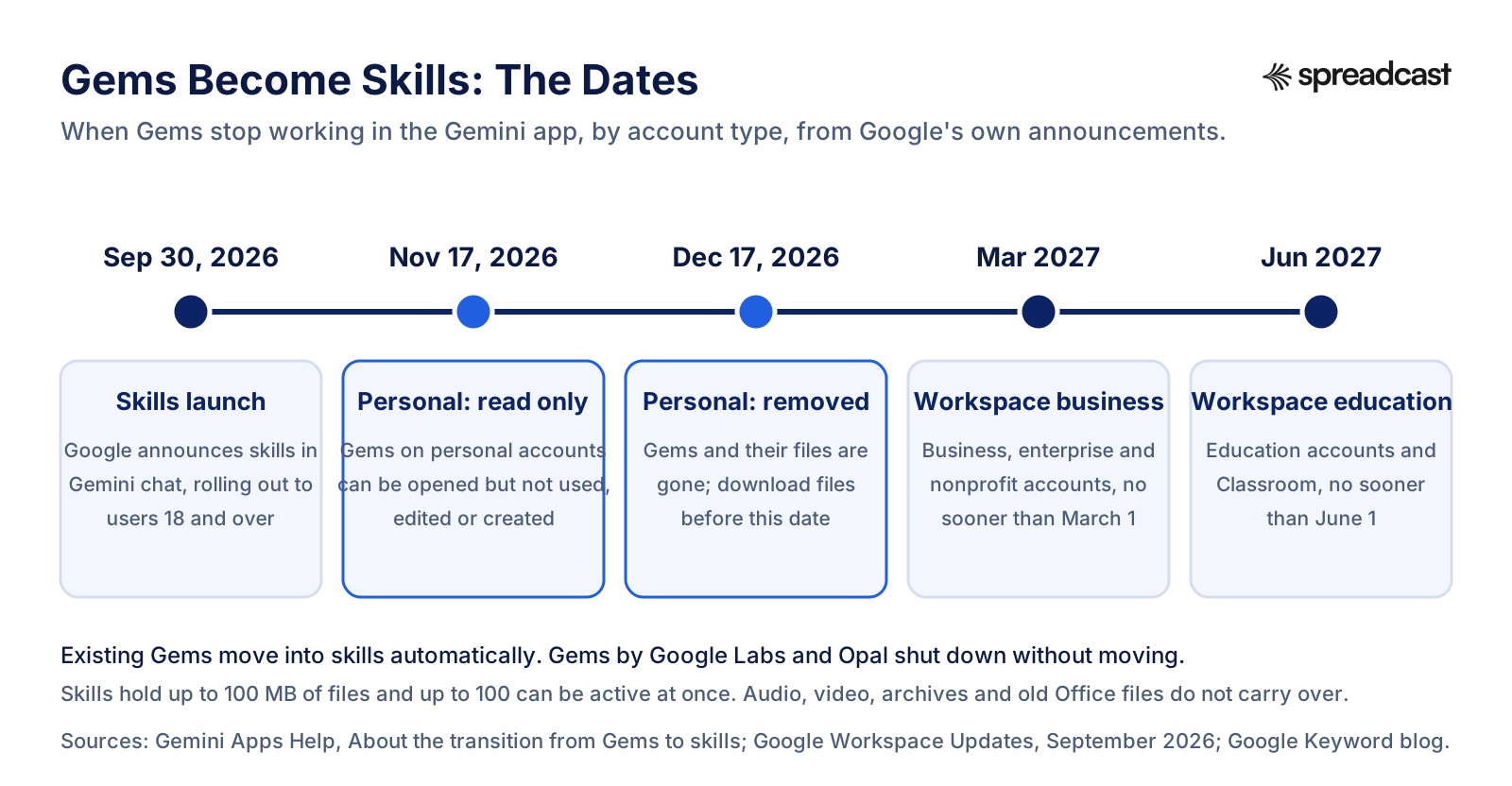
Now the catch. Google's transition page says Gems on personal Google accounts become read only and turn into skills on November 17, 2026, and are removed on December 17, 2026. Workspace business, enterprise and nonprofit accounts follow in March 2027 and education accounts in June 2027. Existing Gems move into skills automatically. If you are building a gemini gem social media manager this week, build it as a skill instead, or at least keep its instructions in a document so moving it takes one paste.
When Gems Become Skills
Personal accounts move first. Workspace accounts follow in 2027.
Gems vs Skills for a Social Media Manager
Skills are reusable instructions you call inside any chat instead of opening a separate Gem. Google's announcement says you type a slash and the skill's name, that Gemini can also apply a skill on its own when your prompt matches, and that several skills can run at once. Its own example stacks a writing style skill with a brand guidelines skill to make on brand assets, which is exactly the shape of a social media setup.
Google's skills help page lists four ways to make one under Customize, then Skills: with Gemini in a chat, from a template, manually with a name, description and instructions, or by uploading a SKILL.md file or a folder that holds one. Skills can carry plain text files, PDFs and images up to 100 MB in total. Word and Excel files are not supported, and scripts inside a skill cannot reach the internet. You need to be 18 or over with Keep Activity on, and skills work without a Google AI subscription.
For a social media manager the switch is mostly good news. A Gem forced you to open it and work inside it. A skill comes to the chat you are already in, so a quick caption request in the middle of planning a launch still gets your voice and your banned words. Splitting the brief into two skills, one for voice and one for each network's rules, also means you can update the network rules without touching the voice.
Three things to watch. Google's announcement says sharing and adding Drive files are coming to skills, so for now a skill cannot be shared like a Gem and its files are copies, not live Drive links. Google Workspace Updates says skills do not sync between the Gemini app and Workspace apps, so a skill made in one has to be made again in the other, and that the Workspace launch was delayed. And the transition page says audio, video, archives and old Office files in a Gem do not carry over, so download those before December 17.
Social Media Manager Prompt for Gemini
This is the instruction text we would put in a social media manager skill or Gem. It follows Google's persona, task, context and format split. Paste it, replace the bracketed parts, and cut anything that does not apply to you.
Persona: "You are the social media manager for [brand], a [one line description]. You write like a careful person who uses the product every day, not like an advertiser. You never invent facts, numbers, customers or quotes."
Task: "When I give you notes, release notes, a link or a topic, you write posts for the networks I name. When I ask for a plan, you return a table. When I ask for feedback on a draft, you list what to cut first."
Context: "Audience: [who follows us and what they want]. What we sell: [plain description]. What makes it different: [one or two real facts]. Words we never use: amazing, incredible, magic, any word in all capitals. Networks we post to: [list]. Our best recent posts: [paste two or three]."
Format: "For each network, keep inside its limit: Threads 500 characters, Bluesky 300, LinkedIn under 200 words unless I ask for longer, Instagram first line under 10 words. Give three versions of the first line. List every factual claim under the post with the line in my notes it came from. If a fact is missing, ask me instead of guessing."
The last instruction is the one that matters most. A social media manager prompt for Gemini that tells it to ask when a fact is missing produces fewer posts you have to fix. If you want more of these, the Claude skills for social media page reviews ready made skill files, and most of them work in Gemini as uploaded SKILL.md files.
How to Build a Social Media Manager Skill in Gemini
These steps use the manual route from Google's help page. Streakly, an invented habit tracker, stands in for your brand.
- Step 1
Open Skills
At gemini.google.com, open the sidebar and click Customize, then Skills. If Customize is not shown, click More first. You need to be signed in, 18 or over, with Keep Activity on.
- Step 2
Create the Voice Skill
Click Create, then Create manually. Give it a name in lowercase, such as streaklyvoice; Google allows lowercase letters with hyphens between words. Write a one line description, because Gemini reads the description to decide when to apply the skill, then paste the persona, task and context parts of the prompt above.
- Step 3
Create a Network Rules Skill
Make a second skill, such as networkrules, with only the format part: each network's limits, how many hashtags, how long a LinkedIn post may run. Keeping it separate means you can change one network's rules without touching the voice.
- Step 4
Add Reference Files
To give a skill files, download it as a zip, put your brand brief, a few past posts as a PDF and two or three on brand images in the folder beside its SKILL.md, then use Replace skill to upload the folder. The folder name has to match the skill name, and the total stays under 100 MB.
- Step 5
Test It in a Normal Chat
Type a slash, pick both skills and ask for a real post: "Write a Threads post about the streak freeze in 4.0." Check that the post uses only facts you gave it and stays inside the limit. If it does not, tighten the instruction rather than fixing the post by hand.
- Step 6
Decide on Automatic Use
Active skills can be applied by Gemini on its own when a prompt matches. If the voice skill starts appearing in chats that have nothing to do with Streakly, open it and choose Deactivate, and call it by name when you need it.
Google Gemini Social Media Manager, Job by Job
What Gemini handles in a plain chat, what changes once a posting tool is connected, and what stays with you either way.
| Job | Gemini on its own | Gemini with a posting tool connected | What stays with you |
|---|---|---|---|
| Ideas for what to post | Lists ideas from what you tell it, or from Deep Research | Reads real news when the tool exposes it, such as a new app version | Choosing which ideas fit this week |
| Captions | Writes and rewrites them | Writes them inside each network's limits, read from the tool | The final read |
| Pictures and carousels | Generated images, not your real screens | Designed in your brand when the tool designs | Checking every screen and claim |
| Brand voice | Follows a skill or Gem you write | Can also read the brand kit stored in the tool | Keeping the brief current |
| Scheduling | A table of dates, or a scheduled action that reminds you | Saves drafts or scheduled posts on the tool's calendar | Approving the times |
| Publishing | Not possible | Possible when the tool and the access you granted allow it | Whether the assistant may publish at all |
| Comments and messages | Drafts replies to text you paste | Only if the tool has tools for them | Answering people |
| Reporting | Analyzes an export you upload | Reads live results from the tool | Deciding what to change |
Gemini features checked in Gemini Apps Help on October 28, 2026.
How Gemini Connects to Other Apps
Gemini has two kinds of connections and they are easy to mix up. Connected Apps, which Google used to call extensions, are the built in ones: Google's page lists Gmail, Calendar, Home, Search, Flights, Hotels, Maps and YouTube, plus YouTube Music, Spotify and WhatsApp, with phone and messages on Android. You switch them on; you cannot add new ones to that list.
Custom apps are the new part. Google's custom apps page lets you add any app by the address of its MCP server, as long as the server follows the standard MCP specification. The requirements are strict for now: 18 or over, in the US, signed in with a personal Google account rather than a work or school one, Keep Activity on, and English only. You can connect a custom app only in the Gemini web app, and once connected it also works in the mobile app.
Once added, you call a custom app by typing @ and choosing it, so Gemini uses it for that prompt. Google's page says Gemini currently requires manual confirmation for any write action, which for a posting tool means every saved draft and every scheduled post asks you first. That is the behavior you want in the first weeks.
The same page is frank about risk. Google does not control, monitor or secure third party MCP servers, and once data reaches the app it is subject to that app's privacy practices. Connect only tools you trust, read their privacy policy, and remove the ones you stop using. A posting tool should ask for no more than it needs: your social accounts, your brand and your posts.
Four Ways to Connect Gemini to an MCP Server
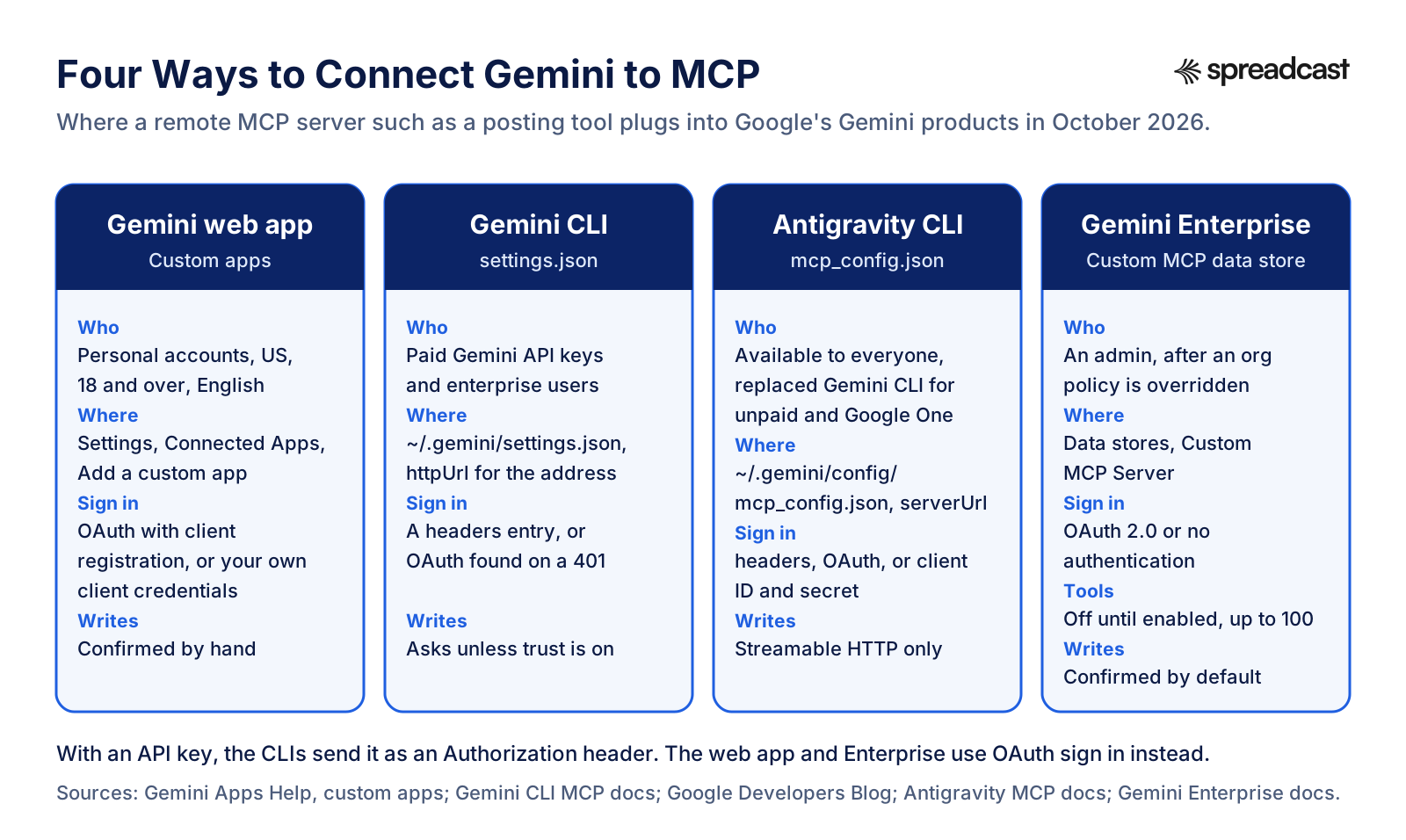
The address is the same in every case. Who can use each route, where it goes and how it signs in are not.
Gemini MCP Connector in the Gemini App
These are Google's steps for a custom app, filled in for Spreadcast. They need a personal account in the US.
- Step 1
Open Connected Apps
On a computer, go to gemini.google.com, click Settings at the bottom of the sidebar, then Connected Apps. Custom apps sit in their own section on that page.
- Step 2
Add the Server Address
Under Custom apps, click Add a custom app and enter the MCP server address. For Spreadcast that is spreadcast.app/api/mcp with https in front. Click Next.
- Step 3
Sign In With the Tool
Google's page says that if a server does not support Dynamic Client Registration, you open Advanced features and enter your own credentials. Spreadcast's server supports it, so you go straight to the Spreadcast sign in, choose Make Drafts or Make and Publish, and click Connect. Your Spreadcast password never passes through Gemini.
- Step 4
Call It With @
In a chat, type @, pick the app and ask: "What posts can you make from my last app update?" Gemini lists the tools it found and asks before any write.
- Step 5
Remove It When You Are Done
Turning the app off keeps it in your settings. More details, then Disconnect, revokes its access but keeps it listed. Remove app takes it out entirely and unlinks the server from your Google account. You can also remove the connection from Spreadcast under Settings, AI Assistants.
Gemini CLI MCP Servers After the June 2026 Change
Gemini CLI is Google's open source agent for the terminal, and most tutorials about gemini cli mcp servers use it. Before you follow one, check whether you still have access. In May 2026 Google announced that Gemini CLI would stop serving consumer requests on June 18, 2026.
Google's post on the change names who it affects: Google AI Pro and Ultra subscribers and people using Gemini Code Assist for individuals at no charge. Organizations on Gemini Code Assist Standard or Enterprise keep their access, and the post says Gemini CLI remains accessible with paid Gemini and Gemini Enterprise Agent Platform API keys. The Gemini CLI GitHub page now opens with the same note: for unpaid tier and Google One users, Gemini CLI was replaced by Antigravity CLI.
If you do have access, Gemini CLI's MCP support is mature. Its MCP documentation defines servers under mcpServers in a settings file: ~/.gemini/settings.json for your user, or .gemini/settings.json inside a project. A remote server uses httpUrl for streamable HTTP or url for the older SSE transport, and a headers object carries custom headers such as an Authorization header with a key. The same page documents a gemini mcp add command with a transport flag and a header flag, so you never have to open the file.
Three more details from that page matter for posting tools. Tool calls ask for confirmation unless you set trust to true, and you can allow a single tool or the whole server once you are comfortable. includeTools and excludeTools let you hide tools from the model, which is a clean way to keep a publish tool out of reach while you test. And if a server answers 401, Gemini CLI can discover its OAuth endpoints, open a browser and store the tokens, though Google notes that flow fails over SSH without a browser and in containers.
If you lost access in June, the same setup moves to Antigravity CLI with a different file and key, shown two sections down.
How to Add Spreadcast to Gemini CLI With an API Key
This route suits people who already run Gemini CLI with a paid API key or an enterprise license. Spreadcast keys work on every Spreadcast plan.
- Step 1
Make a Key in Spreadcast
In Spreadcast, open Settings, AI Assistants and make a key. Choose drafts only to start. A key is shown once, begins with sc_ and can be revoked from the same screen at any time.
- Step 2
Add the Server With One Command
In a terminal, run gemini mcp add with the transport flag set to http, the name spreadcast and the address spreadcast.app/api/mcp with https in front, then the header flag with Authorization: Bearer followed by your key. Add the scope flag set to user if you want it in every project rather than only this one.
- Step 3
Or Edit the Settings File by Hand
Open ~/.gemini/settings.json and add an entry under mcpServers named spreadcast, with httpUrl set to the address and a headers object holding one Authorization entry, Bearer and your key. Leave trust unset so every call asks first.
- Step 4
Check the Connection
Start gemini and type /mcp. It lists each server, whether it is connected and the tools it offers. You should see Spreadcast's tools, such as spreadcast_get_account, spreadcast_design_post and spreadcast_create_post.
- Step 5
Start With a Read
Ask: "Use Spreadcast to show my account and connected networks." Gemini calls the account tool and tells you which networks are connected, which apps the account has and whether this key may publish. Nothing is written.
- Step 6
Keep the Key Out of Git
If you put the server in a project's .gemini/settings.json, that file can end up in a repository. Keep keys in the user file, or add the project file to your ignore list.
Video: How Gemini CLI Connects to an MCP Server
Google for Developers shows the same mechanics with a different tool.

How to Add Spreadcast to Antigravity CLI
Antigravity CLI is the replacement Google offers free and Google One users. It reads MCP servers from its own file.
- Step 1
Find the Config File
The Antigravity MCP docs keep global servers in ~/.gemini/config/mcp_config.json and project servers in .agents/mcp_config.json inside the workspace.
- Step 2
Use the Right Address Key
Add an entry under mcpServers named spreadcast with serverUrl set to the Spreadcast address. The docs say remote servers must use Streamable HTTP, and the older httpUrl key and SSE transport are not supported. Spreadcast's server runs on Streamable HTTP, so nothing else changes.
- Step 3
Add the Key as a Header
Give the entry a headers object with an Authorization entry: Bearer and your Spreadcast key. Without a header, a server that supports Dynamic Client Registration can sign in with OAuth instead, and the docs show where to click Authenticate in the app.
- Step 4
Bring Over Old Gemini CLI Servers
Google's migration guide shows agy plugin import gemini converting Gemini CLI extensions, with their server definitions moved into mcp_config.json. Check the result by hand, since the key name changes.
- Step 5
Check It in the CLI
Type /mcp to open the MCP manager. It shows each server's status, reloads the config and shows connection logs if Spreadcast does not appear.
Gemini Enterprise and Custom MCP Servers
In a company on Gemini Enterprise, the connection is an admin job. Google's Enterprise documentation covers it as a custom MCP server data store, and the page applies to the Standard, Plus, pay as you go and Frontline editions; Business edition users are pointed to a separate help center.
Several conditions come first. An organization policy blocks custom MCP data stores by default, so an Organization Policy Administrator has to override it. The connector supports Streamable HTTP only, and the server needs a TLS certificate from a publicly trusted authority. The page lists two authentication options, OAuth 2.0 or none, and does not mention a key in a header; for OAuth, the admin registers Gemini Enterprise as an OAuth client with the provider.
Once connected, every tool starts switched off. The admin reloads the tool list and enables the ones the company wants, up to 100 at a time. By default every call asks the user for confirmation, because Gemini Enterprise treats any action as potentially destructive, unless the server marks a tool as read only. For a posting tool that is a sensible default: reading analytics can run freely and saving or publishing a post always asks.
If your company runs Gemini Enterprise and you want posts drafted from it, take the server address and the vendor's OAuth details to your admin. For Spreadcast, the MCP page has the address and what each tool does, and the consent screen lets the company choose drafts only.
Building Your Own Gemini Posting Agent on the API
Developers can skip the apps and call Gemini directly. Google's tools documentation for the Gemini API explains function calling, where the model returns the name and arguments of a function and your code runs it, and says the Interactions API can connect to remote MCP servers. It adds that remote MCP works with Streamable HTTP servers only and that server names should use underscores rather than hyphens.
Cost is rarely the barrier for text. The Gemini API pricing page lists a free tier for several models, and on the paid tier Gemini 2.5 Flash Lite costs $0.10 per million input tokens and $0.40 per million output tokens. A week of captions is a few thousand tokens. Images cost more: Nano Banana 2 is listed at $0.067 per 1K image on the paid tier, with no free tier.
The cost that matters is your time. A posting agent you build yourself still needs the network connections, the approval step, the retry when Instagram rejects a picture and the calendar. That is a product, not a weekend script. The AI agent for social media page walks through what such an agent should and should not be allowed to do, and the AI marketing agent page covers the wider build or buy question.
A Real Workflow: Gemini CLI Plans and Designs a Week of Posts
This example uses Streakly on Spreadcast Pro with Instagram, LinkedIn, Threads and Bluesky connected, and Gemini CLI with a drafts only key. It shows the mechanics, not a customer result.
- Step 1
Alex Asks for the Week
Alex types: "Use Spreadcast. Plan this week's posts for Streakly from anything new in the App Store listing. Drafts only." Gemini reads the account first: four networks connected, one app, and a key that may save drafts but not publish.
- Step 2
Gemini Finds the News
It lists the moments Spreadcast found in the listing and sees version 4.0, with release notes about a streak freeze for sick days. It reads the Streakly brand kit: colors, fonts, logo and screenshots of the app.
- Step 3
Gemini Designs the Carousel
It asks Spreadcast for a six slide carousel: a cover, four slides with real screens of the streak freeze in an iPhone frame, and a last slide pointing to the App Store. Spreadcast draws the slides in the brand and returns them.
- Step 4
Gemini Writes a Caption per Network
It reads each network's posting rules, then asks Spreadcast to write the captions in the brand's voice: a longer LinkedIn post, an Instagram caption with a few hashtags, and short posts for Threads and Bluesky. No number appears that is not in the release notes.
- Step 5
Gemini Checks, Asks, Saves
A dry run puts the posts through every network's checks without saving anything. They pass. Gemini CLI asks Alex to confirm the write, and the drafts land on the Spreadcast calendar.
- Step 6
Alex Approves in Spreadcast
Alex opens Spreadcast, changes one slide headline and approves the drafts for Tuesday and Thursday mornings. A week later Alex asks Gemini how they did, and it reads reach and interactions per network from Spreadcast.
Gemini vs Claude for Social Media Posting
Both write well. The difference for social media is how easily each one reaches a posting tool.
| Question | Gemini | Claude |
|---|---|---|
| Writing and planning in a plain chat | Every plan | Every plan |
| Adding a posting tool by MCP address in the app | Custom apps, for personal accounts in the US, 18 and over, in English, per Google's page | Custom connectors on Free, Pro, Max, Team and Enterprise, with Free limited to one, per Anthropic's guide |
| Lowest plan named for that | Google's page names no plan, only the account, age and country rules | Free, with one custom connector |
| Work and school accounts | Not for custom apps yet; Gemini Enterprise connects through an admin | Team and Enterprise plans are on the list |
| Terminal route | Gemini CLI with paid API keys or enterprise access, or Antigravity CLI | Claude Code |
ChatGPT has its own plan rules for custom MCP servers; the ChatGPT social media automation guide covers them. For Claude in depth, see Claude for social media and Claude Code for social media.
Social Media Tools That Work With Gemini
Tools whose own pages say they connect to a Gemini product, checked on October 28, 2026.
- 1
Spreadcast
Free, then $29 a monthBest when nobody on the team designs
Spreadcast designs the post in your brand and publishes it for you, so Gemini can go from an idea to a scheduled carousel without a design tool in between. Its MCP server runs on Streamable HTTP with an API key header or OAuth sign in, which fits Gemini CLI, Antigravity CLI and the Gemini app's custom apps.
Gemini can read the account and brand kit, list App Store moments such as a new version or a ratings milestone, design posts in 11 kinds and carousels of 3 to 8 slides, write a caption per network, check a post without saving it, save drafts, schedule, approve, retry and read analytics. Posts go to Instagram, Facebook, Threads, LinkedIn, Pinterest, TikTok, YouTube, Bluesky, Mastodon, Telegram and Discord.
The Free plan designs posts and saves drafts at $0. Pro at $29 a month adds clean posts with no cap, publishing to 10 social accounts across any mix of networks, autopilot or one tap approval, and scheduling and publishing from an assistant.
Pros
- Designs on brand posts, not only schedules them
- Real app screenshots in an iPhone frame
- Drafts by default, publishing only on a key or sign in that allows it
Cons
- Built first for App Store apps
- No comments or inbox tools yet
- 2
Best for teams already paying for Hootsuite
Hootsuite's MCP page lists four hosted servers, which our Hootsuite MCP server guide covers in full, with Perch for content creation, planning and publishing, Nest for the inbox, Lumen for listening and Parliament for employee advocacy. For Gemini it says you add an MCP server connection by remote URL and sign in to your Hootsuite workspace, and that setup for Gemini and Microsoft Copilot requires IT administrator access.
Pros
- Separate servers for publishing, inbox and listening
- One time sign in to the workspace
Cons
- Needs an active Hootsuite account
- Gemini setup goes through IT
- 3
Best for analytics first teams
Metricool's MCP page lists Gemini CLI among its supported clients, next to Claude, ChatGPT, Cursor, Make and n8n. The page says it handles scheduling posts, reading analytics, checking your best posting times and reviewing competitors, and can pull ad campaign figures. See our Metricool MCP review for its tools and limits.
Pros
- Strong analytics reading
- Gemini CLI listed by name
Cons
- Schedules what you bring rather than designing it
Which Route to Pick
If you are in the US with a personal Google account and want to stay in the browser, the Gemini web app's custom apps are the simplest route: add the address, sign in, call the tool with @. If you are outside the US or on a work account, that route is closed for now.
If you live in a terminal and already pay for the Gemini API or have an enterprise license, Gemini CLI with an API key is the most controllable route: you choose which tools are visible, every call asks unless you trust the server, and the setup is one command. If you were a free or Google One user of Gemini CLI, Antigravity CLI is where the same setup now lives.
If your company runs Gemini Enterprise, ask your admin. That route has the most control and the most steps, and nothing you do alone will turn it on.
And if none of these fits, you do not need Gemini in the loop at all. Write in Gemini, then let a posting tool do the rest on its own. The best social media MCP servers roundup compares the tools that offer a server, and the Spreadcast MCP server page lists every Spreadcast tool with what it does.
Gemini Social Media Mistakes to Avoid
Each comes from how Gemini and the networks actually behave.
Building a New Gem in November
Gems on personal accounts go read only on November 17, 2026. Build a skill, or keep the Gem's instructions in a document you can paste.
Following a 2025 Gemini CLI Tutorial on a Free Account
Gemini CLI stopped serving free and Google One users on June 18, 2026. Use Antigravity CLI, where the address key is serverUrl.
Posting Generated Screens as Real Ones
An image model can draw an app screen that does not exist. For a product post, use real screenshots or a tool that places them for you.
Trusting the Server on Day One
Setting trust to true in Gemini CLI skips every confirmation. Leave it off until you have approved weeks of drafts without changes.
One Caption Everywhere
Bluesky's limit is 300 characters and LinkedIn readers expect paragraphs. Ask for one caption per network.
Letting Gemini Fill the Gaps
If your notes have no number, the post should not have one. Put that rule in your skill so it holds in every chat.
Sharing a Gem With Private Files
Anyone you share a Gem with can see its instructions and files. Keep pricing plans and customer data out of a shared brand Gem.
Expecting a Personal Instagram Account to Work
Meta's API publishes only to professional accounts. Switch the account before connecting it to any tool.
Putting the Key in a Project File You Commit
A key in a project's .gemini/settings.json can end up in a public repository. Use the user file or revoke the key if it leaks.
What Gemini Keeps From Your Brand Chats
Before you paste a launch plan or customer feedback into Gemini, read Google's Gemini privacy page. It says a subset of chats is read by human reviewers, including trained service providers, after being disconnected from your account, and kept for up to three years. Google's own advice is not to enter confidential information you would not want a reviewer to see.
With Keep Activity on, which skills, custom apps and Drive files all need, activity is kept for 18 months by default, and you can change that to 3 or 36 months. Google's page says that activity can be used to improve Google services, including training generative AI models. With Keep Activity off, chats are still kept for 72 hours.
For social media work that usually means: brand voice, public product facts and published posts are fine. Unannounced features, revenue, customer names from support tickets and anything under an embargo are not. Work and school accounts may have different terms, so check with your admin if you use Gemini through a company account.
How to Post Every Day Without a Designer
Here is what a week looks like with Gemini alone. Monday, you ask Gemini for five ideas and pick three. You write the captions with your skill, which takes ten minutes. Then the slow part starts: you open a design tool, find the logo, take fresh screenshots, fit them into a frame, export each size, and upload each post to each network or to a scheduler. Three posts across four networks is twelve uploads. Most weeks, that is where the routine breaks.
Here is the same week with Spreadcast. Spreadcast watches your App Store listing every day. When a new version goes live or the app hits a ratings milestone, it designs the post in your brand, writes a caption for each network and publishes it, either on full autopilot or after one tap of approval. For anything else you type one line in Create, or pick one of twelve post types for apps, such as a feature, a how to or a testimonial, and it designs a single image or a carousel with your real screenshots in an iPhone frame. You can also upload your own pictures and video and schedule them from the same calendar.
Gemini still has a job in that picture. Use it for the thinking: the launch plan, the argument in a LinkedIn post, the competitor research. Connect Spreadcast to Gemini CLI, Antigravity CLI or the Gemini app when you want Gemini to turn that thinking into designed drafts in one chat. Or skip the assistant and let Spreadcast's own Dashboard do it.
Spreadcast publishes to Instagram, Facebook, Threads, LinkedIn, Pinterest, TikTok, YouTube, Bluesky, Mastodon, Telegram and Discord. It shows followers and interactions per network and likes, comments, reach and views per post, so the Monday review starts from real numbers. See every feature, the plans or start from your App Store link. If the problem is batching a month at once, the batching guide shows the routine.
Spreadcast Plans for Gemini Users
The Spreadcast MCP server is on every plan. What changes is what Gemini may do with your posts.
| Plan | Price | What Gemini can do in Spreadcast |
|---|---|---|
| Free | $0 | Read the account and brand kit, list App Store moments, design posts and carousels, write captions per network, check posts and save drafts. Free makes 3 posts to download with a small Spreadcast mark, and does not publish. |
| Pro | $29 a month or $290 a year | Clean posts with no cap, publishing to 10 social accounts across any mix of networks, and scheduling or publishing from Gemini once the key or sign in allows it. |
| Studio | $79 a month | Everything in Pro for 5 apps and 50 accounts, each app with its own brand. |
| Post Pack | $19 once | 10 posts designed and published, no subscription. |
| 30 Day Pass | $39 once | Everything in Pro for 30 days, no subscription. |
Paid plans come with a 7 day full refund. Your Gemini plan is separate. Current details are on the pricing page and the connection itself on the MCP page.
Frequently Asked Questions
What is the best Gemini prompt for social media posts?
One that names the brand, the network, the audience and the single fact the post is about, then sets the length and asks for three versions. Add a rule that Gemini may use only the facts you gave it. Google's own advice splits a prompt into persona, task, context and format.
Can Gemini post to Instagram?
Not on its own. None of Gemini's built in Connected Apps posts to Instagram. Gemini can post only through a connected posting tool, such as an MCP server added as a custom app or in Gemini CLI, and only to an Instagram professional account.
Can Gemini create social media posts?
Yes, the text and an image, on any plan. It writes captions, rewrites them per network and draws images with Nano Banana 2. It cannot show your real product screens unless you supply them, and it cannot publish without a connected tool.
How do I make a Gemini Gem for social media?
At gemini.google.com open Gems, click New Gem, add a name and instructions covering persona, task, context and format, add brand files under Knowledge and click Save. On personal accounts, Gems become skills on November 17, 2026, so a new setup is better built as a skill under Customize, then Skills.
Are Gemini Gems going away?
Yes. Google says Gems on personal accounts become read only on November 17, 2026 and are removed on December 17, 2026, and move into skills automatically. Workspace business, enterprise and nonprofit accounts follow in March 2027 and education accounts in June 2027.
Does Gemini support MCP?
Yes, in several products. The Gemini web app connects custom apps by MCP server address for personal accounts in the US. Gemini CLI and Antigravity CLI read MCP servers from a config file, Gemini Enterprise connects them through an admin, and the Gemini API's Interactions API can call remote MCP servers.
Can Gemini schedule social media posts?
Gemini can schedule its own prompts with scheduled actions on paid plans, for example a Monday planning prompt. It schedules posts on a network only through a connected posting tool that offers a scheduling tool.
Is Gemini free for social media?
Writing, planning, Deep Research and image generation work on the free plan. Scheduled actions and video generation need a paid Google AI plan, and Tasks needs Google AI Pro or Ultra. Posting needs a separate tool, which may have its own price.
Where These Facts Come From
Every outside number, rule and price on this page links to the page it was taken from.
- Use Gems in Gemini AppsGemini Apps Help
- Tips for creating custom GemsGemini Apps Help
- Share a Gem from Gemini AppsGemini Apps Help
- About the transition from Gems to skillsGemini Apps Help
- Create and manage skills for Gemini AppsGemini Apps Help
- Let skills in Gemini tackle your most repetitive tasksGoogle
- Introducing skills in the Gemini app and WorkspaceGoogle Workspace Updates
- Gemini Apps limits and upgradesGemini Apps Help
- Google AI plans and pricing, United StatesGoogle
- Generate and edit images with Gemini AppsGemini Apps Help
- Schedule actions in Gemini AppsGemini Apps Help
- Use Tasks in Gemini AppsGemini Apps Help
- Use and manage Connected Apps in GeminiGemini Apps Help
- Connect and manage custom apps for Gemini AppsGemini Apps Help
- Gemini Apps Privacy HubGemini Apps Help
- MCP servers with the Gemini CLIGemini CLI Docs
- Gemini CLI repositoryGoogle on GitHub
- Transitioning Gemini CLI to Antigravity CLIGoogle Developers Blog
- MCP servers in AntigravityGoogle Antigravity Docs
- Migrating from Gemini CLIGoogle Antigravity Docs
- Set up your custom MCP server data storeGoogle Cloud Documentation
- Function calling with the Gemini APIGoogle AI for Developers
- Gemini API pricingGoogle AI for Developers
- Instagram content publishing guideMeta for Developers
- Get started with custom connectors using remote MCPAnthropic Help Center
- Hootsuite MCP serversHootsuite
- Metricool MCP for Claude and other assistantsMetricool
- Video: Gemini CLI and Model Context ProtocolGoogle for Developers
- Video: Gemini at the I/O 2026 keynoteGoogle
Researched and written by Spreadcast. Last checked on October 28, 2026.