To promote an Android app, get the Google Play listing right first, then bring people to it from everywhere else. In practice that means a listing written for Play search (30 character title, 80 character short description, up to 4,000 characters of full description, per Play Console Help), a closed test and pre registration before launch, custom store listings for your best audiences, a steady flow of ratings through the in app review API, crash and ANR rates under Google's thresholds, regular posts on the social networks your users actually open, and a small, measured ad budget once the free channels work. Android accounts for 72.36% of mobile operating system use worldwide in StatCounter's October 2026 data, so the audience is there. The work is getting in front of it.
This guide is the whole job, written for an indie developer or a small studio with an app on Google Play (or one about to go up) and not much money to spend. It covers the parts that are specific to Android and Google Play, which most "how to promote an app" articles skip: testing tracks that double as a waiting list, pre registration that installs your app on launch day, custom store listings with their own links, promotional content in Play Console, what Google's editors look for, and the Android vitals numbers that quietly decide how visible you are. Then it covers the channels outside the store, a launch week plan, ads, the markets where Android dominates, how to measure all of it, three budgets and a weekly routine you can keep up.
Every Google rule and limit here links to Google's own help page, and every number links to where it came from. All of them were opened and checked on November 13, 2026. Where something is a judgment call rather than a rule, the guide says so.
How to Promote an Android App: The Short Version
If you only have ten minutes, this is the order that works for most small Android apps. It starts with the things that make every later visitor more likely to install, because sending people to a weak listing is the most expensive mistake in app marketing, and it ends with paid ads, which only pay off once everything before them is in place.
- Fix the store listing. Title, short description and full description written around the words people type into Play search, eight good screenshots in an Android frame, a feature graphic and, if you can, a short video. The deep version is our Google Play ASO guide.
- Use the testing tracks as your first audience. New personal developer accounts need a closed test with at least 12 testers for 14 days anyway, so pick testers who will become your first fans and reviewers.
- Run pre registration for a few weeks before launch. Everyone who signs up gets a push notification on launch day, and many get the app installed automatically.
- Set up two or three custom store listings: one per important country, one for people arriving from your website or a creator's link, and one for lapsed users once you have them.
- Ask for ratings inside the app with Google's in app review API, at a moment when people are happy, and reply to every review.
- Keep the user perceived crash rate under 1.09% and the ANR rate under 0.47%, because above those lines Google may show your app to fewer people.
- Post on social media every week: real screenshots, update posts when a version ships, rating milestones, tips and short videos. Consistency matters more than any single post.
- Go where Android users already talk: Reddit, Discord servers, Telegram channels and forums in your niche, with real participation rather than drive by links.
- Tag every link with UTM parameters so Play Console's acquisition reports tell you which channel brought installs.
- Only then try Google App Campaigns with a small daily budget, judged on cost per active user rather than cost per install.
Step seven is the one most developers drop. It is not hard, it is just constant: a new version every few weeks, a rating milestone now and then, a feature nobody has noticed yet, and somebody has to turn each of those into a post with the right picture for each network. That is the job Spreadcast was built for. You paste your Google Play link, it reads the listing, and it keeps a feed of branded posts going from what happens to your app. There is a full walk through later in this guide. Everything else on this page works with or without it.
If you are still before step one and need the account, the $25 fee (Google says it is a one time registration fee) and the publishing steps, start with our guide on how to publish an app on Google Play and come back here when your listing exists.
What Makes Android App Promotion Different From iOS
Most app marketing advice is written with the App Store in mind, then lightly relabeled. A lot of it carries over: a good product page converts, ratings matter, social proof helps. But several things work differently on Google Play, and some of them are real advantages for a small developer if you know they exist.
Google Play Gives You More Tools Before Launch
On Google Play, an app can be findable before it is finished. An open test of an app that is not yet in production shows up in Play search as early access, and anyone can join and send you private feedback. Pre registration can run for up to 90 days in each country, and on launch day Play sends a push notification to everyone who signed up and can install the app on their phone automatically. Apple has pre orders, which do something similar, but there is no equivalent of a public, searchable early access build.
Technical Quality Affects Visibility Directly
Google publishes the crash and freeze rates above which it may show your app to fewer people. Android Developers lists the overall bad behavior thresholds as a 1.09% user perceived crash rate and a 0.47% user perceived ANR rate (ANR means the app stopped responding), plus 8% on any single phone model. Above those lines, Play may reduce your visibility and may show a warning on your store listing. That makes bug fixing a marketing task on Android in a way it rarely is anywhere else, and it means a launch that goes out with a crash on a popular Samsung model can undo a month of promotion.
The Audience Is Bigger, Wider and Spends Less per Person
Android is the majority platform in most of the world, with the United States as the big exception. In October 2026 StatCounter put its share at 94.84% in India, 78.68% in Indonesia, 74.1% in Mexico and 73.76% in Brazil, against 48.02% in the US. And the store is busy: Sensor Tower estimates that downloads across iOS and Google Play together reached nearly 150 billion in 2025, so standing out takes more than being listed. The trade off is spending. Installs are cheaper to buy on Android in most countries, and each user tends to pay less, which changes how you price, how you monetize and which channels make sense. Our page on Android vs iOS market share has the full country by country picture.
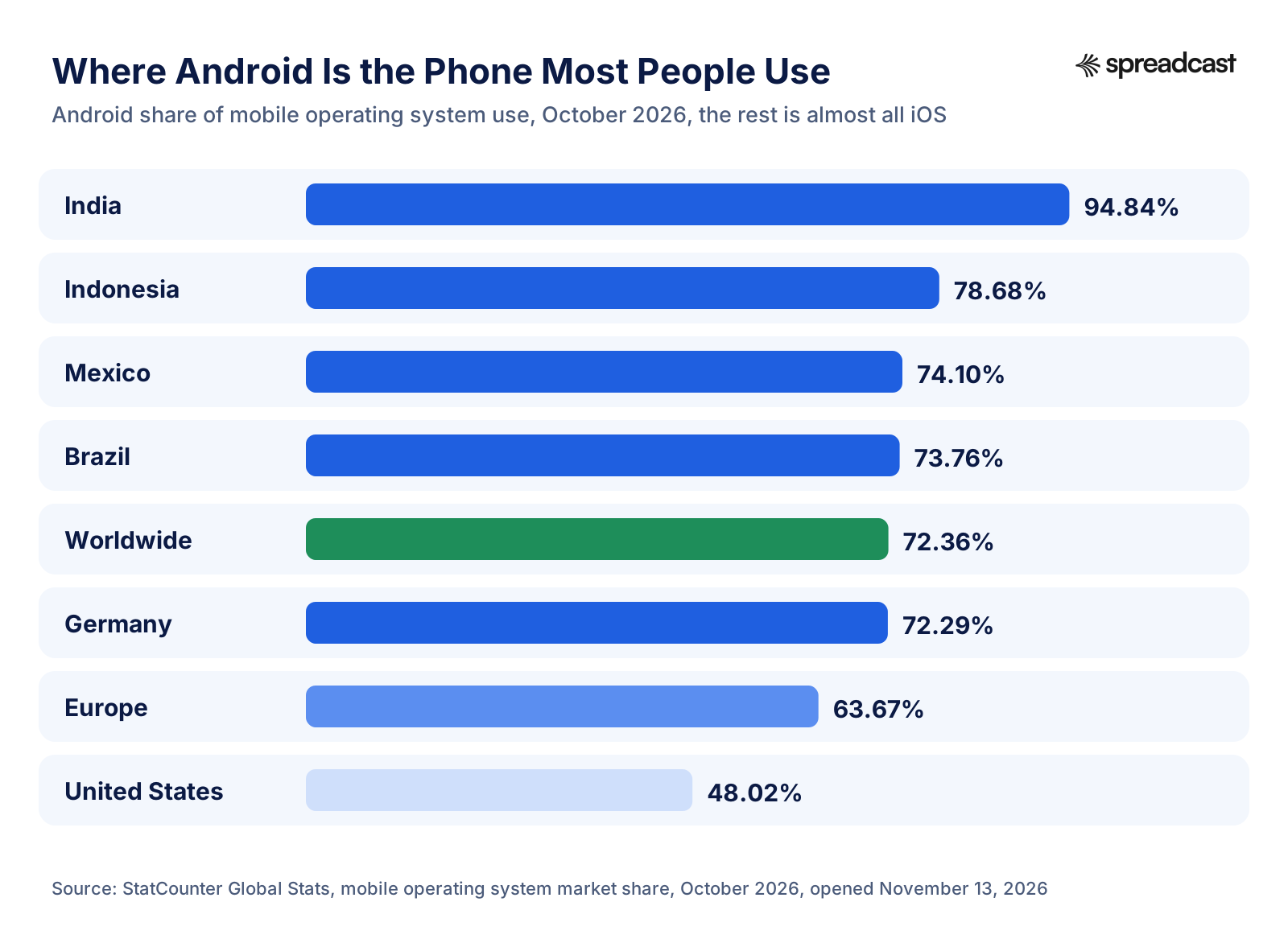
Read the chart as a targeting hint, not a promise. A 95% share in India does not mean an English language budgeting app will find millions of users there; it means that if your app fits Indian users, almost all of them are reachable through Google Play and almost none through the App Store. The same logic applies to Indonesia, Brazil and Mexico, and it is why localization shows up later in this guide as a promotion tactic rather than a nice extra.
Play Has Its Own Promotion Features, With Their Own Limits
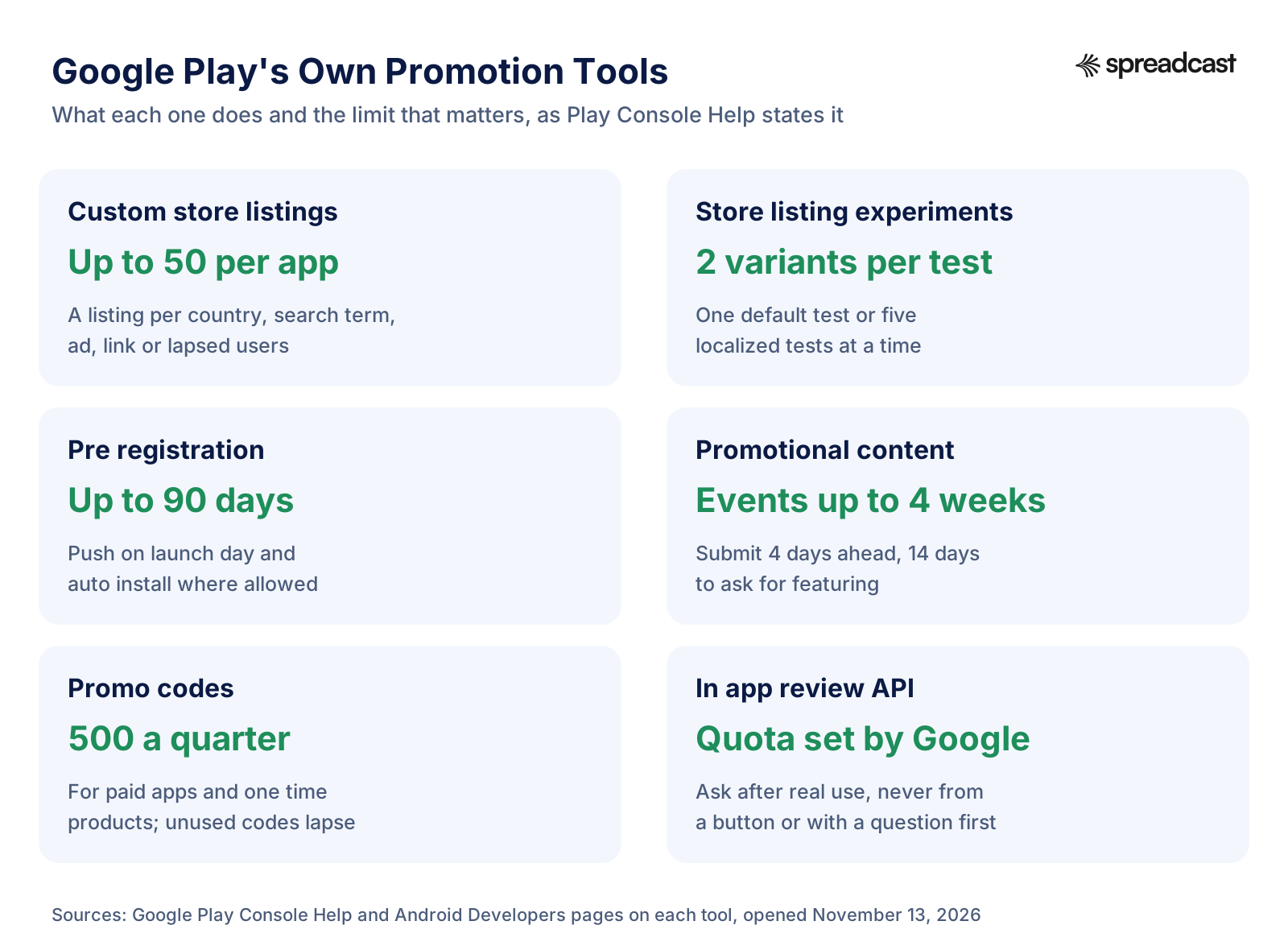
Google Play Console has a Grow section with tools that Apple either does not have or handles differently: up to 50 custom store listings per app, store listing experiments, promo codes, promotional content cards and featuring requests. Some are open to everyone. Others, as you will see, are reserved for games or for apps with millions of users, and it is worth knowing which is which before you plan a launch around one of them.
Start With a Google Play Store Listing That Converts
Every channel in this guide ends in the same place: your store listing. A creator's video, a Reddit comment, a Google ad and a friend's message all send people to one page, and that page decides whether they install. Improving it lifts every other channel at once, which is why it comes first even though it is the least exciting part of promotion.
Google Play reads more of your listing than Apple does. The Play Console Help page on store listings gives the three text fields and their limits: an app name of 30 characters, a short description of 80 characters and a full description of up to 4,000 characters. The same page warns that keyword stuffing in any of the three can get an app suspended, which tells you Google reads them closely. Google does not publish its ranking factors, but ASO tools and practitioners consistently find that Play indexes the full description for search, unlike the App Store, where the description does not affect ranking. So on Android the full description is real search real estate rather than a sales letter nobody reads.
Title, Short Description and Full Description
Write the title as your app's name plus the plain words for what it does, within 30 characters: "Habitly: Habit Tracker" says both. The short description is the line people see under your screenshots in many places, so make it a single clear sentence of what the app does and for whom, with your main search phrase in it. The full description should open with the same promise in two or three sentences, then cover each main feature in a short paragraph using the words people search for, then end with who it is for and how it is priced. Repeat your key phrases naturally a few times; stuffing them in a list at the bottom reads as spam to people and to Google.
Google's metadata policy is strict about what you cannot put in these fields, and breaking it can get an update rejected right when you wanted to promote it. No emoji or repeated special characters in the title, icon or developer name. No ALL CAPS unless it is your brand. No ranking or performance claims such as "#1" or "App of the year", no price or promotion text such as "10% off" or "free for limited time only", and no references to Google Play programs such as "Editor's choice" or "New". Unattributed user testimonials in the description are not allowed either. That rules out a lot of the urgency tricks that marketers like, which is fine: they rarely work on a store page anyway.
Screenshots, Feature Graphic and Video
Most people decide from the pictures. Use real screens from the app in an Android phone frame, put a short benefit headline on each, and order them so the first two or three tell the whole story, because that is all many visitors see before they scroll on. The exact pixel sizes, counts and the feature graphic rules are on our page of Google Play screenshot sizes. Show the app on a Pixel or Galaxy style frame rather than an iPhone; an Android user who sees an iPhone in your screenshots reasonably wonders whether the Android version is an afterthought.
A video helps when the app is easier to show than to describe, which is most games and many creative tools. Check first whether you can use it: Play Console's YouTube video integration is one of Google's premium growth tools, open to all games since October 2025 but, for apps, only to titles that meet Google's eligibility thresholds (covered in the promotional content section below). If you qualify, Google's rules for it are specific: the video must be public, not unlisted or private, monetization must be off, and it has to be your own content and embeddable; Google's reports count only videos under 30 minutes. For games, a video must have been uploaded in the last 90 days to show on the store listing. Either way, a 30 to 60 second walk through of the main action, with captions for people watching on mute, is plenty, and the same clip works on your website and social accounts. Our page on app preview videos covers what to put in the first five seconds.
Test Before You Promote
Store listing experiments let you show a different icon, feature graphic, screenshots or description to part of your visitors and see which gets more installs. You can run one default graphics experiment or up to five localized ones at a time, with up to two variants against the current listing, and the experiment stops on its own after six months. Google recommends changing one asset at a time so you know what made the difference. The catch for small apps is traffic: an experiment needs enough visitors to reach a result, and Play Console tells you an estimate before you start. If it says many weeks, test something with a bigger expected effect, such as the first screenshot, rather than a small wording change.
This is the short version of ASO on Google Play. Keyword research, how ranking works, how to write each field and how often to change it are in our full Google Play ASO guide, and the broader principles for both stores are in our app store optimization guide.
Use Testing Tracks to Build Your First Audience
Testing is usually filed under quality, not marketing. On Google Play it is both, because the people who test your app are your first users, your first reviewers once you launch and often your first word of mouth. Treat recruiting testers as the opening move of your promotion, not a chore before it.
The 12 Testers and 14 Days Rule
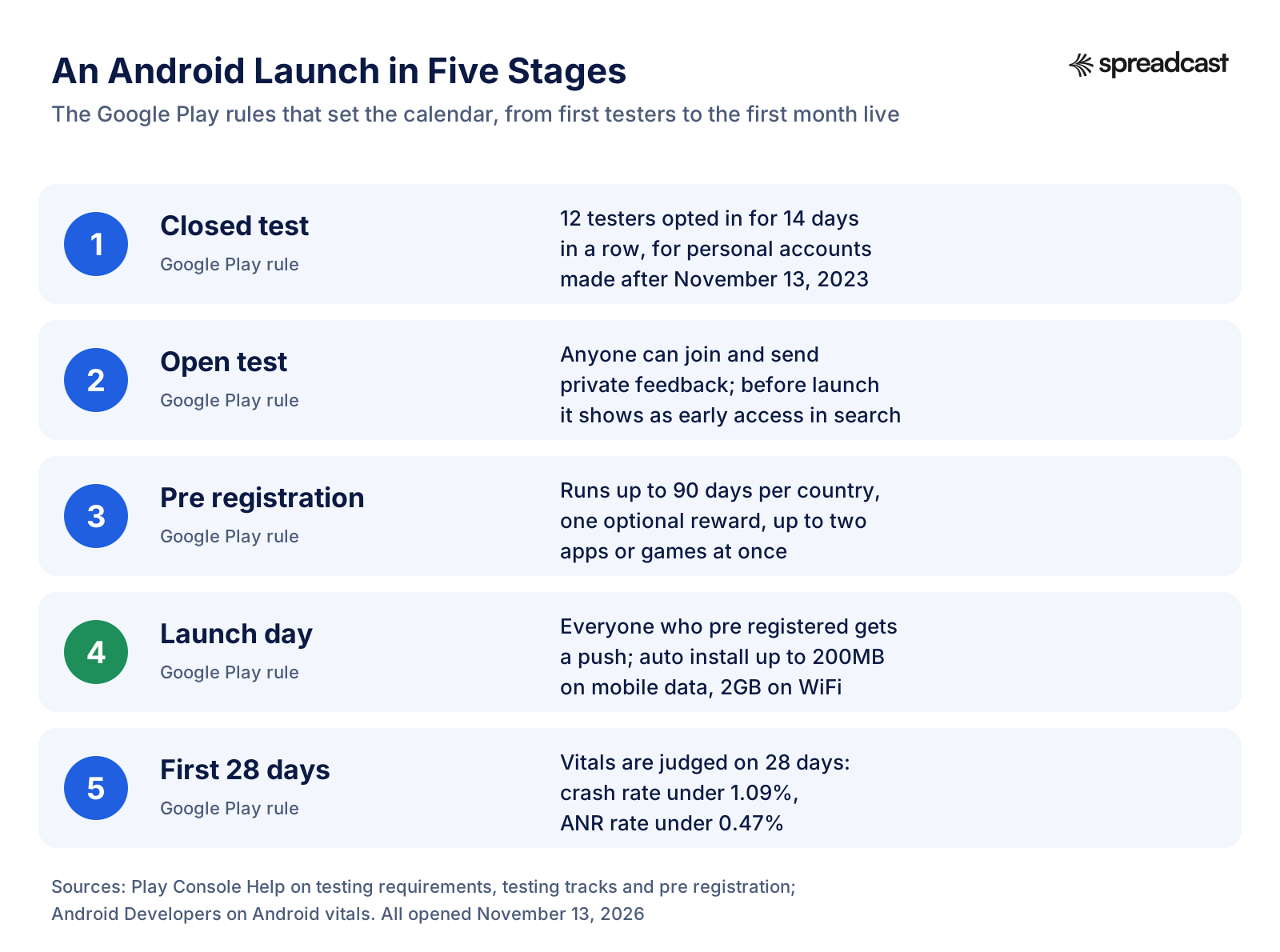
If you have a personal developer account created after November 13, 2023, Google requires a closed test before you can publish to production. The testing requirements page says at least 12 testers must be opted in to your closed test when you apply for production access, and they must have been opted in continuously for the preceding 14 days. Then you apply from the Play Console dashboard and answer questions about the test, the app and how ready it is. Organization accounts do not have this rule, but the test is worth running anyway.
Many developers treat the 12 testers as a box to tick and recruit strangers from tester swap groups who open the app once. That gets you through the gate and nothing else. A better use of those two weeks is to recruit people who actually have the problem your app solves: members of a subreddit or Discord server in your niche, colleagues, the people who replied to your launch announcement, a newsletter list if you have one. Ask them for one specific piece of feedback each week. When you launch, they already know the app, many will leave the first reviews, and some will tell friends.
Internal, Closed and Open Testing
Google Play has three testing tracks, and the testing tracks page gives their limits. Internal testing is for quick checks with up to 100 testers you add by email. Closed testing uses email lists or Google Groups, with up to 2,000 testers per email list and no size limit on a Google Group, which makes a group the easy way to run a large beta. Open testing makes the test version visible on Google Play: anyone can join and send private feedback, and you can leave the number of testers unlimited or set a cap of at least 1,000.
| Track | Who can join | Limit | Findable in Play search | Best promotional use |
|---|---|---|---|---|
| Internal testing | People you add by email | Up to 100 testers | No, share the link | Friends, team and a few power users for fast checks |
| Closed testing | Email lists or a Google Group | 2,000 per list, a group has no cap | No, share the link | A real beta from your community; meets the 12 tester rule |
| Open testing | Anyone | Unlimited, or a cap of 1,000 or more | Yes, as early access before launch | A public early access build that collects private feedback |
Testers cannot leave public reviews on a test version, which is both a protection and a limitation. It protects you from a one star review on an early build. It also means none of your testing goodwill shows on the listing until you launch, so plan to ask your testers for a public rating once the production version is live, when they are already familiar with the app.
Early Access as a Discovery Channel
Open testing is the one Android specific tactic that can bring you strangers before launch. Because an open test of an app with no production version appears in Play search, someone searching for "habit tracker" can find your early access build, install it and become a tester. Treat the early access listing as a real listing: proper screenshots, a clear short description that says it is early and what you want feedback on, and a link or email for feedback, because testers need a direct channel to reach you. If your app is a game, early access is also a cheap way to see whether strangers come back on day two before you spend anything on promotion.
Run a Google Play Pre Registration Campaign
Pre registration is Google Play's waiting list. People tap Pre register on your listing before the app is out, and when you publish, Google tells them. For a small developer it solves the hardest part of a launch: having people ready to install on day one, when early installs and ratings matter most.
How Pre Registration Works
The pre registration rules are short. A campaign lasts up to 90 days, counted per country from the day pre registration opened there, and if you do not launch in time the campaign ends everywhere and you cannot start another. You choose the countries and can add more later. You can have up to two apps or games in pre registration at once. Before you start you need the store listing with graphics and translations, the app content declarations and an app bundle on the pre registration track, which Play uses to work out which devices are supported but does not release to anyone. And, as with production, personal accounts created after November 13, 2023 must meet the testing requirement first.
On launch day, everyone who pre registered gets a Play Store push notification. People who opted in to auto install get the app downloaded to their phone automatically, as long as the device runs Android 6 or later with a recent Play Store, and the size rules allow it: up to 200MB over WiFi or mobile data, over 200MB up to 2GB on WiFi only, and nothing above 2GB. Accounts of children under 13 and managed work accounts are not eligible for auto install. Google counts a pre registration as converted if the person installs within 14 days of the app becoming available to them.
Pre Registration Rewards
You can attach one reward to the campaign: a dedicated one time product, such as a cosmetic item in a game or a month of premium in an app. It has to be a product you create for this purpose, set up before the campaign starts, and once created it cannot be edited or deleted. Google is firm about delivery: your app must tell users about the reward in a reasonable time, and failing to deliver it can lead to suspension. Rewards work best in games, where an exclusive skin or starter pack is easy to understand. For a utility app, a free month of the paid tier is the clearest equivalent.

How to Fill a Pre Registration Campaign
A pre registration page nobody visits collects nobody. The campaign is only as good as the traffic you send to it, and these are the sources that tend to work for small developers:
- Your own social accounts, with a post each week of the campaign showing one feature, one screen or one piece of progress, and the pre registration link every time.
- Your testers. Ask them to pre register with their main account so their friends see the app when they mention it, and to share the link in places they already post.
- Your website or landing page, with the official "Pre register on Google Play" badge linking to the listing.
- Communities in your niche, where a build log or a short demo video is welcome far more than an announcement.
- Google App Campaigns for pre registration, which Google offers as a goal for apps that are not out yet. A small daily budget can test whether paid traffic signs up at a cost you can live with.
- A custom store listing targeted at pre registration visitors, so the page they land on explains what is coming and when, not what is already there.
Google's brand rules include a separate "Pre register on Google Play" badge for exactly this, and the badge guidelines are short: download the current artwork from Google's Partner Marketing Hub, keep it at least 28 pixels high on screens, leave clear space of a quarter of its height around it, and do not recolor or rearrange it. If you show it next to other store badges, such as Apple's, the Google Play badge must be at least as large.
How long to run it is a judgment call. Two to six weeks is a reasonable window for most indie apps: long enough to collect sign ups from a few rounds of posts and community activity, short enough that people still remember signing up. Running the full 90 days only makes sense if you have a steady stream of content and traffic to keep it going, which most games with a development blog do and most utility apps do not.
Custom Store Listings: One Page per Audience
A single store listing has to speak to everyone. A custom store listing lets you show a different version of the page to a specific group, with its own screenshots, descriptions and graphics. For promotion, that means the people arriving from a campaign see a page written for them, which almost always converts better than the generic one.
Google lets you create up to 50 custom store listings per app. You can target them by country or region, by users in pre registration, by Play search keywords, by people coming from your ads, by churned users (who uninstalled), lapsed users (who have not opened the app in 28 days), non buyers, buyers of different kinds and custom audiences. Your normal listing stays the default for everyone else. Each country can belong to only one custom listing at a time, and custom listings are not translated automatically, so add the languages spoken in the countries you target.
Custom Listings With Their Own Link
The most useful option for promotion is the unique URL. You give a custom listing a parameter of your choice, and the listing is shown to anyone who arrives at your normal Play link with "&listing=" and that parameter added to it. That means you can make one page for people coming from a YouTube creator, another for a Reddit post, another for your website, each with screenshots and copy that match what they just saw. If a creator demoed your offline mode, the page they link to should open with offline mode.
One limit worth knowing: a custom listing targeted at ads traffic currently only appears for ads shown in AdMob, not in Google Play search ads, so it will get fewer visits than the total traffic of your app campaign. A listing showing zero visits usually means it is not fully approved and selected as a landing page, or that it has not had enough visitors to report yet.
Which Custom Listings to Make First
Google's own advice, in a 2023 post on the Android Developers Blog, is to start with two or three custom store listings for the markets that matter most to you, such as particular countries or lapsed and churned users. The same post says Google's internal data from November 2022 showed titles using custom store listings increased monthly active users by an average of over 3.5% compared with titles that did not. That is Google measuring its own feature, so treat it as a hint rather than a guarantee. For a small app, a sensible first three are:
- Your biggest non English market, fully translated with screenshots in that language, if Play Console shows meaningful traffic from it.
- A link listing for your own website and social profiles, which can speak to people who already know a bit about the app and want to install.
- Once you have been live a few months, a listing for churned users that leads with what has changed since they left.
Custom listings also make measurement cleaner. Because each one has its own visitors and conversion numbers in Play Console, the listing itself tells you how well that audience converts, separately from your default page.
Promotional Content in Play Console: What Indie Apps Can and Cannot Use
Promotional content is Google Play's name for event cards on the store: a sale, a limited time event, a major update. Google used to call it LiveOps and renamed it in November 2022, in a post on the Android Developers Blog that also said developers using it saw on average a 3.6% increase in revenue and a 5.1% increase in 28 day active users compared with similar titles that did not. Those cards can appear on the Apps or Games tab, the Events tab, search results and your store listing, according to the promotional content overview.
There are three kinds of content you can submit. Offers cover discounts, extra value, free rewards and subscription trials. Time limited events cover moments in the app or game that are not offers, such as a live event, a competition or a special crossover. Major updates cover new features, new content and pre registration announcements. Google warns that misclassified content may get limited visibility, so pick the type that matches what you are actually promoting.
Who Can Use Promotional Content
This is where many guides get it wrong. Promotional content is open to all games, and in October 2025 Google opened promotional content, YouTube video listings and Play Points coupons to all game developers. Apps are a different story. For non game apps, promotional content is one of Google Play's premium growth tools, which require at least one of these: a daily MAU of at least 1.6 million over the previous three months plus 1.6 million active installs, at least 2 million over the previous month plus 2 million active installs, at least $40,000 a month in consumer spend in each of the previous three months, or $50,000 in the previous month. Medical, Parenting and Video players apps are not supported at all, and new app titles get no promotional content.
So if you make a game, promotional content is one of your best free tools and you should plan events around it. If you make an app with a few thousand users, you cannot use it yet, and the time is better spent on the channels that are open to you. Nothing stops you from running the same event on your own channels, and the rest of this guide shows how.
How Far Ahead to Submit
The create promotional content page sets the calendar. You can submit an event up to 60 days before it starts. Review can take up to four days, so submit at least four days ahead. If you want to ask for featuring, the event must be submitted at least 14 days before it starts. Events can last up to four weeks; major updates run for 28 days and pre registration announcements for one week, and time limited events must end within 30 days of starting. There is no cap on how many events you create in a quarter, but featuring requests are limited: four broad audience requests a quarter for games, up to six for apps, and two for specific audiences.
Each event needs a primary image with no text at all (no logo, slogan or app name, and nothing important near the edges where it may be cropped) and a square image, and Google highly recommends a public YouTube video with monetization turned off. That rule about no text catches a lot of people who reuse their social graphics. Make a clean key art version of every big update, and use the text version on your social posts.
| Promotional content rule | What Play Console Help says |
|---|---|
| Earliest submission | Up to 60 days before the event starts |
| Review time | Up to four days, so submit at least four days ahead |
| Featuring request | Submit at least 14 days before the start |
| Longest event | Four weeks; major updates 28 days; pre registration announcements one week |
| Featuring requests per quarter | Games 4, apps up to 6 (broad audience); 2 for a specific audience; the growth tools guide says apps cannot be featured yet |
| Images | Primary image with no text at all, plus a square image; YouTube video highly recommended |
| Who can use it | All games; apps only above Google's premium growth thresholds |
How to Get Featured on Google Play
Being featured by Google Play's editors can bring more installs in a week than months of other promotion. It is also the least predictable channel in this guide, so treat it as a bonus you prepare for rather than a plan you depend on.
Google's featuring guide says good quality makes an app or game eligible for increased discovery, and great quality is needed for featuring. Titles are judged on four pillars: core value (is it useful or fun, does it solve a need in an original way, does it work well beyond phones on tablets, foldables or watches where that makes sense), user experience (intuitive design, onboarding where needed, localization, accessibility and monetization that does not get in the way), technical quality (reliable on every supported device) and privacy and security (asking for only the data and permissions it needs). Games are also judged on craft, world, story and mechanics. Relevance to the person seeing it counts too.
Two details in that guide matter for small developers. First, if your app exceeds Google Play's bad behavior threshold on a specific device, it will not be promoted to users on that device, so a crash problem on one popular phone model can quietly remove you from featuring for everyone who owns it. Second, Google states plainly that submitting a request and meeting every guideline does not guarantee placement. You request featuring inside the promotional content flow in Play Console, so for non game apps the formal route only opens once you qualify for promotional content. Even then, Google's premium growth tools guide currently lists promotional content featuring as a games tool and says apps are not eligible for it, although the promotional content help page still mentions featuring requests for apps. For an app, plan as if editorial featuring will come, if at all, from quality rather than a request.
What You Can Do Without a Formal Request
- Support the newest Android features that editors like to showcase, and the screens beyond phones that make sense for your app, such as tablets, foldables, Wear OS or Android TV.
- Localize properly for the countries where you want to be seen, including screenshots, not just the description.
- Keep Android vitals well under the thresholds, on every popular device, not only on average.
- Make the store listing excellent: clear screenshots, a feature graphic that works without text, a video.
- Ship updates regularly and say what changed in the release notes, so the app looks alive.
- For games, plan events and submit them through promotional content with featuring requested at least 14 days ahead.
For games and premium titles, Google also runs seasonal sales on the store, and its featuring guide lists the 2026 dates: a September sale, a Cyber Week sale starting November 26, 2026 and Year End Deals starting December 18, 2026, with discounts configured in advance. If you make a paid game, putting it in those windows is a concrete way to ride Google's own promotion.
Ratings, Reviews and the In App Review API
Ratings do three jobs at once on Google Play. They are social proof on the listing, they feed Google's sense of quality, and they gate some of the store's own surfaces. In November 2022 Google said it would require a 3.0 star minimum for the Top Free charts worldwide from February 2023, with paid and grossing charts to follow, in the same Android Developers Blog post that renamed LiveOps. Under that rule, an app below 3.0 stars stays out of the Top Free chart however many installs it gets.
Google's ratings help page explains two things worth knowing before you start asking. The rating people see is weighted toward your most recent ratings, so it reflects the changes you make, which means a bad early version can be outgrown. And new ratings are generally held for around 24 hours before they affect your published rating, so do not panic over a bad hour. You can write one public reply to each review and edit it any time; the reviewer gets a push notification and an email when you reply, and can update their rating afterwards. Play Console tracks how many people update their rating after a reply, which is a useful number to watch.
How to Use the In App Review API
The Google Play In App Review API shows a small rating card inside your app, so people can rate and review without leaving it. It works on Android 5.0 and later on devices with the Play Store, and on ChromeOS with the Play Store, using Play Core library 1.8.0 or higher. Google's guidelines for it are strict and worth reading twice:
- Ask after the person has used the app enough to give useful feedback, not on first launch.
- Do not ask too often. Google enforces a time based quota, so calling the API more than once in a short period (Google's example is less than a month) may not show anything.
- Do not ask any question before or while showing the card, including "Do you like the app?" or "Would you rate us 5 stars?".
- Show the card as it is. No changes to its size, opacity or shape, no overlay on or around it, and do not remove it with code once it appears.
- Do not put a button in your app that triggers the API, because the quota may already be used up and the button would do nothing. For a "Rate us" button, send people to your Play Store page instead.
The quota is the reason timing matters so much. You get few chances with each person, so spend them at real moments of success: after they finish their third workout, export their first document, complete a level or hit a streak. Pick the moment from your own analytics, where you can see which actions predict that someone will keep using the app.
What Google Play's Policy Forbids
Google Play's ratings, reviews and installs policy bans incentivized ratings, with a notification offering a discount for a high rating as its example. It bans fake or paid reviews, submitting ratings while posing as users, automated services that inflate installs or ratings, deceptive pop ups and forcing people to rate the app. In replies, it says not to ask for a higher rating. Everything in this guide stays inside those lines. A pre registration reward is fine because it rewards signing up, not rating. A discount for a five star review is not.
Replies are an underrated promotion channel. A short, specific answer to a one star review ("Thanks, the sync bug on Android 15 is fixed in 3.2, out today") is read by every future visitor who scrolls the reviews, and it often turns the reviewer around. Our guide on how to get app reviews covers asking and replying in more depth for both stores.
Android Vitals: Why Crashes Cost You Visibility
On Google Play, technical quality is a ranking and visibility factor that Google states openly. Android vitals collects stability, performance, battery and memory data from devices whose users allow it, and Google calls the most important of these core vitals: user perceived crash rate, user perceived ANR rate, excessive partial wake locks, memory usage and bitmap memory usage. If your app exceeds a bad behavior threshold, Play may reduce its visibility and may show users a warning on your store listing. Imagine paying for a campaign and sending people to a page that warns them the app may not work on their phone.
| Core vital | Overall threshold (average across devices) | Per phone model threshold |
|---|---|---|
| User perceived crash rate | 1.09% | 8% |
| User perceived ANR rate | 0.47% | 8% |
| Excessive partial wake locks | 5% | No per model threshold |
| Memory and bitmap memory | Thresholds by RAM tier and app state | Visibility impact may start from February 2027 |
Play judges your app on the last 28 days of data and checks it daily, so a fix shows up gradually as the 28 day average improves; store listing warnings can disappear faster once Play sees the improvement. Android vitals also flags emerging issues that have affected devices for more than seven days, which gives you about 21 days to fix them before they weigh on the full window. Memory usage, bitmap memory and code optimization are newer: Google says apps above those thresholds may see store visibility impact starting from February 2027, so there is time to check them now.
Note how Google counts. Android vitals measures issues per daily active user, not per session. If someone opens your game three times in a day and it crashes once, Android vitals counts a 100% crash rate for that user that day, while a session based tool such as Crashlytics would show 33%. That is why your own crash dashboard can look fine while Play Console shows a problem. Trust Play's number for visibility.

For promotion, the practical rules are simple. Check Android vitals before every push, not after. Never start a paid campaign, a creator partnership or a launch post while you are above a threshold on a popular device. Use staged rollouts for big updates so a new crash hits a small share of users first. And when you fix a problem that was hurting reviews, say so in your release notes and your update posts, because people who left over that bug may come back.
A Launch Week Plan for an Android App
Everything so far comes together in launch week. The aim is simple: as many installs, ratings and real users as possible in the first days, without a crash spike, so Google Play's early signals about your app are good. The calendar below is built around Google's own rules, which is why it starts weeks before the launch date.
| When | What to do | Why |
|---|---|---|
| 6 to 8 weeks before | Start the closed test with real users from your niche; open accounts on two or three social networks and post the build log | The 12 tester, 14 day rule and a first audience |
| 4 to 6 weeks before | Finish the store listing, translations and screenshots; open pre registration; add the pre registration badge to your website | Pre registration needs the full listing in place |
| 2 to 4 weeks before | Post every week with the pre registration link; reach out to two or three small creators; prepare a custom listing for their links | Fill the campaign and give creators time to film |
| 1 week before | Check Android vitals on the release candidate; write release notes; prepare launch posts for each network and a short demo video | No crash spike on day one, no scramble |
| Launch day | Publish to production (a staged rollout if the update is large); post everywhere; reply to every comment; thank your testers and ask them for a public rating | Pre registration push and auto install arrive together |
| Days 2 to 3 | Post in the communities where you have been active; reply to every review; watch crashes and ANRs by device | Early reviews and vitals shape what Play shows next |
| Days 4 to 7 | Share early numbers or a user story; fix the first bugs and ship a small update with honest release notes | An update post is a second launch moment |
| Days 8 to 28 | Keep posting weekly; turn on in app review prompts at good moments; start a small ad test only if the listing converts | Vitals and ratings are judged on 28 day windows |
Two things decide whether this calendar works. The first is that you have something to say every week for two months, which is harder than it sounds once the excitement wears off. The second is that each of those posts looks like your app and is sized for each network. This is the part of a launch Spreadcast automates: once your Google Play link is in Spreadcast, it makes the launch post and the update posts from the listing itself, so the calendar above does not depend on you finding time to design. Our app launch checklist and launch announcement examples cover the non Android specific parts of launch day.
Short Video: YouTube Shorts, TikTok and Reels
Short vertical video is the closest thing to free reach left on social media, and an app is one of the easiest products to film, because the product is already on a screen. The scale is hard to ignore: YouTube CEO Neal Mohan said at Cannes Lions in June 2025 that Shorts averages 200 billion daily views, as reported by Search Engine Journal. Even if counting rules flatter that figure, it is a lot of attention, and for games it is the same YouTube that Google Play can show on your listing.
What works for apps is rarely polished advertising. It is a screen recording with a clear hook in the first second, a voice or caption that says the problem in plain words, the app solving it in a few taps, and an ending that names the app. Some formats that suit Android apps in particular:
- "Things your Android phone can do" style videos, where your app is one of the answers. Android users are curious about customizing their phones, and this framing travels well.
- Before and after: the messy way of doing something, then the same job in your app.
- A real day using the app, filmed on a real Android phone rather than a mockup.
- Update videos: fifteen seconds on the one change in this version that people asked for.
- Developer videos: why you built it, what broke this week, what is coming next. These build the kind of following that installs on launch day.
Post the same video to YouTube Shorts, TikTok and Instagram Reels, with captions in each network's style, and watch which one your audience actually responds to before you invest more in it. Our guide to promoting an app on TikTok has hooks and formats in more detail. If you make a game and link YouTube content to your Play listing, remember the rules from earlier: public, your own, monetization off.
Reddit, Discord and Android Communities
Android users have a long tradition of talking about apps in public: what to install, what to replace the stock apps with, which open source alternative is best. That makes communities a better channel for Android apps than for many other products. It also makes them unforgiving of anyone who shows up only to drop a link.
Places to look include Android focused subreddits (app recommendation threads, Android gaming, customization and open source communities), subreddits for the problem your app solves, Discord servers and Telegram groups for your niche, XDA style forums if your app is technical, and local communities in the countries you target. Read each community's rules before posting; many allow self promotion only in a weekly thread, or only from accounts that take part in other discussions too.
What works is the same everywhere. Be a member first: answer questions in your niche for a few weeks without mentioning your app. When you do post, lead with something useful or interesting (a build story, a free tool, what you learned from a hundred user interviews) and mention the app as context. Answer every comment, including the critical ones, because a developer who listens is the best advert an indie app has. Offer the community something: an early build, promo codes for a paid version, a feature they vote on.
Our guide on how to promote an app on Reddit goes through subreddit rules, post formats and timing. For a developer with no budget, communities and social posts together usually bring the first few hundred real users; the rest of the paid tactics come later. The wider set of free tactics is in our guide to promoting an app for free.
Influencers and Creators for Android Apps
A creator who already has the attention of your users can do in one video what months of your own posts might not. For small apps, the best partners are rarely the big Android tech channels, which get hundreds of pitches a week. They are small and mid sized creators in your niche: the study YouTuber for a flashcard app, the home cook for a recipe app, the indie game streamer for a game. Their audience is smaller, but it trusts them and it matches yours.
- List twenty creators who have posted about apps like yours, or about the problem your app solves, in the last three months.
- Watch their recent videos and note which ones did well. Your pitch should reference one.
- Write a short, personal message: who you are, what the app does in one sentence, why their audience would care, and what you offer.
- Offer something concrete: a free year of premium for them, promo codes for their audience, an early look at a feature, or a fee if you have budget.
- Give them a custom store listing link with screenshots that match what they will show, and UTM parameters so you can see the results.
- Let them make it their way. Creators know their audience; a script read word for word performs worse than their own take.
Promo codes are the Android specific tool here. Google Play lets you create up to 500 promo codes a quarter across paid app and one time product promotions in an app, and up to 10,000 one time use codes a quarter per subscription product, with free trials of 3 to 90 days. Unused codes lapse at the end of the quarter, so plan them per campaign. Codes for one time products and subscriptions need the In App Promotions integration; codes for a paid app do not.
If you give a creator anything of value, they must disclose it. The US Federal Trade Commission's guide Disclosures 101 for social media influencers says free or discounted products count as a material connection, the disclosure must be in the post itself and hard to miss (not only in a bio or behind a "more" link), and words like "ad" or "sponsored" are usually enough. In videos, it should be said or shown in the video, not only in the description. Ask your partners to follow it; it protects them and you.
PR, Review Sites and App Directories
Press coverage for a small app is harder to get than it used to be, but it still works when there is a real story. A journalist does not write about "a new habit tracker". They write about the developer who built a habit tracker for shift workers after losing a job to burnout, the app that went from zero to 50,000 users in Brazil, or the open source alternative to an app that just raised its price. Find the angle first, then the outlet.
- Android news sites and blogs regularly publish app roundups and accept tips. Send a short email with the story, a link, three screenshots and a promo code if the app is paid.
- Niche publications and newsletters in your app's field are often easier to reach and bring more relevant users than general tech sites.
- Local press in your own country, and in the countries you are targeting, loves a local developer story.
- App directories and alternative listing sites (open source catalogs, "alternative to" sites, curated app lists) bring a slow but steady trickle and backlinks to your website.
- Podcasts about your niche, where a developer interview is a natural format.
Keep a simple press page on your website with the app description, screenshots in an Android frame, your icon, a short founder bio and a contact email. Every journalist and creator will ask for the same things, and a link saves you a dozen emails.
Cross Promotion and Referral Programs
Your existing users are the cheapest source of new ones. Two Android friendly ways to use them are cross promotion, if you have more than one app, and a referral program.
Cross promotion means showing your other apps inside each app: a "More from us" screen, a card after a key action, a mention in your newsletter. It works best when the apps share an audience (a meditation app and a sleep sounds app, two puzzle games) and worst when they do not. Link to each app's Play listing with UTM parameters so Play Console shows the traffic, or to a custom store listing written for people who already use your other app.
A referral program gives users a reason to invite friends: a free month for both, an in game item, extra storage. On Android, the Google Play Install Referrer API is what makes this measurable. When someone installs from a link with a referrer, your app can read the referrer URL, the time of the click and the time the install began, so you can credit the right person without asking the new user to type a code. It works on devices with Play Store version 8.3.73 or later. Keep referral rewards about the invite, never about ratings, which Google's policy forbids.
Your Website, SEO and Email
A website is not optional for an Android app, even a small one. You need somewhere to host your privacy policy, journalists and creators look for a press page, and search engines send people who are looking for exactly what your app does. A single good page beats an elaborate site nobody updates.
What the App's Website Needs
- A headline that says what the app does in the words people search for, the same words as your Play listing.
- The Get it on Google Play badge, linking to your listing with UTM parameters (utm_source=website), or to a custom store listing for web visitors.
- Three to five real screenshots in an Android frame, and a short video if you have one.
- A short section per main feature, each with its own heading, which gives search engines something to rank.
- A press page, the privacy policy, a support email, and links to your social accounts and community.
- A way to collect email addresses: a waiting list before launch, a changelog newsletter after.
If your app has content that also lives on the web (recipes, articles, listings, profiles), Android App Links let links to your website open the matching screen in your app for people who have it installed, without the "open with" dialog. App Links work on Android 6 and later on devices with Google services. For promotion, that means every link you share to your site also works as a link into the app for existing users, and as a web page for everyone else.
Search and Content
SEO is slow, but it compounds, and for some apps it becomes the biggest free channel within a year. Write pages that answer the questions your users search before they look for an app: "how to track shared expenses with roommates", "best way to learn chords on guitar", "how to back up WhatsApp to Google Drive". Each page answers the question properly and shows where the app helps. Two or three thorough pages a month, written for people rather than keywords, will do more than twenty thin ones.
Google Play's pre registration does not give you the email addresses of the people who signed up; they belong to Google and you reach them only through the launch push. That is a good reason to run your own email list alongside it, on your website, for the people who want to hear from you directly. Use it for launch day, big updates, beta invitations and the occasional story about how the app is made. A monthly email that people actually open is worth more than a weekly one that they ignore.
Paid Ads for Android Apps: Google App Campaigns and the Rest
Paid ads are the fastest way to get installs and the fastest way to lose money. They work for Android apps when the store listing already converts, the app keeps the users it gets, and you know what a user is worth to you. Before that, ads mostly buy you an expensive lesson about your onboarding.
Google App Campaigns
Google App Campaigns are the main paid channel for Android apps because they reach people across Google's own properties from one campaign. According to Google Ads Help, app campaign ads can run on Google Search and Search partners, on Google Play (in search results, related apps sections and the homepage), on YouTube, across the Google Display Network and on Discover. You do not design each ad. You provide text, images, videos and HTML5 assets, and Google combines them with assets from your store listing and tests the combinations. There are app campaigns for installs, for engagement with people who already have the app, and for pre registration before launch.
Google's best practices for app campaigns give the budget rules that small advertisers most often break. For install campaigns with a target cost per install, and for pre registration campaigns, consider a daily budget of at least 50 times your bid; at a $1 target that is $50 a day. For install campaigns optimizing for an in app action, at least 10 times the target cost per action, and for engagement campaigns at least 15 times. Google also says changes made before the first 100 conversions may disrupt learning, and recommends an ad strength of at least "Good" with at least one approved asset of each type (text, image and video). Our full guide to Google App Campaigns covers bidding, assets, learning and measurement step by step.
What Android Installs Cost
Android installs are cheap almost everywhere, with one important exception. Singular's quarterly report, covering the first quarter of 2026 against the fourth quarter of 2025, put the average Android cost per install at $0.76 (up 15.1%) and iOS at $3.03 (down 1.1%), across all verticals. In the United States it was the other way round: US Android installs cost $5.09, more than US iOS at $4.60, which Singular called the only market where Android costs more than iOS.
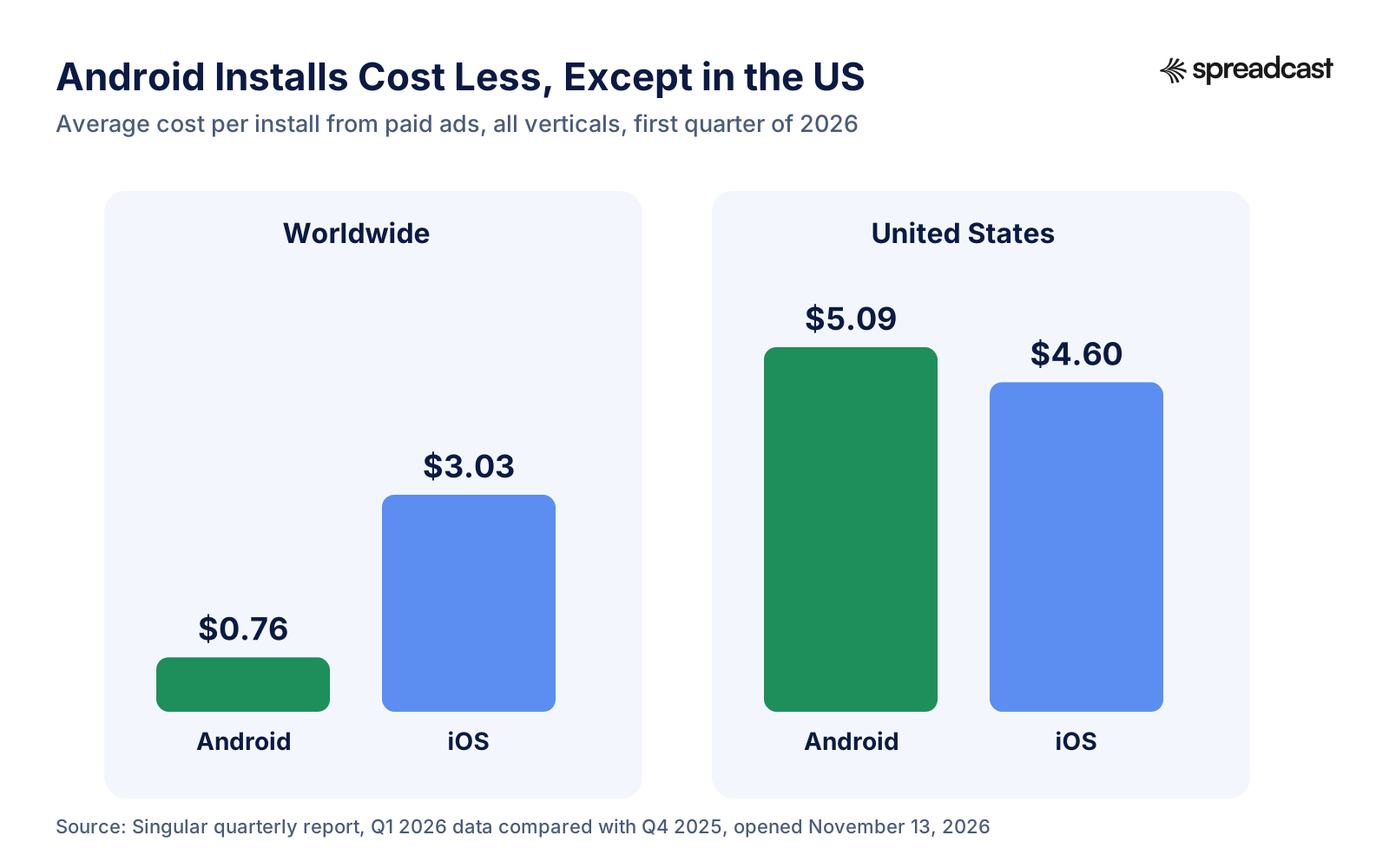
Two lessons follow. First, if your app works for users outside the US, Android ads in those markets can buy installs for a fraction of the US price, which makes them a cheap way to test creative and onboarding. Second, cheap installs are not cheap users: a user who never opens the app again costs you the whole install price. Judge campaigns on cost per active user after a week, or cost per paying user, not cost per install. Benchmarks by category and country are on our cost per install benchmarks page, and our app retention benchmarks show what "keeps the users" means in numbers.
Other Ad Networks
Meta (Facebook and Instagram) and TikTok both sell app install ads that work for Android, and in markets such as Brazil and Indonesia, where those networks reach most adults, they can be a strong second channel after Google. Reddit ads can work for niche apps with an engaged community. Apple Ads, which many app marketing guides start with, only promotes apps on the App Store and does nothing for a Google Play app; if you also have an iOS version, our Apple Search Ads guide covers that side. The broader comparison of paid channels is in our guide on how to advertise an app.
Promote Your Android App Where Android Dominates
The biggest Android specific opportunity for a small developer is geography. In the markets where Android has three quarters or more of all phones, there are fewer apps localized properly, ads cost less, and a well made local listing can stand out quickly. The trade off is lower spending per user, so it suits apps with ads, low prices or broad free use better than expensive subscriptions.
| Market | Android share, October 2026 | What it means for promotion |
|---|---|---|
| India | 94.84% | Almost the whole market is on Google Play; English works for some audiences, Hindi and regional languages reach far more |
| Indonesia | 78.68% | TikTok has the widest adult reach; Indonesian is one of Play's free machine translation languages |
| Mexico | 74.1% | Latin American Spanish listing and Spanish captions reach most phones |
| Brazil | 73.76% | YouTube, Instagram and TikTok all reach well over 100 million; Brazilian Portuguese is a free translation language |
| Germany | 72.29% | A rich, Android majority market in Europe; a German listing is often worth a human translation |
| Europe overall | 63.67% | Android is the majority, but the split varies a lot by country |
| United States | 48.02% | Slightly under half; the most expensive Android ad market |
How to Localize Without a Big Budget
Google Play Console has a free machine translation service for the store listing (title, short and full description) and in app product names, in ten languages at the time of writing: Arabic, French, German, Indonesian, Italian, Japanese, Brazilian Portuguese, Latin American Spanish, Spanish for Spain and Thai. Google warns that these translations are not reviewed by humans. Paid human translation through Play Console costs as little as $0.07 a word and is completed within seven days. Separately, Play offers free Gemini translation of your app's strings.
A sensible order for a small app: open Play Console's store performance reports, find the countries that already send visitors with a low conversion rate, and localize those listings first, starting with machine translation checked by a native speaker. Then translate the screenshot headlines, which matter more than the description because more people see them. Then, once a country shows real installs, give it a custom store listing and a few social posts in its language. Our Android vs iOS market share page has more countries if your audience is elsewhere.
How to Measure Android App Promotion
If you cannot tell which channel brought your installs, you will keep doing the easy things rather than the ones that work. Google Play gives you more attribution for free than most developers use, and a little setup makes it much more useful.
Play Console Acquisition Reports
Play Console's acquisition reports split store listing visitors by traffic source: Google Play search (people who searched for your app's name or a closely related brand), Google Play explore (people who browsed Google Play and then reached your listing), and ads and referrals. They also break visitors down by country, language and search term. A visitor is someone who viewed your listing without already having the app on any of their devices, counted once a day per dimension.
The headline metric changed in 2026. Google's store listing performance page says that from June 2026 the primary metrics are based on unique clicks: the share of visitors who tapped Install, Open or Pre register, which Play Console now calls click through rate (CTR) and which replaces the older conversion rate. Completed acquisitions appear on the Grow users overview. You can compare your CTR with a peer group's median and 25th and 75th percentiles over the last 28 days, which is the quickest way to know whether your listing is the problem.
UTM Links for Every Channel
Play Console reads two UTM parameters from links to your store listing: utm_source and utm_campaign. Add them to every link you share, and the ads and referrals traffic source will break down by them. A link for an Instagram bio might look like this:
play.google.com/store/apps/details?id=com.example.habits&utm_source=instagram&utm_campaign=bio
Use one utm_source per channel (instagram, tiktok, youtube, reddit, newsletter, website, creator name) and utm_campaign for the specific push (launch, v2update, blackfriday). Keep the names short, lowercase and consistent, and keep a simple sheet of the links you have made. UTM sources and campaigns with too few visitors are grouped under "Other", so do not slice so finely that every link falls below the threshold. All Google Ads visits are counted under ads and referrals, and Play Console does not report Google Ads impressions or conversions; those live in Google Ads.
Install Referrer and In App Analytics
Play Console stops at the install. To know which channel brought users who stayed or paid, read the Install Referrer API in your app on first launch: it returns the referrer URL of the install (including the UTM parameters you added), when the click happened and when the install began. Send that to your own analytics with the user's later activity, and you can answer the question that matters: which channel brings users who are still there after a week.
| Question | Where to look |
|---|---|
| How many people saw my listing, and from where? | Play Console acquisition reports, by traffic source, country and search term |
| Does my listing convert as well as similar apps? | Store listing CTR against the peer benchmark |
| Which social network or creator sent installs? | Ads and referrals, broken down by UTM source and campaign |
| Which channel brings users who stay or pay? | Install Referrer data joined with your in app analytics |
| Which country or audience page works best? | Each custom store listing's visitors and CTR |
| Is a paid campaign profitable? | Google Ads for cost, your analytics for retention and revenue |
How Much to Spend: Android App Promotion at $0, $500 and $5,000 a Month
Budgets change the mix, not the order. At every level the store listing, ratings and vitals come first. What money buys is speed: designers and translators instead of your evenings, creators instead of cold pitches, ads instead of waiting. These are starting points, not rules; adjust them to what your own measurement shows.
| Monthly budget | Where the time and money go | What to expect |
|---|---|---|
| $0 | Your time: store listing and ASO, a closed test with real users, pre registration, two social networks posted weekly (Spreadcast's Free plan makes 3 posts to download), communities, replies to every review, UTM links | Slow but real growth; the first few hundred users usually come from communities, testers and your own posts |
| $500 | Spreadcast Pro at $29 a month to keep posts going on autopilot, about $250 to $300 on a Google App Campaigns test in one or two cheaper markets, the rest on promo codes and small creator fees or human translation for your top market | A steady feed without your evenings, plus enough paid data to learn your real cost per active user |
| $5,000 | About $3,000 to $3,500 on app campaigns once tests show a profitable cost per user, $1,000 on creators in your niche, the rest on localization of listings and screenshots for two or three markets and a freelancer for video | Predictable install volume, if the app keeps its users; if not, fix retention before spending more |
At $500, notice how the ad money is spent. A Google install campaign with a $1 target and Google's suggested daily budget of 50 times the bid needs about $50 a day, or around $1,500 a month, which is more than this whole budget. So at this level, run short tests in markets where installs are cheap, or bid on a lower target, and accept that learning will be slower. Spending a small amount for a few weeks to learn is fine; spending it for months on a campaign that never leaves learning is not. Our startup marketing budget page has more on splitting a small budget.
At $5,000, the main risk is scaling something that does not keep its users. Before increasing ad spend, check that installs from paid campaigns are still active after seven and thirty days at a rate close to your organic users. If they are not, the money is better spent on onboarding, or on the channels that bring users who stay.
A Weekly Routine for Promoting an Android App
Most promotion fails from inconsistency, not from bad ideas. A routine that fits in a few hours a week, done every week, beats a burst of effort every few months. This one assumes a solo developer with a live app:
| Day | Task | Time |
|---|---|---|
| Monday | Check Play Console: visitors, CTR against peers, top search terms, UTM sources, Android vitals by device | 20 minutes |
| Monday | Approve the week's social posts, or write and schedule them if you do it by hand | 10 minutes with autopilot, 2 hours without |
| Tuesday | Reply to every new review; answer comments on last week's posts | 20 minutes |
| Wednesday | One community contribution: answer questions in your niche, post a build story or a useful thread | 30 minutes |
| Thursday | Record one short video: a tip, a feature, a before and after; post it to Shorts, TikTok and Reels | 45 minutes |
| Friday | One outreach message to a creator, a newsletter or a journalist; note the result in a sheet | 20 minutes |
| Every release | Write release notes a user would read; post an update announcement; check vitals after rollout | 30 minutes |
| Every month | Update one screenshot or one listing text based on what you learned; start a store listing experiment if traffic allows | 1 hour |
The Monday posting line is the one that grows or shrinks with tools. Designing and writing six posts for three networks by hand takes most of an afternoon. With Spreadcast making them from your listing and posting on its own schedule, the job becomes a ten minute review: approve, skip or edit, and get on with the app.
What to Automate and What to Do Yourself
Automate the repeatable parts: turning releases into update posts, rating milestones into thank you posts, features into weekly posts; scheduling those posts at good times; tagging links; pulling Play Console numbers into one place. Keep the human parts human: replying to reviews and comments, talking in communities, pitching creators and journalists, deciding what the app should do next. People can tell the difference, and the human parts are where trust comes from.
How Spreadcast Promotes an Android App on Autopilot
Spreadcast is our product, so read this section knowing that. It exists because the social media part of this guide is the part almost every indie developer stops doing: not because it is hard, but because it never ends. Here is exactly what it does for a Google Play app, and what it does not.
From a Google Play Link to a Brand Kit
Go to spreadcast.app/start and paste your Google Play link, or type the app's name and pick it from the results. Spreadcast reads the public listing: the name, icon, description, screenshots, rating, reviews and the latest release notes. From that it builds a brand kit: your colors, fonts that fit the app, and your real screenshots. An app that is only on Google Play is drawn in an Android phone frame. If the same app is also on the App Store, Spreadcast treats both listings as one app, so you set it up once.
Posts Made From What Happens to Your App
Then it designs and writes posts, with captions for each network, and autopilot keeps them coming. It checks your listing every day and watches for three kinds of moment:
- A new version. When you ship an update with release notes that name something a user would notice, Spreadcast drafts an update post with the version number and two or three of the changes. Notes that only say "bug fixes" make no post, because there is nothing to announce.
- A rating milestone. When the number of ratings passes a round number (100, 250, 500, 1,000 and so on up) while the rating is 4 stars or higher, it drafts a thank you post.
- A weekly plan. Between those moments, it plans posts for each week, from one to 14 a week: a feature on a real screen, a real five star review quoted word for word, a carousel of tips, a problem your app solves, and a seasonal post that ties a date to one real feature.
Posts go to Instagram, Facebook, LinkedIn, TikTok, YouTube, Pinterest, Threads, Bluesky, Mastodon, Telegram and Discord, at the posting times you pick. You choose how hands off it is: approve first, where every post waits for your yes on the Dashboard, or full autopilot, where it schedules them on its own. TikTok posts go to your TikTok drafts by default, so nothing appears on your TikTok feed without you finishing it there.
What Spreadcast Does Not Do
It is not an ad network and does not buy installs; Google App Campaigns and the rest are separate. It is not ASO keyword software; it reads your listing, it does not tell you which keywords to target. It does not answer your reviews or take part in communities for you, which is the part of promotion that should stay yours. What it replaces is the hours of designing, writing and scheduling posts every week.
What It Costs
It is free to try. The Free plan covers one app, spots your updates, reviews and milestones, and makes 3 posts for you to download, with a small Spreadcast mark, no card needed. Publishing is the paid part: Pro is $29 a month (or $290 a year) for one app and 10 social accounts, with clean posts, publishing to all your networks and full autopilot or one tap approval. Studio is $79 a month for five apps, 50 accounts and three seats. If you only need a launch, the 30 Day Pass is $39 for everything in Pro for 30 days with no renewal, and a Post Pack is $19 for 10 posts. Paid plans can be refunded within 7 days. Everything is on the pricing page.
If you have read this far, the fastest way to see whether it suits your app is to paste your Google Play link and look at the first posts it makes. More about the publishing side is on auto post to social media, and about Spreadcast for app developers on Spreadcast for mobile apps.
Common Mistakes When Promoting an Android App
- Promoting before the listing is ready. Every visitor you send to a weak listing is wasted, and paid ones cost money. Fix screenshots, the short description and the first lines of the full description first.
- Using iPhone screenshots for an Android app. It looks like a port, and Android users notice.
- Treating the 12 testers as a formality. Two weeks of real users from your niche are your first reviewers and your first word of mouth.
- Launching without pre registration. You give up a launch day push to everyone who was interested and, often, an automatic install.
- Launching with a crash on a popular phone. Above 8% on one model, Play may show your app less to its owners and warn them on the listing; above 1.09% overall, to everyone.
- Asking for ratings badly: on first launch, with a "Do you like the app?" question first, from a button, or with a reward. All of these break Google's guidance or policy.
- Planning around tools you cannot use. Promotional content and featuring requests are open to all games, but only to apps above Google's premium growth thresholds.
- Posting in bursts. Ten posts in launch week and nothing for two months teaches the algorithm and your followers that you are gone.
- Not tagging links. Without UTM parameters, everything outside Google Play shows up as one undivided number and you cannot tell what worked.
- Starting ads too early, or with too little budget for Google's learning to finish, and judging them on cost per install instead of cost per user who stays.
- Ignoring the markets where Android dominates. A translated listing for India, Indonesia, Brazil or Mexico is often the cheapest growth available.
- Leaving release notes as "bug fixes and improvements". It wastes a free update post and tells listing visitors nothing.
How We Checked This
Every Google rule, limit and threshold on this page comes from Google's own pages, opened on November 13, 2026: Play Console Help on pre registration, custom store listings, promotional content, testing tracks and requirements, acquisition and store performance reports, store listing experiments, ratings, the ratings policy, metadata, promo codes, translation and YouTube videos; Google Play's featuring and premium growth tools guides and badge rules; Android Developers on Android vitals, the in app review API, the Install Referrer API and App Links; three Android Developers Blog posts from 2022, 2023 and 2025; and Google Ads Help on app campaigns and their best practices. Market share comes from StatCounter's October 2026 data, social reach from DataReportal's 2026 country reports, install costs from Singular's quarterly report for the first quarter of 2026, and the Shorts figure from Search Engine Journal's report of YouTube's own announcement. The FTC's influencer guide is the source for disclosure rules. Budgets, the weekly routine and the launch calendar are our own recommendations, not Google's. Claims about Spreadcast were checked against its code and pricing on the same day. Google changes Play Console often, so check the linked page before you rely on a limit.
Frequently Asked Questions
How do I promote my Android app for free?
Write the Google Play listing around the words people search, run a closed test with real users from your niche, open pre registration before launch, ask for ratings with the in app review API, keep crash and ANR rates under Google's thresholds, post every week on two social networks, and take part in Reddit, Discord and Telegram communities in your niche. Tag every link with UTM parameters so Play Console shows what worked.
How do I promote my app on the Google Play Store?
Inside the store, the free tools are a strong listing, store listing experiments, up to 50 custom store listings (each with its own link), pre registration, promo codes and good ratings. Games can also use promotional content and request featuring; apps need millions of users or high consumer spend before those open. Outside the store, send people to the listing from social media, communities, creators, your website and ads.
How do I advertise my app on Google Play?
Through Google App Campaigns in Google Ads. One campaign can show your app in Google Play search results and related apps sections, Google Search, YouTube, Discover and the Display Network. You supply text, images and videos, set a target cost and a daily budget (Google suggests at least 50 times your target cost per install), and let the campaign learn for at least 100 conversions before making big changes.
How much does it cost to promote an Android app?
You can start at $0 with your own time. Paid installs are cheap on Android in most countries: Singular put the average Android cost per install at $0.76 in the first quarter of 2026, against $3.03 on iOS, but US Android installs averaged $5.09. A small but useful monthly budget is around $500; scaling ads usually needs several thousand dollars a month.
How do I get more downloads on Google Play?
Improve the listing's click through rate first (compare it with the peer benchmark in Play Console), then add traffic. Localize the listing for the countries that already visit, make custom store listings for your best sources, reply to reviews, keep Android vitals healthy so Google keeps showing the app, and post updates and features on social media every week.
How do I promote my game on Google Play?
Games get more of Google Play's tools than apps: promotional content for events, offers and major updates is open to all games, as are YouTube video listings and Play Points coupons. Submit events at least 14 days ahead if you want to request featuring, use pre registration with an in game reward, open an early access test, and post short gameplay videos on YouTube Shorts and TikTok.
How do I get my app featured on Google Play?
Google says great quality is needed for featuring, judged on core value, user experience, technical quality and privacy. Featuring requests are made in Play Console through promotional content, which games can use and apps only above Google's premium growth thresholds, and Google's growth tools guide currently lists featuring as a games tool. Even then, Google says a request that meets every guideline is not guaranteed a placement.
Where These Facts Come From
Every outside number, rule and price on this page links to the page it was taken from.
- Set up your app's store listingPlay Console Help
- Metadata policyPlay Console Help
- Use a closed test and meet the testing requirements for new personal accountsPlay Console Help
- Set up an open, closed or internal testPlay Console Help
- Make your app available for pre registrationPlay Console Help
- Create custom store listings to tailor your listing to specific usersPlay Console Help
- Promotional content overviewPlay Console Help
- Create promotional contentPlay Console Help
- Run store listing experimentsPlay Console Help
- Ratings and reviews on Google PlayPlay Console Help
- Ratings, reviews and installs policyPlay Console Help
- Create promotions and promo codesPlay Console Help
- Translate and localize your appPlay Console Help
- YouTube videos on your store listingPlay Console Help
- Acquisition reportsPlay Console Help
- Store listing performancePlay Console Help
- Developer account registration feePlay Console Help
- Featuring on Google PlayGoogle Play business guides
- Premium growth toolsGoogle Play business guides
- Google Play badges, lockups and iconsGoogle Partner Marketing Hub
- Android vitalsAndroid Developers
- Google Play In App Review APIAndroid Developers
- Google Play Install ReferrerAndroid Developers
- Handling Android App LinksAndroid Developers
- Supporting and rewarding great apps and games on Google PlayAndroid Developers Blog
- Grow user acquisition and store conversions with the updated Play Store Listing Certificate courseAndroid Developers Blog
- New tools and programs to accelerate your success on Google PlayAndroid Developers Blog
- About App campaignsGoogle Ads Help
- Best practices for App campaignsGoogle Ads Help
- Mobile operating system market share worldwideStatCounter Global Stats
- Mobile operating system market share in IndiaStatCounter Global Stats
- Mobile operating system market share in BrazilStatCounter Global Stats
- Mobile operating system market share in IndonesiaStatCounter Global Stats
- Mobile operating system market share in MexicoStatCounter Global Stats
- Mobile operating system market share in GermanyStatCounter Global Stats
- Mobile operating system market share in EuropeStatCounter Global Stats
- Mobile operating system market share in the United StatesStatCounter Global Stats
- Quarterly report, Q1 2026 dataSingular
- State of Mobile 2026Sensor Tower
- Digital 2026: IndiaDataReportal
- Digital 2026: BrazilDataReportal
- Digital 2026: IndonesiaDataReportal
- YouTube reports 200 billion daily views for ShortsSearch Engine Journal
- Disclosures 101 for social media influencersUS Federal Trade Commission
- Video: target by pre registration campaignsAndroid Developers on YouTube
- Video: what's new in Android vitalsAndroid Developers on YouTube
Researched and written by Mark Weizer. Last checked on November 13, 2026.
Keep Reading
- Growth
Google App Campaigns: How They Work, What They Cost and How to Set One Up (2026)
Google App campaigns show your app on Search, Google Play, YouTube, Discover and other apps from one campaign. This guide covers the three campaign types, bidding, budget rules, assets, tracking, iOS limits and a first campaign step by step.
- Growth
Google Play ASO: How to Rank Your Android App in Google Play Search in 2026
Google Play ASO is how you get an Android app found in Play search: the right words in the title and descriptions, graphics that earn the tap, and the ratings and stability Google rewards. Every rule, limit and threshold here comes from Google's own pages.
- Growth
Apple Search Ads (Apple Ads): How It Works, What It Costs and How to Start
Apple Search Ads, now called Apple Ads, puts your app at the top of App Store search and on the Today tab, Search tab and product pages. This guide covers Basic vs Advanced, what a tap and an install cost in 2026, a first campaign step by step, measurement and a small budget plan.
Social Media for Android Apps: Where to Post and What to Post
Social media is the channel you control completely, costs nothing but time, and keeps working after launch week. It is also where most indie apps quietly give up after a month. The fix is not more inspiration; it is picking the right two or three networks and a simple set of post types you can repeat.
Which Networks Android Audiences Use
There is no single "Android network", but there is a pattern: in the markets where Android dominates, YouTube, Instagram, Facebook and TikTok reach very large audiences, and messaging style channels such as Telegram matter more than they do in the US. DataReportal's 2026 country reports, based on the platforms' own ad tools in late 2025, give a sense of scale. In India, YouTube's ad reach was 500 million users, Instagram's 481 million and Facebook's 403 million. In Brazil, YouTube reached 150 million, Instagram 147 million, TikTok 131 million adults and Facebook 109 million. In Indonesia, TikTok reached 180 million adults, YouTube 151 million, Facebook 121 million and Instagram 108 million. These are ad reach figures, not monthly active users, but the order is what matters for planning.
Pick two to start: usually one short video network (YouTube Shorts or TikTok) and one picture network (Instagram, or Facebook if your users are there), plus a Telegram or Discord channel if your users are the kind who want to talk to the developer. Add others only once you are posting reliably. Our guides on promoting an app on Instagram and promoting an app on social media go deeper on each, and the best time to post on social media covers when.
What to Post About an Android App
An app gives you more to post about than most products, because it changes all the time. Six kinds of posts cover nearly everything a small developer needs, and each comes from something that already happened in the app or on the listing:
Release notes are a good source for the first type. If your Play release notes say "bug fixes and improvements", there is nothing to post, and nothing for the reader of the listing either. Write the notes as if they will be read, because they will be, and the update post almost writes itself. Our app release notes examples and the free release notes generator help with that.
Android Frames, Badges and Links
Three small details make Android posts look like they belong. Show screens in an Android phone frame, not an iPhone, unless your app is on both stores and the iPhone is your main audience. When you add a store badge to a graphic or a website, use Google's official Get it on Google Play badge in the language of the post, at least 28 pixels high on screen, and never recolored. And link to your Play listing with UTM parameters (covered in the measurement section below), so you can tell later which network brought installs.
The hard part is not knowing what to post; it is doing it every week for a year. That is what Spreadcast is for: paste the Play link and it makes these post types for you from your own listing, in your colors and fonts, on your real screenshots in an Android frame, and publishes them on a schedule you approve. There is more on how it works later in this guide.