To schedule a post in a Telegram channel, write the post, press and hold the Send arrow, choose Schedule Message and pick a date and time. That is the whole native method, and it has worked in Telegram's apps since Telegram added scheduled messages on September 5, 2019. Since November 2025 the same menu can also repeat a scheduled message every day or twice a month.
So yes, you can schedule Telegram posts, for free, without a bot. The harder questions start after that. Where does the post wait, and how do you change it? What happens to a video at 3 a.m. while your phone is off? Can a group get the same treatment as a channel? And if the same news also has to go to Instagram, Threads and LinkedIn, do you really do it all again by hand in five other apps?
This guide answers all of that. It covers the native scheduler on iPhone, Android, Telegram Desktop and Telegram Web, repeating posts, groups and private chats, the limits that make scheduled posts fail, bots and the Bot API, automation with n8n and Zapier, and the schedulers that post to a Telegram channel alongside the rest of your social media. Every Telegram number links to Telegram's own documentation, and every tool fact to the vendor's own page.
Can You Schedule Telegram Posts?
Yes. Telegram's own channels tour puts it plainly: you can plan your posts ahead and let them go live automatically at a specified time. Scheduling is not a Premium feature and not a channel only feature. It works in channels, groups, private chats and your own Saved Messages, where a scheduled message turns into a reminder, as Telegram's 2019 announcement describes.
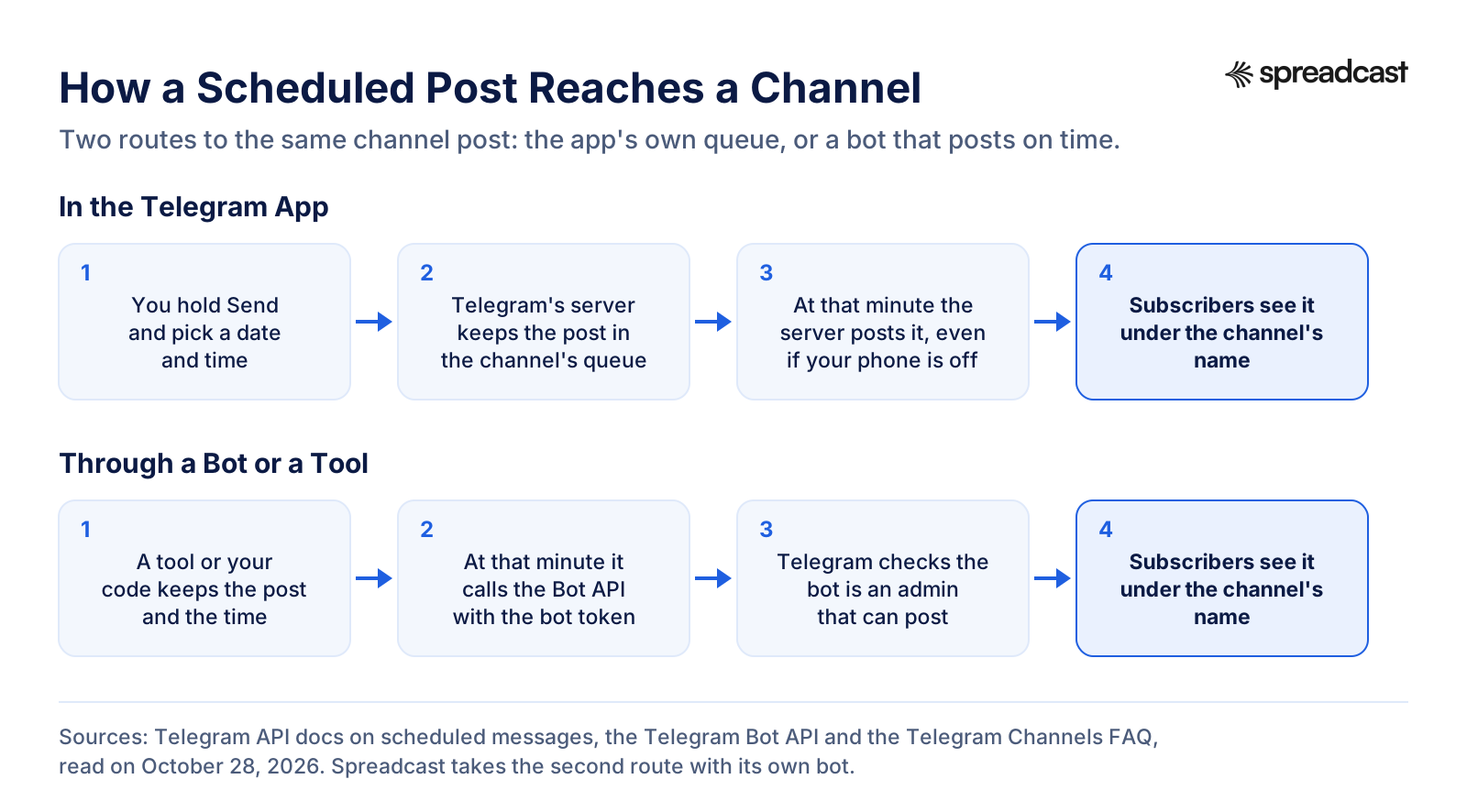
The scheduled post lives on Telegram's servers, not on your phone. Telegram's API documentation on scheduled messages says every private chat, group, supergroup and channel has its own schedule queue, and that at the scheduled time the server posts the message itself. That is why a scheduled post still goes out when your phone is in a drawer with the battery dead.
There are four practical ways to schedule a post in a Telegram channel, and each fits a different reader:
- The Telegram app itself, on a phone, a computer or the web. Free, quick, and enough for a channel that posts a few times a week and nowhere else.
- A bot you build, which waits for the time and then posts through the Bot API. Free apart from hosting, flexible, and a real project if you do not write code.
- An automation tool such as n8n or Zapier, which runs a workflow on a timer and sends the post through a bot you create.
- A social media scheduler that supports Telegram, such as Spreadcast, Publer or Postiz, which keeps Telegram on the same calendar as your other networks.
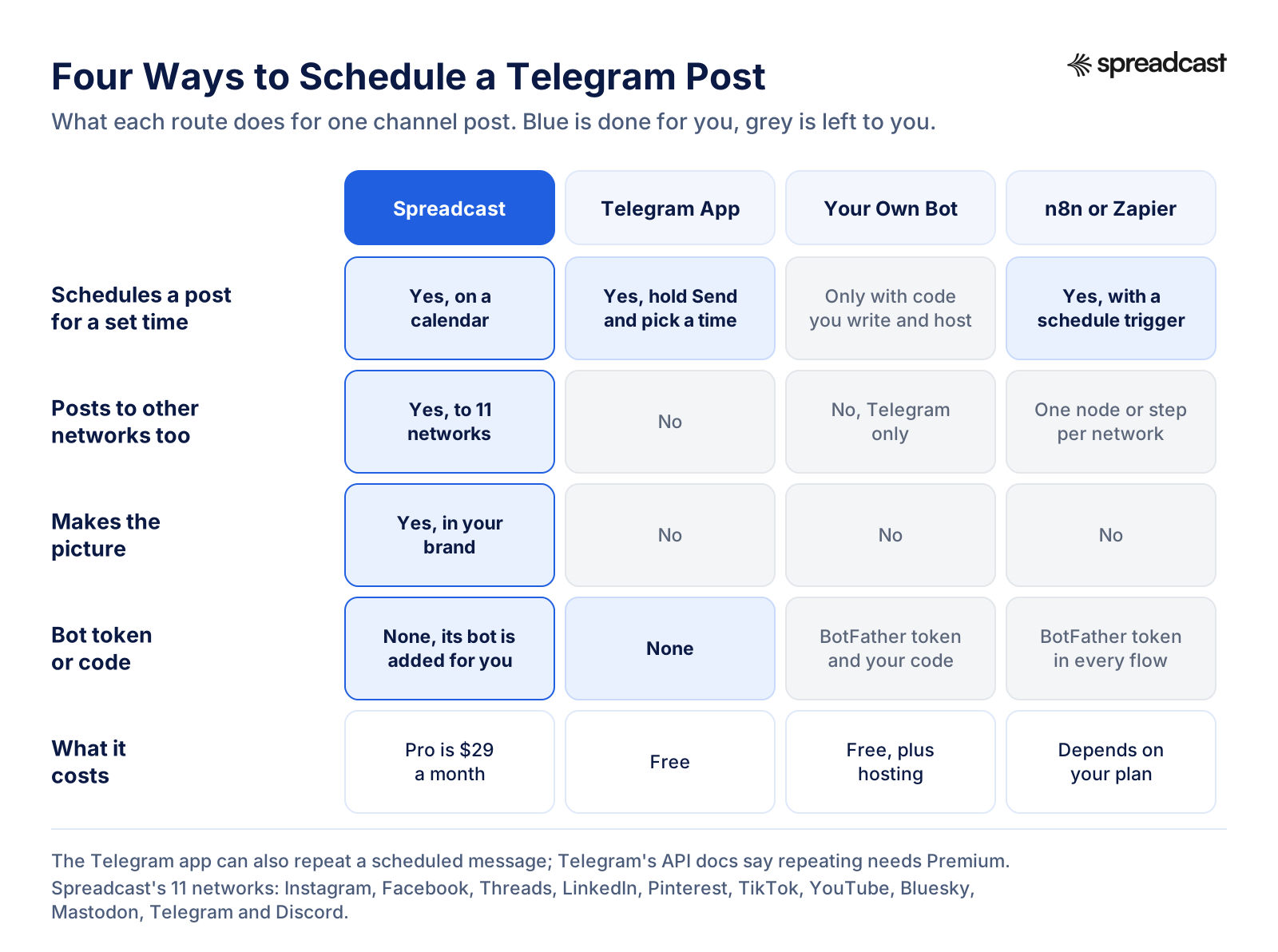
If you only post to Telegram, the native scheduler is probably all you need, and the next four sections walk through it on every device. If Telegram is one of several places your news has to land, skip ahead to the sections on tools and cross posting.
How We Researched This
Everything here was checked on October 28, 2026. For Telegram we read the official blog posts that introduced scheduled and repeating messages, the channels tour and the Channels FAQ, the API pages on scheduled messages, channel statistics and client configuration, the full Bot API reference, the Bots FAQ and the bot features page, the Telegram Ads page, the Terms of Service and the Premium FAQ. Where Telegram's pages disagree, as they do on when channel statistics appear, we say so and show both.
For tools we read Buffer's supported channels table and pricing page, Hootsuite's plans page, Publer's help center articles on networks and pricing, Postiz's Telegram provider docs and pricing page, the n8n docs for its Telegram node and Schedule Trigger, and Zapier's Telegram integration page. Competitor facts come only from those vendors' own pages. For Spreadcast we read the code that connects a channel and publishes to it, so every claim about Spreadcast below is something the product actually does today.
- Telegram changes its apps every month or two. Menu names below match Telegram's own wording where Telegram publishes it. If a button has moved in your version, the long press on Send is still the way in.
- Bot limits, caption limits and file sizes are quoted from the Bot API and Telegram's client configuration, not from third party guides.
- Where Telegram publishes no number, such as how many posts one channel can hold in its queue, we say that rather than repeat a figure we could not confirm.
How to Schedule a Post on a Telegram Channel on iPhone and Android
You need to be the channel's owner or an admin with the right to post messages. The channels tour says admin roles can be set with granular precision, so if you cannot see the Send button in a channel, ask the owner for posting rights first. Then follow these steps. They are the same on iPhone and Android, because both apps share one menu for this.
- Open the channel and write the post in the message field. Add the photo, album, video or file now if the post has one, and write the caption under it.
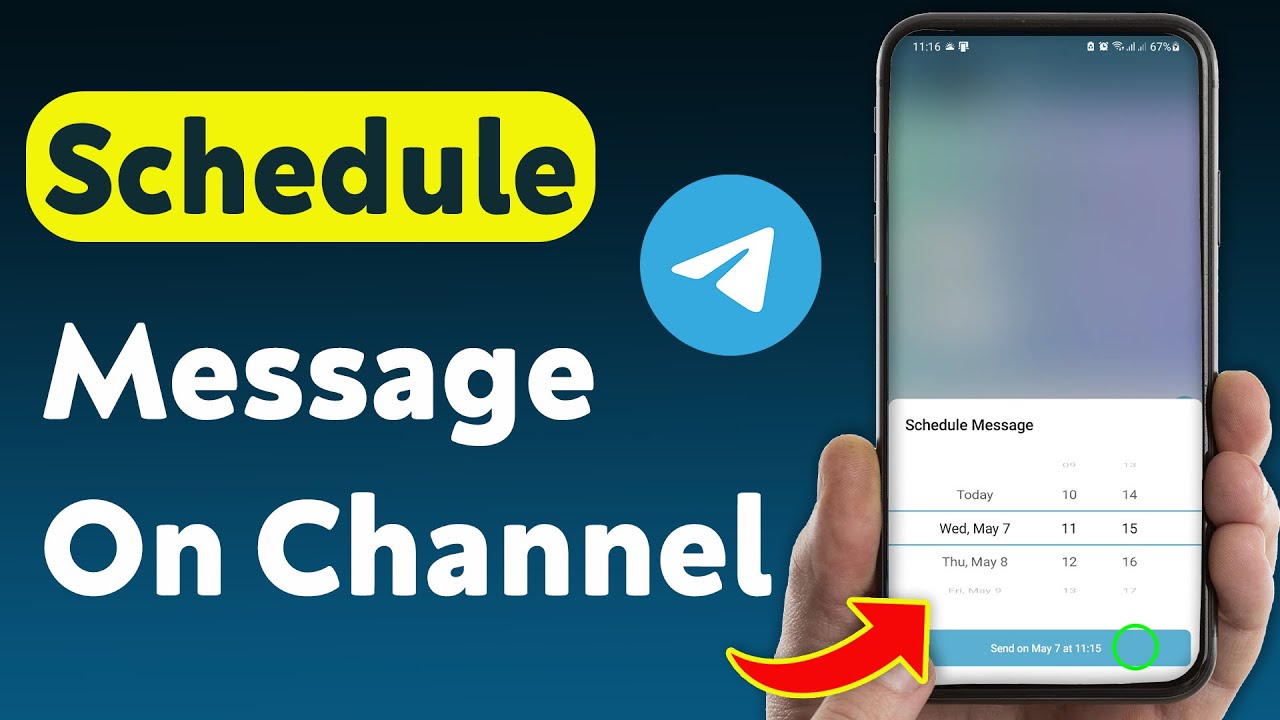
- Press and hold the Send arrow instead of tapping it. A short menu opens.
- Choose Schedule Message. A date and time picker appears.
- Pick the day and the time. The picker uses your phone's time zone, so a post set for 9:00 goes out at 9:00 where you are, not where your readers are.
- Confirm. The post disappears from the message field and the channel shows a small scheduled messages icon next to the field. That icon is your queue.
Telegram's own wording for the first step, from its November 2025 announcement, is to press and hold the Send arrow in any chat. The same long press offers Send Without Sound, which the channels tour describes as a silent message: subscribers get a notification with no sound. The menu shows both options, so you can schedule a silent post for 7:00 that does not wake anyone.
Pick the Right Time Zone Before You Schedule
The single most common scheduling mistake is a time zone mistake. Telegram schedules in the device's local time. If you travel, or if your phone is set to a different zone from your audience, a post planned for breakfast can land at midnight. Before you queue a week of posts, work out the hour you want in your readers' zone and convert it once. If most of your subscribers sit in one country, write that country's posting hours on a sticky note next to your screen.
Schedule an Album, a Video or a File
Anything you can send, you can schedule: one picture, an album, a video, a voice message, a poll or a document. The long press works the same once the media is attached. An album holds 2 to 10 items, the same range the Bot API's sendMediaGroup method accepts. Write the caption under the first picture, because that caption is the post's text.
Large videos need one warning. Telegram's scheduled messages documentation says videos that need processing on Telegram's side, including ordinary videos sent to large channels, are queued automatically while they convert. So a long video you sent to a big channel may sit in the scheduled list for a few minutes even though you pressed Send. That is not a bug, and you do not need to send it again.
Schedule a Text Post With a Link Preview
Link posts schedule like any other text. The preview is built when the message is sent, so if the page behind the link changes its picture or title before the scheduled time, the preview your subscribers see will be the new one. For a launch or an App Store update, publish the page first and schedule the post after it, not the other way around. If the link points to your app, a campaign link from our App Store campaign link generator lets you count the visits Telegram sends.
How to Schedule a Message on Telegram Desktop and Web
Telegram Desktop is the official app for Windows, macOS and Linux. On a computer there is nothing to hold down, so the menu sits behind a right click instead. Many channel admins prefer to schedule from a computer, because writing a long post and checking the formatting is easier on a big screen.
Telegram Desktop for Windows, Mac and Linux
- Open the channel and write the post. Paste or drag in the picture or video.
- Right click the Send arrow at the right of the message field.
- Choose Schedule Message.
- Pick the date and time in the window that opens and confirm with Schedule.
- A scheduled messages icon appears next to the message field. Click it to see the queue for this channel.
The same right click menu offers Send Without Sound. If you attach media, Telegram first shows a small window with a caption field, and the Send button in that window has the same right click menu. The queue you build on a computer is the same queue you see on your phone, because it lives on Telegram's servers, not on either device.
The Telegram App for Mac
Mac users have a second official app, the native Telegram for macOS from the Mac App Store, which is separate from Telegram Desktop. It schedules the same way: right click the Send arrow, or Control click on a trackpad, and choose the scheduling option. If you use both apps, pick one for scheduling so you always know where to look.
Telegram Web
Telegram's web versions open in a browser at web.telegram.org and also schedule from the Send button's menu. They are handy on a shared or work computer where you cannot install anything. Because the queue is stored by Telegram, a post scheduled in the browser shows up in the phone app's scheduled list a moment later.
Where Telegram Scheduled Messages Live and How to Edit Them
Scheduled posts do not appear in the channel until their time comes. They wait in a separate list per chat, opened from the scheduled messages icon beside the message field. If the icon is missing, nothing is scheduled in that chat. There is no single screen in Telegram that shows every scheduled post across all your channels and groups. You check each chat on its own.
Inside the list you can do four things with a post. Telegram's API documentation names the same four operations: change the date, list the queue, send queued messages immediately, and delete them without sending. In the apps they look like this.
| What You Want | What to Do in the Scheduled List | What Happens |
|---|---|---|
| Fix a typo or swap the picture | Long press the post (right click on desktop) and choose Edit | The post keeps its time and its place in the queue |
| Move it to another day | Long press and choose Reschedule | A new date and time picker opens; the post moves |
| Post it right now | Long press and choose Send Now | The post leaves the queue and appears in the channel |
| Cancel it | Long press and choose Delete | The post is removed and never sent |
Edit before the time, not after. Once a scheduled post goes out it becomes a normal channel post, and any edit after that leaves an edited label on it, after some readers have already seen the mistake. If you spot a mistake at 8:55 for a 9:00 post, open the list and fix it there.

How to See Who Scheduled a Post
In a channel with several admins, everyone with posting rights shares the same queue. Posts go out signed with the channel's name, and the Channels FAQ explains that the owner can switch on admin signatures so the posting admin's name shows on each post. If two admins schedule for the same slot, both posts go out. Agree on who owns which days, or keep a shared calendar outside Telegram.
How to Repeat a Scheduled Message on Telegram
Repeating posts arrived in Telegram's November 19, 2025 update. Scheduled messages and reminders can be set to repeat at intervals such as every day or twice a month. To set one up you hold the Send arrow, choose to schedule, then tap Repeat and select an interval. It suits a weekly digest, a daily tip or a monthly reminder to renew something.
Two details matter before you plan around it. First, Telegram's API documentation says repeating schedules are limited to Premium users and to single messages, so an album or a group of forwarded posts cannot repeat. Second, the intervals are fixed. The API lists daily, weekly, every two weeks, monthly, every three months, twice a year and yearly. There is no "every weekday" or "Monday and Thursday" option, so for that you schedule each post by hand or use a tool.
A repeating post also repeats its exact text and picture. That is fine for a reminder and dull for a channel, where readers notice the same post every week. If you want a weekly slot with fresh content, schedule a new post into that slot each week instead.
How to Schedule a Post on a Telegram Group
Groups use the same long press. Write the message, hold Send, choose Schedule Message and pick the time. The difference is who can do it: in a group, anyone allowed to send messages can schedule one, while in a channel only admins with posting rights can. In a group the post appears under your own name, not the group's, unless you are an admin posting anonymously, because a group is a conversation and a channel is a broadcast.
Groups with topics (forum style groups) keep their messages inside each topic. Open the topic where the post belongs before you schedule, so it lands in the right thread. And if the group has slow mode on, an admin is the safest person to schedule announcements, because members can be limited in how often they post.

Can You Schedule a Message on Telegram in a Private Chat?
Yes, and private chats get one extra option. Besides a fixed time, you can choose Send When Online. Telegram's API documentation explains that the message goes out at once if the person is online, or waits until they next come online. It only works in private chats, and it fails if the other person hides their last seen time in their privacy settings, because Telegram cannot then tell when they are online.
Schedule a Reminder in Saved Messages
Scheduling a message to your own Saved Messages turns it into a reminder, with a notification marked by a calendar emoji when it fires, as Telegram's announcement describes. Channel admins use this to plan: schedule a reminder for Sunday evening that says "queue next week's posts", and make it repeat weekly if you have Premium.
Telegram Scheduled Messages Limits: What the Native Scheduler Can't Do
The native scheduler is good at one thing: putting one post into one chat at one time. Most of its limits come from that design, and they matter more the more you post.
- One chat at a time. There is no view of every scheduled post across your channels. With three channels you check three queues.
- No calendar. The scheduled list is a list, not a week or month view, so gaps and double bookings are easy to miss.
- Telegram only. Nothing you schedule here reaches Instagram, Threads, LinkedIn or anywhere else.
- No drafts or approval. A teammate with posting rights can schedule straight into the live queue. Nobody signs off first.
- No bulk upload. You cannot import a spreadsheet of posts. Each post is written and scheduled by hand.
- No design help. The picture has to exist before you schedule. Telegram will not make it.
- Fixed repeat intervals, and only with Premium, as covered above.
Queue size is the one limit Telegram does not publish. The scheduled messages page describes the queue per chat but gives no maximum, and Telegram's client configuration page lists no scheduling cap either. Channel admins do report hitting a ceiling when they queue a very large number of posts in one chat. If you plan to load months of posts at once, try it with a test channel first.
If those limits describe your week, the fix is usually not a better Telegram trick but a calendar that sits above Telegram. That is exactly the gap Spreadcast fills for people who post the same news to several networks: you plan once on one calendar, Spreadcast designs the picture in your brand, writes a caption for Telegram and one for each other network, and posts each at its time. You can see what it does before you read on.
Telegram Post Limits to Know Before You Schedule
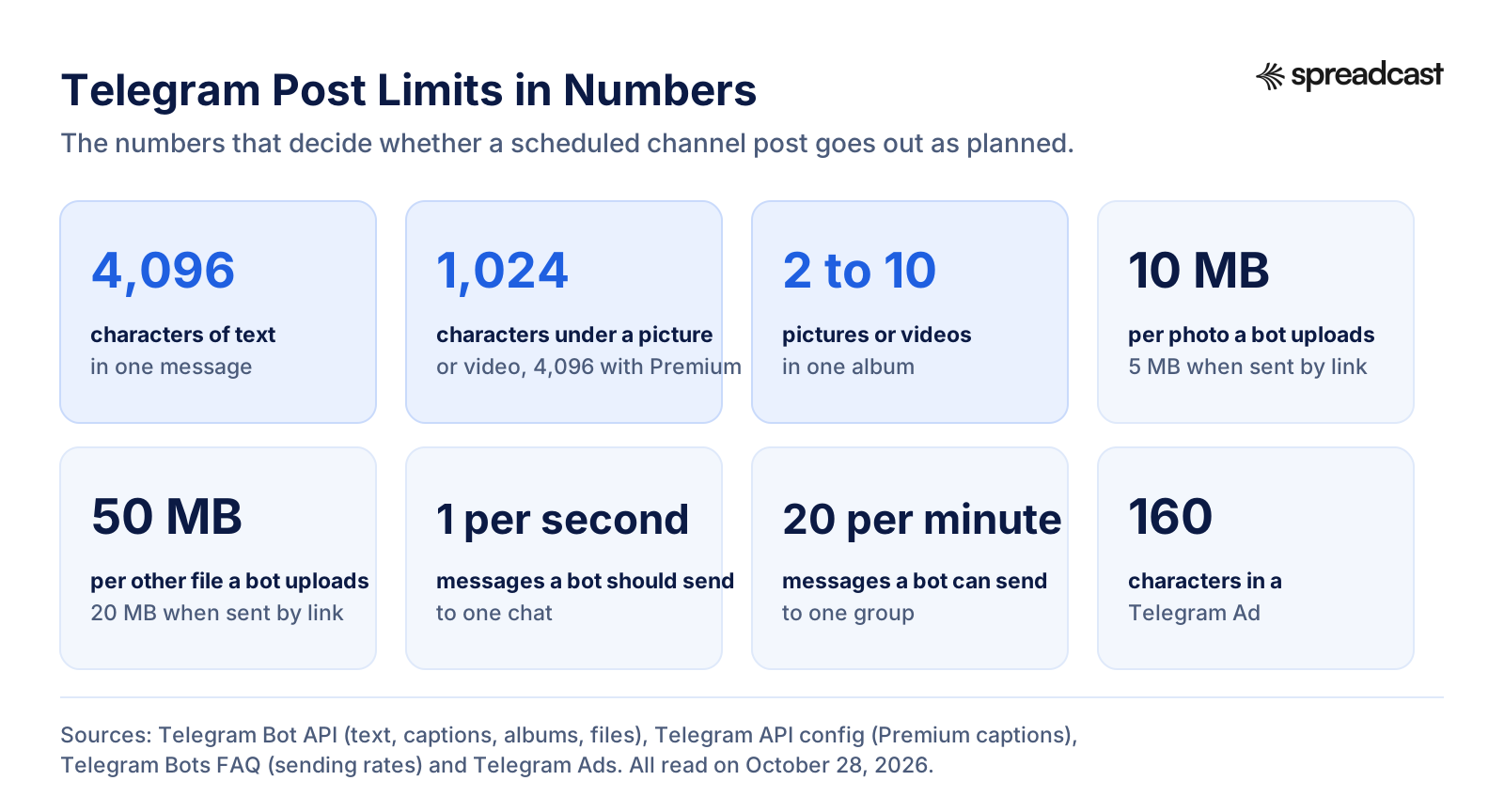
A scheduled post that breaks a limit either refuses to schedule or, worse, goes out wrong. These are the numbers worth knowing, all from Telegram's own documentation.
| Limit | Number | Where It Comes From |
|---|---|---|
| Text in one message | 4,096 characters | Bot API, sendMessage |
| Caption under a picture or video | 1,024 characters | Bot API, captions |
| Caption for a Premium user | 4,096 characters | Telegram client configuration |
| Items in one album | 2 to 10 | Bot API, sendMediaGroup |
| Photo a bot uploads | 10 MB (5 MB when sent by link) | Bot API, sending files |
| Other file a bot uploads | 50 MB (20 MB when sent by link) | Bot API, sending files |
| File a Premium user uploads | 4 GB | Telegram Premium FAQ |
| Bot messages to one chat | About 1 per second | Bots FAQ |
| Bot messages to one group | 20 per minute | Bots FAQ |
| Telegram Ad text | 160 characters | Telegram Ads |
Why the 1,024 Character Caption Matters Most
Most channel posts are a picture with text, and the caption limit is where they break. A post that reads well as 1,500 characters of text cannot sit under a photo for a regular account or a bot. You have three choices: cut it below 1,024 characters, post the text as its own message right after the picture, or post text only with a link preview. Premium users can write longer captions in the app, but a bot cannot, because the Bot API caps captions at 1,024 regardless.
For other networks the numbers are different again. Our social media character limits page lists every field for every network, and the social media image sizes guide covers the picture side, so one post can be planned to fit everywhere it goes.
How to Format a Telegram Channel Post Before You Schedule It
A scheduled post is read cold, often hours after you wrote it, by someone glancing at a notification. Formatting is what makes it readable at a glance. Telegram supports more of it than most networks, and all of it survives scheduling, because the formatting is saved with the message.
Bold, Italic, Links and Spoilers
In the apps, select a word or a line and a formatting menu appears with bold, italic, underline, strikethrough, spoiler, monospace and link. On a computer the usual keyboard shortcuts work too. The Bot API's message entities list the same set, plus block quotes, expandable block quotes, custom emoji and clickable text links. A useful detail from the same reference: the 4,096 character limit counts text after formatting is applied, so bold and links do not eat into it.
- Bold the first line. In a notification and in the chat list, the first line is all most people read, so make it the news.
- Use a text link instead of a bare URL. "Read the release notes" as a link reads better than a long address.
- Use a spoiler for answers, quiz results or anything you want readers to tap to reveal.
- Keep monospace for codes and commands, such as a promo code readers will copy.
Expandable Quotes for Long Posts
Long channel posts lose readers on a phone screen. The Bot API lists an expandable block quote, a quote that stays collapsed until a reader taps it. Put the summary in two or three lines on top and the detail, such as a full changelog or the terms of a giveaway, inside an expandable quote. The post looks short in the feed and still carries everything.
Caption Above or Below the Picture
By default the caption sits under the picture. The Bot API has a show caption above media option, and the apps offer the same choice when you attach a picture. Text on top works for posts where the words are the point and the picture is support, such as a tip with a screenshot. Text below suits posts where the picture should hit first, such as a new design or a product shot.
Dates That Show in Each Reader's Time Zone
Channels with readers in many countries have a problem when a post says "live at 18:00". Whose 18:00? The Bot API now includes a date and time entity that displays a date in each reader's local format, including a relative form such as "in 2 hours". If you post through a bot or a tool that supports it, use it for launch times and live events. If not, name the time zone in the post every time.
Formatting is also where most cross posting goes wrong. Bold and spoilers do not exist on Instagram, and a post full of Telegram formatting pasted into Threads arrives as plain text with the emphasis gone. Write the Telegram version with formatting, and a plain version for the rest. A social media caption generator can turn one into the other in seconds.
How to Schedule Telegram Posts With a Bot
Bots are how every outside tool posts to a Telegram channel. A bot is a Telegram account run by software. Once it is an admin of your channel with the right to post, anything holding its token can publish there. That includes your own script, n8n, Zapier and every social media scheduler that supports Telegram. The Telegram Bot API is the interface all of them use.
One fact surprises people: the Bot API has no "schedule this for later" option for ordinary posts. Its send methods post immediately. The only date field for future posts belongs to suggested posts, a separate paid feature for channels, where the Bot API allows a proposed send date between 300 seconds and 30 days ahead. So when a tool "schedules" a Telegram post through a bot, the tool itself holds the post and calls Telegram at the right minute. If the tool is down at that minute, the post is late.
Create a Bot With BotFather
Every bot starts with @BotFather, Telegram's own bot for making bots. The Bots FAQ says you set up a bot account with @BotFather and then connect it to your server through the API. It also says, honestly, that there is no ready made way to run a working bot if you are not a developer.
- Open a chat with @BotFather in Telegram and send /newbot.
- Give the bot a display name, then a username that ends in bot.
- BotFather replies with a token. Treat it like a password: anyone with the token can post as the bot.
- Store the token somewhere safe, such as your automation tool's credential store, never in a shared document.
Add the Bot to Your Channel as an Admin
- Open your channel, then its info page, then Administrators.
- Choose Add Admin and search for your bot's username.
- Switch on Post Messages. Leave rights the bot does not need, such as adding admins or deleting messages, switched off.
- Save. The bot can now post to the channel.
Some tools skip the manual steps. Telegram's bot features page describes a chat selection button: a bot can show you a list of your chats that match set criteria, and tapping one sends its id back to the bot. Spreadcast uses that button to add its own bot to your channel in two taps, which we cover further down.
Send a Test Post With the Bot API
With the bot in place, one web request posts to the channel: sendMessage for text, sendPhoto for a picture, sendMediaGroup for an album, sendVideo for a video. Use the channel's @username as the chat id for a public channel, or its numeric id for a private one. The Bot API also accepts disable_notification, which sends the post silently, the same as Send Without Sound in the app.
A homemade scheduler is then a small program that stores posts with their times and sends each one when its minute arrives. It needs somewhere to run all the time, a way to store media, retries when Telegram is slow, and care with the token. For one person who enjoys that, it is a nice weekend project. For a team that just wants posts out, it is a second product to maintain.
Bot Rate Limits That Break Big Schedules
Telegram rate limits bots. The Bots FAQ asks bots to avoid sending more than one message per second to a single chat, allows no more than 20 messages per minute in a group, and caps bulk notifications at about 30 messages per second unless the bot pays for broadcasts. Go over and Telegram answers with error 429 and a time to wait. For a channel that posts a few times a day this never matters. For a bot that dumps a backlog of 40 posts at once, it does, so space scheduled posts at least a few seconds apart.
Schedule Telegram Posts With n8n or Zapier
Automation tools sit between a homemade bot and a scheduler. You still create a bot with BotFather and add it to the channel, but the tool runs the timer and the sending for you. n8n's Telegram node can send messages, photos, videos, documents and media groups, edit and pin messages, and its docs note that you must add your bot to a channel before it can send messages there. Pair it with n8n's Schedule Trigger, which runs a workflow every so many minutes, hours, days, weeks or months, or on a cron expression.
A common n8n pattern for a Telegram channel looks like this: a Schedule Trigger fires every weekday at 9:00, a Google Sheets node reads the next row marked ready, the Telegram node posts the text and image URL from that row, and a last node marks the row as posted. It works well once built. Watch the time zone: the n8n docs say the trigger uses the workflow's time zone, and a self hosted instance defaults to America/New_York unless you change it.
Zapier's Telegram integration is lighter. Its page lists one trigger for new messages to your bot and actions to send a message, send a photo, send a poll and react to a message, all through your bot. With Zapier's own scheduling step in front, you can post to a channel on a timer or whenever something happens elsewhere, such as a new row in a sheet or a new item in an RSS feed.
Both tools post what you give them. Neither writes the caption nor designs the picture unless you add more steps, such as an AI node and an image service, and each extra step is another thing that can break at 9:00 on a Monday. We compared these routes in more depth in our guide to n8n social media automation and our broader guide on how to automate social media posts.
Telegram Channel Scheduler Tools That Post to Other Networks Too
Most big social media schedulers do not support Telegram at all, which is why people search for a Telegram channel scheduler in the first place. We checked the well known names on their own pages on October 28, 2026.
| Tool | Telegram | Other Networks | Starting Price |
|---|---|---|---|
| Spreadcast | Channels, through its own bot added in two taps | Instagram, Facebook, Threads, LinkedIn, Pinterest, TikTok, YouTube, Bluesky, Mastodon, Discord | Pro $29 a month for 10 accounts, design and captions included |
| Publer | Groups and channels | 13 networks in total | From $5 a month on Professional |
| Postiz | Through a bot you create | A long list of networks | $29 a month for 5 channels on Standard |
| Buffer | Not in its channel table | Instagram, Facebook, LinkedIn, Threads, Bluesky, Mastodon, YouTube Shorts | From $5 a channel a month |
| Hootsuite | Not named on its plans page | The major networks | Standard from $99 a month per user |
Spreadcast
Spreadcast designs the post and publishes it for you, Telegram included. You plan on one calendar, and each post goes to your Telegram channel and to the other networks you pick, with a caption written for each one. For a Telegram channel it sends text, one picture, an album of up to 10 pictures, or a video of up to 50 MB, and it adds its own bot to your channel through Telegram's chat picker, so you never touch BotFather or a token. Pro is $29 a month for 10 social accounts in any mix of networks, and it includes the design, the captions and the publishing. It was built first for App Store apps, and it works from a website or a short description for any other business. The fuller section below shows the whole flow.
Publer
Publer's list of supported networks names 13 networks, with Telegram groups and channels among them. Its plans and pricing article lists a Free plan with up to 3 social accounts and up to 10 scheduled posts at a time per account, Professional from $5 a month and Business from $10 a month, with the total depending on how many accounts and members you add. You bring your own pictures. Our Publer comparison covers the rest.
Postiz
Postiz is open source and also runs a hosted service. Its Telegram provider docs describe the self hosted setup: create a bot with BotFather, add it to the group or channel, put the bot's name and token in your environment file, then connect the chat in Postiz. The docs recommend making the bot an admin and warn that one token cannot be shared between deployments. The hosted plans start at $29 a month for 5 channels. See our Postiz alternatives for the wider field.
Buffer and Hootsuite
Buffer's supported channels table lists Facebook, Instagram, LinkedIn, Pinterest, TikTok, Google Business Profiles, Mastodon, YouTube Shorts, Threads, Bluesky, Substack and Start Pages, and Telegram is not in it. Hootsuite's plans page quotes Standard from $99 a month per user and does not name Telegram among its features, and we could not find a Telegram connection in its public help pages on the day. If Telegram matters to you, ask Hootsuite directly before you buy. Our Buffer alternatives and Hootsuite alternatives guides list tools that do cover it.
How to Cross Post a Telegram Channel With Instagram, Threads and the Rest
Telegram is rarely the only place your news goes. A new app version, a sale, a launch day or a fresh article usually belongs on Instagram, Threads, LinkedIn and Bluesky as well. The trap is to paste the same text everywhere. Each network reads differently, and Telegram reads most differently of all.
- Telegram readers chose to subscribe and get a notification. They expect something worth the buzz: news, a useful tip, a link they will open. Hashtags add little in a channel.
- Instagram is picture first. The caption supports the image, and the image has to stop a scroll on its own.
- Threads and Bluesky are conversational and short. A question or a sharp opinion does better than an announcement.
- LinkedIn wants the story behind the news: what you learned, what changed for your users.
The order matters too. Many channel owners post to Telegram first, because the channel is their most loyal audience, and give it a few extra lines, such as a direct link, a personal note or a question to reply to in the comments. Then the same picture goes to Instagram with a tighter caption, and a shorter line goes to Threads and Bluesky. Our guides to scheduling Threads posts and scheduling Bluesky posts cover those two networks the way this guide covers Telegram.
What Cross Posting Looks Like by Hand
Here is a normal Tuesday for Alex, who runs an app and a Telegram channel for its users. Alex designs a picture in a design tool, exports it twice at two sizes, writes a Telegram post, holds Send and schedules it, opens Instagram and schedules the post there, rewrites the caption for Threads, then remembers LinkedIn needs something too. That is five apps for one piece of news, and none of it shows on a single calendar. Do it three times a week and the channel is the first thing to go quiet.
With Spreadcast, Alex types one line in Create, such as "version 2.4 adds dark mode and widgets", or lets Spreadcast spot the new version on the App Store by itself. Spreadcast designs the picture in the app's brand, writes a Telegram caption and one for each other network, and puts every post on one calendar. Alex approves with one tap, and each post goes out at its time. Start with your App Store link and the first posts are ready to look at in minutes.
Best Time to Post on a Telegram Channel
Telegram publishes no study of the best time to post, and we have not found an independent one we would trust for every audience. Your own channel's numbers are the better guide, and Telegram gives you most of what you need.
Channel statistics show follower growth, views and shares per post, reactions, the share of subscribers with notifications switched on, languages and an interactions graph, according to Telegram's statistics documentation. The same page says statistics appear for channels of a certain size set on Telegram's side, while the channels tour puts that size at more than 500 subscribers. Open your channel's info page and look for Statistics; if it is not there, your channel is not big enough yet.
- For two weeks, post at three different times of day: morning, lunch and evening in your readers' main time zone.
- After 48 hours, note each post's views. Every post shows a view counter, which the Channels FAQ says includes views of forwarded copies.
- Compare the average for each slot, ignoring any post that was forwarded by a big channel, since that skews the count.
- Move most of your posts to the best slot and keep testing one new slot each month.
Two Telegram specific habits help. Use silent posts for anything late at night or early in the morning, so your channel does not get muted for waking people up. And watch the share of subscribers with notifications on: if it falls, you are probably posting too often. The Channels FAQ also notes that view counts are approximate and that a view is counted again if someone returns after about four days, so compare posts against each other rather than reading any one number too literally. For the formulas, our engagement rate calculator has a views based rate for Telegram, and our list of social media KPIs shows which numbers to track.
A Weekly Telegram Posting Plan You Can Schedule in One Sitting
Scheduling pays off when you sit down once and fill a week. Here is a plan Alex might use for an app's channel, scheduled in one sitting on Sunday evening, with the native scheduler or with a tool that drafts the posts for you.
| Day | Post | Format | Notification |
|---|---|---|---|
| Monday 9:00 | What is new this week, in three short lines | Text with one picture | Normal |
| Tuesday 12:00 | One tip that saves users time, with a screenshot | One picture | Silent |
| Wednesday 18:00 | A question for readers, answered in the comments | Text or poll | Normal |
| Thursday 12:00 | A feature walk through in four screens | Album of 4 pictures | Silent |
| Friday 9:00 | A user's review or a ratings milestone, with thanks | One picture | Normal |
| Saturday | Nothing, or a repeat of the week's best post as a link | Text | Silent |
| Sunday 20:00 | A reminder to yourself in Saved Messages to queue next week | Reminder | Only you |
Three things make a plan like this last. Keep the same days and times, so readers learn when to expect you. Mix formats, because a channel of nothing but pictures feels like a slideshow and a channel of nothing but text gets skimmed. And write the week from a list of real things that happened, such as releases, reviews, questions from users and numbers you hit, rather than from a blank page. Our social media content calendar and the guide to making a month of social content in one afternoon help with the list.
If you make an app, release notes are the richest source. Every version has something worth a post, and our collections of app update announcement examples and app release notes examples show how other teams turn a changelog into posts people read.
Schedule a Launch Week on Telegram
Launches are where scheduling earns its keep, because launch day is the day you have the least time. Write and schedule the whole week before it starts. A simple shape for a channel: a teaser two days before, the launch post at the hour you go live, a short how to the next day, a thank you with first numbers or reviews on day three, and a recap at the end of the week. Schedule the launch post a few minutes after the product page is live, never before, and check the link preview in the scheduled list.
If the launch is on Product Hunt, our guide on how to launch on Product Hunt has the timing and a posting plan for every network, and the product launch post generator drafts the posts. Telegram is often the best place to rally existing users on launch day, because a channel post reaches them as a notification.
Telegram Scheduled Messages Not Sending? Common Problems and Fixes
Most scheduled posts go out without a hitch. When one does not, the cause is almost always one of these.
The Post Went Out at the Wrong Hour
Check the time zone on the device you scheduled from. A laptop set to a different zone from your phone, or a trip abroad, moves every post you queued from it. Telegram schedules in local time and does not ask which zone you meant.
A Video Is Still Sitting in the Scheduled List
Telegram may still be processing it. The scheduled messages documentation says videos that need conversion, including videos sent to large channels, are queued automatically and carry an estimated time rather than a chosen one. Wait a few minutes before sending it again, or you may post it twice.
You Cannot Find the Schedule Option
You may be tapping Send instead of holding it, or right clicking somewhere other than the Send arrow on a computer. In a channel, you may also lack posting rights: if you are an admin without Post Messages, there is no Send button to hold. Ask the owner to change your admin rights.
A Bot or Tool Stopped Posting
The bot probably lost its admin rights, or someone removed it from the channel. Telegram then refuses its posts with an error such as 403 or "not enough rights". Open the channel's Administrators list, add the bot again and switch on Post Messages. If the tool reports error 429, it is sending too fast, and the Bots FAQ limits apply.
The Caption Was Cut or the Post Was Refused
A caption over 1,024 characters is too long under a picture for a bot and for anyone without Premium, per the Bot API and Telegram's client configuration. Shorten it or send the text as a second message. Text alone is capped at 4,096 characters.
The Repeat Option Is Missing
Repeating needs Telegram Premium and works on single messages only, per Telegram's API docs. An album will not show the option. Update the app too: repeating arrived in November 2025, so an older version will not have it.
How to Post to a Telegram Channel and Instagram From One Calendar
This is the part of the job the Telegram app was never built for: one calendar for every network, posts that are designed rather than pasted, and a Telegram channel that gets the same news on the same day as Instagram, Threads and LinkedIn. It is what Spreadcast does, and here is exactly how it works on Telegram.
Before and After
| Step | By Hand Today | With Spreadcast |
|---|---|---|
| Notice there is news | You remember the release went out | Spreadcast checks your App Store listing daily and spots a new version or a ratings milestone |
| Make the picture | Open a design tool, export a size per network | Spreadcast designs it in your brand: icon, colors, fonts, screenshots in an iPhone frame |
| Write the captions | One for Telegram, rewrite for each other network | A caption per network, with a Telegram one under 900 characters so it fits under a picture |
| Schedule | Hold Send in Telegram, then schedule again in each other app | One calendar; approve with one tap, or let autopilot post |
| Check results | Open each app's stats | Analytics show channel members and, for public channels, views and reactions per post |
Connect a Telegram Channel in Two Taps
- In Spreadcast, open Accounts and press Connect next to Telegram. Spreadcast shows a link that opens its bot in Telegram. The link works for 15 minutes.
- In Telegram, press Start. The bot answers with a Choose Channel button.
- Tap Choose Channel. Telegram lists your channels. Tap the one Spreadcast should post to and confirm adding Spreadcast as an admin that can post messages.
- Spreadcast checks with Telegram that its bot really is an admin that can post and that you are the owner or an admin who can post. Then the channel appears in Accounts.
The button is the chat picker Telegram describes on its bot features page. There is no bot of your own, no token to paste and no password stored: every post is sent by Spreadcast's bot, and Spreadcast keeps only your channel's id. Spreadcast connects channels, not groups, because a channel is where a brand broadcasts. If you run a community, Spreadcast also posts to Discord.
What Spreadcast Sends to the Channel
- Text alone, one picture, an album of up to 10 pictures, or one video of up to 50 MB that you upload.
- Pictures and videos are uploaded to Telegram, not passed as links, so pictures get the 10 MB upload limit rather than the 5 MB link limit.
- When the text is longer than the 1,024 characters Telegram allows under a picture, Spreadcast posts the picture first and the text as its own message right after.
- Spreadcast holds the post on its calendar and sends it at the planned minute through the Bot API. It does not appear in Telegram's own scheduled list, so you edit or move it in Spreadcast.
- After posting, Spreadcast keeps the link to the post: at t.me with the channel's name for a public channel, and the members only link for a private one.
- Analytics read the channel's member count once a day. For a public channel they also read views and reactions per post from the post's public page. A private channel has no public page, so its posts' views are not read.
What It Costs
Free costs nothing for one app and makes 3 posts to download with a small Spreadcast mark, without publishing. Pro is $29 a month or $290 a year, with clean posts and no cap, publishing to 10 social accounts across any mix of networks, autopilot or one tap approval, and posting from Claude or ChatGPT. Studio is $79 a month for 5 apps and 50 accounts, each with its own brand. If you would rather not subscribe, a Post Pack is $19 once for 10 posts designed and published, and a 30 Day Pass is $39 once for everything in Pro for 30 days. Paid plans come with a 7 day full refund. All of it is on the pricing page.
Compare that with the hand route for one channel and three other networks: a design tool, a scheduler that skips Telegram, the Telegram app for the channel, and your own time on every post. Spreadcast replaces the first three and most of that time. If you build an app, our page on Spreadcast for mobile apps shows the autopilot in more detail, and the brand kit generator shows what it builds from your listing.
Schedule Telegram Posts From Claude or ChatGPT
If you already plan your week in Claude or ChatGPT, you can schedule the Telegram posts from the same chat. The Model Context Protocol is the open standard that lets an assistant use outside tools, and Spreadcast runs an MCP server that Claude, ChatGPT, Cursor and Claude Code can connect to. From the chat, the assistant can design a post or a carousel in your brand, write captions, create and schedule the post, and approve it when you say so.
A prompt as plain as "draft this week's Telegram posts from our release notes and schedule them for 9:00 each weekday" becomes drafts on your Spreadcast calendar, with pictures, waiting for your approval. Claude and ChatGPT sign in with OAuth, and other clients use an API key. Our guides to scheduling social media posts with Claude and with ChatGPT walk through the setup, and the Telegram MCP server page compares the other ways to post to Telegram from an assistant, including bot servers you run yourself.
Rules to Follow When You Schedule Channel Posts
Scheduling makes it easy to post more, and Telegram has rules about how. Its Terms of Service say you agree not to use the service to send spam or scam users, and not to promote violence or post illegal pornographic content on publicly viewable channels and bots. A steady schedule of useful posts is fine. A bot that floods groups with the same promotion is not, and Telegram can limit or ban accounts that do it.
- Post to channels you own or administer. Do not schedule promotions into groups where you are only a member.
- Keep repeated posts rare. The same text every day trains readers to mute you.
- Mark paid placements clearly. If a brand pays you for a post, say so in the post.
- Give a reason to stay subscribed. Every scheduled post should be something a reader would miss.
Telegram also gives channels a few newer tools that pair well with a schedule. Since August 2026, welcome messages can greet new members of a group or channel, and only new members see them. Since July 2025, subscribers can send suggested posts with a proposed date and time and an optional payment, which the owner receives 24 hours after posting. And Premium users can search posts across public channels with public post search, which makes clear, searchable wording in your posts worth a little more effort.
Why Scheduling Telegram Posts Is Worth the Effort
Telegram is big enough to deserve a plan. Its founder told TechCrunch in March 2025 that Telegram had passed 1 billion active users, and the Telegram Ads page says that every month 1 billion users generate 1 trillion views in public broadcast channels. Channels have no subscriber limit, per the channels tour, and every subscriber gets your post as a notification rather than as one more item in a feed decided by an algorithm.
That direct line is also why consistency matters so much. A channel that posts at the same time on the same days becomes part of a reader's routine. A channel that posts in bursts and then goes quiet for three weeks gets muted, archived and forgotten. Scheduling is how you keep the rhythm in the weeks when you are busiest. For the growth side, our guide on how to grow a Telegram channel covers cross promotion, Telegram Ads and honest ways to add subscribers.
If you advertise, note that Telegram Ads appear in public channels you choose, with up to 160 characters of text and a Telegram link, and that half of the ad revenue goes to the owners of the channels where the ads show. A well scheduled channel with steady views is the kind that earns from that program in time.
Which Way Should You Schedule Telegram Channel Posts?
| If This Is You | Use This | Why |
|---|---|---|
| You post a few times a week, only on Telegram | The Telegram app | Free, on every device, and the queue runs even with your phone off |
| You want the same post every week or every day | The app's Repeat option, with Premium | Set it once; it repeats at fixed intervals |
| You write code and want full control | Your own bot on the Bot API | Any logic you like, at the cost of hosting and upkeep |
| You post from a spreadsheet or another app | n8n or Zapier with a bot | A timer and a Telegram step, no server of your own |
| Telegram is one of several networks and you have no designer | Spreadcast | Designs the picture, writes a caption per network and posts to all of them from one calendar |
| You only need Telegram scheduling in a bigger scheduler | Publer or Postiz | Both connect Telegram; you bring the pictures |
Whatever you choose, the habit matters more than the tool. Sit down once a week, schedule the posts, and let the queue do the rest. If the week also has to reach Instagram, Threads and LinkedIn, and making the pictures is the part that keeps slipping, try Spreadcast free: paste your App Store link or describe your brand, and see the first designed posts before you connect a single channel. Our roundup of the best social media automation tools is there if you want to compare more options first, and the post on why your scheduler is not why your feed is empty explains why making the post, not timing it, is usually what stops people.
Frequently Asked Questions
Can you schedule posts on Telegram?
Yes. In any channel, group or chat, write the message, press and hold the Send arrow (right click it on a computer), choose Schedule Message and pick a date and time. It is free, and Telegram's server sends the post at that time even if your phone is off.
How do I schedule a post on a Telegram channel?
Open the channel as an admin who can post, write the post with any picture or video, hold the Send arrow and choose Schedule Message. Pick the time in your device's time zone and confirm. The post waits in the channel's scheduled list until then.
Where are scheduled messages on Telegram?
In each chat, behind a small scheduled messages icon next to the message field. Tap it to see that chat's queue, where you can edit, reschedule, send now or delete a post. Telegram has no single list of scheduled posts across all chats.
Can you schedule a message on Telegram desktop?
Yes. In Telegram Desktop for Windows, Mac or Linux, right click the Send arrow and choose Schedule Message. The native Mac app and Telegram Web schedule the same way, and the queue syncs with your phone.
How do you schedule a post on a Telegram group?
The same way as in a channel: write the message, hold Send and choose Schedule Message. In a group anyone allowed to send messages can schedule, and the message appears under their own name. In a forum style group, open the right topic first.
Can Telegram scheduled messages repeat?
Yes, since November 2025. Hold Send, schedule the message, tap Repeat and pick an interval such as daily, weekly or monthly. Telegram's API docs say repeating needs Telegram Premium and works for single messages, not albums.
Can a bot schedule posts in a Telegram channel?
A bot can post to a channel where it is an admin with the right to post, but the Bot API has no option to schedule ordinary posts for later. The tool or code running the bot keeps the post and sends it at the planned minute.
Can Buffer or Hootsuite schedule Telegram posts?
Buffer's supported channels table does not include Telegram. Hootsuite's plans page does not name Telegram, so ask Hootsuite before you buy for it. Spreadcast, Publer and Postiz do connect Telegram channels.
Where These Facts Come From
Every outside number, rule and price on this page links to the page it was taken from.
- Scheduled messages, reminders and custom cloud themesTelegram
- Live stories, repeated messages and auctions for giftsTelegram
- Scheduled messagesTelegram API documentation
- Client configurationTelegram API documentation
- Telegram channels tourTelegram
- Channels FAQTelegram
- Channel statisticsTelegram API documentation
- Welcome messages, buttons in messages and signed giftsTelegram
- Public post search, story albums and gift collectionsTelegram
- Checklists, suggested posts and monetization options for channelsTelegram
- Telegram AdsTelegram
- Terms of ServiceTelegram
- Telegram Premium FAQTelegram
- Telegram founder Pavel Durov says app now has 1B usersTechCrunch
- Telegram Bot APITelegram
- Bots FAQTelegram
- Telegram bot featuresTelegram
- Supported channelsBuffer Help Center
- Buffer pricingBuffer
- Hootsuite plans and pricingHootsuite
- What social networks are supportedPubler Help Center
- What are Publer's plans and pricingPubler Help Center
- Telegram provider setupPostiz Docs
- Postiz pricingPostiz
- Telegram noden8n Docs
- Schedule Trigger noden8n Docs
- Telegram integrationsZapier
- What is the Model Context Protocol?Model Context Protocol
- How to schedule a message on a Telegram channel (video)How Tap on YouTube
- Schedule, edit and delete scheduled Telegram messages (video)FixNow on YouTube
- How to schedule a message on a Telegram group (video)How Tap on YouTube
Researched and written by Spreadcast. Last checked on October 28, 2026.
Keep Reading
- Playbooks
Founder Led Marketing: Strategy and Examples for Small Startups
What founder led marketing is, seven real founders who did it with small budgets, and a weekly system for LinkedIn, Threads, Instagram, TikTok and Bluesky that fits beside building the product.
- Playbooks
How to Schedule Bluesky Posts: Free and Paid Ways in 2026
Bluesky still has no schedule button, so every scheduled post goes out through a third party tool. Here is how that works, which free and paid schedulers support Bluesky, and the limits your posts have to fit.
- Playbooks
How to Schedule Threads Posts: The Threads Scheduler, Desktop and Tools
Threads has its own scheduler in the composer. Here is how to schedule Threads posts in the app and on desktop, where scheduled posts hide, how to edit them, what to do when scheduling fails, and when a paid Threads scheduler earns its price.