What the Canva MCP Server Is
The Canva MCP server is a remote server, run by Canva, that gives an AI assistant access to your Canva account through the Model Context Protocol. Once it is connected, you can ask Claude or ChatGPT to find a design, make a new one, change the text in it, resize it or export it, and the assistant does that work in Canva for you. Canva's developer overview groups what it does into six areas: generating designs, editing them, finding designs and folders, handling assets and brand material, exporting to formats such as PDF, PNG, JPG, PPTX and MP4, and comments.
You will see it under several names. Canva calls the version for everyday users the AI Connector, and its AI Connector page says the Canva MCP server is what powers it. In ChatGPT it appears as the Canva app or plugin, in Claude as the Canva connector, and in Codex as a plugin. They all reach the same server, whose address is mcp.canva.com/mcp, starting with https, as shown on Canva's listing in the Claude connectors directory. That listing also marks Canva's connector as Anthropic verified.
One name is easy to mix up. Canva also offers a Dev MCP server, which helps programmers who build apps for the Canva platform. It answers questions about Canva's developer kits and does not touch your designs. Canva's setup article says plainly that the AI Connector and the Developer MCP server are two different things, so if a guide asks you to install a command line package to make posters, it is describing the wrong one.
Sign in works per person. Each user connects their own Canva account through a browser sign in, and Canva's access page says there is no organization level login or shared service account. The assistant can only see and change what your Canva account can already see and change. If you are on a Canva team, your admin decides whether anyone can connect an assistant at all.
This page is about Canva's server itself. If you are comparing Canva with other design tools, start with our Canva alternative page or the ranked list of Canva alternatives. If you want an assistant to post to your social accounts, our roundup of social media MCP servers compares every publisher that has one. For Canva next to ads, analytics and SEO servers, see the best MCP servers for marketing.
Canva MCP Tools: What Each Group Does and Which Plan It Needs
Canva's tool and rate limit reference lists 46 tools in 13 groups, read on October 16, 2026. Most work on every Canva plan, including Free. The tool names below are written in plain words.
| Group | What the tools do | Canva plan |
|---|---|---|
| Designs | Search your designs by keyword, read one design's details, pages, text and presenter notes, generate design options from a brief, turn a chosen option into a real design, create a design from written copy, copy a design and merge pages across designs. | All plans |
| Editing | Open an editing session on a design, apply changes such as new text or a swapped image, then save or cancel them, and fetch a thumbnail to check the result. | All plans |
| Imports and links | Turn a public file or web page, such as a PDF or a PowerPoint, into a Canva design, and expand a short Canva link into the full design address. | All plans |
| Exports | Check which file types a design can be saved as, then export it and get a download link. | All plans. Free exports at standard quality. Pro and above get lossless PNG, transparent backgrounds and premium elements. |
| Images | Generate a standalone image from a prompt, remove an image's background, and split a flat image into a design with separate layers. | All plans |
| Assets | Upload a picture or video from a public https link into your media library, get a one time upload address, and list the media used in a design. | All plans |
| Folders | Create folders, list what is inside one, search folders and move designs or images between them. | All plans |
| Comments | Add a comment to a design, reply to a thread and read the comments and replies. | All plans |
| Brand Kits and Brand Templates | List the Brand Kits you can use, search Brand Templates shared with you, start a design or a draft from one, and publish a design as a new Brand Template. | Pro and above |
| Autofill | List the data fields in a template or design and fill them with text, images, videos or chart data. | Pro and above in the developer reference. See the plan section below: Canva's help pages say otherwise. |
| Resize | Make a copy of a design at a new size, such as a square post turned into a story. | Pro and above, with a limited trial on Free |
| Help | Answer questions about how Canva works. | All plans |
Every tool has a per minute limit, from 10 requests a minute for image generation to 100 for searches, and the server caps each user at 300 requests a minute across all of their assistants, per Canva's rate limit table.
Canva MCP Tools in Claude: Why the List Looks Shorter
If you open the Canva connector in Claude and count fewer tools than the 46 in Canva's reference, nothing is broken. Canva's help page on assistant actions explains that in Claude, nine of the design tools are grouped into two: one that reads a design (its pages, text, notes and the elements on each page) and one that edits it (changes, saves, cancels and thumbnails). Canva says the grouped versions do everything the nine did, plus inserting new text and new pages.
The same help page lists the everyday actions in plain terms: generate a design, create an editable design for a given format, search your designs, read a design by its ID, resize, view pages, read presenter notes, import from a link, export, merge, copy, organize folders, read and reply to comments, and the Brand Template actions on paid plans. Canva adds that the actions on offer differ between assistants, and suggests simply asking the assistant which Canva actions it has.
Claude lets you decide how much freedom each tool gets. Canva's help page describes switching off single tools, switching off the whole connector, or letting trusted tools run without a prompt each time. Anthropic's connectors guide adds that on Team and Enterprise plans an Owner can set each tool, or each category such as read only or write, to always allow, needs approval or blocked for the whole organization, and that these limits sit on top of the permissions you already have in Canva.
Which Canva MCP Features Need a Paid Plan
The connection itself is free. Canva's setup article says the AI Connector works with every Canva account, including Canva Free and Canva Education. Searching, creating, editing, exporting, comments and uploads all work on Free, as the developer access page confirms. The paid features are resizing, Brand Kits, Brand Templates and autofill.
Autofill is where Canva's own pages disagree, so check your account before you plan around it. On October 16, 2026, the developer tool reference listed autofill for Canva Pro, Business and Enterprise. Canva's setup article said autofill works on every plan except Canva Free and Pro Lite. The ChatGPT setup article, the assistant actions page and the AI Connector page said filling a Brand Template with data needs Canva Enterprise, and the AI Connector page put Brand Templates on Enterprise too. The safest reading for a solo maker on Canva Pro: Brand Templates and search will work, and autofill may or may not, depending on the assistant and on when you read this.
AI work costs Canva credits. Canva's setup article says actions such as generating a design can draw on your monthly Canva AI allowance, and that if you hit a limit or a cooldown those actions pause until the allowance refreshes. Canva's own guide to the connector says there is no separate budget for it: the connector uses the same credits as generating inside Canva. Your assistant has its own message limits on top of that.
Teams have one more switch. On Canva Teams, Business, Nonprofit, Education and Enterprise, an admin turns the AI Connector on or off for the whole team under Controls and Permissions, and when it is off, existing connections stop working. Design generation also depends on Magic Design: if an admin has limited who can use Magic Design, the assistant cannot generate designs for those people either, per Canva's assistant actions page.
Watch: How Connectors Work in Claude
Anthropic's short walk through of connectors in Claude, which is how the Canva connector is added and switched on in a chat.
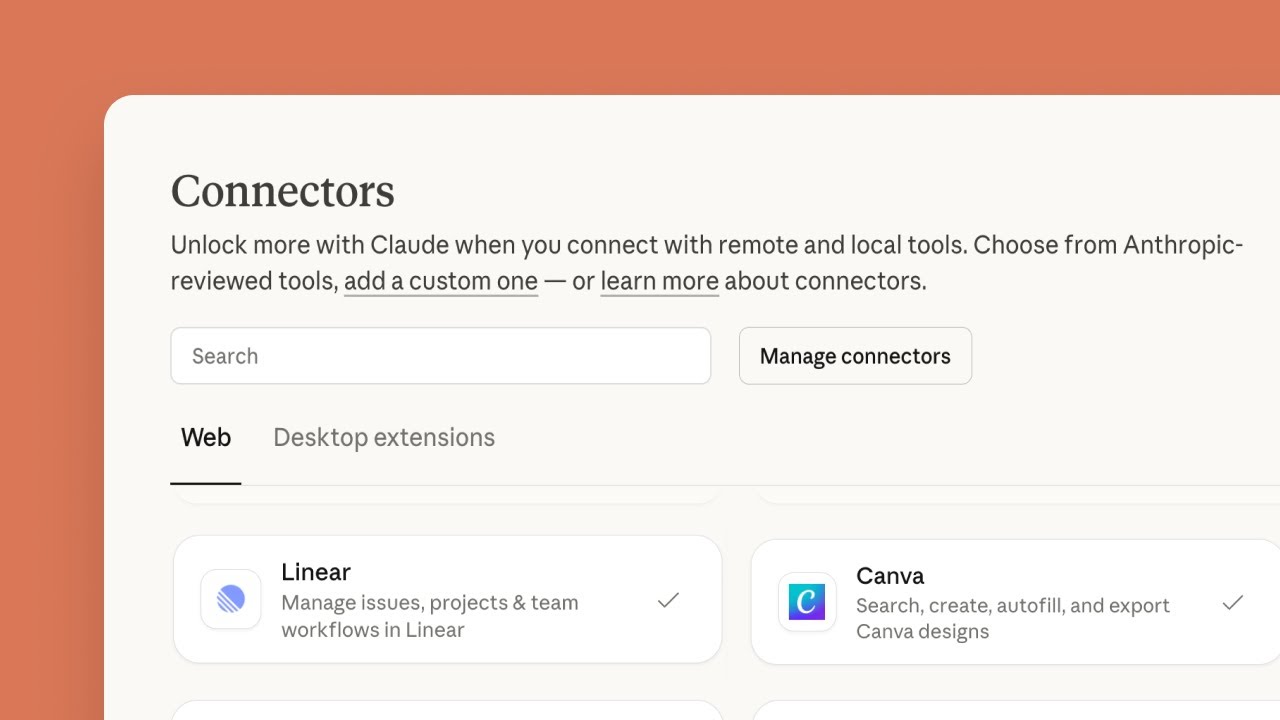
How to Connect the Canva MCP Server to Claude
Canva is a directory connector in Claude, so there is no address to paste. These steps combine Canva's Claude setup article and Anthropic's connectors guide, both read on October 16, 2026. Anthropic says directory connectors are available on every Claude plan, Free included.
- Step 1
Open Connectors in Claude
In Claude on the web or the desktop app, open Customize, then Connectors. You can also reach it from a chat: open the plus menu, choose Connectors, then Manage connectors.
- Step 2
Find Canva in the Directory
Click the plus button next to Connectors and browse the directory, or search for Canva. Open the listing to read what it can do, then click Connect.
- Step 3
Sign In to Canva and Allow Access
A Canva page opens. Sign in to the Canva account that holds your designs, since the connector works as that account. Approve the access Canva asks for. If you see Access Restricted by Team Admin, your Canva admin has the AI Connector switched off.
- Step 4
Turn Canva On in a Chat
Start a new chat, open the plus menu, hover over Connectors and switch Canva on. Connectors are chosen per conversation, so a new chat may need the same switch.
- Step 5
Set Tool Permissions
Back in the connector settings, choose which Canva tools may run without asking. Keep export and edit on needs approval for your first week so you see each change before it happens.
- Step 6
Use It on Your Phone
Anthropic says connectors you set up on the web or desktop also work in the Claude mobile apps, while adding a connector directly on mobile is still in beta.
How to Use the Canva MCP for Claude Code
Canva's help pages give steps for the Claude app but not for Claude Code, so these follow Claude Code's MCP documentation. Two routes work: reuse the connector from your Claude account, or add Canva's address yourself.
- Step 1
Route One: Reuse Your Claude Connector
Claude Code's docs say that if you log in to Claude Code with a Claude subscription, the connectors you added in Claude are available in Claude Code automatically. Connect Canva in Claude first, as in the steps above, then type /mcp in Claude Code and Canva should be listed.
- Step 2
Route Two: Add the Address by Command
In your terminal, run claude mcp add --transport http canva followed by the address mcp.canva.com/mcp, starting with https. Add --scope user if you want Canva in every project rather than only the current folder.
- Step 3
Sign In From Claude Code
Start Claude Code, type /mcp, pick canva and follow the browser sign in. Claude Code stores the token and refreshes it. To sign out later, choose Clear authentication in the same menu.
- Step 4
Ask for Real Work
Claude Code can read files in your project, so it can pass real material to Canva. Try asking it to read your release notes and create an Instagram post in Canva about the three biggest changes, then to export it as a PNG.
Why Claude Code Can Sign In to Canva Without a Developer App
Canva's access page describes two ways an assistant can identify itself to Canva: an app registered in Canva's developer portal with a client ID and secret, or a client ID metadata document, which is a public file that describes the assistant. Canva says many popular AI tools already publish such a document and work without extra setup, and Canva's published sign in metadata is the place a client reads to find where to sign in.
So for Claude Code you do not need a Canva developer account, a secret or a waitlist. If a third party guide tells you to create a Canva developer app and paste a client secret into a config file, it is describing a self hosted server, not Canva's own. Canva's own server only needs your normal Canva login.
Two practical notes from Canva's troubleshooting page: generating a design can take longer than other tools, so allow up to 60 seconds before you assume it failed, and Canva's server talks over both canva.com and canva.ai, so a strict firewall needs to let both through.
How to Connect the ChatGPT Canva Plugin
ChatGPT lists Canva as a ready made app, so you connect it from the plugin directory rather than adding a custom server. These steps follow Canva's ChatGPT setup article, read on October 16, 2026.
- Step 1
Open Plugins in ChatGPT
Open ChatGPT, go to Settings and select Plugins. On a ChatGPT Business or Enterprise workspace, an admin has to enable apps and connectors for the workspace first.
- Step 2
Find Canva and Connect Your Account
Search for Canva in the list, select it and follow the prompts to sign in to Canva and authorize the connection. Make sure you sign in to the Canva account that holds your Brand Kit and templates.
- Step 3
Check That It Is Connected
Open Plugins again and confirm Canva shows as connected. To pause it, open Canva's menu, choose Manage and Disconnect. To remove it completely, choose Uninstall.
- Step 4
Name Canva in Your Prompt
In a chat, say what you want and that you want it in Canva, with the design type, the style and any words that must appear. Canva's newsroom suggests starting the prompt with the word Canva so ChatGPT brings the app into the conversation.
- Step 5
Pick an Option to Keep It
ChatGPT shows Canva's options as previews. Canva's article says only the design you select is saved to your Canva account, so choose Save or Open in Canva on the one you want. Open designs from the preview rather than from a link ChatGPT types out, which Canva warns can point to a design that does not exist.
Is the ChatGPT Canva Plugin Free? Plans on Both Sides
You need an account on both sides, and each side has its own limits. Each row comes from the vendor's own page, read on October 16, 2026.
| Your plan | What it means for the Canva MCP server |
|---|---|
| Canva Free | Connects to every supported assistant. Search, create, edit, export at standard quality, comments, folders and uploads all work, per Canva's setup article. AI generation draws on the Free AI allowance. |
| Canva Pro, Teams, Business, Nonprofit or Education | Adds Brand Kits, Brand Templates, resize and higher quality exports. Autofill depends on which Canva page you trust, as covered above. |
| Canva Enterprise | Everything above, with autofill listed on every Canva page that mentions it. |
| ChatGPT Free, Plus or Pro | Canva's newsroom post of June 3, 2026 said the Canva app with full design creation was rolling out on Free, Plus and Pro outside the EU. |
| ChatGPT Business or Enterprise | Works once a workspace admin enables apps and connectors, per Canva's ChatGPT article. |
| Claude, any plan | Canva is a directory connector, and Anthropic's connectors guide says directory connectors are open to every plan, including Free. On Team and Enterprise an Owner enables it first. |
So yes, the ChatGPT Canva plugin is free to connect on a free ChatGPT account and a free Canva account, outside the EU. What costs money is the Canva side: the paid features and, past the allowance, the AI credits.
Canva MCP for Cursor, Codex, Gemini and Microsoft Copilot
Claude and ChatGPT get the most attention, but Canva's list of supported tools named 21 assistants and agents on October 16, 2026, from AWS and Atlassian Rovo to Grok, Perplexity Computer, Manus, Make and Lovable. These four are the ones searched for most after Claude and ChatGPT.
| Assistant | How you connect Canva | What to know |
|---|---|---|
| Cursor | Add Canva's address, mcp.canva.com/mcp starting with https, as a server with a url field in the mcp.json file of your project or of your home folder, as Cursor's MCP documentation describes. Cursor then opens the Canva sign in, and no client secret is needed. | Cursor asks before it runs an MCP tool unless you change that. Canva's actions page notes that some Canva tools only show up in Agent mode, so switch to it if Canva seems to be missing. |
| Codex | Canva is offered as a plugin inside Codex, OpenAI's coding agent. Canva's newsroom post of June 3, 2026 announced it that day. | Canva describes it as a way to turn concepts, prototypes and source material into editable designs that you then refine and publish in Canva. |
| Gemini | In Gemini in a desktop browser, open Settings, then Personal Intelligence, then Connected Apps, find Canva under Other, switch it on and link your Google and Canva accounts, per Canva's Gemini article. | Canva says you may need a personal Google account, and that some accounts and organizations block connected apps. To disconnect, choose Learn more next to Canva and then Unlink. |
| Microsoft Copilot | Open the Agent store in Copilot, search for the Canva agent and install it, then pick it under Chat with an agent in a new chat. In Cowork, you add it from the plugin settings of a task thread, per Canva's Copilot article. | Your organization may block the Agent store. If a Microsoft 365 admin installed the Canva agent for the whole workspace, only that admin can remove it. |
Canva's setup article confirms that one Canva account can be connected to several assistants at the same time.
Is the Canva AI Connector Safe?
It is built so the assistant never sees more than you can. Canva's troubleshooting page says every person signs in on their own, there is no shared service account, and the assistant reaches only your own designs and the ones shared with you. On a Canva team, Canva's setup article says the connector counts as a third party integration with the same permissions as the Canva Connect API, and an admin can switch it off for everyone. Canva's list of supported tools adds that, for now, the switch covers the whole team at once: an admin cannot allow some assistants and block others.
The more likely problem is an assistant doing something you did not mean. The connector can create designs, rewrite text across a deck, move items between folders and leave comments your teammates will read. In Claude, keep editing, moving, commenting and Brand Template publishing on needs approval, and read each request before you allow it. For ChatGPT, Canva's newsroom post says only assets you own are surfaced, and that nothing is shared or changed unless you choose to act.
On training, Canva Shield says you decide whether Canva trains on your private content, through a privacy setting in your account. Your prompts, the design text the assistant reads and its replies also pass through the assistant, so its own data rules apply as well. Check both sides before you connect a client's or an employer's Canva account.
Finally, watch for lookalikes. Canva's own server lives at mcp.canva.com/mcp and asks only for your normal Canva login in a browser window. A server from a code repository or an MCP list that wants your Canva password or a developer secret pasted into a file is someone else's project, so read its code before you trust it with your designs.
Example Prompts for the Canva MCP Server
These are plain requests for an app maker, here for an invented habit tracker called Streakly. The middle column is the Canva tool that does the work.
| What you type | Canva tool used | What you get |
|---|---|---|
| Find the designs I made for the Streakly App Store screenshots last month. | Search designs | A list of matching designs with links to open each one in Canva. |
| Create an Instagram post announcing Streakly 3.2 with the new reminders, in our Brand Kit. | Generate design, then create from the chosen option | A few design options to pick from. The one you pick becomes an editable Canva design. |
| In my launch post, change the headline to Never Miss a Streak Again and save it. | Edit design | The same design with the new headline, saved once the edit is committed. |
| Turn that post into a story size version. | Resize | A new copy at story size, on Pro and above. The original stays as it was. |
| Export the post as a PNG. | Export | A download link. The link expires, so use it right away. |
| Fill our release notes template with these three changes. | Autofill | A new design from your Brand Template with the fields filled in, if your plan includes autofill. |
| Show the unresolved comments on the Streakly launch deck. | List comments | The open threads, so you can reply from the chat. |
Claude Design to Canva: How Send to Canva Works and Why It Fails
Claude Design is a separate Anthropic product for making slides, prototypes and one pagers by chatting with Claude, which Anthropic launched on April 17, 2026. It is not the Canva connector and does not go through the Canva MCP server. Instead it hands a finished project to Canva from its Export menu. Anthropic's Claude Design help article lists Canva among the tools a project can be sent to, next to PDF, PPTX, Google Slides and standalone HTML, and says Claude Design is on the Free, Pro, Max, Team and Enterprise plans, with use counted against your plan's limits. Our page on Claude Design for social media shows how to make posts and carousels with it.
Canva's article on importing HTML explains the Canva side. In Claude Design you choose Share, then Send to Canva, and you get a link that opens the deck in Canva as a normal Canva Presentation: every slide editable, with presenter view and the full editor. You can also download the deck as an HTML file and upload it to Canva yourself.
When Claude Design to Canva is not working, the cause is usually one Canva names: the conversion only works for Claude Design slide decks. A prototype, a one pager, an HTML file from somewhere else or a deck that hits an error while converting arrives as a Code design instead, which lets you view the content and make basic edits but has none of the presentation features. Canva also warns that complex styling may shift, JavaScript does not run, links may be lost and fonts or images hosted elsewhere may not come across. If a deck lands as a Code design, check that the project was a slide deck and send it again, or rebuild the page with the Canva connector.
What the Canva MCP Server Cannot Do: It Designs, It Does Not Post
The Canva MCP server has no tool that publishes to a social network. Go through the full tool list and you will find designs, edits, exports, images, folders, comments and templates, but nothing that posts to Instagram, schedules a LinkedIn update or reads how a post performed. Canva's published sign in metadata tells the same story: the permissions an assistant can ask for cover your profile, designs, folders, Brand Templates, comments, assets, Brand Kits and help answers, and none of them is about a social account.
Canva says so itself. Canva's guide to connecting an AI agent describes the assistant as fast at drafting but unable to edit a layout by hand, gather team feedback, resize into many formats or get a design in front of customers. It calls that last part the final mile and sends you back into Canva for it, where you publish to your channels from the editor.
Inside Canva, that publishing is the Content Planner. Canva's Content Planner article says scheduling is for Canva Pro, Business, Education and Nonprofit admins and brand designers, each design goes to one platform at a time, and Instagram scheduling has to happen in a desktop browser. The platforms listed are Facebook Pages, Instagram Business accounts, X (listed there as Twitter), LinkedIn, Pinterest, Slack and Tumblr. TikTok, Threads and Bluesky were not on that list on October 16, 2026. Our Canva alternative page goes through the Content Planner's limits in detail.
Three other gaps are worth knowing before you build a workflow on it. The Canva MCP server does not write captions for each network, so the caption under your post comes from the assistant's own writing, not from Canva. It does not know what happened in your product, so you have to tell it what changed in your release. And it does not keep a posting calendar or read analytics, so it cannot tell you which post worked.
Canva also sets rules on your brand material. Canva's usage policy for the MCP server, written for the apps and assistants that connect to it, says Brand Kits fetched through MCP may only be used to make or change Canva designs, and must not be exported, cached or reused outside designs Canva renders. In practice: an assistant may design in your Canva Brand Kit, but it is not supposed to lift that Brand Kit and hand it to a different design tool. The same policy says any scheduled or background reading of your designs has to be opt in and off by default.
Watch: Where Canva Scheduling Lives Instead
Canva's own lesson on the Content Planner, the part of the Canva editor that schedules and publishes designs. The MCP server does not reach it.
How to Post a Canva Design to Social Media From a Chat
Because the Canva MCP server stops at the file, getting a post live takes a second step. These are the three routes that work today, from the one with the fewest handoffs to the most manual.
- Step 1
Route One: Canva and Spreadcast in the Same Chat
Connect both the Canva connector and Spreadcast's MCP server in Claude. Ask the assistant to export the Canva design, then to add it to a Spreadcast draft. Spreadcast's upload tool takes a picture or video from a public https link, such as a Canva export, saves its own copy as a JPEG, writes a caption for each network and saves the post as a draft for you to approve. Do it in one go: Canva's export tool page warns that signed export links expire and should be used at once.
- Step 2
Route Two: Back to Canva's Content Planner
Let the assistant make and polish the design, then open it in Canva, choose Share and Schedule, pick one platform, write the caption and set the time. Repeat for each network. This needs Canva Pro or above and covers the platforms in Canva's list.
- Step 3
Route Three: Canva Plus Another Publisher
Several schedulers with their own MCP servers accept media you bring, such as a Canva export. Our social media MCP server roundup shows which ones import from a link and which networks each one reaches. Check whether the publisher keeps its own copy: Buffer's media hosting guide says Buffer fetches the file when the post goes out, so a signed link that has expired by then makes a scheduled post fail.
How to Make an Instagram Carousel With Claude and Canva
No Canva tool is named for carousels, but the connector can make one. In Canva a carousel is simply a design with several pages at one size. These steps use the actions on Canva's assistant actions page, with Streakly as the example app.
- Step 1
Ask for a Multi Page Design at 1080 by 1350
Give Claude the number of slides, the size and the words for each one, for example: create a five page Instagram carousel in Canva at 1080 by 1350 for Streakly 3.2, one tip on each page, in our Brand Kit.
- Step 2
Check Every Page Before You Export
Ask Claude to show the pages with their thumbnails, then fix one slide at a time. In Claude the editing tool can change text and insert a page, so a missing step can be added without starting the carousel again.
- Step 3
Export Each Page as a PNG
Ask for a PNG export. Canva's export tool returns its download links as a list, and Canva's Connect API reference for the same kind of export job says a multi page PNG or JPG export gives one link per page, in page order, each valid for 24 hours.
- Step 4
Publish From Canva, or Hand the Pages to a Publisher
In Canva's Content Planner you choose which pages of a multi page design to publish, per Canva's Content Planner article, though it does not work on multi design documents yet. From the chat, pass the page links in order to Spreadcast instead: its create tool takes up to 10 pictures in order, saves its own copy of each and keeps them together as one Instagram carousel draft with a caption.
- Step 5
Or Let Spreadcast Design the Carousel
If the carousel is about your app, Spreadcast's carousel tool designs 3 to 8 slides at 1080 by 1350 in your app's brand, with real screenshots in an iPhone frame, and skips the export step. For prompt wording, see our Instagram carousel prompts for ChatGPT.
Canva MCP Server vs Spreadcast MCP Server
Both are remote MCP servers you sign in to from Claude or ChatGPT. They do different jobs, and many people will want both. Canva facts come from the Canva pages linked above, read on October 16, 2026.
| Canva MCP server | Spreadcast | |
|---|---|---|
| Main job | Find, create, edit and export Canva designs of any kind: decks, docs, posters, social posts, video. | Design, caption, schedule and publish social posts for an App Store app, from one server. |
| Where a post's look comes from | Your Canva Brand Kit or Brand Templates on paid plans, or a generated design you pick from options. | Your app's brand kit, read from the App Store listing: icon, real screenshots in an iPhone frame, colors, and fonts and logo from your website. |
| Post formats | Any Canva format and size, including video, with resize on paid plans. | Posts in 12 kinds and carousels of 3 to 8 slides at 1080 by 1350, plus posts for App Store moments. |
| What starts a post | Your prompt. | Your prompt, or an App Store moment Spreadcast found: a new version or a rating milestone. |
| Captions | Text inside the design. The caption under the post is up to the assistant. | A caption for each network, checked against that network's rules before saving. |
| Publishing | None through MCP. Publishing happens in the Canva editor's Content Planner. | Schedules and publishes to Instagram, TikTok, LinkedIn, Facebook, Threads, Pinterest, Bluesky, Telegram, Discord, YouTube and Mastodon on Pro. |
| Safety default | Edits and exports run when the assistant calls them, within the tool permissions you set in your assistant. | Drafts by default. The consent screen offers Make Drafts or Make and Publish, and approving is a separate step. |
| Analytics | None through MCP. | Totals per network, top posts, best hours and weekdays, followers and app ratings. |
| Works in Claude | Directory connector on every Claude plan, Free included. | Custom connector on every Claude plan. Claude Free allows one custom connector, per Anthropic's custom connector guide. |
| Works in ChatGPT | Listed app on Free, Plus and Pro outside the EU, and on Business and Enterprise once an admin allows it. | Custom MCP server with write actions on Business, Enterprise and Edu on the web, per OpenAI's help article. Pro can connect it for reading only. |
| Price | Free to connect. Paid Canva plans add Brand Kits, templates, resize and better exports. AI use draws on Canva credits. | Free for drafts. Pro at $29 a month includes the designs, captions, scheduling and publishing. Studio at $79 a month covers 5 apps. |
| Built for | Anyone who designs in Canva. | Makers of App Store apps. |
When Spreadcast Is the Better Fit Than the Canva MCP Server
If the posts you need are about your app, Spreadcast does the whole job from one connector. You paste your App Store link once at the start page, and Spreadcast builds a brand kit from the listing: the icon, the screenshots and colors read from the icon, plus the logo and fonts from your website if you have one. When you ask Claude or ChatGPT for a post, it designs from that kit, with a real screenshot of your app in an iPhone frame, not a stock phone or a generated guess at your interface.
Spreadcast also knows what to post. It reads moments from your listing, such as a new version with its release notes or a rating milestone, and the assistant can list them and design the matching post. With Canva, you have to tell the assistant what changed and describe the screen yourself.
Then it finishes the post. Spreadcast writes a caption for each network, checks the post against each network's rules, saves it as a draft and, on Pro, schedules and publishes it once you approve. That is eleven networks: Instagram, TikTok, LinkedIn, Facebook, Threads, Pinterest, Bluesky, Telegram, Discord, with YouTube and Mastodon too. With the Canva MCP server you would still export the file and take it somewhere that posts.
On price, the Free plan gives the assistant everything except scheduling and publishing, so you can judge the designs first. Pro at $29 a month includes the design, the captions per network and the publishing to every network you connect, for one app. Studio at $79 a month covers 5 apps, each with its own brand. See the pricing page and the MCP page for the current details.
When the Canva MCP Server Is the Better Choice
Use Canva's server when the work is not a social post about an app. Pitch decks, conference banners, flyers, resumes, documents and video all sit in Canva, and its server lets the assistant build and edit them. Spreadcast makes still images and carousels for social networks and does not edit video.
Canva also wins when your brand already lives in Canva. If your team keeps Brand Templates there, the assistant can start from those exact layouts, and Canva's team admin controls apply to what the assistant does. And if you work in Gemini, Microsoft Copilot or one of the other tools in Canva's list of supported assistants, Canva connects there too.
For many app makers the answer is both. Keep Canva for the pieces a person should design, and let Spreadcast handle the steady stream of posts about releases, ratings and features. Our Canva vs Adobe Express comparison covers the case where you are still choosing an editor.
A Release Week With Canva and Spreadcast in One Claude Chat
Here is how Alex, who makes Streakly, uses both connectors the week version 3.2 ships with new reminders. Every step happens in one Claude conversation.
- Step 1
Ask Spreadcast What Happened
Alex asks: what moments does Spreadcast have for Streakly this week? Spreadcast lists the new version 3.2 with its release notes and a rating milestone.
- Step 2
Let Spreadcast Design the Release Post
Alex asks for a carousel about the new reminders. Spreadcast designs five slides in Streakly's colors and fonts, with real screenshots of the reminder screen in an iPhone frame, and shows them in the chat.
- Step 3
Use Canva for the Odd One Out
Alex also needs a poster for a meetup next week. Claude uses the Canva connector to create it from the Brand Kit, Alex picks one of the options and asks for the date to be fixed in the headline.
- Step 4
Bring the Canva Design Over
Alex wants the poster on LinkedIn too. Claude exports it from Canva and passes the link straight to Spreadcast, which saves its own copy and writes a LinkedIn caption.
- Step 5
Approve in Spreadcast
Both posts wait as drafts on the Spreadcast calendar. Alex reads them there, changes one word in the carousel caption and approves. Spreadcast publishes each one at its time.
Why Is the Canva Connector Not Working in Claude or ChatGPT?
Most reports of the Canva connector not working trace back to four causes, and checking them in this order saves time. First, the account: Canva's setup article puts signing in to the wrong Canva account near the top of its list, which is easy to do when you have a personal and a work account. Second, the switches: on a Canva team the admin may have the AI Connector or all third party integrations off, and in Claude the connector has to be turned on in each chat.
Third, the client. Canva's actions page suggests restarting the app when Canva tools do not appear, checking that the JSON configuration is valid in tools set up by file, such as Cursor or VS Code, and disconnecting and authorizing Canva again if prompts keep failing. If Claude suddenly lists fewer Canva tools than before, that is the grouping into one read tool and one edit tool, not a fault.
Fourth, the feature. When a Canva template is not working in ChatGPT or Claude, it is usually the plan: Brand Template search needs a paid Canva plan, you only see templates someone shared with you, and Canva's actions page lists autofill for Canva Enterprise. An access denied message on autofill can simply mean your account does not include it.
Canva MCP Connector Problems and How to Fix Them
Most problems people hit come down to the account, the plan or a team setting. These fixes come from Canva's setup article, the ChatGPT article and Canva's troubleshooting page.
Canva Is Not in the List
On a ChatGPT Business or Enterprise workspace, an admin has to enable apps and connectors. On a Canva team, the Canva admin may have the AI Connector off. On Claude Team or Enterprise, an Owner has to enable Canva first.
Access Restricted by Team Admin
Your Canva admin has switched off the AI Connector or third party integrations. They can turn it back on in the Admin Dashboard under Controls and Permissions.
An Upgrade Message on Brand Templates
You are probably on Canva Free, or signed in to a different Canva account. You also only see Brand Templates someone has shared with you.
Brand Kit Calls Fail With Missing Scopes
Canva's tool docs say to disconnect Canva and connect it again, so your assistant gets a new token that includes the Brand Kit permission.
A Canva Link From ChatGPT Does Not Open
ChatGPT can type links that look like Canva links but point nowhere. Open the design from the preview card, or find it in your Canva projects.
Designs Are Missing From Your Canva Account
Only the option you select is saved. Choose Save or Open in Canva on the result you want to keep.
Generating a Design Times Out
Design generation can take up to a minute. If your client gives up sooner, raise its timeout to 60 seconds or simply ask again.
An Export Fails With License Required
The design uses a premium element your plan does not cover. Swap the element or export from an account that has it.
Frequently Asked Questions
What is the Canva MCP server?
It is Canva's remote server that lets AI assistants work with your Canva account through the Model Context Protocol. Claude, ChatGPT, Claude Code, Cursor, Gemini and Copilot can use it to search, create, edit, resize and export Canva designs. Canva calls the everyday version the AI Connector, as its setup article explains.
Is there a Canva MCP for Claude?
Yes. Canva is in Claude's connectors directory, so you open Customize, then Connectors, find Canva, click Connect and sign in. Anthropic's connectors guide says directory connectors work on every Claude plan, including Free.
How do I use the Canva MCP in Claude Code?
Either connect Canva in Claude first and log in to Claude Code with the same Claude subscription, which makes the connector available there, or run claude mcp add --transport http canva with the address mcp.canva.com/mcp, then type /mcp and sign in to Canva in the browser.
Is the ChatGPT Canva plugin free?
Connecting is free. Canva's newsroom said the Canva app with full design creation was rolling out on ChatGPT Free, Plus and Pro outside the EU, and Canva says the connector works with Canva Free. Paid Canva plans add Brand Templates, resize and better exports, and AI generation uses your Canva AI credits.
Can the Canva MCP server post to Instagram or other social networks?
No. None of its tools publish or schedule to a social network. You export the design and publish it from Canva's Content Planner, or pass the export to a tool that posts, such as Spreadcast, which turns it into a draft with a caption for each network.
Which Canva MCP tools need Canva Pro?
Brand Kits, Brand Templates and resize need Canva Pro or above, per Canva's tool reference, and exports get higher quality on Pro. Autofill is listed for Pro and above in the developer docs, while some Canva help pages say it needs Canva Enterprise.
Is the Canva AI Connector the same as the Canva Dev MCP server?
No. The AI Connector works with your designs. The Dev MCP server helps programmers who build apps for the Canva platform and does not touch your designs.
Can I use Canva and Spreadcast in the same chat?
Yes. Connect both in Claude, let Canva make or export the design, and ask the assistant to add the export to a Spreadcast draft right away, since Canva's export links expire. Spreadcast saves its own copy, writes the captions and waits for your approval.
Is Spreadcast a replacement for the Canva MCP server?
For social posts about an App Store app, it can be: Spreadcast designs the posts and carousels in your app's brand, writes captions and publishes them. For decks, print, documents and video, keep Canva. Many app makers connect both.
Prices, plans and features change. This comparison describes each product as its own site described it on the date shown under Sources. Check the vendor's site before you decide. Product names are trademarks of their owners.
Where These Facts Come From
Every outside number, rule and price on this page links to the page it was taken from.
- About Canva MCPCanva Developers
- Canva MCP tools and rate limitsCanva Developers
- Canva MCP access and permissionsCanva Developers
- Canva MCP troubleshooting and common questionsCanva Developers
- Canva MCP usage policyCanva Developers
- Canva MCP export design toolCanva Developers
- Canva MCP sign in metadataCanva
- Connect Canva to an AI assistantCanva Help Center
- Connect your Canva account to ClaudeCanva Help Center
- Connect your Canva account to ChatGPTCanva Help Center
- Actions you can take in AI assistants connected to Canva MCPCanva Help Center
- Connect AI assistants and tools to CanvaCanva Help Center
- Schedule posts with Content PlannerCanva Help Center
- Canva AI ConnectorCanva
- How to connect Canva to an AI agentCanva
- Create with Canva inside ChatGPT and CodexCanva Newsroom
- Canva connector listingClaude
- Use connectors to extend Claude's capabilitiesAnthropic Help Center
- Get started with custom connectors using remote MCPAnthropic Help Center
- Connect Claude Code to tools via MCPClaude Code Docs
- Connecting custom MCP servers in ChatGPTOpenAI Help Center
- Connect your Canva account to GeminiCanva Help Center
- Connect your Canva account to Microsoft CopilotCanva Help Center
- Canva Shield, safe AI and privacy controlsCanva
- Import HTMLs, including Claude Design presentationsCanva Help Center
- Create design export jobCanva Developers
- Introducing Claude Design by Anthropic LabsAnthropic
- Get started with Claude DesignAnthropic Help Center
- Model Context Protocol in CursorCursor Docs
- Hosting media for postsBuffer Developers
- Getting started with connectors in ClaudeAnthropic
- Schedule your content and track insightsCanva
Researched and written by Spreadcast. Last checked on October 16, 2026.