App Preview Video: The Short Answer
An app preview is a short video on your App Store product page, made from screen recordings of your app. Apple accepts up to three per device size and language, each 15 to 30 seconds long and no larger than 500 MB, as .mov, .m4v or .mp4 files in H.264, or as .mov files in ProRes 422 HQ, at no more than 30 frames per second. Those limits come from Apple's app preview specifications in App Store Connect Help, and every number on this page was read from Apple's own pages on October 21, 2026 unless a line says otherwise.
For an iPhone app, the one size to know is 886 x 1920 pixels in portrait, or 1920 x 886 in landscape. Apple accepts that single resolution for every iPhone with Face ID or Dynamic Island, from the iPhone X to the iPhone 18 Pro Max and the iPhone Duo. For iPad, export 1200 x 1600 pixels in portrait or 1600 x 1200 in landscape. These are video sizes, not screen sizes, which is why they are much smaller than the image sizes in our App Store screenshot sizes guide.
Previews are optional. When you add one, Apple's guide to the product page says it autoplays with the sound muted as soon as someone opens your page, and Apple's app previews page says previews also autoplay in search results and can be used in Apple Ads. Because almost everyone meets the video in silence, it has to make sense with captions alone, and the first few seconds do most of the work.
The sections below go through each spec in detail, the accepted resolution for every device, Apple's rules, how to record and convert a clip so App Store Connect takes it, a 30 second shot plan you can copy, ten previews from live App Store pages, what published tests say about conversion, the errors that stop uploads, and a checklist to run before you submit.
App Store Preview Video Requirements at a Glance
These are the app store preview video requirements that apply to every platform. If a file breaks one of them, App Store Connect refuses it before App Review ever sees it.
| Requirement | What Apple accepts |
|---|---|
| Length | 15 seconds minimum, 30 seconds maximum. |
| File size | 500 MB maximum. |
| File formats | .mov, .m4v or .mp4 with H.264 video, or .mov with ProRes 422 (HQ only). |
| Frame rate | 30 frames per second at most, for both formats. |
| Video encoding | H.264: a target of 10 to 12 Mbps, progressive, up to High Profile Level 4.0. ProRes 422 HQ: about 220 Mbps variable bit rate, progressive, with no external references. |
| Audio | Stereo, with all tracks enabled. H.264 files take AAC at 256 kbps; ProRes files take PCM or 256 kbps AAC. The sample rate is 44.1 kHz or 48 kHz either way. |
| How many | Up to 3 per supported device size and language. |
| Orientation | Portrait or landscape for iOS apps, and the video rotates to its original orientation when it plays. Mac, Apple TV and Apple Vision Pro previews are landscape only. |
| Poster frame | The still image shown on the product page and during app install. It defaults to the frame at 5 seconds until you pick another one. |
| Processing time | Up to 24 hours after upload. |
| Platforms | iOS, macOS, tvOS and visionOS apps. App previews are not available for apps on the App Store for iMessage. |
| Display order | Previews always appear before screenshots on iPhone, iPad, Mac and Apple TV, even if you reorder them. A preview in a different aspect ratio from your screenshots appears in the A Closer Look section of the page instead. |
Every row comes from Apple's app preview specifications, read on October 21, 2026.
What an App Preview Is and Where People See It
Apple's app previews page describes a preview as a short video that demonstrates the features, functions and interface of your app with footage captured on the device. It is a demo, not a commercial, and App Review checks it against the same accurate metadata rules as your screenshots. That one idea explains most of the rules further down: if a shot could not come from the app's own screen, it probably does not belong in the preview.
A preview can appear in four places. On the product page it takes the first slots of the media row, ahead of every screenshot. In search results, Apple's App Store search page says your rating and up to three screenshots or app previews may show, depending on the platform and the orientation of your media. In Apple Ads, Apple says previews can be used in your ads. And the poster frame, a still you choose from the video, is shown during app install and whenever the video is not playing.
Autoplay is the part that changes how you should edit. Apple's product page guide says previews autoplay with muted audio when people view your page, so the first few seconds need to be visually compelling, and that the poster frame appears whenever a video does not autoplay. People can turn autoplay off. The Mac App Store settings page lists a Video Autoplay option that plays app preview videos with the sound off, and Apple's app previews page says that someone who has switched video autoplay off in their App Store settings sees the poster frame instead. For that viewer, the poster frame is the whole preview.
Aspect ratio decides where the video sits. If your screenshots are portrait and your preview is landscape, or the other way round, Apple moves the preview out of the top media row and into the A Closer Look section further down the page. For most apps that people hold upright, a portrait preview that matches the screenshots keeps the video in the most visible spot.
One more distinction is new in 2026. Since iOS 27 and iPadOS 27, Apple also offers creative assets: images and videos for the product page header and for search results that, unlike previews, do not have to show the app in use. They have their own sizes and rules, compared in a table near the end of this page. The screenshot side of the product page is covered in our App Store screenshot examples.
App Preview Video Specs: Codec, Frame Rate, Bit Rate and Audio
Apple lists two accepted encodings. Most teams should export H.264 in an .mp4 or .mov file; ProRes 422 HQ is for teams who edit in a professional tool and want to upload a master file.
| Setting | H.264 file | ProRes 422 HQ file |
|---|---|---|
| File extensions | .mov, .m4v or .mp4 | .mov only |
| Target bit rate | 10 to 12 Mbps | Variable, about 220 Mbps |
| Video characteristics | Progressive, up to High Profile Level 4.0 | Progressive, no external references |
| Maximum frame rate | 30 frames per second | 30 frames per second |
| Audio codec | AAC at 256 kbps | PCM at 16, 24 or 32 bit depth, or AAC at 256 kbps |
| Sample rate | 44.1 kHz or 48 kHz | 44.1 kHz or 48 kHz |
| Stereo layout | One track with 2 channels (left, then right), or two tracks with 1 channel each (left track, then right track). All tracks enabled. | Same as H.264 |
| Maximum file size | 500 MB | 500 MB |
Source: Apple's app preview specifications. Derived: at about 220 Mbps, 30 seconds of ProRes is roughly 825 MB (220 times 30, divided by 8), above the 500 MB cap, so a full length ProRes preview can be too large to upload. An H.264 file at 11 Mbps for 30 seconds is about 41 MB.
App Preview Video Size and Resolution for iPhone
Apple separates two numbers. Device resolution is the screen of the phone itself; accepted resolution is the size App Store Connect takes for the video file. Because most previews start as screen recordings, Apple accepts a short list of standard sizes for each display group instead of each phone's exact screen, and its specifications tell you to export to the accepted size. Here is the app store preview video resolution for every iPhone group.
| Display group | Models Apple lists | Accepted portrait | Accepted landscape | If you upload nothing here |
|---|---|---|---|---|
| iPhone Duo | iPhone Duo | 886 x 1920 | 1920 x 886 | Apple lists no fallback. |
| Dynamic Island, large display | iPhone Air, 18 Pro Max, 17 Pro Max, 16 Pro Max, 16 Plus, 15 Pro Max, 15 Plus, 14 Pro Max | 886 x 1920 | 1920 x 886 | A scaled copy of the Face ID large display preview. |
| Face ID, large display | iPhone 14 Plus, 13 Pro Max, 12 Pro Max, 11 Pro Max, 11, XS Max, XR | 886 x 1920 | 1920 x 886 | A scaled copy of the Dynamic Island large display preview. |
| Dynamic Island, medium display | iPhone 18 Pro, 17 Pro, 17, 16 Pro, 16, 15 Pro, 15, 14 Pro | 886 x 1920 | 1920 x 886 | A scaled copy of the Face ID large display preview. |
| Face ID, medium display | iPhone 17e, 16e, 14, 13 Pro, 13, 13 mini, 12 Pro, 12, 12 mini, 11 Pro, XS, X | 886 x 1920 | 1920 x 886 | A scaled copy of the Dynamic Island medium display preview. |
| Home Button, large display | iPhone 8 Plus, 7 Plus, 6S Plus, 6 Plus | 1080 x 1920 | 1920 x 1080 | A scaled copy of the Face ID medium display preview. |
| Home Button, medium display | iPhone SE (3rd and 2nd generation), 8, 7, 6S, 6 | 750 x 1334 | 1334 x 750 | A scaled copy of the Home Button large display preview. |
| Home Button, 4 inch display | iPhone SE (1st generation), 5S, 5C, 5 | 1080 x 1920 | 1920 x 1080 | A scaled copy of the Home Button medium display preview. |
| Home Button, 3.5 inch display | Older 3.5 inch iPhones | Not supported | Not supported | App previews are not supported. |
The device screens in the Dynamic Island large group run up to 2868 x 1320 pixels, yet the video file for that group is still 886 x 1920. Do not upload a preview at your screenshot size.
App Store Preview Video Size for iPad, Mac, Apple TV and Apple Vision Pro
iPad previews use the 3:4 shape of the iPad screen. Mac, Apple TV and Apple Vision Pro previews are landscape only, per Apple's specifications.
| Display | Models Apple lists | Accepted portrait | Accepted landscape | If you upload nothing here |
|---|---|---|---|---|
| iPad 13 inch | iPad Pro (M5, M4), iPad Pro 12.9 inch (1st and 3rd to 6th generation), iPad Air (M4, M3, M2) | 1200 x 1600 | 1600 x 1200 | This is the top iPad size; the others fall back toward it. |
| iPad 12.9 inch | iPad Pro (2nd generation) | 1200 x 1600 or 900 x 1200 | 1600 x 1200 or 1200 x 900 | A scaled copy of the 13 inch preview. |
| iPad 11 inch | iPad Pro (M5, M4, 1st to 4th generation), iPad Air (M4, M3, M2, 5th and 4th generation), iPad (A16), iPad (10th generation), iPad mini (A17 Pro), iPad mini (6th generation) | 1200 x 1600 | 1600 x 1200 | A scaled copy of the 13 inch preview. |
| iPad 10.5 inch | iPad Pro 10.5 inch, iPad Air (3rd generation), iPad (7th to 9th generation) | 1200 x 1600 | 1600 x 1200 | A scaled copy of the 12.9 inch preview. |
| iPad 9.7 inch | iPad Pro 9.7 inch, iPad Air, iPad Air 2, iPad (2nd to 6th generation), iPad mini (2nd to 5th generation) | 900 x 1200 | 1200 x 900 | A scaled copy of the 10.5 inch preview. |
| Mac | Mac apps | Not accepted | 1920 x 1080 | Not applicable. |
| Apple TV | Apple TV apps | Not accepted | 1920 x 1080 | Not applicable. |
| Apple Vision Pro | visionOS apps | Not accepted | 3840 x 2160 | Not applicable. |
Apple names each group by display size, and the same iPad Air chips appear under both 13 inch and 11 inch because the Air comes in both sizes.
App Preview Resolutions Drawn to Scale
The accepted app preview size for each device, drawn at one scale so you can see how the files compare. The tall iPhone file is the one most apps need.
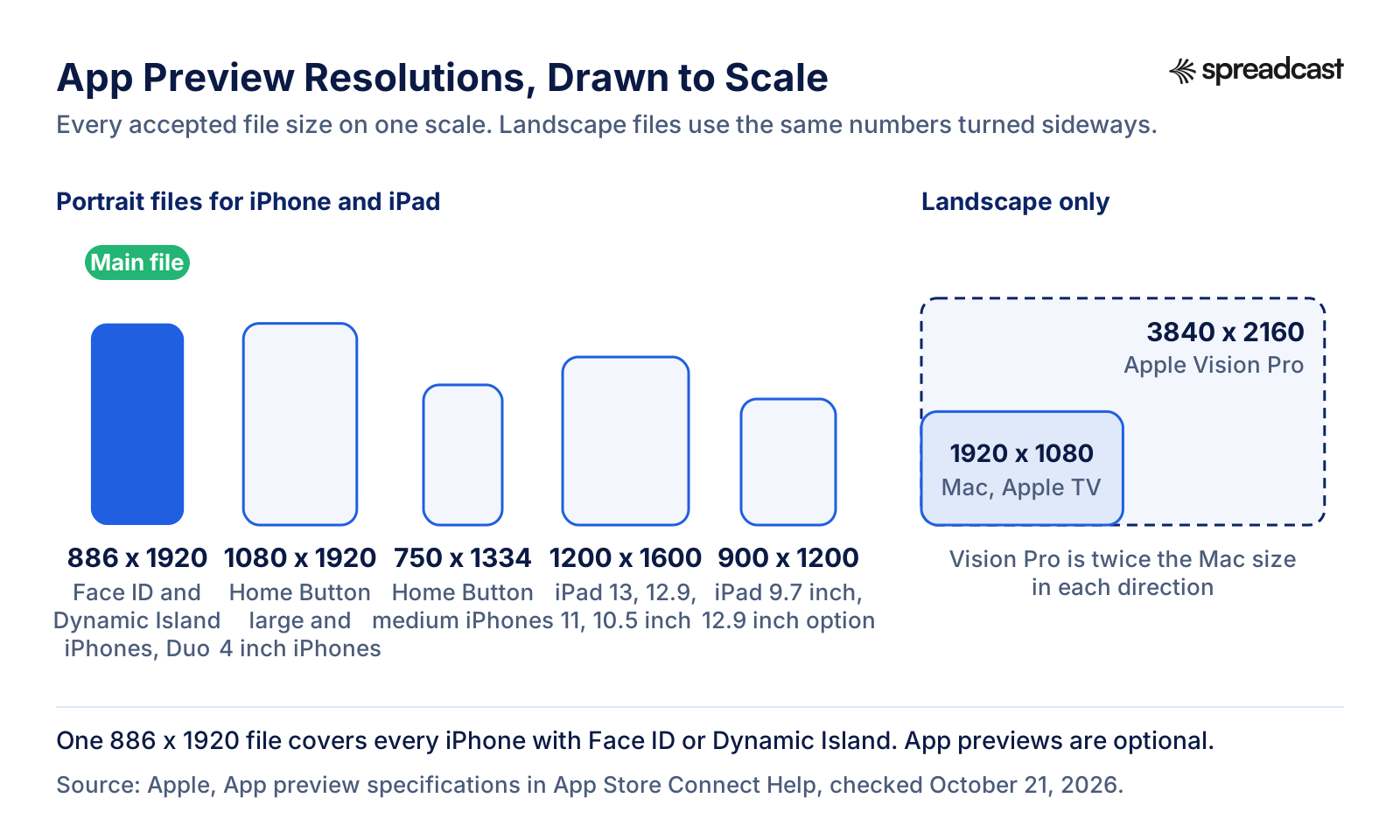
Which Device Sizes You Need and How Apple Scales App Previews
No app preview size is required. Screenshots have required sizes; previews do not, and you can ship an app with none. If you do add one, upload it for the largest display you support and let App Store Connect fill in the rest. Apple's specifications say that when your interface is the same across device sizes and localizations, you only need to provide the highest resolution, and it scales down to smaller devices.
For iPhone, that means one 886 x 1920 file in the Dynamic Island large display slot. The fallback notes in the table above form a chain: the Face ID large group borrows the Dynamic Island large preview, the Dynamic Island medium group borrows the Face ID large one, the Face ID medium group borrows the Dynamic Island medium one, and so on down to the 4 inch phones. Apple lists no fallback for the iPhone Duo, so if your app supports it, add the same 886 x 1920 file to that slot as well.
The older Home Button phones are the one soft spot. Their accepted files are 16:9 (1080 x 1920 and 750 x 1334), while the modern iPhone file is closer to 19.5:9. Apple says those phones fall back to a scaled copy of the Face ID medium preview but does not say how it fits a taller video into a shorter shape. If iPhone 8 and SE owners matter to your audience, export a separate 1080 x 1920 cut and check it under View All Sizes in Media Manager, which Apple's guide to managing App Store assets describes as the place to manage scaled previews for each device size.
For iPad, one 1200 x 1600 file in the 13 inch slot covers the 12.9, 11 and 10.5 inch groups, and the 9.7 inch group falls back to the 10.5 inch version. A recording from a 13 inch iPad at 2064 x 2752 has exactly the 3:4 shape of the accepted file, so it only needs scaling. A recording from an 11 inch iPad at 1668 x 2388 is a little narrower than 3:4, so it needs a small crop. Derived from the device sizes Apple lists: 1668 divided by 2388 is about 0.70, against 0.75 for the accepted file.
Two more rules from the same page are worth knowing before you upload. You can add specific, unscaled previews for any device size or language instead of relying on scaling. And if a localized preview is missing, App Store Connect shows the preview in the next best available language. Removing a preview works the other way: Apple's assets guide says that when you delete one, it is also removed from every other display size that used a scaled copy of it.
On orientation, iOS previews can be portrait or landscape, and a landscape preview rotates to landscape when it plays. Choose the orientation people actually use the app in. A game played sideways should be previewed sideways, as Alto's Odyssey does in the examples below, while a to do app or a banking app belongs in portrait, next to portrait screenshots.
App Store Preview Video Guidelines: What Apple Allows and Rejects
Previews are metadata, so App Review checks them against section 2.3, Accurate Metadata, of the App Review Guidelines, last updated October 16, 2026. Apple's marketing guidance for app previews adds the practical detail. These are the app store preview video guidelines that decide approval.
Only Screen Captures of the App
Guideline 2.3.4 says previews may only use video screen captures of the app itself, so people understand what they will get. You can add narration and video or text overlays to explain anything the footage does not make clear. Sticker packs and iMessage extensions may show the experience inside the Messages app.
No Hands, Devices or Live Action
Apple's guidance says to stay within the app and not to film people using a device, such as an over the shoulder angle or fingers tapping the screen. To show a gesture, add a graphic touch hotspot over the capture instead. A phone frame drawn around the footage is not a screen capture either, so keep frames for your social versions.
Text Overlays That Stay True
Copy on screen is encouraged because previews play muted. Apple asks for text that is legible and stays up long enough to read, and warns against seasonal or dated lines such as new for spring, and against specific prices, since currencies differ by country. Guideline 2.3.7 also says previews should not include prices or terms.
Disclose Purchases, Subscriptions and Logins
Guideline 2.3.2 says previews must make clear when featured items, levels or subscriptions cost extra. Apple's guidance adds that if the app needs a subscription or a login, you must say so, either in the footage or on the end frame. One short line such as Subscription required for Pro features can do it.
Content Fit for a 4+ Rating
Guideline 2.3.8 requires previews to fit a 4+ age rating even when the app is rated higher. For a game with violence, that means no gruesome deaths and no gun pointed at a character. Apple also asks games to show more gameplay than cutscenes, so the video does not give a false impression of play.
Rights to Music, Brands and Data
Guideline 2.3.9 makes you responsible for the rights to everything in a preview and asks you to show fictional account information instead of a real person's data. Apple's guidance names music, film, trademarked characters and brands, and says the license must cover marketing use in every territory where the app is sold.
No Other Platforms
Guideline 2.3.10 bans names, icons or imagery of other mobile platforms or alternative app marketplaces in metadata. A cross platform demo that shows an Android phone, or an end card with a Google Play badge, is the usual way to trip this rule.
Transitions That Do Not Invent Features
Apple recommends plain transitions such as dissolves and fades, and says transitions must not imply functions the app does not have. It also recommends capturing the native interface resolution rather than zooming in on the view. Section 2.3 adds that metadata should be kept up to date with new versions.
How to Record App Preview Footage on iPhone, iPad, Mac and Vision Pro
Apple's specifications list what you need to make a preview: a Mac, a video editor such as iMovie or Final Cut Pro, and an iPhone, iPad, Apple TV or Apple Vision Pro to capture from. There are four common ways to get the footage, plus one step that matters more than any of them.
- Step 1
Stage the App Before You Press Record
Load a demo account with realistic, fictional content: names, photos, balances and messages that look lived in but belong to no real person, as guideline 2.3.9 asks. Turn on Do Not Disturb so no notification lands in the shot, charge the device, and pick one appearance, light or dark, for the whole video. Record each scene as its own short clip with slow, deliberate taps; it is far easier to cut five clean clips together than to rescue one long take.
- Step 2
Record on the iPhone or iPad Itself
Apple's screen recording guide covers the steps: swipe down from the top right corner to open Control Center, tap the gray Record button, wait for the three second countdown, then leave Control Center. Stop from the indicator at the top of the screen, and find the file in Photos. The recording comes out at the device's own resolution, so it will need converting to 886 x 1920, and developers report that these recordings often run above 30 frames per second.
- Step 3
Record a Connected iPhone With QuickTime Player
Apple's app previews page suggests capturing footage with QuickTime Player on a Mac by connecting the device. In Apple's QuickTime guide, you connect the iPhone or iPad, choose File, then New Movie Recording, open the options menu and pick your device as the camera, choose the quality, then record and save. You watch on the Mac's screen, which makes retakes easy.
- Step 4
Record a Simulated Device in Xcode
Apple's Xcode documentation describes recording a simulated device in Device Hub: run the app, click the Record button below the device or choose Controls, then Record Screen, and click Stop when done; the file lands on your Desktop. From Terminal, xcrun simctl io booted recordVideo --codec=h264 preview.mov does the same, and Control C stops it. The help text that ships with simctl (checked in Xcode 26.1) says the default codec is HEVC, so ask for H.264. For a clean status bar, run xcrun simctl status_bar booted override --time 9:41 --batteryState charged --batteryLevel 100 first. Simulator recordings carry no audio track, which matters later.
- Step 5
Capture Mac and Apple Vision Pro Apps
Mac previews are 1920 x 1080 landscape, so record the app window at a size that scales cleanly to that frame and keep the desktop out of the shot. For visionOS, Apple has a separate guide to capturing Apple Vision Pro video for 2D viewing, and its Xcode documentation notes that captures from a visionOS simulator can have a different size and ratio than a physical device, so you may need to resize and crop them to 3840 x 2160.
How to Convert a Recording to the Exact App Preview Size and Frame Rate
Raw recordings usually fail upload for one of three reasons: the pixel size is not on Apple's list, the frame rate is above 30, or there is no audio track. One command in ffmpeg, the free command line converter, fixes all three. The filters used here (scale, crop, fps and the silent audio source anullsrc) are documented in ffmpeg's filter reference.
| Job | Command or setting |
|---|---|
| Check what you recorded | ffprobe -v error -select_streams v:0 -show_entries stream=width,height,r_frame_rate,avg_frame_rate -of csv=p=0 recording.mov |
| Convert a silent iPhone recording to 886 x 1920 at 30 fps with a silent stereo track | ffmpeg -i recording.mov -f lavfi -i anullsrc=channel_layout=stereo:sample_rate=48000 -map 0:v -map 1:a -vf "scale=886:1920:force_original_aspect_ratio=increase,crop=886:1920,setsar=1,fps=30" -c:v libx264 -profile:v high -level 4.0 -pix_fmt yuv420p -b:v 11M -maxrate 12M -bufsize 24M -c:a aac -b:a 256k -ac 2 -shortest -movflags +faststart preview.mp4 |
| Convert a recording that already has sound | ffmpeg -i recording.mov -vf "scale=886:1920:force_original_aspect_ratio=increase,crop=886:1920,setsar=1,fps=30" -c:v libx264 -profile:v high -level 4.0 -pix_fmt yuv420p -b:v 11M -maxrate 12M -bufsize 24M -c:a aac -b:a 256k -ar 48000 -ac 2 -movflags +faststart preview.mp4 |
| Landscape iPhone | Use 1920:886 in both the scale and the crop. |
| iPad | Use 1200:1600 for portrait or 1600:1200 for landscape; 900:1200 for the 9.7 inch slot. |
| Mac, Apple TV or Apple Vision Pro | Use 1920:1080, or 3840:2160 for Vision Pro. |
| Trim to length | Put -ss 2 before -i to skip the first 2 seconds, and -t 30 before the output name to stop at 30 seconds. |
We ran the silent recording command with ffmpeg 8.1 on October 21, 2026, on a 20 second test clip at 1206 x 2622 and 60 frames per second with no audio. The output was 886 x 1920 at a constant 30 fps, H.264 High profile level 4.0 at about 11 Mbps, with a stereo AAC track at 48 kHz, 27.5 MB in all. The crop removed about 6 pixels from the long edge, because 1206 x 2622 is not exactly the same shape as 886 x 1920.
What Each Setting Does, and How to Export From an Editor Instead
If you would rather understand the command than paste it, here it is in plain words. The scale and crop pair fills the 886 x 1920 frame without stretching the picture or adding black bars, trimming whatever sticks out. Setsar=1 keeps the pixels square. Fps=30 forces a constant 30 frames per second, which matters because a variable rate can spike above 30 even when the average is lower. Libx264 with the high profile at level 4.0 and a bit rate of 11 Mbps lands inside Apple's H.264 limits. The audio settings write a 256 kbps stereo AAC track, and the anullsrc input supplies silence when the recording has no sound.
Why add silence at all? Apple's specifications describe the audio track but do not say a silent file is refused. Developers say it is: in an Apple Developer Forums thread from October 2021, a developer got the error Your app preview contains unsupported or corrupted audio for a preview with no audio, and a later reply fixed it by adding audio in iMovie. iOS developer Sarun Wongpatcharapakorn reaches the same conclusion and notes that simctl recordings have no audio track. A silent track costs nothing, so include one.
If you prefer an editor, iMovie on the Mac has a project type made for this. Apple's iMovie guide says to choose File, then New App Preview, which opens an empty app preview timeline; you edit it like any other project, except that some titles and transitions are not available and backgrounds must be solid colors. iMovie is free on the Mac App Store, at version 10.4.5 as of September 29, 2026. Final Cut Pro offers export presets and custom export settings, including ProRes; if its output is not exactly an accepted size, run it through the conversion command above.
Whatever you export from, check the file with the ffprobe line above before you upload. Editors that target social media sometimes produce files App Store Connect will not process: in a July 2023 forum thread, a developer whose upload sat in processing found the cause was the video editor, CapCut, and fixed it by converting the files again with other software. If an export misbehaves, run it through the ffmpeg command or through HandBrake, a free and open source converter, and try again.
Video: Making an App Preview in iMovie
If you want to see the iMovie route before you try it, this short walkthrough from an iOS developer and teacher builds an app preview step by step.

How to Plan a 15 to 30 Second App Preview
A preview has one job: show what the app does, quickly, to someone who is not listening. Apple's asset best practices put it in four rules. Start strong, leading with your value or your most compelling feature. Pace the cuts so people have time to take in each scene, and avoid quick cuts and fast moving visuals that are hard to follow. Make the video loop smoothly, because it autoplays and repeats. And make it work silently first, since audio is muted by default in most cases.
The first three seconds carry the most weight. Someone scrolling search results sees the preview start playing on its own, with no sound and no context, and decides in a moment whether to stop. Open on the screen that explains the app best, ideally the result rather than the setup: the finished budget, the edited photo, the race in progress. Logos, splash screens and sign in screens waste those seconds.
Captions do the talking. Put one short line on every scene, three to six words, in large type near the middle of the frame where nothing will cover it, and leave each one up for at least two seconds. Write the line as the benefit in the words a customer would search for, such as Track every expense, not as a feature name. Apple asks that text be legible, easy to understand and on screen long enough to read.
Use the full length if you have something to show. Fifteen seconds is the minimum and 30 the maximum, and seven of the ten live previews we checked for this page run the full 30. A tight 20 second cut beats a padded 30, though, because the video loops: a slow middle section is what people sit through on the second pass.
Plan the ending as the beginning of the next loop. Close on an end frame with the app name and one line about what it does, plus any required disclosure about purchases or login, then cut back to a frame that matches the opening so the loop feels intended. If you make more than one preview, Apple's app previews page suggests a story across them: the first gives an overview, and each of the others shows something new.
Sound is optional. Apple suggests a single music track throughout for continuity, sound effects from your own interface to reinforce actions, and a clean, professionally recorded voiceover if you use one. Treat all of it as something only a few viewers will hear, and make sure every track is licensed for marketing use.
A 30 Second App Preview Timeline
A simple structure that fits Apple's limits: a hook, one core action, two supporting features and an end frame that loops back to the start.
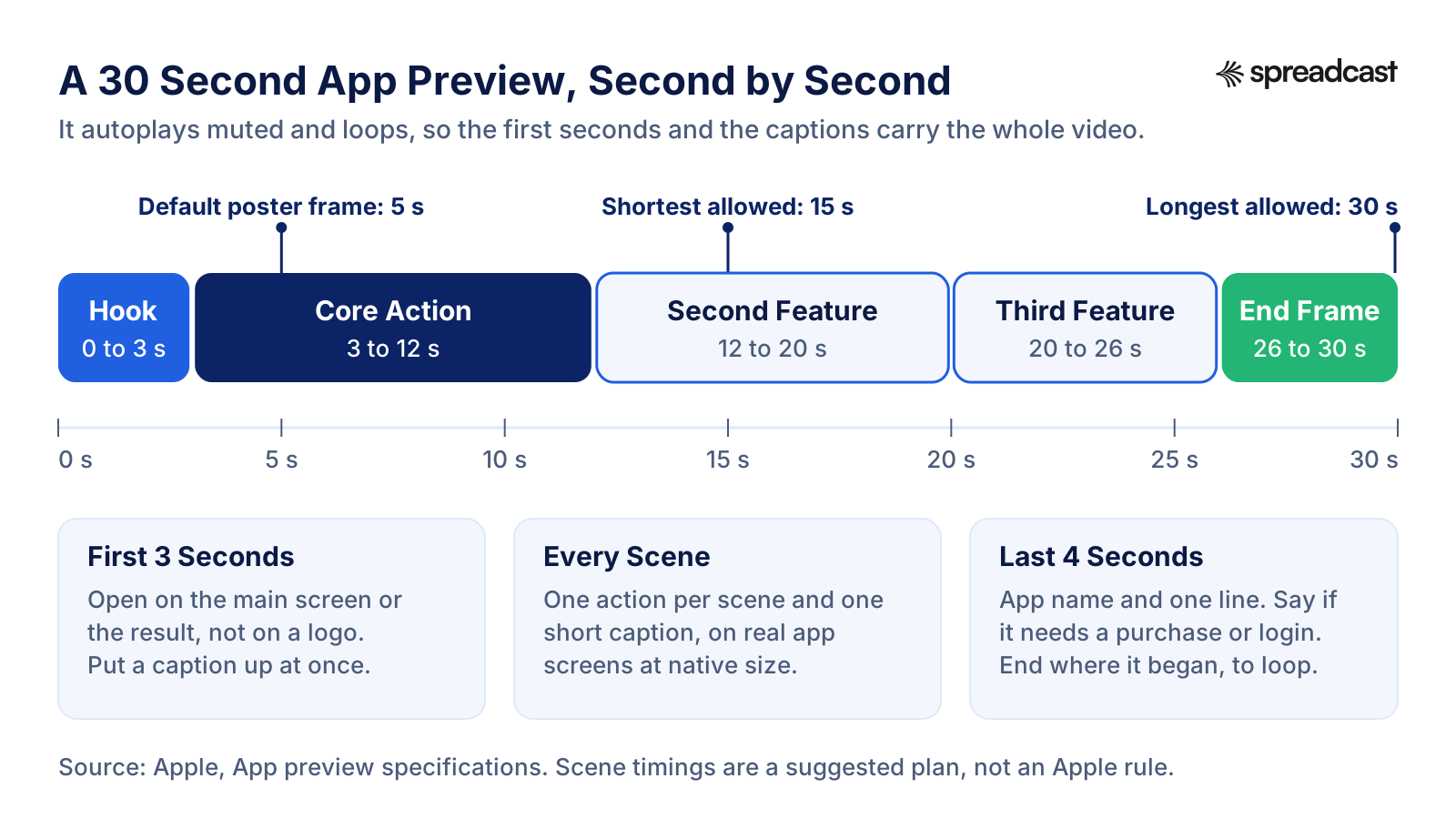
App Preview Video Template: A 30 Second Shot Plan
Copy this app preview video template into a spreadsheet and replace each row with your own screens. It is filled in for an example bill splitting app, so you can see what a finished plan looks like. Write the captions before you record; they tell you which screens you need.
| Time | Scene | What is on screen | Caption | Why it is there |
|---|---|---|---|---|
| 0 to 3 s | Hook | A dinner bill already split four ways, each total visible | Split any bill in seconds | Shows the outcome first. This frame also makes a good poster. |
| 3 to 7 s | Core action, part 1 | Tap Add Bill, then scan a receipt in the app's camera view | Scan the receipt | The main job of the app, shown as one clear action. |
| 7 to 12 s | Core action, part 2 | Line items appear; drag each one to a friend's avatar | Tap who had what | Proves the scan worked and shows the main gesture, with a touch hotspot graphic. |
| 12 to 16 s | Second feature | Tax and tip spread across everyone automatically | Tax and tip, done for you | A benefit screenshots struggle to show, because it is a change on screen. |
| 16 to 20 s | Second feature, result | Each person's share with a clear total | Everyone sees their share | A calm hold so the caption can be read. |
| 20 to 26 s | Third feature | Send payment requests and see who has paid | Settle up in one tap | Covers the reason people come back. |
| 26 to 30 s | End frame | App icon and name on a solid background, then a cut back toward the hook | Free to start. Pro is a subscription. | The disclosure guideline 2.3.2 asks for, and a clean loop. |
The app in this template is an example, not a real product. Keep each scene to one action and one caption, and keep the timings loose: a scene that needs 5 seconds should get 5.
App Preview Ideas by Type of App
The same structure works for most apps, but what goes in the hook changes with the category. These are starting points, drawn from Apple's guidance where it gives one.
To Do, Notes and Calendar Apps
Open on a full, realistic list or calendar rather than an empty state, then show the fastest input the app has, such as typing a task in plain language and watching it land on the right day. Things 3's poster frame, in the examples below, is simply a full, realistic project with no caption at all.
Photo and Video Editors
Lead with the before and after, then show the one control that made the change. Keep the edit real: the result on screen has to be something the app produces in that many taps, because transitions must not imply functions the app does not have.
Fitness and Health Apps
Start on a finished workout summary or a route map, then show logging a session. Use a demo account with invented stats and no real person's name, location or health data, since guideline 2.3.9 asks for fictional account information.
Finance and Banking Apps
Show an invented balance and a categorized list of spending, then the one action people care about, such as moving money or setting a budget. Avoid currency amounts in captions; Apple warns against prices because currencies differ by region.
Language and Learning Apps
Answer an exercise correctly in the first seconds and show the feedback. Captions should be in the language of each storefront, so plan a localized preview for your biggest markets rather than one English cut.
Games
Gameplay first, with more play than cutscenes, as Apple asks. Pick moments that fit a 4+ rating, use the orientation the game is played in, and show touch controls with hotspot graphics rather than fingers.
AR Apps
Apple's guidance is specific: use the first few seconds to show a virtual object being placed or moved, so people can tell what is virtual. Film in an uncluttered, well lit room with textured surfaces, and keep other players' devices out of shot in multiplayer scenes.
App Preview Video Examples From Live App Store Pages
Ten app preview video examples, read from the public US App Store pages on October 21, 2026. The size, orientation, length and frame rate come from the page data and the video stream Apple serves; the poster frame is the still Apple shows before the video plays. Listings change, so a page may show a different preview by the time you open it.
| App | Preview file | Length | Poster frame | What to take from it |
|---|---|---|---|---|
| Things 3 by Cultured Code | iPhone, 886 x 1920 portrait, 30 fps | 30 s | The app itself, full screen: a project called Vacation in Rome with a packing checklist, no caption | Real looking content explains a to do app without a single word of copy. |
| Todoist | iPhone, 886 x 1920 portrait, 30 fps | 30 s | The caption Powerful enough to scale to your team, above the task field with a picker of teammates | One benefit line, paired with the exact piece of interface that proves it. |
| Strava | iPhone, 886 x 1920 portrait, 30 fps | 30 s | An orange brand card with the logo and the line Track your workouts | Clear and on brand, but it shows no interface, so a viewer with autoplay off learns only the tagline. |
| Fantastical | iPhone, 886 x 1920 portrait, 30 fps | 29 s | Calendar views and widgets floating over a color gradient | Pieces of the real interface used as motion graphics, still built from the app's own screens. |
| Monument Valley 3 | iPhone, 886 x 1920 portrait, 24 fps | About 25.5 s | A gameplay frame: the main character on a boat in the game's pastel world | Gameplay, not a cutscene. It also shows that 24 fps is fine, since 30 is a maximum, not a target. |
| Clash Royale | iPhone, 886 x 1920 portrait, 30 fps | 27 s | The battle arena mid match, with troops on both sides | A busy gameplay frame tells a player the genre in a glance. |
| Pokémon GO | iPhone, 886 x 1920 portrait, 30 fps | 30 s | A close shot of a Pokémon against sky and grass | Leads with the thing people already know and want to see. |
| iPhone, 886 x 1920 portrait, 30 fps | 30 s | The Stories editor with the handwritten line with the people who get you | The caption is made with the app's own text tools, so the overlay is the product. | |
| Alto's Odyssey | iPhone, 1920 x 886 landscape, 30 fps | 30 s | The game's title logo on black | Landscape matches how the game is played. A logo poster relies on people already knowing the name. |
| Procreate | iPad, 1600 x 1200 landscape, 30 fps | 30 s | A canvas with a painted collage in progress and the full toolbar | An iPad preview at the accepted size that shows the tool in actual use. |
Lengths are the sum of the stream's segments, rounded. Seven of the ten run the full 30 seconds and none is shorter than 25. Eight of the ten posters show the app or game itself; two use a brand card or a logo.
How to Upload an App Preview and Set the Poster Frame in App Store Connect
You need the Account Holder, Admin, App Manager or Marketing role, according to Apple's guide to managing App Store assets. You can upload previews while a version is in Prepare for Submission, Invalid Binary, Rejected, Metadata Rejected or Developer Rejected status, or upload them to the Asset Library on their own, independent of any version.
- Step 1
Open the Version Page
In Apps, select your app, then select the app version under the platform you want to edit in the sidebar. To work on another language, choose it from the language menu at the top right.
- Step 2
Open the App Previews and Screenshots Tab
Under Product Page Information, click App Previews and Screenshots, then select the device tab. To manage scaled previews for other device sizes, click View All Sizes in Media Manager on the right.
- Step 3
Upload the Video
Click Upload or drag the file into the well. You can also click Browse Assets to reuse an approved, compatible video from the Asset Library. Processing can take up to 24 hours, so upload a day before you plan to submit.
- Step 4
Set the Poster Frame
In Media Manager, scroll to the device size, hold the pointer over the preview and click Edit Poster Frame. Use the playback controls to find the frame you want, click Set Poster Frame, then Done. You can also do this from the Product Page Information section, and the poster frame you set applies everywhere the asset is used.
- Step 5
Choose the Poster Before Review, Not After
Apple's assets guide says poster frames cannot be edited after the asset is approved, and its app previews page says changing the poster frame on an approved preview means submitting a new version of the preview. Pick a frame that explains the app on its own, because it is all that people with autoplay off will see.
- Step 6
Submit for Review
Submit the preview with your app version, or as a standalone submission from the Asset Library. Teams that automate uploads can use the App Preview Sets endpoints in the App Store Connect API. For how long review takes and what each status means, see our guide to App Store review times.
Localized App Previews and Custom Product Pages
Previews belong to a language. You can upload up to three for each language your app supports, and Apple's specifications say that if a localized preview is missing, the App Store shows the preview in the next best available language. Apple's localization guide adds that when you add a language, its screenshots and most other properties start as copies of the primary language until you replace them.
A localized preview means three things: captions in the local language, the app's interface recorded in that language, and content that fits the market, such as local names and a sensible currency in the footage. The cheapest way to get there is to switch the device language, record the same scenes again, and keep your captions on their own layer in the editor so you can swap the text without rebuilding the video. Start with the two or three storefronts that bring the most downloads rather than all of them.
Custom product pages are where a second or third preview earns its keep. Apple's custom product pages overview says you can publish up to 70 additional versions of your product page, each with its own screenshots, promotional text and app previews, a unique URL, and optional keywords that let the page appear in search. They also work as destinations for Apple Ads. Apple reports that developers see a 2.5 percentage point increase in conversion rate on average when they send people to a custom product page, a 156% increase over the 1.6% average on default pages. That figure is for custom product pages as a whole, not for previews alone.
The practical move is to make the preview match the reason someone arrived. An ad about receipts should land on a page whose preview opens on scanning a receipt. Our iOS app marketing guide covers custom product pages, Apple Ads and the rest of the product page in depth, and the App Store campaign link generator makes the tracked links that show which page each channel sends traffic to.
To test a preview rather than guess, use product page optimization. Apple's product page optimization page says you can test up to three alternate versions of your page against the original, with different icons, screenshots and app previews, for up to 90 days, shown to a random share of people on iOS and iPadOS 15 or later. Tests without an alternate icon can be submitted for review without a new app version, which makes a preview test cheap to run.
Do App Preview Videos Increase Conversion?
Sometimes, and the only number that settles it is your own. The published tests point in both directions, many are years old, and several come from companies that sell testing tools. Here is what each one actually says, with its date and who ran it.
Apple's own example argues for caution. On its product page optimization page, Apple presents a developer story from Simply Piano. The hypothesis was that adding an app preview as the first asset would convert better than screenshots alone. After a 12 day test with one treatment, Apple reports that the page without the preview video performed better, with a 3% difference in conversion rate at 100% confidence. Apple does not give the year of the test.
A vendor case study points the other way. SplitMetrics' case study on Prequel, a photo and video editing app, says the team tested replacing its video with screenshots and found the page performed worse without the video: visitors were less likely to stay, scroll the screenshots or interact. A later test of a new poster frame, with a caption saying that Prequel is a photo and video editor, is reported as an improvement of around 75%, but the page does not name the metric, the sample size or the date, and SplitMetrics sells the testing tool used.
The older figures need the most care. In August 2017, the agency AppAgent published its own tests on Phiture's ASO Stack blog: across iOS tests with nearly 9,000 visitors, only 0.5% watched any video, and the article puts the average play rate at 2%. Those tests predate autoplay. As Apptamin's guide to iOS 11 app previews explains, before iOS 11 people had to tap play on the poster frame, and from iOS 11 previews autoplay muted. The same guide reports Storemaven estimates from before iOS 11 of a 20 to 35% conversion lift from a video and of video watchers being three times more likely to install. They are vendor numbers from a store that no longer works that way, so treat them as history.
What follows from all this is practical. A preview tends to help when it shows something screenshots cannot: motion, gameplay, a workflow that is faster than it sounds. It can hurt when it delays the message, opens on a logo, or pushes strong screenshots out of the first slots in search results. If your page gets enough traffic, run a product page optimization test with one treatment that has the preview and one that does not, or with two poster frames, and keep whichever wins.
Video: Testing an App Preview With Product Page Optimization
Apple's session on product page optimization shows how to set up a test of icons, screenshots and app previews in App Store Connect, and how to read the results before you apply a winner.

App Preview Video Maker Tools: Apple's Own First
You do not need a paid app preview video maker. Apple's free tools cover recording and editing, and a free converter handles the exact export. Prices and versions were checked on each maker's own page on October 21, 2026.
| Tool | Made by | What it does for an app preview | Price |
|---|---|---|---|
| Screen recording in Control Center | Apple | Records the iPhone or iPad screen on the device and saves it to Photos, per Apple Support. | Free |
| QuickTime Player | Apple | Records a connected iPhone or iPad from a Mac, the capture method Apple's app previews page suggests. | Free with macOS |
| Xcode Device Hub and simctl | Apple | Records simulated devices; simctl adds a fixed status bar and H.264 output from Terminal. | Free with Xcode |
| iMovie for Mac | Apple | Has a dedicated App Preview project with titles, transitions, a soundtrack and voiceover. | Free on the Mac App Store |
| Final Cut Pro | Apple | Professional editor with motion graphics, export presets and custom export settings, including ProRes. | $299.99 one time on the Mac App Store, or in Apple Creator Studio at $12.99 a month or $129 a year, per Apple's Final Cut Pro page |
| DaVinci Resolve | Blackmagic Design | Full editor; Blackmagic says the free version works with 8 bit formats up to 60 fps at Ultra HD 3840 x 2160, which covers every preview size. | Free; Studio version $236 |
| ffmpeg | The FFmpeg project | Command line tool to scale, crop, set the frame rate and add a silent track in one step. | Free |
| HandBrake | The HandBrake Team | Open source converter, handy for converting an editor's export again when upload processing stalls. | Free and open source |
| App Preview Converter | Sarun Wongpatcharapakorn | Mac app that converts a recording to the exact size, 30 fps and length, and adds a silent audio track. | $2.99 |
| Previewed | Previewed | Web tool that renders app promo videos with 3D device scenes. Useful for social and web; device frames are not screen captures, so keep them out of the App Store preview itself. | Lite free, Plus $9.99 one time, Pro $19 a month billed yearly |
Apple does not publish a downloadable app preview template file. The closest official starting point is iMovie's App Preview project; the shot plan above is a template for the content.
Video: App Preview Best Practices for Apps and Games
A short lesson from AppTweak's ASO course on when a store video is worth making and what to do differently for apps and for games.

Common App Preview Rejections and Upload Errors
The first five problems are upload errors that App Store Connect shows before review; the rest are reasons App Review turns a preview down. For rejections in general, see our guide to App Store rejection reasons.
| Problem | What you see | Fix |
|---|---|---|
| Wrong dimensions | The dimensions of one or more of your files don't match the requirements for this device, as quoted by Sarun Wongpatcharapakorn. A raw screen recording at the phone's resolution triggers it. | Export exactly to the accepted size for that slot, 886 x 1920 for current iPhones. Scale and crop; do not stretch. |
| Frame rate too high | The frame rate of your app video preview is too high. The same developer explains that screen recordings often run at 60 fps or at a variable rate. | Convert to a constant 30 fps with fps=30 in ffmpeg or a 30 fps project in your editor. |
| Audio refused | Your app preview contains unsupported or corrupted audio, reported on Apple's forums even for previews with no audio at all. | Add a stereo AAC track at 48 kHz, silent if you like. |
| Wrong length | App Store Connect refuses files under 15 seconds or over 30. | Trim to between 15 and 30 seconds; a 30 second cap with -t 30 in ffmpeg is the simplest guard. |
| Stuck in processing | Apple allows up to 24 hours. Past that, developers report exports from some editors never finish processing. | Wait a day, then convert the file again with ffmpeg or HandBrake and upload the new file. |
| Not a screen capture (2.3.4) | Live action footage, hands on a phone, device mockups or animation the app cannot produce. | Rebuild from screen recordings. Text, graphics and touch hotspots on top are fine. |
| Prices or hidden purchases (2.3.7, 2.3.2) | A price or discount in a caption, or paid features shown with no disclosure. | Remove prices and add a line about purchases, subscriptions or login. |
| Content, rights or platforms (2.3.8 to 2.3.10) | Violence beyond a 4+ rating, unlicensed music or brands, a real person's data, or another platform's devices and badges. | Swap the scenes, license the track, use a demo account. Our page on App Store age ratings explains the 4+ bar. |
| Out of date | A preview that shows an interface the app no longer has, after a redesign. | Section 2.3 asks for metadata kept up to date with new versions, so record again with major updates. |
App Store App Preview vs Google Play Preview Video
Many teams ship on both stores, and the two video slots work differently. The Google Play column comes from Google's Play Console Help page on preview assets, read October 21, 2026.
| Question | App Store app preview | Google Play preview video |
|---|---|---|
| How you add it | Upload a video file in App Store Connect. | Paste a YouTube URL in Play Console. |
| How many | Up to 3 per device size and language. | One preview video per store listing; Google recommends a localized video for each market. |
| Length | 15 to 30 seconds. | No fixed limit, but only the first 30 seconds autoplay, and Google recommends keeping it short. |
| Autoplay | Muted autoplay on the product page and in search results. | May autoplay muted for up to 30 seconds, depending on device, setting, network and placement. |
| What it must show | Screen captures of the app only (guideline 2.3.4). | The actual in app experience within the first 10 seconds, with at least 80% of the video representative of using the app. |
| Orientation | Portrait or landscape on iOS; landscape only on Mac, TV and Vision Pro. | Portrait or landscape, with no black bars on the sides of a portrait video. |
| File rules | H.264 or ProRes 422 HQ, 30 fps at most, exact accepted sizes, 500 MB at most. | A public or unlisted YouTube video that can be embedded, is not age restricted and has ads turned off. |
One edit can serve both stores: cut the App Store version from screen captures first, then publish the same file to YouTube for Google Play, since Google's rules are looser.
App Preview vs Product Page Header and Search Result Videos
Since iOS 27 and iPadOS 27, the App Store has a second kind of video. Creative assets can fill the product page header and your search result, and guideline 2.3.14 lets them highlight your brand or content instead of the app in use. Sizes come from Apple's creative assets specifications.
| Question | App preview | Creative asset video |
|---|---|---|
| What it must show | Screen captures of the app itself. | Your app's content, function or overall brand; it does not have to show the app in use. |
| Where it appears | Product page media row, search results and Apple Ads. | Product page header and search results, on iOS 27 and iPadOS 27 or later. |
| Length | 15 to 30 seconds. | 5 to 30 seconds. |
| Frame rate | Up to 30 fps. | 30 or 60 fps. |
| Size | Exact accepted sizes such as 886 x 1920. | Header 3840 x 1646 (21:9). Search results from 1920 x 1280 to 3840 x 2560 (3:2). |
| Sound | Autoplays muted. | Muted by default and loops; it cannot be unmuted in search results but can be on the product page. |
| Review | With an app version, or from the Asset Library. | Can be submitted alone from the Asset Library and is reviewed against your latest version. |
Apple's guide to managing App Store assets describes creative assets as optional and separate from screenshots and app previews. For a full walk through the new placements, see our App Store screenshot sizes guide.
App Preview Video Checklist Before You Upload
Run through this list with the exported file open. Every line maps to an Apple rule or to an upload error covered above.
| Check | Passes when |
|---|---|
| Size | The file is exactly the accepted size for its slot: 886 x 1920 for current iPhones, 1200 x 1600 for iPad, 1920 x 1080 for Mac and Apple TV. |
| Frame rate | Constant, and 30 fps or lower. Ffprobe shows the same value for r_frame_rate and avg_frame_rate. |
| Length and weight | Between 15 and 30 seconds, and under 500 MB. |
| Codec and audio | H.264 in .mp4 or .mov (or ProRes 422 HQ in .mov) with a stereo AAC track at 44.1 or 48 kHz, even if silent. |
| First three seconds | The app is on screen with a caption from the first frame. No logo intro, splash screen or sign in. |
| Captions | One short line per scene, readable at phone size, on screen for at least two seconds, with no prices or dates. |
| Footage | Only screen captures. No hands, devices, frames or live action; graphics and touch hotspots on top only. |
| Content | Fictional data, a 4+ level of content, licensed music and no other platform's devices or badges. |
| Disclosure | If features cost extra or need a subscription or login, the video says so, in a scene or on the end frame. |
| Poster frame | A deliberate frame that explains the app on its own, set before you submit. |
| Loop | The last scene leads back into the first without a jarring jump. |
| Placement | Same orientation as your screenshots, so the video stays in the top media row. |
| Localization | Captions and interface in each language you upload a preview for. |
Before the preview, check your still images too: the App Store screenshot size checker confirms every PNG or JPG is a size Apple accepts.
Where Spreadcast Fits
Spreadcast does not make App Store preview videos, and it does not upload anything to App Store Connect. Everything above is work you do with Apple's tools or an editor. The preview has a narrow job: it sells the app to people who are already on your product page or in search results.
Spreadcast works on the other side of the store, for people who are not looking at your page today. You paste your App Store link once at the start page, and Spreadcast checks the listing every day. When a new version ships, it designs a post about the update with your real app screenshots in an iPhone frame, in your brand colors and fonts, writes the caption for each network, and publishes it to Instagram, TikTok, LinkedIn, Facebook, Threads, Pinterest, Bluesky, Mastodon, Telegram and Discord, plus YouTube for video posts, on full autopilot or after your one tap approval. It also posts when the app reaches a rating milestone. It watches the App Store only, not Google Play.
The two fit together. When you ship a release big enough to record a new preview, the same update is worth telling your followers about, and Spreadcast handles that post without another round of design work. The free plan makes 3 posts for you to download; Pro, at $29 a month, publishes for you. The details are on the pricing page. The footage you recorded for the preview is good raw material for social video too: our guide to promoting an app on TikTok covers that format, and the iPhone mockup generator puts stills in a device frame, which is fine on social even though it is not allowed in the preview itself. For the wider picture of the product page, see our guide to App Store optimization.
Frequently Asked Questions
What is an app preview video on the App Store?
An app preview is a 15 to 30 second video on your App Store product page that shows your app in use, made from screen recordings. It plays before your screenshots, autoplays muted on the product page and in search results, and can be used in Apple Ads, according to Apple's app previews page.
What size should an App Store preview video be?
For every iPhone with Face ID or Dynamic Island, the accepted size is 886 x 1920 pixels in portrait or 1920 x 886 in landscape. For iPad it is 1200 x 1600 or 1600 x 1200, with 900 x 1200 for the 9.7 inch slot. Mac and Apple TV take 1920 x 1080 and Apple Vision Pro takes 3840 x 2160, per Apple's app preview specifications.
How long can an app preview be?
At least 15 seconds and at most 30 seconds. Apple refuses files outside that range, so trim before you upload.
What frame rate and format does an app preview need?
No more than 30 frames per second, as an .mov, .m4v or .mp4 file in H.264 (target 10 to 12 Mbps) or an .mov in ProRes 422 HQ, with stereo audio at 44.1 or 48 kHz and a maximum size of 500 MB. Use a constant frame rate; screen recordings often run faster or vary.
Are app previews required?
No. Apple calls app previews optional, unlike screenshots, which are required for each required device size. Several large apps, including Notion, Calm, Headspace and Duolingo, showed no iPhone preview when we checked on October 21, 2026, and Apple's own product page optimization example shows a page converting better without one.
How many app previews can I upload?
Up to three for each supported device size and language. If you have more than one, Apple suggests the first gives an overview and each of the others shows something new.
Do app previews play with sound?
They autoplay with the sound muted. People can turn the sound on while watching, but you should assume they will not, so put captions on every scene. People who turn video autoplay off in their App Store settings see only the poster frame.
Can I show a phone frame or hands in an app preview?
No. Guideline 2.3.4 says previews may only use video screen captures of the app itself, and Apple's guidance tells you not to film people using a device. Use touch hotspot graphics to show gestures, and save device frames for social media versions.
Can I add music or a voiceover to an app preview?
Yes. Guideline 2.3.4 allows narration and video or text overlays, and Apple suggests a single music track for continuity. You must have the rights to the music in every territory where the app is sold, and the video still has to work with the sound off.
How do I change the poster frame of an app preview?
Before approval, open View All Sizes in Media Manager, hold the pointer over the preview, click Edit Poster Frame, pick the frame and click Set Poster Frame, as Apple's assets guide describes. After approval the poster frame cannot be edited; you have to submit a new version of the preview.
Why is my app preview stuck on processing?
Apple says processing can take up to 24 hours. If it is still stuck after that, developers report that converting the file again with ffmpeg or HandBrake, at the exact accepted size, a constant 30 fps and with a stereo AAC track, then uploading the new file, can fix it.
Do app previews increase downloads?
It depends on the app. Apple's own published example from Simply Piano found the page without a preview converted 3% better, while a SplitMetrics case study on Prequel found the page did worse without its video. Test it on your own page with product page optimization rather than relying on old averages.
Where These Facts Come From
Every outside number, rule and price on this page links to the page it was taken from.
- App preview specificationsApple Developer, App Store Connect Help
- Show more with app previewsApple Developer
- Manage your App Store assetsApple Developer, App Store Connect Help
- Localize app informationApple Developer, App Store Connect Help
- App Review Guidelines, section 2.3 Accurate MetadataApple Developer
- Creating your product pageApple Developer
- App Store searchApple Developer
- App Store asset best practices and resourcesApple Developer
- Custom product pagesApple Developer
- Product page optimizationApple Developer
- Creative assets specificationsApple Developer, App Store Connect Help
- Capturing screenshots and videos from devicesApple Developer Documentation
- Capturing screenshots and video from Apple Vision Pro for 2D viewingApple Developer Documentation
- App Preview Sets, App Store Connect APIApple Developer Documentation
- Record a movie in QuickTime Player on MacApple Support
- Create an app preview in iMovie on MacApple Support
- Record the screen on your iPhone, iPad or iPod touchApple Support
- Change App Store settings on MacApple Support
- iMovie on the Mac App StoreApple
- Final Cut Pro on the Mac App StoreApple
- Final Cut ProApple
- DaVinci ResolveBlackmagic Design
- HandBrake, the open source video transcoderThe HandBrake Team
- FFmpegFFmpeg
- FFmpeg filters documentationFFmpeg
- App Preview ConverterSarunw
- Previewed app mockups and promo videosPreviewed
- How to fix the frame rate of your app video preview is too high errorSarunw
- How to fix app preview wrong resolution error in App Store ConnectSarunw
- How to fix the app preview contains unsupported or corrupted audio errorSarunw
- Your app preview contains unsupported or corrupted audio, forum threadApple Developer Forums
- App preview upload stuck at processing, forum threadApple Developer Forums
- Add preview assets to showcase your appGoogle Play Console Help
- Prequel case study on App Store video testingSplitMetrics
- Why 7 seconds could make or break your mobile appPhiture, ASO Stack
- iOS 11 App Previews: how to leverage video on the latest iOS App StoreApptamin
- Things 3 on the App StoreApple App Store
- Todoist on the App StoreApple App Store
- Strava on the App StoreApple App Store
- Fantastical on the App StoreApple App Store
- Monument Valley 3 on the App StoreApple App Store
- Clash Royale on the App StoreApple App Store
- Pokémon GO on the App StoreApple App Store
- Instagram on the App StoreApple App Store
- Alto's Odyssey on the App StoreApple App Store
- Procreate on the App StoreApple App Store
- Get started with product page optimization, WWDC21Apple Developer
- Easily Create App Previews Using iMovieazamsharp
- How to optimize videos for the App Store and Google Play: app preview videosAppTweak
Researched and written by Spreadcast. Last checked on October 21, 2026.