How to Use This Telegram Text Formatting Tool
The tool above has two modes, Formatter and Fonts. Formatter is for posts and captions, where Telegram supports real formatting. Fonts is for your name, bio and channel details, where it does not. Both run in your browser, and nothing you type is sent anywhere.
- Step 1
Write or Paste Your Post
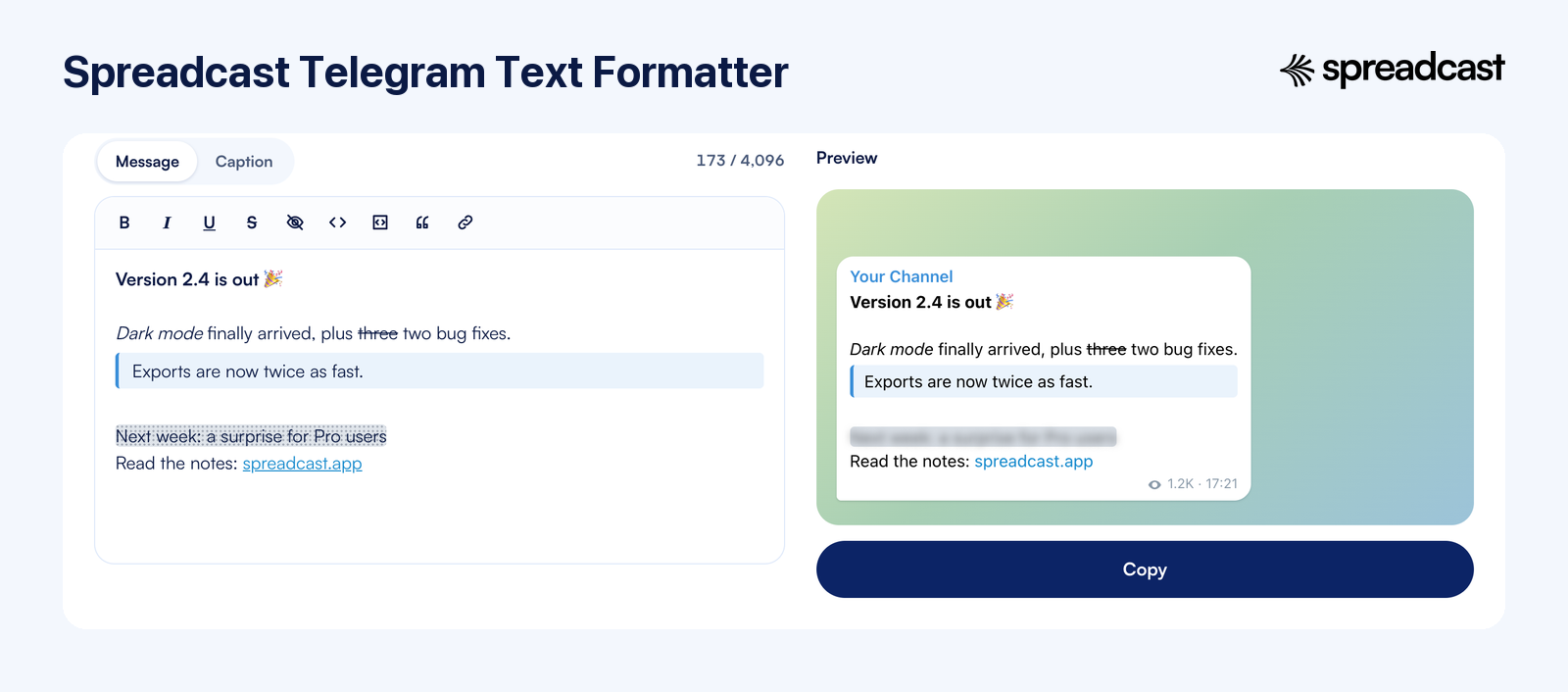
Type in the box, or paste a draft. The box works like Telegram's own message field: the formatting shows on the words themselves, with no markers around them. It starts with a sample post that uses most formats, which you can clear. A paste brings in the words only, so you format them here. The Preview on the right redraws as you type, styled like a post in a channel with a name, a view count and a time.
- Step 2
Select Words and Press a Button
Select a word, then press a button on the toolbar above the text: Bold, Italic, Underline, Strikethrough, Spoiler, Monospace, Code block, Quote or Link. Press the same button again to take the format off. Link opens a small field under the toolbar; type the address and press Add Link. The shortcuts match Telegram Desktop: Cmd or Ctrl with B, I or U, with Shift and X for strikethrough, Shift and P for a spoiler, Shift and M for monospace, Shift and the period key for a quote, and K for a link.
- Step 3
Pick Message or Caption
Above the box, switch between Message and Caption. The counter beside it, which reads 173 / 4,096 for the sample, follows Telegram's 4,096 character limit for a message and 1,024 for a caption. It counts the way Telegram does: one per letter or simple emoji, with the formatting itself not counted. If you go over, the counter turns red and a line under the box says by how much. In Caption, the preview puts a photo above the text.
- Step 4
Copy for Telegram
Press Copy under the preview, then paste into the message field in Telegram. In Telegram Web and on Android the formatting comes through when you paste. In Telegram Desktop and on iPhone we could not confirm that pasted formatting is kept, but bold, italic, strikethrough, code and spoilers also go on the clipboard as typed markers, and those turn into formatting when you send. Add links, quotes and underline there with Telegram's own formatting menu. Check the post in the field before you send it.
- Step 5
Or Copy the Code for Your Bot
Below the editor, the Bot API panel shows the same post as HTML or MarkdownV2. Pick a tab and press Copy. Special characters are already escaped, so you can paste the text into sendMessage with parse_mode set to HTML or MarkdownV2 and it will not fail on a stray full stop.
What the Telegram Text Formatter Looks Like
The Formatter mode with its sample post: toolbar and box on the left, the channel style Preview and the Copy button on the right.
What Telegram Text Formatting Can Do
Telegram has real text formatting, not just look alike letters. Its FAQ lists what you can do after you select text in the message field: bold, italic, underline, strikethrough, a spoiler that hides the words, monospace, a link and a quote. Long quotes can be collapsed. A Date option inserts a date and time that each reader sees in their own time zone and can tap to add to a calendar.
The same FAQ answer describes a rich text editor for Telegram Premium users, with headings, tables, lists, code blocks and photos, videos or files inside the text, for messages of up to 32,768 characters. It opens from an icon that appears after you type more than 3 lines, and an Ai icon next to it opens an AI editor that fixes grammar, changes the style or translates. Bots can send the same kind of long post with the Bot API's rich messages, which have their own Markdown, HTML and limits. Rich messages are a separate format, so this page sticks to the everyday formatting every account and every normal bot message has.
For bots, the Bot API formatting options cover the same ground: bold, italic, underline, strikethrough, spoiler, block quotes, expandable block quotes, inline links, user mentions, inline code and code blocks with a language, plus custom emoji and date entities. You can send them as HTML, as MarkdownV2, or as a list of entities with offsets.
It also helps to know what Telegram cannot format. Your name, your bio, a channel's name and a channel's description are plain text fields with no bold or italic. That is why the tool has a second mode, Fonts, which uses Unicode look alike letters instead. More on the trade offs of that further down.
The formats also have rules about mixing. The Bot API says bold, italic, underline, strikethrough and spoiler can sit inside each other and inside links, but none of them can go inside inline code or a code block, and block quotes cannot be nested. The apps follow the same model, because every message ends up as the same list of entities on Telegram's servers.

Telegram Text Formatting Shortcuts on Every App
Telegram ships several apps, and they do not share one set of shortcuts. This table comes from each app's own source code, read on 28 November 2026. Telegram Desktop is the app for Windows, Linux and Mac from desktop.telegram.org; Telegram for macOS is the separate native Mac app. Ctrl means Cmd when Telegram Desktop runs on a Mac.
| Format | Telegram Desktop | Telegram for macOS | Android with a keyboard | Web A |
|---|---|---|---|---|
| Bold | Ctrl+B | Cmd+B | Ctrl+B | Ctrl+B |
| Italic | Ctrl+I | Cmd+I | Ctrl+I | Ctrl+I |
| Underline | Ctrl+U | Shift+Cmd+U | Ctrl+U | Ctrl+U |
| Strikethrough | Ctrl+Shift+X | Shift+Cmd+X | Ctrl+Shift+X or Ctrl+Shift+S | Ctrl+S with text selected |
| Monospace | Ctrl+Shift+M | Shift+Cmd+K | Ctrl+Shift+M or Ctrl+E | Ctrl+Shift+M |
| Spoiler | Ctrl+Shift+P | Shift+Cmd+P | Ctrl+Shift+P | Ctrl+Shift+P |
| Link | Ctrl+K | Cmd+U | Ctrl+K | Ctrl+K |
| Quote | Ctrl+Shift+period | Shift+Cmd+I | No shortcut in the code we read | Ctrl+Shift+B |
| Date | Ctrl+Shift+D | Menu only | Menu only | Not checked |
| Clear formatting | Ctrl+Shift+N | Cmd+backslash | Menu: Regular | Not checked |
Sources: Telegram Desktop's input field code, the native Mac app's shortcut list, Android's chat input code and the Web A repository. Android shortcuts only work with a hardware keyboard and with text selected. On Web A, Ctrl is Cmd on a Mac. The formatter on this page uses the Telegram Desktop column.
Telegram Formatting Cheat Sheet
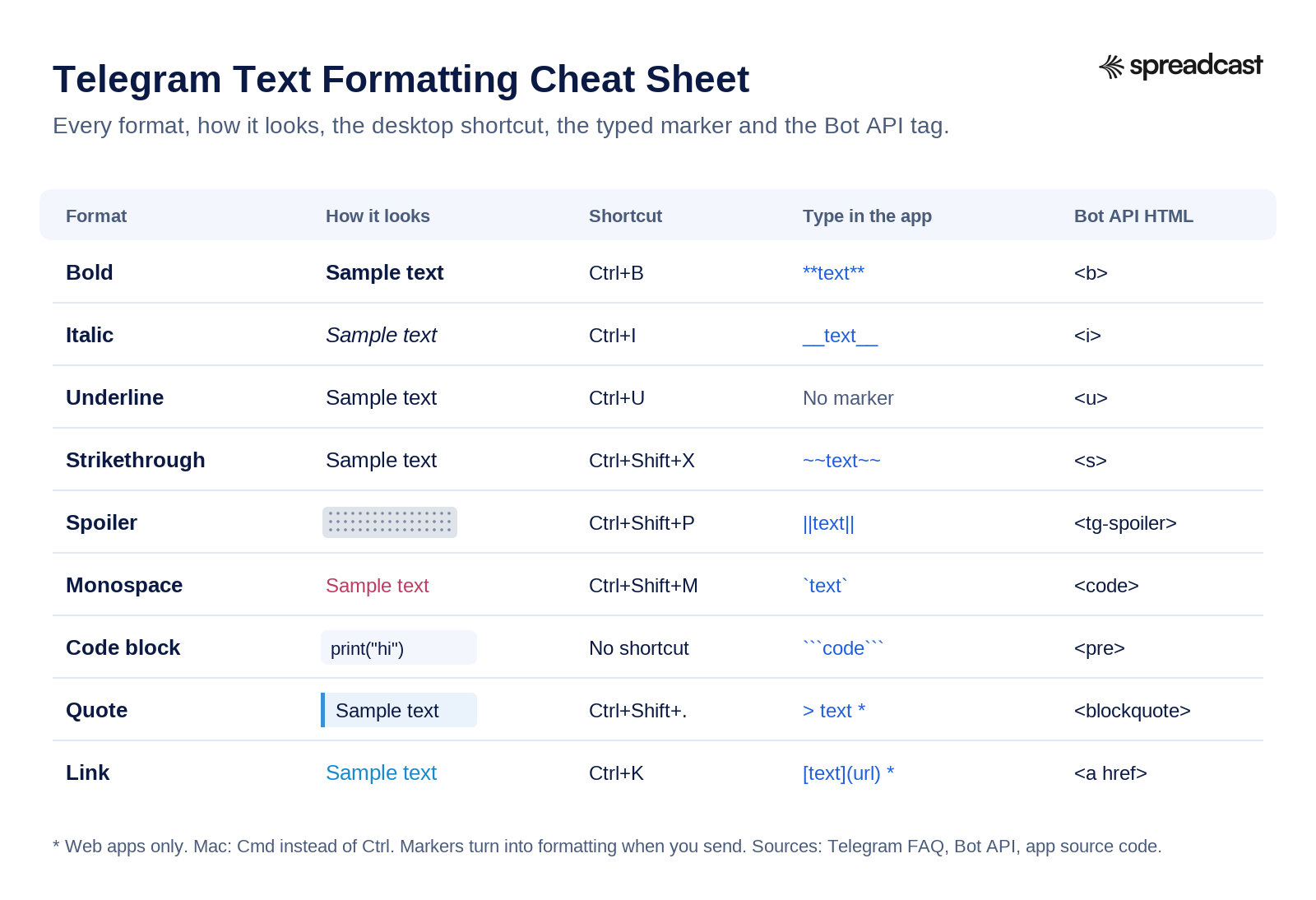
Every format on one page: how it looks, the Telegram Desktop shortcut, the marker you can type in the app and the Bot API HTML tag.
How to Bold Text in Telegram
On a computer, select the words and press Ctrl+B, or Cmd+B on a Mac. That works in Telegram Desktop, the native Mac app and Web A. You can also right click the selection: Telegram Desktop has a Formatting submenu with Bold at the top, and the native Mac app has a submenu also called Formatting. The names come from the apps' own text files, Desktop's and the Mac app's.
On iPhone and iPad, select the words in the message field, tap Format in the menu that appears over the selection, then tap Bold. The Format item and its Bold, Italic, Monospace, Link, Strikethrough, Underline, Spoiler and Quote entries are all in the iOS app's strings. On Android, select the words and open the menu over the selection; the formats can sit behind the three dots. Android's text field code adds Bold, Italic, Mono, Strikethrough, Underline, Spoiler, Create Link, Quote, Date and Regular, which clears the formatting.
In the browser, Web K shows a small bar over any text you select in the message field, with buttons for bold, italic, underline, strikethrough, quote, date, link, monospace and spoiler, as its formatting bar code lays out. Web A has the keyboard shortcuts in the table above.
In the apps you can also type it. Put two asterisks on each side, like **this**, and every Telegram app turns it into bold when you send. You see the asterisks while you type and the bold only after sending, so you cannot check the result in the field first. In the formatter above you press Bold instead, and the words turn bold in the box and in the preview straight away.
One thing that trips people up: a single asterisk does nothing in the apps. *This* goes out with the asterisks still in it. In a bot's MarkdownV2 it is the other way round, and single asterisks mean bold. Mixing the two up is the most common reason a bold line comes out wrong.
Bold works best on the first line of a channel post and on short labels inside it, such as a price or a date. A whole post in bold has nothing to stand out from, and it is harder to read on a phone. For release posts like the sample in the tool, our app update announcement examples collect real ones to borrow a structure from, and the release notes generator drafts the words you then format here.

How to Italicize Text in Telegram
Select the text and press Ctrl+I, or Cmd+I on a Mac. On a phone, pick Italic from the Format menu on iPhone or the selection menu on Android.
To type it, put two underscores on each side, like __this__. Telegram Desktop, the Android app, the iPhone app and Web K turn that into italic when you send. Web A is the odd one out: according to its code, it reads two underscores as bold, because it follows the default of the editor library it is built on. We read that in the code and did not test it live, so if you write in Web A, use Ctrl+I or check the result after sending.
In a bot, italic is a single underscore on each side in MarkdownV2, and two underscores mean underline. That clash is why a site that tells you __text__ is italic in MarkdownV2 is wrong for bots, even though it is right for the apps.
How to Underline Text in Telegram
Underline is the only common format with no typed marker in Telegram. You have to use a menu or a shortcut. On a computer, select the words and press Ctrl+U in Telegram Desktop, Web A or Android with a keyboard. On iPhone, tap Format, then Underline. On Android, choose Underline from the selection menu.
On the native Mac app the shortcut is different, and this is the one people search for: underline is Shift+Cmd+U, because plain Cmd+U makes a link in that app. The app's own shortcut list shows both. In Telegram Desktop running on a Mac, Cmd+U is underline as usual.
In the formatter, select the words and press Underline, or Cmd or Ctrl with U. The box, the preview, the HTML and the MarkdownV2 all show a real underline. Since no Telegram app has a typed marker for it, the plain text part of Copy leaves those words plain, so when you paste into Telegram Desktop or the iPhone app, add the underline there with the menu.
Use underline sparingly. Readers expect underlined words to be links, and on Telegram a link already has its own color.
How to Strikethrough Text in Telegram
Type two tildes on each side, like ~~this~~, and every Telegram app sends it struck through. With a selection, press Ctrl+Shift+X in Telegram Desktop or Shift+Cmd+X in the Mac app. Android with a keyboard accepts Ctrl+Shift+X or Ctrl+Shift+S, and Web A uses Ctrl+S when text is selected. On a phone, Strikethrough is in the Format menu on iPhone and in the selection menu on Android.
Strikethrough is good for showing a change: an old price next to a new one, or a plan you dropped. The sample post in the formatter uses it for exactly that, two bug fixes with the old count struck out.
In MarkdownV2 for bots, strikethrough is a single tilde on each side. In legacy Markdown it does not exist at all.
How to Send a Spoiler in Telegram
A spoiler hides words until the reader taps them. When Telegram added spoilers in December 2021, it said the hidden part stays hidden in the chat, in the chat list and in notifications. Select the words, then choose Spoiler: Ctrl+Shift+P in Telegram Desktop, Web A and Android with a keyboard, Shift+Cmd+P in the Mac app, Format then Spoiler on iPhone, or Spoiler in Android's selection menu.
To type a spoiler, put two vertical bars on each side, like ||this||. Every Telegram app turns that into a spoiler when you send. It is also the MarkdownV2 syntax for bots, so this is one marker that means the same thing in the apps and in the Bot API.
You can hide a photo or a video too. Telegram's hidden media update from December 2022 describes it: in the attachment menu, select one or more items, open the menu and choose Hide with Spoiler. The picture is covered with a shimmering blur until the reader taps it. A bot does the same by passing has_spoiler set to true with the photo or video, a parameter listed under sendPhoto and sendVideo. If you make the picture for the post, our social media image sizes guide lists the shapes each network expects.
In a channel, spoilers work well for quiz answers, results, plot points and anything you want readers to stop and tap. Do not hide the main point of a post behind one. A reader skimming the feed sees a grey shimmer, not a reason to open the post.
In the formatter, press Spoiler, or Cmd or Ctrl with Shift and P, and the selected words get a dotted grey background in the box while the preview hides them. Tap the hidden part in the preview to show it, the way a reader would.
How to Quote in Telegram
Telegram has two kinds of quotes, and they are easy to mix up. The first is quote formatting: any text you write can become a block with a bar down its side. Telegram's October 2023 update added it, including several quotes in one message. Select the lines and press Ctrl+Shift+period in Telegram Desktop, Shift+Cmd+I in the Mac app or Ctrl+Shift+B in Web A. On a phone, pick Quote from the Format menu on iPhone or the selection menu on Android.
The second kind is quoting someone else's message in a reply. In the apps, you can pick part of the message you reply to, and only that part shows above your answer. That is a reply feature, not formatting, so it is not something a formatter can produce.
Long quotes can be collapsed. In the May 2024 update, Telegram described it this way: add quote formatting, then tap the collapse button in the input field. Readers see the first lines and expand the rest. Bots get the same result with the expandable attribute in HTML, or in MarkdownV2 by starting the first line with two asterisks and a greater than sign and ending the last line with two vertical bars.
Typing a greater than sign and a space at the start of a line turns the line into a quote only in the two web apps, Web A and Web K. Telegram Desktop, Android and the iPhone app send the sign as a plain character. That is why the formatter's Copy button puts real quote formatting on the clipboard. Telegram Web and Android keep the block when you paste. In Telegram Desktop, add it after pasting with Formatting, then Quote, and on iPhone with Format, then Quote.
In the formatter, put the cursor in a line, or select several, and press Quote, or Cmd or Ctrl with Shift and the period key. The box shows the bar at once. It makes normal block quotes; it does not make expandable quotes yet, so for a long collapsed quote, add the collapse in Telegram after you paste.
Telegram Code Formatting: Monospace and Code Blocks
Monospace sets words in a fixed width font, which suits commands and codes. Wrap the words in one backtick on each side, like `this`, and every Telegram app sends it as monospace. The shortcut is Ctrl+Shift+M in Telegram Desktop and Web A, Shift+Cmd+K in the Mac app, and Ctrl+Shift+M or Ctrl+E on Android with a keyboard.
For a block of code, put three backticks on the line before and the line after. Every Telegram app turns that into a code block when you send. In the formatter, select the lines and press Code block, and the box shows them as a block in a fixed width font.
Code blocks can carry a language for syntax highlighting. In the Bot API you write the language after the opening backticks in MarkdownV2, or as a language class on a code tag inside a pre tag in HTML. The Bot API points to libprisma's list of supported languages, Telegram's port of the Prism highlighter, which lists 288 languages with their short names, such as python or py, js, ts, swift, kotlin, go, rust, sql, json and bash or sh. The formatter's Code block has no language field, so its HTML is a plain pre tag and its MarkdownV2 opens with three backticks and nothing after them; add the language name by hand if your bot needs highlighting.
Two rules from the Bot API matter here. You cannot set a language on inline code, only on a block. And nothing else can go inside code: bold, italic or a link inside monospace is not allowed. The formatter follows that rule, so pressing Monospace turns the selection into plain characters in a fixed width font and drops any bold, italic or link that was on them.
A practical tip for channels: put promo codes and short commands in monospace. They stand apart from the sentence and readers know exactly which characters to copy.
How to Add a Link to Text in Telegram
A text link, sometimes called a hidden link, shows words instead of the address. Select the words and press Ctrl+K in Telegram Desktop, Web A or Android with a keyboard, or Cmd+U in the Mac app. A box asks for the address. On iPhone, tap Format, then Link. On Android, choose Create Link from the selection menu.
Typing square brackets around the words followed by the address in round brackets, the Markdown way, works only in Web A and Web K. Telegram Desktop, Android and iPhone send the brackets as plain text. For bots, the Telegram link format is an a tag with an href in HTML, or that same bracket pattern in MarkdownV2.
In the formatter, select the words and press Link, or Cmd or Ctrl with K. A small field opens under the toolbar; type the address and press Add Link, and the words turn blue and underlined in the box. Copy then puts a real link on the clipboard, which Telegram Web and Android keep when you paste. The plain text part writes the bracket pattern, which only the web apps convert, so in Telegram Desktop and on iPhone add the link again with Ctrl+K or Format, then Link.
When a reader taps a text link, the app warns them first. The Bot API docs say clients show an alert asking whether to open the link, with the full address. So a hidden link cannot send anyone to a site without showing them where it goes first.
Bots can also link to a person by ID with a tg user link inside a text link. The Bot API notes that these only work inside an inline link or a button, not as plain text.
In a channel post, one or two links with clear words, such as the product name or Read the notes, get more taps than a raw address. A post with ten links reads like spam, and only the first one usually gets a preview.
Telegram Markdown Markers You Can Type
These are the markers Telegram's apps turn into formatting when you press Send, read in each app's source code. The Mac column shows what the native app's own shortcut list names; we did not read its markdown parser.
| Type this | You get | Desktop, Android, iPhone | Web K | Web A | Telegram for macOS |
|---|---|---|---|---|---|
| **words** | Bold | Yes | Yes | Yes | Listed |
| __words__ | Italic | Yes | Yes | Bold, per its code | Listed |
| ~~words~~ | Strikethrough | Yes | Yes | Yes | Listed |
| ||words|| | Spoiler | Yes | Yes | Yes | Not checked |
| `words` | Monospace | Yes | Yes | Yes | Listed |
| ``` on the lines around code | Code block | Yes | Yes | Yes | Not checked |
| Words in square brackets, address in round brackets | Text link | No, sent as typed | Yes | Yes | Not checked |
| A greater than sign and a space at the start of a line | Quote | No, sent as typed | Yes | Yes | Not checked |
| Underline | No typed marker | Menu or shortcut | Menu | Ctrl+U | Shift+Cmd+U |
The rows for Desktop, Android, iPhone and both web apps come from our read of each app's source on 28 November 2026. If a marker does not convert, use the menu or the shortcut instead.
Which Telegram Apps Convert Typed Markers
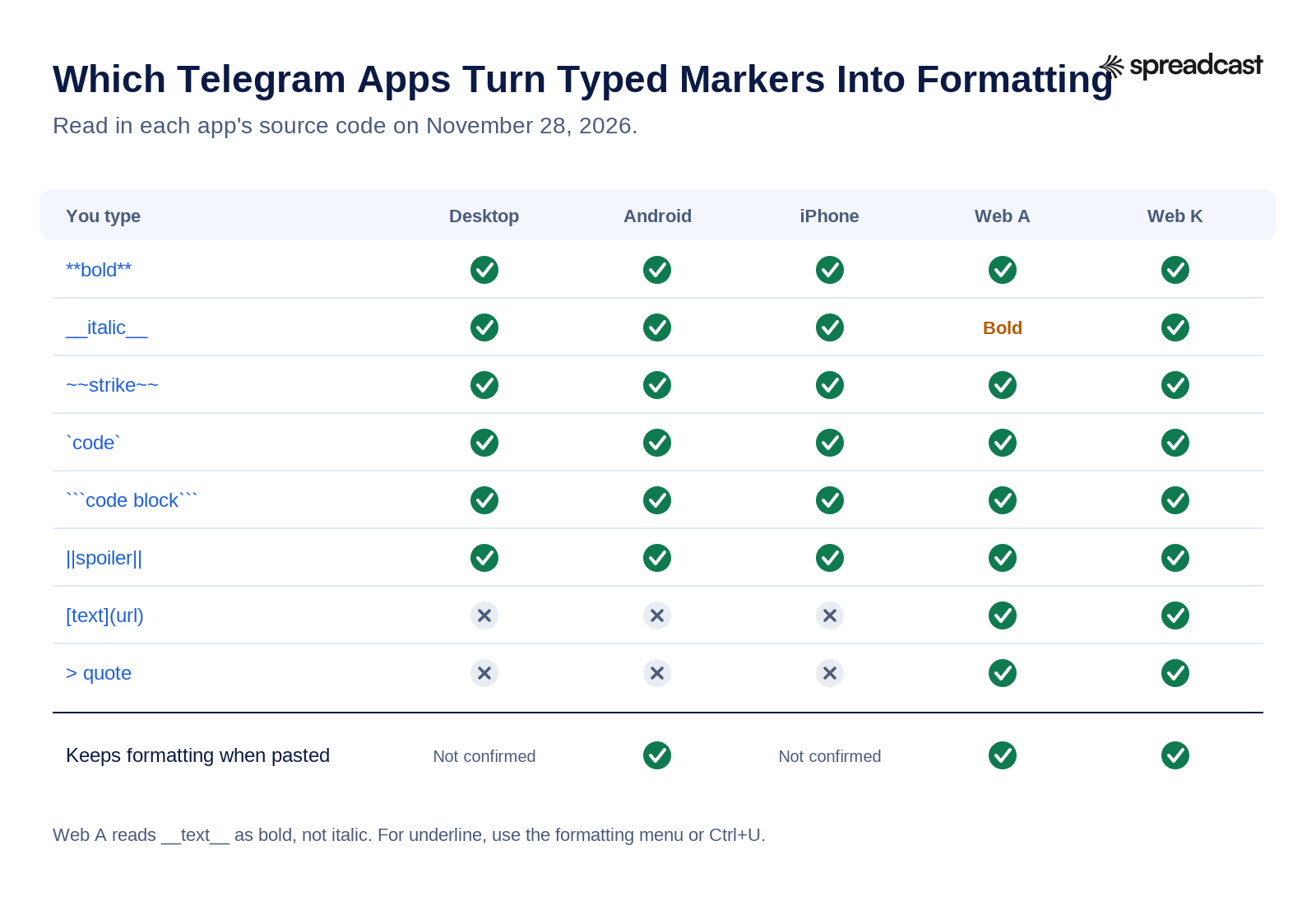
The same findings as a grid, with one more row for whether each app keeps formatting when you paste it.
Copy and Paste Formatted Text Into Telegram
Most people format in another place, a notes app, a document or a tool like this one, and paste. Whether the formatting survives depends on the Telegram app, because each one reads the clipboard differently. Pasting into the formatter itself works the other way: it takes the words only, so formatting from a document does not come along, and you add it with the toolbar.
The web apps, Web A and Web K, keep bold, italic, links, quotes and spoilers when you paste rich text. The Android app reads rich text from the clipboard too, and it has its own tag for spoilers.
Telegram Desktop's newest source code has a reader for pasted HTML, but we could not confirm that a released version ships it, so do not count on Desktop keeping pasted formatting. Ctrl+Shift+V in Desktop pastes plain text on purpose, which is handy when you want to drop formatting. The iPhone app reads Apple's own rich text format rather than web HTML, and whether a paste from a web page keeps its formatting there is something we could not confirm either. We did not check the native Mac app. In Desktop and on iPhone the plain text route works: the typed markers for bold, italic, strikethrough, monospace, code blocks and spoilers turn into formatting when you send.
That is how the formatter's Copy button is built. It puts two things on the clipboard at once: rich HTML, with each spoiler wrapped in both the web tag and Android's tag, and plain text written with Telegram's typed markers. The app you paste into takes whichever it understands. Links, quotes and underline only survive the rich half, so in Telegram Desktop and on iPhone add those with the formatting menu after pasting.
If your browser blocks clipboard access, which can happen inside another app's built in browser, the tool says so under the button. Select the preview and copy it by hand, or open the page in Safari or Chrome and press Copy again.
Telegram Fonts for Your Name, Bio and Channel
Telegram has no font setting for what other people see. Your name, your bio, a channel's name and a channel's description are plain text, and the message formatting above does not work there. The only way to get bold or script letters into those fields is to paste characters that already look styled.
That is what the Fonts mode does. It swaps each letter for a look alike character, mostly from Unicode's Mathematical Alphanumeric Symbols block, which has bold, italic, script, Fraktur (our Gothic style), double struck and monospace copies of A to Z. Typed as Daily Design Tips, our Bold Serif style gives 𝐃𝐚𝐢𝐥𝐲 𝐃𝐞𝐬𝐢𝐠𝐧 𝐓𝐢𝐩𝐬 and Script gives 𝒟𝒶𝒾𝓁𝓎 𝒟ℯ𝓈𝒾ℊ𝓃 𝒯𝒾𝓅𝓈. To Telegram those are symbols, not the letters D, a and i.
Pick Name, Bio, Channel Name or Channel Description at the top of the mode. Each field has a counter against its own limit, and a style that would not fit is marked Too long, because some styles add characters. Press Copy next to a style, then paste it into the field in Telegram's settings or the channel's edit screen.
There are two costs. In a test first published in March 2025, Adrian Roselli played fake bold and italic through five screen readers on six setups. VoiceOver on a Mac and on an iPad, NVDA and Narrator said nothing for the styled words, JAWS spelled every letter with its case and style, and only TalkBack on Android read them as normal words. The W3C lists swapping in look alike characters with no plain version as accessibility failure F71.
Search is the other cost. People find channels by typing words, and Telegram does not say whether its search matches a styled letter to the plain one. Keep the words people search for, such as your channel's topic, in plain letters. Style one short part at most, and keep message text in real formatting, which screen readers and search both read as normal words.
If you want the same kind of styles for Instagram, with notes on which ones show as boxes on older phones, our Instagram fonts generator uses the same set.
Telegram Character Limits for Posts, Captions, Bios and Names
These are the limits that matter when you format. Message and caption limits count the text after formatting is taken out.
| Where | Limit | Source |
|---|---|---|
| Text message or channel post | 4,096 characters | Bot API sendMessage |
| Photo or video caption | 1,024 characters | Bot API sendPhoto |
| Caption sent by a Premium user | 4,096 characters | Telegram client config, caption_length_limit_premium |
| Rich message from the Premium text editor | 32,768 characters | Telegram FAQ |
| Bio | 70 characters, 140 with Premium | Telegram client config, about_length_limit |
| First name and last name | 64 characters each | TDLib UserManager.h, marked as a server side limit |
| Channel or group name | 128 characters | TDLib ChatManager.h, marked as a server side limit |
| Channel or group description | 255 characters | TDLib ChatManager.h, marked as a server side limit |
Telegram does not publish the name, title and description limits on a help page. The numbers come from TDLib, Telegram's own client library, where they are labeled as server side limits.
How Telegram Counts Characters
Telegram measures message and caption length in Unicode code points. The config reference defines the maximum message and caption length as length in utf8 codepoints. In plain words: each letter, digit, space and simple emoji counts as one, and the formatting does not count at all, because the Bot API applies the limit after entities are parsed.
Styled letters count as one each too. 𝐁𝐨𝐥𝐝 is 4 code points, even though a computer stores each of those letters in two units. Emoji are less simple: a thumbs up with a skin tone is 2 code points, a flag is 2, and a family emoji built from three people joined together is 5. The formatter counts the same way, so its number matches what Telegram will accept.
Bots hit a second count. When you send formatting as a list of entities instead of HTML or Markdown, each entity's position and length are measured in UTF 16 code units, as Telegram's guide to styled text warns. A styled letter or most emoji take two units there. Get that wrong and the bold lands one letter off, or the request fails. HTML and MarkdownV2 avoid the problem, because Telegram works out the offsets for you.
Some styles in the Fonts mode add characters you do not see. Strikethrough, Underline, Double Underline and Slashed put a combining mark after every letter, so Daily Design Tips goes from 17 to 32 characters. Spaced Out adds a space between letters and reaches 33. With a 70 character bio that difference decides whether your line fits, which is why the Fonts mode checks every style against the field's limit.
For limits on the other networks you post to, our social media character limits page lists every post, caption and bio limit in one table.
Telegram Bot Formatting: HTML or MarkdownV2
A bot formats a message by setting parse_mode on sendMessage, sendPhoto and the other send methods. The Bot API offers three modes: HTML, MarkdownV2, and a legacy mode called Markdown that it keeps only for backward compatibility. You can also skip parse_mode and send a list of entities yourself.
Pick HTML if the text comes from users, a database or an AI model. HTML only has three characters you must escape in normal text, the less than sign, the greater than sign and the ampersand, and every language has a function for that. Most text never contains them.
Pick MarkdownV2 if you write messages by hand and like reading them in that form. It is shorter, but it has 18 reserved characters, including the full stop, the exclamation mark and round, square and curly brackets. Normal sentences are full of those, and one unescaped full stop makes the whole request fail.
Legacy Markdown looks tempting because it is forgiving, but it has no underline, strikethrough, spoiler or quote, and entities cannot be nested. Use it only to keep an old bot working.
The formatter's Bot API panel gives you both modern modes from the same post. Format it once with the toolbar, check the preview, then switch between the HTML and MarkdownV2 tabs and press Copy for the one your code uses.
Long rich messages sent with sendRichMessage are a different case. Their Rich Markdown reads two asterisks or two underscores as bold and one asterisk as italic, so MarkdownV2 from this tool is not meant for them.
If you post to a channel from an AI assistant rather than your own bot, our Telegram MCP server page explains how Claude or ChatGPT can send posts to a channel through Spreadcast, and the social media MCP server page covers the other networks it reaches.
Telegram HTML Formatting and MarkdownV2 Side by Side
Every format the Bot API supports in both modes, from its formatting options section (Bot API 10.5, dated 22 November 2026). Where a tag name has a hyphen, we describe it in words.
| Format | HTML | MarkdownV2 |
|---|---|---|
| Bold | <b>words</b> or <strong>words</strong> | *words* |
| Italic | <i>words</i> or <em>words</em> | _words_ |
| Underline | <u>words</u> or <ins>words</ins> | __words__ |
| Strikethrough | <s>words</s>, <strike>words</strike> or <del>words</del> | ~words~ |
| Spoiler | The tg spoiler tag, or a span with the class tg spoiler (both written with a hyphen after tg) | ||words|| |
| Text link | <a href="address">words</a> | Words in square brackets, then the address in round brackets |
| Inline code | <code>words</code> | `words` |
| Code block | <pre>code</pre> | ``` on the lines before and after |
| Code block with a language | A code tag inside a pre tag, with the class language, a hyphen and the name, such as python | ```python on the opening line |
| Quote | <blockquote>lines</blockquote> | > at the start of every line |
| Expandable quote | <blockquote expandable>lines</blockquote> | **> on the first line and || at the end of the last |
| Escaping | < > & in text; also " and any numeric entity | A backslash before each of the 18 reserved characters |
The HTML mode also has a tag for custom emoji and one for dates. Per the Bot API, custom emoji need a bot that bought extra usernames on Fragment, or a bot whose owner has Premium when it sends to private chats and groups.
The Same Post in Telegram HTML and MarkdownV2
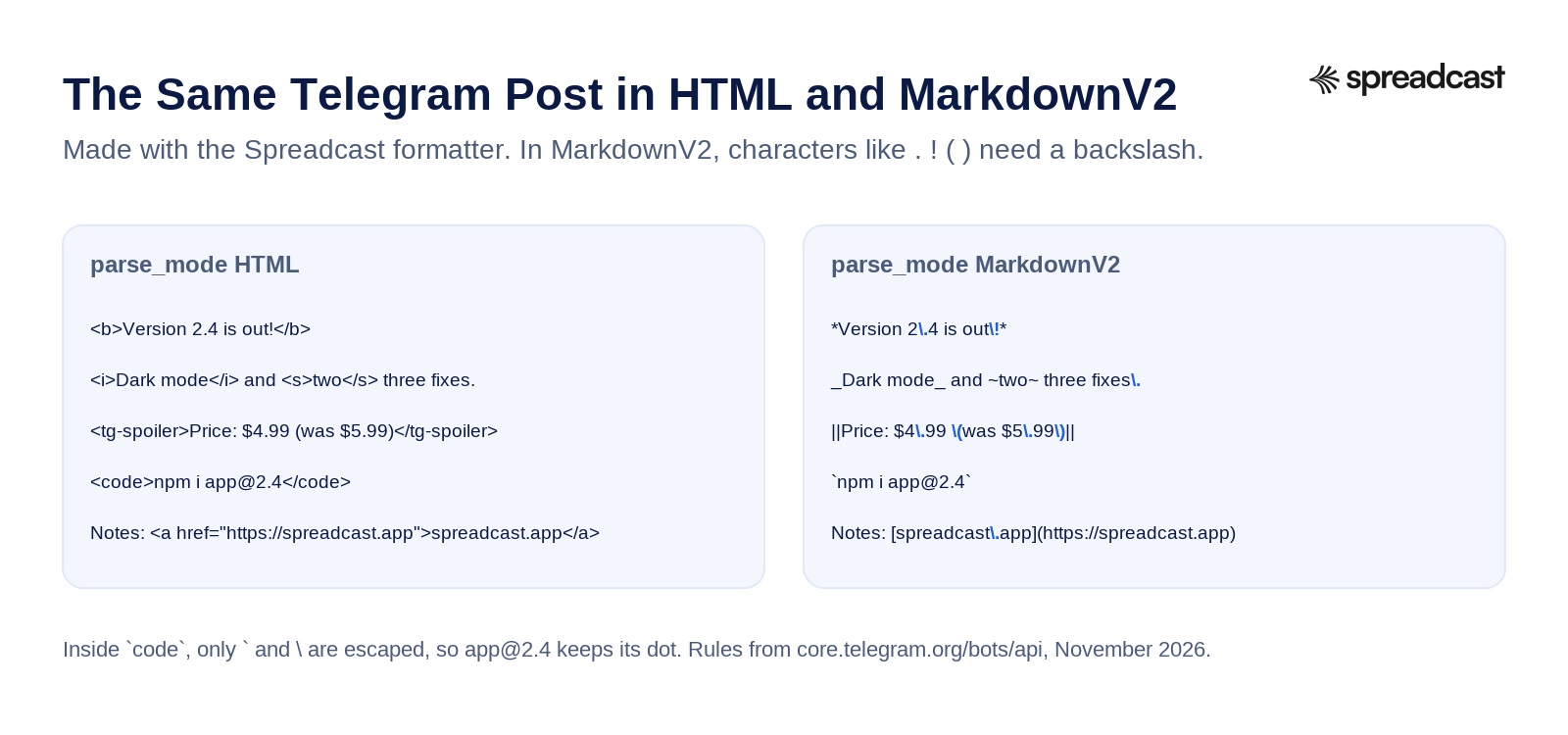
A short post made in the formatter, shown in both parse modes, with every backslash MarkdownV2 needs picked out in blue.
MarkdownV2 Escaping Rules for Telegram Bots
MarkdownV2 is strict. Outside of code and links, these characters must have a backslash in front of them: underscore, asterisk, both square brackets, both round brackets, tilde, backtick, greater than, hash, plus, minus, equals, vertical bar, both curly braces, full stop and exclamation mark. That is 18 characters, and the Bot API lists them all.
Inside inline code and code blocks the rule flips: only the backtick and the backslash need escaping, and everything else stays as it is. Inside the round brackets of a link, only the closing round bracket and the backslash do. The backslash itself needs a backslash almost everywhere, a point the docs make in one line that many people miss.
The second trap is italic next to underline. Two underscores always mean underline, read greedily from left to right, so italic text that ends where underline ends produces three underscores in a row and breaks. The Bot API's fix is an empty bold entity, two asterisks, between them. The formatter adds it for you: when we made two words italic and underlined the second one, the MarkdownV2 came out as _a __b__**_ with the separator in place.
Prices, version numbers and dates carry full stops, and an exclamation mark at the end of a sentence fails as well. In our test post, Price: $4.99 (was $6.99). became Price: $4\.99 \(was $6\.99\)\. with five backslashes added, and the dollar signs left alone because they are not on the list.
If your text comes from somewhere you do not control, escape everything by code before you add your own formatting around it, or switch to HTML, which needs far less escaping. Libraries can do the escaping for you: the README of one open source TypeScript MarkdownV2 formatter says every method escapes the input it gets.
How to Fix the Telegram Can't Parse Entities Error
When the Bot API cannot read your formatting, it answers 400 Bad Request with an error that starts can't parse entities, followed by the reason. A real one from a report on Telegram's own Bot API server repository reads: Bad Request: can't parse entities: Can't find end tag corresponding to start tag b. The text being sent was <b>TEST <3</b>, which looks correct.
The cause there was not the HTML at all. The developer sent the message in a web address, and the ampersand in < split the address into two fields, so Telegram only received <b>TEST and never saw the closing tag. A TDLib developer replied that the error message was correct. The fix in the thread was to URL encode the text; sending it in the request body as JSON avoids the problem too.
The reasons that follow can't parse entities come from TDLib, the library behind the Bot API, and you can read them in its message entity code. The common ones and what they mean:
Character '.' is reserved and must be escaped with the preceding '\'. You sent MarkdownV2 with an unescaped reserved character, here a full stop. Escape all 18 characters in normal text, or switch to HTML.
Can't find end of the entity starting at byte offset, followed by a number. A marker was opened and never closed, often a single underscore inside a username or a file name such as snake_case. The number is a byte position in the UTF 8 text, so count bytes, not letters, when you look for it.
Unsupported start tag, with the tag name. You used an HTML tag Telegram does not accept. The Bot API says only the listed tags are supported, so a paragraph tag, a line break tag or a list will fail. Use a real line break in the text instead.
Unclosed start tag, Unmatched end tag or Unexpected end tag, with a byte offset. Tags are not properly paired or nested. Remember that entities must fully contain each other, and that a less than sign in plain text has to be written as <.
The formatter avoids all of these for text it produces, because it escapes every special character and only uses tags the Bot API lists. Paste your post in, format it with the toolbar, check the preview, and copy the HTML or MarkdownV2 from the Bot API panel.
Legacy Markdown and Nesting Rules
Old bots often still send parse_mode Markdown, without the V2. That mode reads single asterisks as bold, single underscores as italic, square and round brackets as links, and backticks as code. It cannot do underline, strikethrough, spoilers or quotes, and the Bot API says entities in it must not be nested.
Escaping is different and awkward. Outside an entity you escape only the underscore, asterisk, backtick and opening square bracket. Inside an entity you cannot escape at all, so the docs show closing the entity and reopening it: to write snake_case in italic you send _snake_\__case_. If your old bot breaks on names with underscores, that is why, and moving to HTML is the simplest fix.
The nesting rules for the modern modes are the same for HTML and MarkdownV2. If two entities share characters, one must sit fully inside the other. Bold, italic, underline, strikethrough and spoiler can contain each other and links, and can sit inside links, but not inside code. Block quotes and expandable block quotes cannot be nested inside each other.
We Ran This Telegram Text Formatting Tool on a Real Post
On 28 November 2026 we made a short release post in the editor with the toolbar buttons, then ran the same post through the formatter's own code with npx tsx. These are the outputs exactly as printed, one row per line or block of the post; blank lines between paragraphs are left out of the table. The emoji is a party popper.
| What we made in the editor | Bot API HTML | MarkdownV2 |
|---|---|---|
| Version 2.4 is out, made bold with the Bold button, then the emoji | <b>Version 2.4 is out</b> 🎉 | *Version 2\.4 is out* 🎉 |
| Dark mode finally arrived, plus three two bug fixes. with Dark mode in italic and three struck through | <i>Dark mode</i> finally arrived, plus <s>three</s> two bug fixes. | _Dark mode_ finally arrived, plus ~three~ two bug fixes\. |
| Exports are now twice as fast. set as a quote, with twice as fast underlined | <blockquote>Exports are now <u>twice as fast</u>.</blockquote> | >Exports are now __twice as fast__\. |
| Next week: a surprise for Pro users, hidden with the Spoiler button | The same words inside the tg spoiler tag | ||Next week: a surprise for Pro users|| |
| Price: $4.99 (was $6.99). Use code SPRING25! with SPRING25 in Monospace | Price: $4.99 (was $6.99). Use code <code>SPRING25</code>! | Price: $4\.99 \(was $6\.99\)\. Use code `SPRING25`\! |
| const x = a < b && c > d; set as a Code block | <pre>const x = a < b && c > d;</pre> | ``` on the line before, then const x = a < b && c > d; untouched, then ``` on the line after |
The tool counts 214 characters for this post, or 215 in UTF 16 units because of the emoji. Blank lines between paragraphs were kept in both outputs.
What the Test Showed
The HTML escaped the less than, greater than and ampersand signs only inside the code block, where they appeared, and left the dollar signs and brackets alone. The MarkdownV2 did the opposite: it escaped the full stops in 2.4, 4.99 and 6.99, the round brackets and the exclamation mark, but nothing inside the code block, which matches the Bot API's rule that only backticks and backslashes need escaping there. The underline inside the quote came out as a real underline tag in HTML and as two underscores in MarkdownV2. The code block has no language, so the HTML is a plain pre tag.
We also made a link line: Notes:, then the words release notes linked with the Link button to an example address ending in notes_v2.4. The HTML came out as an a tag with the address in its href attribute. In MarkdownV2 the label went in square brackets and the address in round brackets with the underscore and the full stop left as they were, because inside a link address only the closing bracket and the backslash are escaped.
The plain text half of Copy wrote the post with Telegram's typed markers: two asterisks for bold, two underscores for italic, two tildes, two vertical bars and single backticks, a greater than sign and a space for the quote, and three backticks on the lines around the code. Twice as fast came out as plain words, since no Telegram app has a typed underline, and the link came out as the label in square brackets followed by the address in round brackets.
Characters inside monospace stay as they are. We typed a, two asterisks and b, made the asterisks Monospace and the whole line Bold. It came out as <b>a <code>**</code> b</b> in HTML and *a `**` b* in MarkdownV2.
For the caption counter we made a line of 1,030 letters bold. The code counted 1,030, because the formatting is not text, and by the tool's code that is 6 over Telegram's 1,024 for a caption.
In the Fonts mode we typed Daily Design Tips into Channel Name. Every style from the mathematical block came out at 17 characters against the 128 limit, while Strikethrough, Underline, Double Underline and Slashed came out at 32 and Spaced Out at 33.
Telegram Text Formatter Tools Compared
We opened the free Telegram formatters that come up for these searches on 28 November 2026 and noted what each one does. Ours is first and marked as ours; the notes on it list what it does not do as well.
- 1
Spreadcast Telegram Text Formatter
Free, no accountBest for posting by hand and for bots from one draft
A rich text editor that works like Telegram's own message box, with every common format on a toolbar and Telegram Desktop's shortcuts: bold, italic, underline, strikethrough, spoiler, monospace, code blocks, quotes and links. The formatting shows in the box with no markers, next to a live preview styled like a channel post and a counter for 4,096 or 1,024 characters.
Copy puts rich text and Telegram's typed markers on the clipboard together, so formatting survives a paste into Telegram Web or Android, and the markers for bold, italic, strikethrough, code and spoilers convert when you send from Desktop or iPhone. The Bot API panel gives HTML and MarkdownV2 with escaping done, and the Fonts mode makes Unicode fonts for names, bios and channel details with a counter for each field.
Pros
- Formats in place, with no markers in the box
- HTML and MarkdownV2 from one draft
- Per field counters for name, bio and channel
Cons
- No expandable quotes, custom emoji or dates yet
- Code blocks have no language field
- 2
Best if you only want Unicode bold and lists
Styles text with Unicode bold, headings and lists, with a preview and a 4,096 and 1,024 character counter. It does not make spoilers, quotes or code, and it gives no HTML or MarkdownV2 for bots.
- 3
Best for MarkdownV2 only
Writes MarkdownV2 with the escaping done, with a preview and a counter. When we checked it had no HTML output, no quotes and no links.
- 4
Best if you need an expandable quote in MarkdownV2
A visual editor that turns your text into MarkdownV2 and supports expandable quotes, which ours does not yet. It has no HTML output and no rich copy for pasting into the apps.
- 5
Check its MarkdownV2 before you use it
A general fancy text site with a Telegram page. It describes __italic__ as MarkdownV2, which is not right for bots: in MarkdownV2 two underscores mean underline and italic is a single underscore.
How We Checked This
Every fact on this page was read on 28 November 2026. For the Bot API we used the live documentation at version 10.5, dated 22 November 2026, and copied the tag list, the MarkdownV2 syntax, the escaping rules and the rich message notes from it. Limits come from the Bot API, Telegram's client config reference and TDLib's source, and the user facing formats from Telegram's FAQ and the blog posts it links to.
For the apps, we read source code rather than guessing from screenshots: Telegram Desktop's input field and menu strings, the native Mac app's shortcut list and strings, the Android app's chat input and text field, the iPhone app's strings and Web K's formatting bar. The typed markers each app converts and the Web A shortcuts come from the same kind of reading, done the same day. The error messages are quoted from TDLib's code and from a public report on Telegram's Bot API server repository.
The test section is a post made in the editor and run through the tool's own code with npx tsx, with outputs copied as printed. We compared the other formatters by opening them on the same day. For the two videos we read each watch page, its description and its chapters.
What we did not do: we did not send test posts from every app to a live channel. So paste on iPhone, and whether a released Desktop version keeps pasted formatting, are marked as unconfirmed above, the native Mac app's paste was not checked, and the Web A reading of two underscores as bold comes from its code, not a live test. If something here no longer matches the app you use, the menu or the shortcut is the safe route.
More Free Telegram Tools and Guides
Once a post is formatted, the next question is how it does. The Telegram channel stats checker shows any public channel's subscribers, average views per post, view rate and the hours its posts get the most views. To turn those numbers into one rate you can compare, use the engagement rate calculator, which has a Telegram setting, and our guide to the best time to post on social media covers timing on the other networks.
For growth, how to grow a Telegram channel covers what to post and where to find readers. If you need the words as well as the formatting, the social media caption generator drafts post text you can then format here. All our free tools are listed on the free tools help page.
Schedule Telegram Posts With Spreadcast
Spreadcast posts to Telegram channels through its bot, @spreadcast_bot, which you add to your channel as an admin that can post messages. It sends text, a photo, an album of several photos with the text under the first, or a video. Text longer than 1,024 characters does not fit under a picture, so Spreadcast sends it as its own message after the media.
One thing to know before you plan formatted posts: Spreadcast sends post text as plain text today. It does not apply bold, spoilers or other formatting when it publishes, and typed markers such as two asterisks arrive in the channel as typed. For a post that depends on formatting, format it here, paste it into Telegram and use Telegram's own Schedule Message, which the Telegram FAQ says you get by holding the Send button.
Spreadcast handles the work around the post. It writes and designs posts in your brand, sends the same post to Telegram and your other networks, and reads the views and reactions of the posts it sent to public channels along with your subscriber count in its analytics. The Telegram scheduler page compares it with Telegram's own scheduler and other tools, and the guide to scheduling Telegram channel posts walks through each way to do it.
If you post to many networks, start with the social media scheduler, plan the week in the social media content calendar, or read how to automate social media posts and how Spreadcast can auto post to social media. The first three posts are free, and the pricing page shows what each plan includes.
Frequently Asked Questions
How do you bold text in Telegram?
Select the words and press Ctrl+B, or Cmd+B on a Mac. On a phone, select them and pick Bold from the menu (Format on iPhone). Or type two asterisks on each side, which every Telegram app turns into bold when you send.
How do I send a spoiler in Telegram?
Select the words and choose Spoiler from the formatting menu, press Ctrl+Shift+P on a computer, or type two vertical bars on each side. For a photo or video, choose Hide with Spoiler in the attachment menu.
How do I underline text in Telegram on my phone?
Select the words, then tap Format and Underline on iPhone, or Underline in the selection menu on Android. Telegram has no typed marker for underline.
How do you quote in Telegram?
Select the lines and choose Quote from the formatting menu, or press Ctrl+Shift+period in Telegram Desktop. In the web apps, starting a line with a greater than sign and a space also works.
Does Telegram support markdown?
Partly. The apps convert typed markers such as two asterisks for bold and two tildes for strikethrough. Bots can send MarkdownV2 or HTML by setting parse_mode.
Can you change the font in Telegram?
Not for what others see. For your name, bio or channel name you can paste Unicode look alike letters, which the Fonts mode above makes, but screen readers and search may not read them as words.
Why does my bot get can't parse entities?
The formatting in the text is invalid for the parse mode you chose: an unescaped reserved character in MarkdownV2, an unclosed marker or tag, or an HTML tag Telegram does not support.
Where These Facts Come From
Every outside number, rule and price on this page links to the page it was taken from.
- Can I format text and write long posts?Telegram FAQ
- Bot API: formatting optionsTelegram Bot API
- Bot API: sendMessageTelegram Bot API
- Bot API: sendPhotoTelegram Bot API
- Client configurationTelegram API documentation
- config constructorTelegram API documentation
- Styled text with message entitiesTelegram API documentation
- Reactions, spoilers, translation and QR codesTelegram blog
- Hidden media, zero storage usage and new drawing toolsTelegram blog
- Replies 2.0, adjustable link previews and name colorsTelegram blog
- Message effects and hashtag searchTelegram blog
- Bot API: rich message formatting optionsTelegram Bot API
- libprisma supported languagesTelegram on GitHub
- Telegram Desktop input field shortcutsdesktop app lib_ui on GitHub
- Telegram Desktop English stringsTelegram Desktop on GitHub
- Telegram for macOS shortcut listTelegram on GitHub
- Telegram for Android chat inputTelegram for Android on GitHub
- Telegram for Android text field menuTelegram for Android on GitHub
- Telegram for macOS English stringsTelegram on GitHub
- Telegram for iOS English stringsTelegram on GitHub
- Telegram Web A source codeTelegram Web A on GitHub
- Telegram Web K formatting barTelegram Web K on GitHub
- TDLib message entity parserTDLib on GitHub
- TDLib UserManager, name length limitTDLib on GitHub
- TDLib ChatManager, title and description limitsTDLib on GitHub
- Bad Request: can't parse entities, issue 265Telegram Bot API server on GitHub
- Telegram MarkdownV2 formatter for TypeScriptGitHub
- Mathematical Alphanumeric Symbols code chartUnicode Consortium
- Don't use fake bold or italic in social mediaAdrian Roselli
- Failure F71: using text look alikes to represent textW3C
- How to format text in Telegram, videoEVANS 2.0 on YouTube
- How to use the Telegram rich text editor, videoBOZ HUB on YouTube
Researched and written by Mark Weizer. Last checked on November 28, 2026.